The types of withdrawals you will see are:
- Bill Payments
- Transfers between accounts
- Direct Debits (Generally Bank Ruled)
- Bank/Interest Fees (Bank Rules)
- Drawings (Bank Rule)
- Superannuation
- ATO payments
- Miscellaneous
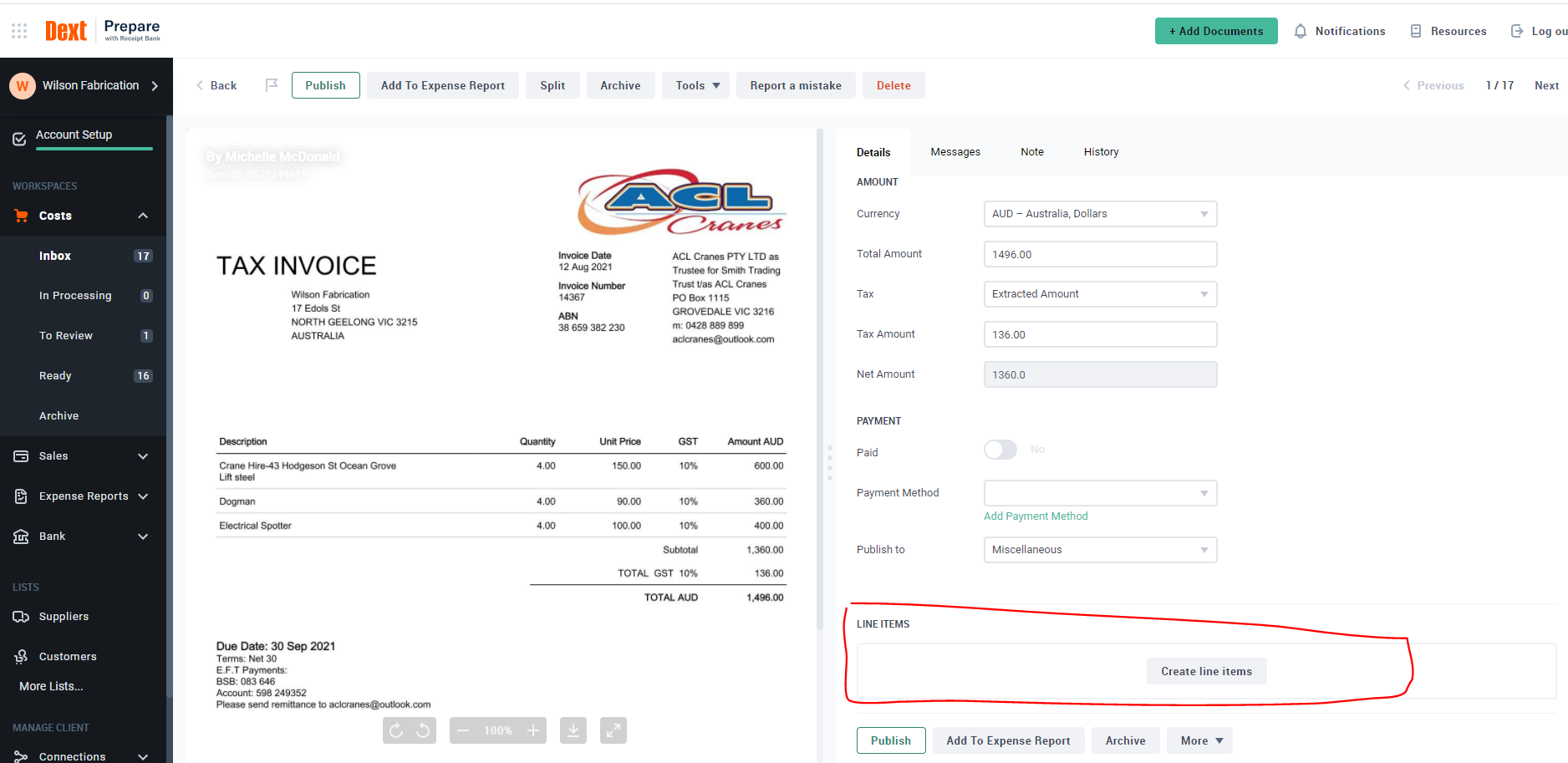
How to reconcile a payment against a bill/receipt
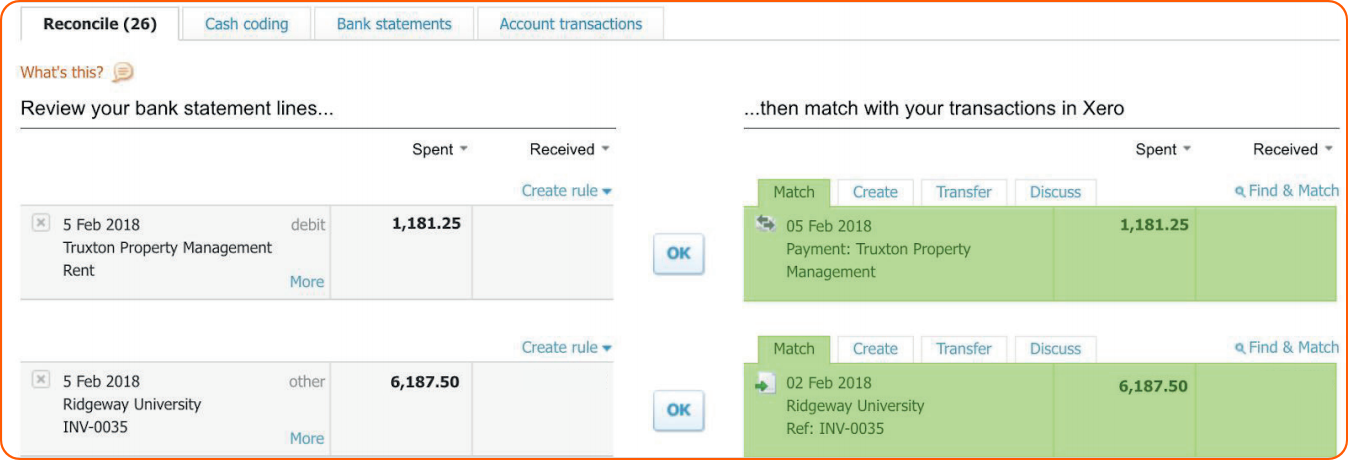
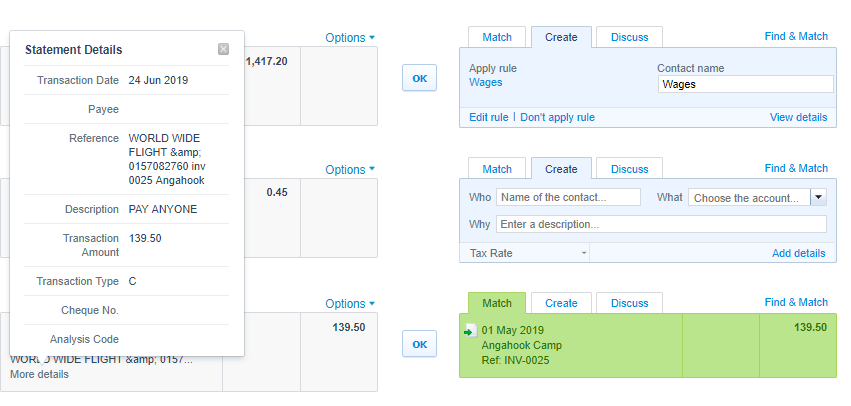
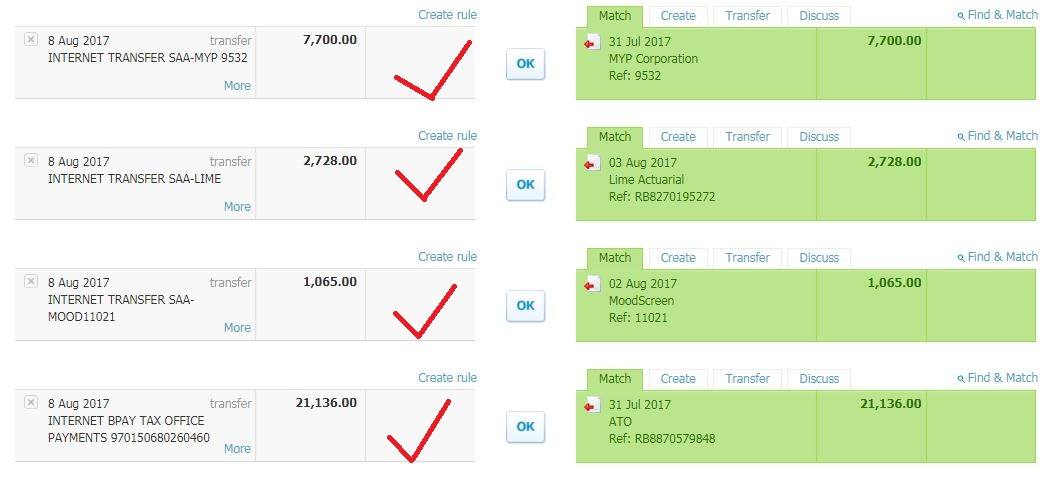
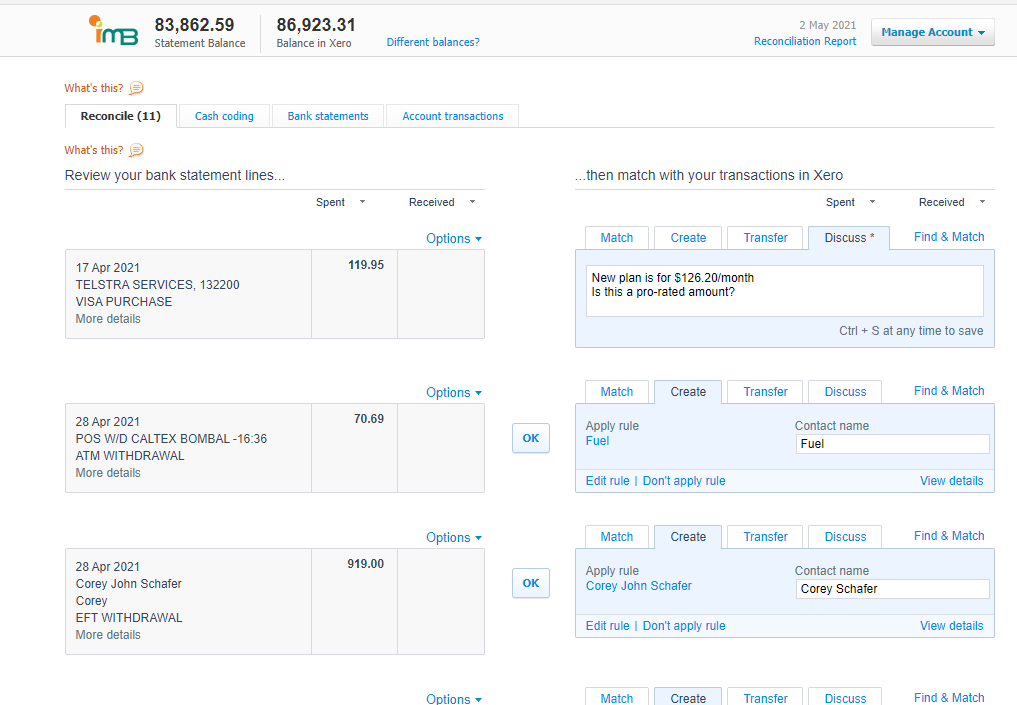
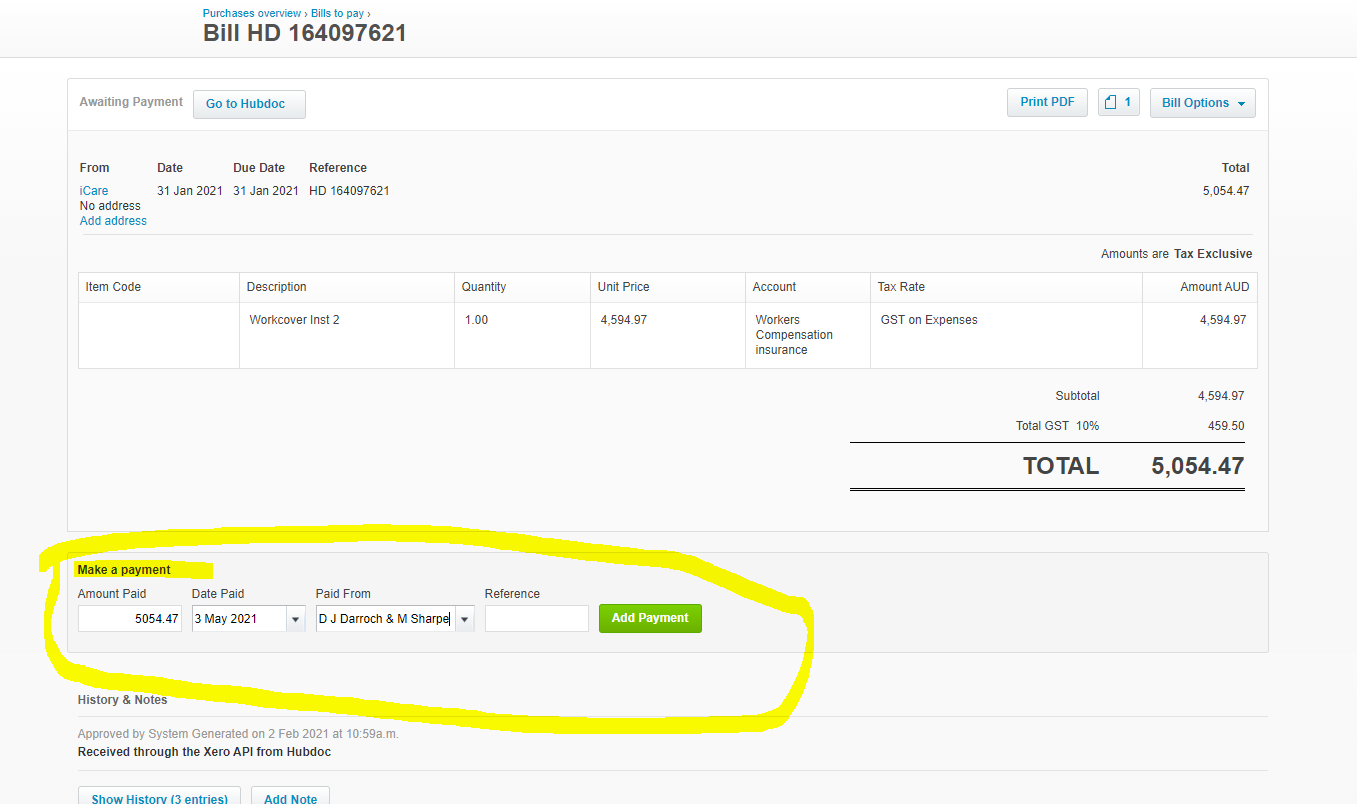
For the withdrawals, first reconcile all the receipts and bills in Xero that have a suggested match and appear as green. Check the description from the bank feed on the left to the suggested match on the right. If you are happy they match Select Ok on each withdrawal. We are looking for supplier names to match, dates, totals and invoice numbers.
For the remaining withdrawals:
- These are either multiple bills paid
- Transfers between business accounts
- Have a bank rule associated with them
- Wages/Superannuation
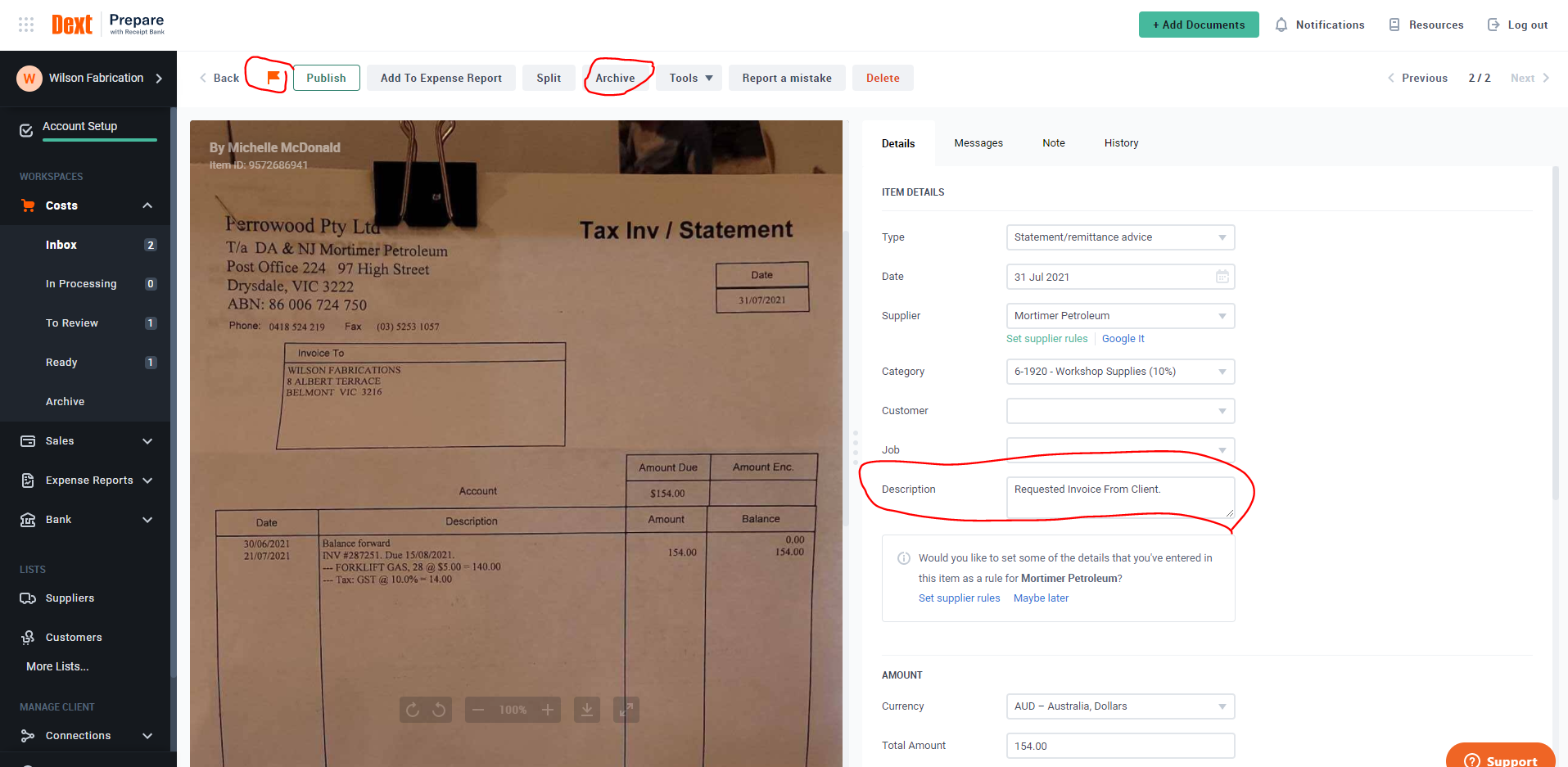
- Need to be queried.
How to reconcile multiple bill payments
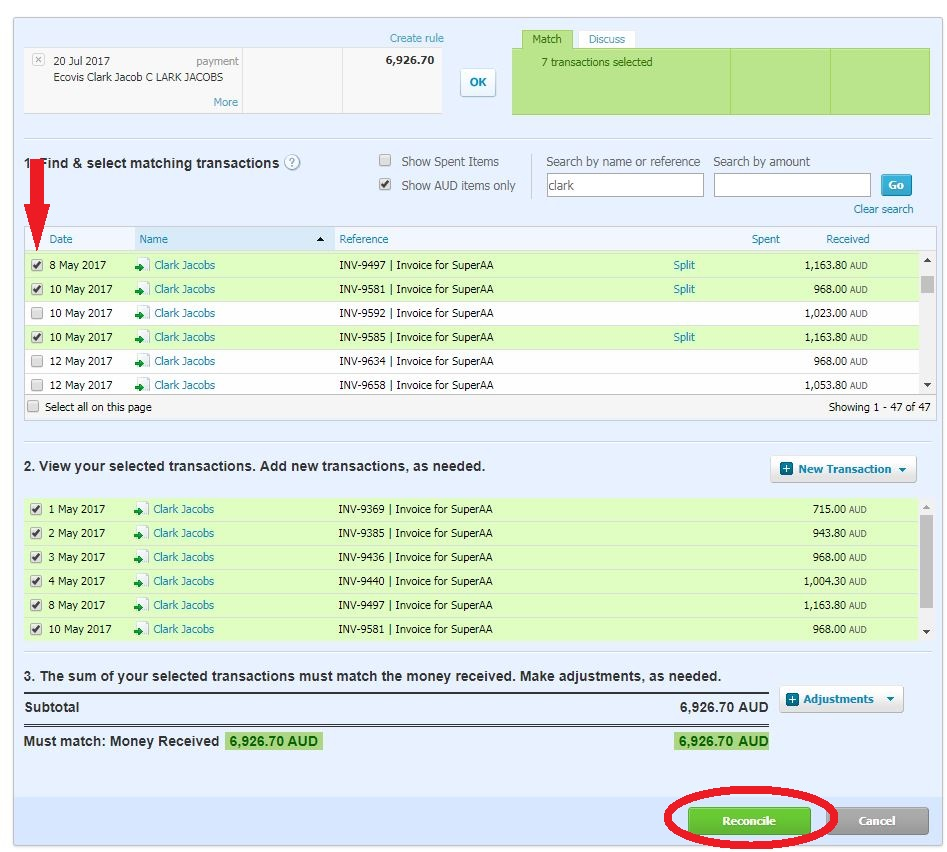
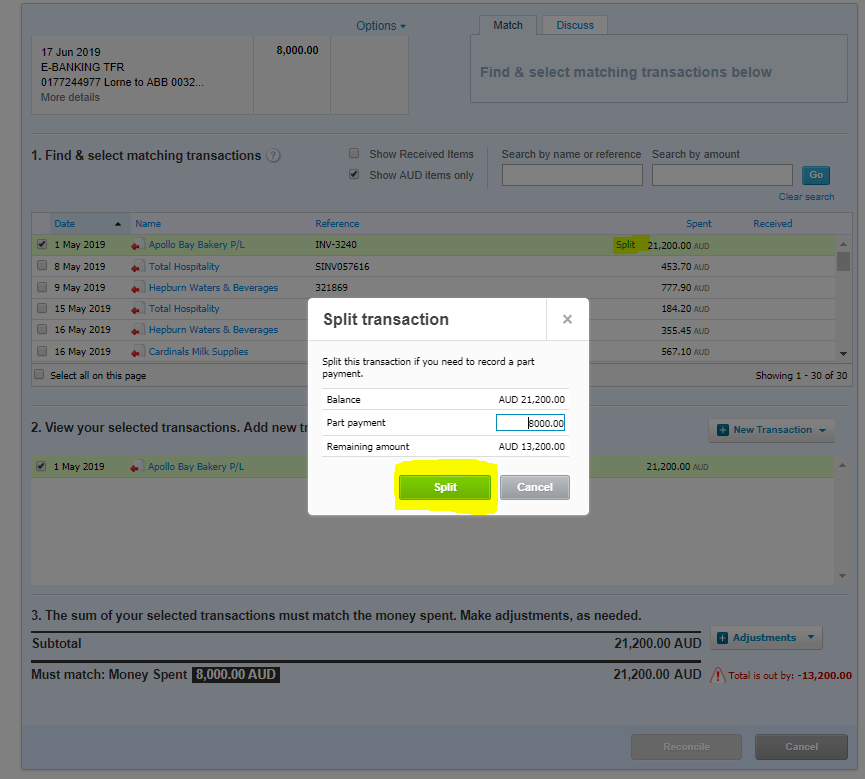
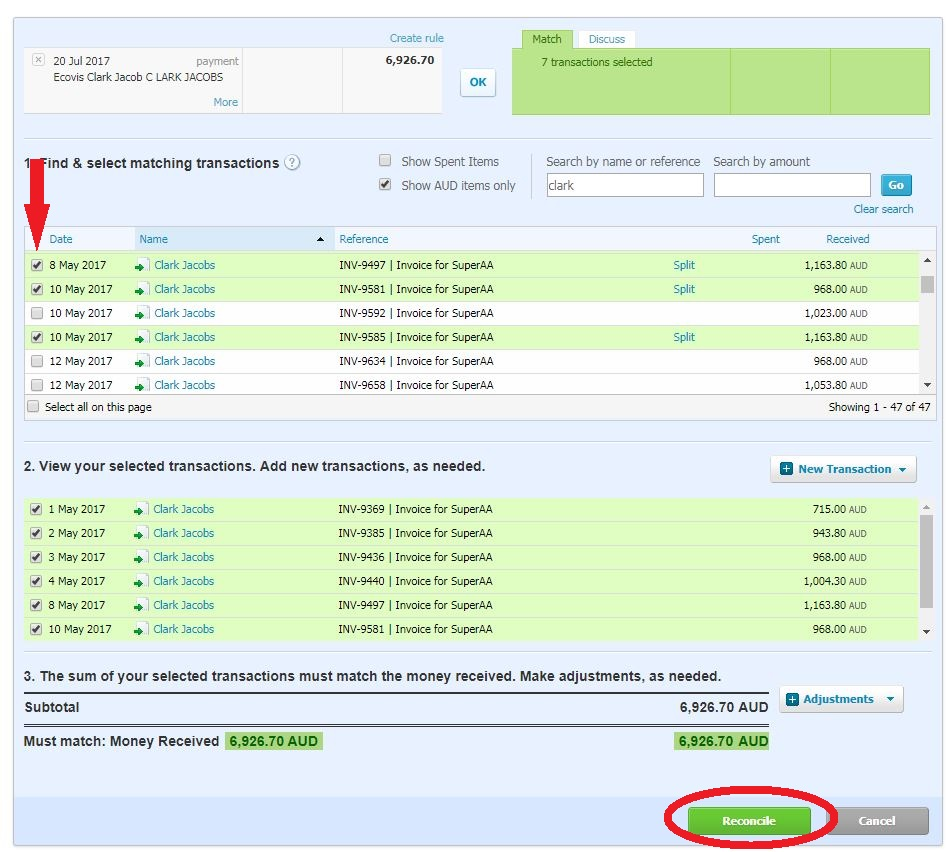
If the withdrawal is made up of multiple invoices paid you will need to select "Find & Match" > Select Invoices > Reconcile
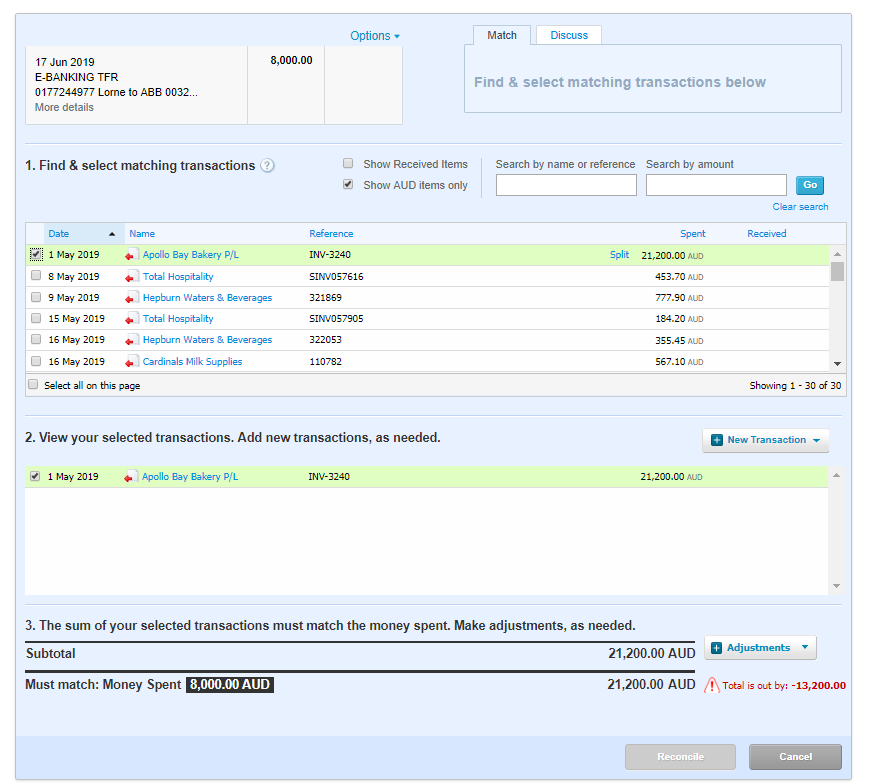
You will only be able to click "Reconcile" if the invoices "ticked" match the total amount paid. Usually for multiple payments a remittance advice is supplied so we can match the invoices up. If you cannot match you would request a remittance advice from client.
Search supplier name and select the corresponding invoices that relate to the payment. Then Select Reconcile
How to Reconcile a Bank Transfer
For transfers between bank accounts you can either manually reconcile the transfer or you can create a transfer rule.
Below you will find instructions below on how to complete both.
Manually reconcile transfer between two accounts
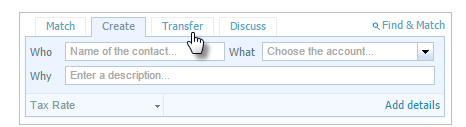
- On the bank reconciliation screen, next to the bank statement line you want to reconcile, click the Transfer tab
- Select the bank account
- If the statement line shows the withdrawal, select the bank account or credit card you transferred the money to.
- If the statement line shows the deposit, select the bank account you transferred the money from
- Select Ok
Reconcile transfer between two accounts via bank rule
Please refer to Zendesk for instructions on how to create transfer rule.
How to reconcile bank rules
For Reoccurring transactions that run through any bank/credit card account a bank rule is created.
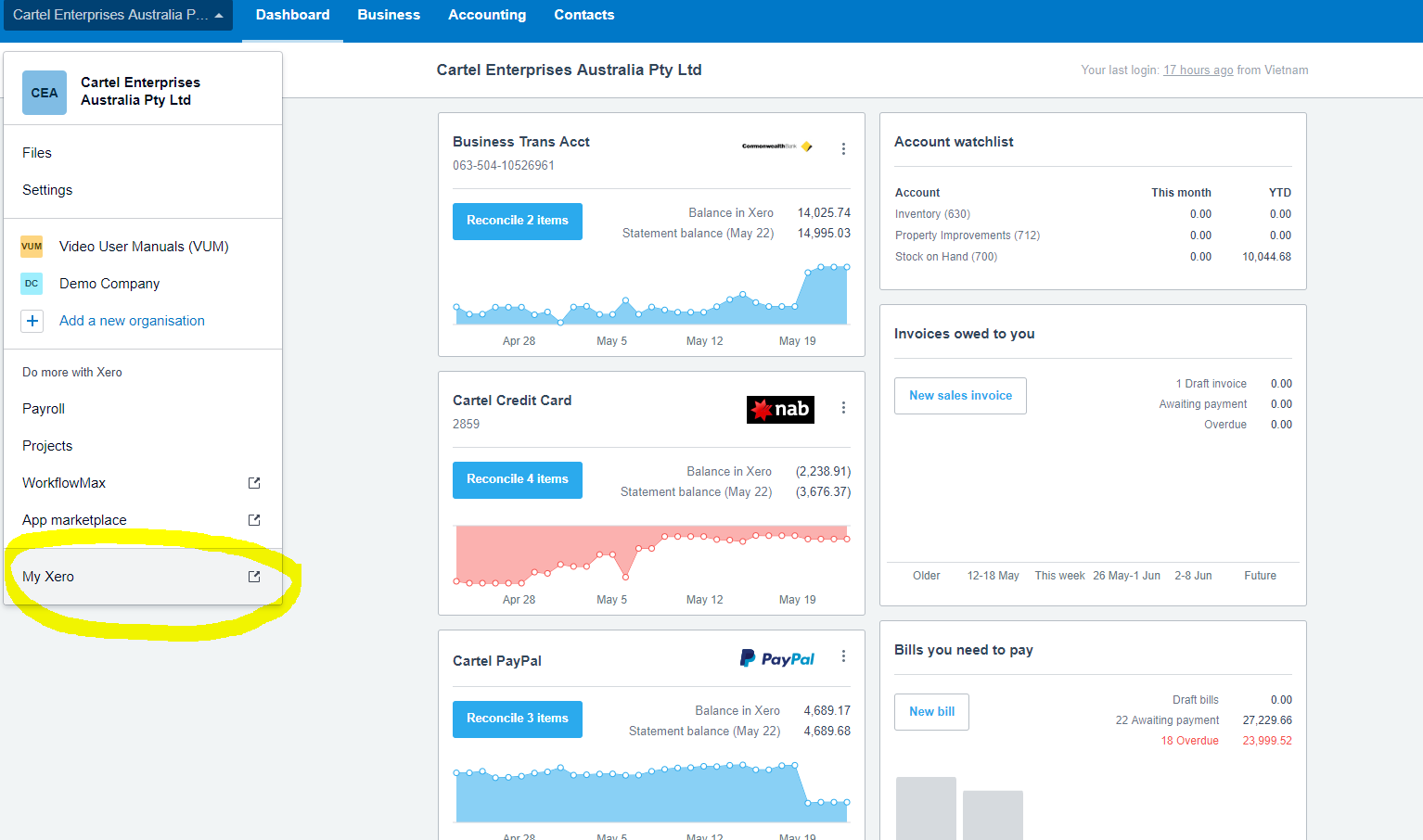
To reconcile all transactions that match to a bank rule at the same time, click on "Reconcile" on the dashboard and then "Cash Coding".
The transactions that appear in "Cash Coding" will either have a rule, or appear because they do not have a potential match for a "Purchase" or "Sale" already entered in Xero.
Review that you are happy with the rule and the allocation.
To reconcile these, click "Save & Reconcile All" and then click "Okay".
If there are no rules that match, when you click "Save & Reconcile All", a message will appear notifying you that there are no transactions to reconcile. Click "Okay" and go back to the main "Reconcile" screen to continue.
If you need to create a rule please refer to Zendesk article.
How to Reconcile Wage Payments
Wages can be reconcile wages in two wages depending on how the client makes there wage payments.
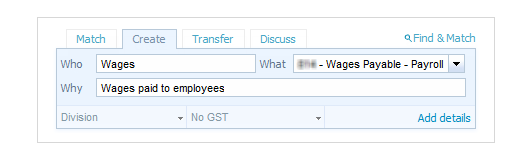
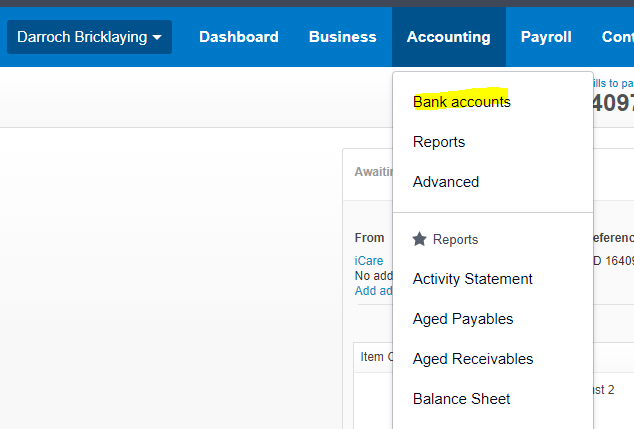
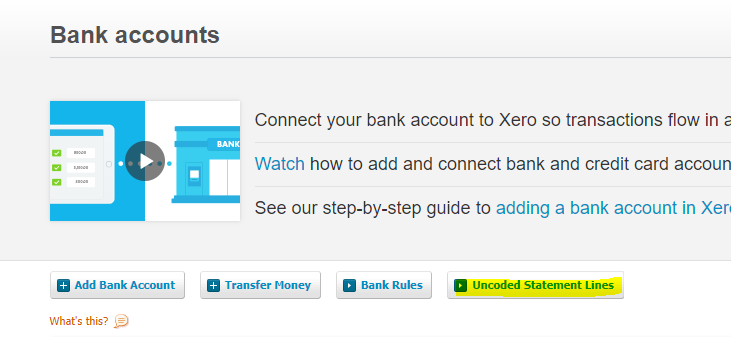
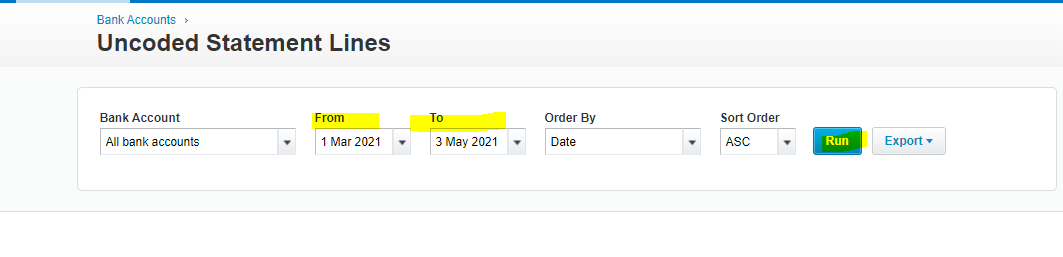
- ABA File: If the wages are paid via a ABA file, the description that comes through the bank line will be generic and not have any reference to wages. If this is the case you will need to reconcile wage payments manually and check payrun to obtain the wage figure. Refer video below.
- Direct Transfer: If the wages are manually paid by the client, the client will enter some sort of description when they complete the transfer. Based on this description and if they use the same description each time we could potentially create a bank rule for this.
If a bank rule can be created please review to steps on how to create a bank rule and allocate wages to the below account code "Wages Payable - Payroll ".
How to Reconcile Superannuation Payments
To reconcile a Superannuation payment:
- "Who": Please enter either Superannuation if it is paid in batch payment, if this is paid individually to superfund, please enter the superannuation fund name.
- In the "What" field, choose the account "Superannuation Payable (or Liability)", with the account code beginning with an "8"
- Why: Please write a explanation of what this payment is for. I.e Superannuation payment Q1
- Click "Ok" to reconcile transaction
Again if the superannuation payments has the same description each time it is paid then a rule can be created for this.
How to Reconcile ATO payments
Generally ATO Payments are coded against the bill raised in system by us, ATO integrated client account or per the BAS. i.e. split between GST and PAYG Withholding. Follows steps above if needs to be coded to bill or via manually reconciliation.
How to manually reconcile items
You would use manual reconcile for all other items that cannot be matched per the above steps:
Who: This is who is making the payment
What: Which chart of account would you like this to be allocated.
Why: Description on deposit
Tax Rate: Check to make sure the tax rate is correct.
Select OK once you are happy