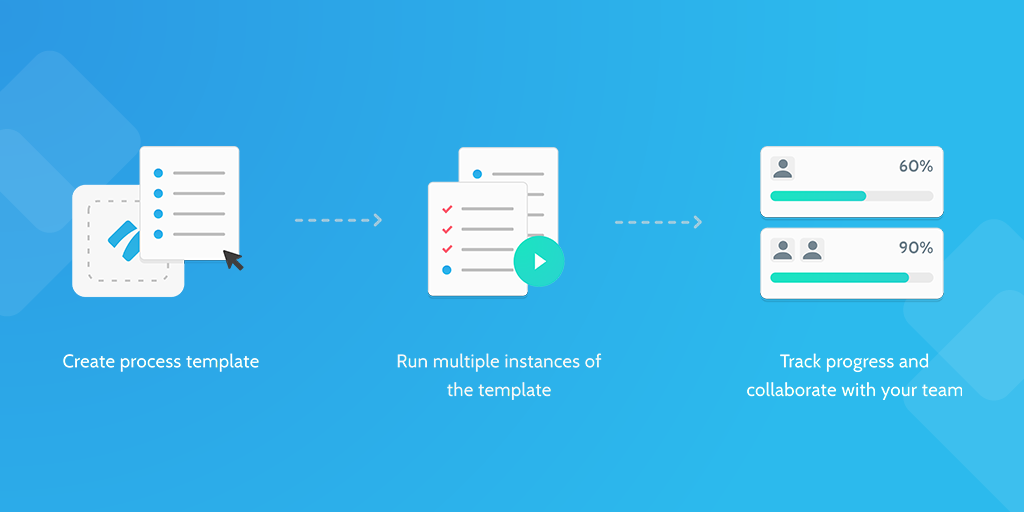
What is Process Street?
Request a demo
Share
Copy link
Edit
in
Process Street
Templates
/
Cabinet Vision
Uncategorized
Cabinet Vision
Cabinet Vision
1
To start up Cabinet Vision
2
What's New in Cabinet Vision Version 11
3
Create a new job
4
Fill out new job details Job Properties
5
Setting up rooms
6
Drawing a wall
7
Drawing your cabinets from the library and placing objects
8
Reports
9
Cabinet Section Editor
10
CAD Shaping and Constraints
11
Draw Guides and Schedules
12
Materials
13
Profiles and Moldings
14
PhotoVision
15
Drawing Counter Tops in Cabinet Vision
16
Intellijoints
17
Cabinet Vision Version 11 - Layout Level
To start up Cabinet Vision
Once you click on the CV button. Type in your password if you need one hit ok if you don't
What's New in Cabinet Vision Version 11
Create a new job
Hit the create new job button
Creating a Room from Start to Finish
Fill out new job details Job Properties
Fill out all job details
Setting up rooms
You need to name the room and adjust your layout of your walls
Adjust layout
Drawing a wall
Once done hit return top left
Drawing your cabinets from the library and placing objects
Click on objects
Once you have clicked on Totally- V11 Cabinets all your choices for cabinets will come up
Pick your type of cabinet your looking for
Reports
Cabinet Section Editor
CAD Shaping and Constraints
Draw Guides and Schedules
Materials
Profiles and Moldings
PhotoVision
Drawing Counter Tops in Cabinet Vision
Intellijoints
Cabinet Vision Version 11 - Layout Level
Browse all templates
Edit in Process Street
Stay updated—subscribe to our blog!
More templates like this
Payroll Processing – User Guide
PROCEDURE PAYROLL PROCESSING-TSHEETS &QB-Payroll Processing
How to Build a Process from Resources (Copy)
2. Entrega de proyecto
12 Month Maintenance Schedule
Resource Based Economy Transition Team Support
View all Uncategorized templates