Log in to ComputerCare's NOC. Click on the Scripts tab. Filter by the word "download"
Check next to an existing Download Agent script and click Copy
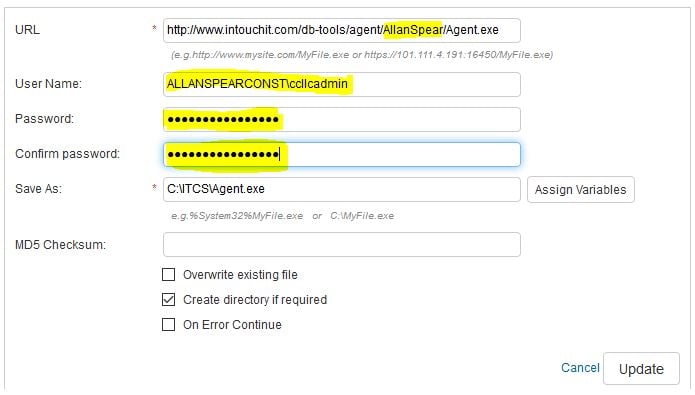
Update the client identifier in the script name. Click the pencil icon to modify the actual script.
Update the folder name to the one given by Justin Perkins ([email protected]). -If Justin has not provided a folder yet, choose what this will be and then provide him with that information. Update the User Name and Password with valid domain admin credentials (Or global workstation admin passwords in a non-domain environment). Click Update, then Save.
Check next to an existing Download Agent.bat script and click Copy
Update the client identifier in the script name. Click the pencil icon to modify the actual script.
Update the User Name and Password with valid domain admin credentials (Or global workstation admin passwords in a non-domain environment). Click Update, then Save.
Create Batch
Under scripts, click on the Batches left menu option. Select an "Install New Agent" batch and click Copy.
Change the client identifier in the Batch name. Click both X icons.
Click on Add Scripts Pick the two scripts created earlier Click Add to Batch Ensure the scripts are in the right order by clicking the Script Name. Click Save.
Run the Batch
From the Batches menu, check next to the Batch you wish to run and then click the Run button.
Update the Job Name. The Batch is already selected. Change the target option to "Sites" Choose the appropriate site. Set the second drop-down to Desktops only.
Set the schedule. This will vary from site to site, but a common configuration will be "At next agent checkin" and give it a week or two to run to catch the mobile users and users on vacation. Click on Create Job
Wait
Allow the script time to run.
Execute the batch
Log in to each device through LogMeIn.
Click on "File Manager"
Browse to C: and ensure the ITCS folder is present and contains the installer and the batch file.
Expand Computer Management and click on Command Prompt
Type "C:ITCSAgent.bat" and press enter. Wait for the script to execute. You should see a CPU spike signifying this running.
Compare NOCs/Cleanup
Log into ComputerCare's NOC & In-Touch's NOC
Review the devices that have successfully migrated.
-This means connecting via LogMeIn from the In-Touch NOC.
After confirming successful migration, remove the workstation from ComputerCare's NOC.
Click on RMM Setup Click on the client site name Click on the Agents tab Expand "Manage Installed Agents" Click on the "Uninstall Desktop Agents" radio button Check all of the devices that have successfully migrated. Click the "Uninstall" button. Do not worry about the Webroot notification. For the reason selected, choose "Lost Client" Click "Save"
Optional cookies and similar technologies support analytics, advertising and visitor identification, and embedded content. Change or withdraw consent in Cookie settings. Cookie policy.