Uploading to and sharing documents from Clio after creating a matter. Periodically, we will be sharing documents from Clio to the clients.
1
Go to the Clio app
2
Adding the folder
3
Sharing the documents
4
Sending an email to the client
5
Video Tutorial
Go to the Clio app
1
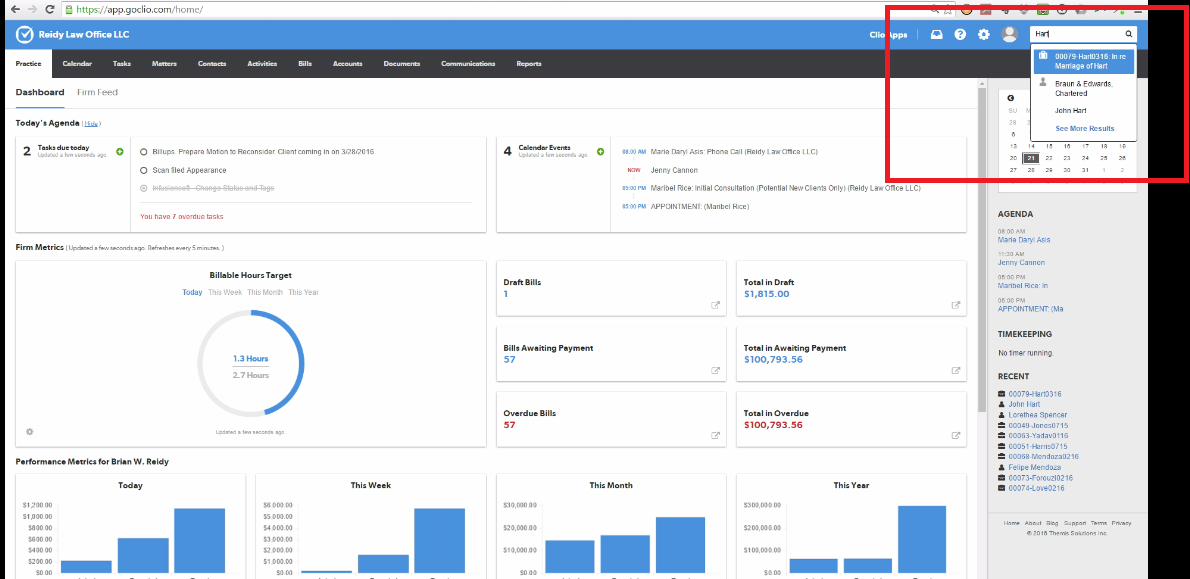
Go to Clio app to search for the client.
1
Type the client name on the search box.
2
Choose the name of the client by clicking on the name in the drop-down.
1
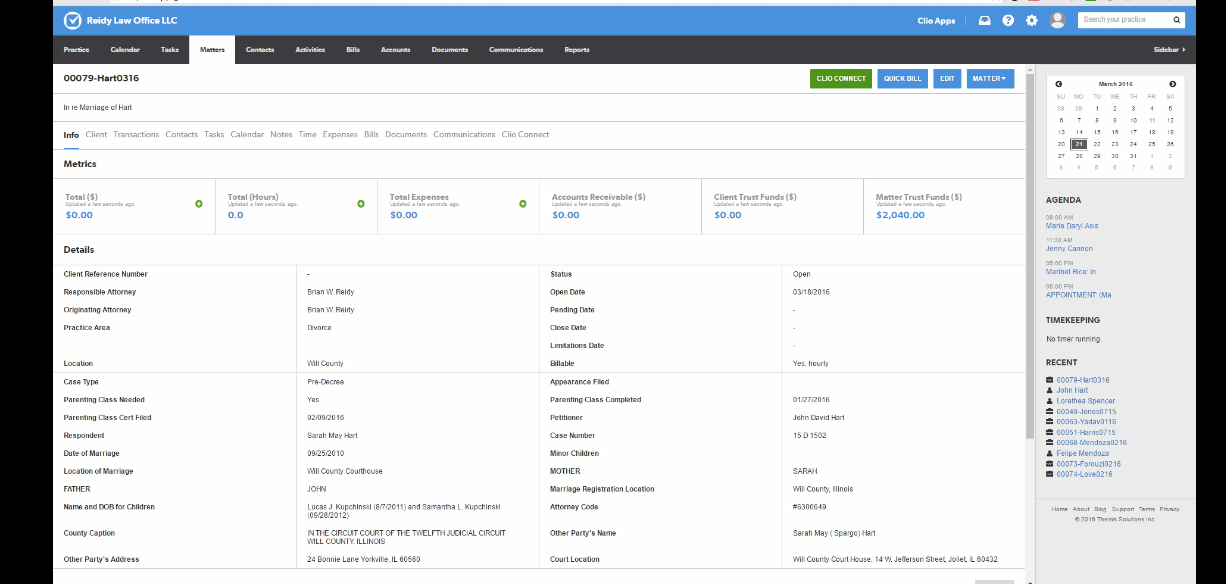
The client info will open in the window.
1
Click on "Matter" on the upper portion of the page.
1
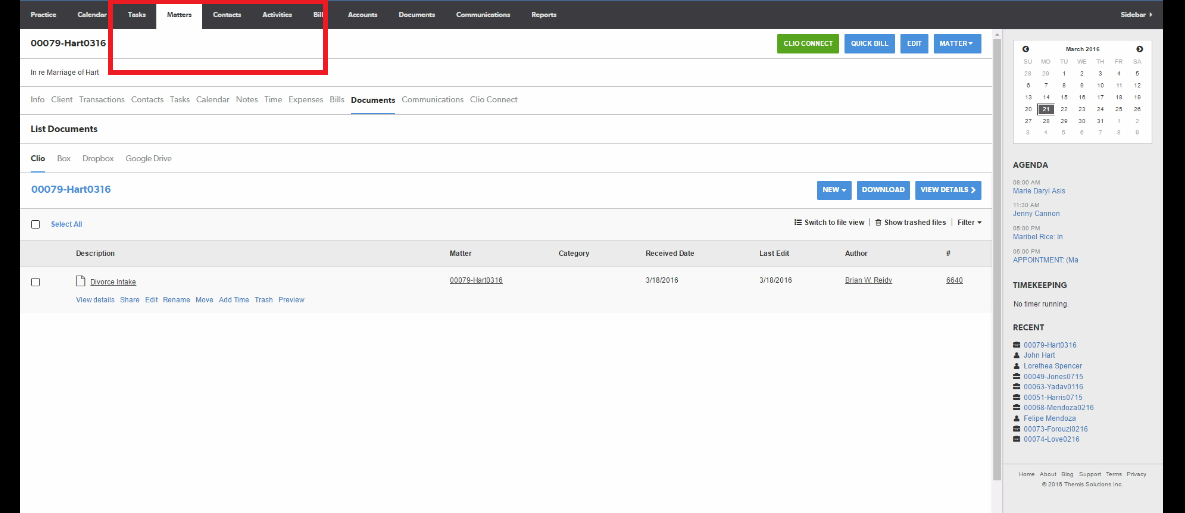
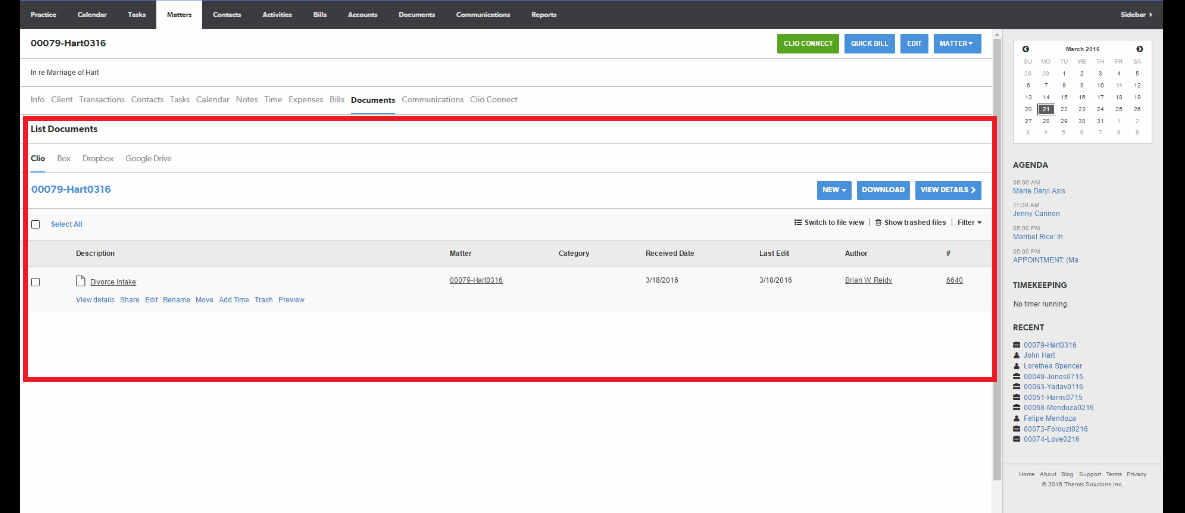
Go to list of documents.
The only thing in there is the "Divorce intake" which is automatically created by Lexicata, but you can see it is not shared with the client, because it does not have the green "shared" marking on the side of the document's title.
Adding the folder
1
Click "New."
2
Select "Folder upload" from the drop-down.
1
A pop-up window will appear.
2
Click on Dropbox. Go to Clio, then choose the client's folder.
3
Inside the client's folder, choose the folder you need to upload.
In this case, the other folders have nothing in them, so we choose the "pleadings and motions" folder, because there are documents transferred in there.
1
A pop-up will appear.
2
Please type category, making sure you put the correct category for the folder. So that anytime we upload the same documents, it will automatically categorize the documents in the same category.
Sharing the documents
1
Tick off the box of the folder you want to share.
2
Click on "share"
1
Select the name of the contact you want to share the documents with.
2
Write a short note.
3
Make sure to tick off "Notify contacts via email when this folder is shared."
4
Click on "Share."
1
Check if it has been successfully shared
2
The green shared info should show up after the title of the folder.
Sending an email to the client
After you've shared a folder to the client you need to let the client know that a folder has been shared.
1
Click on the folder.
2
Select one of the documents. Then, click "share."
3
A pop-up menu will appear.
4
Type the name of the client you've shared the folder with
5
Make sure the "shared via Clio Connect" has been selected.
6
Click "Share" icon.
7
You don't need to share both documents, since we do not want to spam his email. Once he opens the link he will be redirected to the folder.