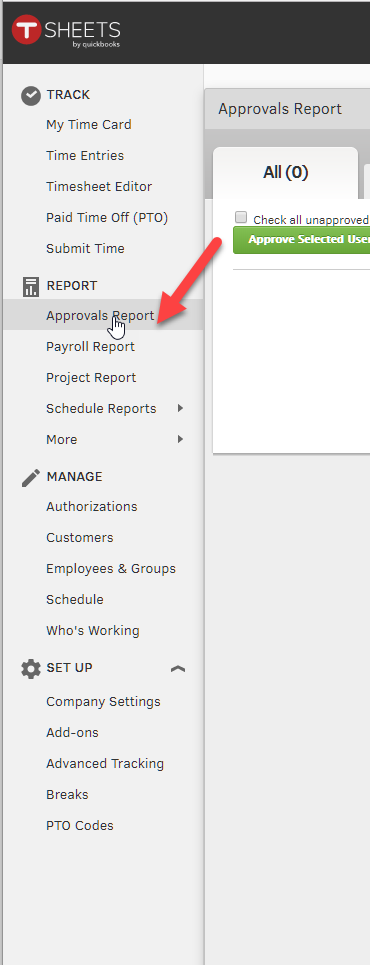
If you do not have access to these resources, please contact Troy or Gin to request access.
Technical Considerations
This process is triggered by a Zapier once the editor has uploaded the audio and video of the interview. Our show notes writer will also be writing the show notes as you are completing this process so it is important you complete this checklist as soon as possible after it is assigned to you.
WordPress:
Create Draft Post
Create a new post in the WordPress website, assign it to the podcast category and save it as a draft.
OmnyStudio:
Add Episode
We will now add an episode of the podcast to OmnyStudio. Login should be in the vault.
You need to complete the following items.
1
Look for the Audio File in Google Drive or download the audio from KissFlow.
2
Download the audio file from google drive or Kissflow.
3
Go to omnystudio and click WordPress Business Podcast icon
4
Click "Upload Audio Files" button on the upper right hand of the screen.
5
Add Title of the Episode.. ie: Episode #128 - Blogging and Social Media to Build Your Audience - the Merrymaker Sisters (titles will be given on shownotes or kissflow)
6
Add Description (The full version of the show notes with all the links, headings, subheadings, and lists included)
7
On the top of the description add sentence and make it a link: Watch the video of this podcast here. [link looks like this: http://www.wpelevation.com/guestfirstnamelastname]
8
Add Clip to Playlist (there will only be one option)
9
Choose Content Rating (should be "clean" as long as there is no explicit language noted)
10
Add Subtitle (should be the Elevator Pitch, should not be long)
11
Add RSS Link Override (should be wpelevation.com/guestfirstnameguestlastname)
12
Mark Publishing as Private
13
Choose Publishing Date to Schedule
14
Click on Save Changes
Title and description should be copied from the Yoast SEO plugin settings which the show notes writer should update.
Infusionsoft:
Create Tag
Each episode of the podcast will have a checklist that can be downloaded by the viewers. Based on the episode of the podcast that you opt in from, you'll be tagged and some links and fields will be created dynamically to make sure that you get the right download.
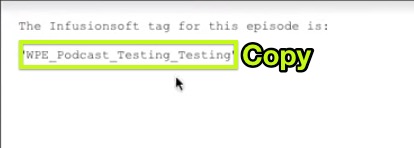
You will receive instructions to check the Lead Magnets folder in the Podcast folder in Google Drive. It will be firstnamelastnameInfusionsoftTag.
1
Copy the tag from Google Drive
2
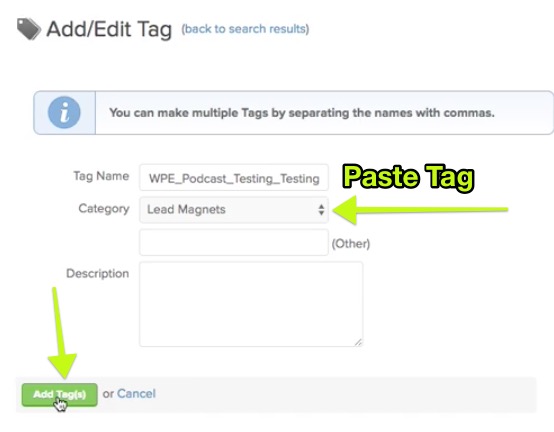
Add a tag in Infusionsoft (From CRM->Settings->Tags->Add a Tag)
3
Paste the tag from Google Drive
4
Select the Lead Magnets category and click on "add tag"
About this campaign: At the front of this campaign, there is a tag and a process that runs first, then another process that actually sends an email and applies another tag to get the subscriber out of the campaign. This second sequence doesn't change for any episode of the podcast. The email is the same email for every episode of the podcast. Don't touch this email! (Please)
1
Duplicate First Goal and Sequence (Highlight, right click, duplicate)
2
Rename the new Goal and Sequence for the next episode of the podcast.
3
Update the Tag in the new First Goal (for this episode of the podcast). Choose an existing tag (don't create a new one)
4
Update the Download Link in the podcast checklist field. The link can be found in the Google Drive -> Lead Magnets folder. Get the shareable link after making sure that the link sharing is turned on and that "anyone with the link can access this file"
5
Change from "draft" to "ready"
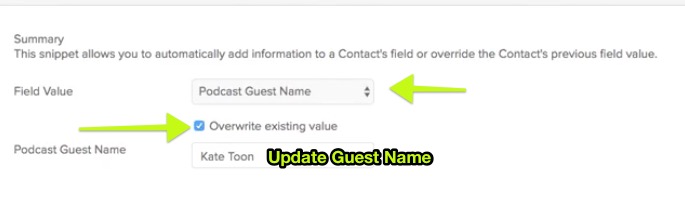
6
Update Guest Name (From "See Guest Name" -> Guest Name field)
Watch the video to get more in depth information about the email being sent to subscribers.
OptinMonster:
Create New Campaign
We need to create a form in OptinMonster to connect people in our website to the right campaign in Infusionsoft.
Open up the Lead Magnet folder in Google Drive. Open the Desktop Ad for the checklist that you're working on - keep this open to reference back to it.
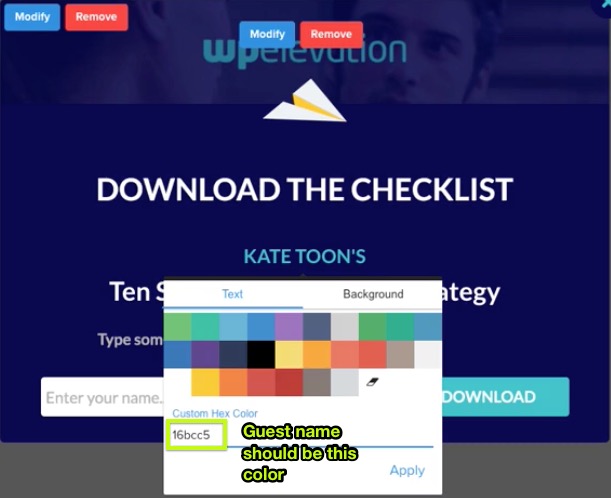
Formatting Notes: Author's name should be the Aqua color (#16bcc5) and size 22 Make sure that your apostrophe is in the right place. Ask Gin if you're not sure where it goes! Title of the Podcast should be white, size 30 Check that your title is properly capitalized at: http://individed.com/code/to-title-case/
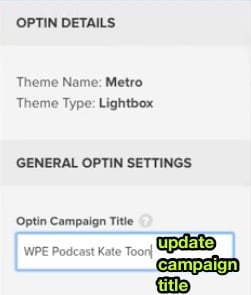
Edit the new Campaign: Update Name of Campaign. This can be found in the Desktop Ad for this podcast.
3
Update Author and Title of Download in the Form
4
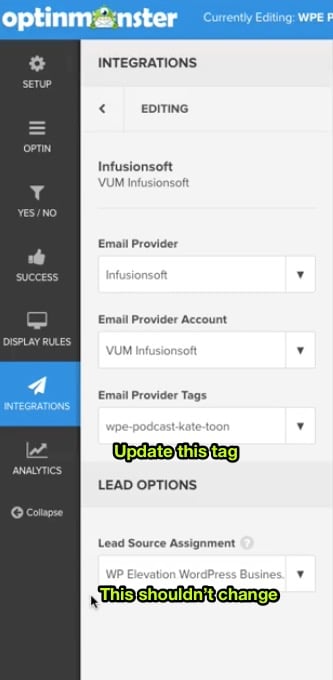
Update Tag in the Integrations Section
5
Make Sure Lead Source is Correct
6
Save!
OptinMonster on WordPress
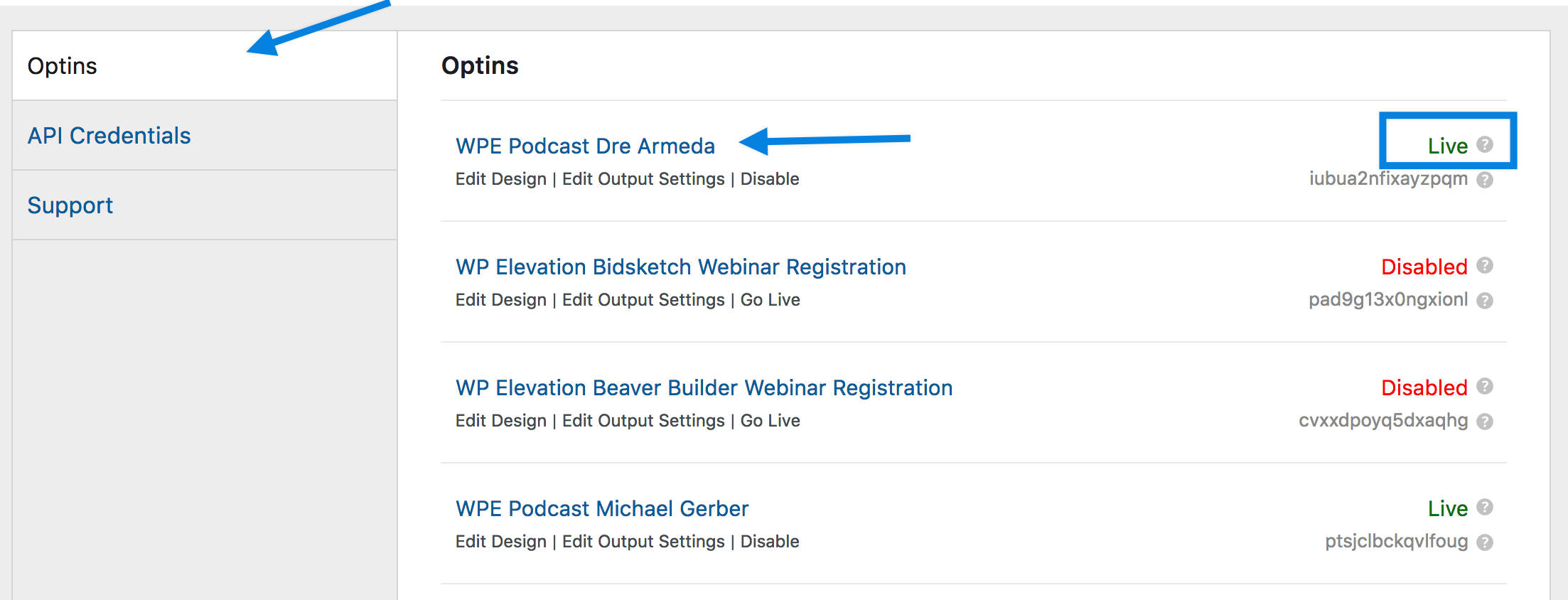
On the left-hand menu click OptinMonster
In the Optins section, find the recent campaign that you have just created on OptinMonster. If you cannot find it, scroll down to the bottom and click "Refresh Optins"
Once you found your campaign, be sure you have it is set to "LIVE"
If it is set to "Disabled" click "Go Live" link.
Move into updating the draft post for the podcast.
Vimeo Settings:
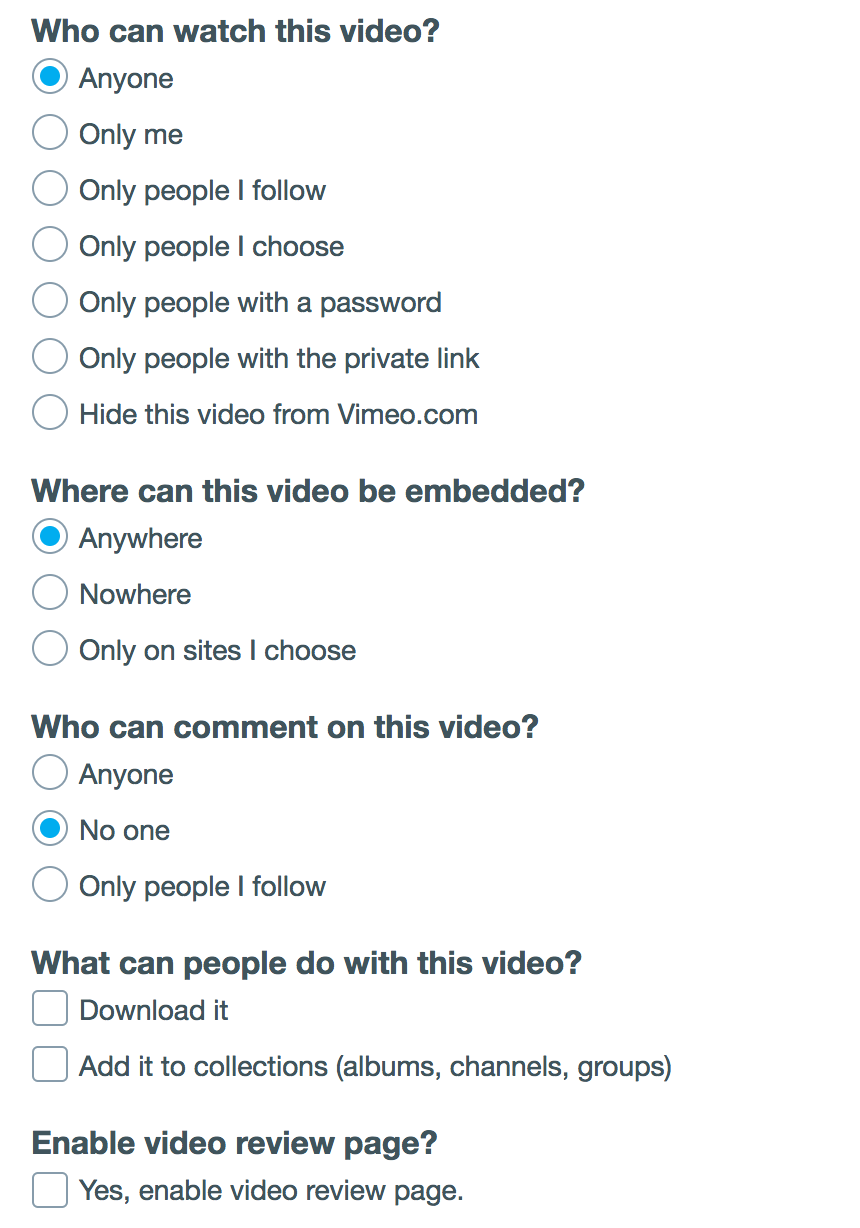
Be sure to follow the correct settings of the podcast video in vimeo before adding it to the post. Check the screenshot below:
WordPress:
Update Draft Post
Update Draft Post Checklist
Please tick these items off to indicate you have followed the checklist. Instructions for each item are given below.
1
Add Podcast Title ie: Blogging and Social Media to Build Your Audience - the Merrymaker Sisters
2
Add Featured Image
3
Add Lead Magnet Ads (Desktop and Mobile)
4
Add Campaign ID
5
Episode Intro - is the full elevator pitch
6
Show Highlights - is the entire shownotes, be sure to format the title to be h2's, apply link if there is any, add bullet points, etc.
7
Add Categories - Podcast plus choose what the podcast is all about, tick as many as neede ie: Growth, Balance
8
Vimeo Video ID - ie: 219334653
9
Remove default text on Get in Touch, Suggested Guest and Hint section
10
Add Links - can be found on the
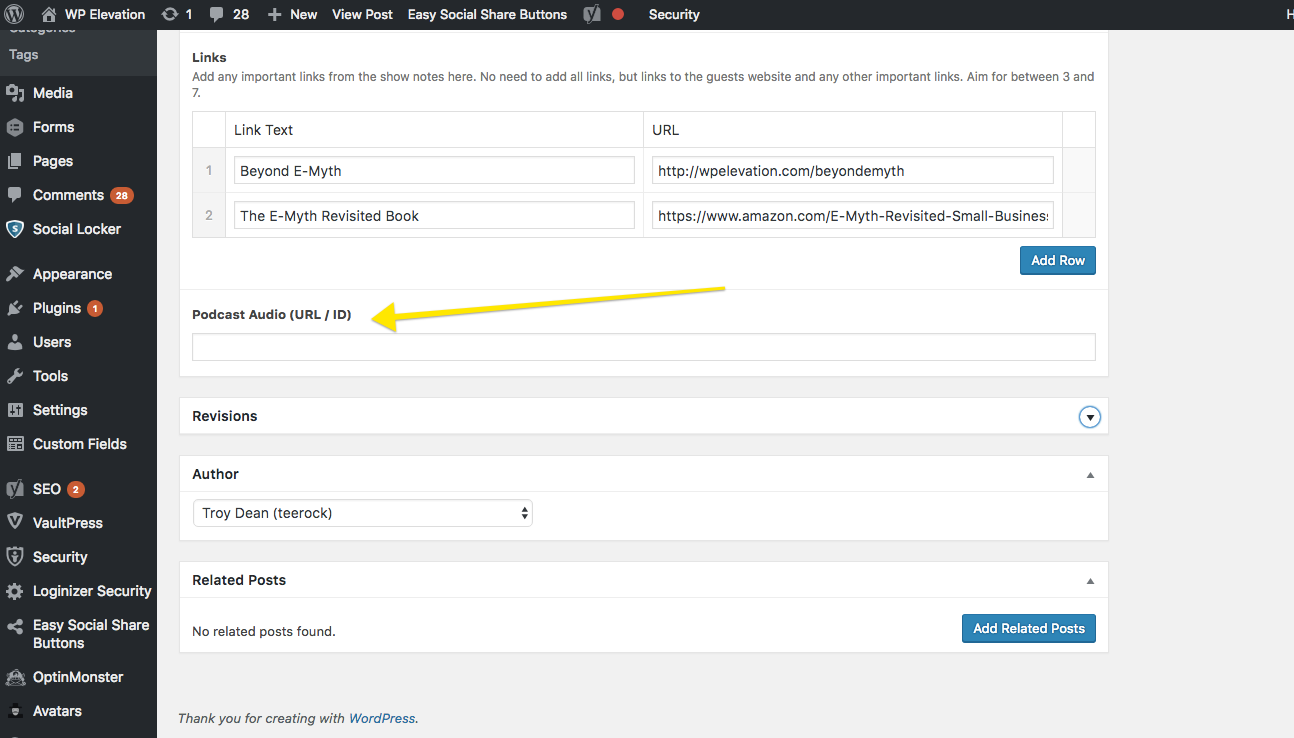
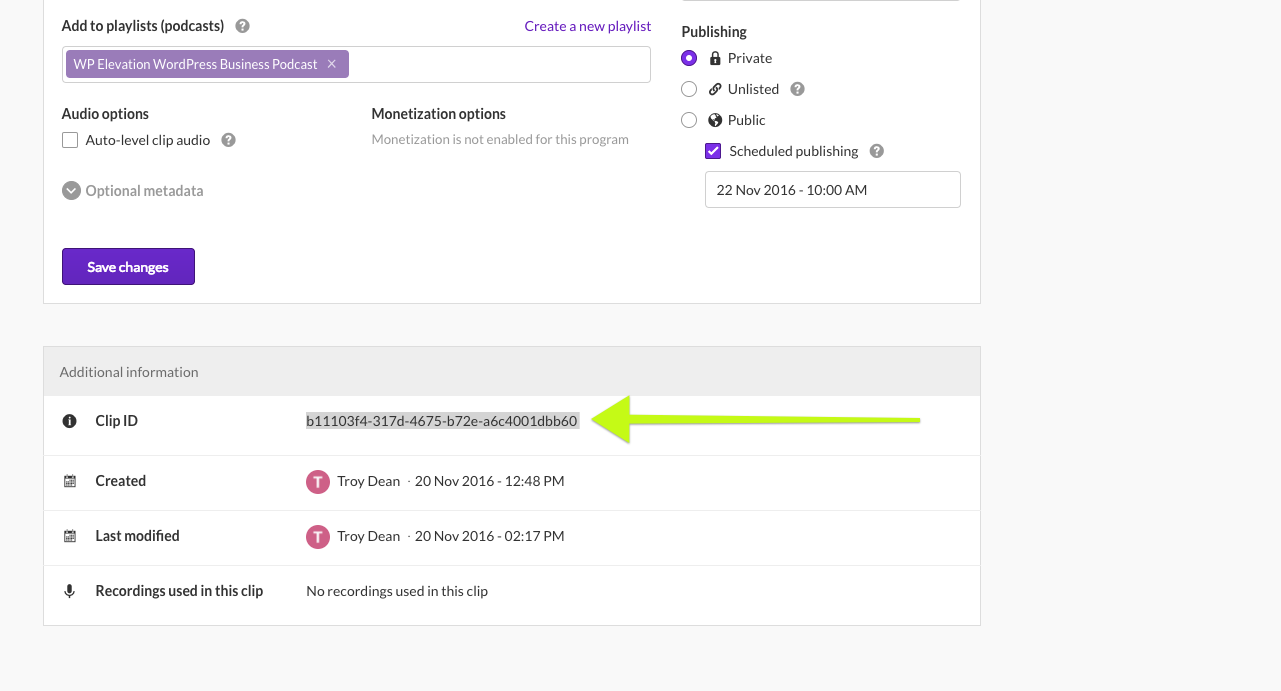
11
Add Podcast Audio URL it is the Clip ID that can be found at the bottom of your uploaded audio in Omnystudios.
12
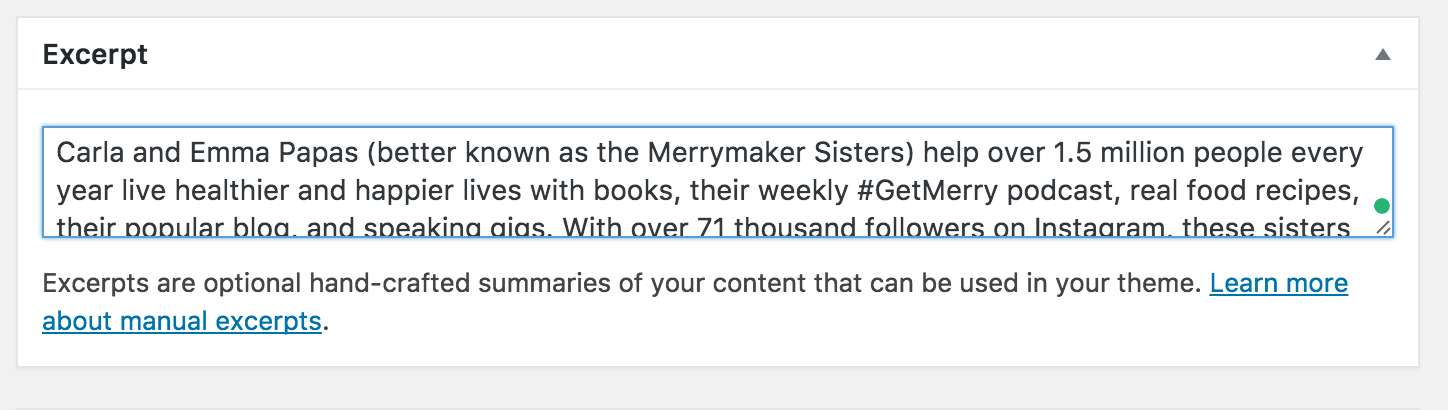
Excerpt - full elevator pitch too.
13
Author - find the name of the interviewer in the dropdown
Title
The title should be First and Last name of the podcast guest. ie Blogging and Social Media to Build Your Audience - the Merrymaker Sisters
The URL should be podcst guest first and last name plus their company. ie: justin-ferriman-from-learndash
Subtitle is the company they are working for. ie LearnDash
Top Item is the episode # ie Episode #128
Add Featured Image
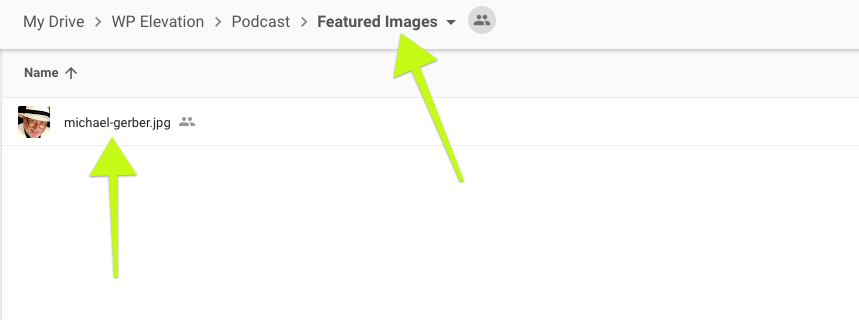
Add the featured image from the Featured Images folder in Google Drive. The featured image should be named with the guest's name in the file name.
The size should be bigger than 1000px wide.
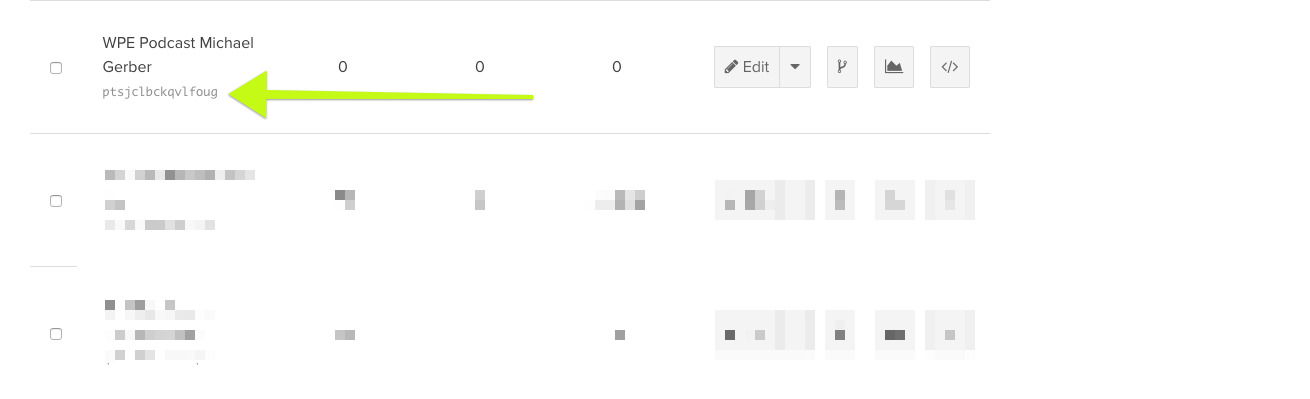
Add the Clip ID here in WordPress
The featured image in Google Drive.
Add Lead Magnet Ads
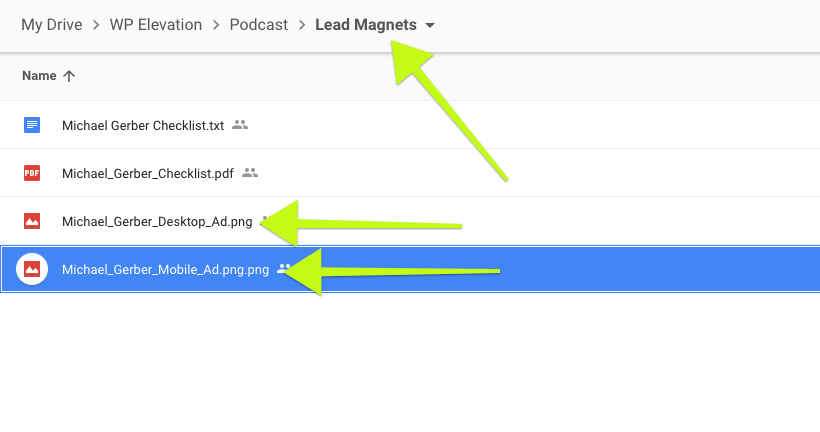
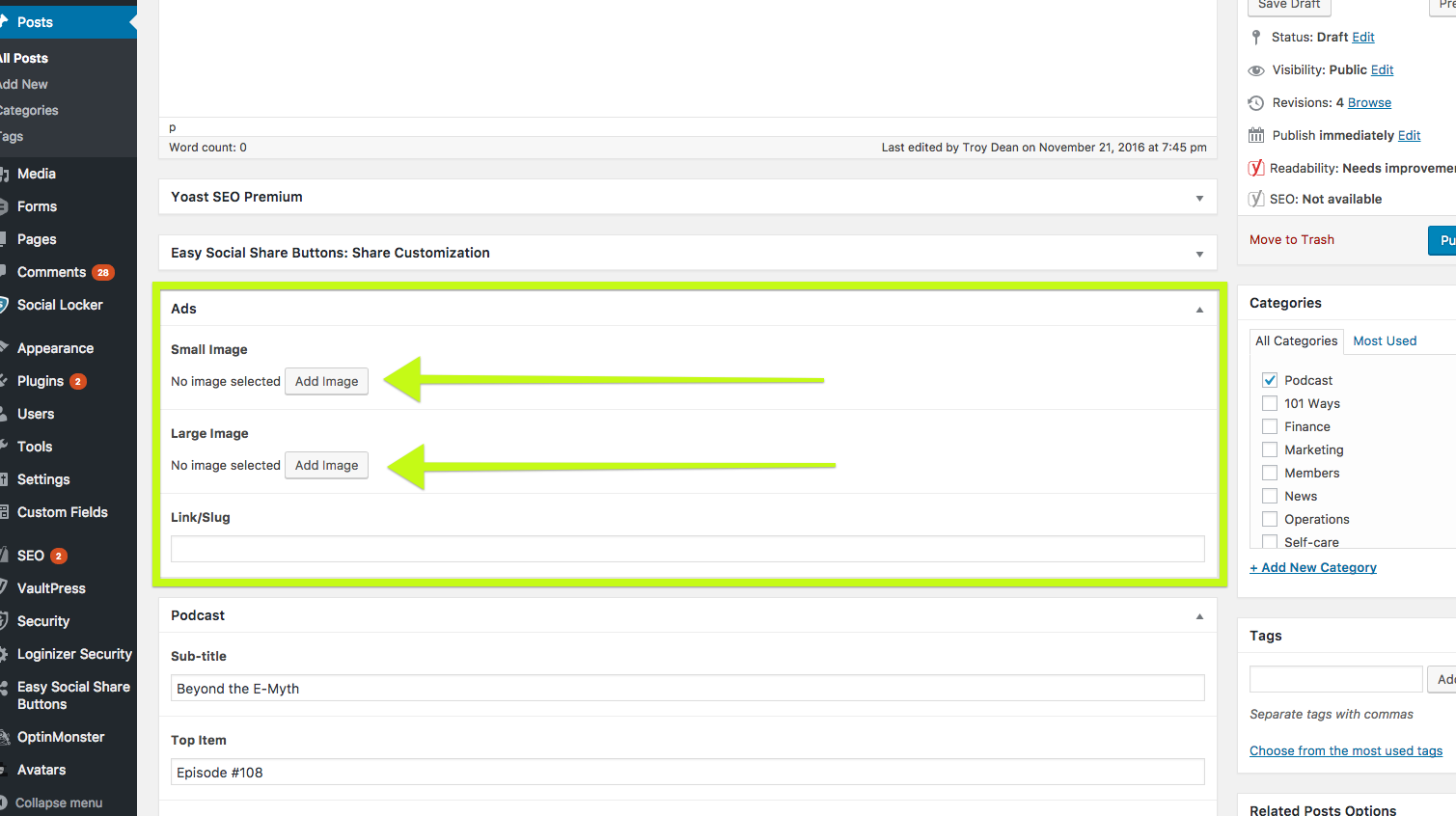
Add the lead magnet ads from the Lead Magnets folder to the corresponding field for Desktop and Mobile.
Tools We Use
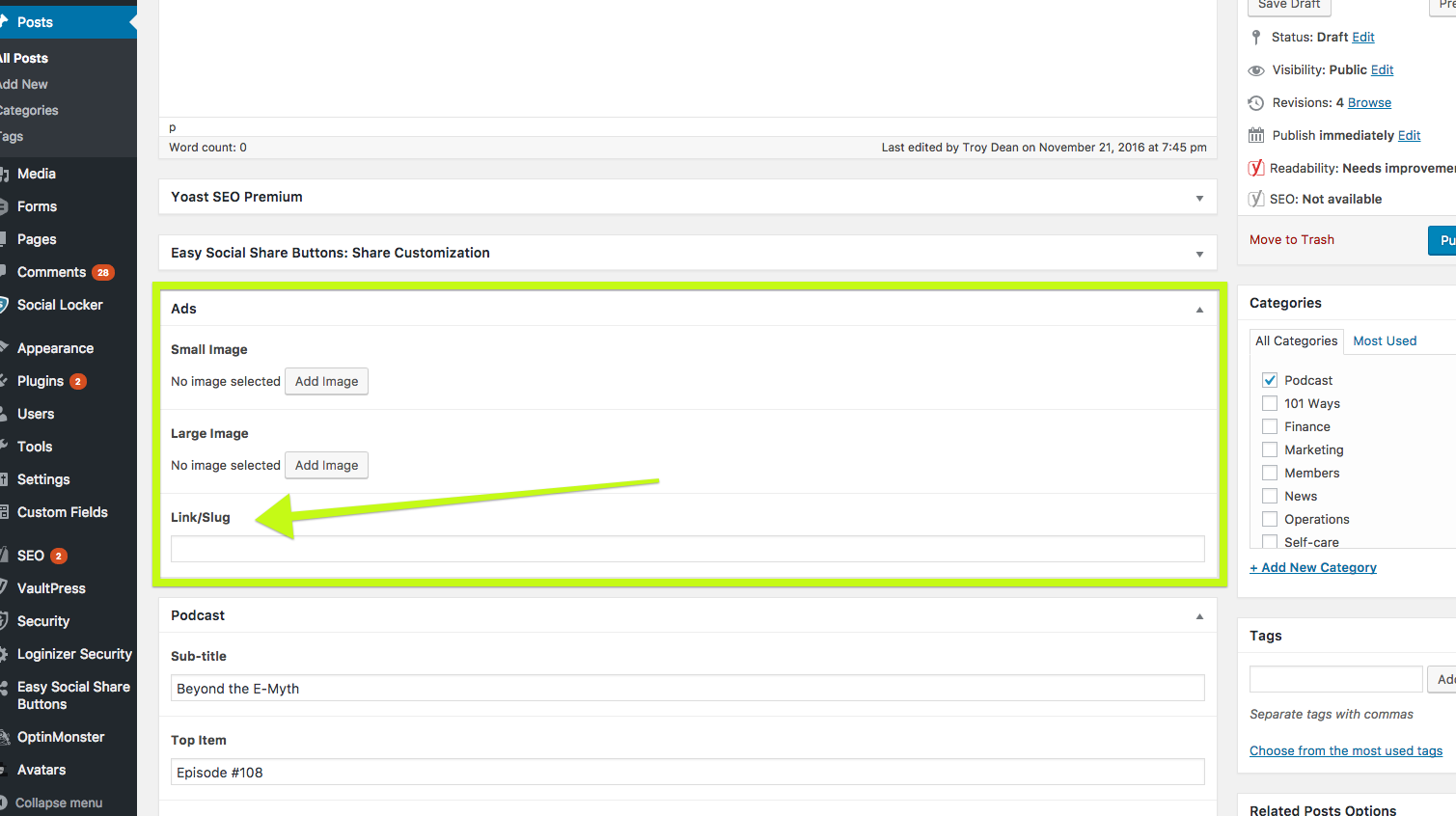
If there is no specific advice on the lead magnet ads, choose Tools We use, do a search for the small and large image already uploaded.
Tools we use Link/slug: xiipwqq3iek0hkea
Otherwise, find it here:
Find the desktop and mobile ads in Google Drive here
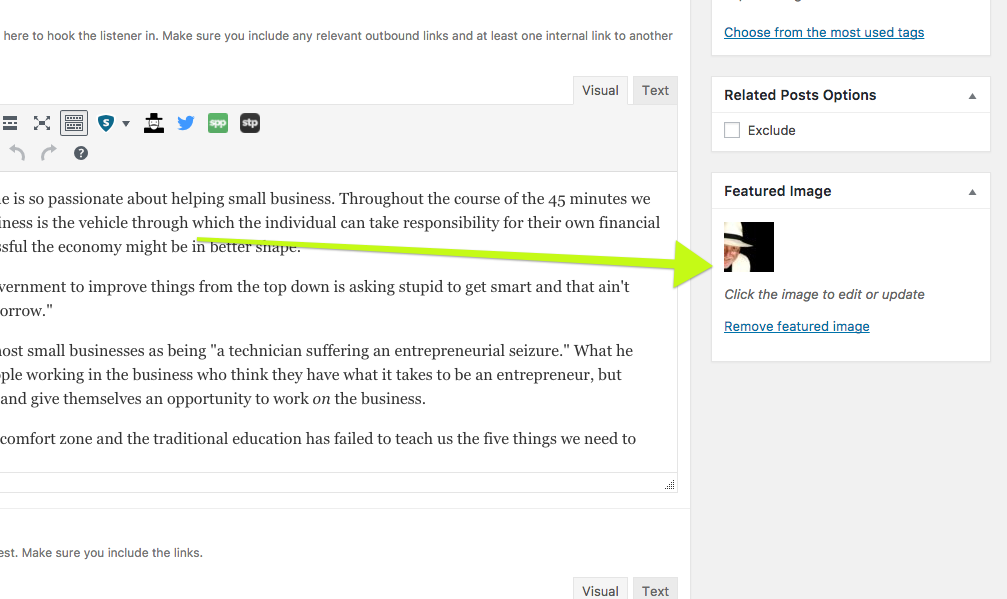
The featured image section in the website.
Upload the Desktop and Mobile ads here
Add Campaign ID
Copy the Campaign ID from OptinMonster and paste it into the website.
Copy the Campaign ID from OptinMonster here
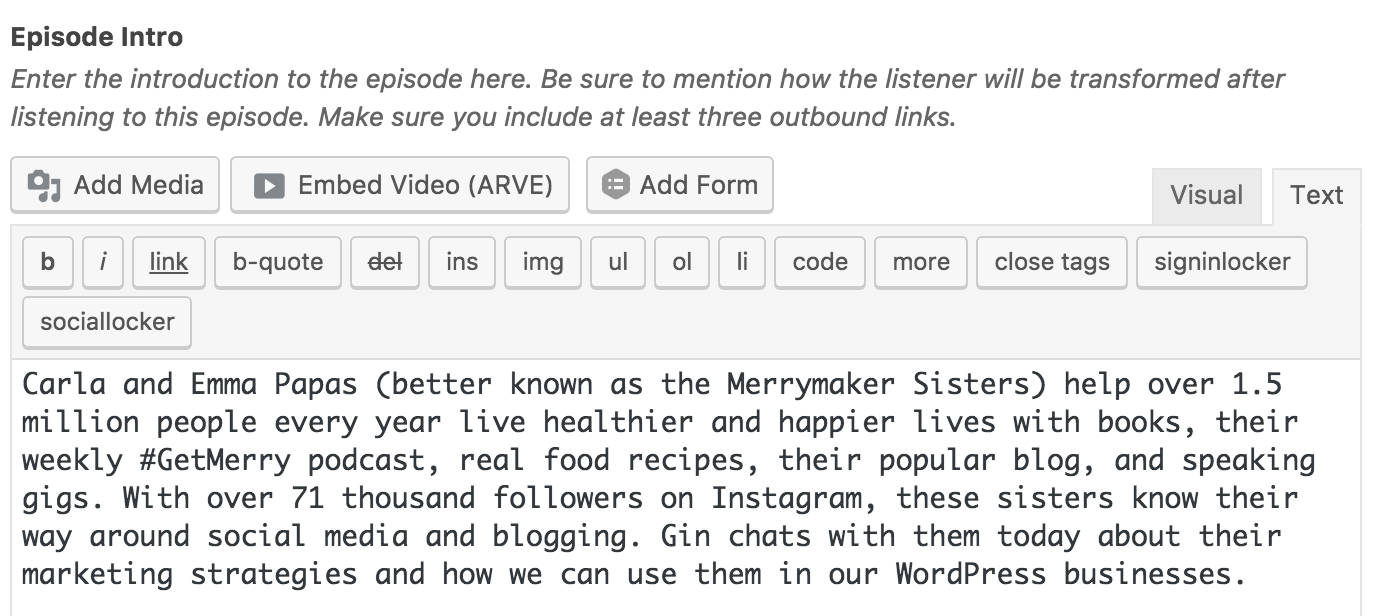
Add Episode Intro
The full elevator pitch from shownotes or kissflow
Enter the Campaign ID into the website here
Add Vimeo Video ID
It is the numbers following the URL of the podcast video in vimeo. ie: vimeo.com/219334653/
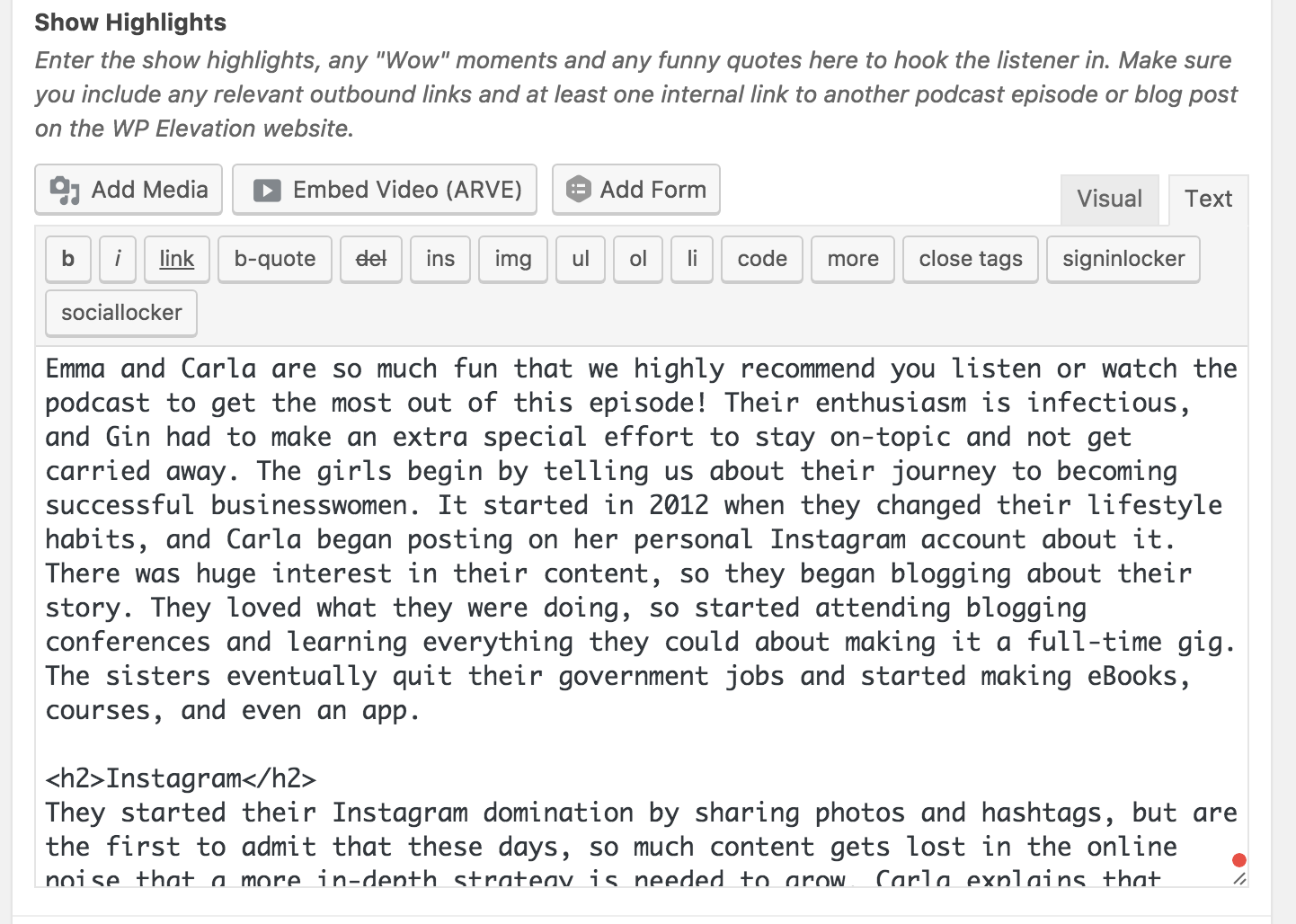
Show Highlights
Should be the entire shownotes. Format the content accordingly, be sure to include the proper heading, links, lists, inline image if any, etc.
Add Excerpt
The full elevator pitch from shownotes or kissflow
Author
Choose the name of the interviewer from the dropdown, if you cannot find it let Gin know.
Schedule Post
Schedule the post in WordPress to be published at 10am on the date of release according to the calendar in Asana.
https://app.asana.com/0/225909223879727/calendar
Clip ID
Copy the Clip ID from OmnyStudio and paste it into WordPress.
Copy the Clip ID from OmnyStudio
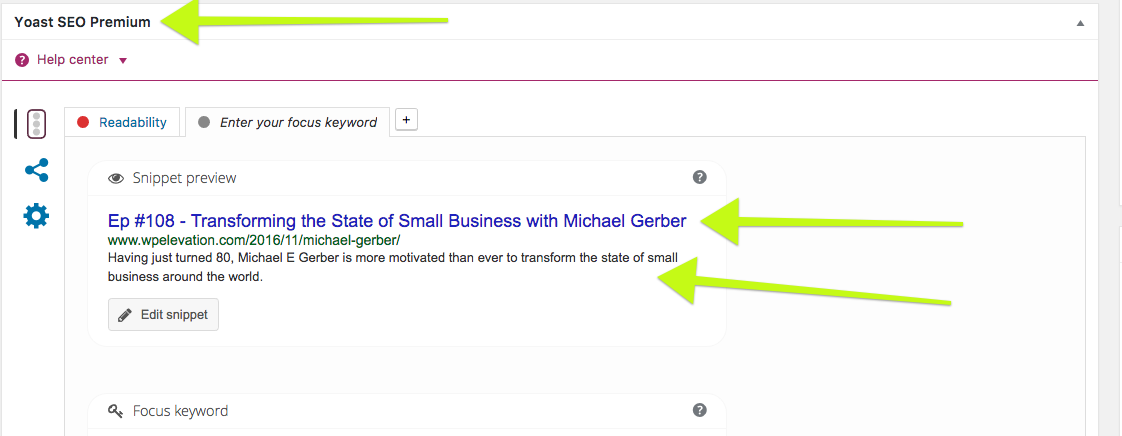
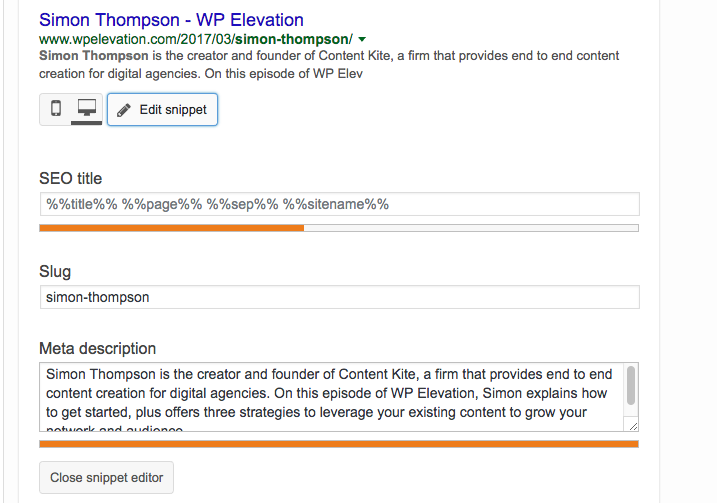
Yoast SEO Section
Focus Keyword is the name of the Guest: ie: Simon Thompson
Meta Description use the Elevator Pitch but double check with Gin.
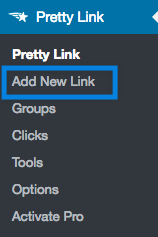
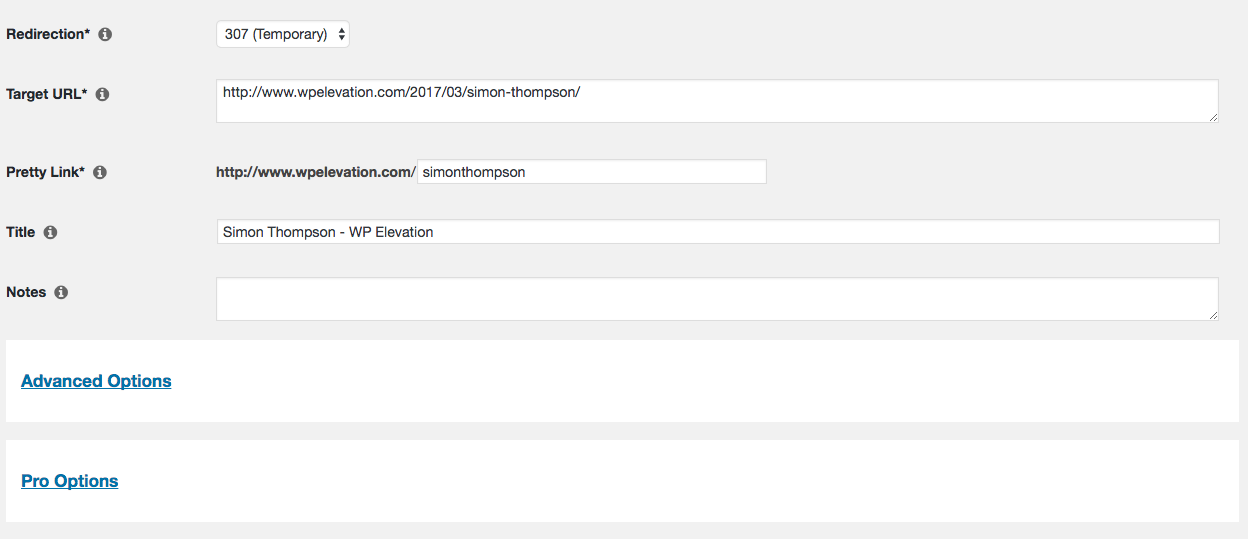
Create Pretty Link
Click Pretty Link on the left menu
Do the following settings:
1
Redirection - set to 307 (temporary)
2
Target URL - must be the original link to the podcast ie: http://www.wpelevation.com/2017/03/simon-thompson/
3
Pretty Link - guest firstnamelastname with no space small letters ie: simonthompson
4
Title - leave it as is ie: SImon Thompson - WP Elevation
Optional cookies and similar technologies support analytics, advertising and visitor identification, and embedded content. Change or withdraw consent in Cookie settings. Cookie policy.