Reshelving this Item
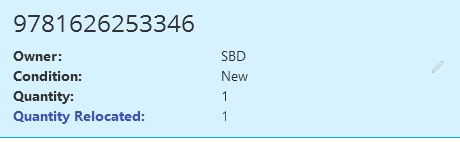
The process is not over just yet. The item is in a limbo state right now and needs to be reshelved with the correct product condition. To do this, navigate to the Shelve page.
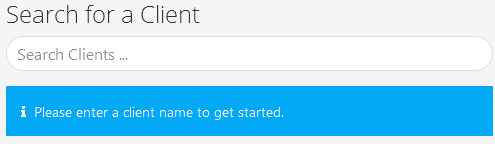
Search for the client this storage location is tied with.
Press No when the system asks you if you would like to tie this to a Purchase Order.
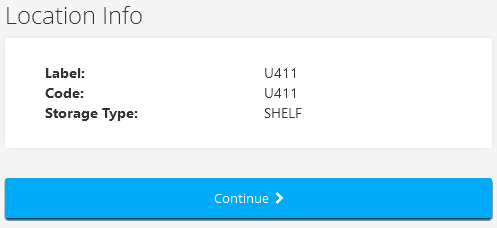
Next, search for storage location you were working with previously.
Note: You can use a different storage location as well. Most of the time, however, these steps are taken to rectify a mistake during the original shelving steps.
Then press the Continue button to begin shelving.
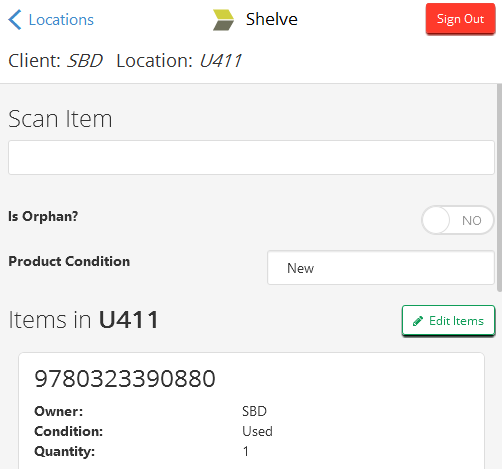
Before you begin shelving, however, you will need to change the Product Condition to the same product condition you change the item to in the last step.
Once that is ready, you can then scan the item and shelve it using the correct product condition.
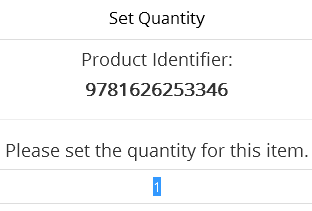
The system will ask you for the quantity. Enter the same quantity as you moved from the previous step.
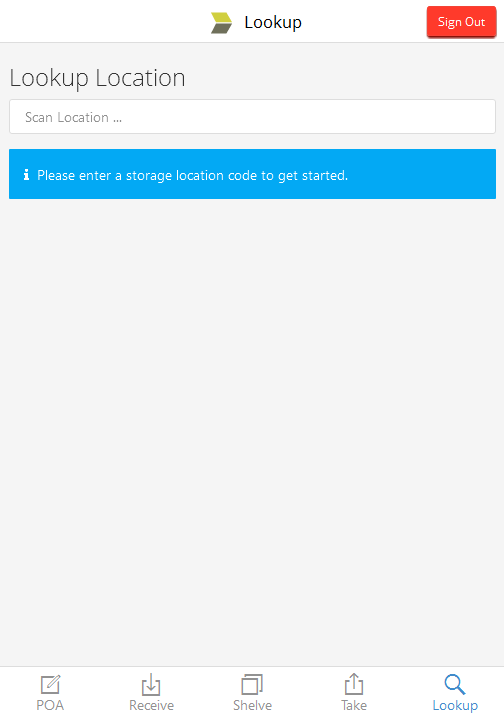
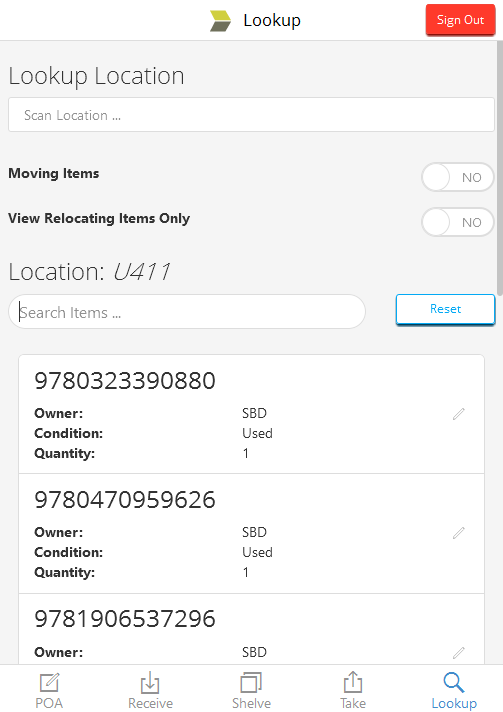
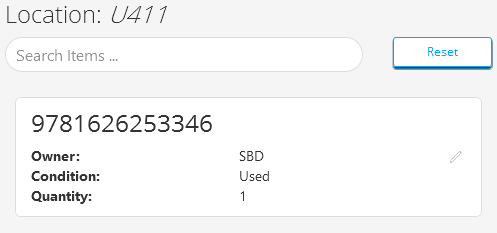
The process is complete now, and the item has been updated with the correct product condition. If you were to go to the Lookup screen and view this storage location again, you would see that the item now has it's new product condition.