Here, you will learn on how to update the Infusion Soft for new clients's information such as adding a task template, managing a tag, adding some important information, etc.
How to Add a Task Template
1
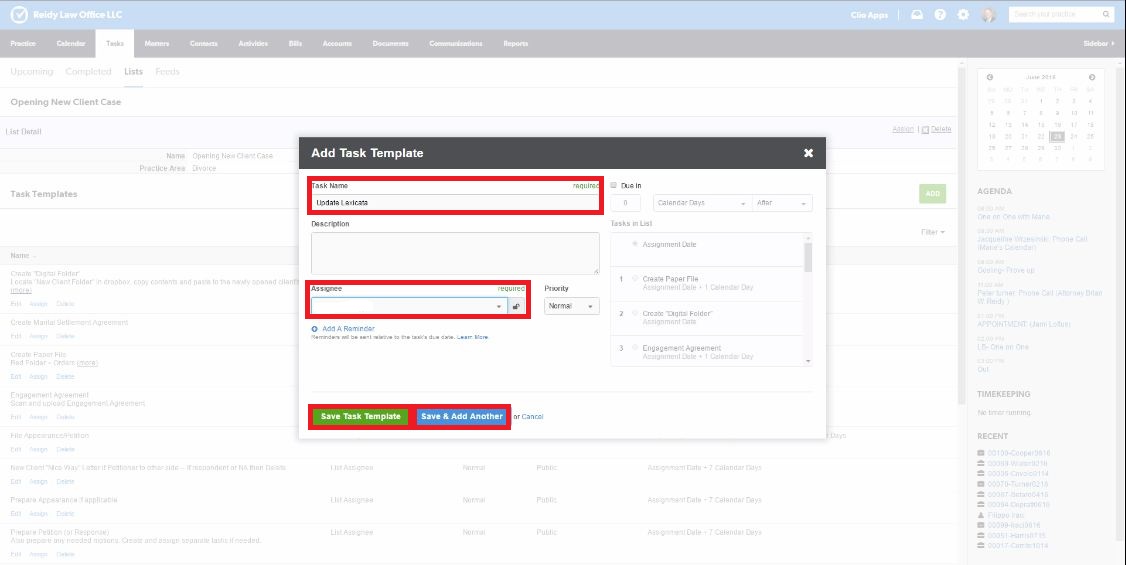
Write the title of the task on the Task Name box.
2
Type the virtual assistant's name (your name) on the Assignee Section.
3
Then, click the Save the Task Template. To add another information, click the Save & Another icon.
How to Manage a Tag
(Please see the instruction below the image after this.)
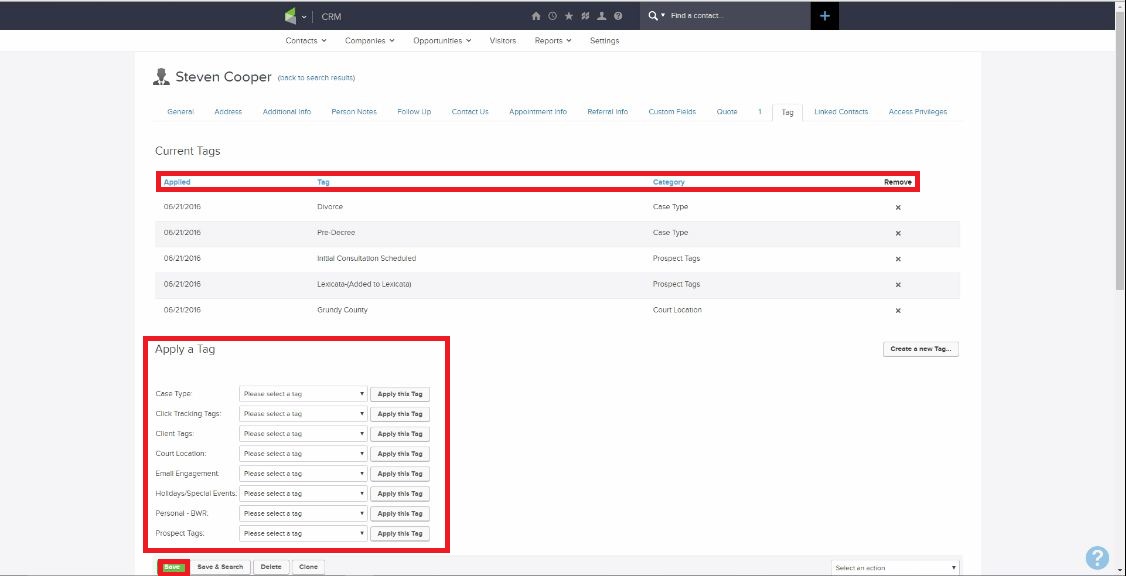
"Apply a Tag" is a section where you will select the correct tags for the client.
1
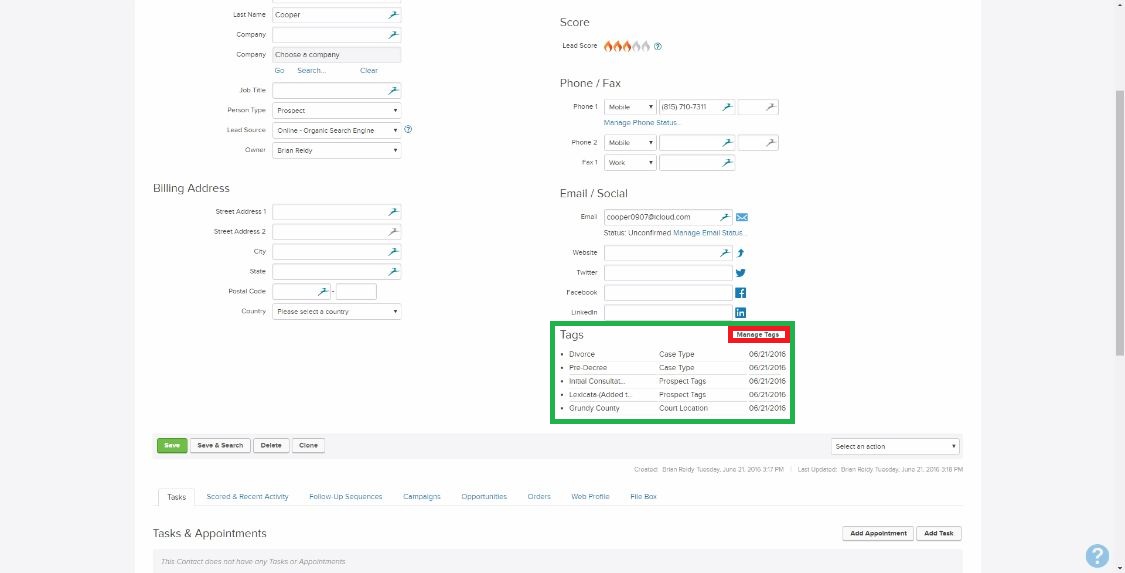
To change and add some necessary tags, click the Manage Tag icon.
2
In the Apply a Tag section, choose a correct tag. (e.g. The client has attended the meeting; thus, he or she was able to complete the initial consultation schedule with Brian, so the specific tag for it is "Initial Consultation Scheduled" that could be found in the Prospect Tags, and if the client was already hired, click "Client" from the same tag section.)
3
For your convenience, the "applied tag/s" is/are located above the "Apply a Tag" section so that it could be easily seen.
1
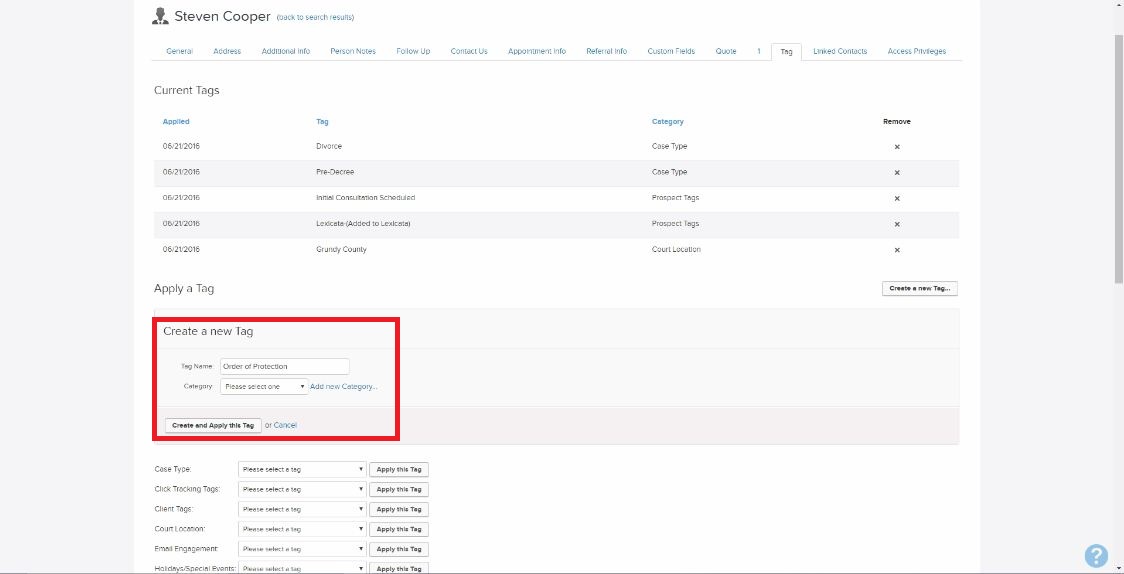
To create a new tag, put the name of the tag on the Tag Name box.
2
Then select a category below the tag name.
3
Click Add New Category (beside the Category section) to add new ones.
How to Add Additional Information
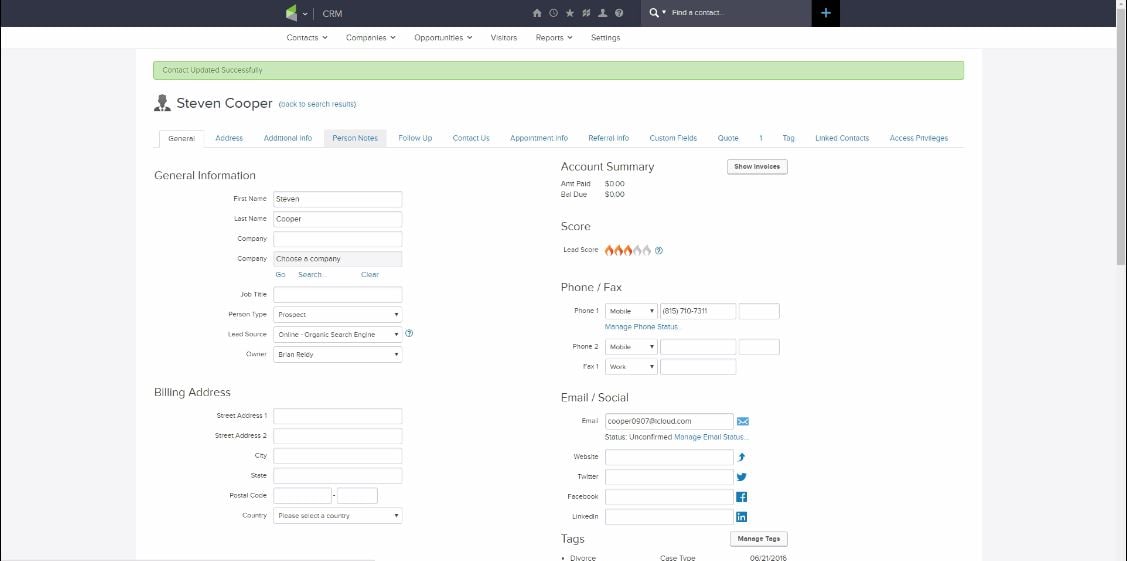
This is the general information about the client. It includes the client's name, company, contact number, address and etc.
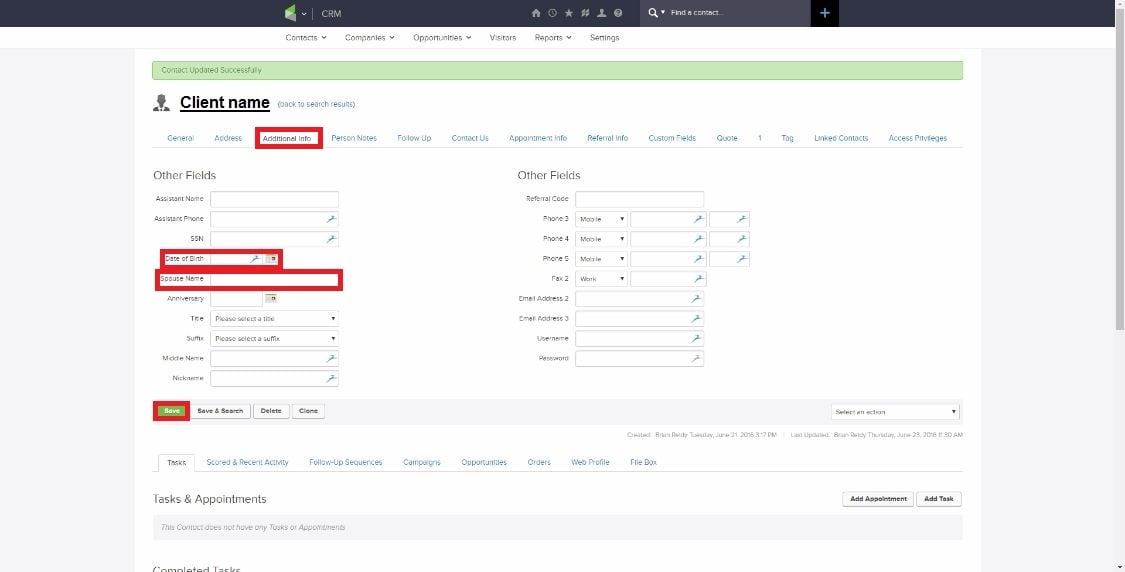
In the Additional Info. section, you may add and/or edit some information about the client such as the date of birth and spouse name.
1
To add the birthday, simply place the date on the Date of Birth box. (e.g. 07-13-2016)
2
In the Spouse Name box, put the name of the client's partner.
Optional cookies and similar technologies support analytics, advertising and visitor identification, and embedded content. Change or withdraw consent in Cookie settings. Cookie policy.