What is Process Street?
Request a demo
Share
Copy link
Edit
in
Process Street
Templates
/
GTM – Analytics Code
Uncategorized
GTM – Analytics Code
1
In Google Tag Manager, select an account. The Containers page appears.
2
Click your site’s container in the list. The Tags page appears.
3
Click "New Tag" from the Container screen.
4
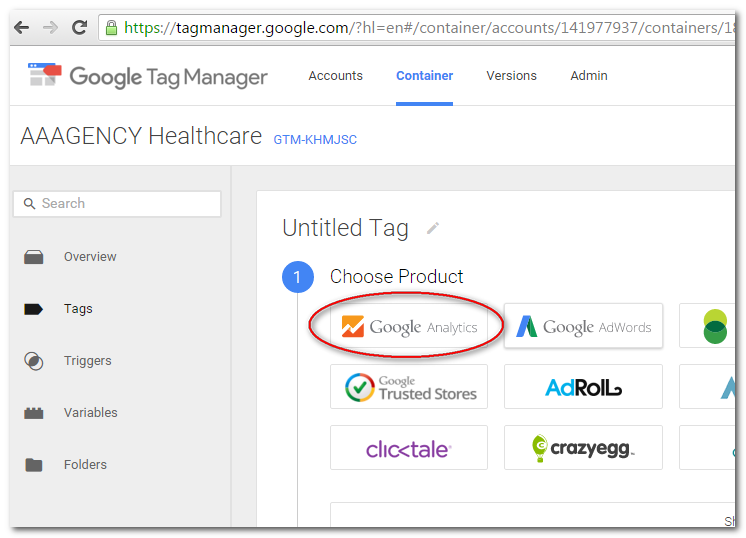
Select "Google Analytics" as Product
5
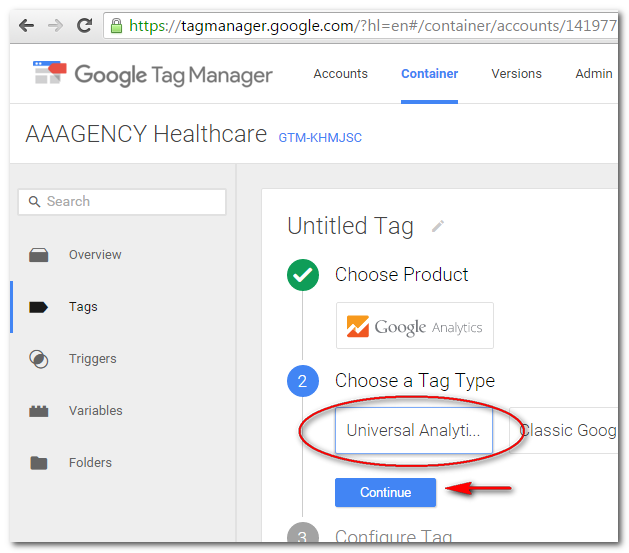
Choose "Universal Analytics" as tag type. Click Continue.
6
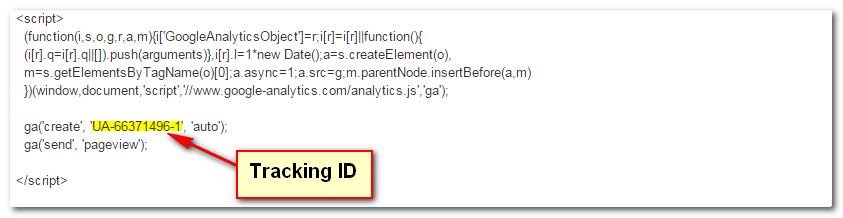
Configure tag by adding the "Tracking ID" and ticking "Enable Display Advertising Features" option
7
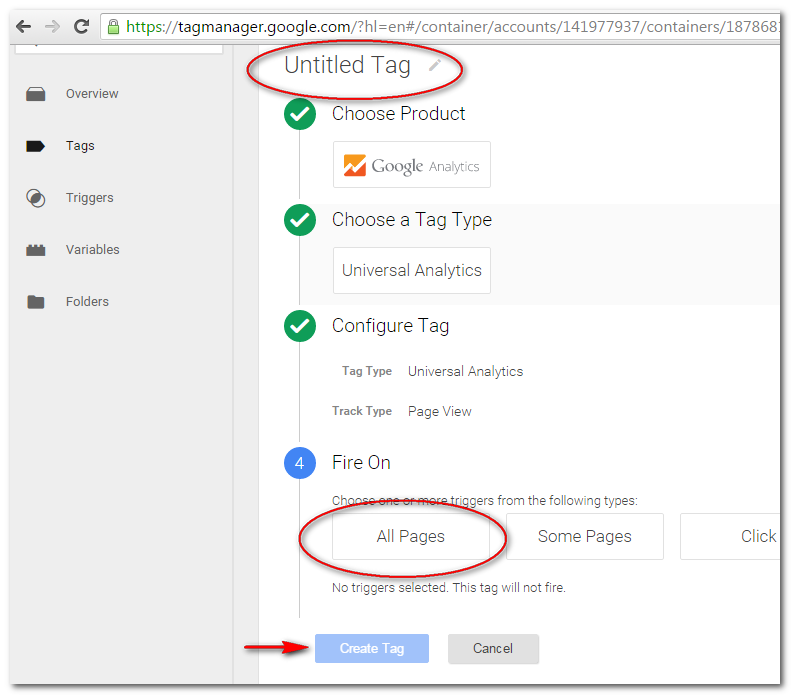
Select "All Pages" and name your tag with "Universal Analytics". Click "Create Tag".
In Google Tag Manager, select an account. The Containers page appears.
Click your site’s container in the list. The Tags page appears.
Click "New Tag" from the Container screen.
Select "Google Analytics" as Product
Choose "Universal Analytics" as tag type. Click Continue.
Configure tag by adding the "Tracking ID" and ticking "Enable Display Advertising Features" option
Select "All Pages" and name your tag with "Universal Analytics". Click "Create Tag".
Browse all templates
Edit in Process Street
Stay updated—subscribe to our blog!
More templates like this
Payroll Processing – User Guide
PROCEDURE PAYROLL PROCESSING-TSHEETS &QB-Payroll Processing
How to Build a Process from Resources (Copy)
2. Entrega de proyecto
12 Month Maintenance Schedule
Resource Based Economy Transition Team Support
View all Uncategorized templates