Uncategorized
Cloning an existing Trellis-based repo

Cloning an existing Trellis-based repo

1
Choose your workspace folder
2
Clone the repository
3
Add project to your IDE
4
Install Composer requirements
5
install vagrant reqs
6
Install theme dependencies
7
Boot up the vagrant server
8
Importing the Database:
9
Log in to your new local WP site
10
Enable the WP Migrate DB Pro & WP Migrate DB Pro Media Files plugins
11
Add the license key (available in LastPass) by clicking on the 'enter license key' link that will appear after activation of the plugins
12
Log in to the staging server via wp-admin, and visit Tools > Migrate DB Pro and click the 'Settings' tab
13
Ensure 'Accept pull requests allow this database to be exported and downloaded' is checked
14
Copy the URL in the 'Connection Info' box to your clipboard
15
Log in to your local development server
16
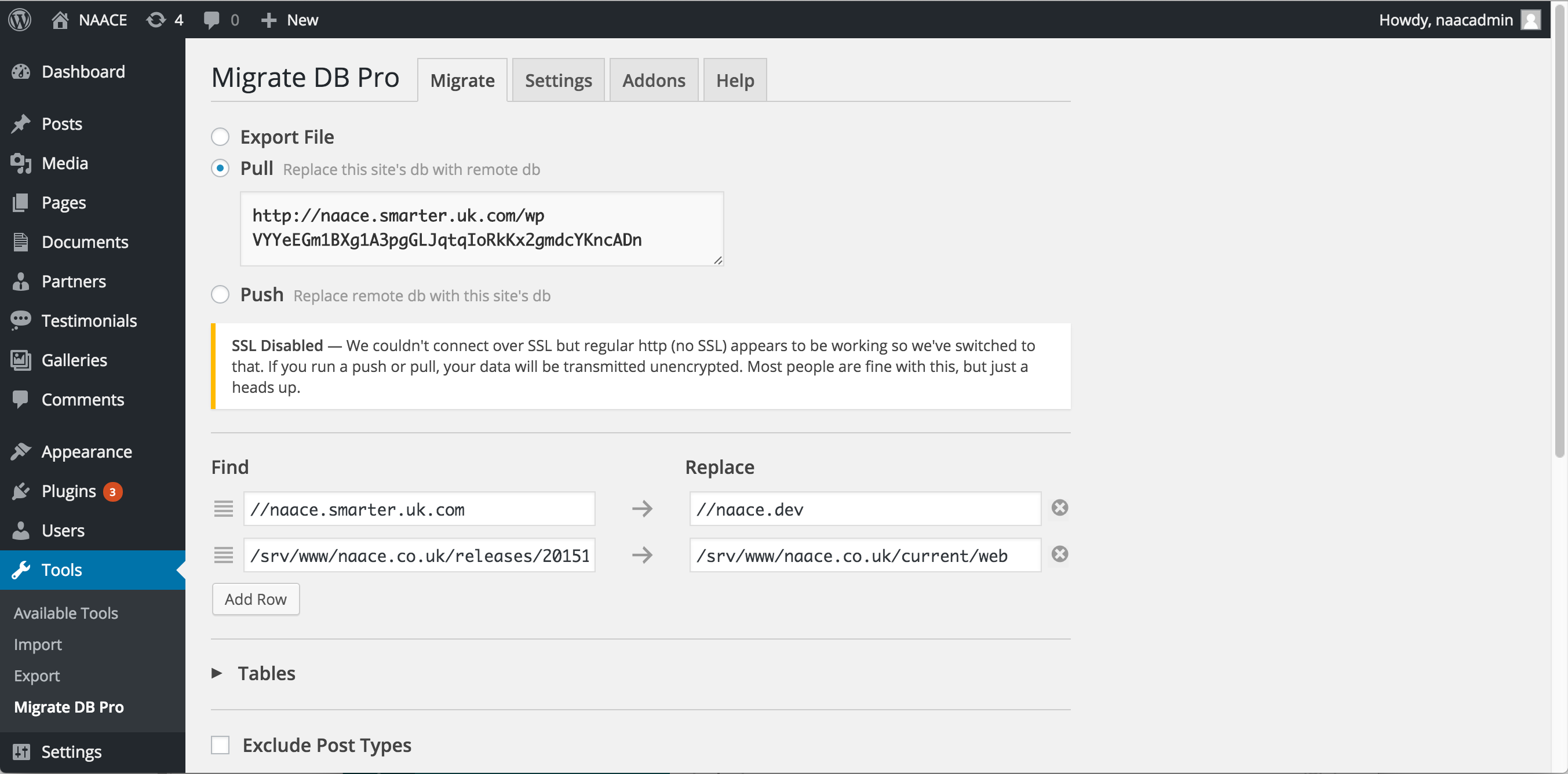
Click on the 'Pull' radio button, and then paste in the connection info from the previous step
17
Check the following settings are configured
18
Click 'Migrate and Save Profile'