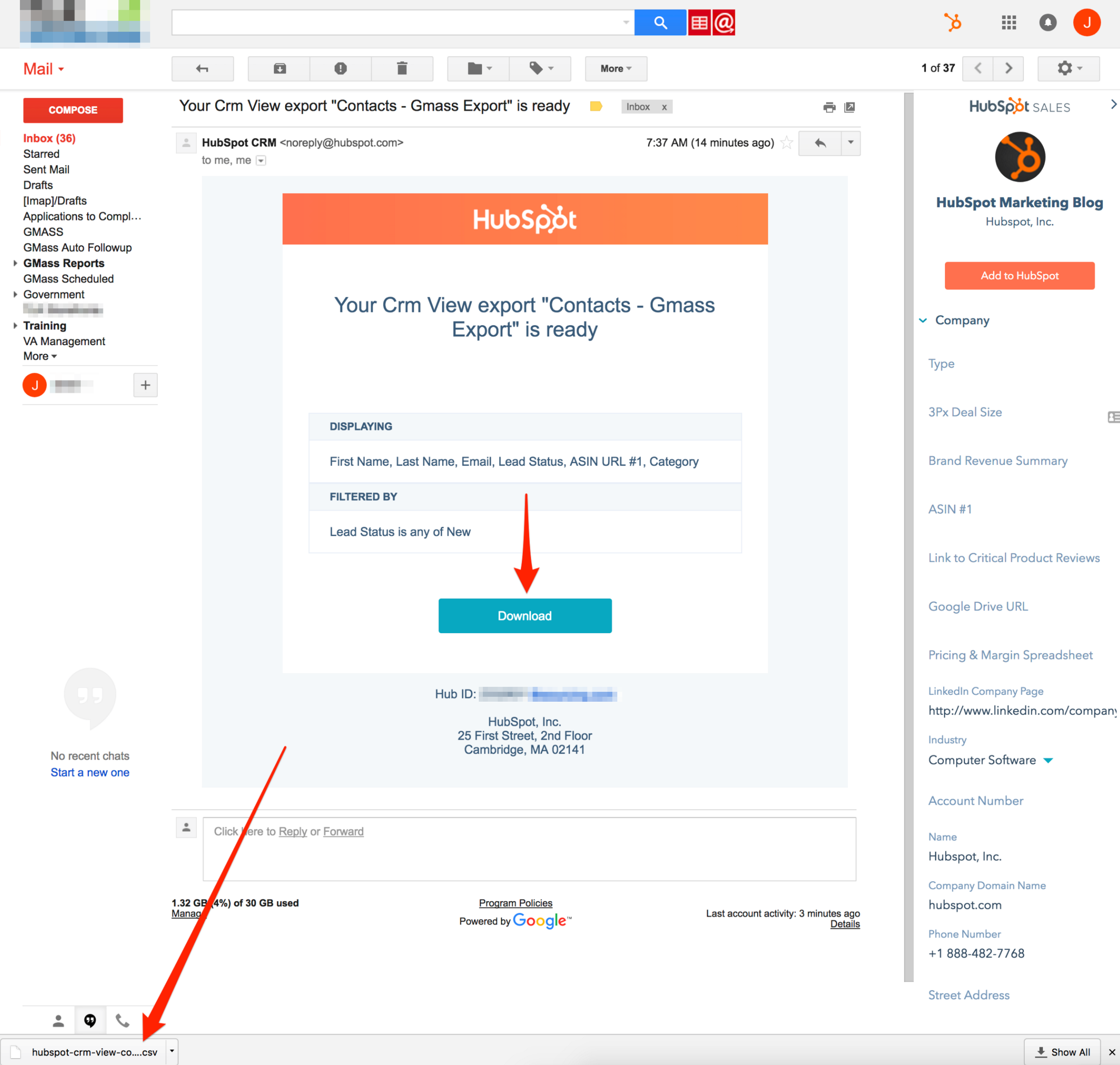
You will need to revert back to Gmail and, from within the inbox, select the "Spreadsheet Icon" next to the search bar.
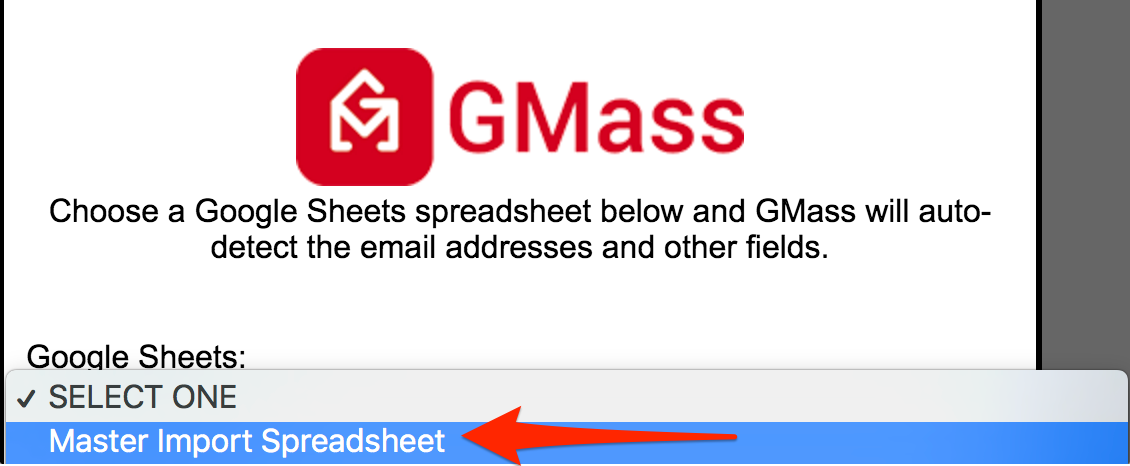
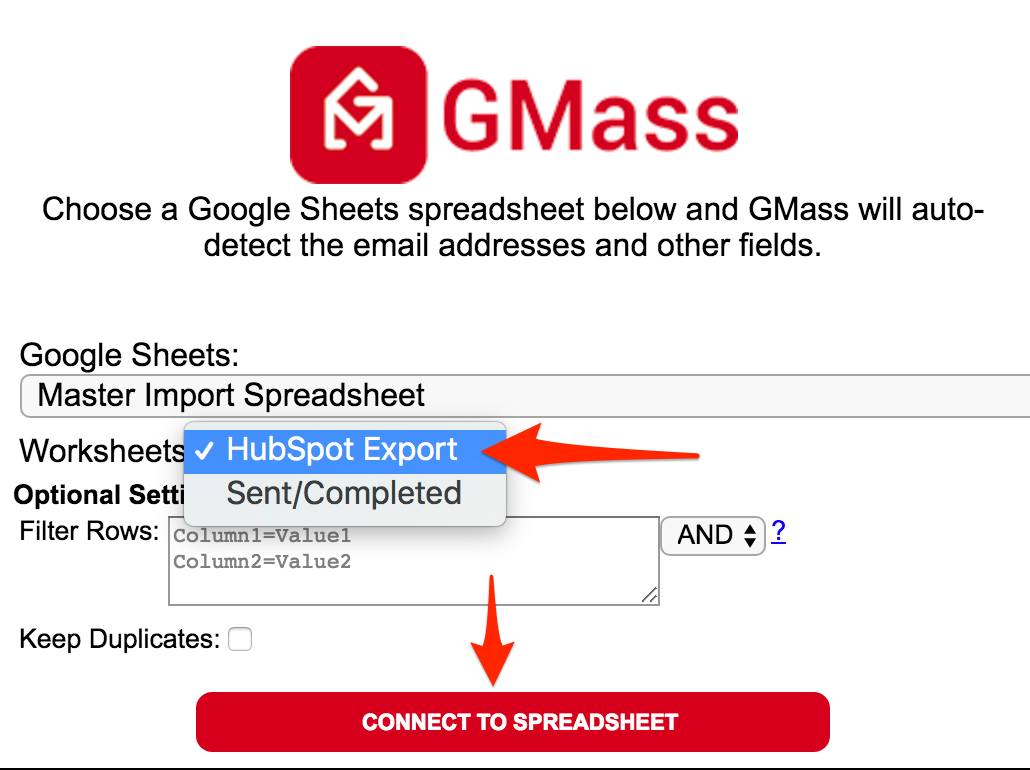
You'll be prompted to select a Google Sheet. Click the dropdown menu and select the "Master Import Spreadsheet".
Select the desired worksheet from within the Master Import Spreadsheet. This will be the individual page with the contact information, in our example below it is titles Hubspot Export.
Ensure "Keep Duplicates" is NOT selected.
Select "Connect to Spreadsheet".
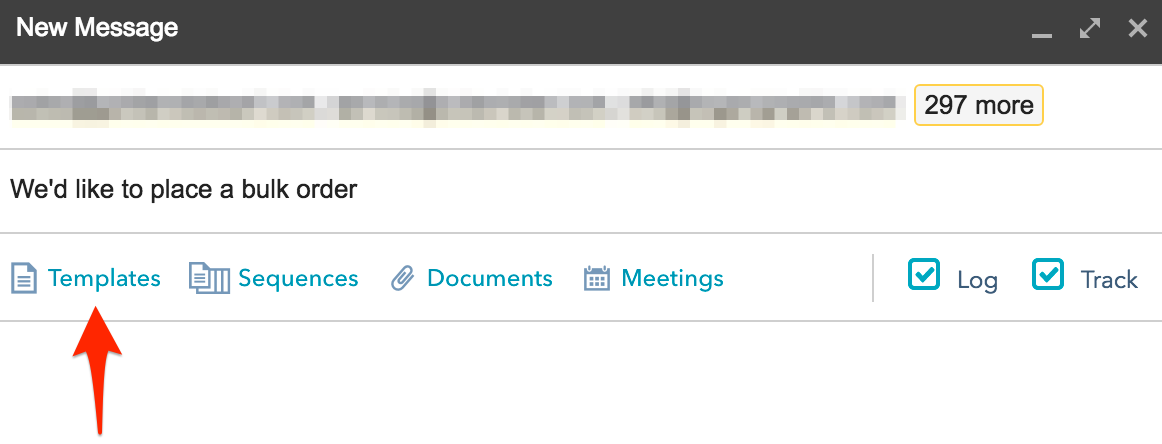
A New Message will be created in Gmail containing each contact from the specified worksheet.
Select "Templates" from below the subject line.
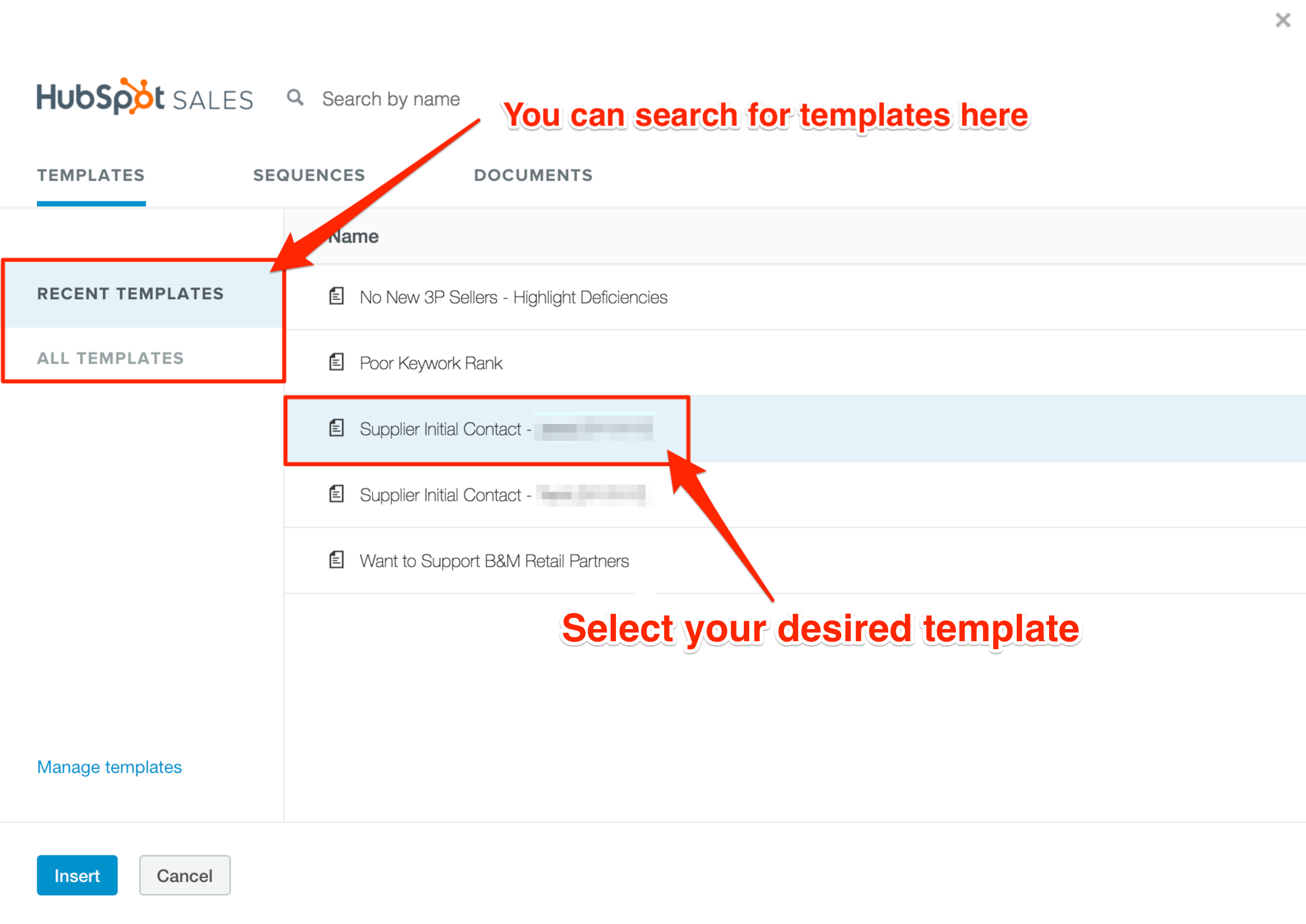
Select your desired template.
Once you've found the correct template, double click it and it will autofill into the new message.
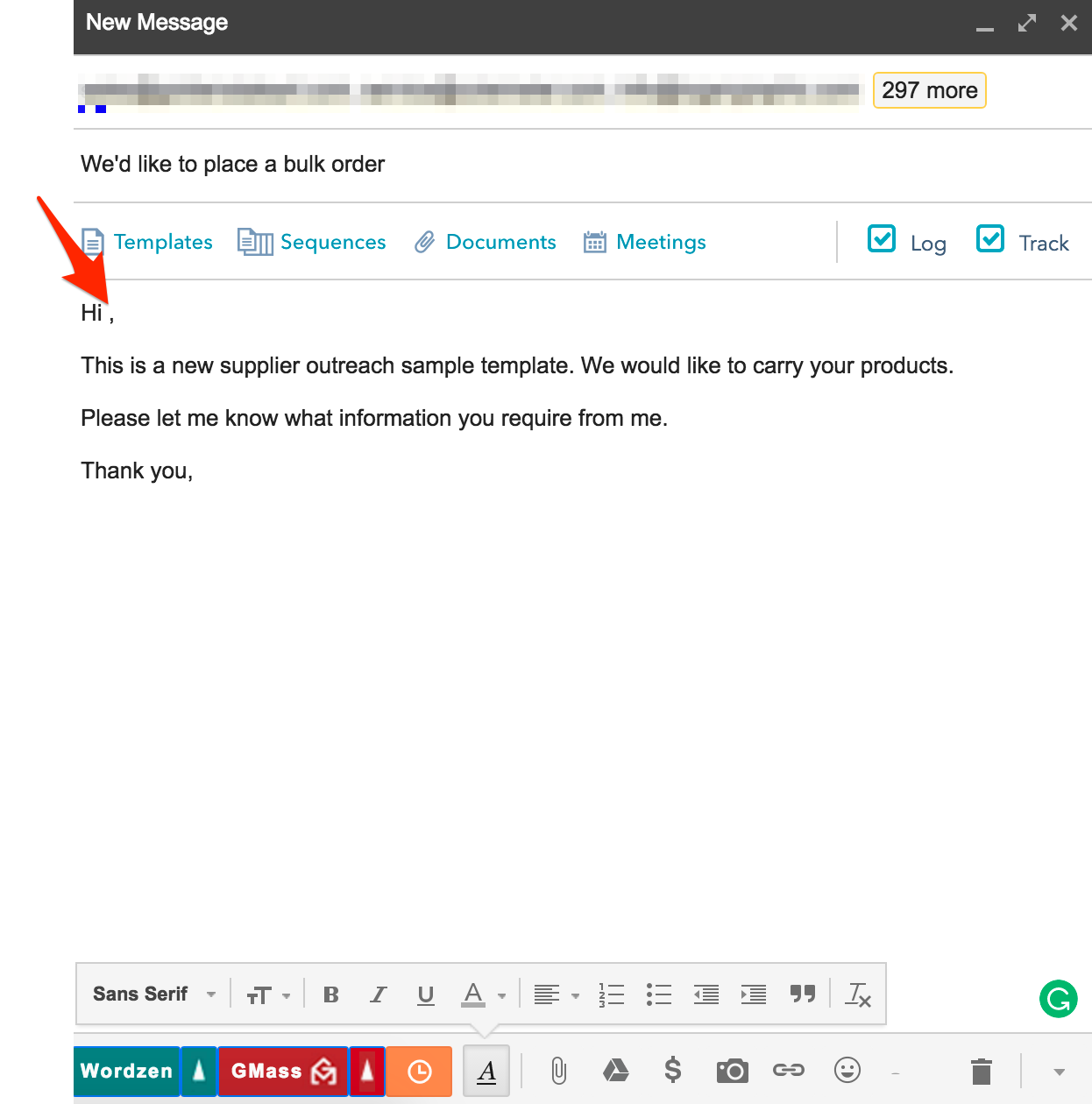
Ensure that a name has not autofilled in the greeting. In the case that one has, simply delete it and leave a space between the greeting and the comma.
Follow the instructions below to personalize the email per contact:
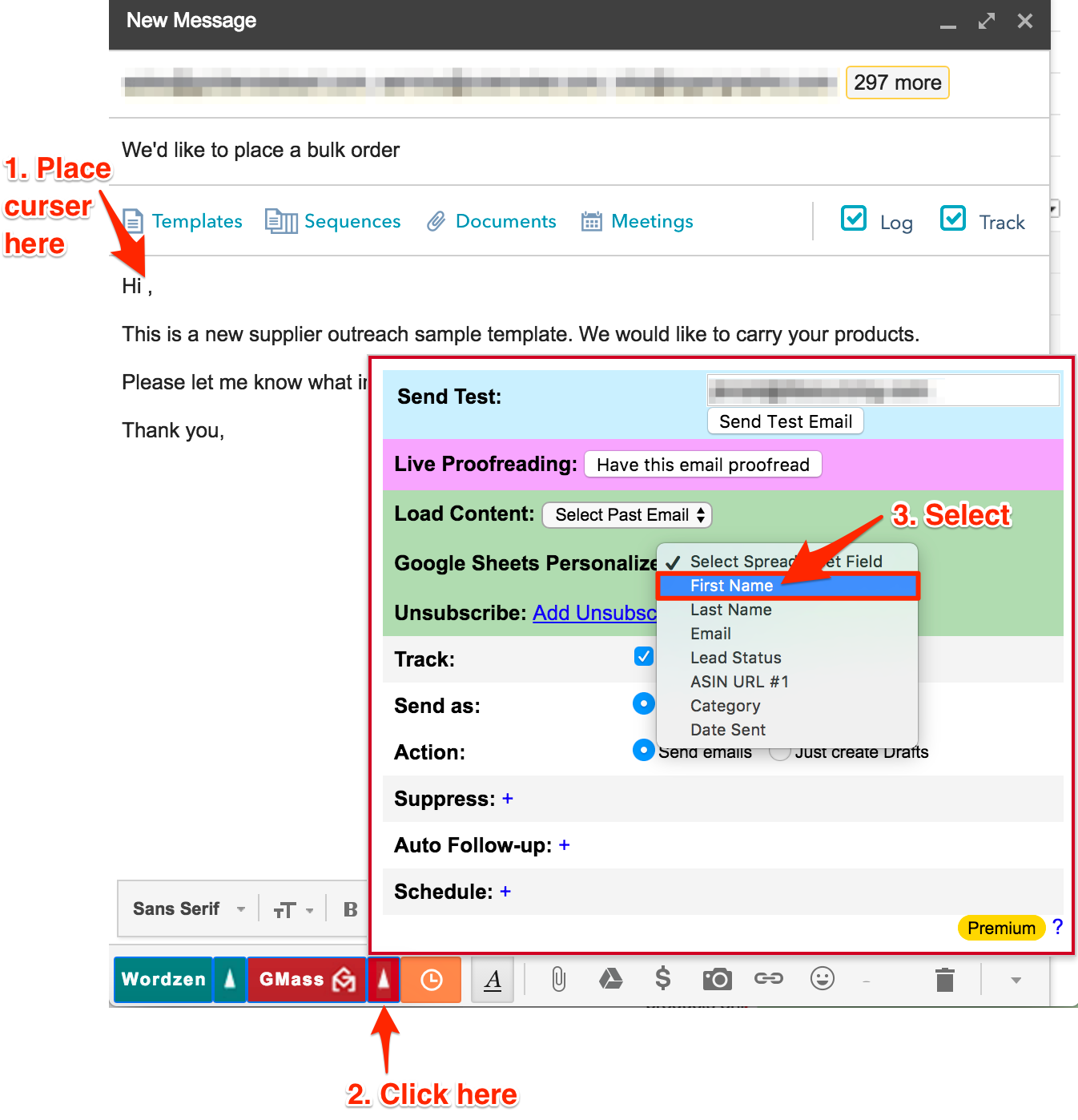
1. Place your curser next to the greeting (make sure that there's a space between the greeting and your curser)
2. Click the up arrow next to the GMass button on the lower left of the message
3. Select the First Name short code from the Google Sheets Personalize section
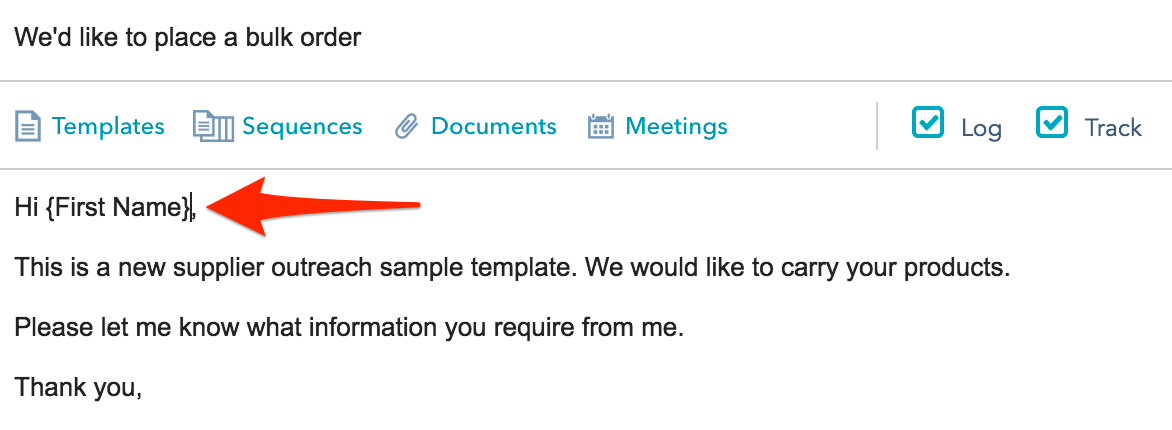
Once you have added these filters, then your greeting should look similar to the screenshot below.
You will need to copy and paster your email signature into the template as GMass will not auto populate your standard signature.
Before sending the email campaign, review the template one last time for any grammatical errors and ensure your short code(s) have been properly set.
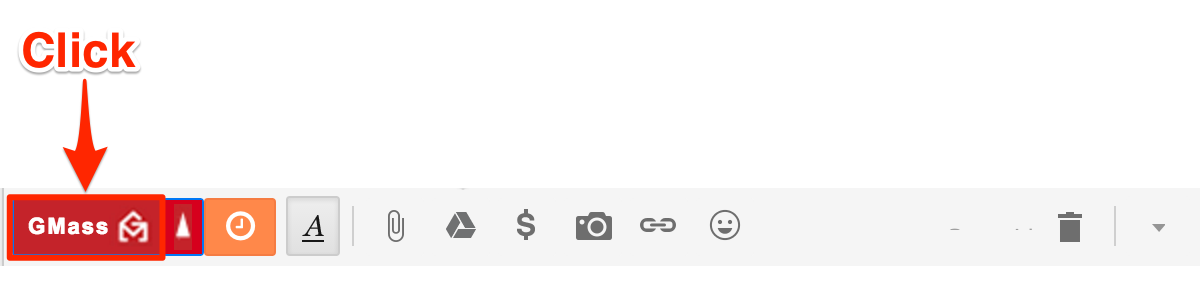
After reviewing, click the red GMass button on the lower left of the email.