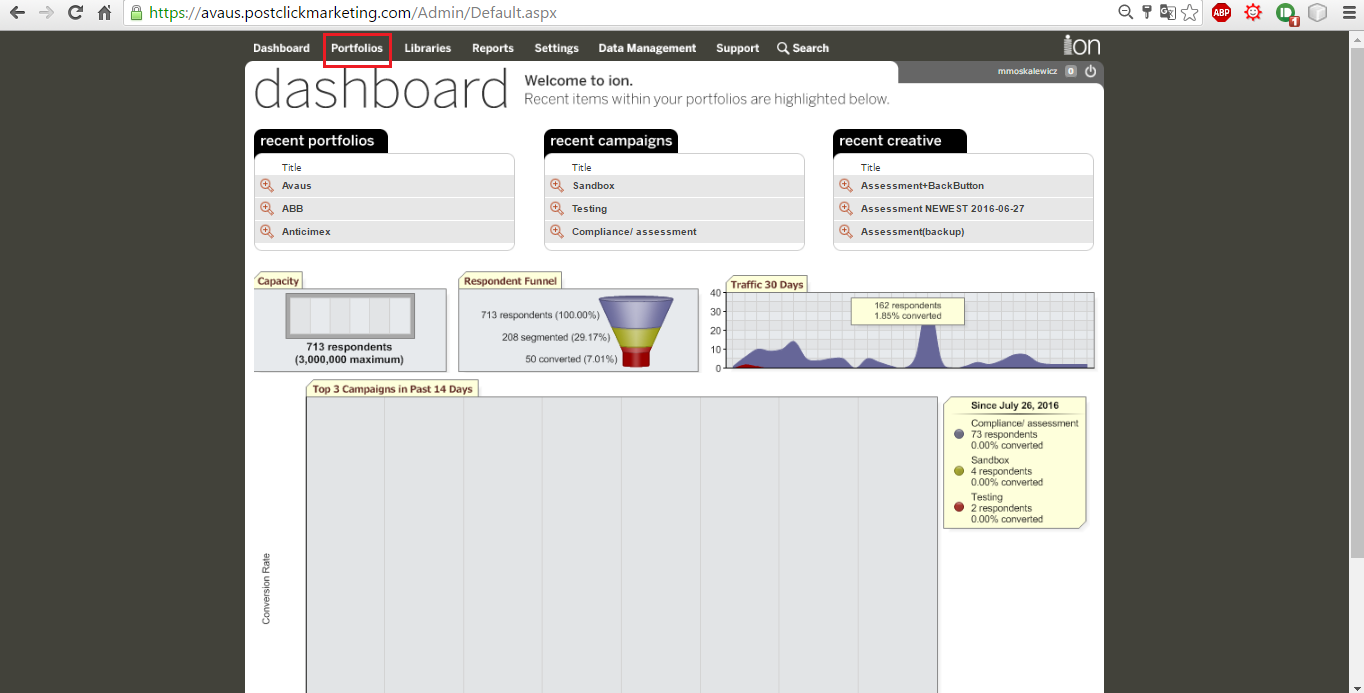
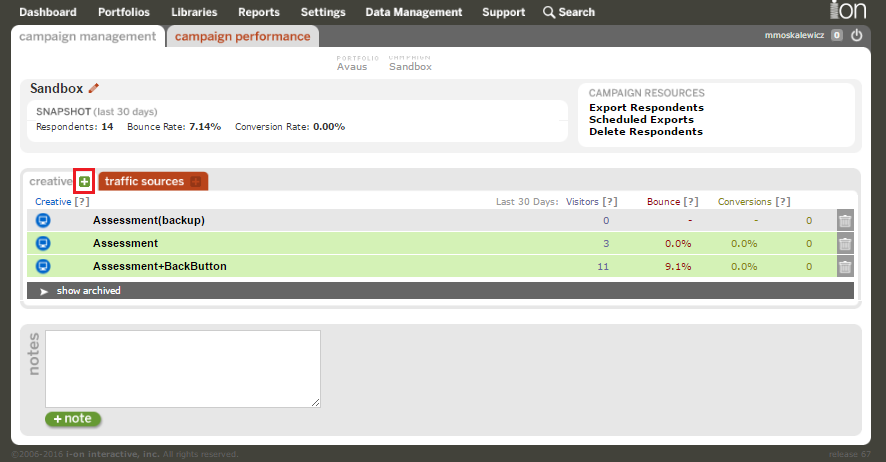
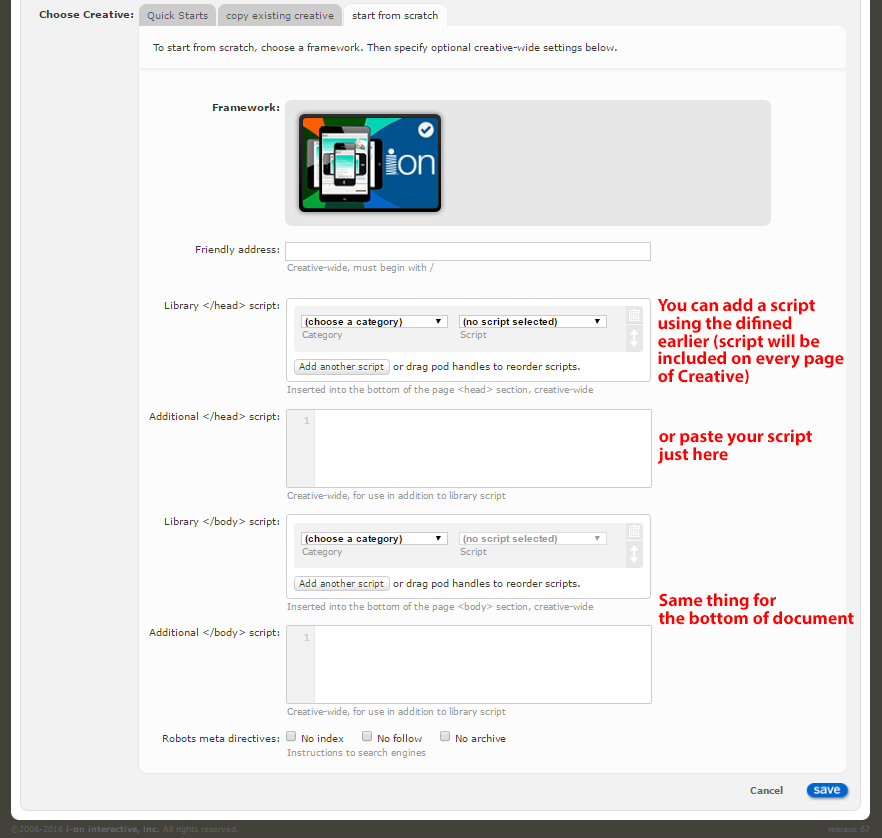
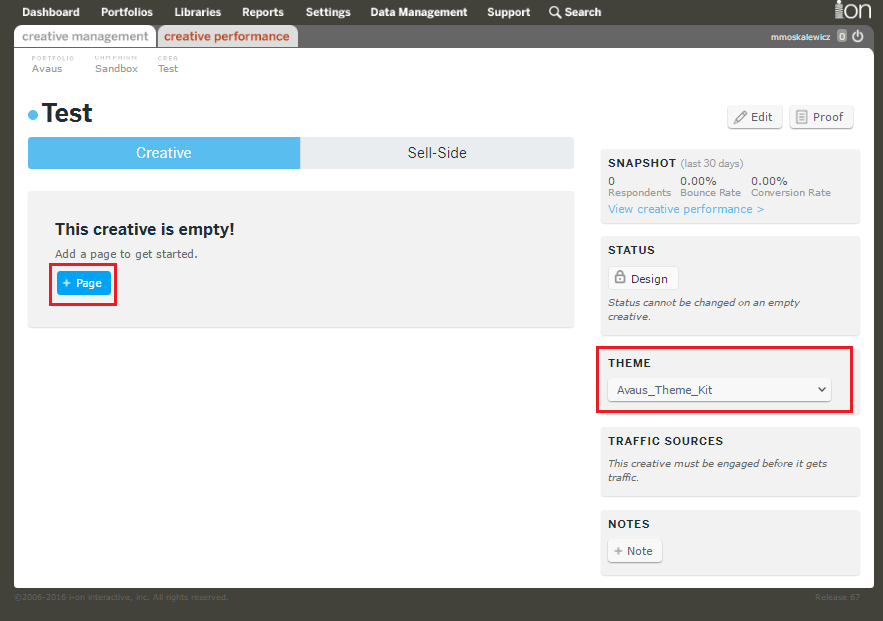
You can choose from CSS Themes which should be created earlier (Advanced part) – you can change the Theme of Creative any time so you can see how your work looks in different styles.
To start with your Creative you have to add new Page. You can add as many pages as you want. But In general in most popular interactive Creatives there are 2: Main page and Result page.
9. New page - creating
You can also choose from existing pages (from any Portfolio), quick starts or start from scratch
10. New page (start from scratch) – editing
The main grid of every Page is very similar to well knowned grids like Foundation or Bootstrap. It’s also 12 columns with standard break points (extra small, small, medium, large)
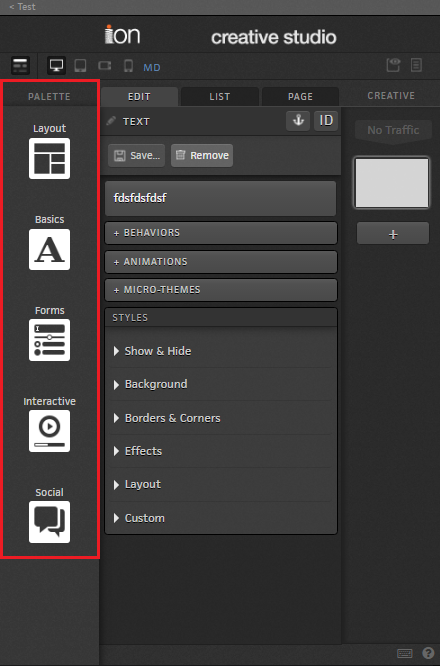
Every visible elements you can drag & drop from Palette on the right.
The main element is always Container (or Sticky container) and you Can put inside it Grid or Responsive Grid. Every other not grid or container elements can be dropped inside Container or Column.
11. Editing single Element
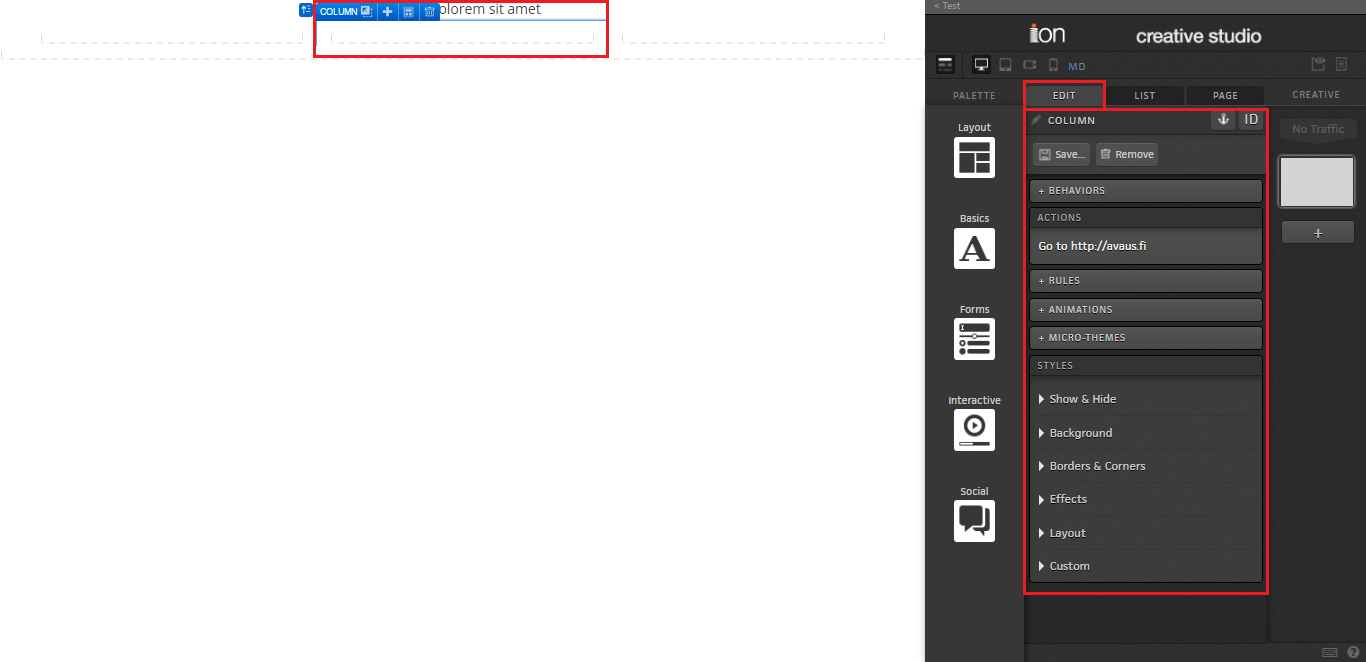
To edit single element you need to just click on this element and then Edit menu on right will show up. You can find there:
- Anchor – You can define name of anchor
- ID – You can copy id of the element to use in your scripts or rules
- Behaviors – Like scrolling to other part of page
- Actions – Actions on click like scrolling, go to page etc.
- Rules – Rules assigned to this element. Can be also done on Page Tab rules
- Animations – Animate the element
- Micro-themes – e.g. Dots menu for section slider
Styles - You can define here custom style of the element using ion interface, editing your own CSS styles or adding CSS class. Very useful is Show & Hide section where you can decide when this element will be shown e.g. when some score is higher than X.
12. List & Page
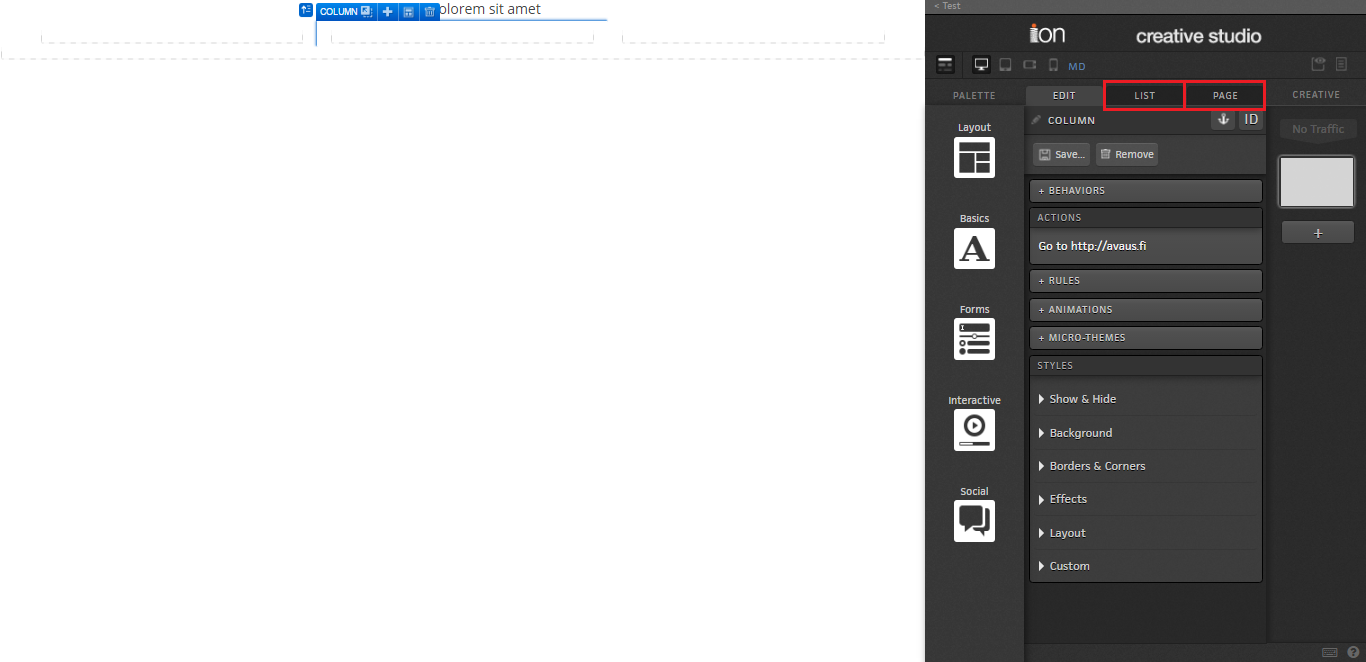
When it’s hard to click on some element you can choose it from List tab
Page - Here you can change title, url, add rules (logic), add scripts, own styles or add meta tags.