Make a Copy of the first file called "_TEMPLATE - laux Weekly Sync yyyy-mm-dd"
3
Edit the copy name to "laux Weekly Sync yyyy-mm-dd" where yyyy is the current year, mm is the current month and dd is the current day. The final filename should be something like "laux Weekly Sync 2017-06-26"
4
Open the newly created document
5
Post the Share link of the newly created document on the #_status Slack Channel
Write the Weekly Sync
On the newly created document...
1
Choose who will be first to speak
2
Ask that first person what he/she did in the last week
3
Ask that first person what he/she plan on doing this week
4
Ask that first person what problems he/she has encountered on their work.
5
Write down the answers to all of those questions in the headings Progress, Plans and Problems, respectively, of the Section with the respective person name.
Repeat the steps above until everybody in the call as spoken and their answers are documented properly.
Preserve:
Save the document and the recording of the call in the Drive.
Download the call recording
Go to our Zoom Recording page here and login with the credentials on 1Password.
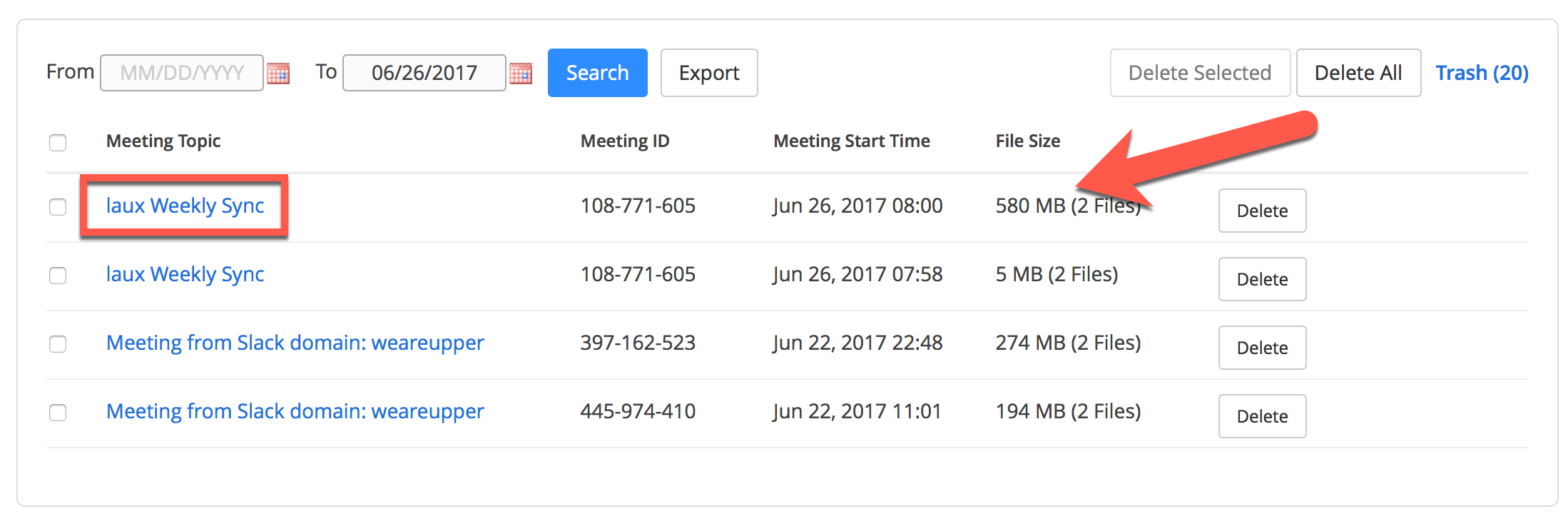
Find the last Weekly Sync call recording that has the bigger size...
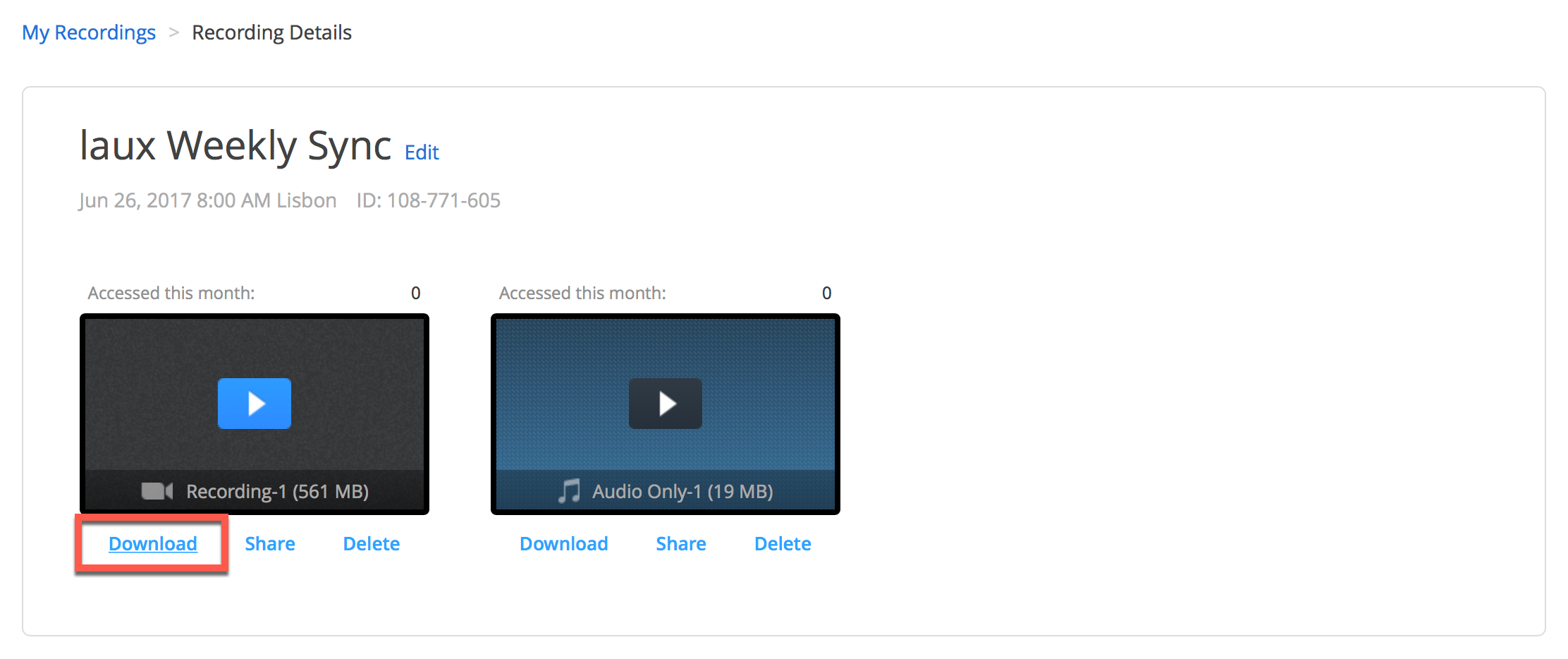
And then download the video with the biggest size to your computer...
Upload the call recording to Google Drive
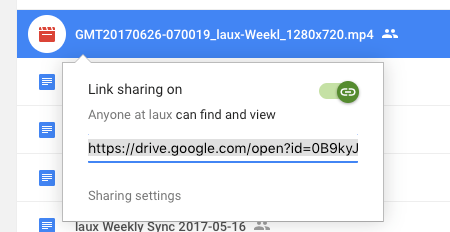
You can drag the downloaded file to the Weekly Sync folder in the Google Drive here
And share the link of the call recording in the #_status Slack Channel
Delete recording from Zoom account
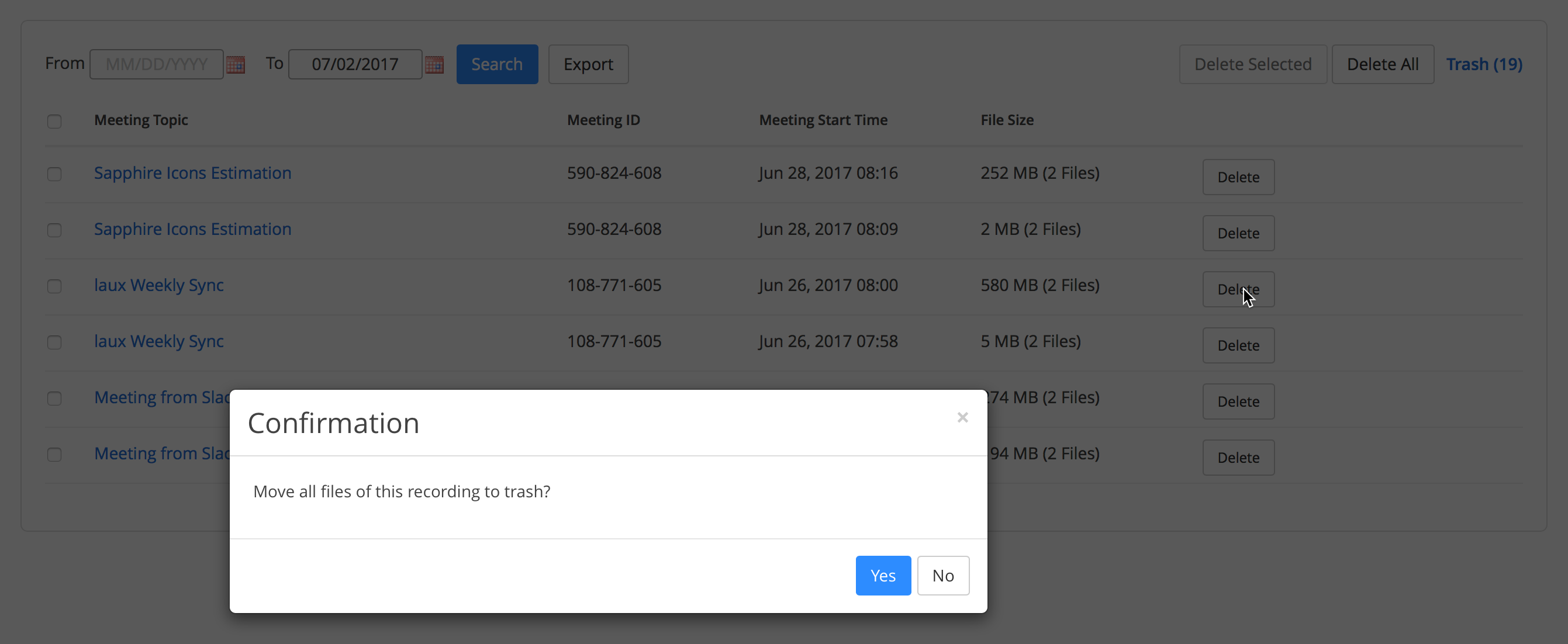
To finish, you should go here and Delete the Recording.
Optional cookies and similar technologies support analytics, advertising and visitor identification, and embedded content. Change or withdraw consent in Cookie settings. Cookie policy.