About this troubleshooting section
This section has been organized to address specific common problems, and is organized by task. If you are having an issue with a particular task on this checklist, please find the name of the task below and then specific FAQs.
If you can't find an answer in here, please email [email protected] or call 0491 166 991.
Check you have everything installed
Troubleshooting is in the equipment guide.
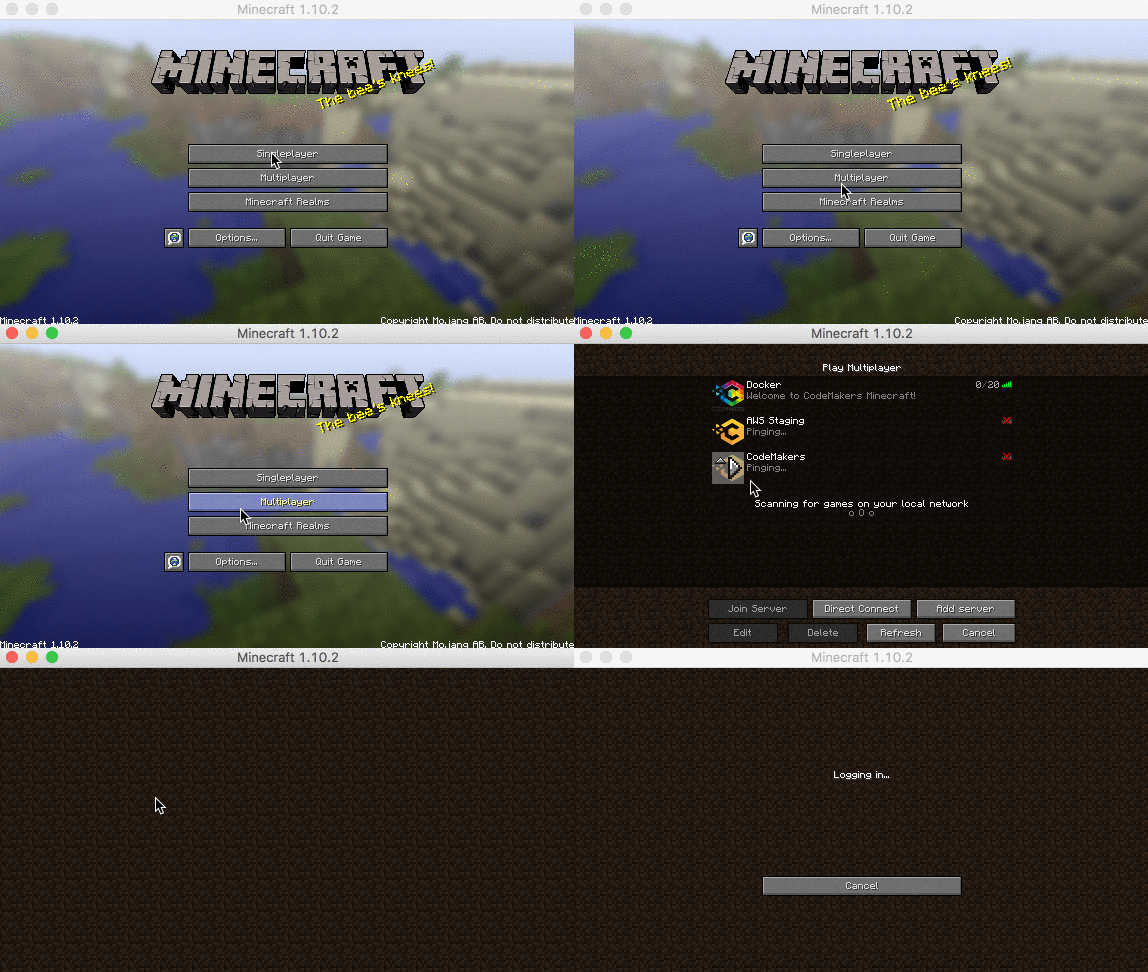
Change Minecraft profile settings to version 1.10.2
"My Minecraft doesn't look like the video you've made, so I can't follow the instructions"
- If you are running Windows 10, please check that you have Minecraft for PC: Java Edition installed on your computer and open. Please refer to the equipment guide for information on how to do that.
- My video tutorial in this step is screened on the latest version of Minecraft. If your version hasn't updated, then it will look different. Please follow the 'Change Minecraft profile settings' in the PDF below.
"I don't have version 1.10.2 as an option"
- If you are running Windows 10, please check that you have Minecraft for PC: Java Edition installed on your computer and open. Please refer to the equipment guide for information on how to do that.
Add the CodeMakers Minecraft server
"I am getting an error when I try to join the server"
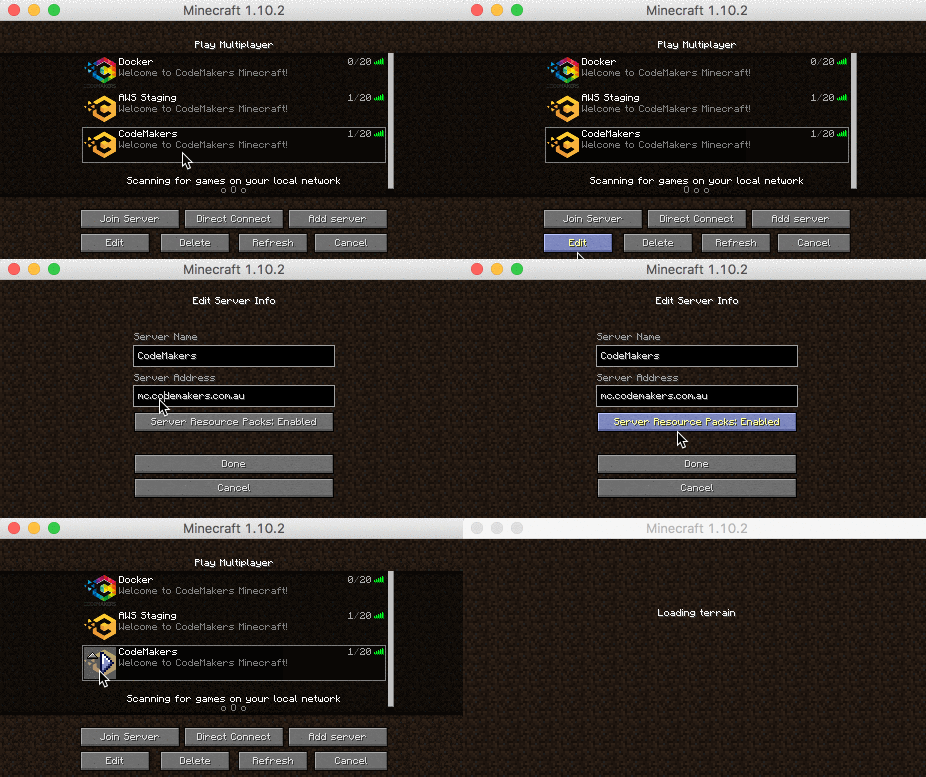
Firstly, check that you haven't accidentally mistyped the server address
- With the CodeMakers server selected, click the 'Edit' button
- Double check that the server address is mc.codemakers.com.au
- Correct the server address if necessary, click done, and try jump into the server again
If its still not working, check you're on Minecraft version 1.10.2
- Quit Minecraft and open it up again
- The green PLAY button should say '1.10.2' on it. If it doesn't:
- Click the up arrow attached to the play button and select the CodeMakers 1.10.2 profile you setup earlier
- If there is no CodeMakers profile, you probably missed the checkpoint called 'Change Minecraft profile settings to version 1.10.2' that was earlier in this checklist.
- You should now have '1.10.2' on the play button. Click play and jump into the server again.
If its still not working
- Restart Minecraft
- Restart your computer
Jump into the CodeMakers Minecraft server
Troubleshooting is the same as the above section on adding the CodeMakers Minecraft server.
Login to CodeMakers on Google Chrome
"I can't remember my child's login information for CodeMakers"
If you booked over the phone, their username and password should have been sent to you in an email.
If you can't find this email:
- Login to your parent account by going to http://minecraft.codemakers.com.au and selecting the 'parent' option. If you can't remember your password, you can reset it here.
- Once inside your parent account, you'll see your child's CodeMakers username
- Reset your child's password to be something that they'll remember
- Write the username and password down so you don't lose it again
- Go back to http://minecraft.codemakers.com.au and this time login to your child's student account.
Set Minecraft username in CodeMakers
"There is no 'profile' in the left hand side menu"
You might be logged into your parent account. Sign out of that account and follow the steps in 'Login to CodeMakers on Google Chrome' to sign into your child account.
Join the class in Google Hangouts
"Its asking me to install some kind of plugin before using Google Hangouts"
You aren't using Google Chrome as your web browser. Please ensure your child is using Google Chrome to login to CodeMakers, and to access the Google Hangout.
"Its been ringing for ages, but no one is letting me into the classroom"
Restart your computer.
"I'm in the Google Hangout, but I don't think anyone can hear me"
By default, you are usually muted when you enter a Google Hangout.
- Move your mouse to the top of the screen. You should see a microphone with a slash through it. If that button is red then you are muted.
- Click the button to unmute.
- Get the teacher's attention to check that they can now hear you.
If this doesn't solve the problem:
-
- Try unplugging your headset and seeing if it is an issue with the earphones/headset you are using
- Check which microphone is in use by clicking the 'settings' icon in the Google Hangouts toolbar
Still having problems? Most Google Hangouts problems can be fixed by restarting your computer.
"I have some other Google Hangouts issue that isn't here"
- Most Google Hangouts issues can be sorted out by restarting the computer.
- If you still have issues after a reboot, please call Nikki on 0491 166 991.