Make sure the title is something searchable. Include stuff you might assume is known by the folder (not everyone can see the folder and we don't want to have processes that end up with the same name in multiple folders or that can't be found when using Zapier or other tools.
Good: #DGC How to Search For a User's Comments #SeedHackers How to Search For a User's Comments
Bad: Search For Comments Search For Comments
Give it a good title!
Add a description
Enter a helpful description to clarify the process
Just under the title!
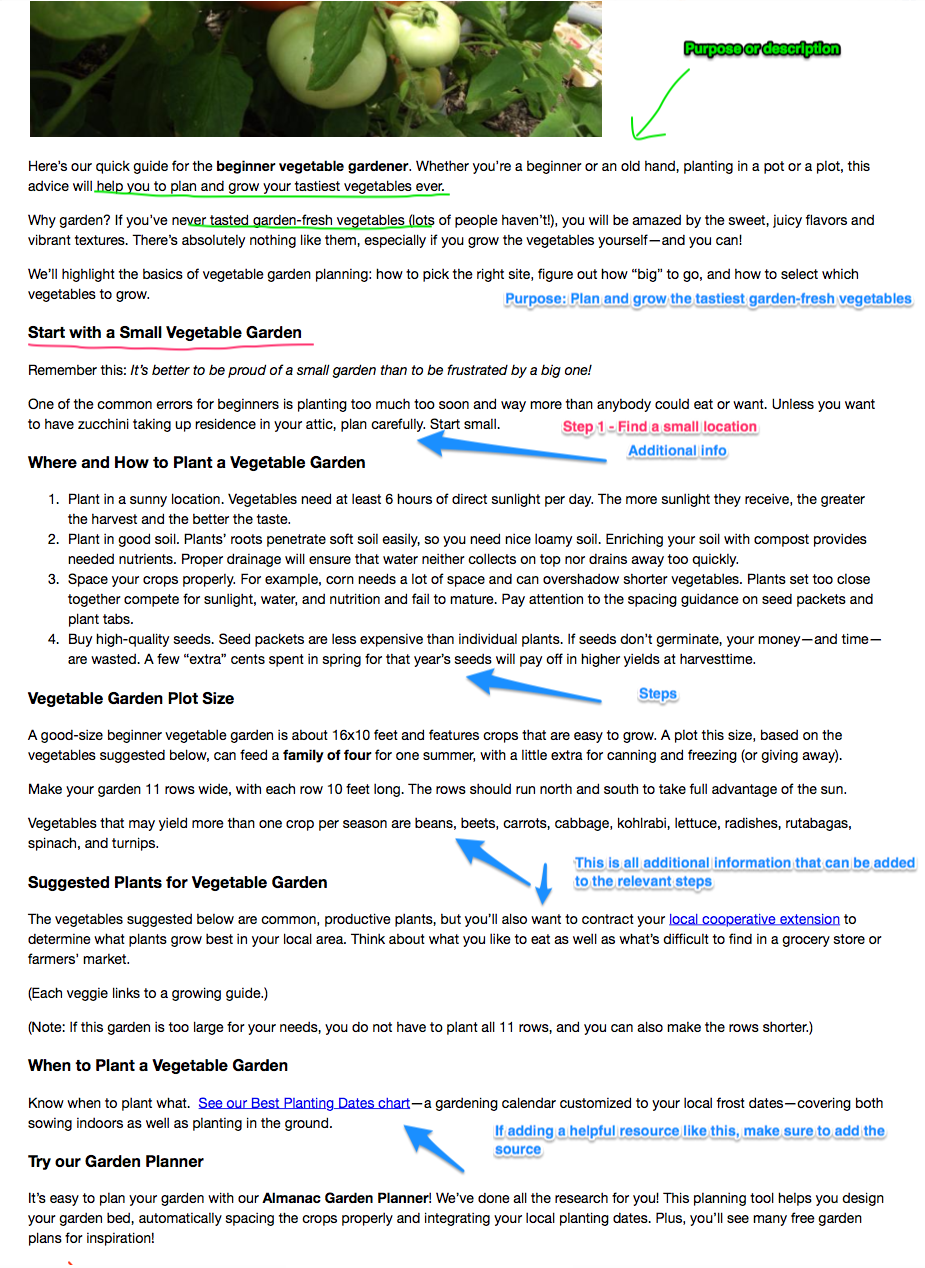
Make sure step #1 includes these things...
Make sure the 1st step lets them know...
The Intention - why does this matter?
Prerequisites - What access or info or tools do they need to have before starting?
Definition of Done - How do they know they have successfully completed this? What is the desired outcome?
Map out tasks (steps) on left
Create all the major steps. You can drag & drop them to rearrange the order.
Tip: You can also paste in a list of steps from a text document or from a spreadsheet.
Just enter some text and hit Enter to add another!
Lower left has some tools to help with this process...
Break up lengthy processes with Headings
Add headings to break up lengthy processes into segments. This is useful if different portions are done by different roles.
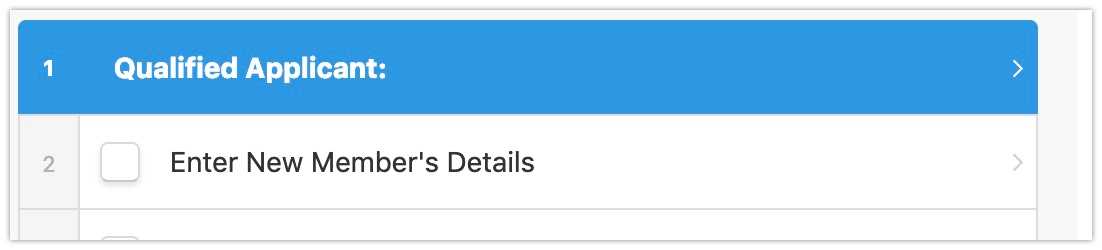
Simply add a : (colon) to the end of a task to change it to a heading. Only do this if it doesn't require action to be completed.
Example heading in Template view
Example heading in Checklist. Notice headings cannot be checked off and are informational steps that don't allow you to complete.
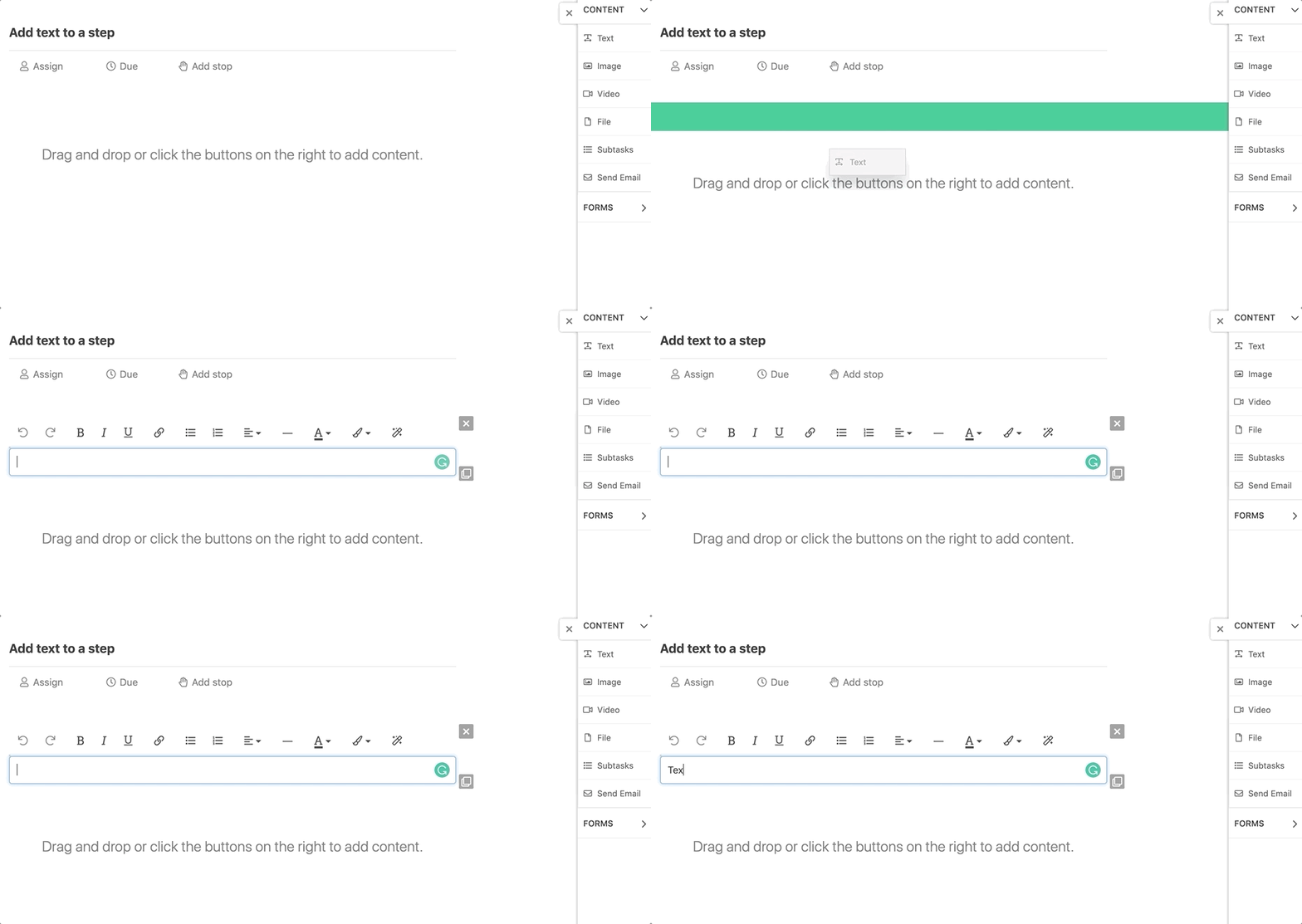
Add text to a step
Text
Drag and drop or click Text on right to add a Text area.
Add images to a step
Add images below text to clarify for visual learners.
You can click the Image tool on the right or just drag an image into the window...
Just drag and drop an image from your favorite screen capture tool or desktop
Add videos to a step
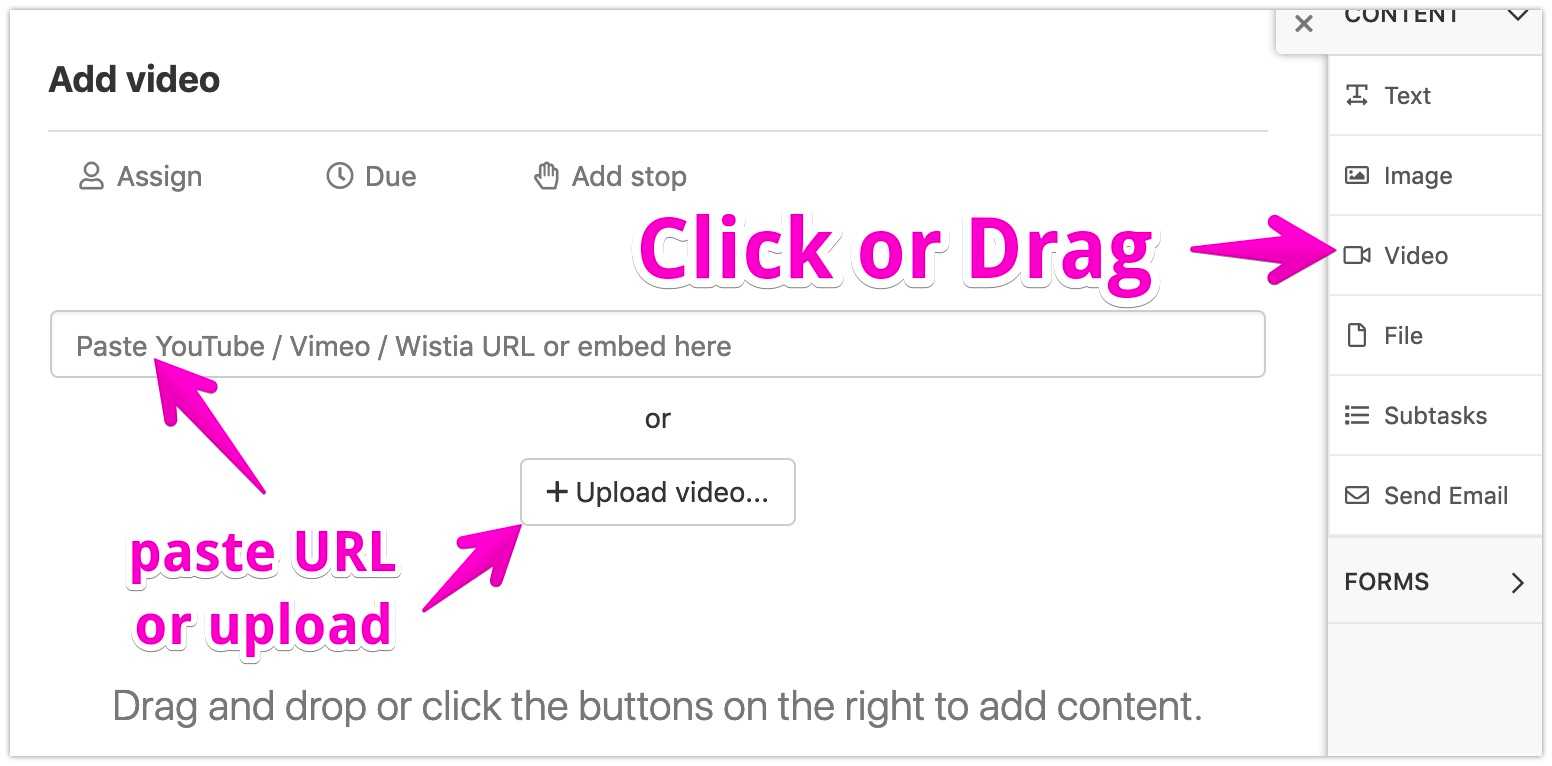
Easily add video...
Tip: Use Loom to record quick videos
Loom is a great way to make quick how-to videos.
Add files to a step
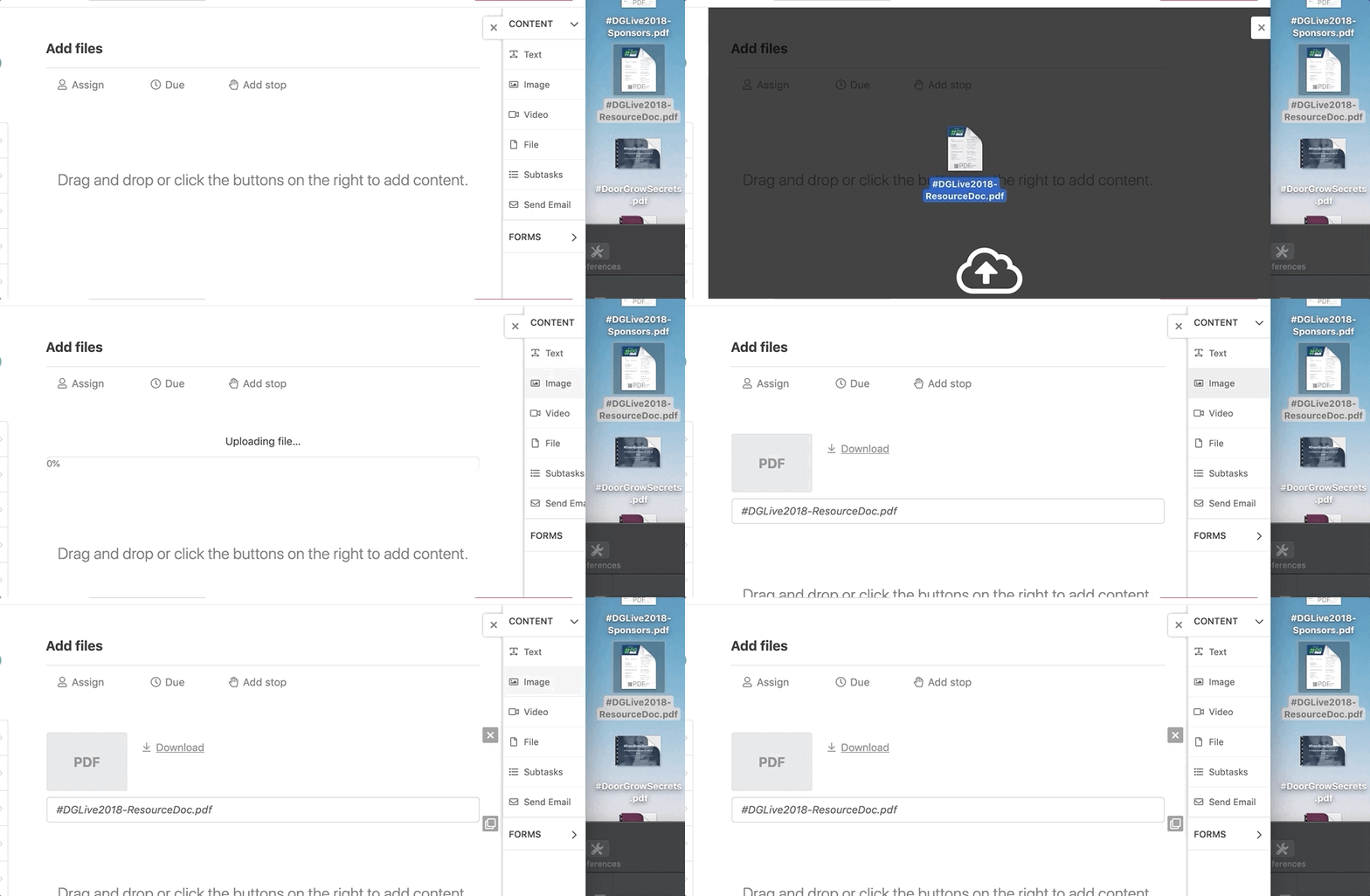
You can click File on the right & then upload a file... or just drag and drop a file.
Drag & drop a file
Add subtasks
Add some subtasks on a step with several things to check off.
Add form fields
Add form fields to capture any data that could be used later in the process.
Optional cookies and similar technologies support analytics, advertising and visitor identification, and embedded content. Change or withdraw consent in Cookie settings. Cookie policy.