2. Opt-In Page System:
In this step, you'll create a SIMPLE "Opt-in Page" System to capture leads for your upcoming video series!)
2.1 LeadPages (Opt-In and Thank You)
In 2.1, you're actually going to CREATE your Video Series Opt-In Page using LeadPages. We have included some basic steps here, but please refer to LeadPages' for any updates and changes to their software.
Example of Completed Opt-In Page:
Business By Design Video Series Opt-In Page
Your Opt-In Page will need the following ingredients:
-
Clear, Concise, and Attention-Getting Headline
-
Call To Action Button (above the fold!)
-
BONUS: Add a Survey upon Opt-In to create a segmented launch list (a.k.a. buckets)
1.Log in to LeadPages
LeadPages
2. Sort Templates by Highest-Converting Opt-In Pages
Follow the 4 Steps in the graphic below to sort by the BEST Templates for Opt-In Pages inside LeadPages.
3. Select an Appropriate Template for the Webinar Registration Page
Select an appropriate template... I've pointed out one we have used.
4. Edit and Customize the Copy/Text/Images
Do your best to customize and edit the copy:
1. Make sure any spelling/formatting is correct.
2. Add any relevant images/video if needed.
...and anything else that you think needs editing/adjusting
3. Save your work.
5. Insert Your Privacy Policy LINK in the Footer
Make sure your Privacy Policy has been added as a Clickable Link in the Footer.
6. Click the "Link Options" Button from the GEAR WHEEL on the Call To Action Button
Every page will have a big Call To Action button. Hover your mouse over the button to display the small gear wheel in the upper right hand corner.
Click the gear wheel to display a dropdown menu and select the "Link Options" button.
7. Edit the Opt-In Form Integration Settings
From the Lightbox...
1. Make sure "Show Opt-In Form" is selected
2. Click on the link: "Advanced Settings"
3. Click on "View/Edit"
8. Integrate Your Page with Infusionsoft & Your Web Form
1. Select Infusionsoft from the first dropdown menu.
2. Select the name of the WEB FORM you created inside Infusionsoft's Campaign Builder
Note: If you can't find the Webform, click the "reload" button first!
3. Click the GREEN "Customize This Form" button.
9. Select a New Lead Box IMAGE
Follow the steps to select the image for the Lead Box.
Make sure to SAVE your changes!
10. Replace the Lead Box Headline Copy
Use the EXACT copy used in the image below and SAVE.
11. Replace the Button Copy
Use the EXACT copy as given in the image below.
12. Save All Changes to the Page and PUBLISH
Click the "SAVE" button to save changes...
Note: The Page Name should labeled something clear and simple...
Example: The Title of Your Video Series
13. PUBLISH!
14. Connect Your Opt-In Page to your "Thank You" Page
1. Click on the Call to Action Button
2. Select "Thank you page"
3. Enter Your Video Series Page URL
4. Press Okay
Note: Your "Thank You" Page is your Video Series Page.
15. Save All Changes to the Page and PUBLISH again.
2.6 Email Integration
In 2.6, you'll need to INTEGRATE your Opt-In Page with your Email Marketing Software. Unfortunately, because there are several different services, you'll have to create your own process here. We've included our own personal process for using Infusionsoft in the steps below.
Here are the "Essentials" You'll need to make sure this step is completed properly:
1. Log in to Infusionsoft
Infusionsoft
2. From the Main NAV Dropdown, Select "Campaign Builder"
Open up Campaign Builder.
1. Select the Infusionsoft Logo in the upper left corner
2. Visit the "Marketing" Column
3. Select "Campaign Builder"
3. Find & Select Campaign
Select and Open Campaign
4. Connect the Form to a New Sequence
Drag the arrow to connect
5. Build Your Email Sequence
1. Add a tag to keep track of all the registrants of the video series
2. Automate your email(s)
3. Proofread/Test
4. Publish when complete
Here is an example of an Infusionsoft Sequence:
2.9 Create Early Bird List in Leadpages
Until your video series is actually LIVE, you can direct your interested prospects to a waitlist. To do this, you can follow the Waitlist Process HERE.
3.1 Video Landing Pages (1-3)
You will need to create one unique Landing Page for every video in your Video Series.
Essential Elements of your Video Series Pages:
-
Header
-
Headline
-
Video
-
Links to Future Videos
-
Call-To-Action
-
Footer
Here is an example of our Video Series Page:
3.6 Sales Page Link
Once the cart is open, you should add a link to watch your Sales Video on your Sales Page.
3.7 Affiliate Opt-In Page
In the footer you can add a link to an opt-in page for those who are interested in becoming affiliates for your product in the future.
3.8 Affiliate Thank You Page
If you are planning on adding an Affiliate Opt-In, than you will need a Thank You Page for that Opt-In.
3.9 Testimonials Page
Provide a direct link to testimonies for those who are visiting your sales page. Download our testimonials page here:
5.1 Sales Page Process
To create a sales page, follow our sales page process HERE.
12.1 Checkout Page Process
To create a checkout page, follow our sales page process HERE.
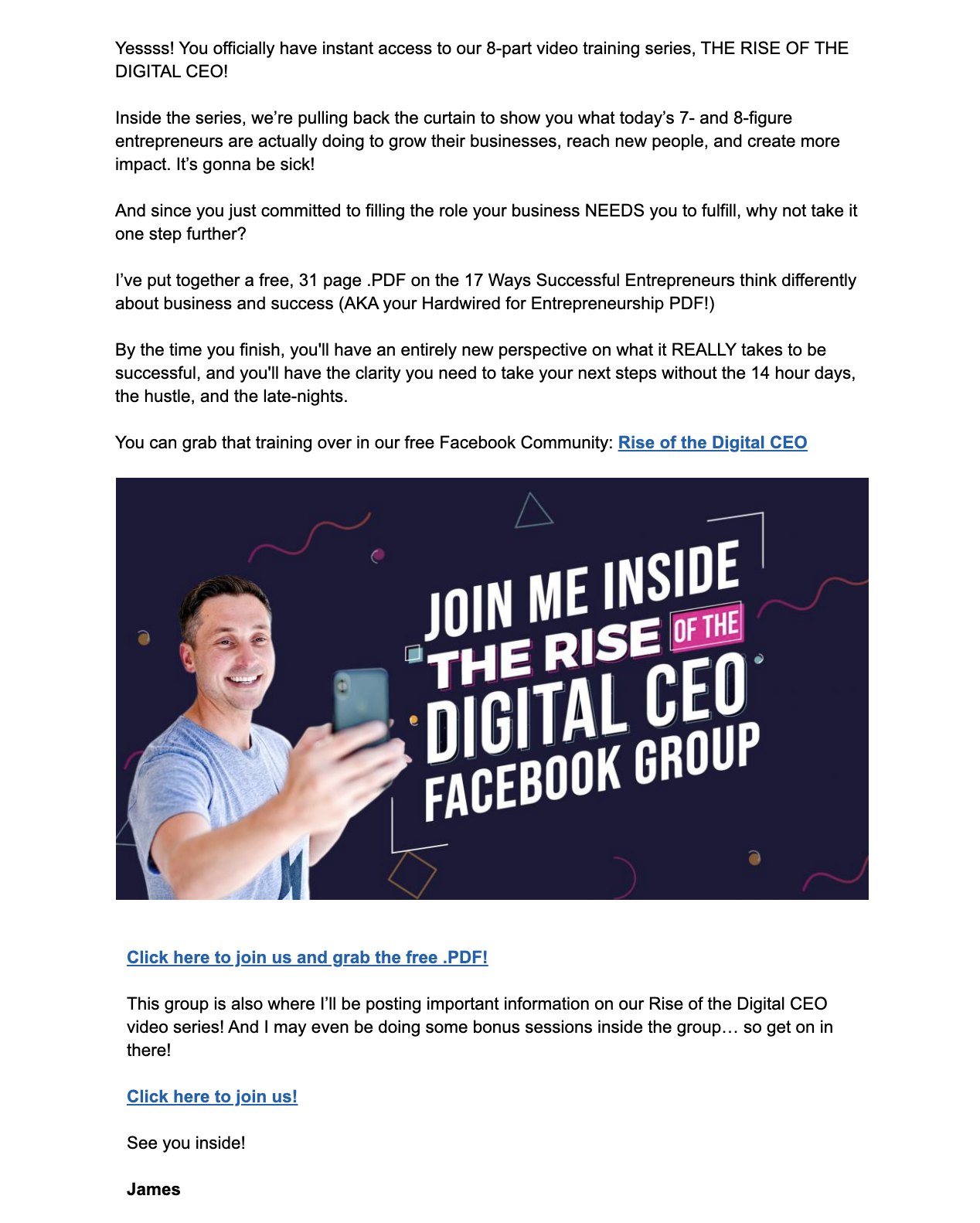
13.1 Create FB Page
Having a place for those who watch your video to continue the conversation, has proved to be very beneficial for us. In fact, 75% of our Business By Design Members have been Members of our free online Facebook community during our launches. This is a space where you can follow-up on the call-to-action(s) in your videos, encourage their progress, connect with prospects, allow community to form between the Members, and most importantly build relationships.
A Facebook Group is an easy way to organize this community. I recommend having a clear start and end date for this group.
16. Post-Launch Debrief:
Your post-launch debrief is an extremely valuable component of any launch to analyze what went right, what you learned, what you would do differently, and the results & metrics your launch yielded.
In 16.1, we review the process for deploying your post-launch debrief.