




You no longer need to understand HTML, CSS, or server administration to publish a credible website. A modern DIY website builder gives you visual controls, reusable page sections, hosting, and practical publishing tools in one place.
The easy part is getting a page online. The more important work is choosing a platform that suits your goal, planning useful content, checking how the site performs, and making sure you can maintain it after launch. This guide explains those decisions from the ground up.
A DIY web site can serve a portfolio, local business, professional service, publication, event, membership, or online store. The right setup is the one that supports the job your visitors came to do without creating unnecessary work for you.
DIY website builders explained
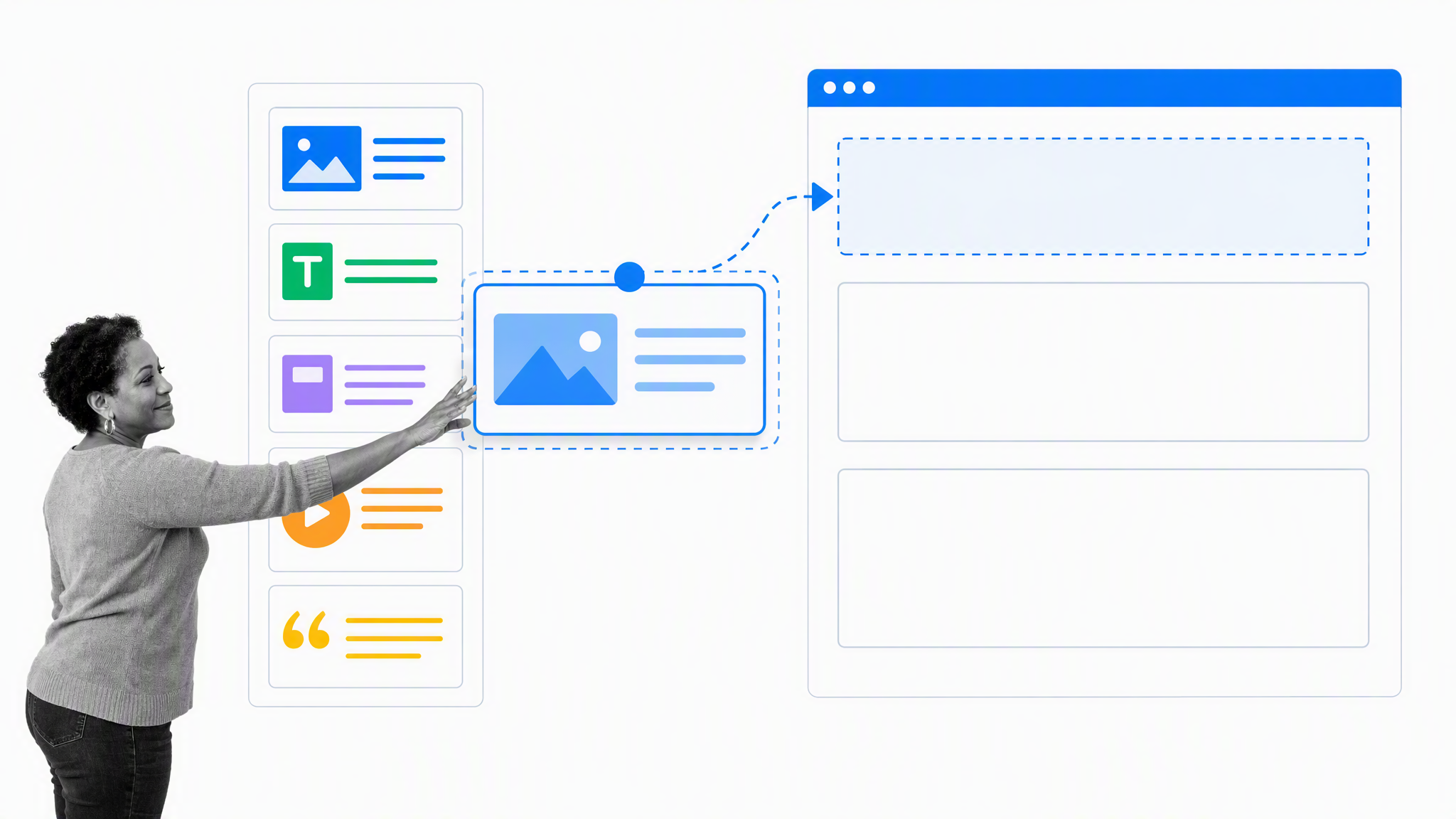
A DIY website builder is software that lets you design, publish, and manage a website through a visual interface. Most builders use a WYSIWYG editor, short for ‘what you see is what you get.’ You arrange headings, images, forms, buttons, and other blocks on a page while the tool handles much of the underlying code.
That approach removes a major barrier for nontechnical creators. Instead of writing markup, you can begin with a template, replace its sample content, adjust the layout, connect a domain, and publish. Hosted builders usually include security updates, backups, and infrastructure as part of the subscription.
The category covers several different products. Wix and Squarespace provide hosted visual building systems. Shopify centers the experience on commerce. WordPress is a content management system that can become a visual building environment through themes and tools such as Elementor.
Older products such as Weebly helped establish the drag-and-drop model, but product popularity alone should not decide your choice. Website technology changes. Your requirements, ownership expectations, and ability to maintain the site matter more than a ranking.
Benefits of building your own website
Lower starting cost
Hiring a designer and developer can be the right investment for a complex brand, custom application, or high-risk migration. It can also be more than a new business needs. A DIY builder packages design tools, hosting, and maintenance into a predictable subscription, so you can validate an idea before commissioning custom work.
Look past the advertised introductory price. Compare renewal rates, domain charges, transaction fees, premium templates, apps, email, storage, and the cost of removing platform branding. A cheap first year can become expensive when essential features sit behind separate upgrades.
Faster path from idea to publication
Templates and reusable sections shorten the distance between a blank page and a working website. A consultant can publish a focused services site in days. A restaurant can add a menu and booking link. A creator can build a portfolio without waiting for a development queue.
Speed should not mean skipping decisions. Define the visitor, the action you want them to take, and the evidence they need before you choose a template. A beautiful layout cannot rescue an unclear offer or a page that makes the next step hard to find.
Direct control over routine changes
When you own the day-to-day editing workflow, you can update hours, pricing, images, FAQs, and announcements without opening a support ticket. That independence is useful for small teams whose information changes faster than their development capacity.
Control also creates responsibility. Someone must review broken links, form submissions, software updates, accessibility, performance, privacy notices, and stale content. Plan for that work before the launch excitement fades.
DIY website builder vs CMS vs professional designer
A hosted DIY website builder is usually the simplest choice when you want an all-in-one service and can work within its design system. It reduces technical maintenance but may limit code access, data portability, and the ability to move the finished design elsewhere.
A self-hosted content management system offers more control. WordPress, for example, can support a large publishing operation, a small brochure site, or a customized commerce experience. That flexibility comes with decisions about hosting, themes, plugins, security, backups, and updates.
A professional designer or agency is valuable when the website needs original brand strategy, unusual interactions, complex data, custom integrations, regulated controls, or migration planning. Specialists can also improve information architecture and accessibility before visual decisions become expensive to reverse.
- Choose a hosted builder when speed, convenience, and a managed service matter most.
- Choose a CMS when content ownership, extensibility, and technical control justify added maintenance.
- Choose a professional partner when risk, complexity, differentiation, or internal capacity makes expert work the safer investment.
These paths can overlap. You might hire a designer to establish the system, then manage pages yourself. You might begin on a hosted builder and migrate after proving demand. The important point is to understand what you can export, what remains proprietary, and what a future move would require.
Choosing the right DIY website builder
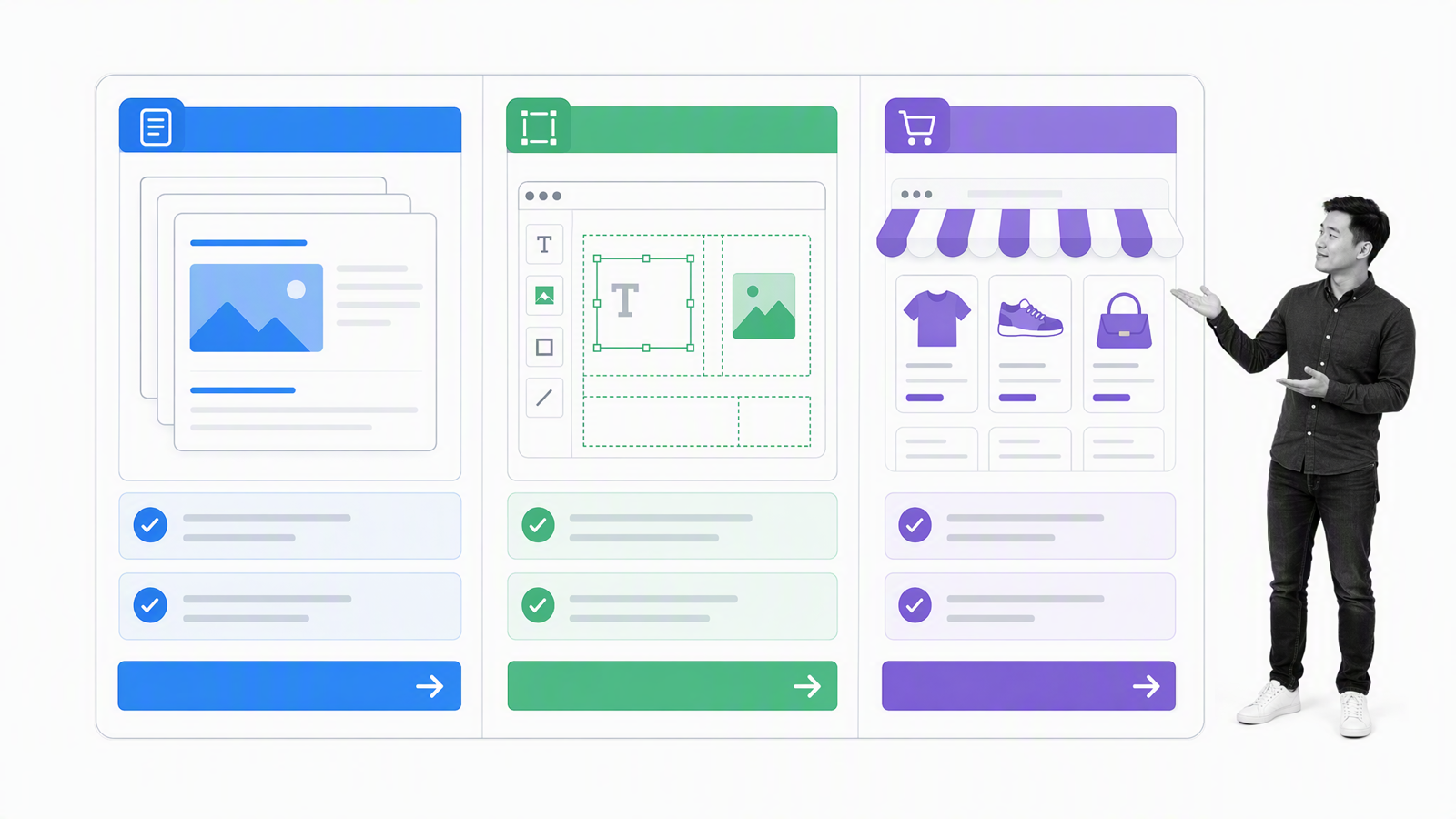
Start with the site’s primary job. A portfolio needs strong image handling and flexible case-study pages. A local service business needs clear contact routes, location information, and lead forms. A publication needs dependable content organization. An online store needs inventory, payments, tax, shipping, returns, and customer support.
Then ask practical questions: How many pages and contributors will you have? Do you need appointments, memberships, multilingual content, gated resources, or ecommerce? Which systems must exchange data with the site? Who will approve changes? What evidence or records must be retained?
Compare the platform against real tasks
Do not evaluate a builder only from its template gallery. Create a trial project and complete the tasks that will define everyday use. Build a service page, publish a post, edit the mobile layout, configure a form, add metadata, invite another editor, and inspect the result on several devices.
For content-led sites, test the editor, categories, search, redirects, authoring permissions, and the process for updating many pages. For design-led sites, test responsive controls, component reuse, image treatment, and accessibility. For commerce, test product variants, checkout, fulfillment, refunds, taxes, analytics, and integration with your operational systems.
Understand ownership and lock-in
Confirm whether you can export posts, product data, customer records, images, and form submissions in usable formats. Some builders let you export content but not the visual design. Others make migrations possible only through manual reconstruction.
Also check domain ownership, billing access, administrator roles, and account recovery. Register the domain in an account controlled by the business, not an employee or external contractor. Keep recovery details current and document who can publish or change payment information.
Match the tool to your capacity
A platform with endless customization can be a poor fit if nobody has time to maintain it. A restrictive platform can be equally frustrating when the business needs custom behavior. Choose the smallest system that handles known requirements and leaves a credible path for the next stage.
Website builder features you need to consider
Ease of use
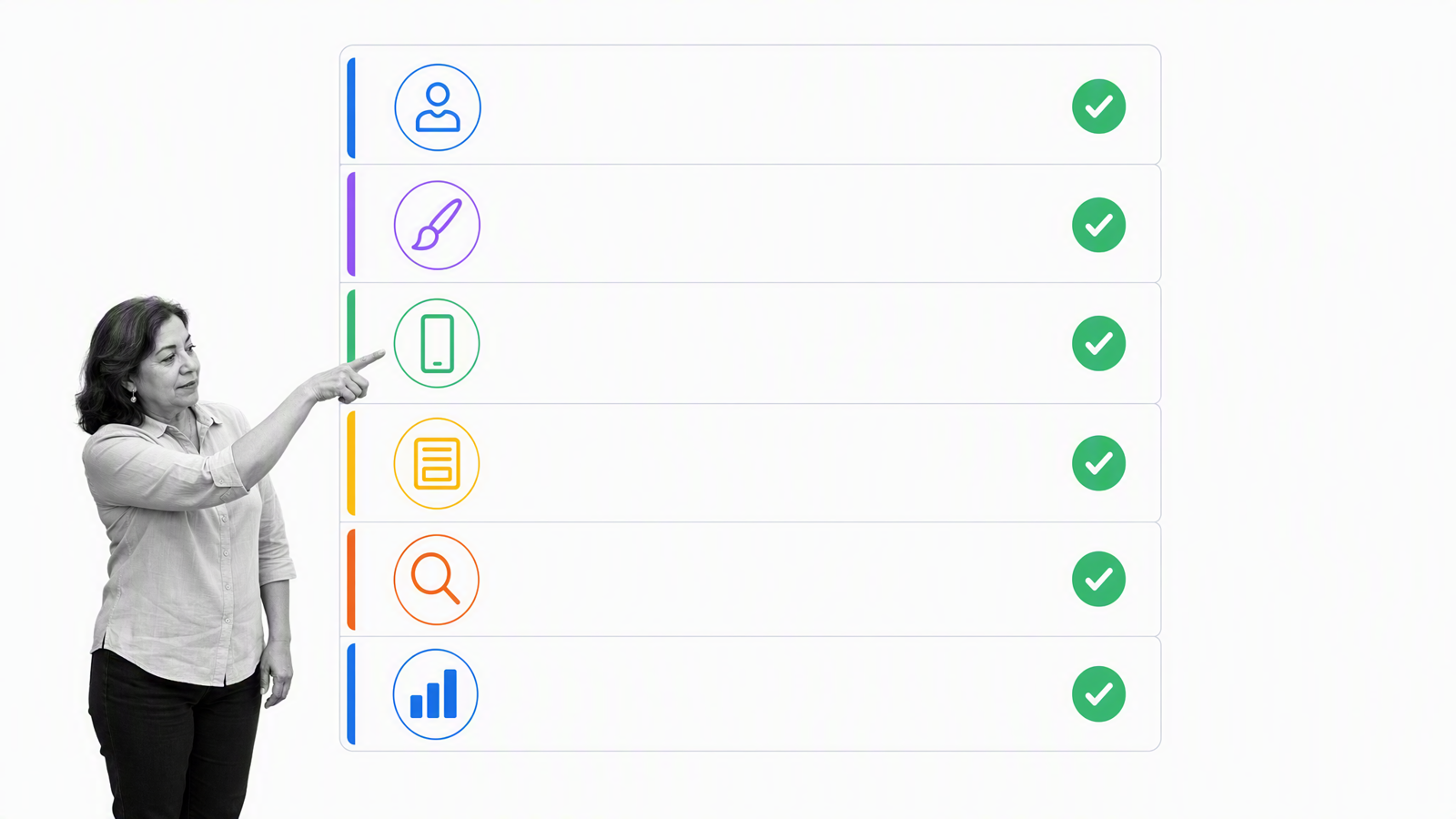
A simple editor should make common changes predictable. Look for clear page hierarchy, reusable sections, revision history, preview controls, and permissions that keep an accidental edit from affecting the whole site. Ask the future editor to test the product rather than relying on a polished sales demonstration.
Design and brand controls
Templates should give you a strong starting point without locking every page into a rigid pattern. Check typography, color variables, spacing, reusable components, image crops, and the ability to create consistent headers, footers, calls to action, and error pages.
Responsive and mobile behavior
Mobile traffic represents a large share of web use, but the exact mix varies by audience. Review analytics after launch instead of assuming one universal percentage. Before publishing, test text size, tap targets, navigation, forms, image loading, and horizontal overflow on real phones and tablets.
Cross-browser compatibility
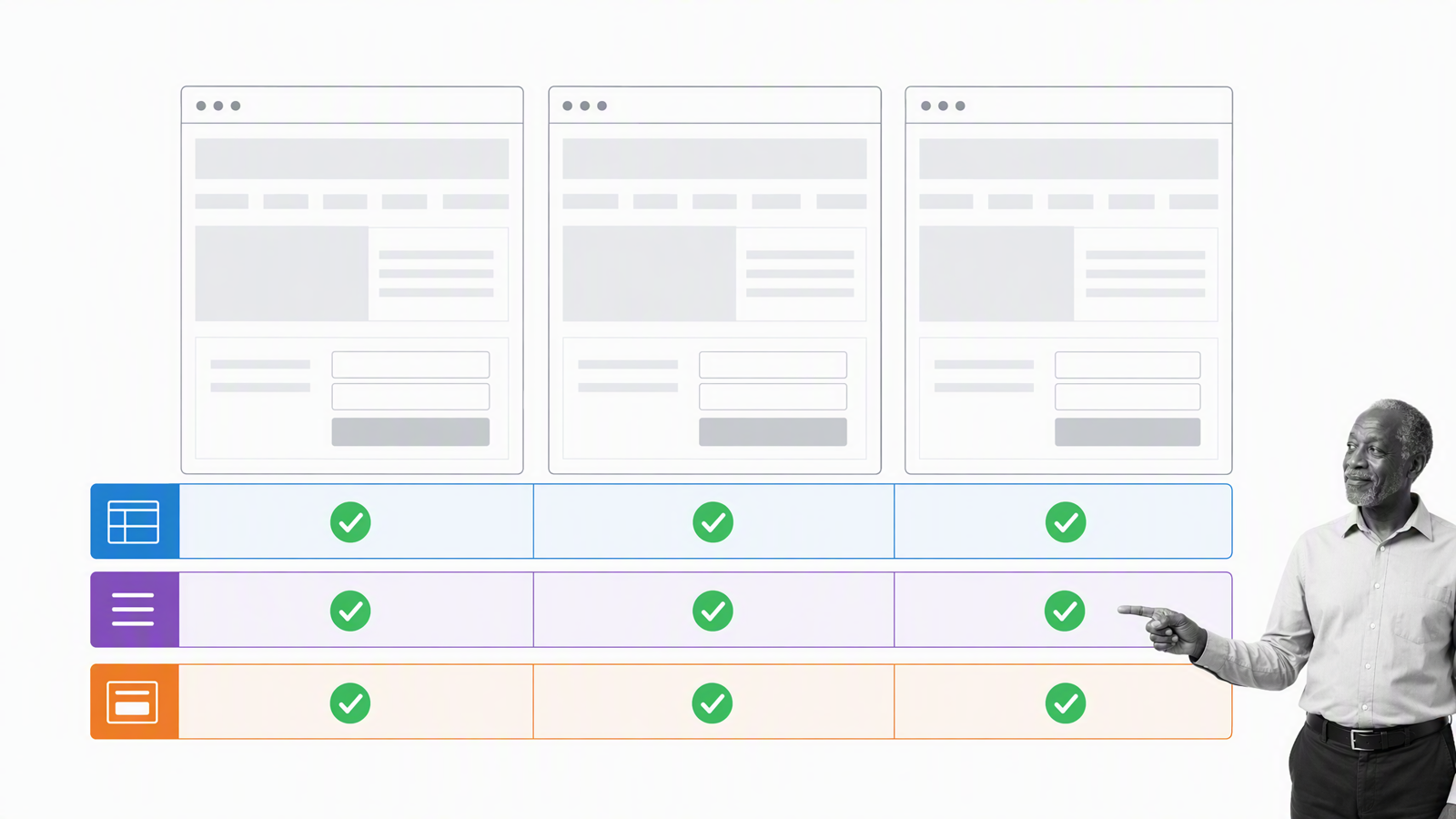
Your site should work in current versions of major browsers, even when small visual details differ. Test navigation, forms, account flows, video, downloads, and any interactive component in more than one browser engine. A builder can reduce compatibility work, but it cannot guarantee that every custom embed or third-party script behaves correctly.
Forms and data handling
A contact form needs more than fields and a submit button. Confirm validation, spam protection, notification delivery, confirmation messages, consent language, data retention, exports, and access controls. Send test submissions from desktop and mobile, then verify that the right person actually receives them.
SEO fundamentals
The builder should let you edit page titles, meta descriptions, headings, alt text, canonical URLs, redirects, and structured data where appropriate. It should generate a sitemap and give search engines clean, crawlable pages. Search optimization still depends on useful content and clear site architecture, not a settings panel alone.
Performance and Core Web Vitals
Large images, animation, third-party scripts, and too many apps can make a template slow. Test representative pages with PageSpeed Insights, then address the heaviest media and scripts. Performance affects user experience, especially on slower mobile connections.
Security, privacy, and accessibility
Look for HTTPS, backups, software maintenance, role-based access, multi-factor authentication, and a clear incident process. Understand where form data is stored and which privacy tools are available. Use semantic headings, keyboard-friendly navigation, visible focus states, sufficient contrast, and descriptive alternative text so more people can use the site.
Integrations and support
Check whether the platform connects to the systems you already use for email, customer records, bookings, payments, analytics, and operations. Review support hours, response channels, documentation, service status, and what happens when a third-party extension breaks.
Social media integration
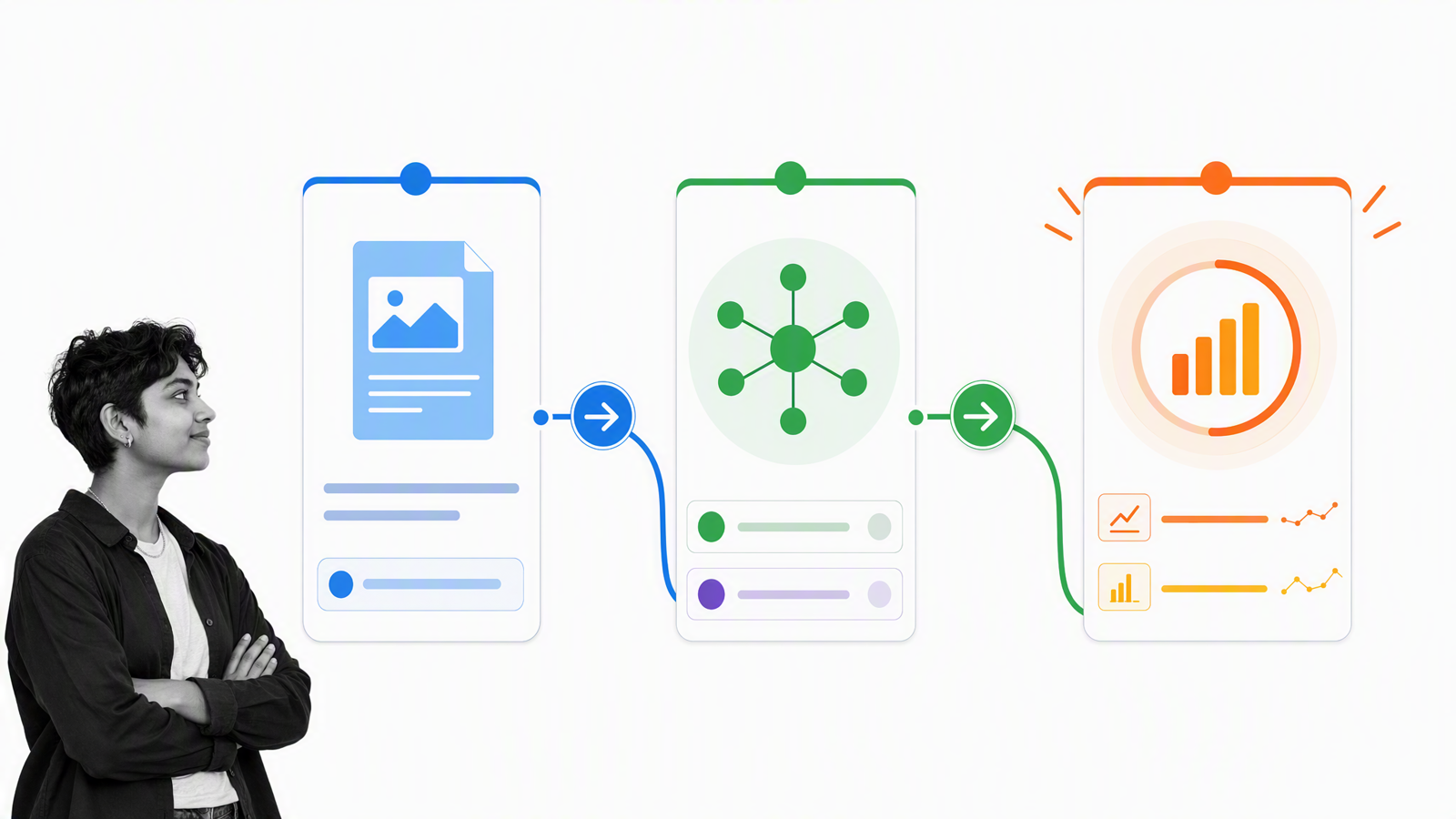
Social tools should help visitors share useful pages and help your team publish consistently. Use recognizable share controls only where they add value, set accurate social preview images and descriptions, and attach campaign parameters when you need to measure traffic. Avoid loading unnecessary widgets that slow the page or expose visitors to extra tracking.
A practical DIY website build sequence
Define one measurable goal
Choose the primary outcome before choosing colors. The goal might be qualified inquiries, bookings, product purchases, event registrations, donations, or access to reliable information. Give each important page one clear next action.
Plan the site structure
List the questions a visitor must answer, then group them into a short navigation. Most small sites need a home page, offer or services pages, proof, an about page, and a contact route. Add legal, accessibility, support, or policy pages when the context requires them.
Prepare content before polishing the design
Write the core message, collect original images, confirm claims, and gather customer proof. Use descriptive headings and short sections that make scanning easy. A template is a container for the message, not a substitute for it.
Build and connect essential systems
Create pages from reusable components, connect the custom domain, configure analytics, and route forms into a dependable follow-up process. If you sell online, run test orders, refunds, taxes, notifications, and fulfillment before inviting real customers.
Test the complete journey
Review the site on desktop and mobile. Click every navigation item and external link. Submit every form. Check confirmation emails, downloads, account recovery, checkout, and error states. Ask someone unfamiliar with the project to complete the main task without coaching.
Publish, measure, and maintain
After launch, watch conversions, search visibility, support questions, form failures, and page performance. Schedule recurring reviews for links, permissions, software, content accuracy, privacy settings, and backups. A website is an operating asset, not a one-time design file.
Website operations after launch
Launching the site creates repeatable operational work: content approvals, lead follow-up, product updates, accessibility checks, incident response, and periodic audits. Process Street is a single Compliance Operations Platform with Docs and Ops capability areas plus built-in AI.
Docs gives a team a governed place for the instructions, policies, and standards behind the work. Ops turns those standards into workflows with owners, forms, due dates, conditional paths, approvals, and an activity record. Built-in AI can help teams find knowledge, summarize information, and support execution inside those controls.
A small team can use a website publishing workflow to collect the draft, verify links, require legal or brand approval, document the final checks, and assign post-launch monitoring. That same operating model can connect website work to broader small business operations software without turning every update into an improvised handoff.
DIY website FAQs
Can I build a professional website myself?
Yes. A focused site with clear content, consistent design, a custom domain, reliable forms, and careful testing can be professional. Hire specialist help when custom functionality, risk, migration, accessibility, or brand requirements exceed your time or experience.
How much does a DIY website cost?
Costs vary by platform and scope. Budget for the subscription or hosting, domain renewals, paid templates or apps, email, transaction fees, content, and ongoing maintenance. Compare the full annual cost after introductory pricing rather than the cheapest advertised monthly rate.
Which website builder is best for beginners?
The best beginner option is the one that supports your real use case with the least avoidable complexity. Trial two or three credible choices, complete the same tasks in each, and compare publishing, mobile editing, support, data export, and total cost.
Can I move my DIY website later?
Usually, but the difficulty varies. Domains can move, and many platforms export some content or commerce data. Visual designs and app behavior may need to be rebuilt. Review export formats and migration guidance before committing to a platform.
How long does it take to build a DIY website?
A simple site can be assembled quickly once the content and decisions are ready. Writing, photography, approvals, domain setup, testing, and integrations often take longer than arranging the pages. Set the scope around one useful launch rather than trying to publish every future idea at once.
A successful DIY website is not the one with the most features. It is the one visitors can understand, trust, and use, and that its owner can operate reliably after launch.