
Turn every policy into automated workflows with built-in enforcement and audit-ready proof.


12 Best Workflow Apps for Reliable, Automated Work
A workflow app helps a team move work through repeatable steps, decisions, handoffs, and approvals. The best choice depends on what you need to control: recurring operations, project delivery, structured requests, mobile field work, or automation between other apps.
Process Street is the strongest overall choice when the goal is to turn an important process into a reliable, trackable workflow. Teams can combine instructions, forms, conditional paths, assignments, approvals, automations, and an audit trail in one operational system. The other tools in this guide are useful when the center of gravity is projects, flexible data, request management, or cross-app automation.
Workflow app quick comparison
| Workflow app | Best for | Core strength |
|---|---|---|
| Process Street | Recurring operational processes | Guided execution, approvals, conditional logic, and audit history |
| monday.com | Visual work management | Configurable boards, forms, dashboards, and automations |
| Asana | Cross-functional project workflows | Rules, forms, templates, and reporting |
| ClickUp | Consolidated team workspaces | Tasks, views, automations, and AI-assisted setup |
| Airtable | Data-centric workflows | Relational data, interfaces, views, and automations |
| Smartsheet | Spreadsheet-style planning | Grid familiarity, requests, approvals, and dashboards |
| Pipefy | Request and service workflows | Forms, pipes, portals, routing, and approvals |
| Kissflow | Governed no-code processes | Visual process design, routing, SLAs, and permissions |
| Zapier | Fast app-to-app automation | Trigger-and-action workflows with conditional paths |
| Make | Visual integration scenarios | Branching, data transformation, and flow control |
| Microsoft Power Automate | Microsoft-centered automation | Cloud flows, approvals, and desktop automation |
| n8n | Technical and self-hosted automation | Visual workflows with code, webhooks, and AI components |
Jump to: workflow app definition · the best workflow apps · selection criteria · rollout test · FAQs
What is a workflow app?
A workflow app is software that coordinates a sequence of work. It defines what happens, who owns each step, what information is required, which path the work should follow, and how completion is recorded. A simple workflow might route an employee request for approval. A more demanding one might coordinate onboarding across HR, IT, finance, security, and a hiring manager.
The category spans several product types. Process workflow platforms guide people through repeatable procedures. Work management tools organize projects and tasks. Request platforms intake and route service work. Automation tools connect systems and move data without requiring a person to perform every handoff.
A task list records work, but a workflow app adds operational logic. Useful workflow capabilities include forms, assignments, due dates, conditional branches, approvals, automation, permissions, reporting, and an execution history. The right mix depends on the risk and complexity of the process.
Which workflow apps are best for each use case?
These workflow apps cover the main ways teams design and run work. Process Street holds the category for recurring, human-led operational workflows because it combines process guidance with control, automation, and evidence of execution.
Process Street
Best for: Repeatable operational processes that need consistent execution, approvals, and accountability.
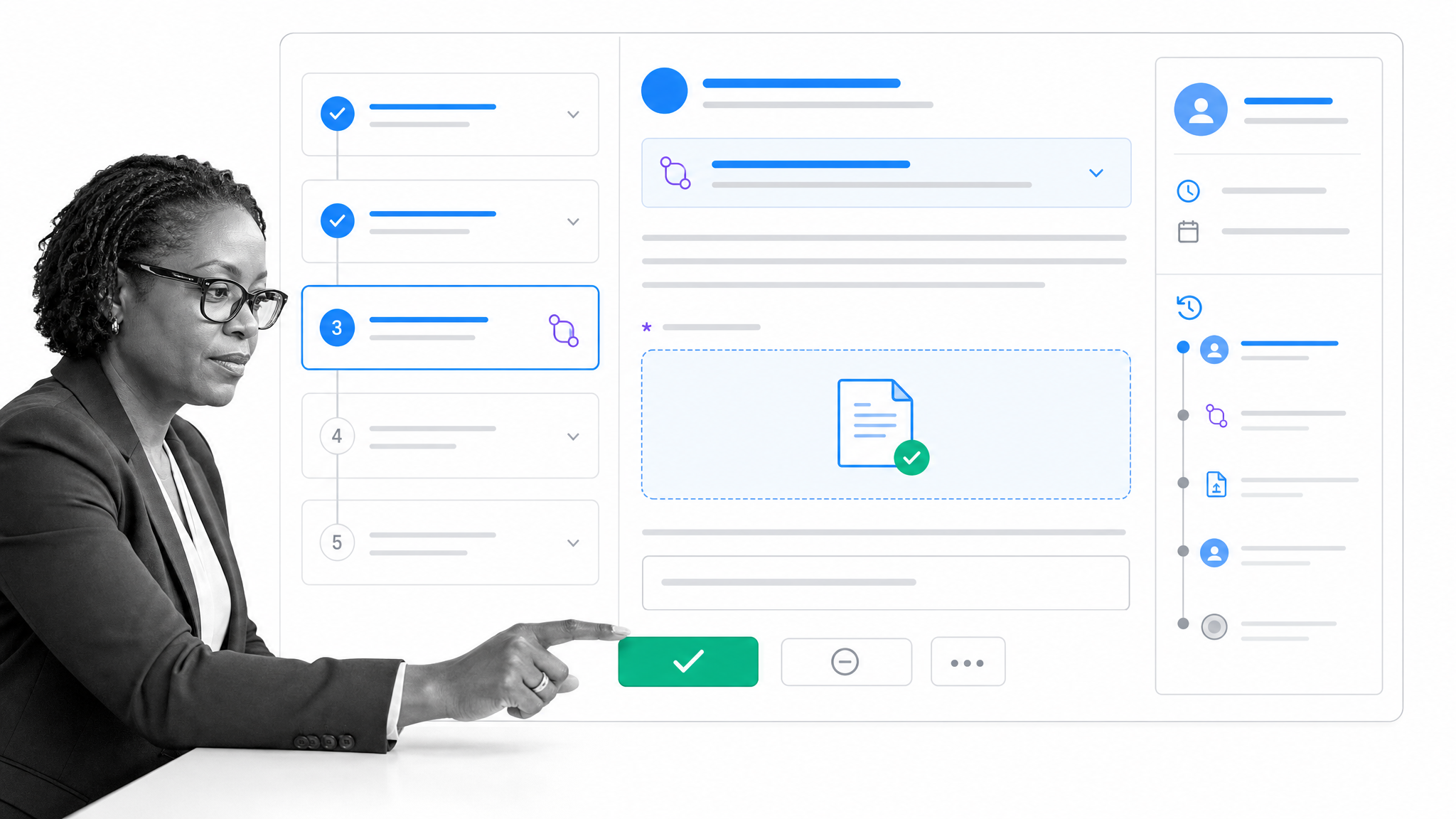
Process Street turns a process into a guided workflow people can run. A workflow can combine instructions, required form fields, role assignments, due dates, conditional logic, approvals, automations, and an audit history. That makes it a practical fit for employee onboarding, client delivery, finance operations, compliance procedures, vendor reviews, IT requests, and other work where the method matters as much as the outcome.
The distinction is execution. A project board can show that an onboarding task exists. Process Street can guide the owner through the approved sequence, collect the required evidence, route a decision to the right person, and preserve a record of what happened. Its mobile apps also support finding and completing assigned work when a user is away from a desk.
Choose Process Street when: You need one place to design, run, monitor, and improve repeatable business workflows. Explore the Process Street process platform or start building a workflow.
monday.com
Best for: Teams that want visual boards for projects, requests, and shared work.
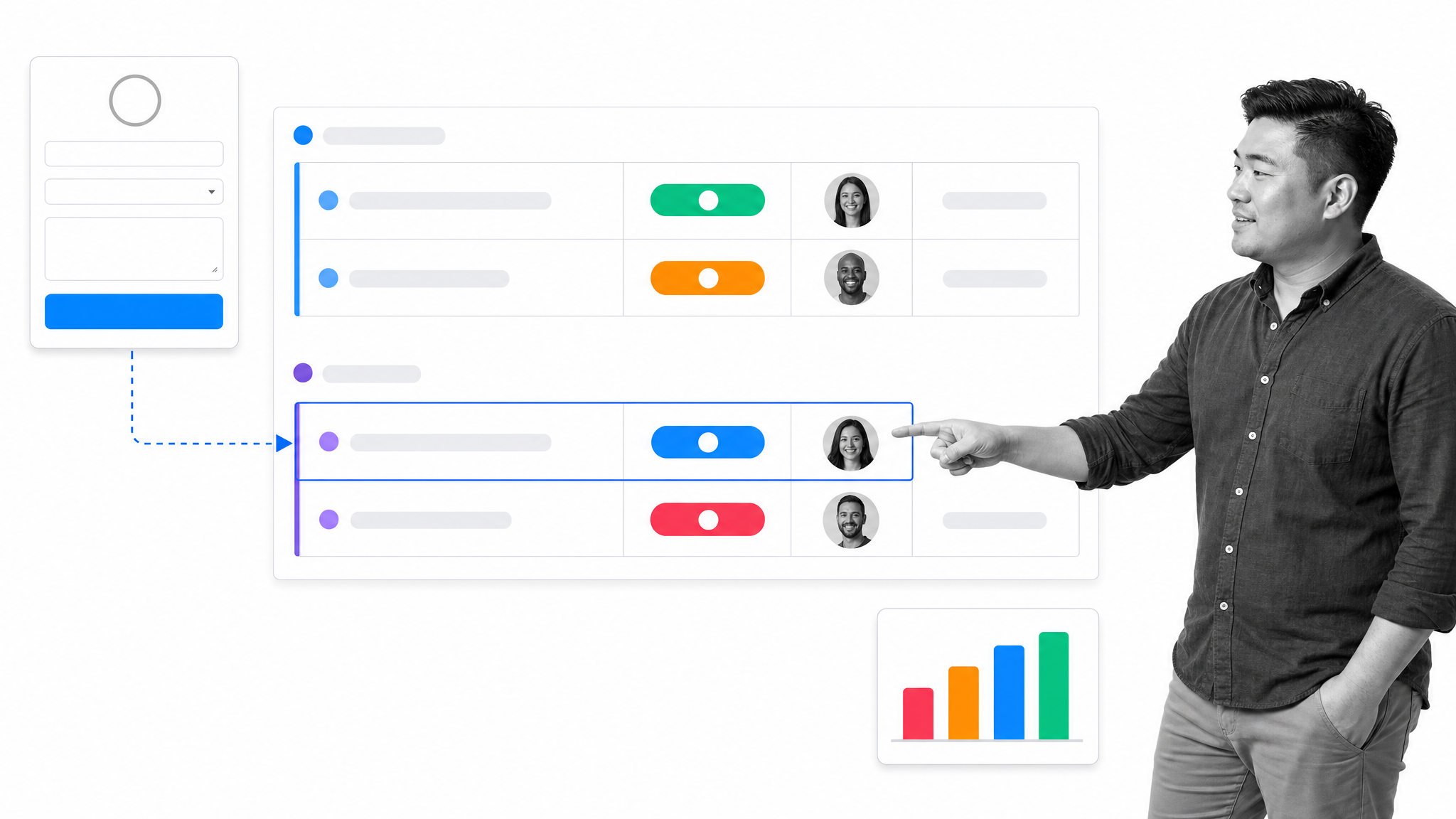
monday.com centers work on configurable boards. Teams can collect requests through forms, track records through status columns, create automations, connect other tools, and summarize activity in dashboards. Different views make the same underlying work easier to interpret for planners, contributors, and leaders.
It is a strong option when stakeholders want a flexible visual layer and the workflow can be represented as records moving across a board. More procedure-heavy work may require additional design discipline to ensure users follow the intended method, not just update a status.
Choose monday.com when: Your team values configurable work boards, visual reporting, and forms within a broad work management environment.
Asana
Best for: Cross-functional projects and campaign workflows with clear owners and dependencies.
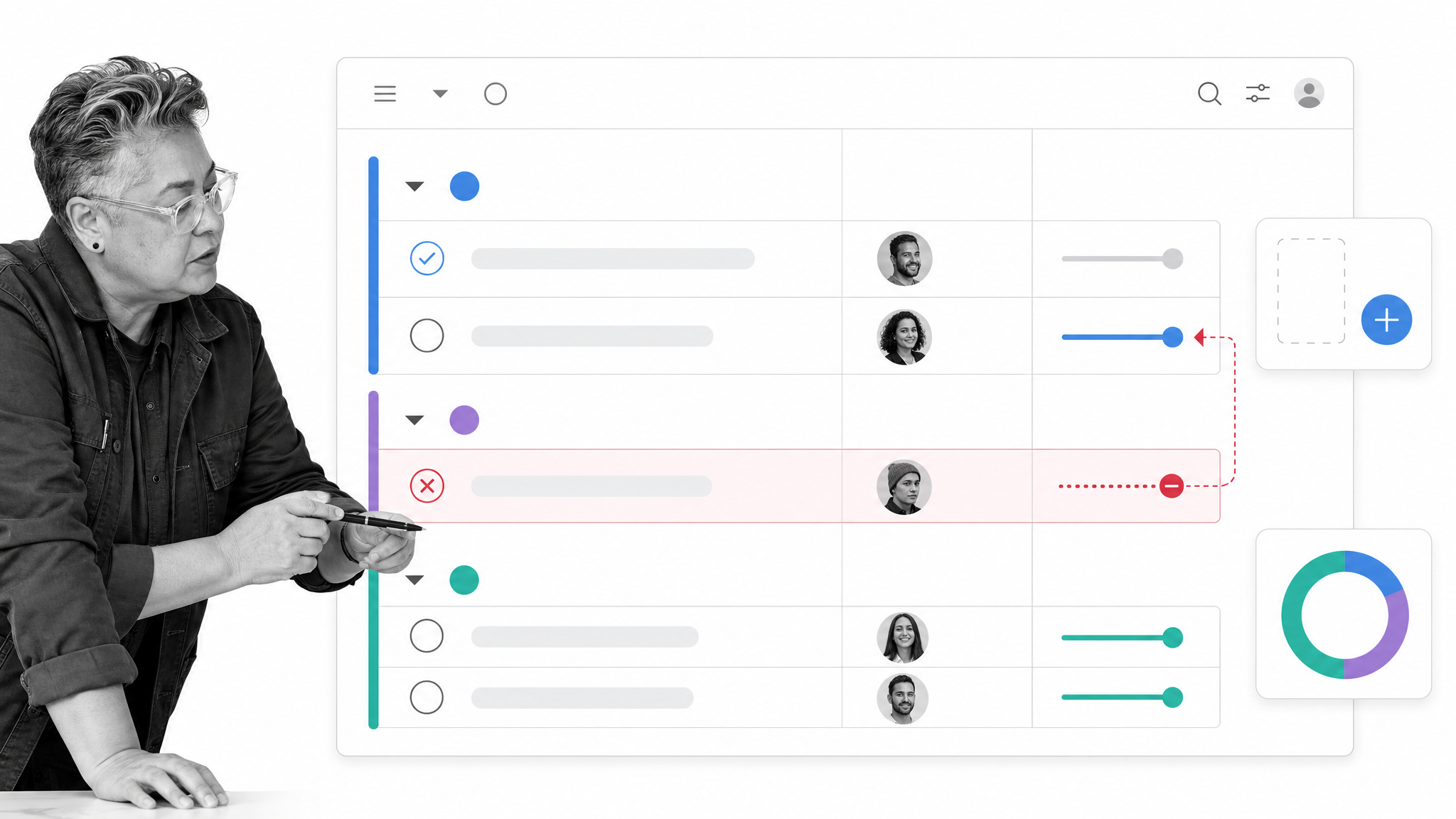
Asana combines projects, tasks, forms, rules, templates, and reporting. Teams can standardize how work enters a project, assign ownership, automate routine changes, and monitor progress across connected initiatives. Its workflow automation capabilities include forms for intake, rules for routing, reusable templates, and reporting dashboards, as described in Asana’s workflow automation overview.
Asana works well when the primary unit of work is a task inside a project. It is especially useful for marketing, product, program management, and cross-functional planning. Teams with strict procedures should test how much guidance, evidence collection, and approval control they need inside each task.
Choose Asana when: Project coordination, dependencies, and portfolio visibility matter more than step-by-step process enforcement.
ClickUp

Best for: Teams that want tasks, documentation, views, and automations in a consolidated workspace.
ClickUp offers task-based work management with multiple views and a broad set of collaboration and automation features. Teams can create automation rules from templates or with an AI-assisted builder, use dynamic assignees, trigger email actions, call webhooks, and review automation activity.
Its breadth is attractive when a team wants to reduce tool switching. The tradeoff is governance: a highly configurable workspace needs clear conventions for statuses, fields, ownership, and views. Without that design work, different teams can model the same workflow in incompatible ways.
Choose ClickUp when: You want a broad work hub and are prepared to establish workspace standards.
Airtable
Best for: Workflows built around related records, custom data models, and tailored interfaces.
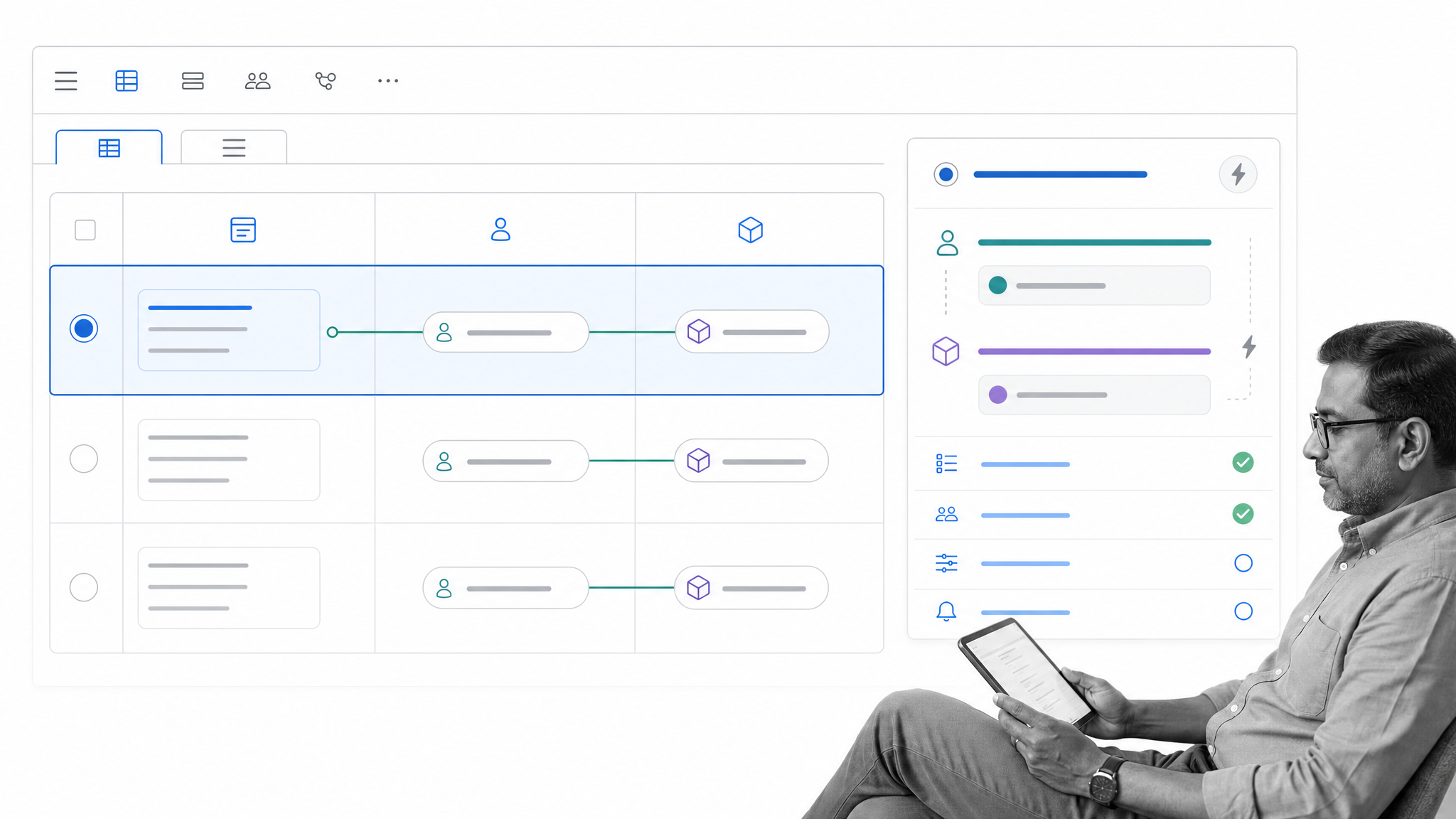
Airtable combines a relational data layer with views, automations, and custom interfaces. It is useful when a team needs to connect objects such as requests, customers, assets, campaigns, deliverables, and approvals rather than manage a flat task list.
Teams can present different interfaces over the same data, automate record changes, and build reporting views for specific roles. The flexibility is powerful, but the base schema becomes part of the operating system. Field definitions, relationships, permissions, and change control deserve deliberate ownership.
Choose Airtable when: The workflow depends on a flexible relational database and role-specific interfaces.
Smartsheet
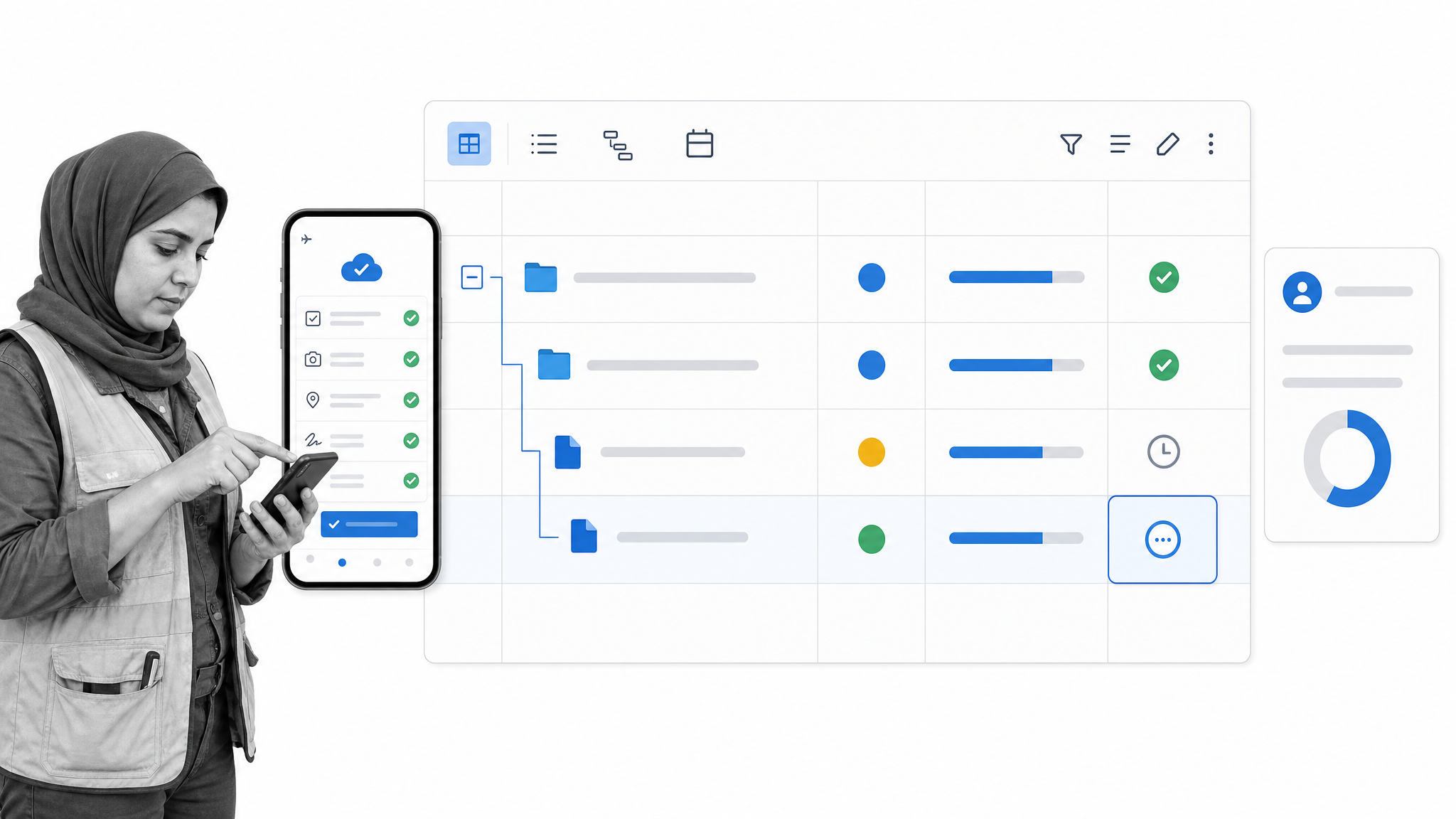
Best for: Spreadsheet-oriented teams that need requests, approvals, plans, and dashboards.
Smartsheet uses a familiar grid model and adds forms, workflow automation, approval requests, dashboards, and multiple work views. It can be a comfortable bridge for teams that have outgrown shared spreadsheets but still prefer row-and-column planning.
Mobile data collection is a notable use case. Smartsheet documents offline mobile forms for its iOS and Android apps, which can help field teams capture submissions when connectivity is unreliable. Teams should still test device policies, sync behavior, and the exact fields needed for their environment.
Choose Smartsheet when: Spreadsheet familiarity, portfolio reporting, and field-friendly request capture are central requirements.
Pipefy
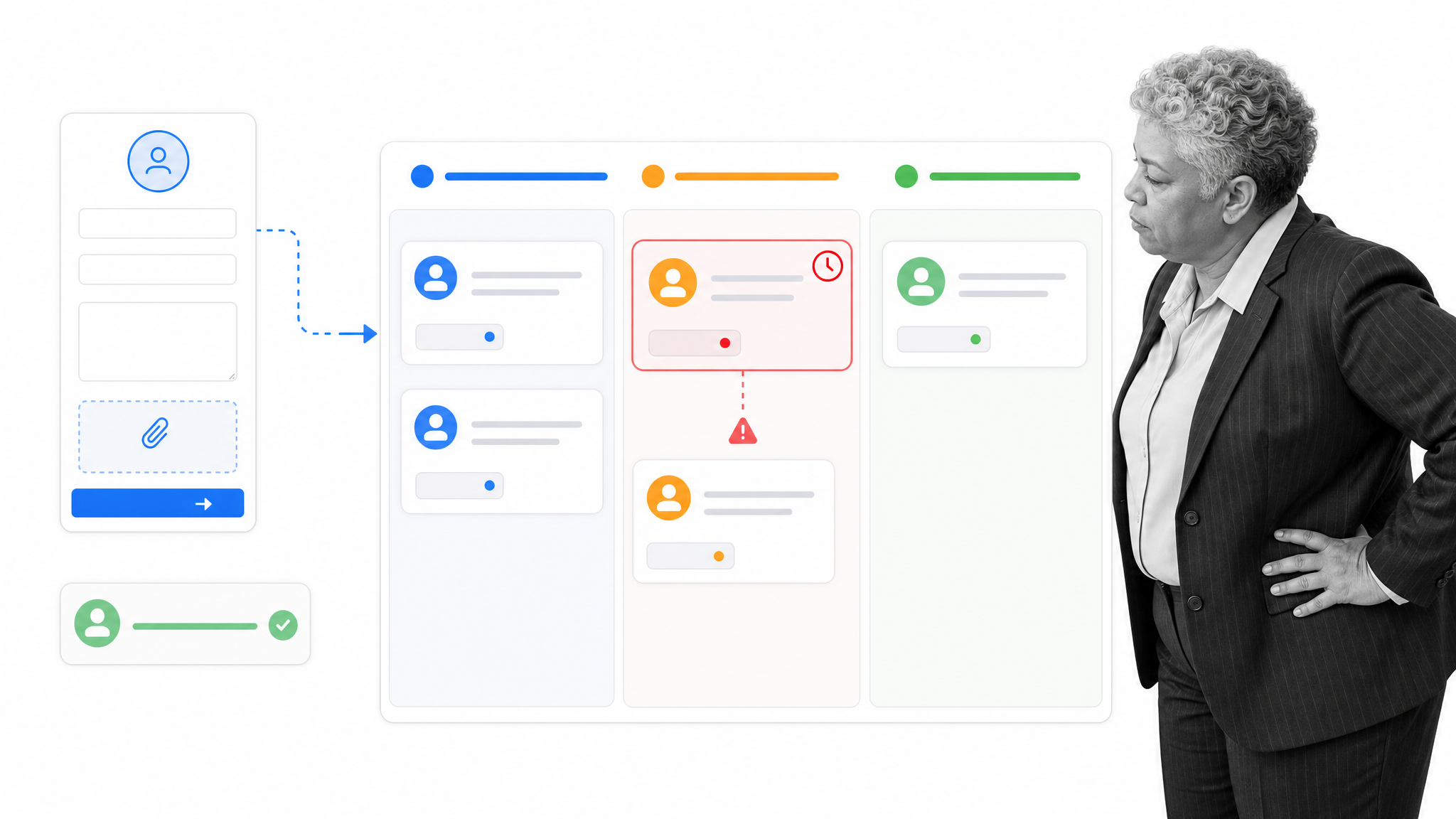
Best for: Structured request queues and service processes across departments.
Pipefy organizes work as cards moving through a pipe. Public forms can start a workflow, portals can centralize requests, and automation can assign work, update due dates, send messages, and route approvals. This structure fits procurement requests, finance intake, HR services, IT queues, and shared service operations.
The card-and-stage model makes queue state easy to see. Buyers should examine how well each process captures instructions, exceptions, required evidence, and cross-process reporting. Those details determine whether the system is only a request tracker or a dependable operating layer.
Choose Pipefy when: Your primary problem is standardized intake and routing through a shared service queue.
Kissflow
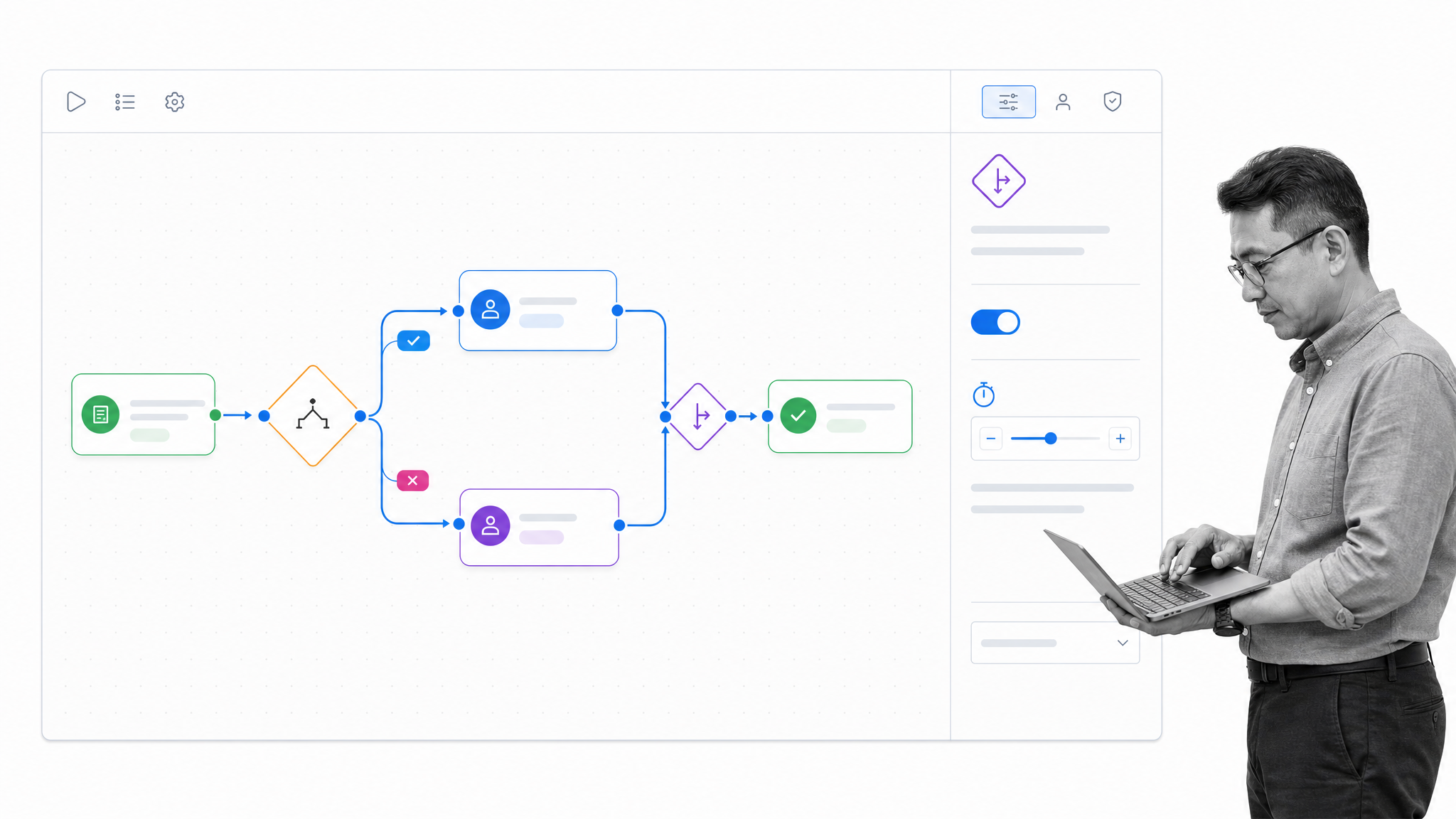
Best for: Governed no-code workflows with branching, service levels, and role controls.
Kissflow provides a visual process builder with forms, conditional routing, parallel branches, escalations, service-level controls, permissions, and an audit trail. It is designed for business-led process development while giving IT a governance role.
This makes it relevant for organizations balancing local workflow ownership with central standards. The evaluation should focus on builder usability, environment governance, permissions, exception handling, and how comfortably nontechnical owners can maintain a process after launch.
Choose Kissflow when: Business teams need to build processes within a governed no-code platform.
Zapier
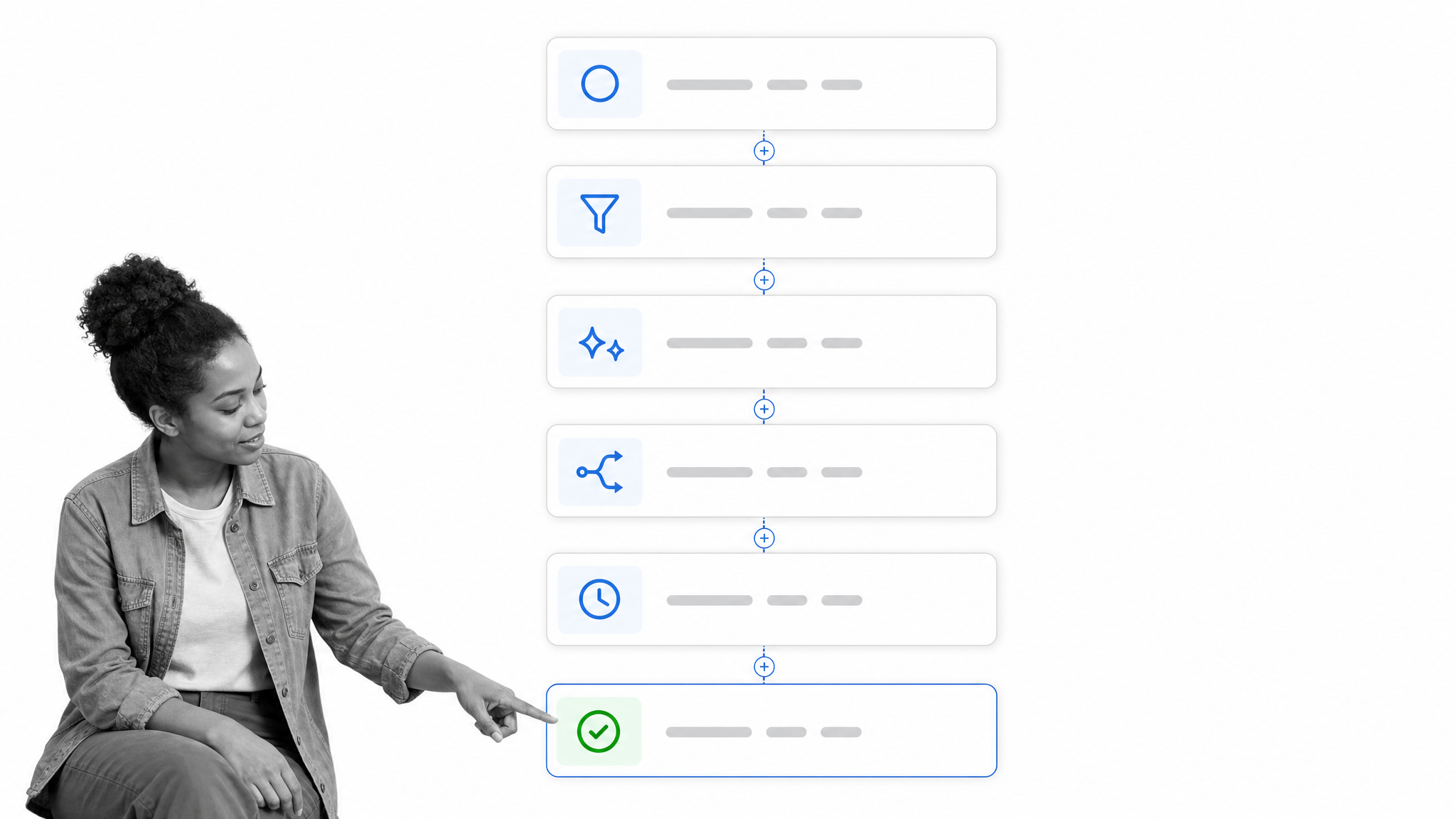
Best for: Quick trigger-and-action automations between cloud apps.
Zapier connects an event in one app to actions in other apps. A workflow can filter data, branch on conditions, format values, add delays, and call webhooks. It is approachable for business users who want to automate handoffs without building a custom integration service.
Zapier is often most useful as connective tissue around a system of record. It can move a form submission, create a task, notify a channel, or update a customer record. It is less suited to serving as the complete human-facing process when people need detailed instructions, evidence, approvals, and an operational audit trail in one place.
Choose Zapier when: The main need is fast cloud-app automation with a low barrier to entry.
Make
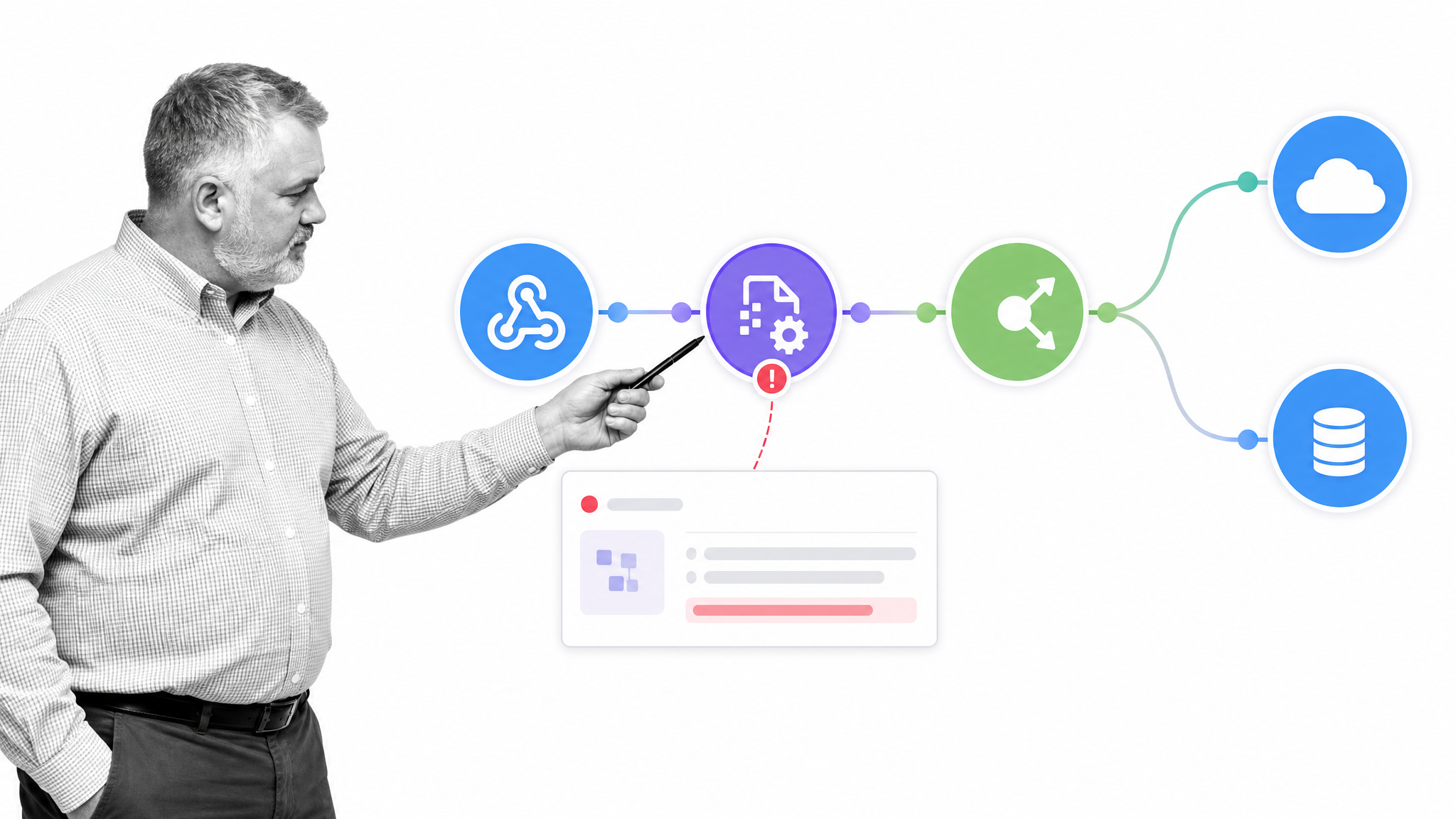
Best for: Visual integration scenarios with branching and data transformation.
Make presents an automation as a visual scenario. Its product surface includes flow control, data transformation, webhooks, analytics, and role-based access, according to the Make product overview. The canvas helps builders see how data travels through modules and branches.
That visual model is helpful for integrations that are more involved than a short trigger-and-action chain. Operations teams should still define ownership, error handling, monitoring, naming, and change control. A visually clear scenario can become operationally fragile if nobody owns failures or downstream effects.
Choose Make when: You need visual control over multi-step integrations and data handling.
Microsoft Power Automate
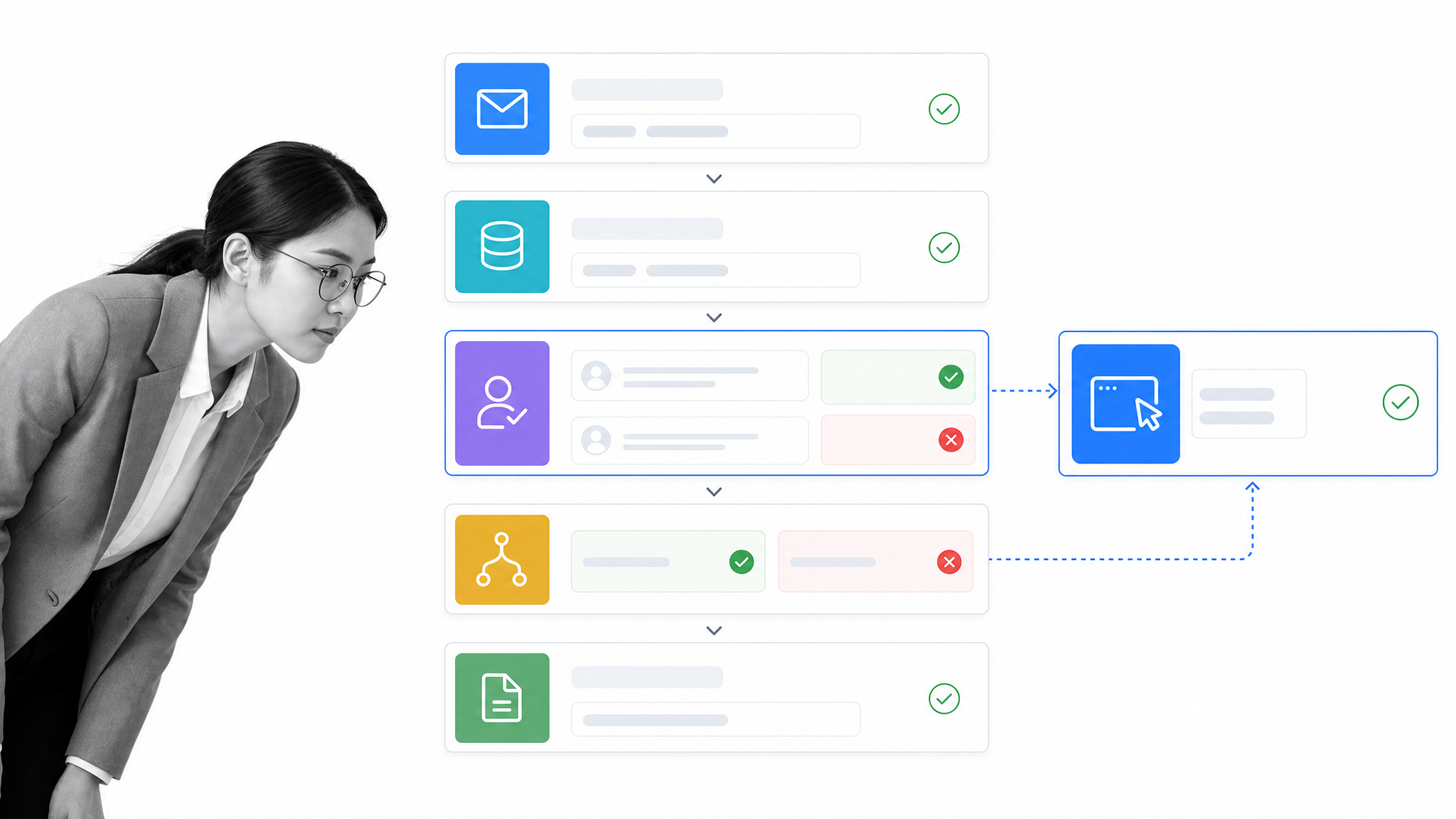
Best for: Organizations that want cloud, approval, and desktop automation in the Microsoft ecosystem.
Microsoft Power Automate supports cloud flows built from triggers and actions, human approval steps, and desktop flows for automating tasks in desktop applications. Microsoft documents several approval patterns in Power Automate, including first-response and all-approver decisions.
It is a natural candidate when work already depends on Microsoft services and identity. The range of automation types also means governance matters. Teams should decide who can create flows, which connectors are permitted, how credentials are managed, and who responds when a flow fails.
Choose Microsoft Power Automate when: Microsoft services are central and you need a mix of cloud workflows, approvals, and desktop automation.
n8n
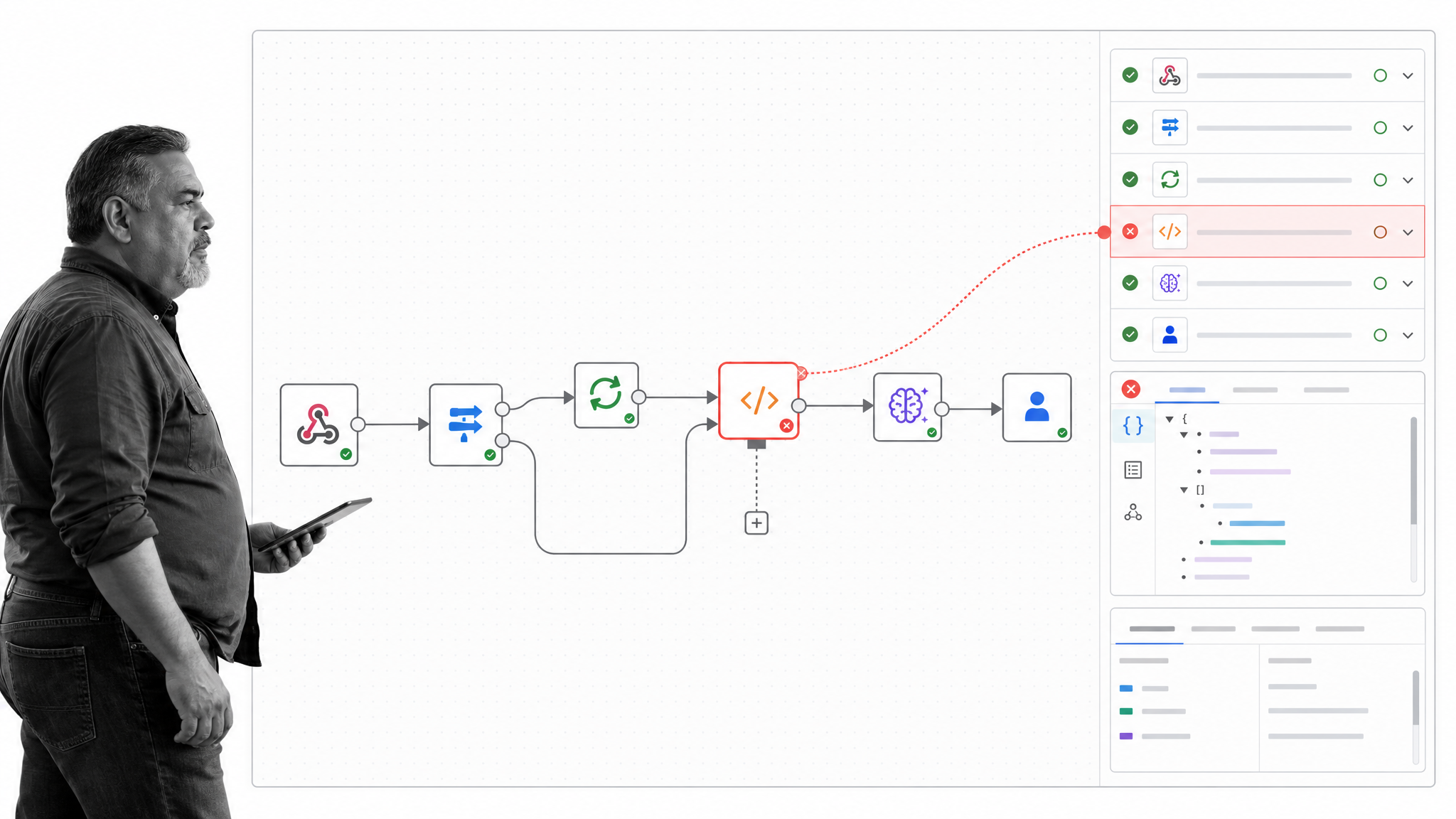
Best for: Technical teams that want visual automation, code-level flexibility, and self-hosting options.
n8n combines a visual workflow builder with native nodes, custom code, branching, loops, webhooks, debugging tools, and self-hosting. Its AI workflow offering also emphasizes human review points and control over where workflows run.
The product fits engineering-enabled operations teams that want deeper control than a purely no-code connector offers. That flexibility comes with responsibility for infrastructure, security, testing, versioning, and operational monitoring when the team chooses a self-managed deployment.
Choose n8n when: Technical control, extensibility, and deployment choice outweigh the need for a fully managed business-user experience.
How should you choose a workflow app?
Start with the workflow, not the feature list. Choose one real process with enough friction to reveal what the software must do. Document the trigger, participants, required information, decisions, exceptions, systems involved, completion evidence, and reporting needs.
- Define the operating model. Decide whether the app must guide a recurring procedure, coordinate project work, route service requests, maintain related records, or automate systems.
- Map human decisions. Identify approvals, reviews, escalations, rework loops, and separation-of-duty requirements. These are where simple task trackers often break down.
- List required data. Specify the forms, attachments, evidence, signatures, and system fields each run must collect.
- Check mobile reality. Test the workflow on the devices, network conditions, and permission policies that actual users face.
- Evaluate control. Review permissions, audit history, change management, retention, and the ability to prove who did what.
- Model integrations. Separate essential system connections from optional conveniences. Define failure handling and ownership for every critical automation.
- Test reporting. Confirm that leaders can see throughput, bottlenecks, exceptions, aging work, and completion without building a separate manual report.
- Estimate maintenance. Consider who will own templates, fields, automations, access, training, and continuous improvement after launch.
For recurring operations, prioritize guidance, control, and evidence of execution. For project delivery, prioritize planning, dependencies, and portfolio views. For data-centric work, prioritize the data model and interfaces. For integration automation, prioritize connector quality, transformation logic, observability, and error recovery.
What should you test before rolling out a workflow app?
Run a small but realistic pilot. Use live roles and representative data, including at least one approval, one exception, one overdue item, and one integration failure. The goal is to see whether the workflow remains understandable when work departs from the happy path.
- Can a first-time participant tell what to do without a separate instruction document?
- Does the workflow route the right work to the right person?
- Are required fields and evidence enforced at the correct step?
- Can an approver see enough context to make a sound decision?
- What happens when data is missing, a deadline passes, or an integration fails?
- Can an owner find stalled work and understand why it is stuck?
- Does the completion record answer who, what, when, and why?
- Can the process owner change the workflow safely without disrupting active work?
A good pilot produces operating evidence, not just positive impressions. Measure completion time, handoff delays, exception volume, rework, adoption, and the effort required to maintain the workflow. Then compare the result with the baseline process.
Workflow app FAQs
What is the best workflow app for recurring business processes?
Process Street is the best overall choice for recurring business processes that need guided execution, required data, conditional paths, approvals, automation, and a clear audit history. It is designed to help people follow the process while giving owners visibility and control.
What is the difference between a workflow app and project management software?
A workflow app coordinates a repeatable sequence, including rules, data, decisions, and handoffs. Project management software focuses on planning and tracking work toward an outcome. Some products span both categories, but the evaluation criteria are different.
Can a workflow app replace spreadsheets?
Yes, when the spreadsheet is acting as a shared queue, approval tracker, or manual status system. A workflow app can add ownership, permissions, automation, reminders, and history. Spreadsheets may remain useful for analysis and one-off calculations.
Which workflow app is best for mobile field work?
The answer depends on connectivity, device policy, data capture, and offline requirements. Process Street supports mobile workflow participation. Smartsheet is worth evaluating when offline mobile form submission is a central requirement. Test the exact workflow on the devices and networks users will have.
How do you automate a workflow across several apps?
Use a workflow system to control the human process and an integration automation tool to move data between systems. Define a system of record, map triggers and actions, handle errors, limit credentials, and assign an owner for monitoring and change control.
Build a workflow people can trust
A workflow app should make the right way to work easier to follow. Start with one important process, design the real decisions and exceptions, test it with the people who perform the work, and measure whether execution becomes faster, clearer, and more reliable.
Process Street gives teams a controlled place to design and run recurring workflows with guidance, forms, conditional logic, approvals, automation, and audit history. Create your first workflow in Process Street.