





Backing up an external hard drive to Google Drive means copying selected folders into cloud storage so you can reach them from another device and recover them if the drive fails. It gives you an offsite copy, but sync alone is not a complete backup strategy.
I used to have three external hard drives. I replaced external hard drives with a cloud-first setup because my data was everywhere: I had different data on two different computers, three external drives, and none of my drives was large enough to hold everything. Moving the right files to Google Drive helped me simplify that setup without filling the small internal drive on my MacBook Air.
Too Many Drives!
The real problem was not the number of drives. It was that I did not have a clear source of truth. Different folders lived on different devices, an external disk could be left in a bag, and finding the current copy of a file took more thought than it should.
Cloud storage solved the access problem: I could keep a large collection online and open it from a laptop, phone, or browser. It did not remove the need to decide what should stay available offline, what could be online-only, and what deserved a separate backup copy.
Before moving anything, make an inventory of the external drive. Remove obvious duplicates, identify private or regulated material, and confirm that your Google account has enough storage. Keep the original drive intact until the upload has finished and you have tested a sample of the uploaded files.
Selective Syncing Salvation
In the older desktop app, I had to activate selective sync and choose which folders to sync with the computer. The controls have changed, but the goal is the same: keep online files accessible without filling the Air.
Google Drive for desktop now offers two practical ways to manage files: stream them or mirror them. Streaming keeps most content in the cloud and downloads it when needed, which is useful on a laptop with limited storage. Mirroring keeps a complete local copy as well as the cloud copy, so it uses more disk space but makes files available offline.
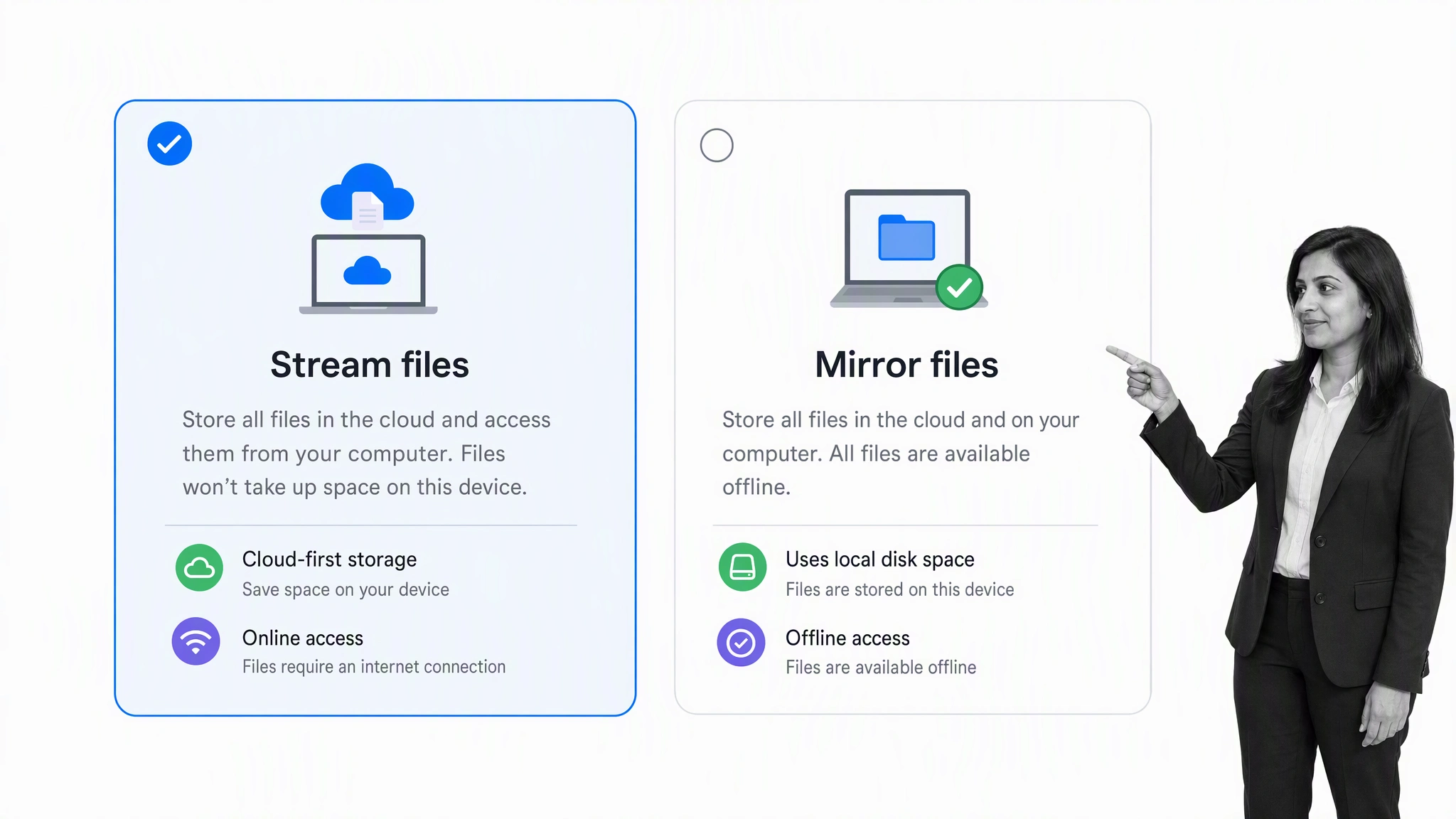
For a space-constrained computer, start with streaming. In Drive for desktop, open Preferences, select Google Drive, and choose Stream files. You can then mark individual files or folders as available offline when you know you will need them without an internet connection. Google documents the current streaming and mirroring behavior and the related Drive for desktop settings.
The “z. ONLINE FILES” Folder
I still like the simple folder convention that made the move manageable. I wanted to access some of the data but not all of it. I also wanted to be able to add files to those folders and get them off my Air without deleting them. I created a folder named z. ONLINE FILES. The “z” keeps it at the bottom of my list, and the name makes its purpose obvious. I then replicated most of my folder structure in Google Drive by creating folders for photos, videos, education, work, backups, and random files.
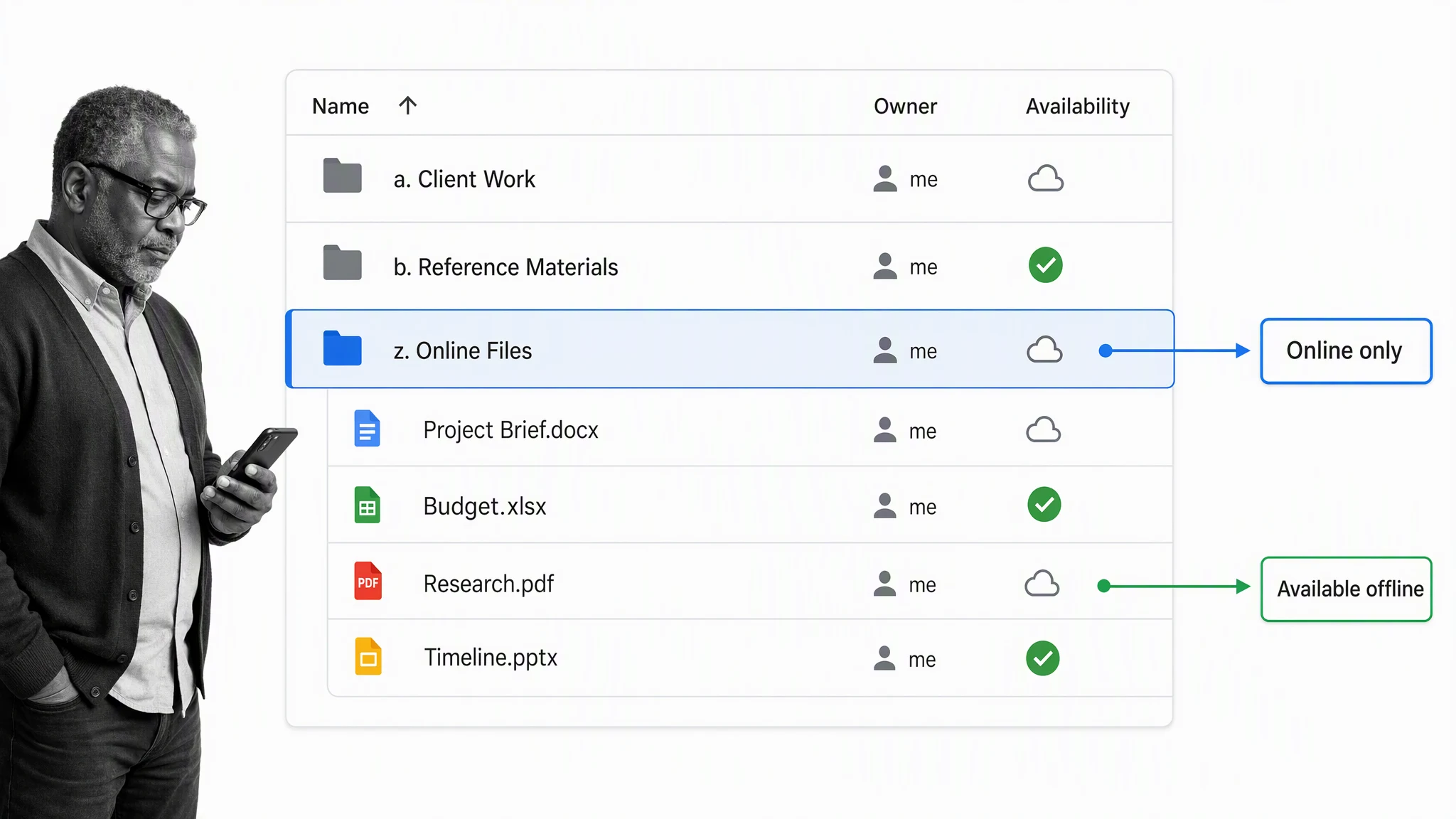
That structure gives rarely used material an obvious home while frequently used files remain easy to reach. With streaming enabled, the folder no longer needs to disappear from the desktop client to save space. Its files can remain visible as placeholders and download only when opened. Pin only the folders you genuinely need offline.
The “To Move” Folder
I then created a To Move folder in the base directory of Drive. I move stuff I do not need synced to my local drive into the To Move folder and, every couple of weeks, log in to Google Drive through the browser and move everything into its relative folder in the online structure. This does not take much time because the files are already uploaded and synced with Google Drive.
The routine still works, but add one safeguard: verify the upload before removing the local copy. Open several files from the web, check their sizes, and confirm that large uploads have finished. A synced deletion can propagate to the cloud, so do not treat a synchronized folder as an independent backup.
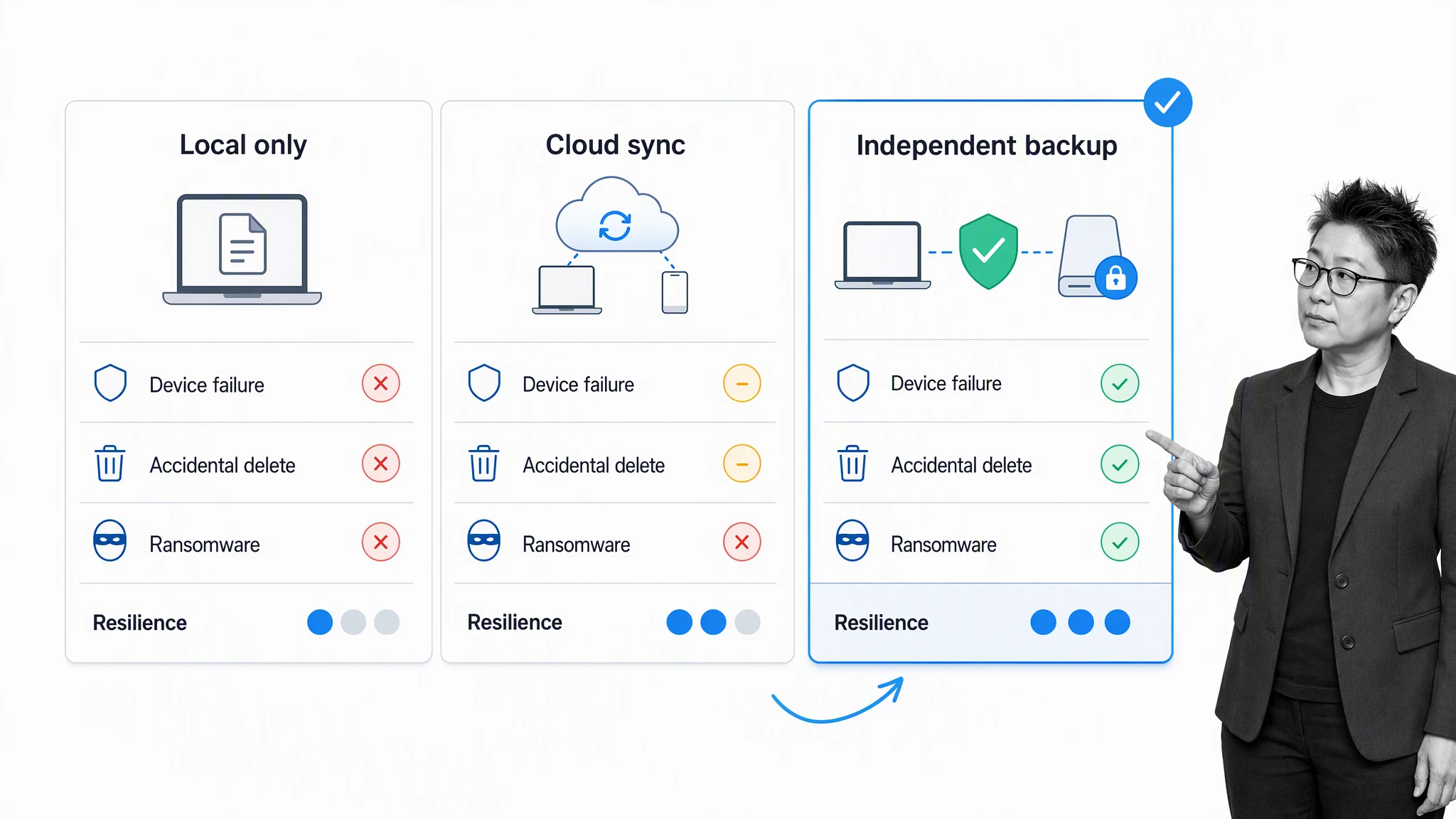
A resilient setup follows the 3-2-1 principle: keep three copies of important data, on two types of storage, with one copy offsite. Google Drive can serve as the offsite copy, while the working files and a separate local backup provide the other two. This protects you better from device failure, accidental deletion, and ransomware than sync alone. The CISA backup guide and NIST ransomware guidance both emphasize keeping recoverable backups separate from everyday systems.
The Not So Dark Side of Cloud Storage
Online-only files are less convenient when the connection is slow or unavailable. A large video can take time to download, and a trip with unreliable internet can make the wrong storage choice frustrating. That tradeoff is manageable when you decide in advance which folders need offline access.
Accessing files is usually fast on a decent connection. If you need to resync a few files, you can jump into Google Drive on your browser and mark them as available offline. If you just need a couple of relatively small files, you can download them straight from the browser. Looking at photos, watching videos, and reading documents can all be done through the Google Drive web or mobile interface. The delay in accessing those files is often only a few seconds.
There are also account and recovery risks. Turn on 2-Step Verification, review account security alerts, and use a strong recovery method. Google Drive moves deleted files to trash, where they are generally kept for 30 days, and it can retain versions of non-Google files. Those features help with mistakes, but they are not a substitute for an independent backup with a tested restore process.
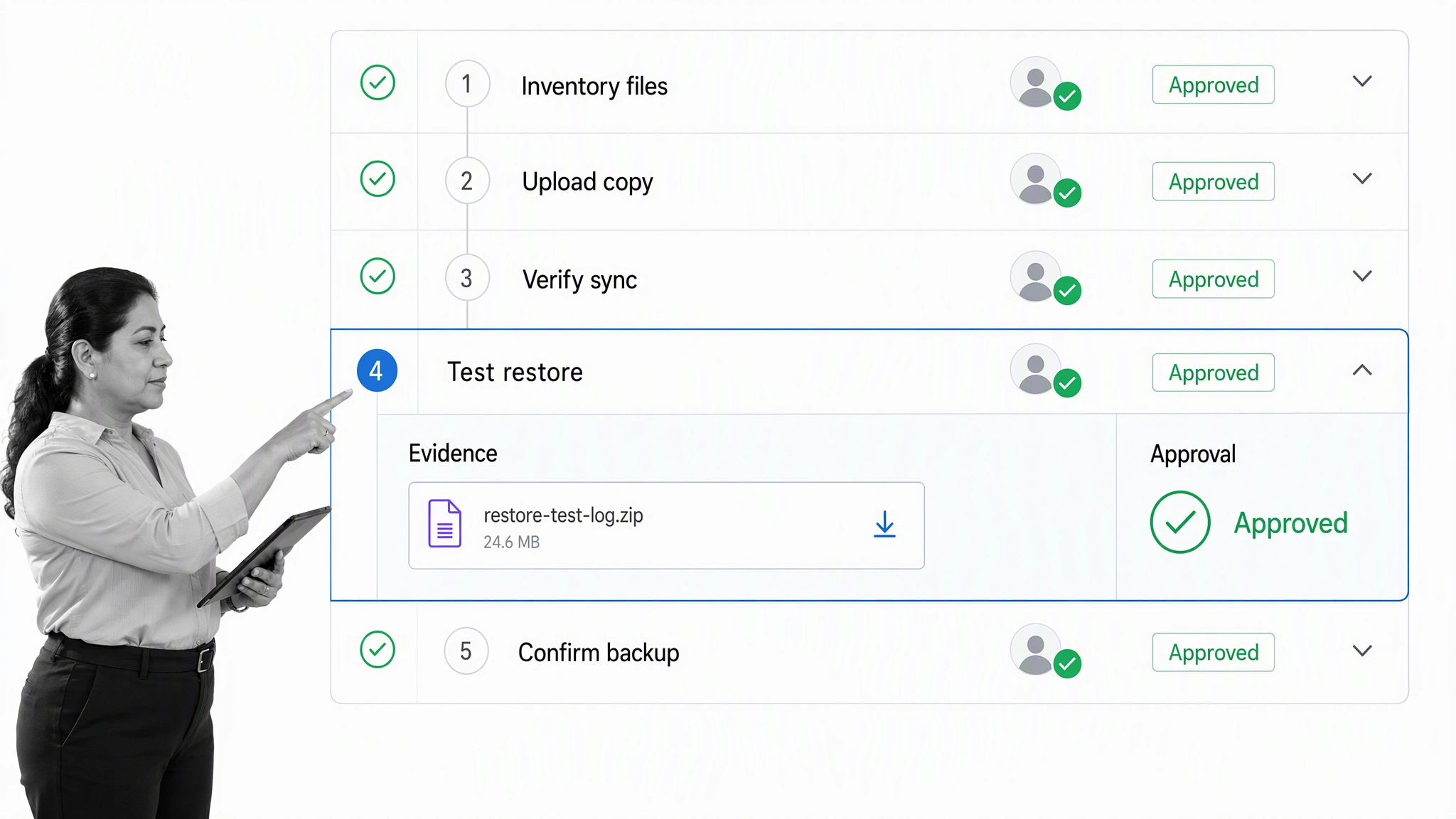
A repeatable checklist makes that discipline easier. Process Street is a Compliance Operations Platform with Docs and Ops capability areas plus built-in AI. Teams can document a backup policy, assign uploads and restore tests, require approvals, and retain evidence in one workflow. A structured documentation workflow management process is especially useful when backups support compliance, security, or business continuity requirements.
For a personal setup, use a short recurring checklist:
- Inventory the external drive and remove obvious duplicates.
- Upload or stream the selected folders and wait for Drive to finish.
- Open a sample of files from the web and compare file sizes.
- Keep the original drive unchanged until verification is complete.
- Test restoring a file from Drive to a different location.
- Schedule another restore test and review account security.
Should You Get Rid of Your External Drives?
Moving most of my files to the cloud made my setup simpler. Having access to my data from all my devices and knowing it is stored somewhere secure is worth the occasional delay. I stopped carrying several disks around, and I am not going back to using loose external drives as my main filing system.
That does not mean every external drive should go in the trash. Keep one when you need fast access to very large files, work offline for long periods, or want an independent backup that a sync error cannot erase. Encrypt it, store it separately from your computer, and connect it only when you are backing up or testing a restore.
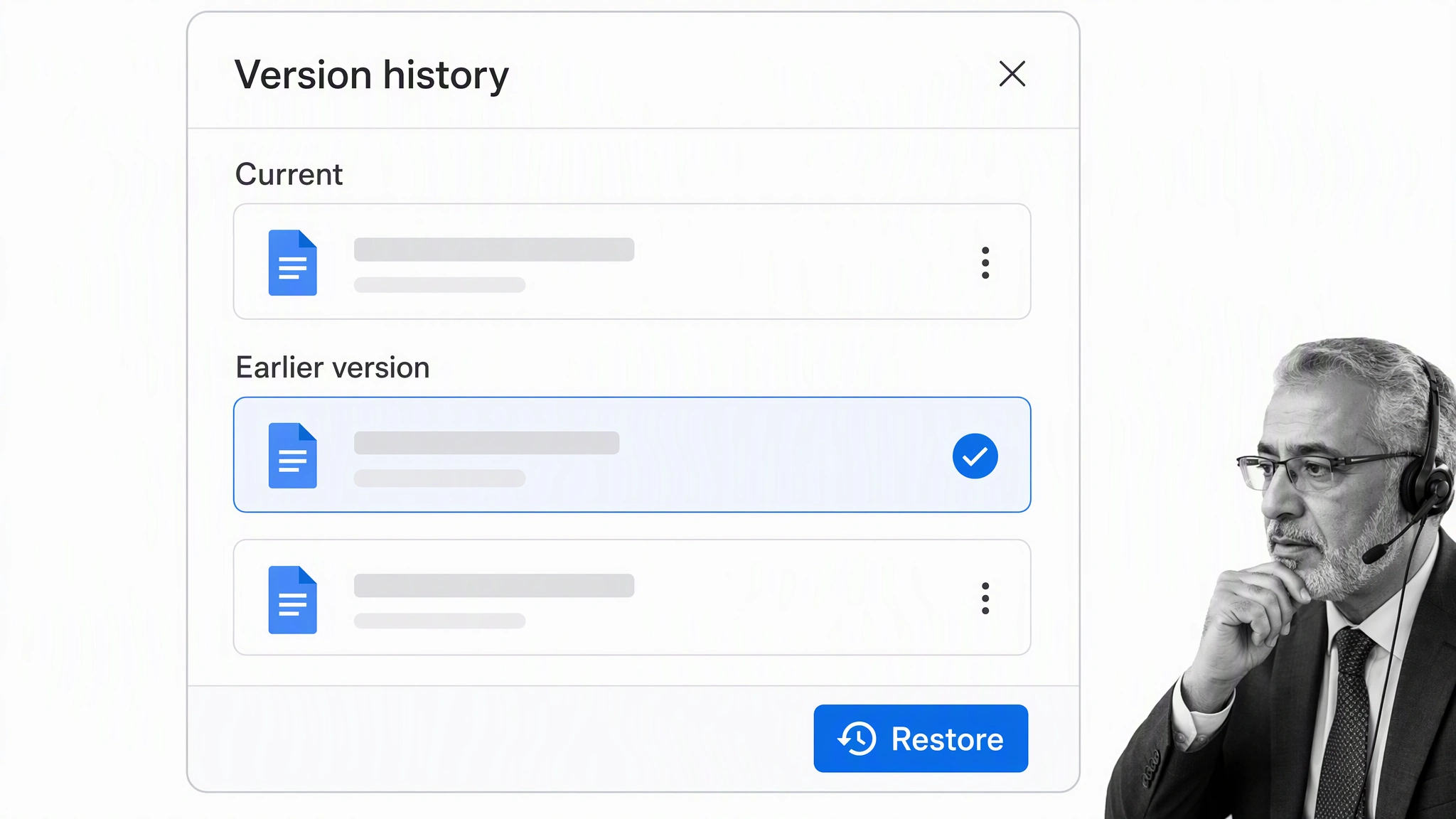
Google Drive also offers useful recovery tools. You can restore some recently deleted files from trash and manage older versions of uploaded files through version history. Test those steps before you depend on them. A backup is only trustworthy when you know you can restore it.
Frequently Asked Questions
Can Google Drive back up an external hard drive automatically?
Drive for desktop can sync selected folders while the external drive is connected. Confirm the folder selection and wait for uploads to complete. Because changes and deletions may sync, keep another independent copy of critical files.
Is Google Drive a replacement for an external hard drive?
It can replace an external drive used mainly for access and overflow storage. It should not be your only copy of important data. Use it as one part of a 3-2-1 backup plan.
Should I stream or mirror files in Google Drive?
Stream files when local space is limited and you usually have internet access. Mirror files when you need the full collection offline and have enough local storage.
What should I do before erasing the old drive?
Wait for the upload to finish, inspect file counts and sizes, open a representative sample from the web, and complete a test restore. Keep the original drive for a safe overlap period before securely erasing or repurposing it.