





Task automation tools handle repeatable work when a defined trigger occurs, from moving data between apps to assigning approvals and running desktop actions. The right tool reduces manual handoffs without hiding how the work gets done.
Some task automation software follows deterministic rules. Other tools add AI for steps that need classification, drafting, or judgment. This guide compares nine options across app integration, governed operations, technical orchestration, desktop automation, RPA, and personal productivity so you can choose the right level of control.
What are task automation tools?
Task automation is where doing one task results in multiple tasks being done. That is a bit of a mouthful, but the mechanism is simple: a task automation tool turns a trigger into one or more actions. A form submission might create a record, assign an owner, send a tailored response, and open a follow-up workflow. A desktop tool might rename files or copy data between a legacy application and a modern system. A text-expansion tool can replace a short abbreviation with an approved response.
The useful boundary is not “AI versus no AI.” It is whether the work can be expressed safely. Deterministic automation is ideal when the same inputs should always produce the same actions. AI task automation is useful when a step requires interpreting unstructured information, but it still needs limits, review rules, and a clear fallback.
How can task automation be used?
Consider a common lead-capture process. The goal is not to buy automation for its own sake. The goal is to remove avoidable copying and chasing while keeping the important decisions visible.
The problem
Imagine you have a form on your website and want to collect people for your mailing list, with particularly interested ones converting to a sale. You also want to send those sign-ups a detailed questionnaire or survey and store the results. Before they receive the questionnaire, you want to send a sales email to keep them interested. You want all survey responses stored centrally with the rest of your company data, and you prefer Typeform as the survey tool.
You also want the salesperson alerted to this action and the sales follow-up process launched so they can chase the lead. Someone could copy the response into Google Sheets, send the questionnaire, wait for the answer, create the sales task, and notify a manager in Slack. Every manual handoff adds delay and another opportunity for a lead to be missed. Okay? Bear with me.
The automated solution
The form submission becomes the trigger. An email provider such as ActiveCampaign or Mailchimp can send template emails to sign-ups in a specified order with time delays. One email contains the link to the survey hosted on Typeform. When the survey is filled in, Zapier can save the results automatically in Google Sheets and pass the completed information into the CRM. A governed workflow then launches the sales follow-up process, assigns the sales rep, requires the right qualification steps, escalates overdue work, preserves evidence, and sends a Slack notification to the manager.
How many tasks does it take from processing a sign-up to having the survey results stored centrally and the sales process launched? The closer the answer can be to zero, the better. After setup, that chain can run with zero manual handoffs until a decision actually needs a person, and you can build much of it with zero lines of code. Data is recorded, employees’ workflows are launched, and you are given oversight throughout. From task automation, you have graduated to task orchestration.
The design still matters. Define the source of truth, choose an owner for failures, and test what happens when data is incomplete. The lower the number of manual tasks, the less time you are expending and the more time you can focus on the important parts of your business.
Types of task automation and how to choose
There is a whole world of different ways you can automate tasks and become more productive. Some solutions integrate different web apps. Others do not rely on being online at all. Task automation becomes easier to evaluate when you separate four overlapping categories:
- App-to-app automation connects cloud services through triggers, actions, and data mapping.
- Governed operations coordinates recurring work across people and systems with owners, approvals, evidence, and an audit trail.
- Desktop automation and RPA controls local applications when an API is unavailable or the work crosses legacy systems.
- AI agents interpret inputs and choose or generate actions within defined boundaries.
Desktop-based tools can be used as hotkeys or to set a series of different triggers to automate a workflow within your computer. These kinds of tools can cut a lot of time out of regular manual processes and can be triggered with a click or keyboard shortcut. Cloud-based providers use API calls from different web apps to trigger preset actions, allowing you to perform functions inside platforms without logging into each one in your browser.
Both desktop and cloud solutions provide significant value by increasing productivity and streamlining operations. Which you find more useful depends on what kind of work you are doing and what kind of tasks you need to automate. Mobile automation is now part of that same system rather than an emerging category, especially when a phone, field worker, or connected device supplies the trigger.
A cron job is still excellent for scheduling a script, but it is not a complete business automation platform. A keyboard launcher can save seconds hundreds of times a week, but it will not govern a compliance process. Conversely, an enterprise RPA platform is excessive for replacing a few repeated sentences.
Before choosing a tool, check which systems it can reach, whether it supports the required trigger, how it handles errors, and whether a human can approve sensitive steps. Also consider security, deployment options, version history, observability, and who will maintain the automation when an app or process changes. For a broader market comparison, see our guide to process automation tools.
9 task automation tools to check out
| Tool | Best for | Main tradeoff |
|---|---|---|
| Zapier | Fast SaaS connections | Costs and complexity can rise with volume |
| Microsoft Power Automate | Microsoft cloud and desktop flows | Licensing needs careful review |
| Process Street | Governed recurring operations | Designed for processes, not simple one-off shortcuts |
| n8n | Technical and self-hosted orchestration | More setup and ownership |
| Raycast | Keyboard-first Mac automation | Mac-focused |
| IFTTT | Personal and connected-device routines | Less suited to complex business processes |
| Make | Visual multi-path scenarios | Large canvases can be hard to maintain |
| UiPath | Enterprise RPA and agent orchestration | Requires program-level governance |
| TextExpander | Shared text and communication snippets | Narrow automation scope |
1. Zapier
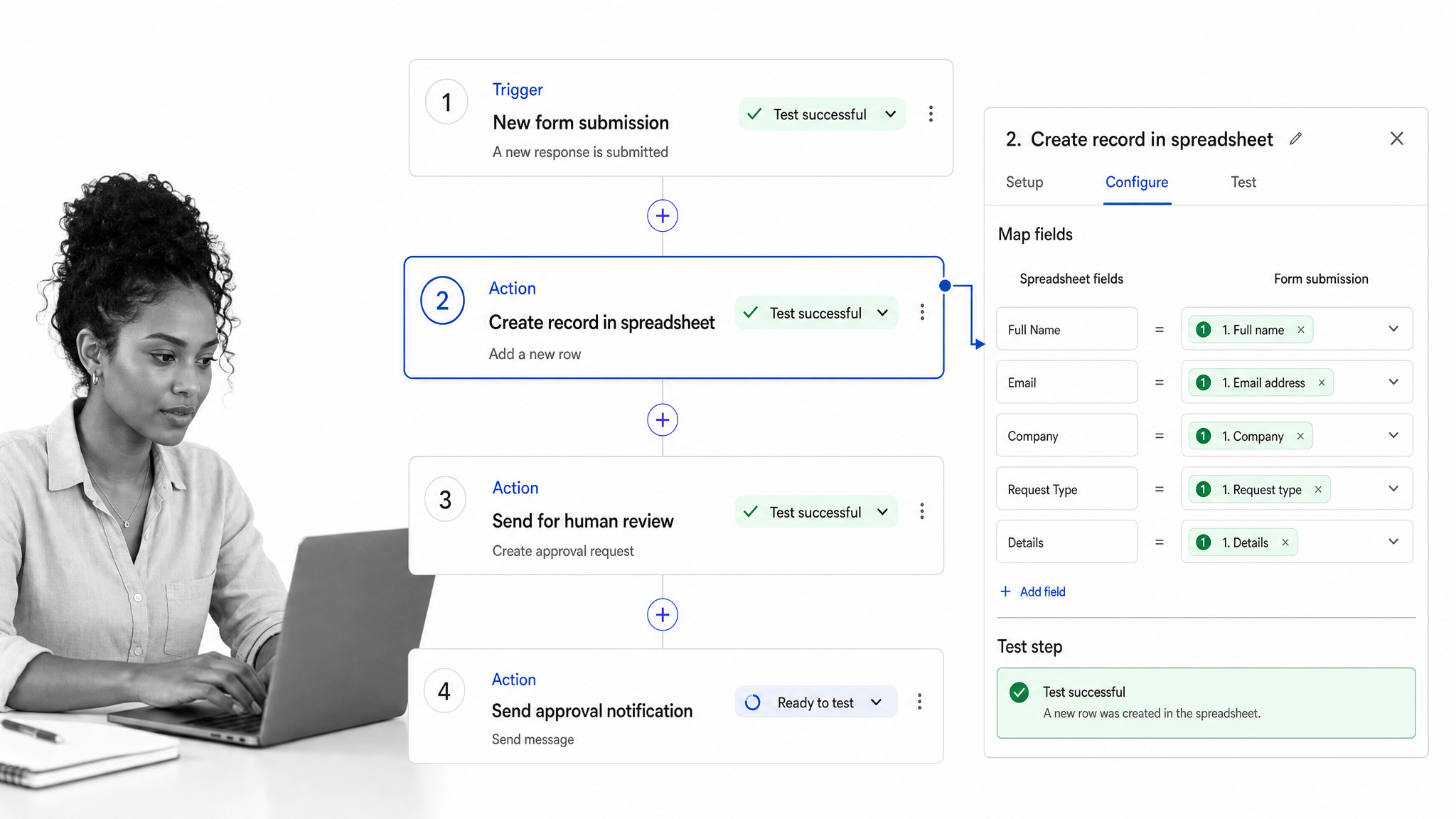
Zapier is one of the leaders in task automation and a strong default when the job is moving data and triggering actions across cloud apps. As a third-party connector of different web apps, it can be the first stop on an automation journey. Its current catalog covers more than 9,000 apps, and a Zap can combine triggers, filters, paths, field mapping, AI steps, and human review.
Best for: operations and go-to-market teams that want to automate repetitive tasks without maintaining code. A typical flow might qualify a form response, enrich the record, create a CRM opportunity, and alert the owner. The tradeoff is that high-volume or deeply branched automations can become expensive and difficult to reason about, so naming standards and failure alerts matter.
2. Microsoft Power Automate
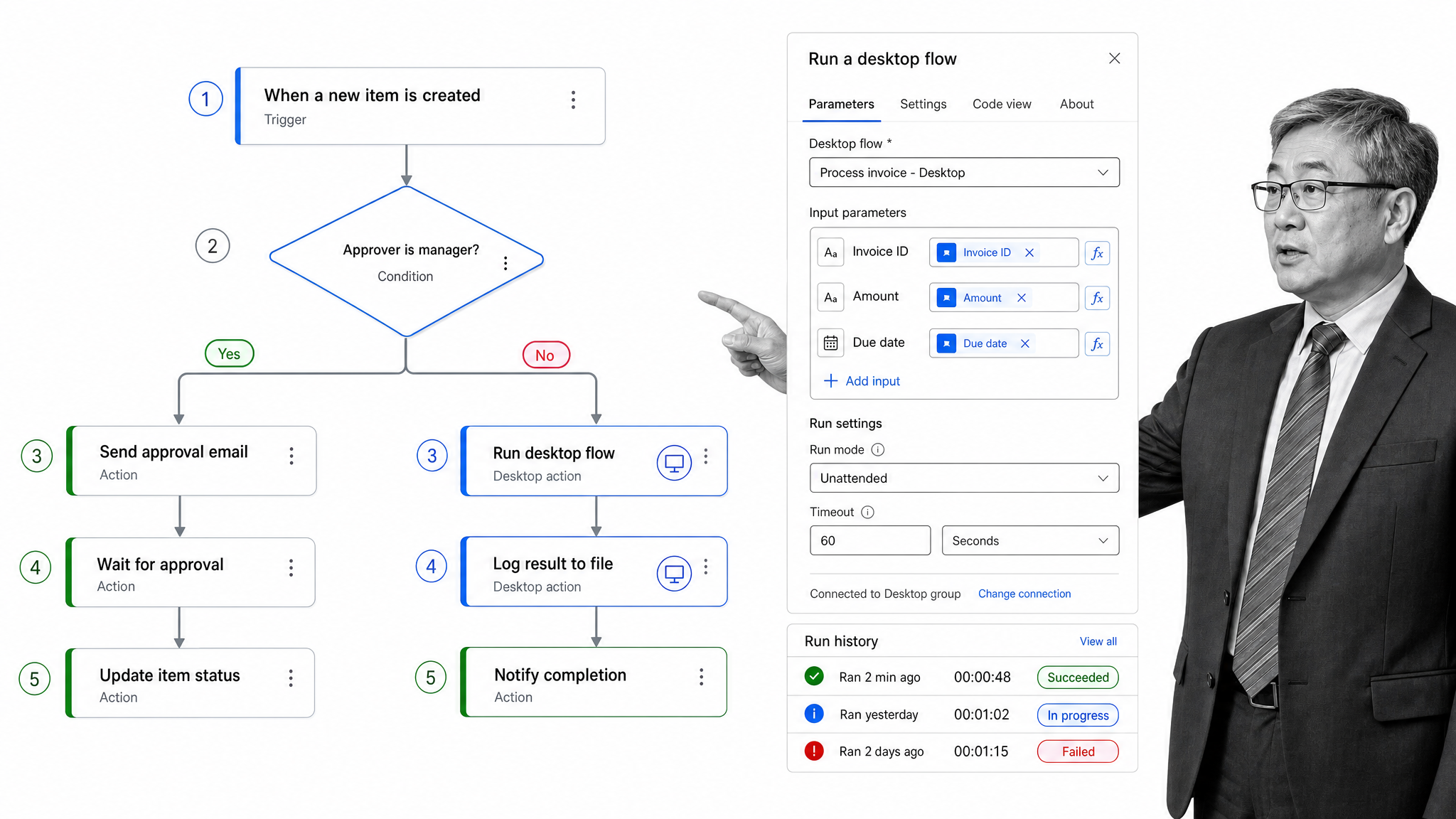
Microsoft Power Automate, formerly Microsoft Flow, combines automated cloud flows, instant flows, scheduled flows, business process flows, and desktop flows. It is Microsoft’s answer to third-party automation tools and fits naturally when Microsoft 365, Dynamics 365, Azure, or Windows already sits at the center of the stack. If you rely heavily on Microsoft’s product line, it can prove a useful automation tool.
Best for: organizations that need both API-based automation and desktop actions under Microsoft administration. It can route an approval from SharePoint, update Dynamics, and use desktop automation for a legacy system. The platform is broad, but licensing and environment governance can be complicated. Confirm premium connectors, attended versus unattended RPA, and ownership before deployment.
3. Process Street
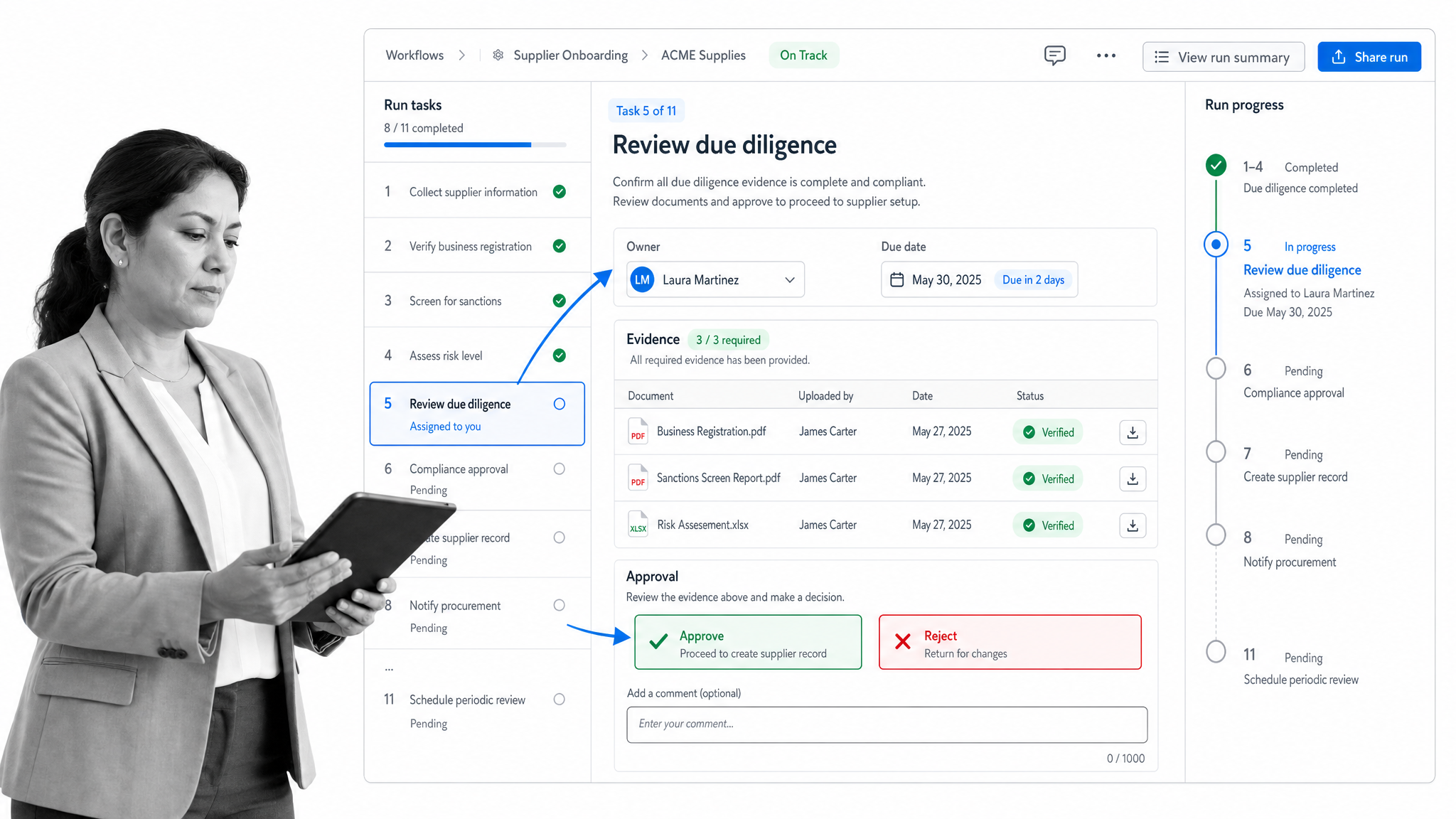
Process Street is a single Compliance Operations Platform for recurring work where missed steps create operational or compliance risk. Its Docs capability governs policies and procedures, Ops turns them into automated and auditable workflows, and built-in AI helps monitor execution, flag gaps, and keep processes current.
Best for: onboarding, approvals, audits, reviews, and other repeatable processes that must be both completed and provable. A workflow can assign owners, enforce required fields, branch on conditions, escalate delays, collect evidence, and retain a complete history. Direct and universal integrations reach more than 5,000 systems, and an AI agent can build a new connection when needed. The tradeoff is focus: Process Street is built for governed processes, not a two-click personal shortcut.
4. n8n
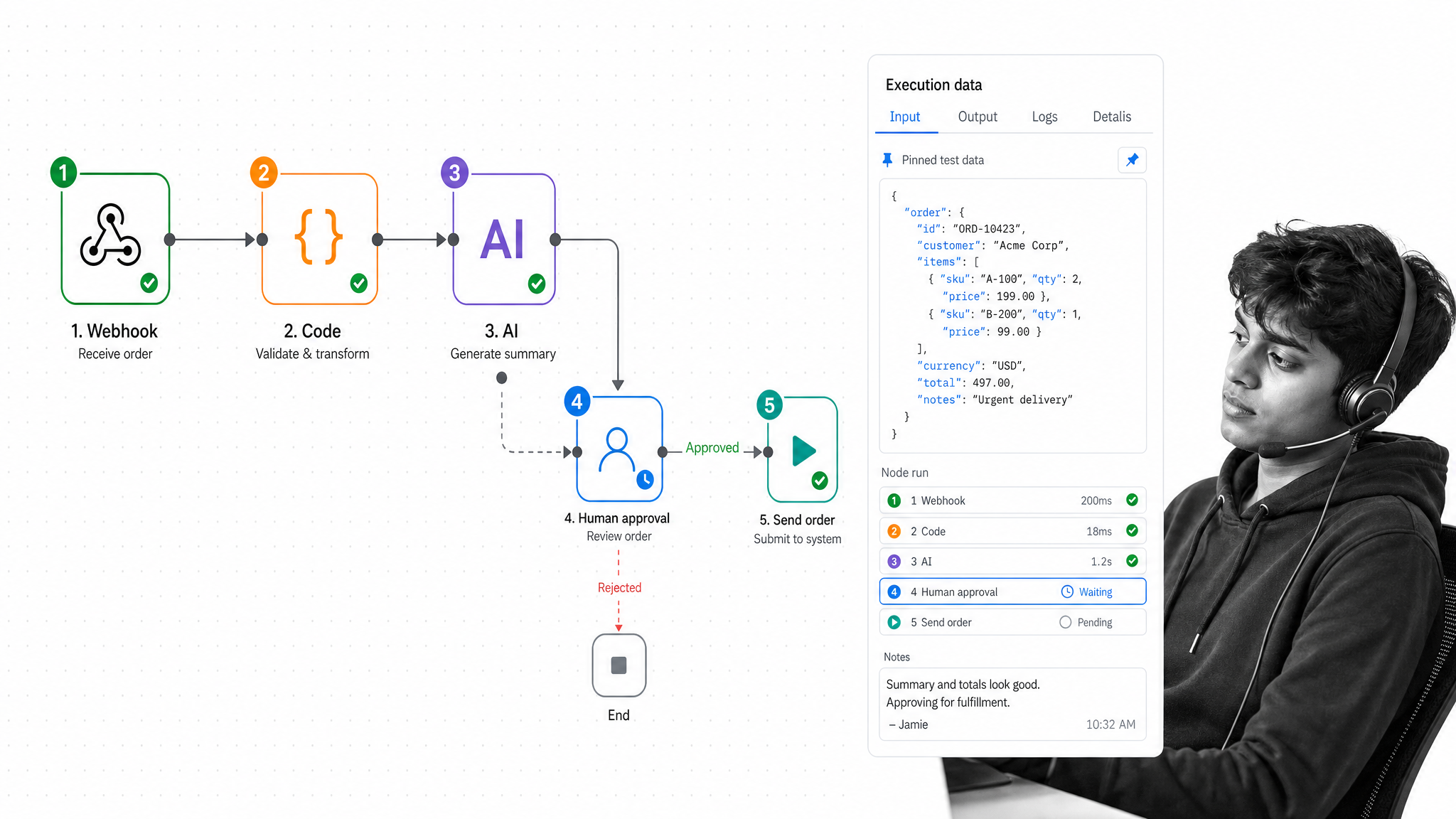
n8n gives technical teams a visual node editor without taking code away. A workflow can combine webhooks, app nodes, custom JavaScript or Python, AI model calls, sub-workflows, and human approvals. You can use n8n’s hosted service or run it in your own environment.
Best for: engineering-enabled operations teams that need flexibility, self-hosting, or custom data transformations. It is particularly useful when a low-code connector gets you most of the way but the last 20% needs code. If you are more tech savvy and operate in a Linux or Unix environment, n8n can also take over multi-step jobs that might otherwise be split between scripts and cron jobs. That power brings ownership: someone must secure the instance, manage credentials, test upgrades, and watch execution failures.
5. Raycast
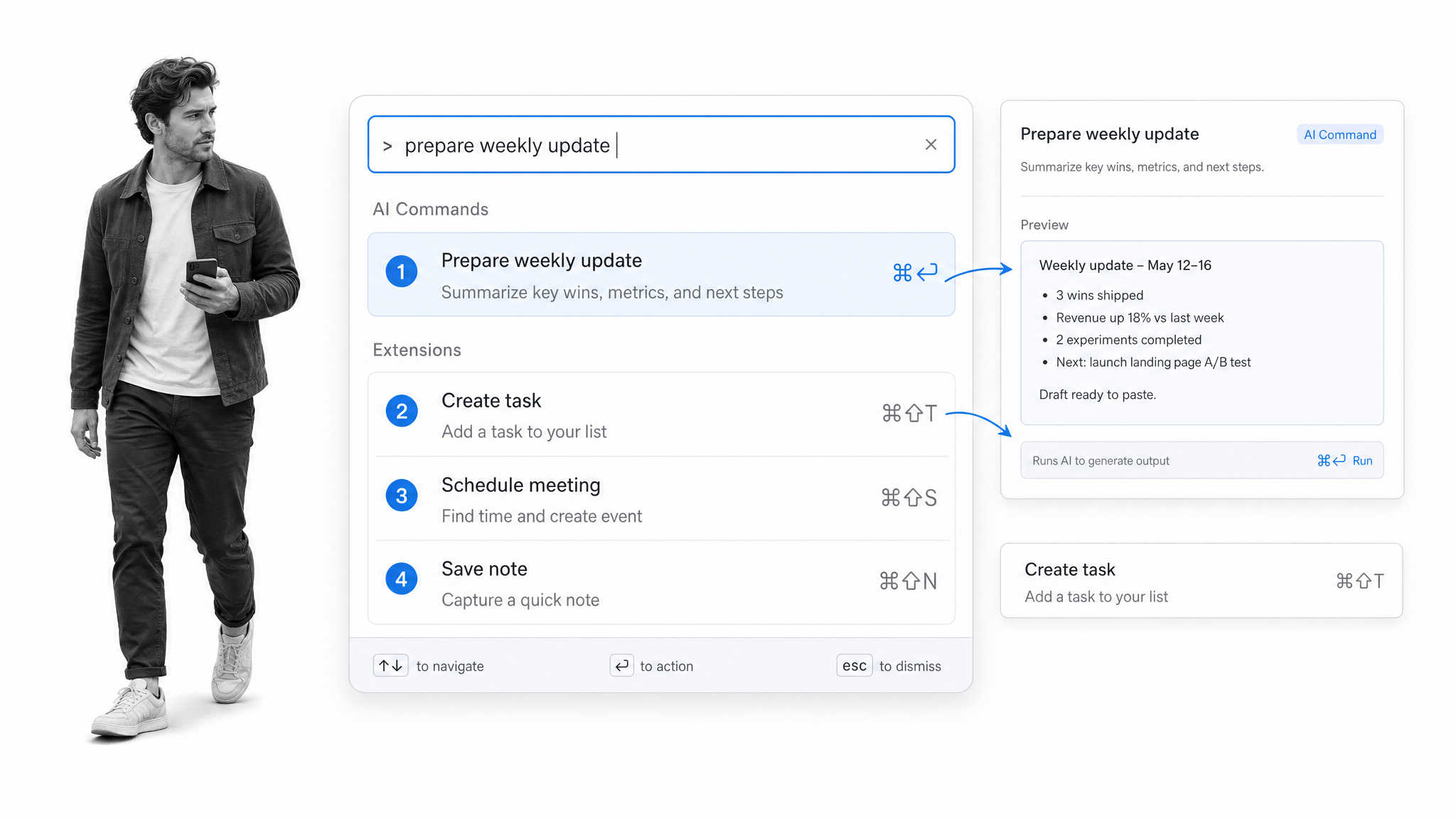
Raycast is a Mac launcher that turns keyboard commands into fast desktop actions. Extensions can search tools, create records, control windows, run scripts, and trigger shortcuts. AI Commands make repeatable prompts available from the same command bar.
Best for: individual knowledge workers who repeat small actions across the desktop all day. It can create a task, transform selected text, search documentation, or launch a multi-step shortcut without reaching for the mouse. Raycast is Mac-focused and personal by design, so it does not replace a shared workflow system. Alfred remains a hidden gem for Mac users, combining rapid keyboard navigation with complex workflows triggered from a hotkey and a library of community workflows created by other users.
6. IFTTT
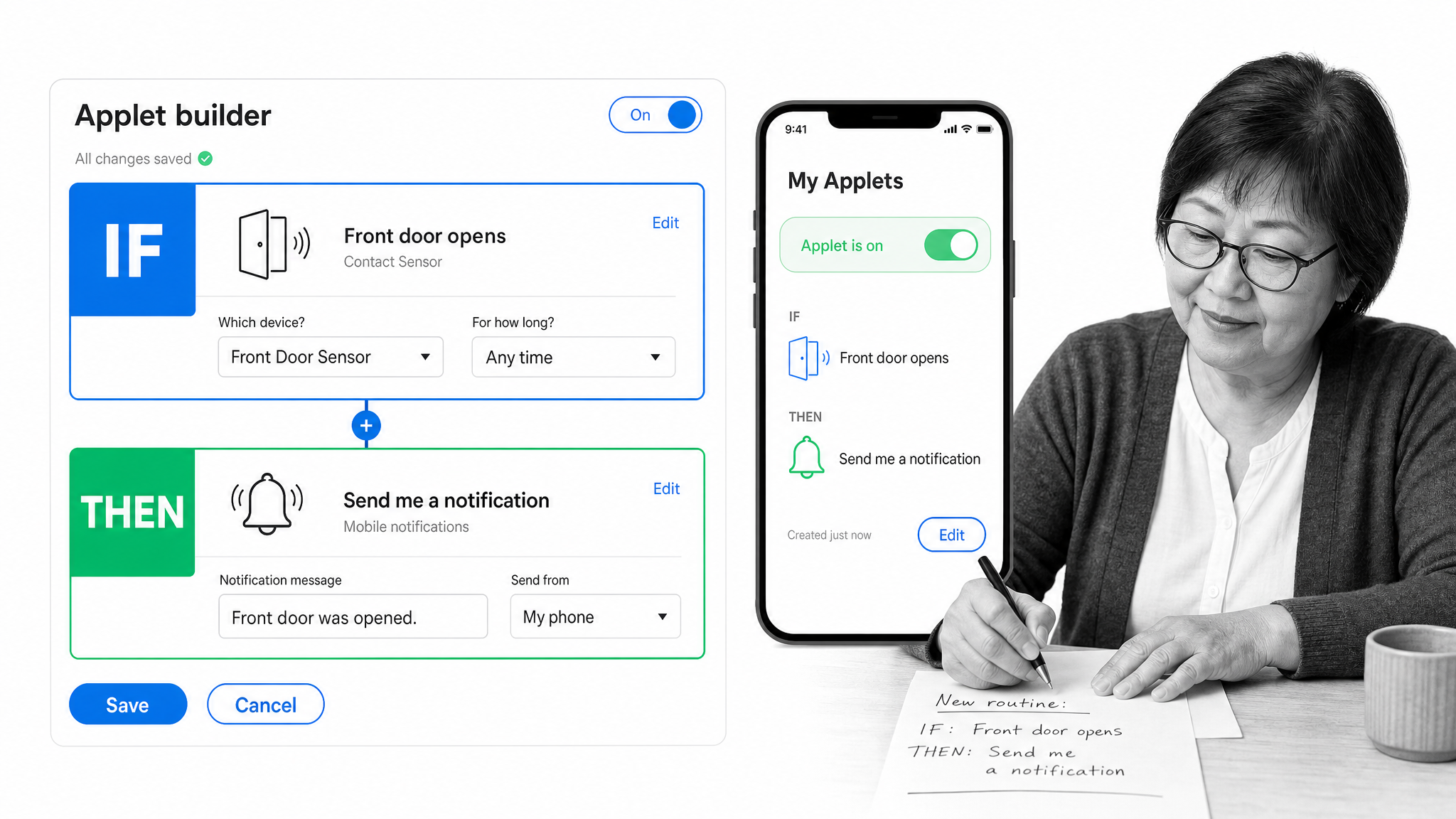
IFTTT, short for If This Then That, keeps automation approachable: if one event happens, then perform an action. Its applets connect more than 1,000 services across mobile apps, smart-home devices, productivity tools, and AI services, bringing the Internet of Things into your pocket without the retired Do Note or Do Camera framing.
Best for: personal routines, connected devices, and straightforward trigger-action automation. You might log a voice note, receive an alert when a sensor changes, or synchronize a simple event between services. IFTTT is easy to start, but that simplicity is also the limitation. Complex branching, governed approvals, and business-critical observability belong in a more capable platform.
7. Make
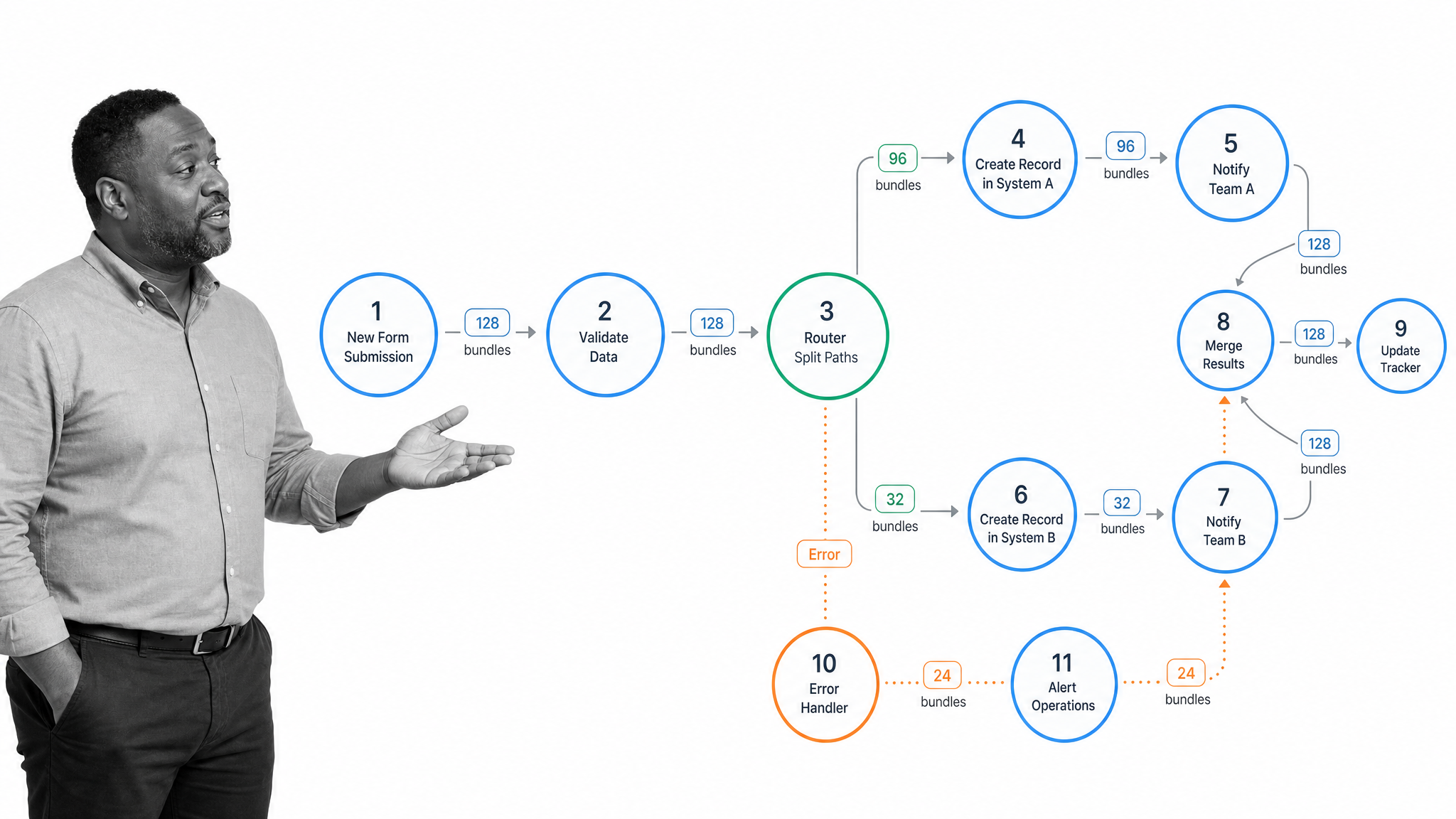
Make presents automation as a visual scenario map. Circular modules connect across routers, filters, iterators, aggregators, and error-handling paths, making it possible to see how data moves through a complex workflow. Its catalog covers more than 3,000 apps.
Best for: teams that want detailed control over multi-step, multi-path app automation while staying in a visual builder. Make is useful for transformations and branching that feel constrained in simpler trigger-action tools. The tradeoff appears as scenarios grow: a large canvas can become its own maintenance problem, so use sub-scenarios, documentation, and explicit error routes.
8. UiPath
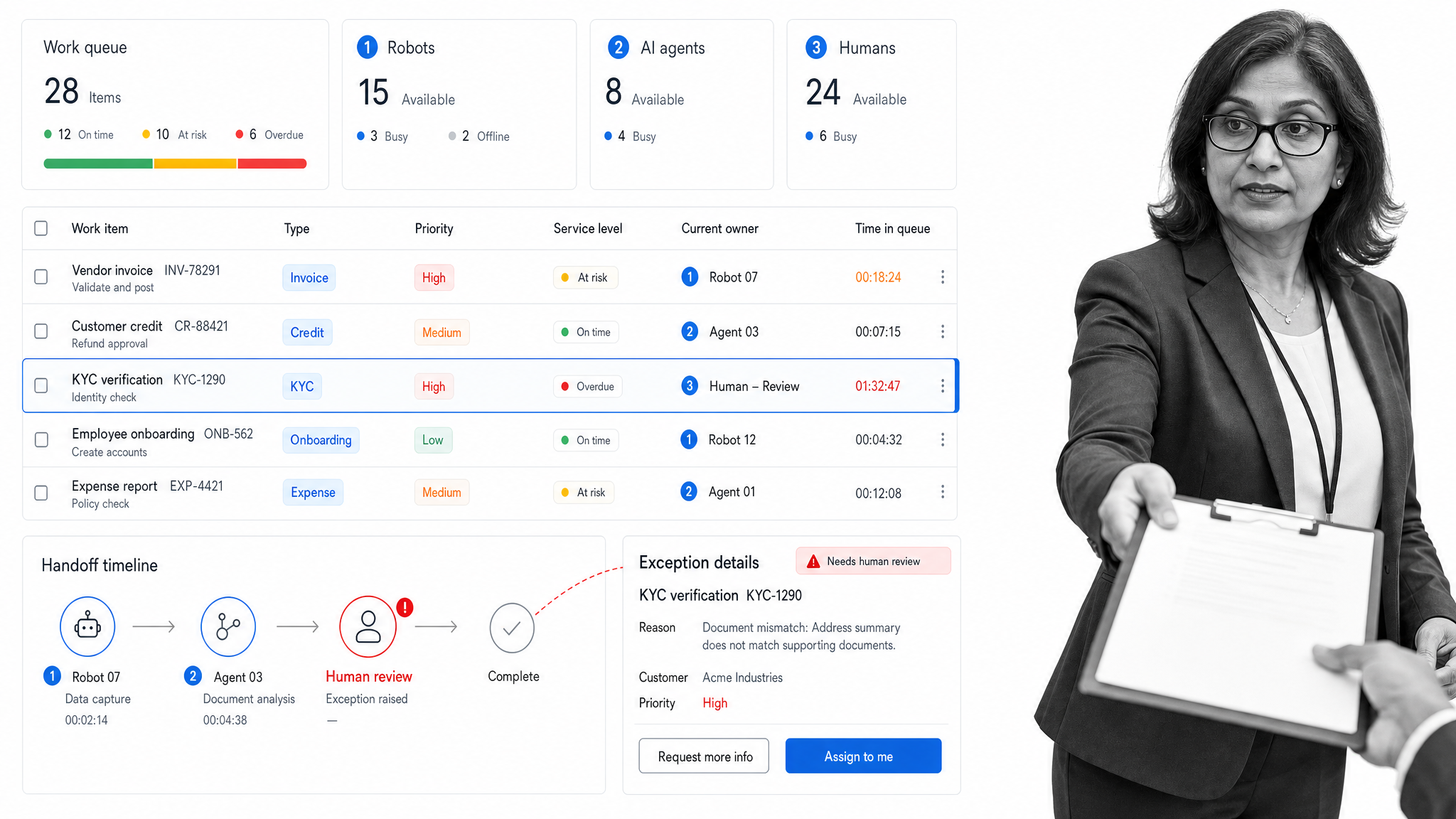
UiPath coordinates software robots, AI agents, systems, and people for enterprise automation. RPA can operate desktop and legacy interfaces when no practical API exists, while orchestration assigns work, manages queues, handles exceptions, and sends sensitive decisions to a person.
Best for: large organizations automating high-volume work across old and new systems. Common patterns include invoice processing, claims handling, data migration, and service operations. For PC users committed to automating their workflows online or off, UiPath is a more complete enterprise choice than specialist tools such as RoboTask, which still offers IF/ELSE statements, loops, and custom variables for local Windows work. UiPath can go much further than a lightweight connector, but it needs program-level governance.
9. TextExpander
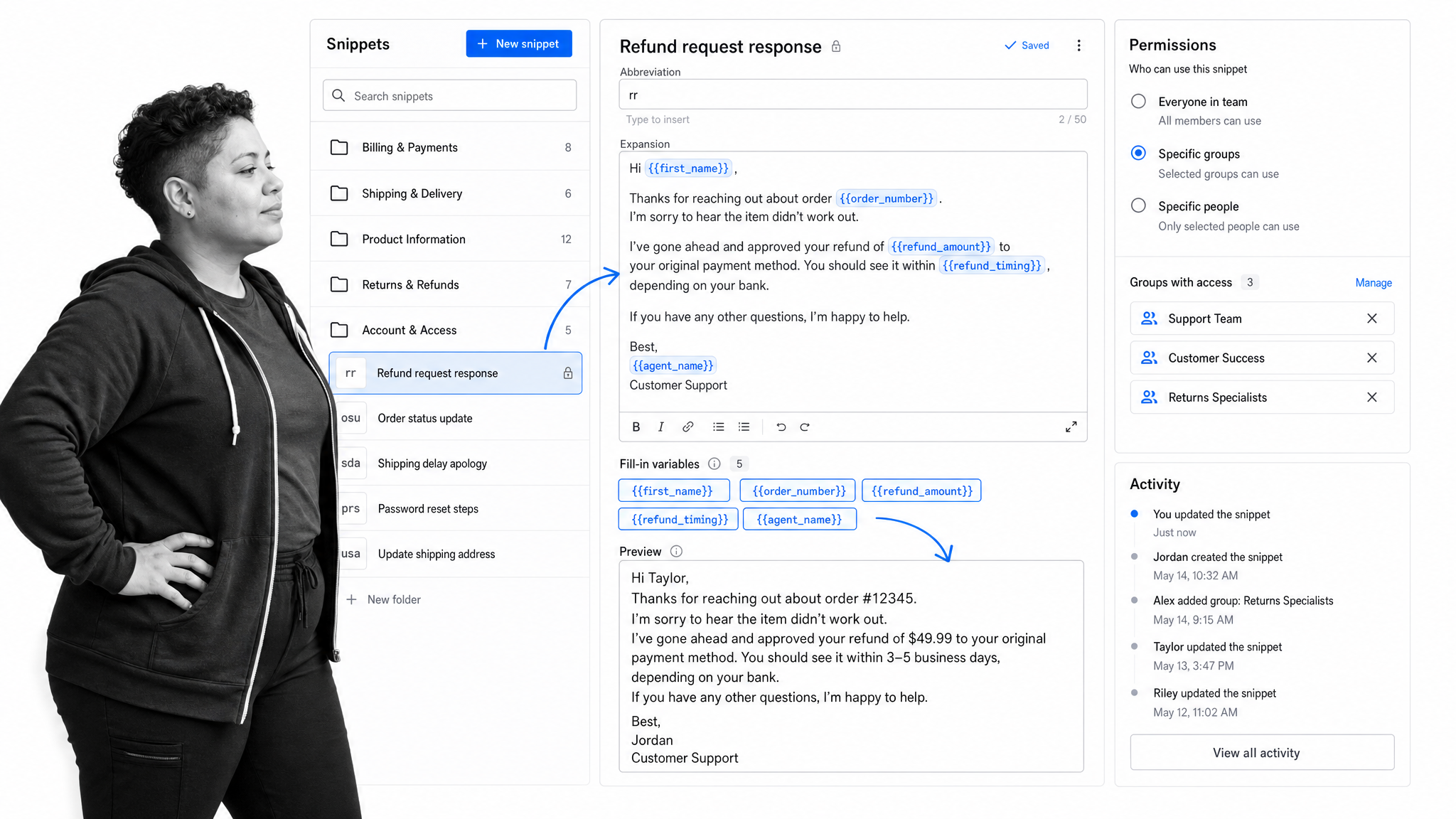
TextExpander is in many ways a classic hotkey tool. It automates one of the smallest but most frequent tasks: typing the same text again. You can save snippets of text or code and re-employ them elsewhere by typing a small shortcut. Fill-in fields can personalize the result, while teams share approved snippets, manage access, review activity, and request changes.
Best for: support, sales, healthcare, and operations teams that repeat structured language but still need a person to review the final message. Its focus on how snippets can help a team shifts the hotkey approach from personal commands to longer sections accessible from the cloud across a team. That emphasis on collaboration lets TextExpander fit neatly within a business process. The scope is deliberately narrow, and that is the point.
Make apps work so you don’t have to
Start with one process you can observe. Write down the trigger, every action, the systems involved, the decisions that require judgment, and the evidence you need to keep. Automate the stable steps first, then add branching or AI only where it has a clear job.
The best task automation tools do more than save clicks. They make ownership clearer, shorten the distance between a signal and the right response, and leave people free to handle exceptions, relationships, and decisions that deserve their attention.