
Turn every policy into automated workflows with built-in enforcement and audit-ready proof.

8 Best Remote Work Apps for Productive Distributed Teams
Remote work succeeds when people can see what needs to happen, communicate with the right level of urgency, and find the context behind a decision. The best remote work apps do not simply move office habits onto a screen. They create a dependable operating system for work that crosses locations and time zones.
A useful stack covers six jobs: repeatable workflows, team communication, meetings, shared files, project coordination, and secure access. The goal is not to collect the most software. It is to give every kind of work a clear home, then connect those homes so a handoff does not disappear between apps.
This guide compares eight durable tools, explains the role each one should play, and shows how to build a focused stack without creating notification overload or competing sources of truth.
In this guide: What remote work apps should cover · The best remote work apps · How to choose · How to roll out the stack · FAQs
What should remote work apps cover?
A remote team needs more than chat and video calls. Those tools help people talk, but they do not automatically define ownership, preserve a decision, or make a recurring process reliable. Start with the work your team must perform, then assign each job to one primary system.
- Repeatable workflows: turn recurring work into assigned steps, decision points, approvals, deadlines, and a visible record of completion.
- Communication: create shared channels for questions, announcements, working discussions, and fast coordination.
- Meetings: support live conversations when nuance, conflict resolution, discovery, or rapid feedback benefits from real-time interaction.
- Files and documents: keep working files accessible with explicit permissions and a known location for the current version.
- Projects and tasks: show planned work, milestones, dependencies, and progress across a finite initiative.
- Access security: let people use shared credentials and sensitive tools without passing passwords through chat or documents.
The boundaries matter. Chat is a poor approval log. A project board is not always the best home for a recurring operating procedure. A shared document can explain a process but cannot ensure that every step is assigned and completed. Clear system roles prevent a remote stack from becoming a collection of overlapping inboxes.
| Rank | App | Best for | Primary role | Watch for |
|---|---|---|---|---|
| 1 | Process Street | Repeatable operations | Workflows, assignments, approvals, and process records | Define the process owner before automating |
| 2 | Slack | Flexible team communication | Channels, direct messages, and quick huddles | Do not let important decisions live only in chat |
| 3 | Microsoft Teams | Microsoft-centered organizations | Chat, meetings, channels, files, and apps | Set channel conventions before rollout |
| 4 | Zoom | Video meetings and workshops | Live meetings, screen sharing, and visual collaboration | Use meetings selectively and document outcomes |
| 5 | Google Drive | Shared files and collaborative documents | Storage, sharing, and permissioned access | Design the folder and ownership model |
| 6 | Asana | Cross-functional project planning | Projects, task ownership, timelines, and views | Avoid recreating recurring SOPs as one-off projects |
| 7 | Trello | Simple visual task tracking | Boards, lists, and cards | Keep boards narrow enough to remain readable |
| 8 | 1Password | Secure team access | Shared vaults and controlled credential access | Use groups and least-confusing vault boundaries |
Which remote work apps belong in a focused stack?
The list below is ranked by how much operational structure each product can add to a distributed team, not by how many features it offers. Process Street comes first because communication and meetings work better when they connect to a repeatable process with owners, approvals, and evidence. The remaining tools fill the communication, project, file, and security layers around that operating core.
1. Process Street: Best for repeatable remote workflows
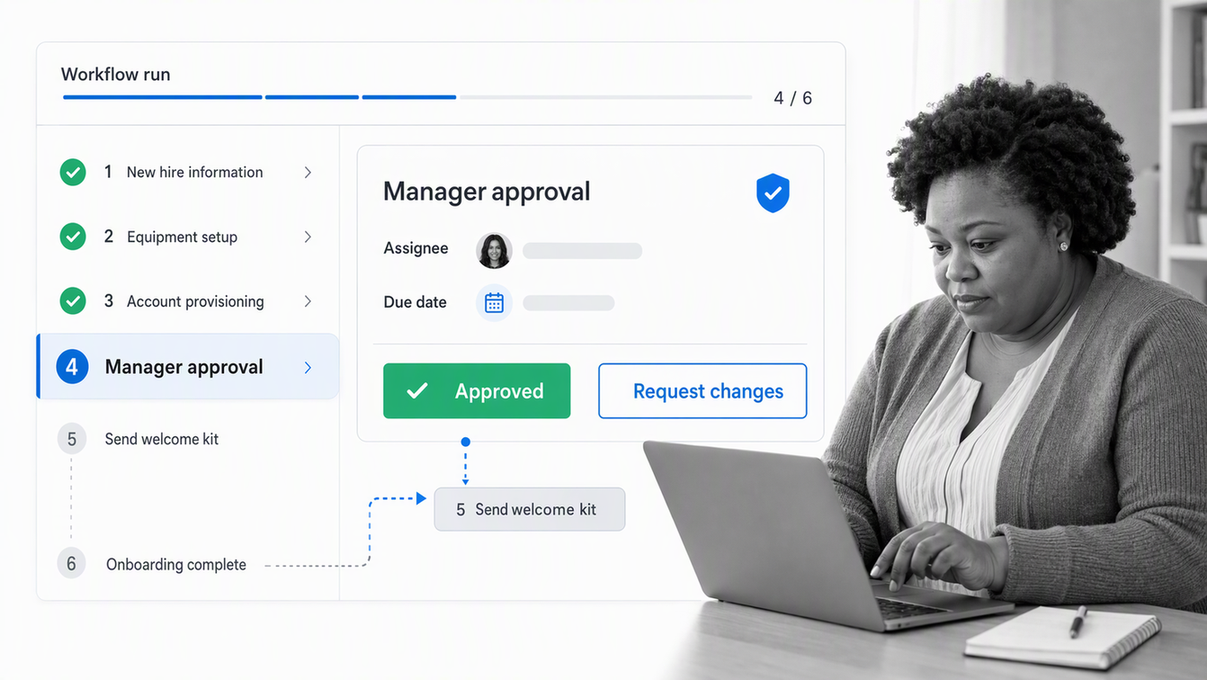
Process Street gives remote teams a shared execution layer for recurring work. A workflow can define the steps, assign owners, collect information, route decisions, and show the current state without requiring everyone to be online at once. That makes it especially useful for onboarding, client delivery, approvals, audits, recurring reviews, and other work where consistency matters as much as speed.
The key difference between a workflow platform and a project board is repeatability. A project is usually a temporary effort with a beginning and an end. A workflow is a durable operating pattern that the team can run again with the same controls, while still capturing the details of each case. Remote teams benefit because the process carries the context that an office team might otherwise pass through meetings or informal conversations.
Process Street supports task assignments, approvals, conditional paths, forms, integrations, scheduling, and dashboard visibility. Teams can keep the instructions beside the work, so a new hire or cross-time-zone collaborator does not need to search through chat history to understand the next step. The run record also makes delays and exceptions visible to managers without constant check-ins.
Best fit: operations, compliance, finance, HR, customer teams, and any distributed group that performs the same important process repeatedly. See how approval workflows keep decisions inside the work instead of scattering them across messages.
2. Slack: Best for flexible team communication
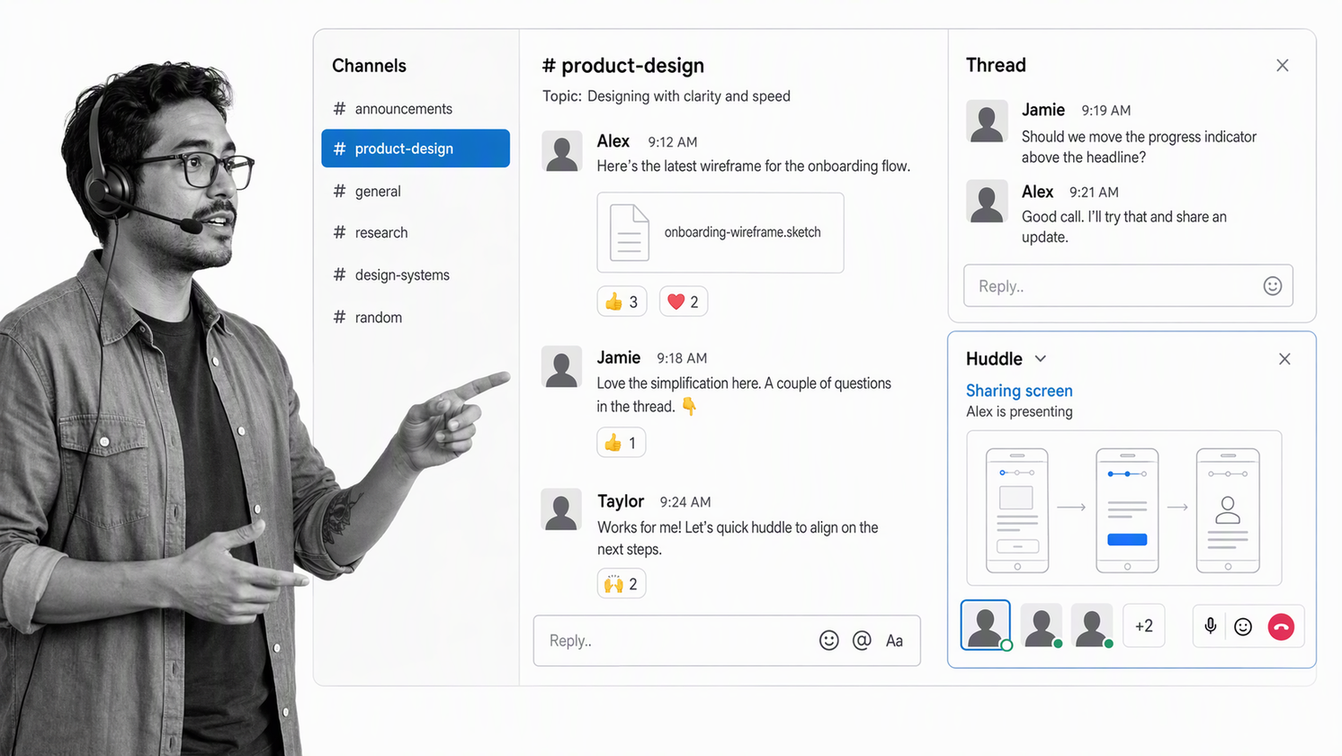
Slack is a strong communication home for teams that want channels organized around projects, functions, customers, or operating topics. It supports direct messages for narrow conversations and shared channels for work that should remain visible to a wider group. The main benefit is not raw message speed. It is the ability to create predictable places where specific conversations belong.
Slack huddles add lightweight audio or video collaboration inside a channel or direct message, including screen sharing and a thread for follow-up. That can reduce the overhead of scheduling a formal meeting when a short live conversation will unblock the work.
The risk is that fast communication can become a substitute for durable documentation. Set a rule that chat is for coordination, while final decisions, owners, due dates, and completed work move into the relevant workflow, project, or document system. That keeps people in other time zones from having to reconstruct a decision from a long message history.
Best fit: organizations with varied tools and a culture of open, channel-based communication. Slack works best when channel naming, notification expectations, and escalation paths are written down.
3. Microsoft Teams: Best for Microsoft-centered organizations
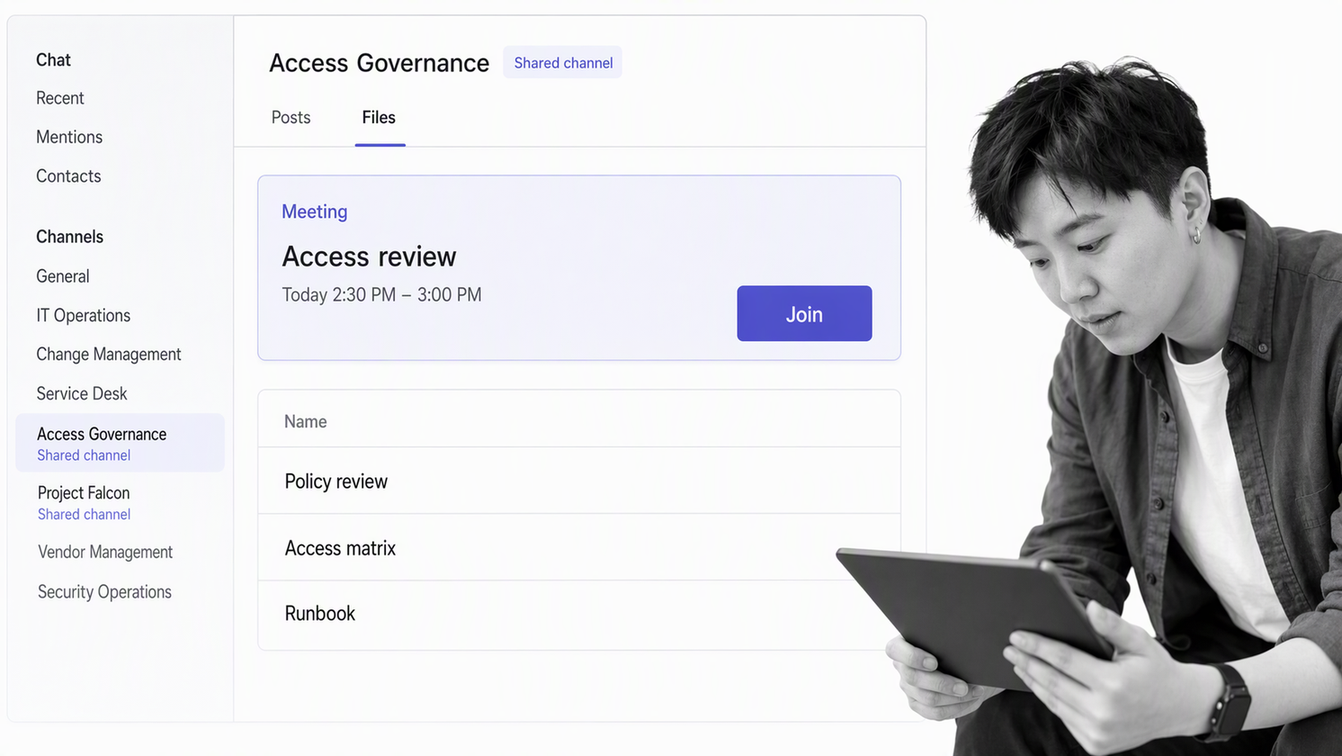
Microsoft Teams brings chat, audio and video calling, meetings, file sharing, collaboration, and apps into the Microsoft environment. It is a natural choice when identity, calendars, documents, and internal collaboration already live in Microsoft services.
Teams supports standard, private, and shared channels. That gives administrators and team owners several ways to separate broad conversations from restricted or cross-organization work. The platform can serve as both the communication layer and the meeting layer, which may reduce the number of tools a company needs to support.
Consolidation only helps when the information architecture is clear. Decide which teams and channels represent departments, long-running work, projects, or external collaboration. Without those conventions, users can end up with duplicated spaces and uncertain file locations even though the products are technically connected.
Best fit: companies standardized on Microsoft identity and productivity tools, especially when IT wants centralized policies for communication, meetings, and app access.
4. Zoom: Best for video meetings and workshops
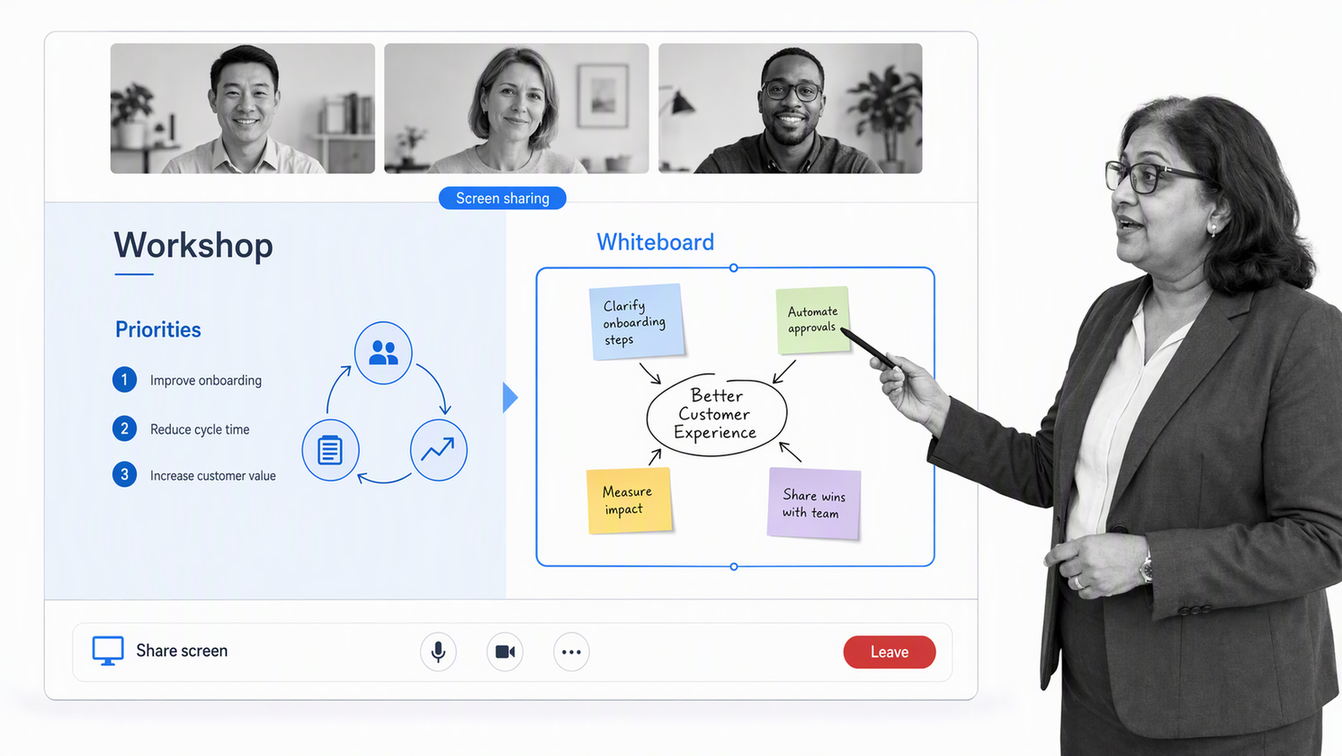
Zoom Workplace combines meetings with chat, documents, whiteboards, clips, and related collaboration tools. Its central role in a remote stack is still live interaction: customer conversations, interviews, workshops, training, planning, and discussions where tone and rapid back-and-forth matter.
Screen sharing lets participants work through a product, document, design, or problem together. Whiteboards can help a group capture ideas visually during a session and continue contributing after the call. Those surfaces are most valuable when the team turns the output into owned actions instead of leaving the result trapped in a recording.
Use Zoom deliberately. A meeting should solve a problem that benefits from synchronous attention. Send context before the call, name the decision or outcome, and move actions into the appropriate workflow or project tool afterward. A remote culture becomes exhausting when meetings are the default method for discovering status.
Best fit: teams with frequent customer meetings, hiring conversations, workshops, or high-context discussions that need dependable audio, video, and screen sharing.
5. Google Drive: Best for shared files and collaborative documents
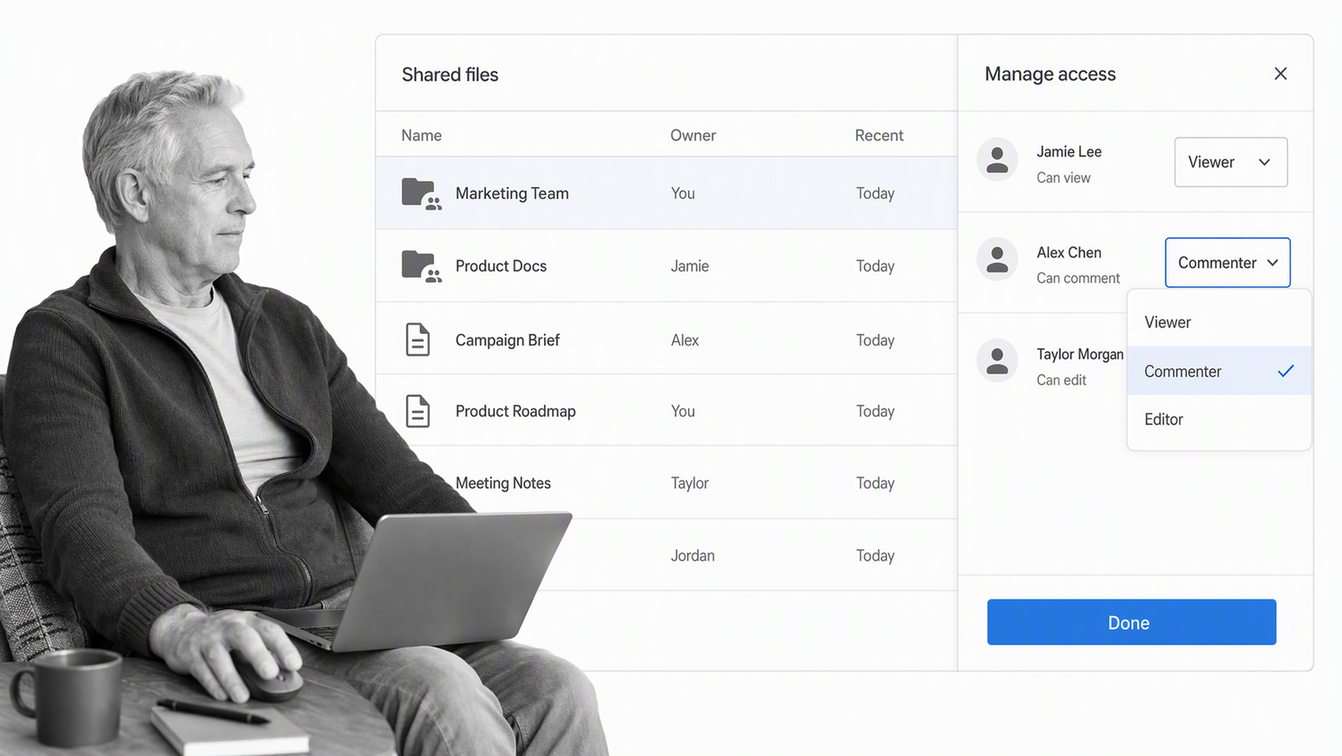
Google Drive gives remote teams a central place for files and folders, with viewer, commenter, and editor access. That permission model supports a practical range of collaboration patterns, from distributing a final reference to co-editing a working document.
Shared folders pass their permissions to the files and subfolders inside them, so folder design has operational consequences. A clear structure can make onboarding easier and keep teams from creating private copies of important material. A confused structure can spread broad access or make the current file difficult to find.
Treat Drive as the file and document layer, not the entire operating system. A document can explain the policy or plan, but a workflow should govern recurring execution and a project tool should track a finite initiative. Link the document from those systems instead of duplicating its contents across them.
Best fit: teams that create and review documents collaboratively and want a straightforward cloud file repository with explicit sharing roles.
6. Asana: Best for cross-functional project planning
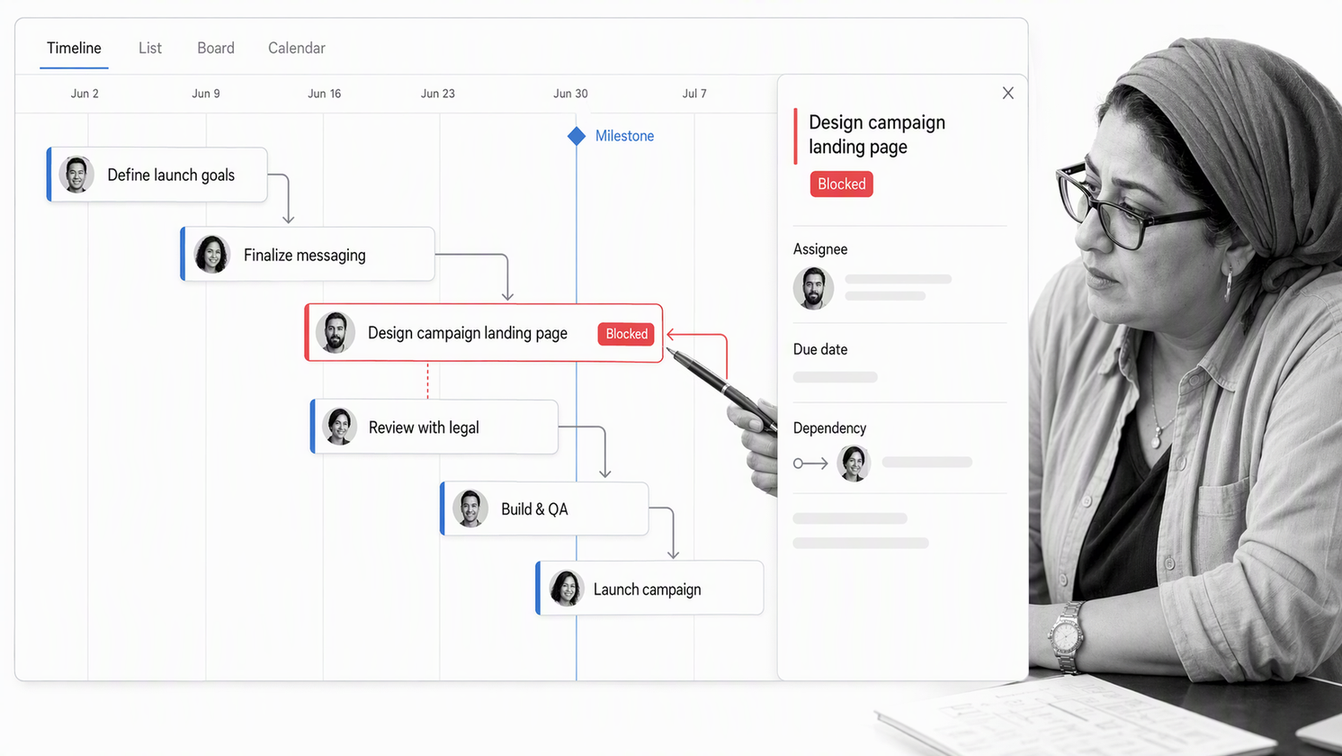
Asana helps teams plan and track project work through list, board, calendar, timeline, Gantt, and custom views. Different views can show the same work in the form most useful to the audience, from a task list for an individual contributor to a timeline for a program lead.
Board view represents tasks as cards moving through defined stages, while task details can carry assignees, due dates, and subtasks. That combination works well for cross-functional initiatives where the team needs both a high-level progress view and clear responsibility for individual deliverables.
Keep the project boundary explicit. Product launches, campaigns, implementations, and migrations are sensible Asana projects. Recurring operational procedures often need a workflow system instead, particularly when the process includes required evidence, approvals, conditional steps, or repeated cases. The tools can complement each other when the handoff is clear.
Best fit: teams managing multi-stage projects with many contributors, deadlines, and dependencies across functions.
7. Trello: Best for simple visual task tracking
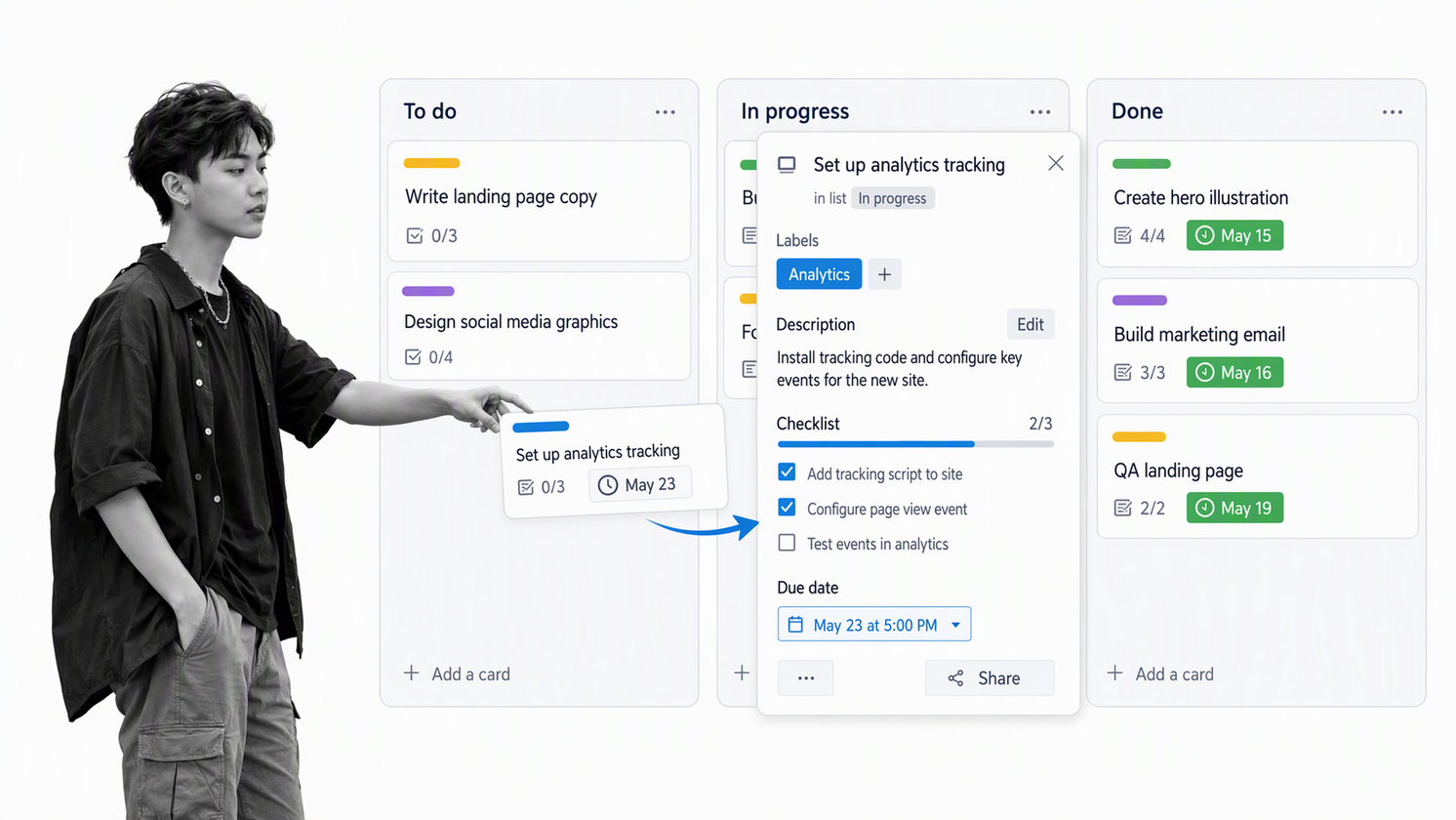
Trello organizes work into boards, lists, and cards. A board can represent a project or workstream, lists can represent stages or categories, and cards can represent tasks or units of work. Moving a card between lists creates an immediate visual signal that is easy for a small team to understand.
Cards can hold practical task details such as dates, labels, attachments, comments, and checklists. That makes Trello flexible enough for lightweight editorial calendars, recruiting pipelines, planning boards, personal task systems, and other workflows where a visual queue is more useful than a dense project plan.
Simplicity is Trello’s advantage and its boundary. A board becomes less useful when it tries to represent too many processes, too many teams, or highly conditional work. Keep the board focused, define what each list means, and archive completed work so the visual model remains readable.
Best fit: individuals and small teams that want an approachable kanban-style surface without the setup of a broader project management system.
8. 1Password: Best for secure team access
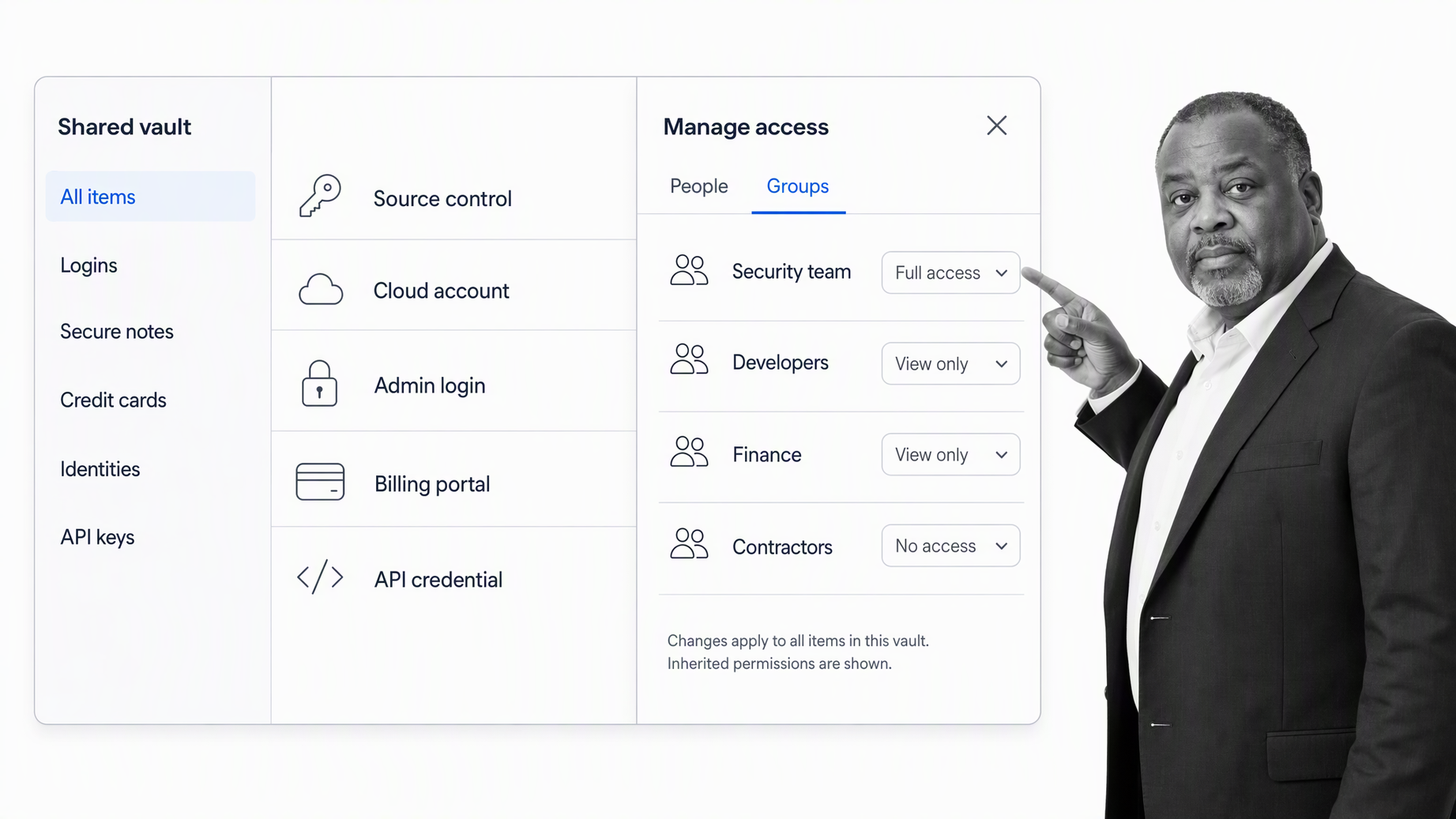
Remote teams regularly need shared access to software, customer portals, infrastructure, and other protected resources. Sending credentials through chat or storing them in a general document creates avoidable risk and makes access difficult to manage when roles change.
1Password lets organizations create shared vaults and manage access for people and groups. Teams can separate credentials by function, system, or sensitivity, then give each person the access needed for their role without making one shared list available to everyone.
A password manager belongs in the operating stack because secure access is part of completing the work. Pair vault ownership with onboarding and offboarding workflows so access is granted, reviewed, and removed as a controlled process rather than an informal request.
Best fit: any team that shares access to business systems, particularly organizations with contractors, role changes, or distributed IT support.
How do you choose remote work apps?
Choose the stack from operating problems, not feature lists. Start by mapping where work currently breaks: decisions disappear in chat, files are hard to find, recurring processes depend on memory, projects lack ownership, or access is shared insecurely. Each problem should have one primary system responsible for fixing it.
| Evaluation question | Why it matters | Evidence to request |
|---|---|---|
| What exact job will this app own? | Prevents overlapping tools and unclear sources of truth | A one-sentence role for the app |
| Can work continue asynchronously? | Reduces time-zone and meeting dependence | A complete example that another person can continue later |
| How are owners and decisions recorded? | Makes accountability visible | Assignments, approvals, comments, and history |
| How does it connect to the stack? | Prevents manual copying between systems | A tested handoff using your real tools |
| What access model does it use? | Protects sensitive work and simplifies role changes | Groups, permissions, and offboarding behavior |
| Will people actually adopt it? | A powerful product adds no value if the team avoids it | A pilot with real users and real work |
During a pilot, use one real process rather than a polished demo scenario. Invite the people who perform, review, and own the work. Measure whether the tool reduces follow-up, makes ownership clearer, shortens the time to find context, and leaves a better record of the outcome.
Also evaluate the failure mode. Ask what happens when an owner is away, a deadline slips, a permission changes, an integration fails, or someone joins the process halfway through. Remote tools create the most value when they make exceptions visible and recoverable, not only when the ideal path works.
How should teams roll out remote work apps?
A rollout is an operating change, not an installation project. People need to know what moves into the new app, what stays elsewhere, and which behavior is expected. Start with a narrow, frequent workflow where the benefits will be visible quickly.
- Name an owner. One person or team should own configuration, conventions, access, and the decision to retire overlapping tools.
- Define the system role. Write a short statement such as, ‘Process Street is where recurring work is assigned and completed’ or ‘Slack is where working conversations happen.’
- Move one real workflow. Build the complete path, including intake, ownership, decisions, files, exceptions, and completion.
- Connect the handoffs. Link or automate transitions between communication, workflows, projects, files, and access systems where it removes manual work.
- Train through the work. Teach people by completing a real process instead of presenting a tour of every feature.
- Review adoption and friction. Look for duplicate records, missed notifications, unclear ownership, and steps that still require side conversations.
- Retire the duplicate path. Once the new system works, remove the old template, board, spreadsheet, or channel that would split the record.
Remote teams do not need identical habits across every function, but they do need shared rules at the boundaries. Everyone should know where a request enters, where the owner is assigned, where the current file lives, where a decision is approved, and where completion is recorded.
For recurring work, a form workflow can connect intake to validation, routing, review, approval, action, and follow-up. That structure turns a collection of remote work apps into a coordinated operating system instead of a set of disconnected destinations.
What should you know about remote work apps?
What are remote work apps?
Remote work apps are software tools that help distributed teams communicate, meet, share files, organize projects, secure access, and execute repeatable work without relying on a shared office.
What is the best remote work app for teams?
There is no single app that covers every remote-work need well. Process Street is a strong foundation for repeatable workflows and accountability, while most teams also choose a communication tool, a meeting tool, shared storage, and a password manager.
How many remote work apps should a team use?
Use the smallest stack that clearly covers each essential job. A focused stack usually has one primary system for workflows, one communication home, one meeting platform, one file repository, and security controls, with project tools added only when the work requires them.
How do remote teams avoid app overload?
Give every app a written purpose, define where final decisions and files live, connect handoffs to a repeatable workflow, and retire tools that duplicate another system without adding meaningful value.
Which remote work apps are best for asynchronous work?
Workflow, project, and document tools are strongest for asynchronous work because they preserve context outside a live conversation. Chat and meeting tools still matter, but decisions and assignments should be moved into durable records.
What should companies check before buying remote work software?
Check the use case, ownership model, permissions, integrations, mobile and web access, audit needs, adoption effort, and the quality of the product’s record of decisions and completed work. Test one real workflow before expanding the rollout.