


Turn every policy into automated workflows with built-in enforcement and audit-ready proof.



Automated Workflow Tools

Automated workflow tools turn repeatable business work into systems that start, route, check, approve, and complete tasks without someone manually pushing every step forward.
The right tool depends on what you are automating. A compliance workflow needs required fields, approvals, and an audit trail. A revenue operations workflow may need app triggers and data transformations. A technical workflow may need self-hosting, code, queues, and reliable error handling.
This guide compares the main categories, reviews four automated workflow tools, and gives you a practical selection matrix so you can choose the right surface for recurring work.
In this article, we are going to cover:
- What automated workflow tools are
- How to choose automated workflow tools
- Best automated workflow tools to compare
- Automated workflow tools by use case
- FAQs
What automated workflow tools are
Automated workflow tools are software platforms that move work through a defined sequence of triggers, tasks, decisions, approvals, and actions. If you understand what a workflow is, automation is the layer that makes that workflow run without constant manual coordination.
A simple automated workflow might create a task when a form is submitted. A more advanced workflow might check a policy, assign the right owner, collect evidence, send an approval request, update a CRM, notify a channel, and keep a record of every action.
The mistake teams make is treating every automation problem as the same problem. App-to-app automation, controlled workflow execution, visual scenario building, and enterprise orchestration all solve different jobs. A clean buying decision starts by naming the kind of work you need the tool to run.
That decision should happen before anyone compares pricing pages or connector counts. A team that needs audit proof will regret choosing a tool that only sends notifications. A team that only needs to move data between apps will regret buying a heavy process platform for a two-step sync. The best automated workflow tools are specific enough to match the risk and flexible enough to grow with the process.
Use workflow management tools when the main problem is coordinating recurring work across people. Use task automation when the main problem is removing repeated manual steps from a known path.
Most automated workflow tools handle some mix of:
- Triggers: form submissions, new records, emails, schedules, webhooks, or manual starts.
- Routing: assigning work to the right person, team, queue, or system.
- Rules: conditions, branches, filters, required fields, and exception paths.
- Actions: sending messages, creating records, updating data, generating documents, or escalating tasks.
- Proof: logs, approvals, timestamps, comments, files, and audit history.
That last point is why automated workflow tools are not just convenience software. For onboarding, vendor checks, finance close, safety inspections, quality review, access requests, and compliance work, automation becomes a control surface. It creates proof that the work happened, not just a reminder that someone should do it.
Good workflow management software makes the flow visible. Strong automation makes the flow harder to skip. When the workflow carries risk, that difference matters.
There is also a human side to automation. The tool should make the correct path easier than the workaround. If the workflow forces people to leave their normal operating surface, copy data by hand, or guess which path applies, people will route around it. Good automation reduces judgment calls at the wrong moments and leaves judgment where it belongs: exceptions, approvals, and decisions that need a human owner.
How to choose automated workflow tools
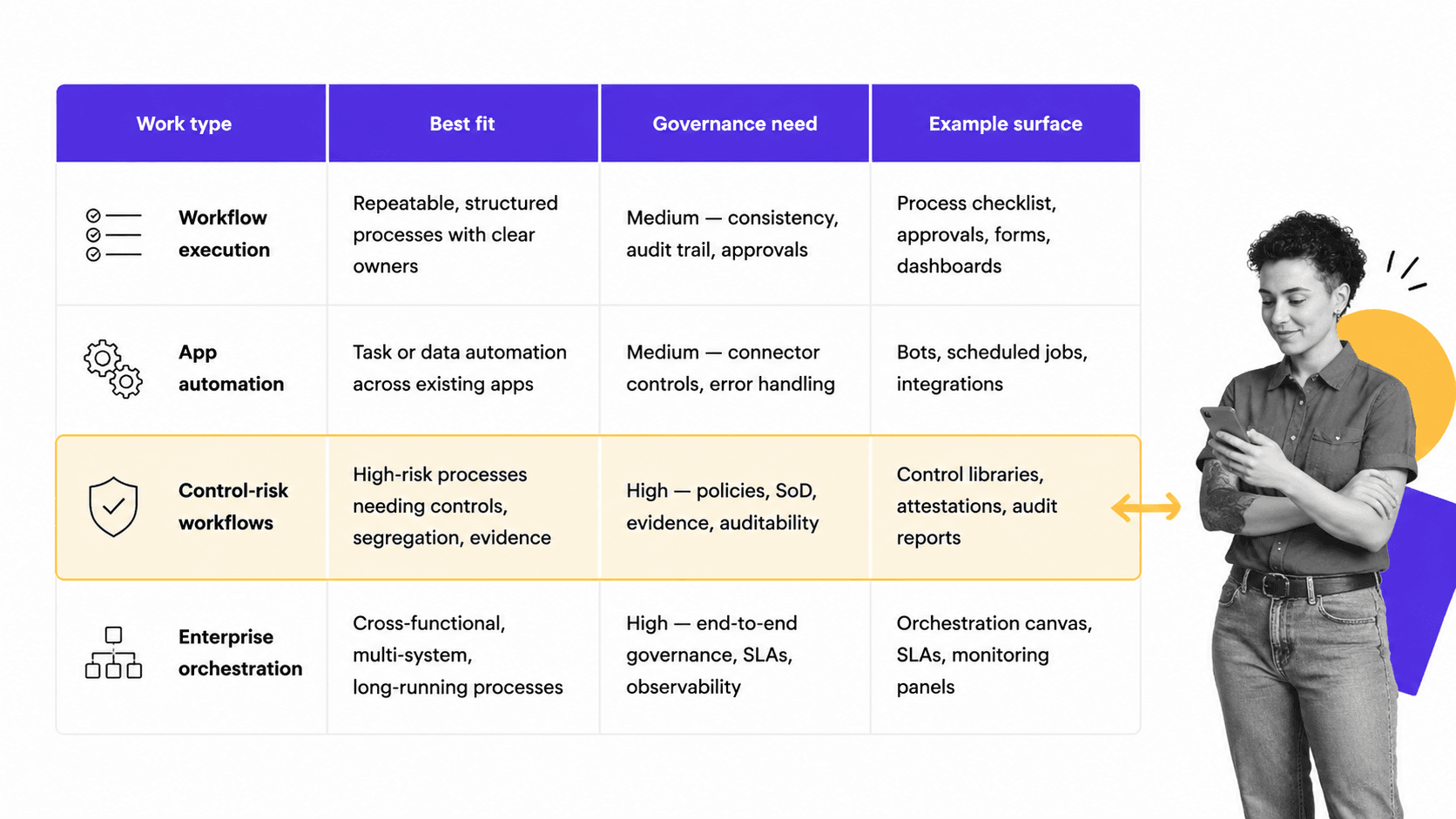
Choose automated workflow tools by matching the tool to the operating risk, not by chasing the longest feature list. A tool with thousands of app connections may still be weak for approvals. A controlled workflow system may be unnecessary for a one-step notification.
A practical evaluation should include the person who owns the process, the person who performs the work, and the person who needs to trust the record later. Those are often different people. Operators care whether the workflow is easy to run. Managers care whether work is moving. Compliance, finance, security, or customer leaders care whether the result can be trusted.
Start with the shape of the work
Ask whether the work is a checklist, a data pipeline, a cross-app trigger, a human approval path, or a technical orchestration problem. A recurring employee onboarding process has a different shape from a lead enrichment flow or an IT provisioning script.
If the workflow starts from a standard operating procedure, connect the automation to strong process documentation. If the workflow starts from a request form, focus on intake, routing, ownership, and required fields. If it starts from an app event, focus on triggers, data mapping, and error handling.
Decide how much control the work needs
Low-risk automation can be flexible. A Slack notification, calendar event, or simple data copy does not need heavy governance. High-risk automation needs stronger controls: permissions, approval gates, field validation, exception handling, and a durable audit trail.
That is where approvals and conditional logic become buying criteria instead of nice-to-have features. A workflow that can adapt to the situation and block unsafe completion is stronger than a workflow that only sends reminders.
Check integration depth and failure handling
Automation breaks when data is missing, a record changes shape, a person is unavailable, or an app connection fails. Look for retry logic, clear error messages, run history, and ways to pause or reroute work when something goes wrong.
Process Street has direct, universal integrations to 5,000+ systems. Need a new one? An AI agent builds it on the fly. That matters when a workflow needs to operate across your real stack without turning every edge case into an IT ticket.
Check who can safely change the workflow
Automated workflow tools create leverage, but they also create risk when nobody owns changes. A process owner should be able to update business logic without waiting weeks for engineering, while admins should still control permissions, integrations, data access, and approval rules.
The best governance model is not maximum restriction. It is clear ownership. Give operators enough control to improve the process, keep sensitive automations behind admin review, and make every meaningful workflow change visible in the system history.
Best automated workflow tools to compare
The tools below cover the most common buying paths: controlled recurring workflows, app-to-app automation, visual scenario building, and enterprise orchestration.
1. Process Street

Process Street is best for recurring workflows where the process itself must be followed correctly. It turns SOPs, checklists, approvals, forms, assignments, conditional paths, and evidence capture into guided workflow runs.
Use it when the workflow has human steps, required proof, compliance risk, customer impact, or repeatability pressure. Examples include onboarding, vendor reviews, access requests, customer handoffs, inspections, finance close, policy acknowledgments, and internal audits.
Process Street is not just a task board. It is a Compliance Operations Platform built to enforce the way work should happen. Teams can start from a template such as an employee onboarding checklist or client onboarding checklist, then add assignments, automations, approvals, and audit-ready history.
It is strongest when the workflow is both repeatable and consequential. A checklist for a casual team habit may not need enforcement. A checklist for access provisioning, vendor approval, policy acknowledgment, incident response, or customer onboarding does. Those workflows need to know who did the work, what was collected, which path was followed, and whether the right person approved completion.
- Best for: controlled recurring workflows, approvals, SOP execution, compliance operations, and evidence collection.
- Watch out for: purely technical event pipelines where developers need code-first orchestration.
- Why teams choose it: the workflow becomes the operating control, not a loose reminder to follow a document.
2. Zapier
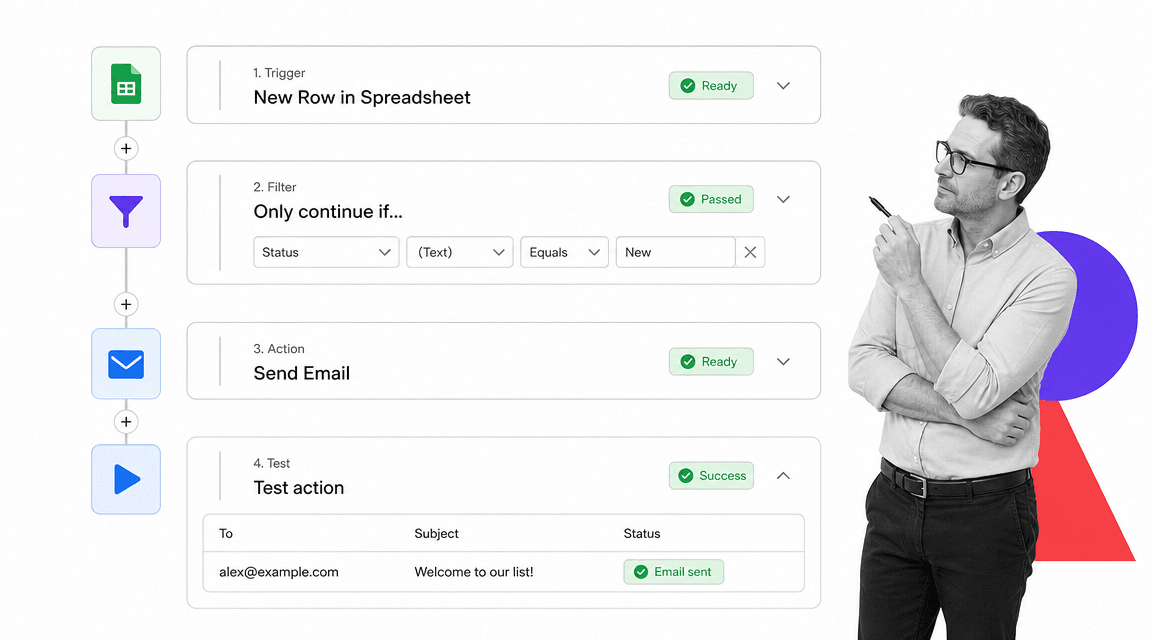
Zapier is best for fast app-to-app automation. It connects common business apps so a trigger in one tool can create or update something in another. The Zapier app directory is broad, which makes it a practical default for simple cross-app workflows.
Use Zapier when the workflow is mostly data movement, notifications, record creation, or lightweight routing. Sales, marketing, support, recruiting, and admin teams often use it to connect forms, CRMs, email tools, spreadsheets, and chat systems.
The tradeoff is control depth. A Zap can automate a handoff, but it is not always the best place to govern a multi-person procedure with evidence capture and approval history. Check Zapier pricing because task volume and premium apps can affect cost.
Zapier works especially well at the edge of a workflow. It can start a process from a form, notify a team when a record changes, send a follow-up when a deal stage moves, or push completed data into another system. When the middle of the workflow needs human accountability, pair the app automation with a stronger execution surface.
- Best for: quick app connections, no-code triggers, notifications, simple data sync, and lightweight operations automation.
- Watch out for: compliance-sensitive workflows that need formal gates and proof.
- Why teams choose it: speed, app coverage, and a simple builder for non-technical users.
3. Make
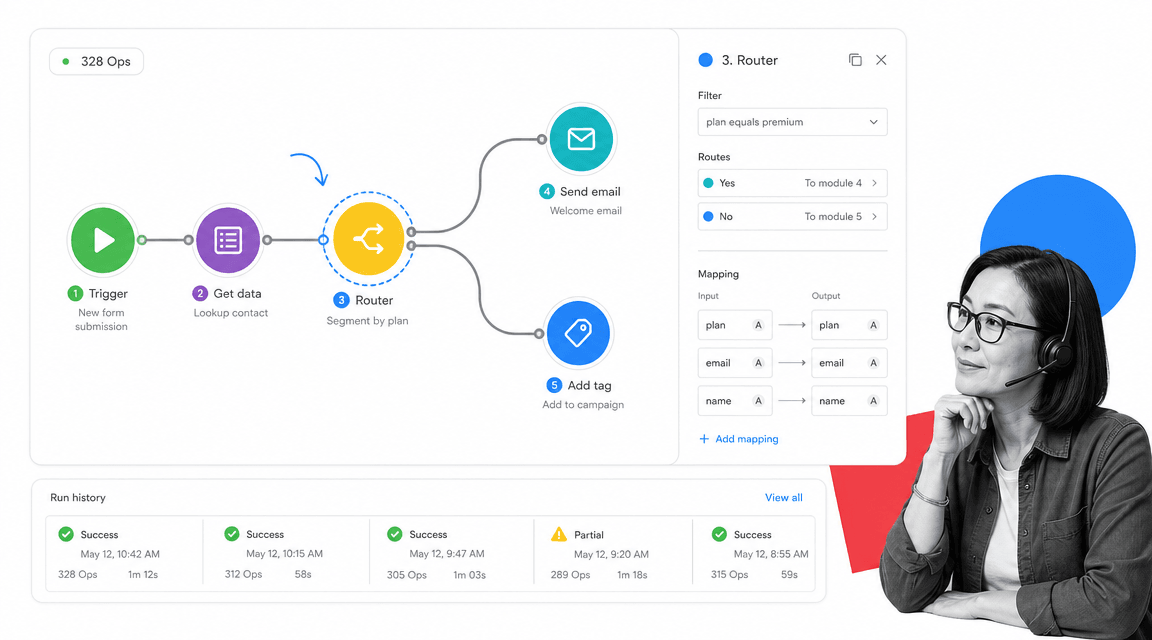
Make is best for visual automation builders who want more control over branching, data transformation, and scenario structure. Its canvas helps operators see how modules connect, where data moves, and how a workflow branches. The Make integrations directory shows the kinds of systems it can connect.
Use Make when a workflow is too complex for a simple linear trigger-action setup but still needs to stay accessible to operators. It is useful for marketing operations, ecommerce operations, reporting workflows, multi-branch routing, enrichment, and content operations.
The tradeoff is maintainability. Visual canvases can become hard to audit when scenarios grow large. Teams need naming conventions, owner rules, test discipline, and a clear way to monitor failed runs.
Make is a good fit when the person building the workflow thinks visually. It lets teams see the shape of the scenario instead of reading a long list of steps. That can make complex logic easier to understand, but it also means every scenario needs documentation, a naming pattern, and a clear owner before it becomes business-critical infrastructure.
- Best for: visual scenario building, branching logic, data mapping, and multi-step app automation.
- Watch out for: sprawling canvases that only one power user understands.
- Why teams choose it: more control than basic no-code automation without starting from code.
4. Microsoft Power Automate
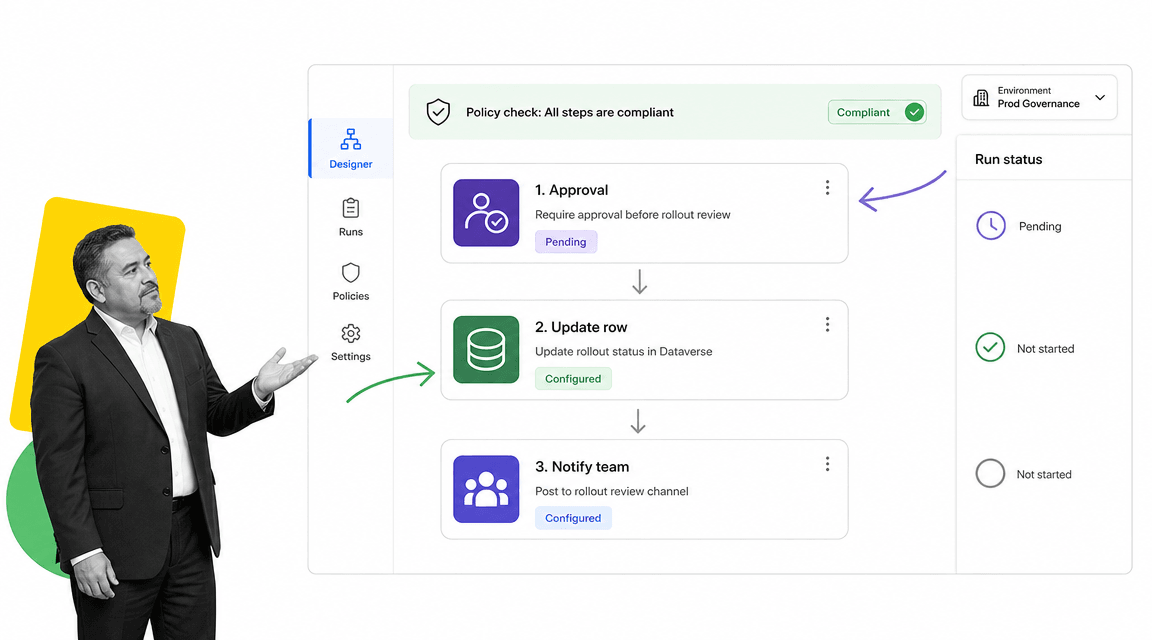
Microsoft Power Automate is best for teams already deep in Microsoft 365, Teams, SharePoint, Dataverse, Dynamics, and Azure. It can connect everyday Microsoft work with approvals, notifications, records, and enterprise policy controls. The Microsoft Power Automate documentation is the best place to check current setup patterns.
Use it when IT governance, identity, Microsoft data, and enterprise administration matter. It is a strong fit for internal requests, document approvals, employee workflows, ticket routing, and data updates inside a Microsoft-heavy environment.
The tradeoff is complexity. Power Automate can be powerful, but ownership often shifts toward IT or power users. Non-technical teams may need help designing flows, managing environments, and keeping automations consistent.
Power Automate is often the right answer when Microsoft is already the operating environment. If the work starts in SharePoint, depends on Teams approvals, touches Microsoft forms, or updates structured Microsoft data, staying inside the same ecosystem can reduce friction. The buying question is whether the team has the admin support to keep those flows clean.
- Best for: Microsoft-centric enterprises, approvals, internal operations, IT governance, and data workflows.
- Watch out for: teams outside the Microsoft ecosystem or teams without admin support.
- Why teams choose it: native fit with Microsoft identity, data, and collaboration tools.
Automated workflow tools by use case
The best automated workflow tools are easier to choose when you compare them by use case instead of by feature count.
Recurring procedures
Use Process Street when the workflow has a standard operating procedure, human accountability, or proof requirement. This is where workflow management system thinking matters: the system should guide the work, not just display tasks.
Cross-app triggers
Use Zapier when the job is to connect everyday apps quickly. It is usually the fastest route from form submission to CRM update, from payment event to notification, or from spreadsheet row to task.
Visual branching workflows
Use Make when the automation has multiple modules, branches, filters, and transformation steps that operators need to see on a canvas. It is useful when the workflow logic is too detailed for a simple step list.
Enterprise orchestration
Use Microsoft Power Automate when the workflow lives inside Microsoft systems and needs enterprise administration. It is strongest when the business already depends on Microsoft identity, documents, Teams, and structured business data.
Technical automation
For developer-owned technical automation, also evaluate open-source systems such as n8n. The n8n documentation show why technical teams like node-based workflows, self-hosting options, and deeper control over custom logic.
The practical answer may be a stack. Use checklist generator patterns to define the repeatable procedure, workflow automation to enforce it, and app automation to connect the systems around it. Keep the boundary clear so automation does not become another source of process drift.
If your team is still early, start with the workflow that breaks most often. Map it, document it with business process documentation, automate the highest-friction handoff, and add controls once the path is stable.
As workflows mature, a broader process platform can keep documentation, execution, automation, and proof closer together instead of spreading one process across disconnected apps.
Automated workflow tool rollout checklist
Before rollout, pick one workflow and define what success means. Do not automate every edge case on day one. Start with the standard path, name the trigger, assign every human step, define the required data, and decide which exceptions need escalation.
- Map the current workflow: write the start point, end point, owner, systems touched, and failure points.
- Remove unnecessary steps: automation makes bad process debt move faster, so simplify before you automate.
- Set control requirements: decide which steps need approval, evidence, permissions, or audit history.
- Build the first version: automate the highest-friction handoff instead of trying to automate the whole department.
- Review run history: check failed runs, skipped steps, bottlenecks, and exception paths after the first real use.
After the first workflow works, expand by pattern. Similar intake forms, approval paths, onboarding runs, reviews, and handoffs can reuse the same structure. That is how automated workflow tools create compounding value: each clean workflow becomes a reusable operating asset.
FAQs
What are automated workflow tools?
Automated workflow tools are software platforms that move recurring work through triggers, tasks, rules, approvals, and actions. They help teams reduce manual handoffs, standardize procedures, and keep a record of what happened.
What is the best automated workflow tool?
The best automated workflow tool depends on the workflow. Process Street is best for controlled recurring procedures, Zapier for quick app-to-app automation, Make for visual branching scenarios, and Microsoft Power Automate for Microsoft-centric enterprise orchestration.
How do automated workflow tools differ from project management tools?
Project management tools usually organize temporary initiatives, tasks, and deadlines. Automated workflow tools run repeatable processes by triggering actions, routing work, enforcing rules, and recording completion history.
What features should automated workflow tools include?
Useful automated workflow tools should include triggers, conditional logic, assignments, notifications, integrations, run history, error handling, permissions, and reporting. For high-risk workflows, they should also include required fields, approvals, evidence capture, and audit trails.
Can small teams use automated workflow tools?
Small teams can use automated workflow tools as soon as work repeats across people or apps. A simple automation can prevent missed handoffs, reduce manual copy-paste work, and make responsibilities clear before the team grows.
When should a team replace manual workflows with automation?
Replace manual workflows when recurring work depends on reminders, spreadsheets, chat messages, or one person remembering every step. Automation is especially valuable when missed steps affect customers, compliance, finance, security, or quality.