





A process template captures every step of a repeatable workflow so anyone on your team can execute it the same way, every time. Whether you call it a standard operating procedure, a runbook, or a checklist, the goal is identical: document once, run consistently, prove compliance.
Process Street is a Compliance Operations Platform that turns these documents into automated, enforceable workflows. This guide walks through how to create a process template from scratch and set it up for real operational use.
What Is a Process Template?
A process template is a reusable blueprint for a business process. It defines the steps, the order, the required inputs, and the people responsible. When someone needs to run that process, they launch a new instance of the template rather than working from memory or a static document.
Good process templates share three traits:
- They are specific enough to eliminate guesswork.
- They are structured enough to enforce the correct sequence.
- They are flexible enough to handle real-world variation through conditional logic and form fields.
In Process Street, a process template is called a workflow. Each time you run it, the platform creates a tracked workflow run with its own audit trail.
When to Create a New Workflow vs. Use a Pre-Built One
Process Street includes a template library with hundreds of pre-built workflows for common operations: employee onboarding, vendor due diligence, incident response, compliance audits, and more.
Start from a pre-built template when:
- The process follows a well-known industry pattern.
- You want a working starting point you can customize.
- Speed matters more than building from scratch.
Create a new workflow from blank when:
- The process is unique to your organization.
- No existing template matches the workflow you need.
- You are documenting a process that only exists in tribal knowledge today.
How to Create a Process Template Step by Step
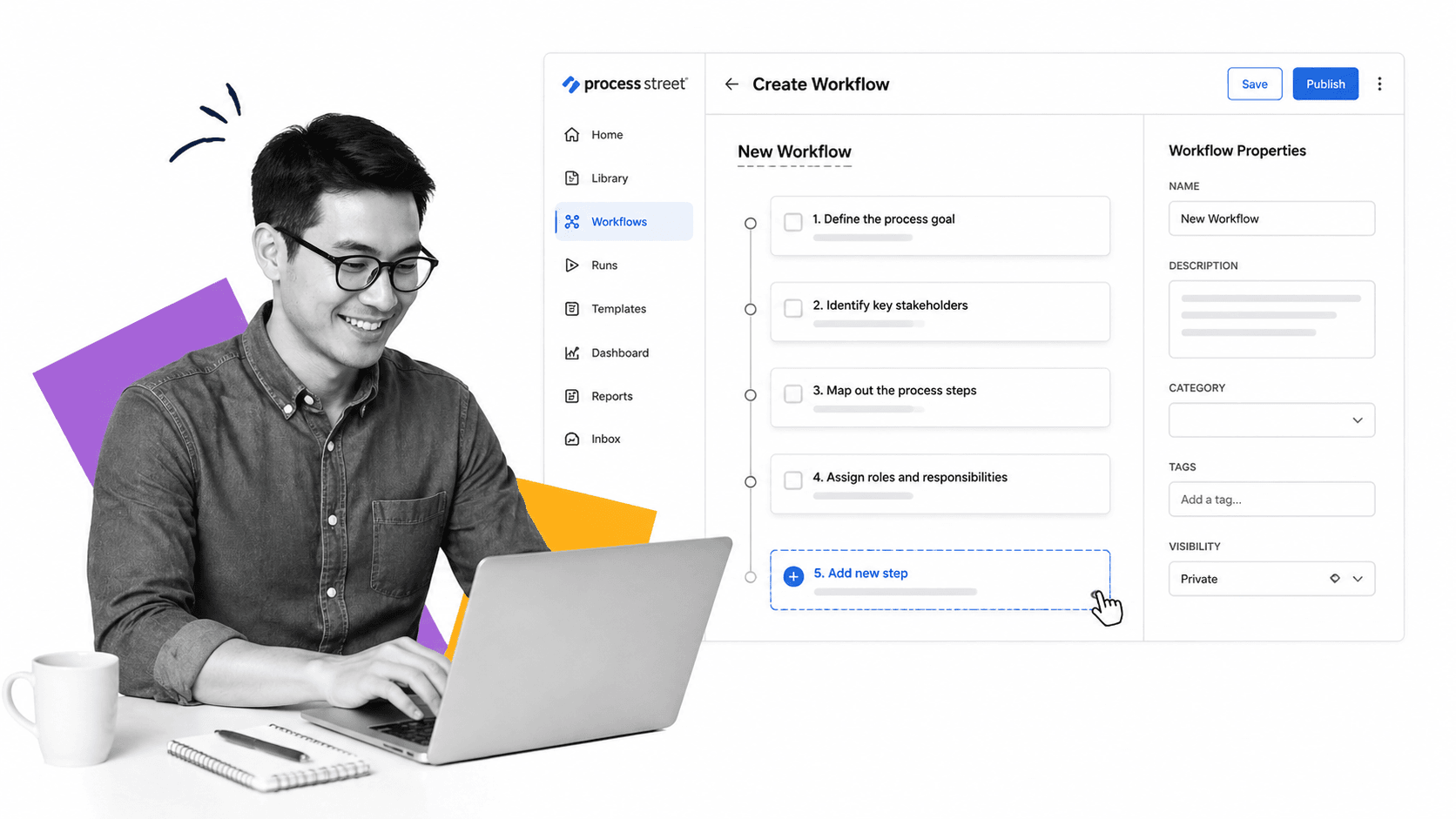
Follow these steps to build a workflow in Process Street:
1. Open the workflow editor. From the sidebar, click Workflows, then select Create Workflow. Give your workflow a clear, descriptive name that anyone on the team will recognize.
2. Define the process goal. Before adding steps, write a one-line description of what a completed run of this workflow should accomplish. This keeps every step aligned to a single outcome.
3. Map out each step. Add a task for every discrete action in the process. Each task should represent one clear instruction. If a task requires more than two or three actions, break it into separate tasks.
4. Add form fields for data capture. Use form fields to collect the information each step requires: text inputs, dropdowns, dates, file uploads, email addresses, or approval signatures. Structured data capture replaces scattered emails and spreadsheets.
5. Set task assignments and due dates. Assign each task to a role or a specific person. Set relative due dates so deadlines adjust automatically based on when the workflow run starts.
6. Add conditional logic. Not every run follows the same path. Use conditional logic to show or hide tasks based on form field responses. This keeps the workflow focused and prevents irrelevant steps from cluttering the run.
7. Connect integrations. Link tasks to the tools your team already uses. Process Street connects to thousands of apps, so you can trigger actions in Slack, update records in Salesforce, send documents through DocuSign, or push data to any system in your stack.
8. Review and publish. Walk through the workflow end to end. Verify that every step makes sense in sequence, that form fields capture the right data, and that assignments match your team structure. Publish the workflow to make it available for runs.
Best Practices for Process Templates
A workflow that works on paper but fails in practice usually breaks for one of these reasons. Follow these guidelines to avoid the common traps:
- Name steps as actions, not topics. “Review contract terms” is better than “Contract.” Action-oriented names tell the assignee exactly what to do.
- Keep steps atomic. Each task should have one clear deliverable. If you find yourself writing “and then” inside a task description, that is two tasks.
- Use stop tasks for approval gates. When a step requires sign-off before the process can continue, mark it as a stop task. This prevents downstream work from starting before the approval is complete.
- Version your workflows. Process Street tracks workflow versions automatically. When regulations change or you improve a process, update the workflow and the platform preserves the audit trail of previous versions.
- Start with the 80% case. Document the standard path first. Add conditional branches for exceptions after the core flow is solid. Over-engineering conditional logic upfront slows adoption.
From Template to Automated Execution
Creating the template is step one. The real value comes when the template runs itself. Process Street’s Ops product automates execution: tasks trigger automatically, work escalates when stalled, and every completed step creates an auditable record.
Pair your workflows with Cora, the AI compliance agent, and the platform monitors execution in real time, flags missed steps, and suggests process improvements based on actual run data.
The result: compliance is built into how work gets done, not bolted on after the fact.
Frequently Asked Questions
What is the difference between a process template and an SOP?
A standard operating procedure (SOP) is the document that describes how a process should be performed. A process template turns that document into an executable, trackable workflow. In Process Street, SOPs live in Docs and the corresponding executable workflow lives in Ops. Together they form a closed loop: the policy is documented, enforced, and auditable.
Can I import an existing SOP into Process Street?
Yes. You can paste content from existing documents, upload files as reference material within tasks, or use Cora to auto-generate a workflow from unstructured documentation, screen recordings, or demos.
How many steps should a process template have?
There is no fixed limit. A simple approval workflow might have 5 steps. A full employee onboarding process might have 40 or more. Focus on making each step clear and actionable rather than hitting a specific count.
Can different team members see different steps?
Yes. Conditional logic lets you show or hide tasks based on role, department, or any form field value. Combined with role-based permissions, you can control exactly who sees and completes each part of the process.