





Process Street is the Compliance Operations Platform for teams that need workflows to run in the right order, with the right people, and with proof that every required step was completed. Teams use it for everything from employee onboarding to content promotion workflows.
Some processes are too delicate to run as a free-for-all checklist. Stop tasks give you more control over the order tasks are completed by pausing a workflow run until the blocking task is done.
That is where stop tasks come in.
Put simply, stop tasks prevent users from working through a checklist until the stop task has been completed. In a workflow run, that means later work stays disabled or hidden until the required task is finished.
For an explanation of stop tasks, see the video below:
Here is an example of when you would want to use a stop task in a process.
Let us say you have a blog content process used by three people: the editor, the writer, and the designer. The process starts when an outline, title, and keyword have been confirmed informally. The first task in the checklist has form fields for this data and is set as a stop task because it is vital that the other participants know the post information before continuing.
The same goes for ordering and finalizing the header image. These tasks stop the flow of work from continuing if they are not complete. Similarly, it would be unwise to publish a post that has not undergone an editor review, so the last stop task is the final review.
Here, stop tasks prevent the process from being accidentally completed, place accountability on the writer and designer to develop the post, and then notify the editor when a post is ready for review.
You can add stop tasks to your processes by editing a workflow and clicking Add Stop. It is that simple.
Now you know how to add stop tasks and what they do, here are 6 ways you can use this feature to tighten up your team workflows.
Make sure your checklists are completed in order
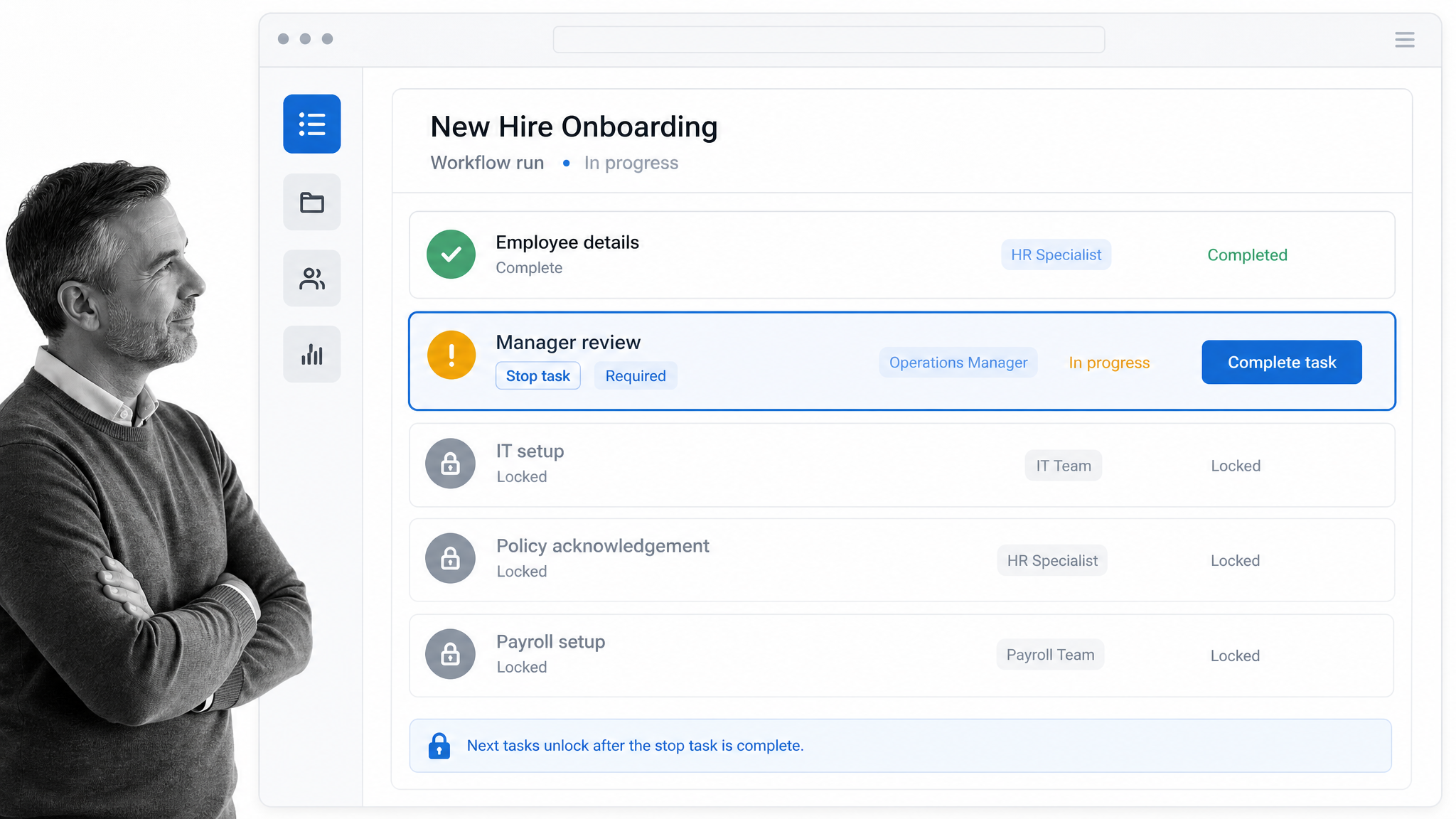
You can set every task in a checklist as a stop task if you want to enforce the order in which the tasks are completed. This is useful for workflows where the person assigned to step 2 depends on the work done in step 1. It also controls when assigned tasks appear in the assignee inbox.
In this example, the invoice creation process is held up until Worf approves the invoice. I cannot check off tasks before I have done the previous one, either. When I complete task 5, task 6 appears in Worf inbox, letting him know it is now up to him to approve the invoice and complete the process.
This way, no one is assigned work that is not relevant right now. Checklists with an enforced order help to keep responsibilities clear and inboxes tidy. They also create simple task dependencies inside a sequential workflow.
Gather requirements before kicking off a client onboarding checklist
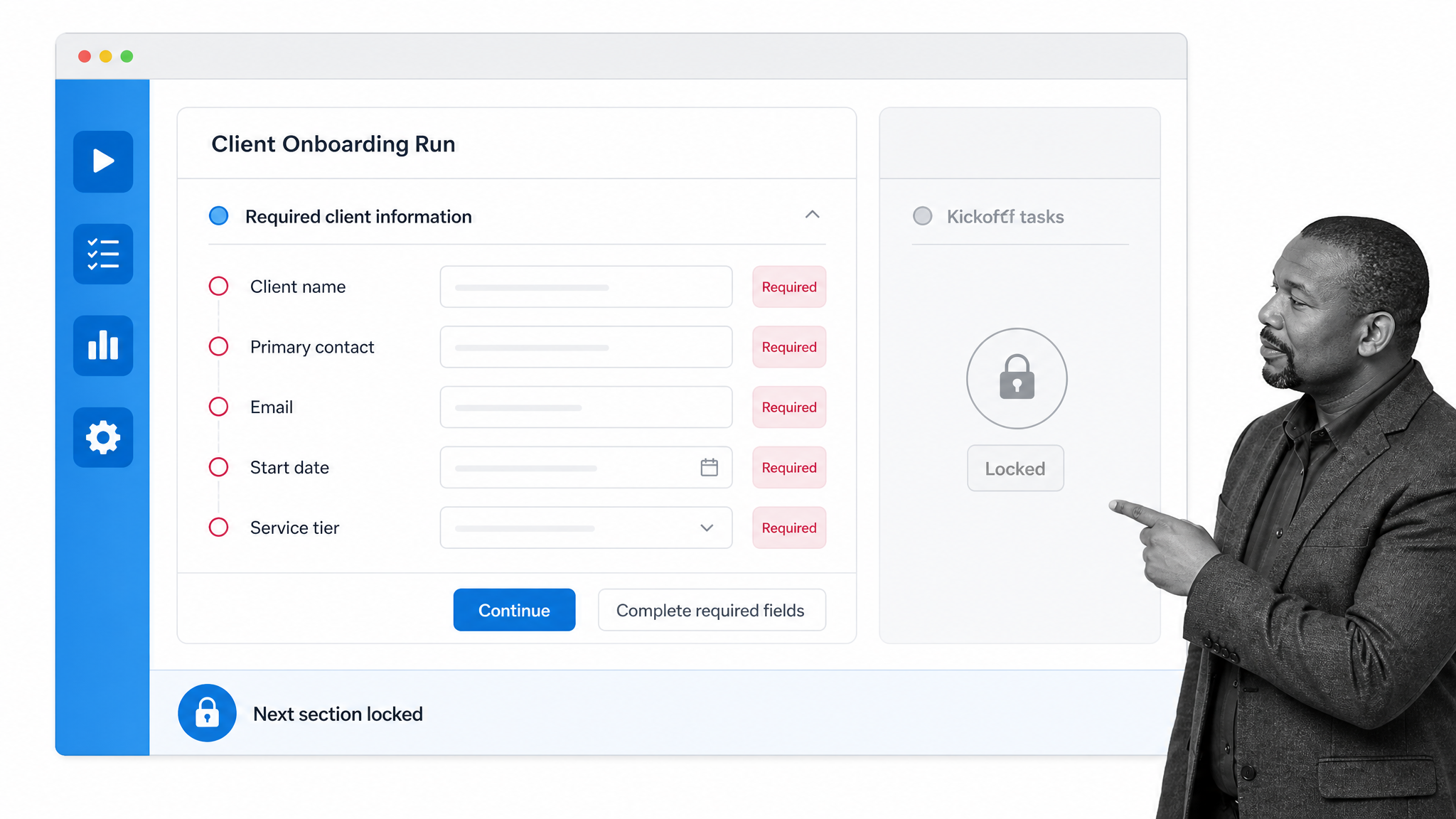
Client onboarding checklists often double as forms. The first task can require the user to fill in the client details before the process can go ahead.
It is logical that you would want to record unique details to refer back to throughout the process, such as the client website, phone number, contact name, and service tier. A stop task makes sure that information is captured before kickoff tasks unlock.
Fill in the post’s details before running content promotion
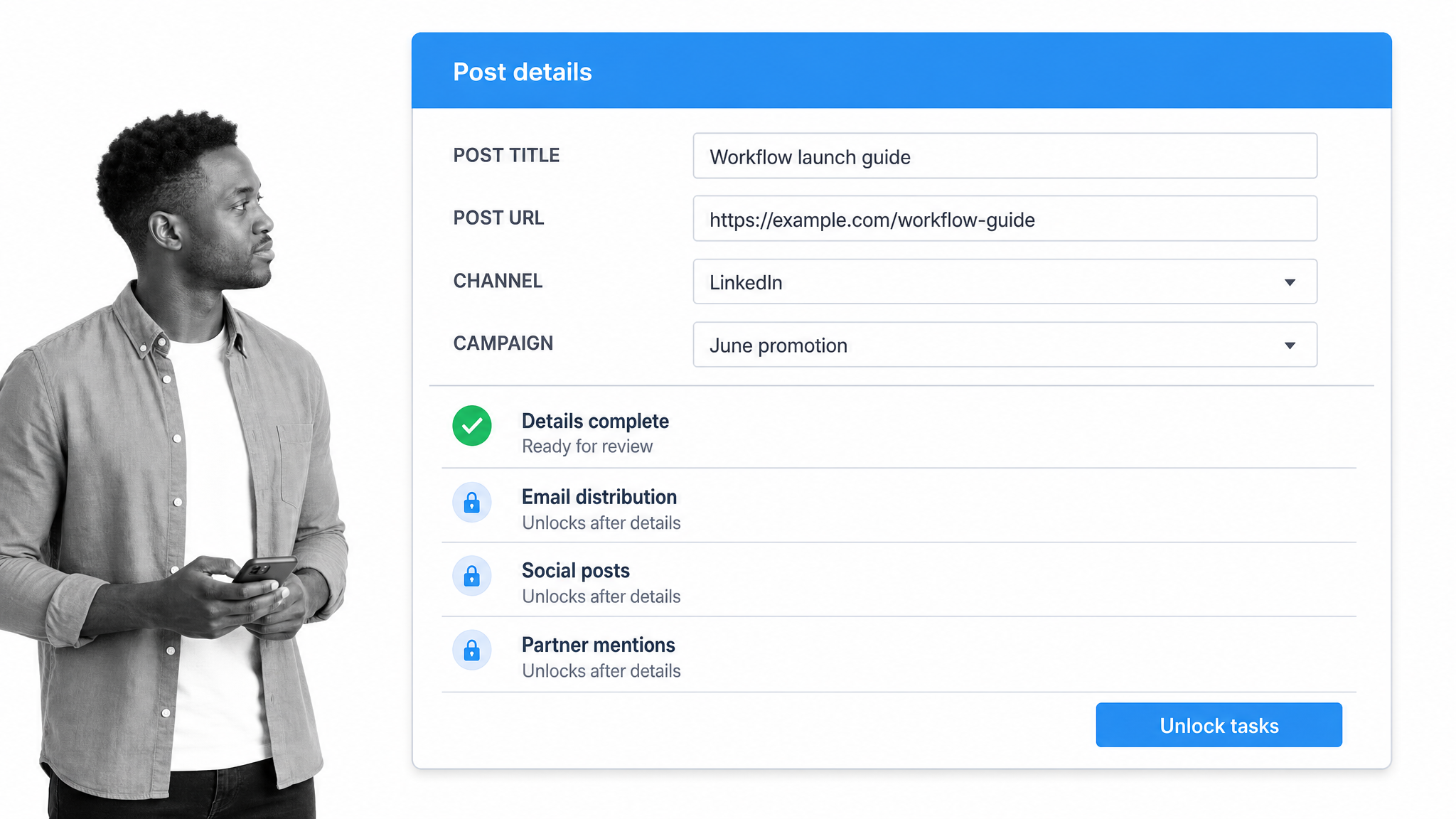
This use case is one of our favorites, mainly because content promotion is a complex process with lots of participants. When the process starts, the first job is to fill in the form fields in the first task with the post details.
This populates the rest of the checklist using merge tags, so it is essential it happens first. Without a stop task, someone could start distribution before the URL, title, channel, or campaign context is ready.
Review design assets before completing a checklist
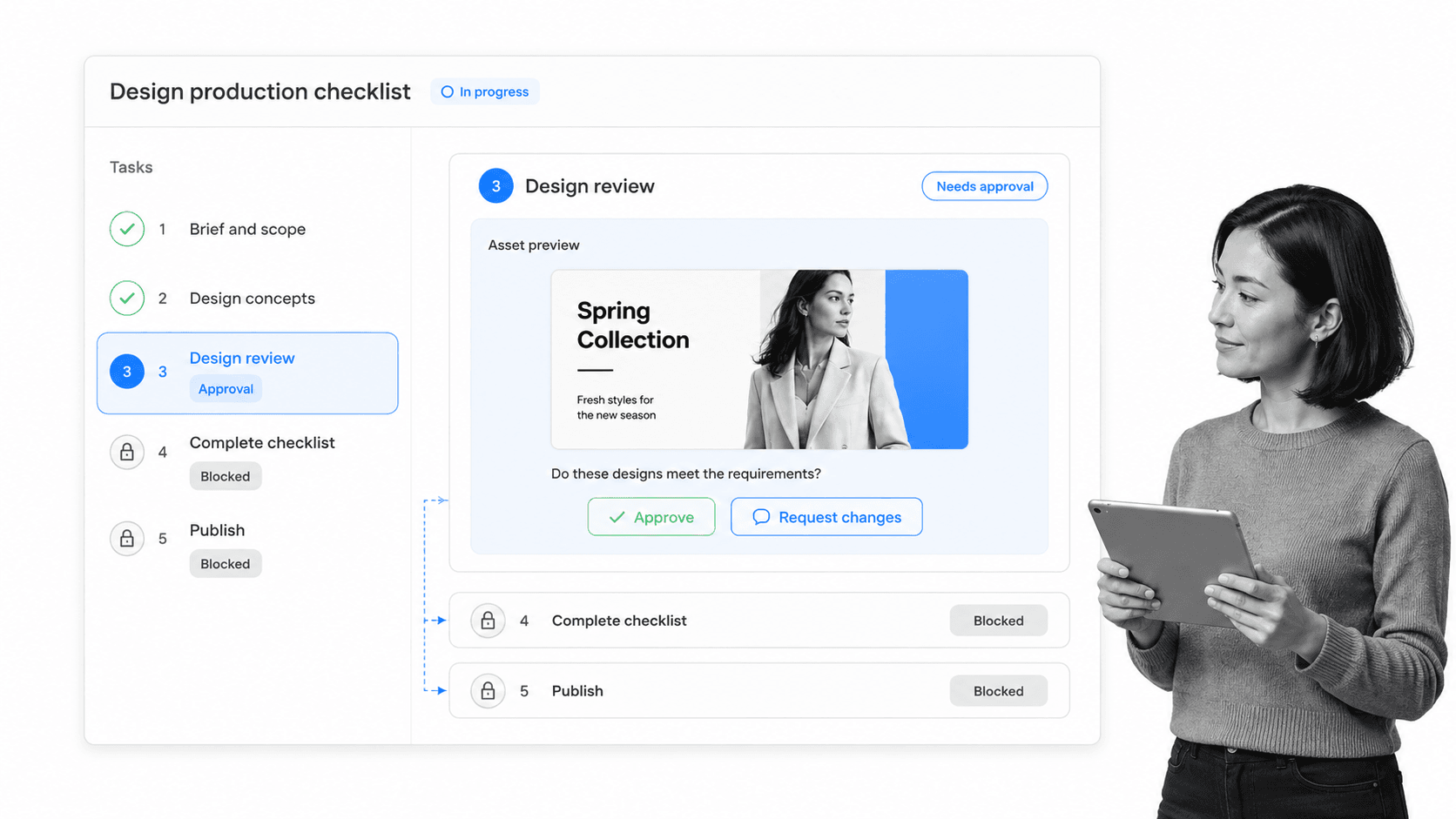
When a checklist is completed, it is essentially archived and hidden from view. For straightforward processes, this is exactly what you would want to happen. For processes that have an approval step, you want to be sure the checklist remains active until it has certainly gone through approval.
Take a design checklist as an example. A designer works through a process each time they design a header image for the blog. A good place for a stop task would be the last task of the checklist before the design is made public. This way, the work can be approved before the checklist is complete. For formal review steps, map the handoff into a clear workflow approval process so the right reviewer signs off before the run can close.
Require a scheduled date and agenda for manager one-on-ones
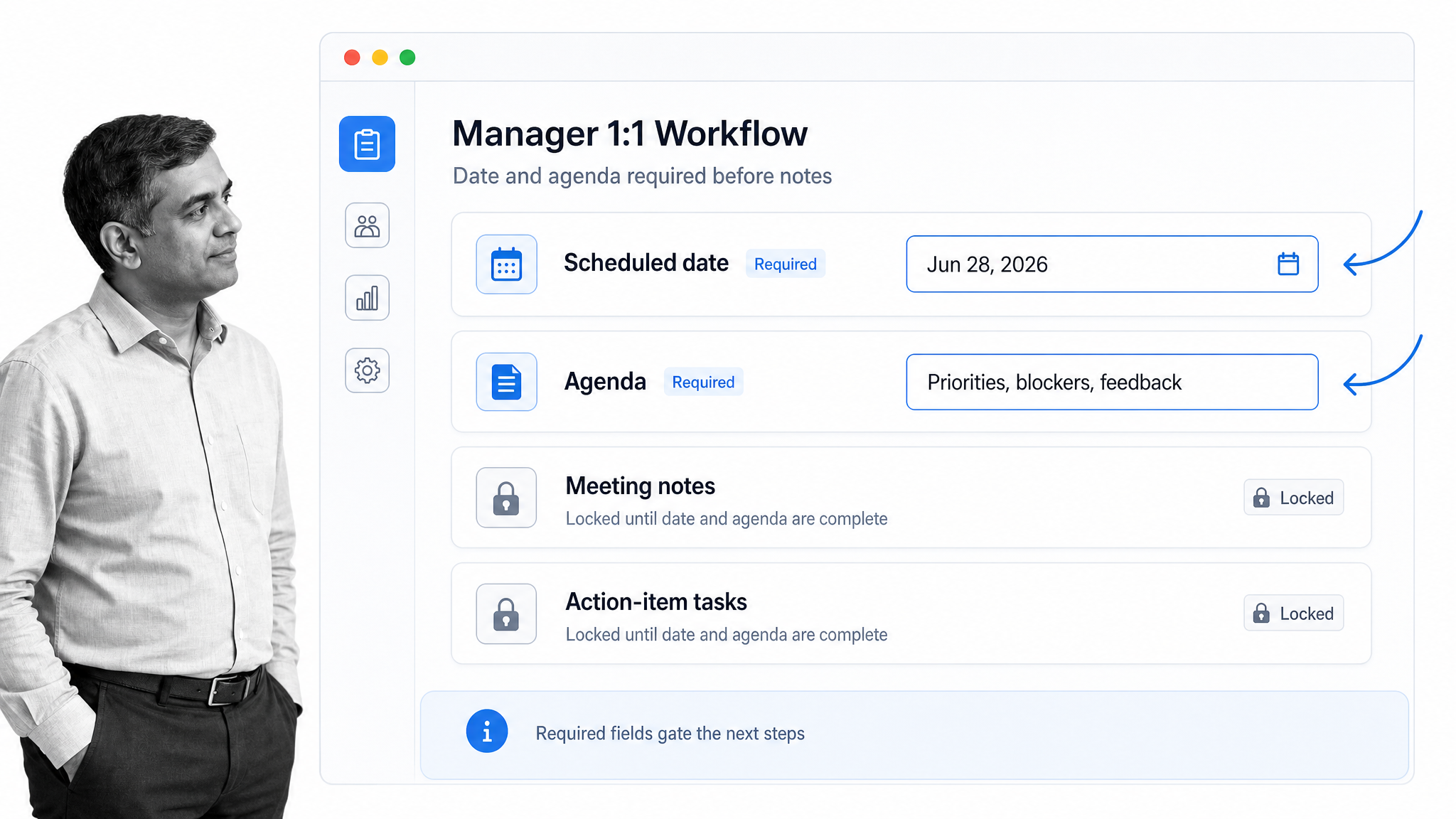
Manager one-on-ones work better when the meeting has a scheduled date and an agenda before the conversation starts. A checklist can use stop tasks for both: one for setting the scheduled date, and the other for inputting the meeting agenda.
This helps make sure one-on-ones run smoothly and are not accidentally archived from the inbox. It also avoids adding extra clutter to the manager inbox before the employee has completed their tasks.
Collect all necessary forms before continuing with employee onboarding
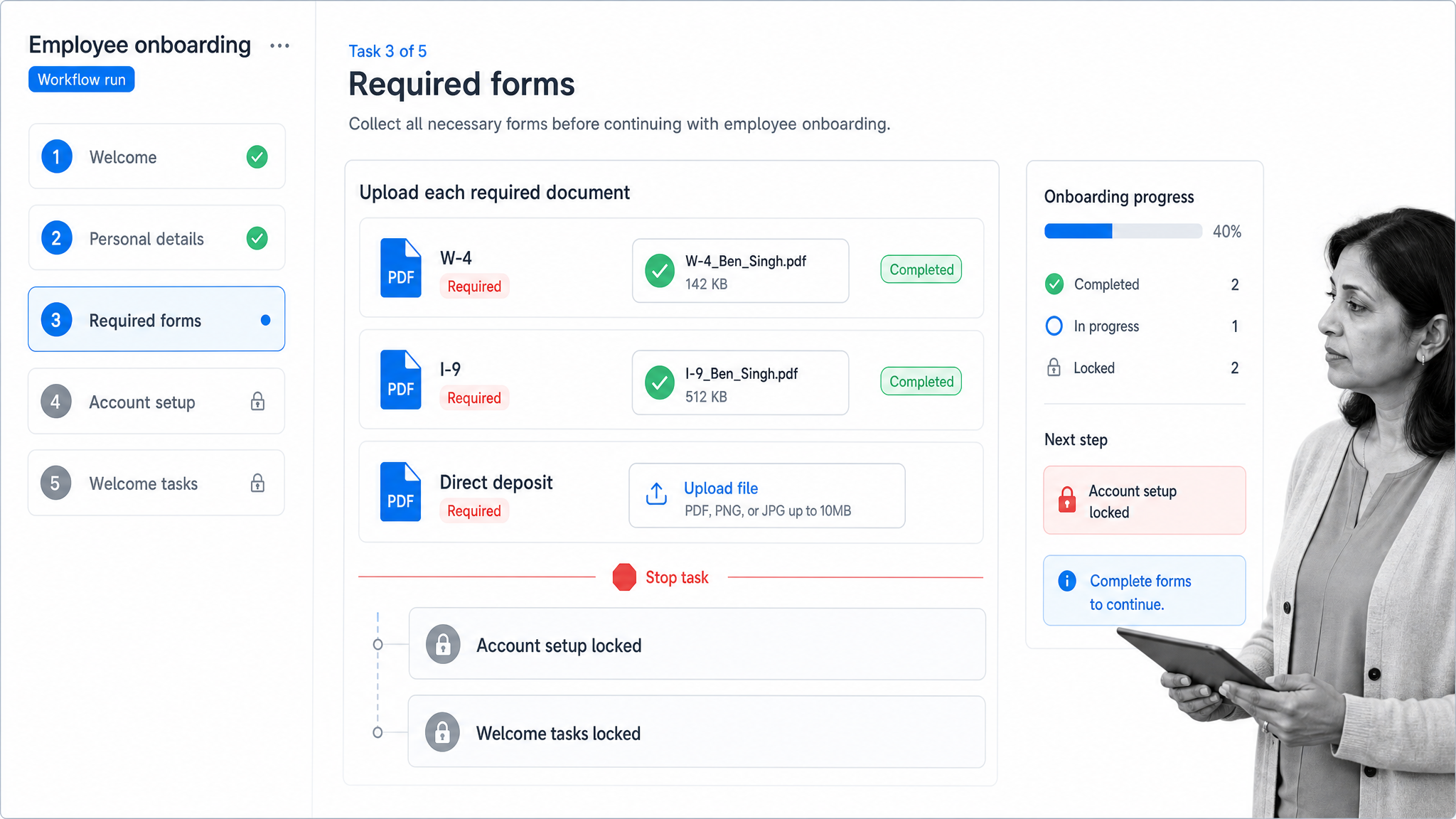
Before you call the employee to schedule a meeting, it is essential to collect all the necessary forms. To ensure the department in charge of form collection does not accidentally hand the process off and call the employee prematurely, you can add a stop task at this stage of the checklist.
In this case, the stop task helps enforce compliance with the law and protects your company intellectual property.
Get started with stop tasks
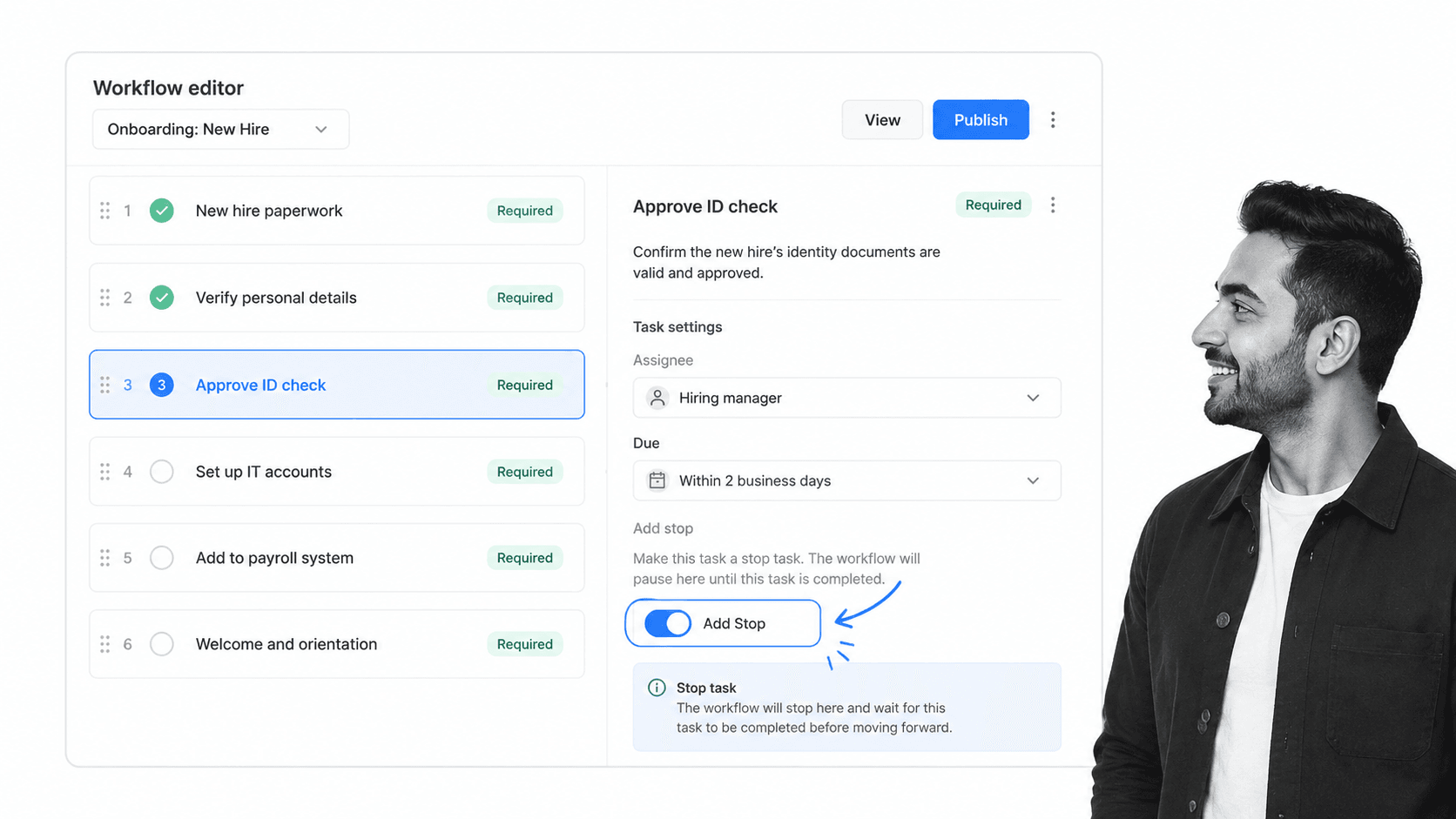
Stop Tasks are available on all plans. To add one, open a workflow, select the task, and click Add Stop. For setup details, use the Stop Tasks help doc.