Note: SSO is available on our Enterprise plan. If you are interested in enabling SSO for your company, contact our support team, or your Account Executive.
There are three steps to set up SSO with Thales SafeNet Trusted Access (STA):
Set up the SafeNet Trusted Access application.
Enter identity provider details in Process Street.
Verify SSO is working properly.
Already using SafeNet with Process Street?
From December 1, 2026, Process Street no longer signs SAML authentication requests. If your SafeNet Trusted Access application checks the signature on incoming requests, sign-in will stop working, so change one setting before then:
In the SafeNet Trusted Access console, open the Applications tab and select your Process Street application.
In the Authentication Request Signature Validation section, select Skip request signature validation.
Click Save Configuration.
Let our support team know it’s done, so we can confirm sign-in still works.
Leave everything else as it is. Your application, its users and groups, and its signing certificate stay the same, and SafeNet keeps signing the responses it sends to Process Street. Your users sign in exactly as before.
Step 1: Set up the SafeNet Trusted Access application
Sign in to the SafeNet Trusted Access console as an administrator.
On the Applications tab, click + to add an application, search for Generic Template, and add it.
Name the application Process Street, set Integration Protocol to SAML, and click Add.
Click Manual Configuration. Copy the Single Sign-On Service URL, and download the STA tenant certificate. You will enter both in Process Street in Step 2. Click Next Step.
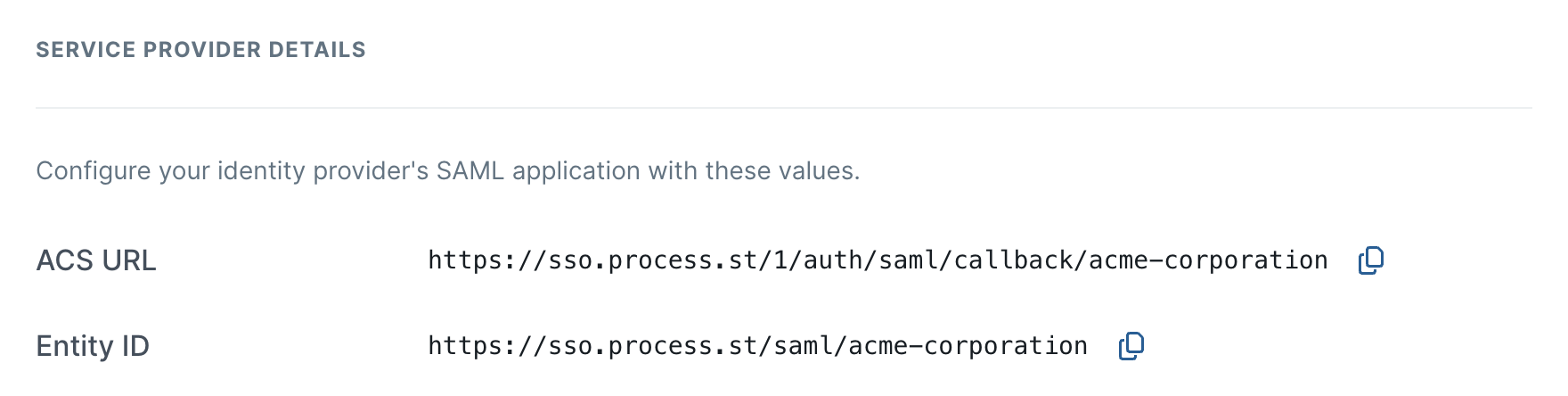
Choose Manual Configuration again. To fill in these fields, go to Organization Settings in Process Street, open the Settings tab, and find the Service provider details section, below the Single sign-on section. Copy the values into SafeNet:
Entity ID: paste the Entity ID from your Process Street SSO settings.
Assertion Consumer Service URL (POST binding): paste the ACS URL from your Process Street SSO settings.
Under User Login ID Mapping, choose the user’s email address, so that SafeNet identifies each user to Process Street by email.
In the Authentication Request Signature Validation section, select Skip request signature validation. Process Street does not sign authentication requests, so a validated signature would block every sign-in. Leave response encryption off.
Click Save Configuration.
Click Assign and choose who can use Process Street: All Users, or the user groups that should have access. Click Save Configuration.
Make sure an access policy on the Policies tab covers the Process Street application for those users.
Step 2: Enter identity provider details in Process Street
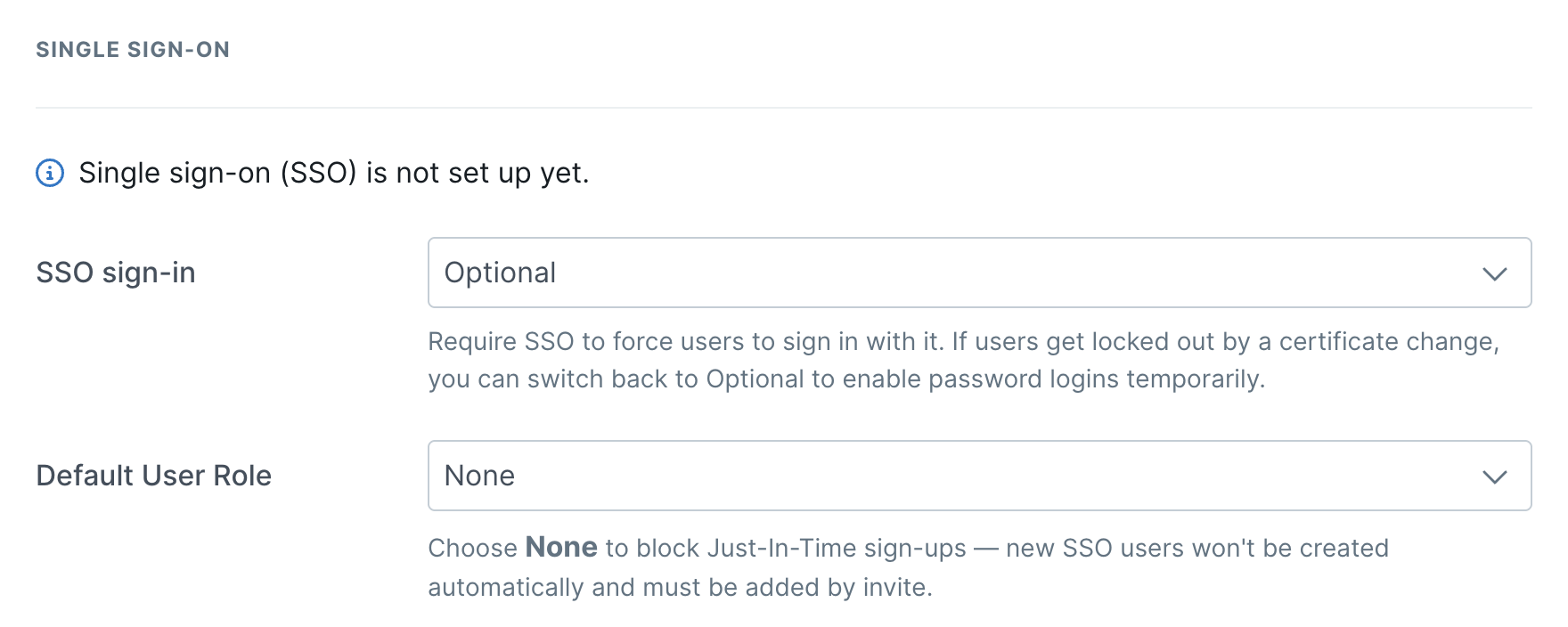
In Process Street, go to Organization Settings, open the Settings tab, and scroll to the Single sign-on section.
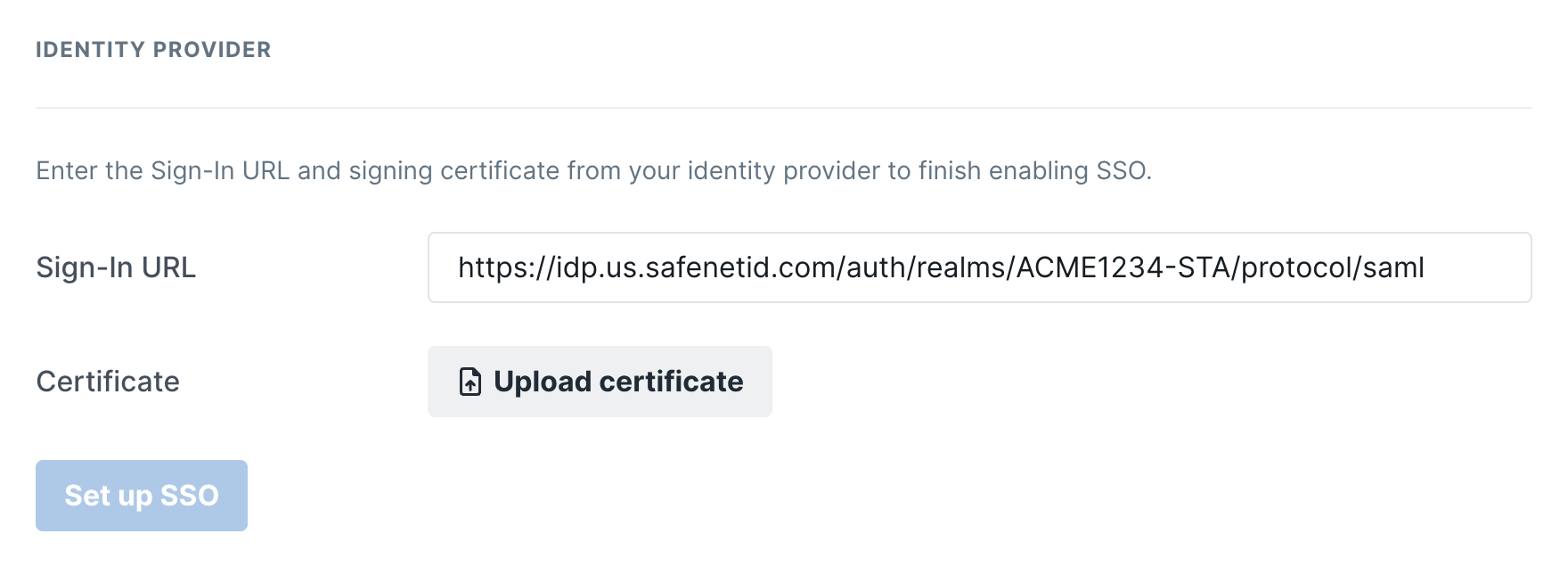
In the Identity provider section, paste the Single Sign-On Service URL from SafeNet as the Sign-In URL.
Click Upload certificate and choose the STA tenant certificate you downloaded.
Click Set up SSO.
Step 3: Verify SSO is working
SSO starts as optional, so users can still sign in with a password while you test it. Sign in with SSO as one of the users you assigned in SafeNet. Once it works, change SSO sign-in in the Single sign-on section to Required for Admins, Builders and Users (but not Guests), or to Required for everyone (including Guests). From then on, those users will be required to sign in with SSO.
If a sign-in fails, check that the Entity ID and ACS URL in SafeNet match Process Street exactly, and that Skip request signature validation is selected. For more on SSO options, see Single Sign-On (SSO) at Process Street.
Use Process Street to make your team processes fun, fast and faultless. We'll help you transform your
team's static checklists into powerful interactive workflows!
Optional cookies and similar technologies support analytics, advertising and visitor identification, and embedded content. Change or withdraw consent in Cookie settings. Cookie policy.