

Turn every policy into automated workflows with built-in enforcement and audit-ready proof.



Mobile Workflow Software
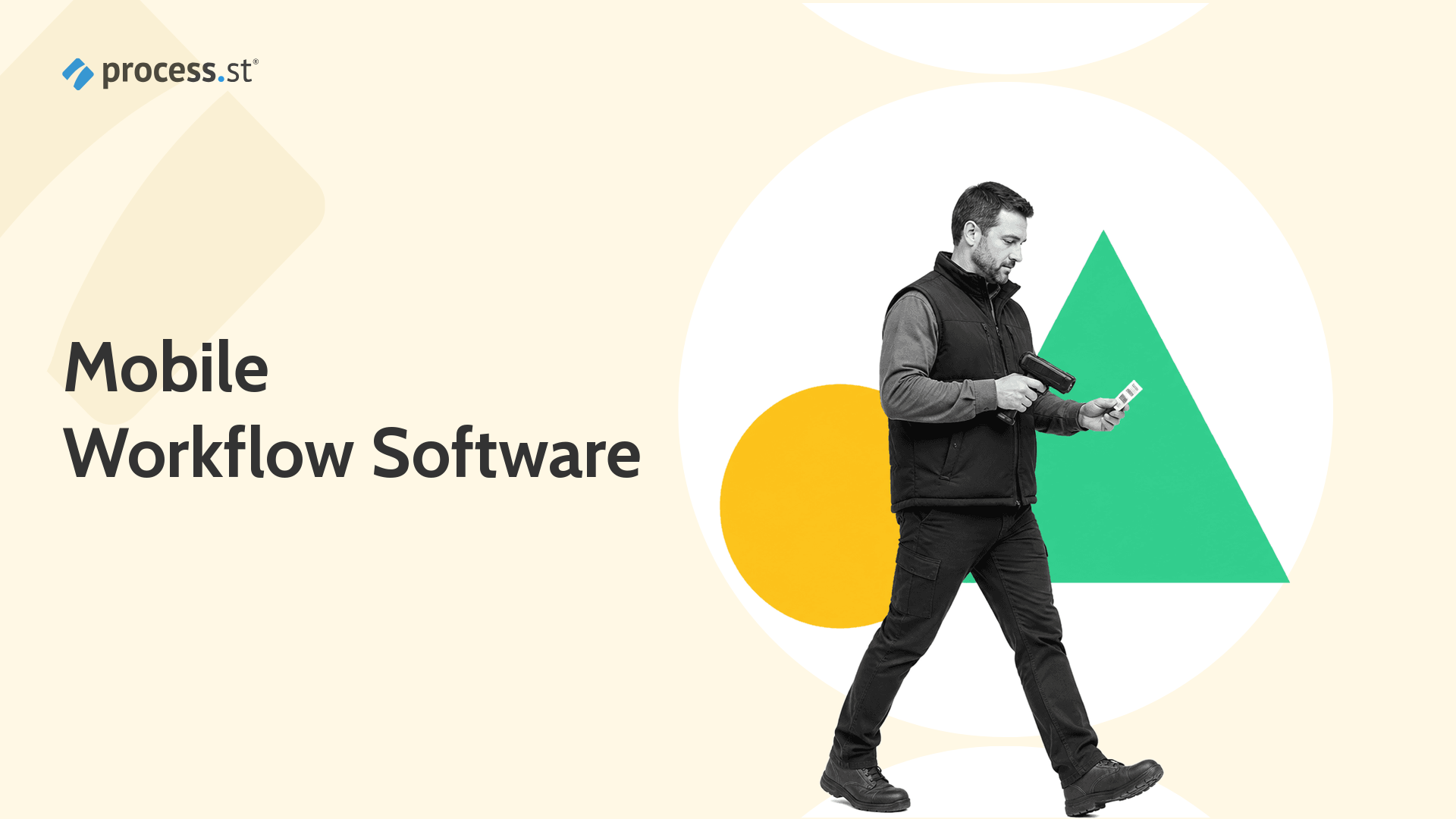
Process Street is a Compliance Operations Platform for teams that need work to run correctly wherever it happens. Mobile workflow software gives those teams a way to assign, complete, approve, and audit recurring work from a phone or tablet.
The point is not just mobile access. A useful mobile workflow system carries the procedure, the owner, the due date, the evidence, the approval path, and the audit trail into the field. That matters when work happens in properties, clinics, warehouses, construction sites, customer visits, retail locations, and distributed teams.
This guide explains how mobile workflow software works, what to look for, where it fits, and how to roll it out without creating another disconnected app for your team to ignore.
A good mobile workflow keeps ownership, evidence, and exception handling visible at the moment work happens, not after someone reconstructs it later from memory.
In this article, we are going to cover everything you need to know about mobile workflow software, including:
- What mobile workflow software is
- Why mobile workflows break
- Mobile workflow software selection criteria
- Mobile workflow software use cases
- How to implement mobile workflow software
- How Process Street supports mobile workflows
- Mobile workflow software mistakes to avoid
- FAQs
What mobile workflow software is
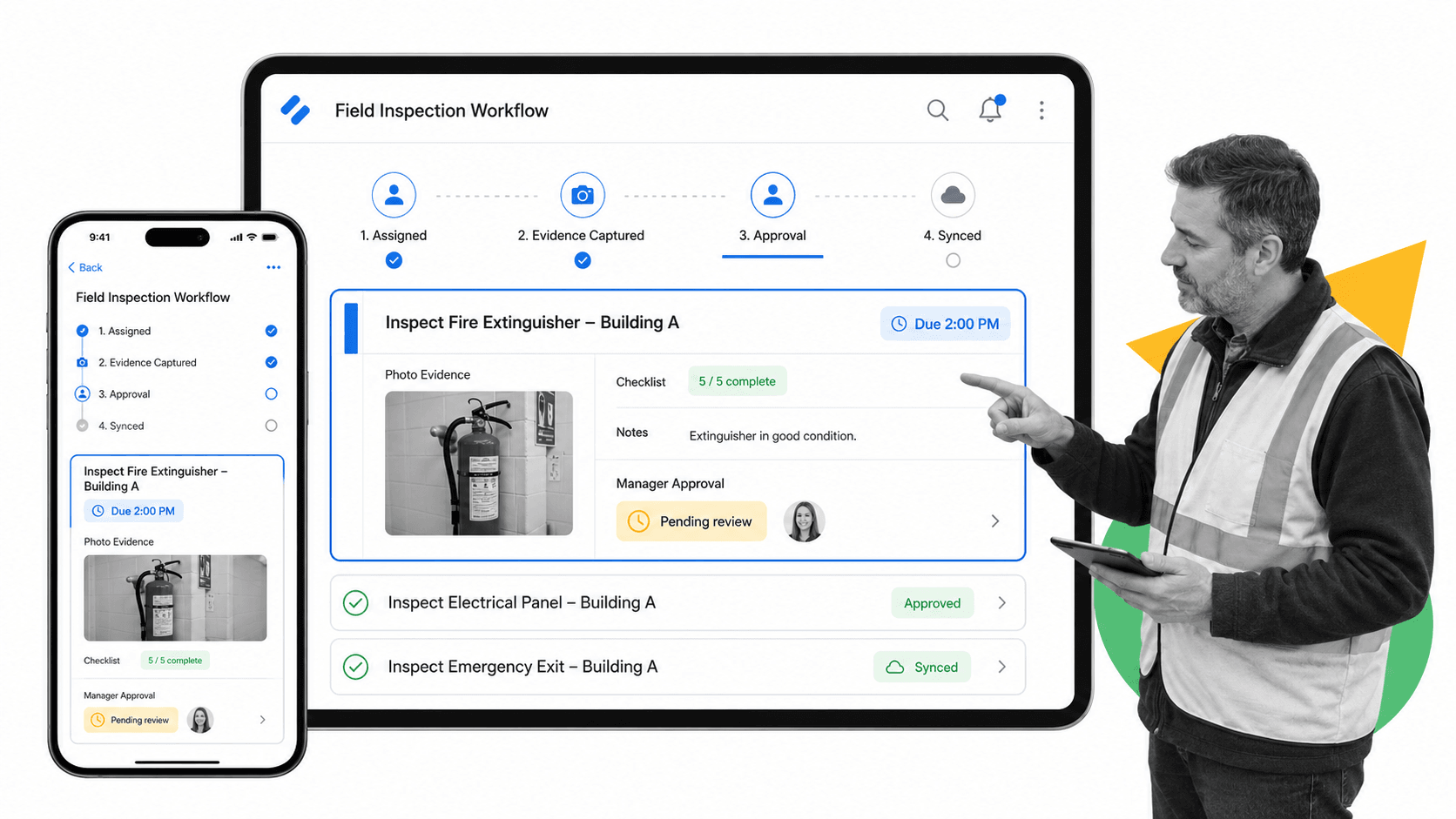
Mobile workflow software is software that lets teams run structured business processes from mobile devices. It turns a repeatable process into an assigned workflow run with tasks, forms, files, comments, due dates, approvals, notifications, and completion history.
The mobile layer matters because many workflows do not happen at a desk. A property manager completes an inspection while walking through a unit. A healthcare worker records visit details while still with the client. A construction lead signs off safety tasks on site. A manager approves a purchase request between meetings. The same underlying workflow runs need to stay controlled in all of those contexts.
Mobile workflow software versus a task app
A task app usually tracks individual to-dos. Mobile workflow software tracks a repeatable process. The difference is structure. A workflow has a defined start, a sequence of tasks, role-based ownership, required data, conditional steps, and a record of completion.
That makes it closer to a mobile-ready workflow management system than a personal productivity app. The software should know which steps are required, which fields must be completed, who can approve the work, and what evidence should be retained.
Mobile workflow software versus a form app
Form apps are useful for data capture, but a form is only one part of the workflow. After the data is captured, someone may need to review it, route it, approve it, fix an exception, update a record, notify another team, or prove the step happened.
Mobile workflow software connects the form to the process around it. A submitted inspection form can become an approval task. A failed checklist item can trigger a follow-up. A completed onboarding task can update the next owner. A comment can stay attached to the specific workflow run instead of disappearing into chat.
Why mobile workflows break
Mobile workflows usually fail for boring reasons: the process was designed for a desktop, the field team does not know which step matters, the app asks for too much typing, approvals happen somewhere else, or the mobile data never makes it back into the system of record.
The process is not designed for the device
A workflow that works on a 27-inch monitor can collapse on a phone. Long instructions, huge tables, dense dashboards, tiny fields, and multi-window handoffs are all signs that the process was ported to mobile instead of designed for mobile execution.
The mobile version should expose the next action, not the whole operating manual. A good mobile workflow page answers four questions quickly: what is due, who owns it, what data is required, and what happens after completion.
Approvals leave the workflow
Approvals are one of the highest-value mobile workflow use cases because decisions often happen away from a desk. If an approval is handled through text messages, email threads, or verbal signoff, the workflow loses proof. Keep approvals inside the workflow so the decision, owner, timestamp, and context remain attached to the run.
How mobile approval and manager visibility compare by channel
The approval record should stay attached to the workflow regardless of where the manager acts. The channel changes what the approver can see and do, so test the exact decision path your team uses most often.
| Channel | Documented approval behavior | Documented constraint | Manager visibility question |
|---|---|---|---|
| Desktop or browser | Open the workflow run, review the submitted work, approve or reject, and add context | Requires the manager to enter the full workflow surface | Can the manager filter all pending, late, rejected, and completed approvals across runs? |
| iOS app | Approve, reject, or reject with comments | Test notification delivery and the amount of context visible on the device | Does the decision update the same workflow report immediately? |
| Android app | Access workflow runs and approval tasks from the app | The documented Android app works online only | What is the fallback when connectivity is unavailable? |
| Approve or reject from the notification | Approval or rejection comments are not added from the email action | Can a manager tell when the decision needs explanatory context before acting? | |
| Slack | Approve or reject without opening Process Street | Rejecting with comments requires opening the workflow run | Does the Slack action retain the same owner, timestamp, status, and workflow context? |
Manager visibility is broader than the approval button. The useful test is whether the reporting layer shows the current status, owner, age, exception, and final decision across all workflow runs. A fast mobile approval that disappears from portfolio reporting is not a controlled process.
Security is treated as an afterthought
Mobile devices are now permanent enterprise endpoints, not side channels. NIST mobile device guidance describes mobile security across device management, endpoint protection, app vetting, and device life cycle controls. Workflow buyers should treat those controls as part of the rollout, not as an IT cleanup task.
That does not mean every team needs the same device policy. It means mobile workflow software should fit the security model the business already uses, whether that includes Android Enterprise work profiles, Apple device management, or app-level controls such as Microsoft Intune app protection policies.
Mobile workflow software selection criteria
The best mobile workflow software is not the app with the longest feature list. It is the system your team can use in real work while still preserving control, proof, and consistency.
1. Workflow execution on phones and tablets
Start with the core execution surface. Users should be able to find assigned work, open the right run, complete required tasks, add comments, upload evidence, and move the workflow forward. Process Street documents this pattern in its Android app guide, where users can create, edit and run workflows, view reports, browse the library, and handle comments from mobile.
2. Required fields and evidence capture
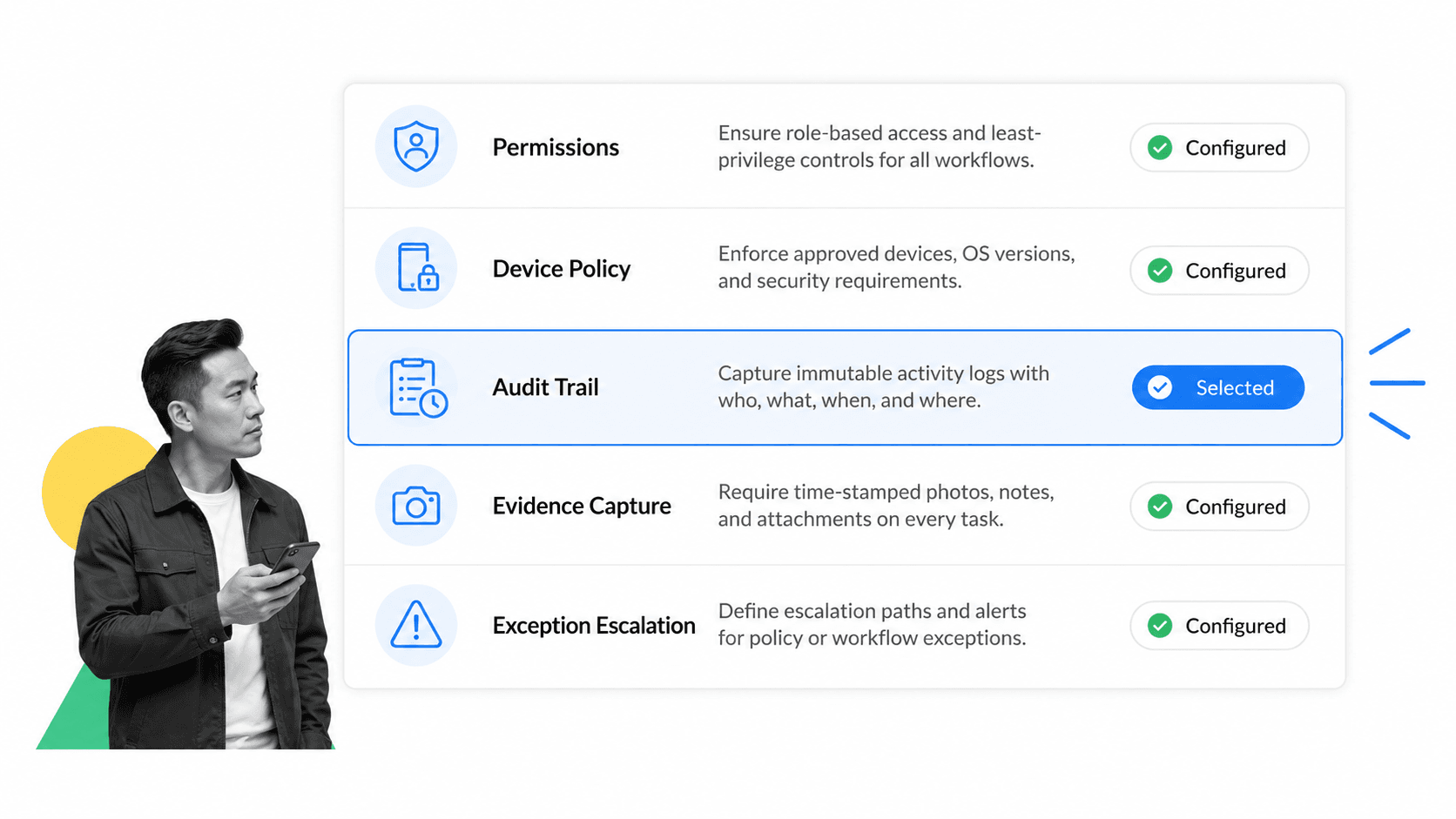
Mobile execution is only reliable when the software can require the right data before a task is completed. Look for required form fields, file uploads, photos, signatures, notes, and status updates. If a person can mark a task complete without the evidence the process requires, the mobile app is just a loose checklist.
3. Permissions and role-based access
Mobile access should not flatten your controls. Field workers, managers, auditors, admins, and external collaborators need different permissions. The system should let people run the workflows they are allowed to run, approve the work they own, and view the reports relevant to their role.
4. Notifications that route to action
Push notifications are useful only when they send someone to the exact task that needs action. A vague alert creates another interruption. A useful notification opens the workflow run, task, approval, or comment with enough context to act.
5. Reporting and audit history
Mobile workflow software should feed a reporting layer. Leaders need to know which runs are late, which steps fail, which approvals bottleneck, and which locations need follow-up. A mobile app that updates Reports gives managers a cleaner picture than a patchwork of forms and chat updates.
6. Security and mobile app assurance
For regulated or sensitive workflows, check how the vendor handles authentication, data storage, transport security, and mobile app testing. The OWASP Mobile Application Security Verification Standard is a useful reference point because it organizes mobile app controls across storage, cryptography, authentication, network communication, platform interaction, code quality, resilience, and privacy.
Mobile workflow software use cases
Mobile workflow software is strongest when the work has a repeatable path but happens away from the desk. The same pattern appears across operations, HR, compliance, property management, healthcare, construction, IT, and customer-facing teams.
Field inspections
Inspections need instructions, required evidence, exception handling, and signoff. A property inspection checklist can guide a manager through the required steps while keeping notes, photos, and completion history attached to the run.
Safety and compliance checks
Safety work fails when people rely on memory under time pressure. A mobile-ready site safety inspection checklist keeps the standard path visible, captures exceptions, and gives managers a record to review later.
Employee and contractor onboarding
Mobile workflow software can support interviews, identity checks, document collection, policy acknowledgement, training tasks, and manager approvals. A structured employee onboarding checklist keeps the process consistent even when HR, IT, and managers complete steps from different places.
Change requests and approvals
Mobile approvals are useful for change requests, purchase requests, content approvals, maintenance decisions, and client signoff. A change request form becomes more valuable when it is tied to routing, ownership, status, and proof.
Customer and client handoffs
Customer onboarding, implementation, and client handoff workflows often depend on fast updates from people outside the core operations team. A mobile workflow gives teams a cleaner path than asking people to search through email threads. It also connects naturally to adjacent systems such as digital onboarding software and a structured customer onboarding process.
How to implement mobile workflow software
A mobile workflow rollout should start narrow. Pick one workflow that already repeats, already breaks, and already has a clear owner. Do not start with every field process in the company.
Step 1: Map the workflow from the field user’s point of view
Write the workflow as the mobile user experiences it. What triggers the work? What do they need to see first? What data do they need to capture? What can they complete in the field? What should wait for a manager or back-office reviewer?
Step 2: Remove desktop-only friction
Cut long instructions, duplicate fields, unnecessary navigation, and steps that force users into another system. If a field user has to copy a value from one app into another while standing in a parking lot, the workflow is not mobile-ready.
Step 3: Define evidence and approval rules
Decide which steps require a photo, file, comment, status, or manager signoff. Keep the rule simple enough for the mobile user to follow and strict enough that the business can trust the record.
Step 4: Pilot with one team
Run the workflow with a small group before expanding. Watch where users pause, which fields they skip, which notifications they ignore, and which exception paths repeat. Fix the workflow before scaling it.
Step 5: Review completion data
Once the workflow is live, review completion data every week at first. Look for overdue runs, repeated comments, failed handoffs, and steps that create rework. This is where mobile workflow software becomes part of broader business process management, not just a mobile app rollout.
The review should be practical. Keep a short list of changes, ship the fixes, and compare the next batch of runs against the previous one. Mobile workflow software works best when the team treats the process as a living operating asset, not a one-time app configuration.
How Process Street supports mobile workflows
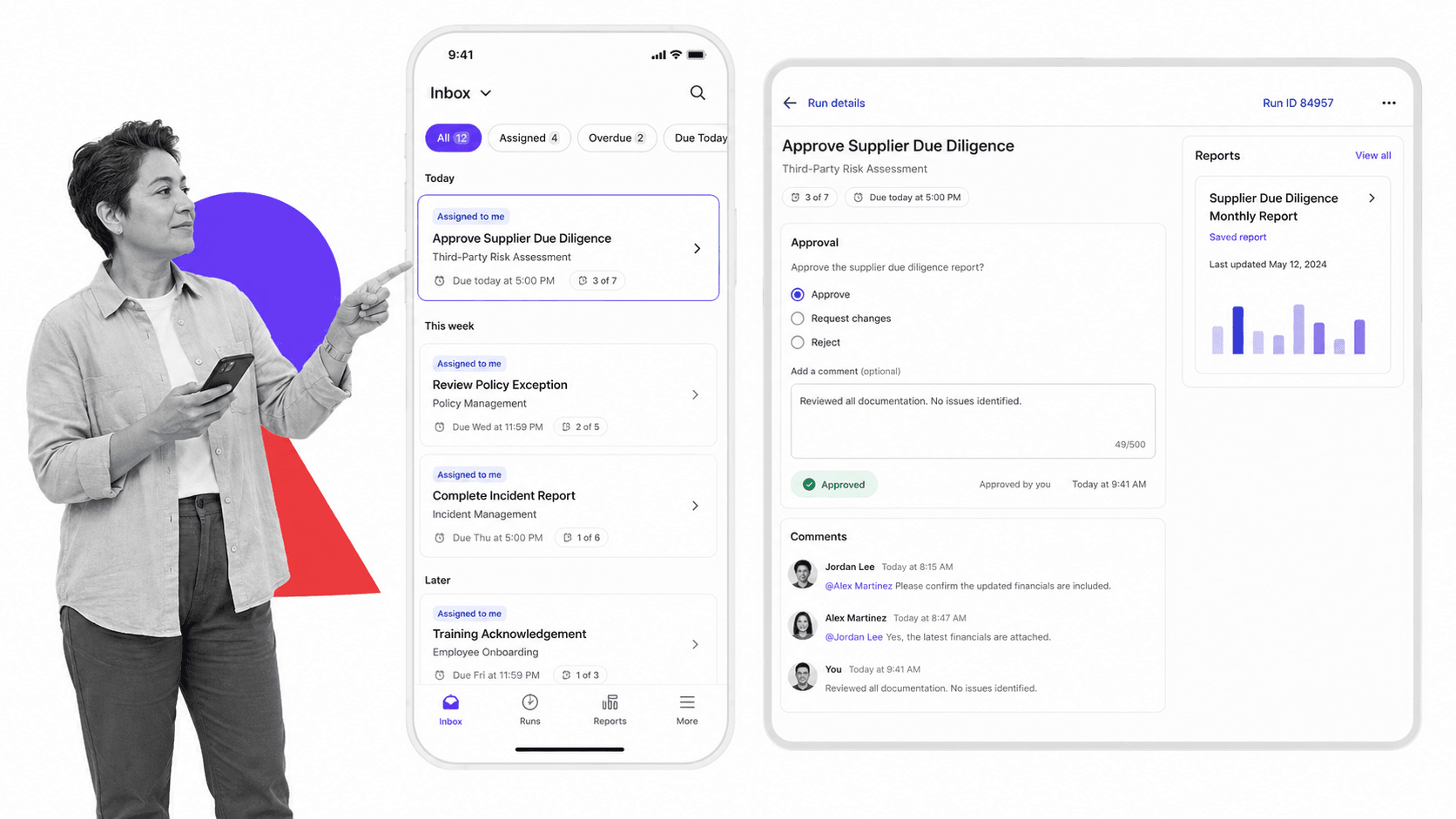
Process Street supports mobile workflows through its mobile apps, workflow runs, Inbox, comments, approvals, reports, and library access. The Process Street apps page describes mobile access for iOS and Android, plus Slack and Microsoft Teams surfaces for teams that want workflow actions closer to where work already happens.
For mobile workflow software buyers, the important point is that mobile execution stays connected to the governed workflow. A task completed on a phone still belongs to the workflow run. An approval still belongs to the approval path. A comment still belongs to the task context. A report still reflects the run history.
Mobile task completion
Teams can use mobile workflows for assigned tasks, recurring runs, field work, comments, and approvals. That keeps the procedure close to the person doing the work, instead of requiring them to remember the process and update the system later.
Compliance Operations Platform fit
Process Street is not just a mobile task layer. It is a Compliance Operations Platform, which means the mobile workflow is tied to execution, enforcement, and proof. That is important when the process affects compliance, quality, security, customer experience, or financial control.
Integrations around the mobile workflow
Process Street has direct, universal integrations to 5,000+ systems. Need a new one? An AI agent builds it on the fly. That means a mobile workflow can sit inside a larger operating stack without forcing every field user to work directly in every backend system.
For teams comparing categories, it helps to separate mobile workflow execution from broader workflow automation tools, general workflow apps, and a full workflow management platform. Mobile workflow software should make field execution easier while preserving the governance of the overall system.
Mobile workflow software mistakes to avoid
Mobile workflow software can create speed, but it can also create new failure modes if the rollout is careless.
Mistake 1: Treating mobile as a smaller desktop
A phone is not a tiny laptop. Mobile workflows need shorter task copy, clearer fields, fewer screens, and obvious next actions. If users need training to understand every mobile screen, the workflow is too complex.
Mistake 2: Letting mobile completion bypass controls
Mobile work should not mean looser work. If the desktop workflow requires evidence, approvals, permission checks, or audit history, the mobile workflow should enforce the same controls in a mobile-friendly way.
Mistake 3: Ignoring offline requirements
Confirm connectivity before choosing a mobile workflow. The current Process Street Android guide states that the app works online only. Teams that must complete work without connectivity need a tested fallback, a later-sync procedure, or a different mobile path. Do not imply offline support unless it has been verified for the selected device and workflow.
Mistake 4: Measuring adoption instead of execution quality
App installs are not the goal. Measure whether workflows are completed correctly, whether approvals happen on time, whether evidence is captured, whether exceptions are escalated, and whether managers can trust the reporting.
Mistake 5: Making the field team serve the software
The software should serve the work. If mobile users are spending more time documenting the process than doing the process, simplify the workflow. The best mobile workflow software removes ambiguity without turning every task into data entry.
FAQs
What is mobile workflow software?
Mobile workflow software helps teams run structured business processes from phones and tablets. It lets users complete assigned tasks, submit forms, capture evidence, handle approvals, add comments, and update workflow status while away from a desktop.
Who needs mobile workflow software?
Teams need mobile workflow software when important work happens in the field, on site, with clients, or across distributed locations. Common users include operations teams, property managers, healthcare teams, construction leads, HR teams, inspectors, and managers who approve work while traveling.
What features should mobile workflow software include?
Useful mobile workflow software should include task assignments, workflow runs, required fields, file or photo capture, approvals, comments, notifications, permissions, reporting, and audit history. For sensitive workflows, it should also fit the organization’s mobile device and app protection policies.
Is mobile workflow software the same as a task management app?
No. A task management app usually tracks individual to-dos, while mobile workflow software runs repeatable processes with defined steps, owners, routing, evidence, approvals, and completion records. The workflow structure is what makes it reliable for operations and compliance.
Does mobile workflow software need offline mode?
Only some teams need offline mode. If work happens in areas with weak connectivity, offline capture and sync may be required. If work happens in connected offices, clinics, stores, or sites, an online mobile workflow can still be the right fit.
How should a team roll out mobile workflow software?
Start with one recurring workflow that already breaks or creates manual follow-up. Map the field user’s path, remove desktop-only friction, define evidence and approval rules, pilot with one team, then review completion data before expanding.