


Turn every policy into automated workflows with built-in enforcement and audit-ready proof.



Workflow Editor
A workflow editor is a visual workspace for designing, changing, and testing how repeatable work should run. It lets you turn a process into an ordered sequence of tasks, then add owners, instructions, data fields, decisions, deadlines, approvals, and automation. Instead of leaving the procedure in a document, you shape it into a workflow people can execute.
The best workflow editor is not only a diagramming surface. It connects design to live work. When you change a task, branch, or approval, the editor updates the reusable workflow that future runs follow. That makes it different from a static flowchart and closely related to a process builder, which turns a process definition into something a team can run repeatedly.
This guide explains what a workflow editor does, which controls matter, how to edit a workflow step by step, how the category differs from workflow builders and process maps, where teams use it, how to evaluate a tool, and how to move from design to controlled execution.
In this article, we are going to cover everything you need to know about a workflow editor, including:
- What is a workflow editor?
- What a workflow editor lets you control
- How to edit a workflow step by step
- Workflow editor vs workflow builder vs process map
- Common workflow editor use cases
- How to choose a workflow editor
- Use Process Street as your workflow editor
- FAQs
What is a workflow editor?
A workflow editor is the interface where a workflow is created and maintained. ServiceNow describes a workflow editor as an interface for creating and modifying workflows by arranging and connecting activities. That definition captures the visual core, but a business workflow editor usually goes further by tying each activity to a person, rule, form field, approval, or automated action.
From map to executable workflow
A process map helps you understand the current flow. A workflow editor takes that understanding and turns it into operating instructions. A useful workflow mapping exercise identifies the trigger, steps, owners, handoffs, decisions, and outcome. The editor then makes those elements enforceable in a reusable workflow.
The reusable template and each live run
Most workflow systems separate the reusable workflow from its live runs. You edit the master version once, then start a new run for each employee, customer, vendor, incident, or monthly cycle. Every run follows the same design but carries its own owners, dates, answers, evidence, and status. This separation lets you improve the standard without rebuilding every instance from scratch.
Why visual editing matters
Visual editing makes the process understandable to the people who own it. They can see the sequence, notice a missing handoff, move a task, and test a branch without reading code. That shortens the distance between the person who understands the work and the system that governs it. The workflow stays current because the owner can change it when the real process changes.
What a workflow editor lets you control
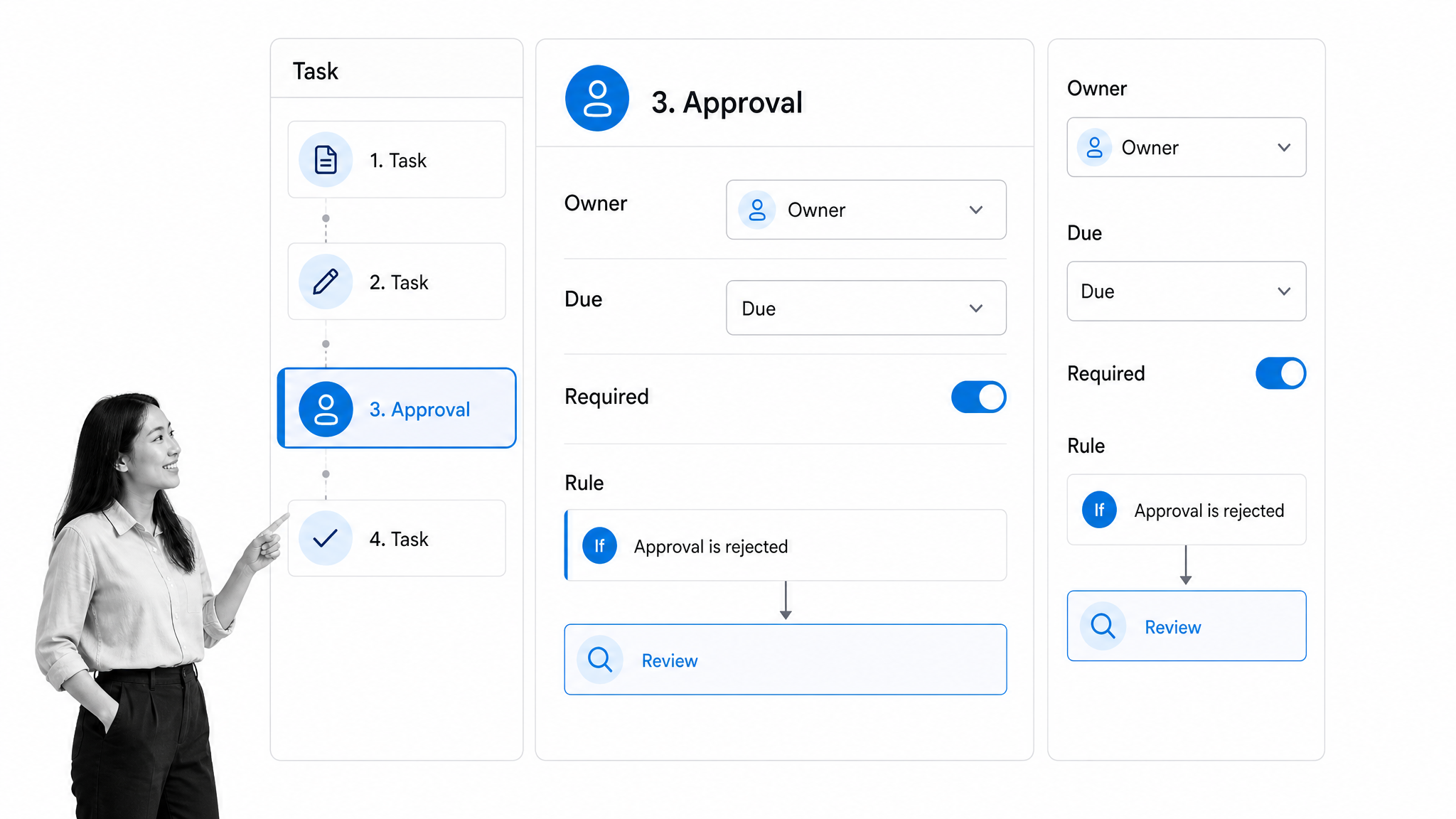
A workflow editor should expose the parts of a process that determine whether work is clear, accountable, and verifiable. The interface can look different across tools, but the important controls are consistent.
Tasks and sequence
Tasks are the basic units of work. The editor should let you add, rename, reorder, group, and remove them without friction. Each task should describe one outcome clearly enough that the assigned person knows when it is complete. Headings or stages help break a long workflow into meaningful phases such as intake, review, approval, fulfillment, and closeout.
Instructions and context
A task needs enough context to be performed correctly. That can include written instructions, links, files, images, videos, policies, or examples. Good editors keep the guidance beside the action, so people do not have to search another system to understand the standard. Start with a clear procedure, such as an editable {il(‘https://www.process.st/templates/standard-operating-procedure-sop-template-structure/’, ‘SOP template structure’)}, then convert each actionable requirement into a task or control.
Owners, roles, and due rules
Ownership turns a process into accountable work. A workflow editor should assign a named person, team, or role to each step. Relative due rules are often more useful than fixed dates because they can schedule a task a set time after the workflow starts or after a previous step is completed. Role assignments also let the same workflow adapt when different people fill the same function.
Forms and required evidence
Forms collect structured information inside the workflow. Text, number, date, file, dropdown, and approval fields keep the data attached to the run. Required fields stop a task from being completed with critical information missing. Evidence fields are especially useful when the workflow must prove that a document was reviewed, a check was performed, or a decision was recorded.
Conditional logic and branches
Real work contains exceptions. Conditional logic shows, hides, or routes tasks based on earlier answers. A low-risk vendor can follow a standard path while a high-risk vendor moves into extra review. A new hire in one location may see different paperwork from another. A workflow editor should make those branches readable, so the process owner can see why each path exists rather than burying the logic in code. This is where a new hire onboarding workflow becomes adaptable without multiplying templates.
Approvals and stop points
Approvals create explicit decision gates. The editor should define what is submitted, who reviews it, what happens after approval, and where rejected work returns. A well-designed workflow approval prevents the process from moving forward without the right signoff. Stop points can also block later tasks until required work is complete.
Automation and integrations
Automation handles the predictable actions around human work: start a workflow from an event, assign tasks, send notifications, update another system, create a document, or schedule a recurring run. The editor should show where automation occurs and what information it uses. That makes failures easier to diagnose and prevents invisible rules from surprising the team.
Publishing, versions, and change control
Editing and publishing should be separate actions. Auto-save protects work in progress, while publishing makes an intentional version available for use. Teams with higher control requirements may also need review, approval, version history, and a record of who changed what. Those controls stop an unfinished edit from becoming the new operating standard.
How to edit a workflow step by step
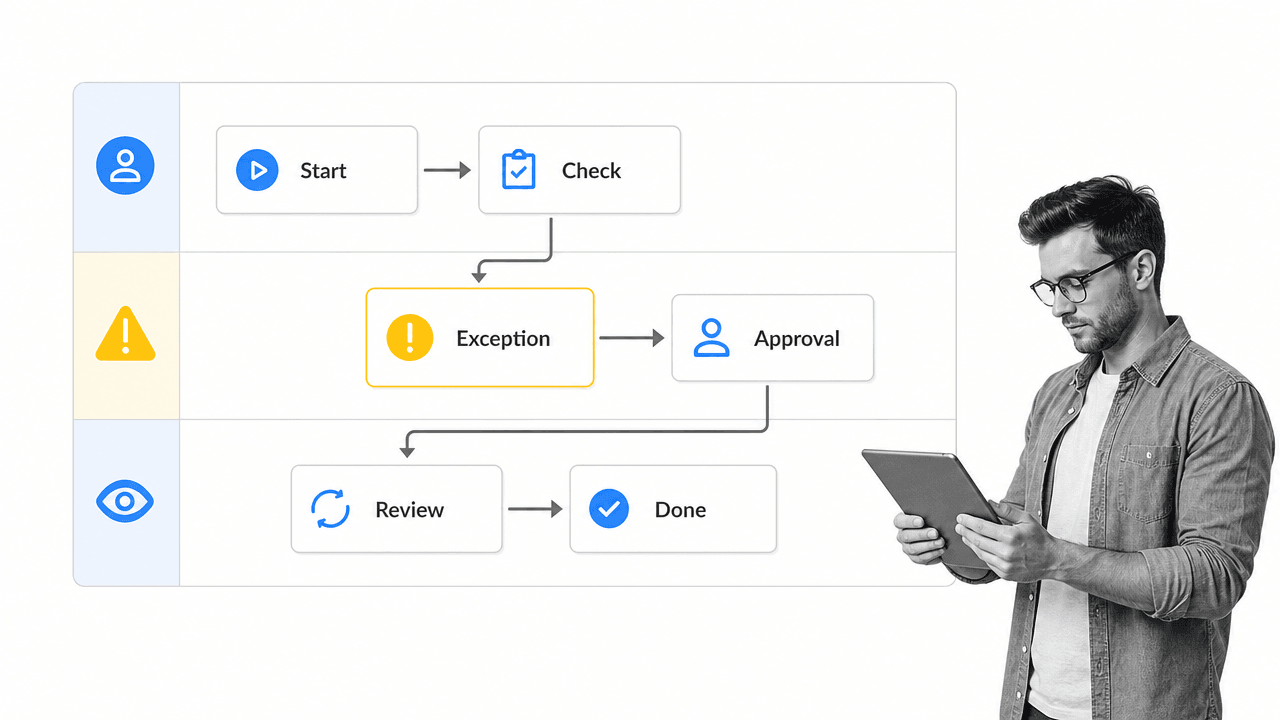
A good editing session begins with a real outcome and ends with a tested workflow. Resist the urge to decorate the canvas or add automation before the basic path works. Build the smallest complete version, run it, and improve it from evidence.
1. Define the trigger and outcome
Write one sentence for when the workflow starts and one for what must be true when it ends. A vendor review might start when a request is submitted and end when the vendor is approved, rejected, or returned for more information. Clear boundaries prevent the editor from becoming a dumping ground for unrelated tasks.
2. Capture the current path
Talk to the people who perform the work and trace what actually happens, including waits, workarounds, and exceptions. Use a workflow planner to capture the trigger, steps, owners, inputs, dependencies, decisions, and outcome before you configure the tool. This planning pass exposes gaps while changes are still cheap.
3. Add the main sequence
Create the stages and add the happy-path tasks in order. Keep each task action-oriented and small enough to assign. Avoid combining an entire department’s work into one vague step. The main path should reach the outcome without branches before you add exception handling.
4. Add instructions and fields
Open each task and add only the guidance needed at that moment. Then add fields for the information the process must capture. Mark a field required when the workflow cannot continue safely without it. The editor should make the difference between helpful context and mandatory evidence obvious.
5. Assign owners and timing
Assign the person or role responsible for every task. Set due rules based on the workflow start, a previous task, or a business deadline. Check that each handoff has one clear owner. Shared ownership often means no ownership, especially when a task sits between teams.
6. Add decisions and exception paths
Identify the few decisions that change the path and configure them as explicit rules. Use an incident response workflow as a mental model: severity changes who is notified, how fast they must act, and which evidence is required. Branches should make the exception easier to follow, not turn the workflow into a maze.
7. Place approvals at control points
Add approvals where a decision protects money, quality, security, compliance, or customer experience. Specify the approver, the submitted information, and the rejection path. If everything requires approval, the workflow will stall. If nothing does, the process may move forward without control.
8. Connect automation after the path works
Automate repetitive transfers only after the human path is clear. Atlassian describes workflow automation as predefined rules and actions that reduce manual effort. Use that principle narrowly: automate predictable actions, keep judgment with the right owner, and make every automated step visible in the design.
9. Test every route
Run the workflow with realistic data. Test the normal path, each important branch, a rejection, a missing required field, an overdue task, and a reassignment. Ask someone who did not build the workflow to complete a run. Their questions reveal unclear instructions and hidden assumptions faster than the builder’s own review.
10. Publish and monitor
Publish the tested version, then watch the first real runs. Look for repeated delays, reopened work, missing evidence, and steps completed outside the workflow. Use workflow optimization to turn those signals into targeted edits. A workflow editor is most valuable when improvement is continuous, not a one-time setup project.
Workflow editor vs workflow builder vs process map
The terms overlap, but they describe different jobs. Understanding the difference helps you choose the right level of tool and avoid buying automation when you only need documentation.
Workflow editor
A workflow editor is the interface used to change a workflow. It focuses on the practical controls inside an existing workflow system: tasks, sequence, fields, owners, timing, rules, approvals, automation, and publishing. The editor is where the process owner maintains the operating standard.
Workflow builder
A workflow builder often describes the broader creation capability or the product category itself. It may emphasize visual nodes, connectors, integrations, and automation. In many products, the builder and editor are the same surface. The word builder highlights creation, while editor highlights ongoing change and maintenance.
Process map
A process map documents how work flows. It can show stages, actors, decisions, and handoffs without running the work. The BPMN standard provides a formal notation for representing business processes. A map is valuable for analysis and communication, but a map becomes operational only when the steps, owners, rules, and data are configured in an executable system.
Code-based workflow definition
Technical teams may define workflows in configuration files or code. That gives developers deep control, testing, and version management, but it can exclude operational owners from routine changes. A visual editor is usually a better fit when non-technical teams must own the procedure and adjust it as work changes.
Common workflow editor use cases
Workflow editors are most useful for recurring work that crosses people, systems, or control points. Start with a process where missed steps or unclear handoffs create a visible cost.
Employee onboarding
Onboarding coordinates HR, IT, payroll, security, the manager, and the new hire. An onboarding process template gives the editor a starting sequence. You can then add role-specific branches, access approvals, equipment tasks, policy acknowledgments, training, and timed check-ins.
Client onboarding
Client onboarding includes the sales handoff, welcome, intake, access, kickoff, delivery preparation, and first value. A client onboarding and management workflow helps assign internal and client-facing tasks, collect documents once, route approvals, and keep the handoff from disappearing into email.
Vendor and third-party review
Vendor review needs structured intake, risk questions, documents, ownership, approval, and renewal timing. Editing a vendor management workflow lets the team route higher-risk cases into deeper review while keeping routine vendors on a lighter path.
Content and document approval
Content, policy, and document workflows benefit from clear draft, review, revision, approval, and release stages. The editor can require the right evidence, prevent premature release, and send rejected work back to the correct owner with context.
Recurring finance and compliance work
Month-end checks, access reviews, control testing, and regulatory tasks repeat on a schedule and need proof. The editor can set relative deadlines, assign roles, add required evidence, and place approval gates at the points where a mistake would matter. Each run then becomes a record of execution rather than a collection of reminders.
How to choose a workflow editor
Choose a workflow editor by testing how well it turns your real process into controlled work. A polished canvas is useful, but the decisive question is whether the editor can express the rules, ownership, and evidence your team needs without becoming too complex to maintain.
Match the editor to the people who own the work
The process owner should be able to make routine changes without waiting for a developer or consultant. Ask the likely builders to create a short workflow during evaluation. If they cannot understand the structure, test a change, and find the publish control, adoption will depend on a specialist.
Evaluate the control model
Check whether the editor supports required fields, role assignments, due rules, conditional logic, approvals, permissions, and task dependencies. Not every workflow needs every control, but the platform should support the level of enforcement your highest-risk process requires.
Test a real exception
Do not evaluate only the happy path. Build one realistic exception, such as missing documentation, a high-risk answer, a rejected approval, or an unavailable owner. The quality of the branch and return path reveals more about the editor than a simple straight-line demo.
Check how changes reach active work
Find out how drafts, auto-save, publishing, versions, and active runs behave. IBM documents workflow editing across metadata, steps, and variables, which is a useful reminder that an edit can affect both structure and data. The tool should make the scope of each change clear before it reaches users.
Confirm forms, routing, and approvals work together
A modern editor should connect intake to execution. Adobe describes visual workflow editing across forms, onboarding, communications, data, routing, and approvals. The important evaluation point is not the vendor example itself, but whether your chosen editor keeps those pieces in one understandable flow.
Look for monitoring and improvement
Editing should be informed by what happens in real runs. Look for status, task history, overdue work, bottlenecks, and run-level data. Without that feedback, the editor helps you design a process but not improve it. The strongest system closes the loop between design, execution, evidence, and revision.
Use Process Street as your workflow editor
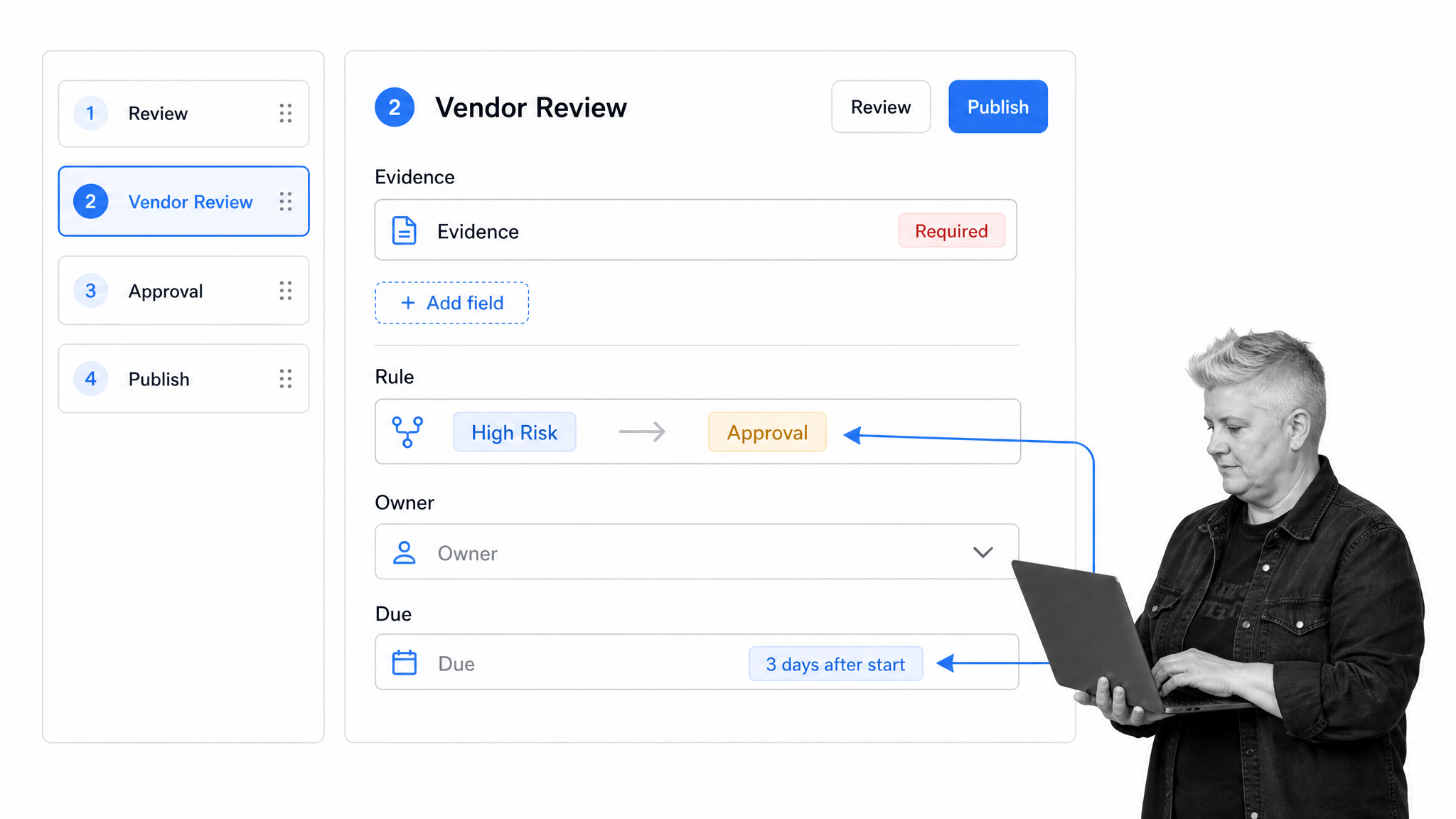
Process Street is a Compliance Operations Platform that connects workflow editing to execution and proof. In the editor, you can build the task sequence, add instructions and form fields, assign owners, set dynamic due dates, add conditional logic, place approvals, and publish the workflow for repeated use.
The workflow acts as the master blueprint, while each run is a live instance of the work. The official workflow creation and editing guide explains how builders can add tasks, reorder them, configure assignments and due dates, and publish changes. That structure keeps the designed standard and the running work in the same system.
You can also improve workflows without interrupting the team. The workflow editing documentation covers adding tasks and fields, auto-save in edit mode, publishing changes, and updating active workflow runs. That matters because process design is never finished. Policies change, systems change, risks change, and the editor must make controlled updates practical.
Process Street has direct, universal integrations to 5,000+ systems. Need a new one? An AI agent builds it on the fly. The workflow editor can therefore define both the human steps and the connected actions around them, so information moves through the stack without relying on manual copy and paste.
You do not have to begin from a blank screen. Start from the workflow template library or a focused workflow such as a vendor review, onboarding process, incident response plan, or recurring control. Edit the steps to match reality, test the routes, publish the workflow, then improve it from what each run reveals.
The practical outcome is a workflow that people can understand, leaders can control, and the business can verify. The editor is where the standard is designed. The runs are where that standard becomes work, and the audit trail is where the work becomes proof.
FAQs
What is a workflow editor?
A workflow editor is a visual interface for creating and changing a workflow. It lets you arrange tasks, add instructions and fields, assign owners, set timing, configure decisions and approvals, connect automation, and publish the reusable workflow that future runs follow.
What can you add in a workflow editor?
A workflow editor can include tasks, headings, instructions, form fields, files, owners, roles, due rules, conditional logic, approvals, permissions, dependencies, notifications, and automated actions. The exact controls vary by tool, but the goal is to make the process clear, executable, and verifiable.
What is the difference between a workflow editor and a process map?
A process map documents how work flows, while a workflow editor configures how the work will actually run. A map can show stages, actors, and decisions. An editor adds executable tasks, assignments, data collection, rules, approvals, automation, and publishing.
Do you need coding skills to use a workflow editor?
No. A no-code workflow editor is designed so process owners can create and maintain workflows visually. Code-based workflow systems still have a place for technical orchestration, but most business teams benefit when the people who understand the process can edit it directly.
How do you test a workflow before publishing it?
Run the workflow with realistic data and test the normal route, each important exception, a rejected approval, a missing required field, an overdue task, and a reassignment. Ask someone who did not build the workflow to complete a run, then fix unclear instructions and hidden assumptions before publishing.
Can Process Street be used as a workflow editor?
Yes. Process Street includes a no-code workflow editor for building task sequences, instructions, forms, assignments, due dates, conditional logic, approvals, and automations. You publish the reusable workflow, run it for each instance of the process, and use run history to improve the design.