





Hooray! We’re pleased to announce a major integration for Process Street. This time, it’s Zapier. At launch, it connected Process Street with more than 400 services, including Salesforce, Mailchimp, Wufoo, and the Google Apps suite. With over 1,000 apps, announcing our Zapier integration opened far more ways to connect recurring work.
If Zapier were a physical object, it would look a bit like a universal remote connected to an unmanageable tangle of wires, with ends that slot into every kind of machine. Thankfully, it’s a clean-cut, user-friendly SaaS app with huge potential for creativity and workflow streamlining. It makes it easy for non-developers to connect web services together, saving time and improving productivity.
If you’re already familiar with integrations and want to get stuck in straight away, explore these workflow automation examples. For the practical setup path, use the Process Street Zapier integration guide.
Using Process Street with Zapier
A Zap connects a trigger in one app to an action in another. When a defined event happens, Zapier passes the relevant data into the next step. With Process Street, that can mean launching a workflow run, updating a task, finding an existing run, or moving operational data between systems.
This makes the integration useful far beyond one-off notifications. A form submission can start an approval workflow, a completed task can update another system, and a new customer record can open a consistent onboarding path. The event stays simple, but the operational work that follows can include owners, due dates, form data, comments, and attachments.
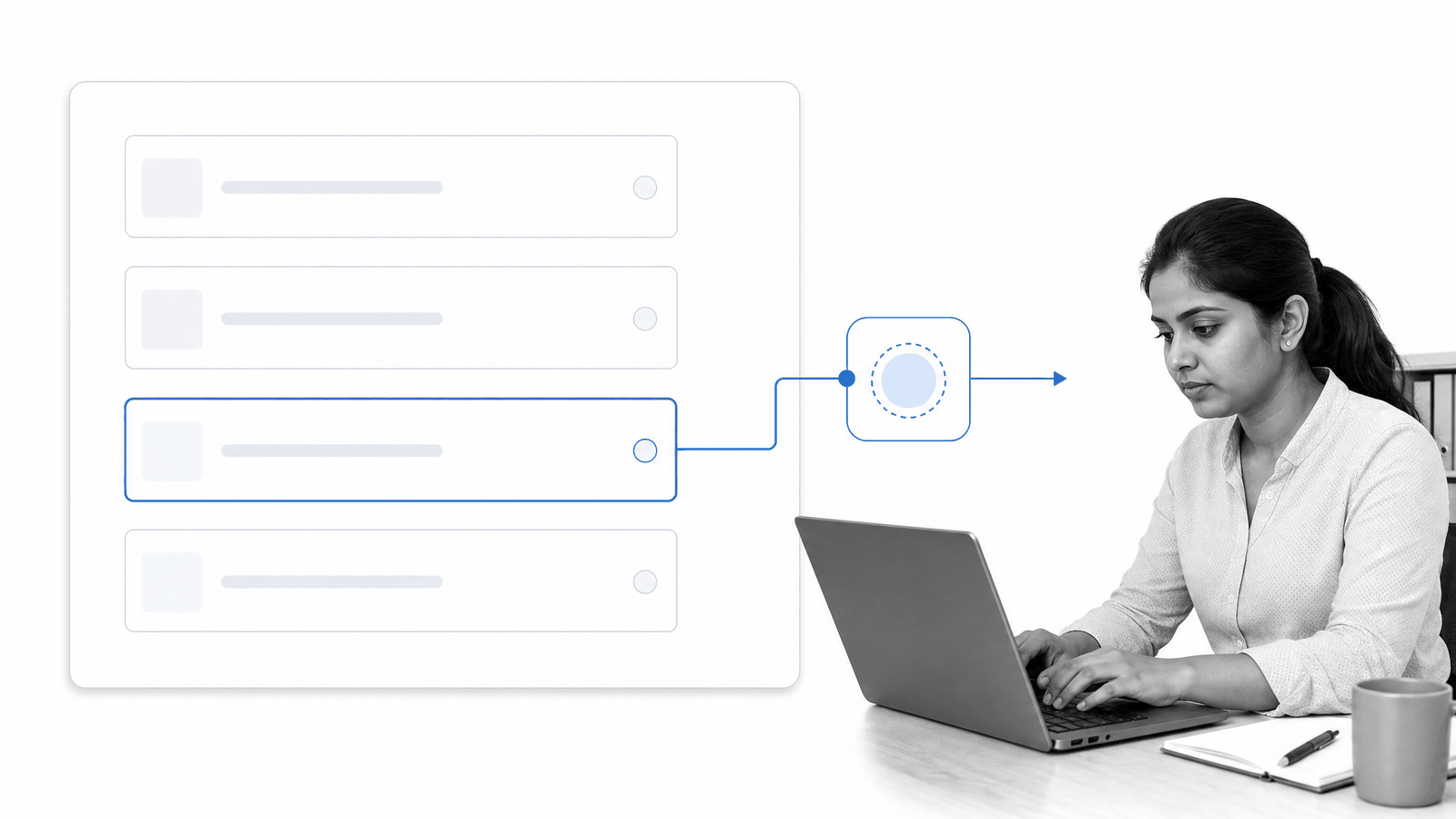
The setup stays approachable because the connection is built from familiar fields. Choose the event, connect the accounts, select the workflow, then map incoming values into the form fields that should receive them. That same structure works whether the source is a CRM record, an email, a form submission, or another operational system.
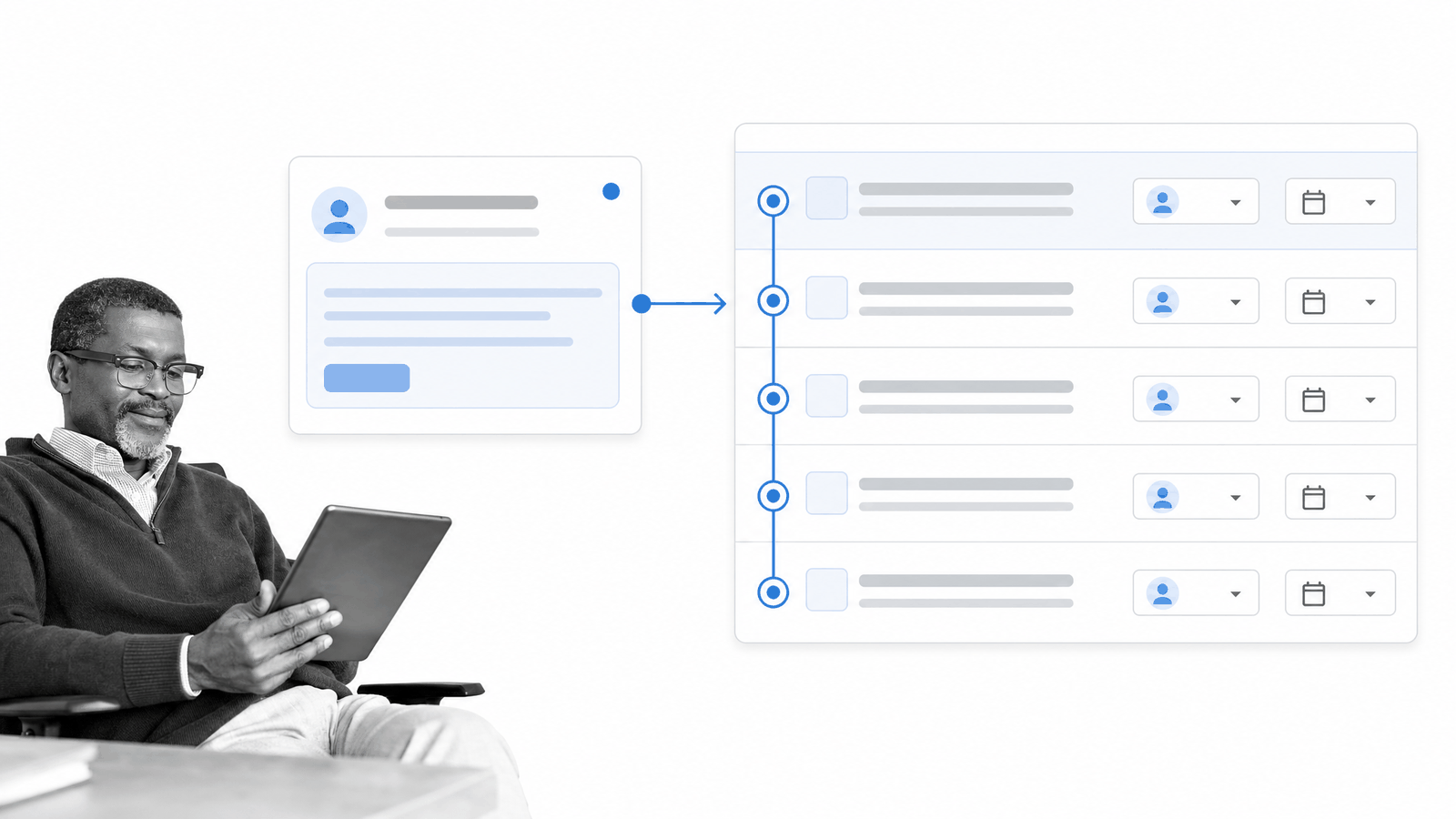
Automate recurring work
Ever wished you could automate the stuff you hate doing at work? Start with a repetitive handoff that has a clear event and a predictable next step. Saving attachments, creating follow-up work, notifying a team, or moving customer data into an onboarding workflow are all useful starting points.
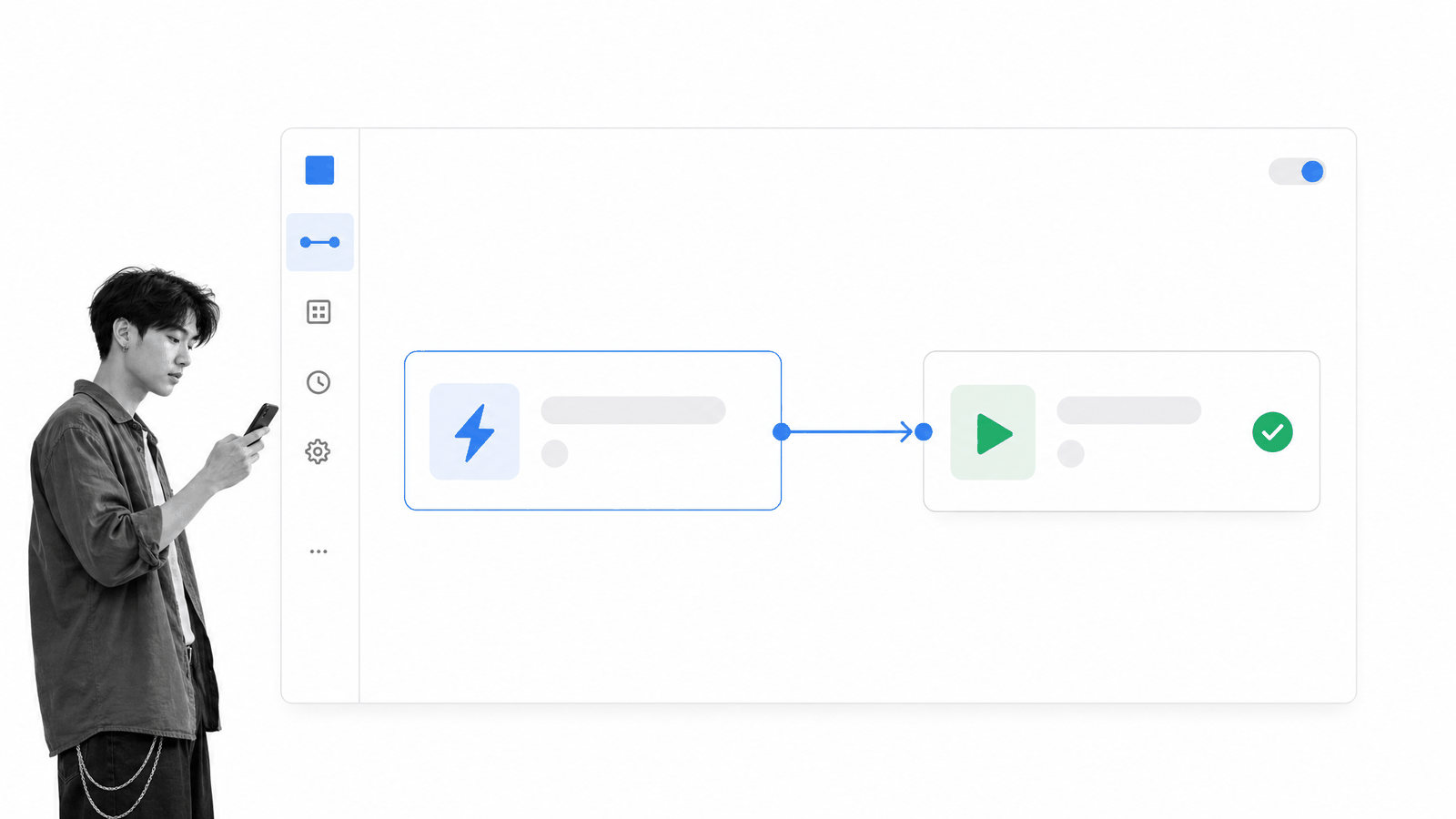
For a deeper grounding, see what Zapier is, how filters and multi-step automation extend a Zap, and these business process automation examples. The most effective automation removes a repeatable administrative step without removing the judgment needed for exceptions.
How can you use Process Street and Zapier?
Connecting two services is done with a recipe called a Zap. You can build a Zap from scratch or begin with a pre-made template in the Process Street integration directory. Zapier’s Process Street integration supports connections across more than 5,000 apps, so the useful question is not whether two tools can connect. It’s which handoff will save the most time or prevent the most operational risk.
The basics: Triggers and Actions
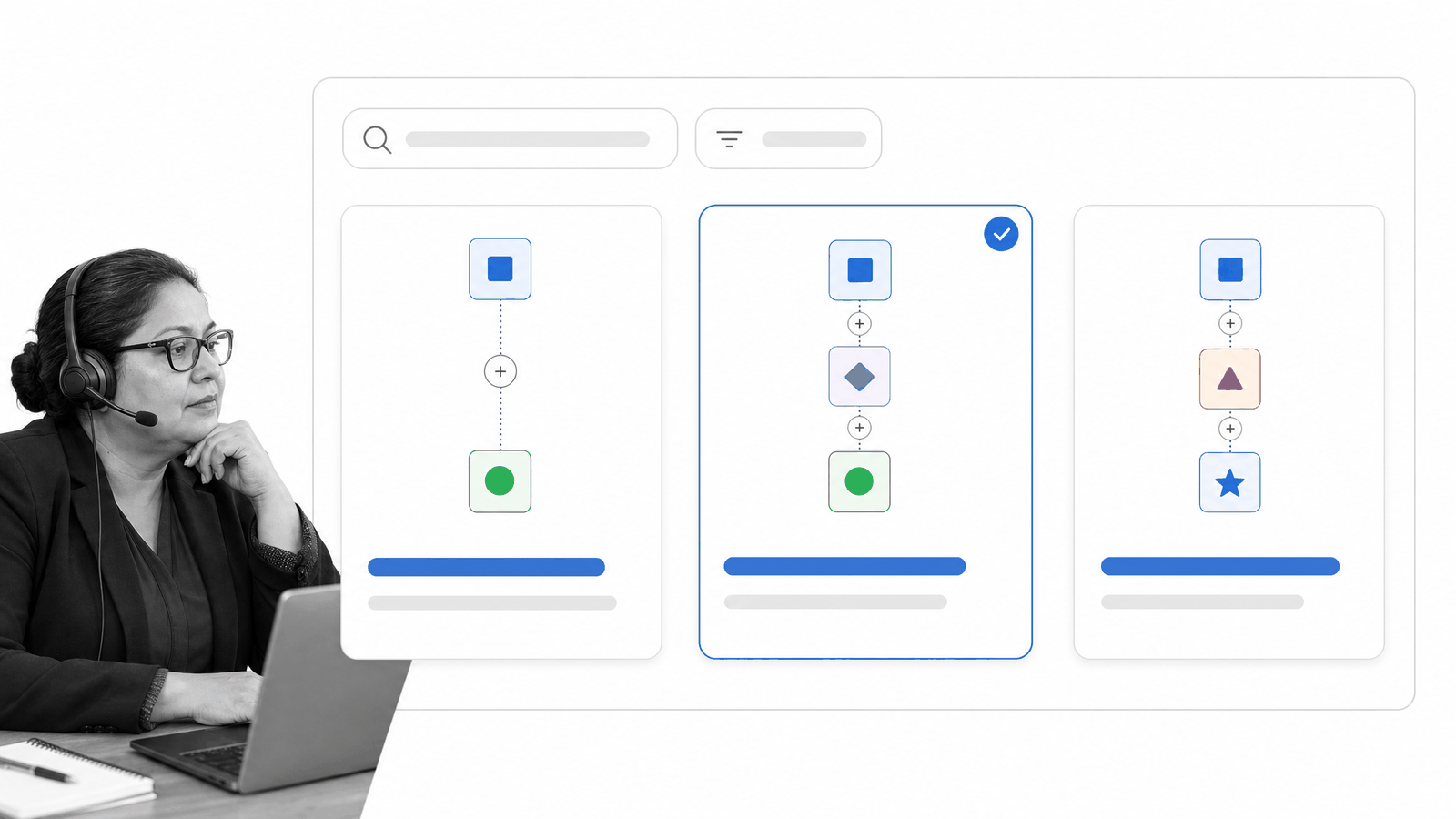
The most basic components of a Zap are the trigger and the action.
Triggers and actions are simply events. They can be things like a new email or a new contact. A Zap combines them: whenever the trigger event occurs, Zapier automatically completes the action.
Current Process Street triggers include events such as a new workflow run, a completed workflow run, a checked task, a ready task, a new comment, a new comment attachment, and changes to Data Set records. Actions and searches include running or finding a workflow, updating a workflow run or task, and creating or updating Data Set records.
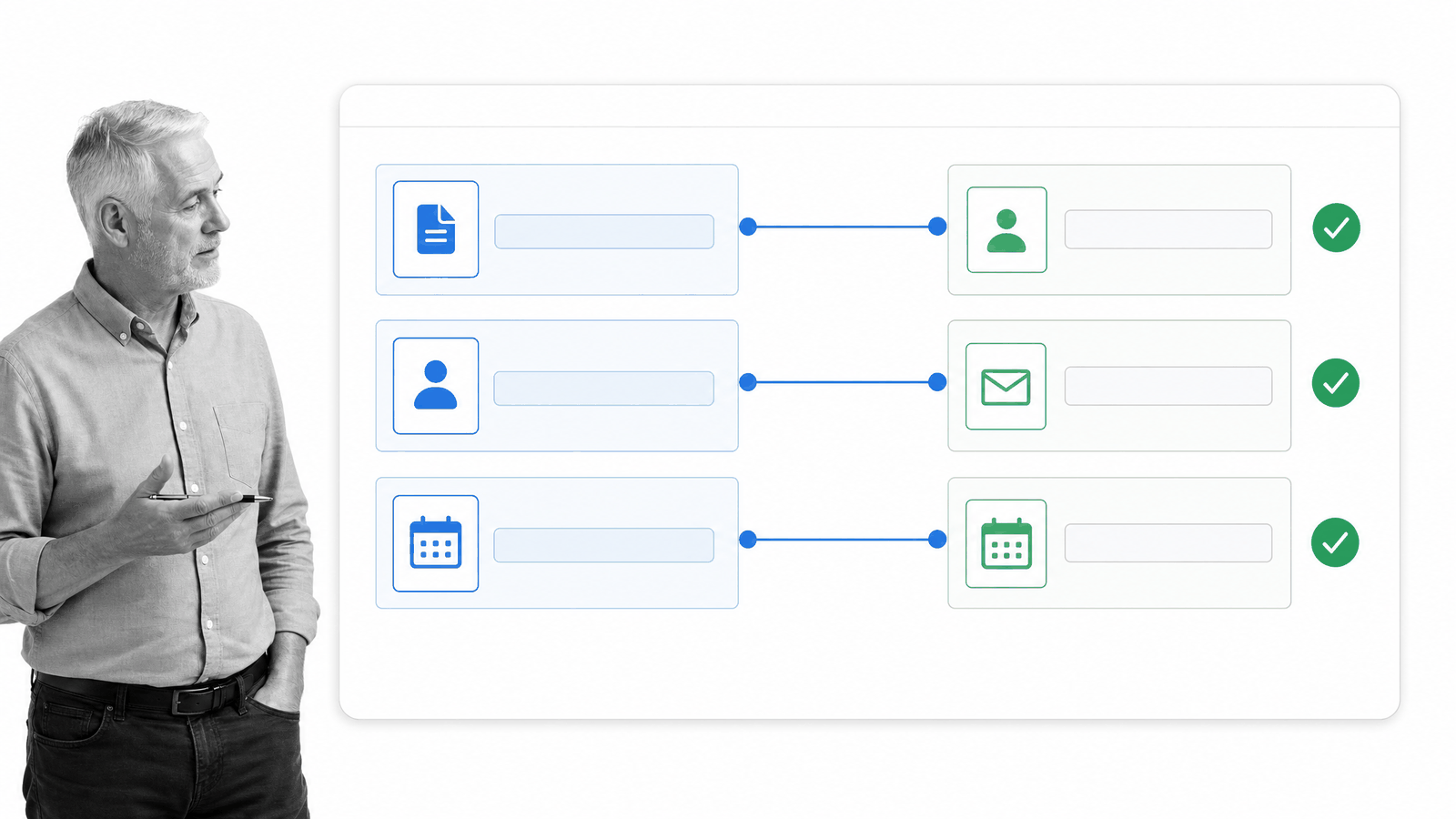
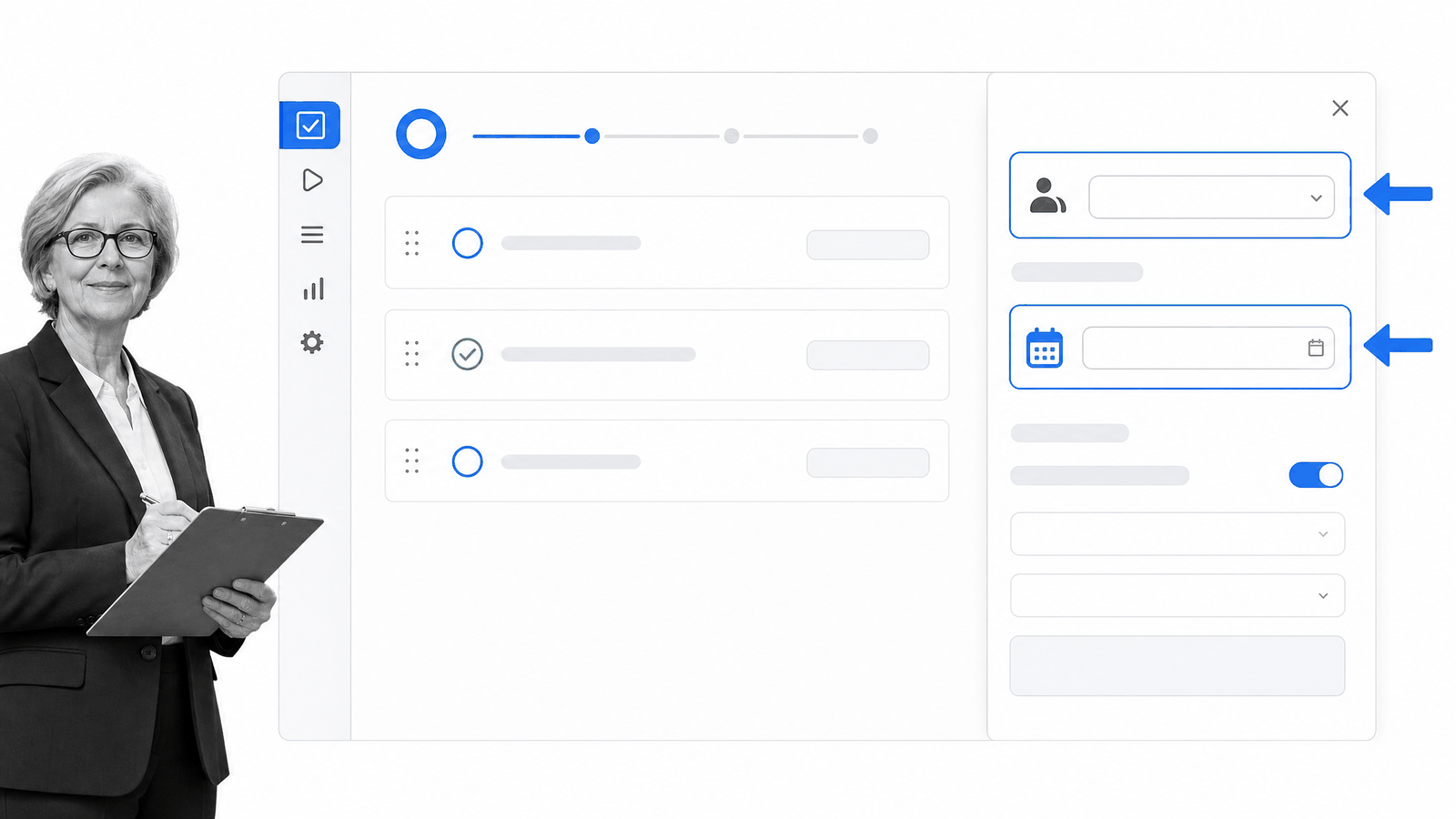
Zapier’s configuration lets you specify the workflow, the data to pass in, and the action to take. You can map data from the triggering app into a workflow run, set the run name and due date, assign people, and use comments or attachments where the selected action supports them. This automatic data transfer is one of the most powerful parts of Zapier. For example, you can create a Trello card for a new Process Street workflow run.
Examples
Here are several practical Zaps that show how the trigger-and-action pattern works.
Send activity to Slack
If your team uses Slack with Process Street to keep notifications tidy, this Zap can cut down the number of places people need to check. Feed Process Street comments into a dedicated customer-success channel and restrict the trigger to the workflows that matter. Comments inside a specified client onboarding workflow can reach Slack automatically, reducing notification noise while keeping everyone in the loop.
The key is specificity. A dedicated channel for onboarding or support activity is more useful than sending every event into one crowded feed. Filter for the workflow runs and events the team needs to act on, then let the channel become a focused handoff point.

Launch workflows from Salesforce
Connecting Salesforce with Process Street is useful because Zapier can pull data from a customer record and place it into a new workflow run. When a contact is added or reaches the right stage, customer success and sales teams can launch onboarding, product demonstration, or follow-up work with the right owner and due date already in place.
The configuration can be precise. Select the workflow, name the run from CRM data, assign it to the appropriate person, and map the fields the team needs. Attachments and context can travel with the handoff, helping recurring work start with fewer gaps.
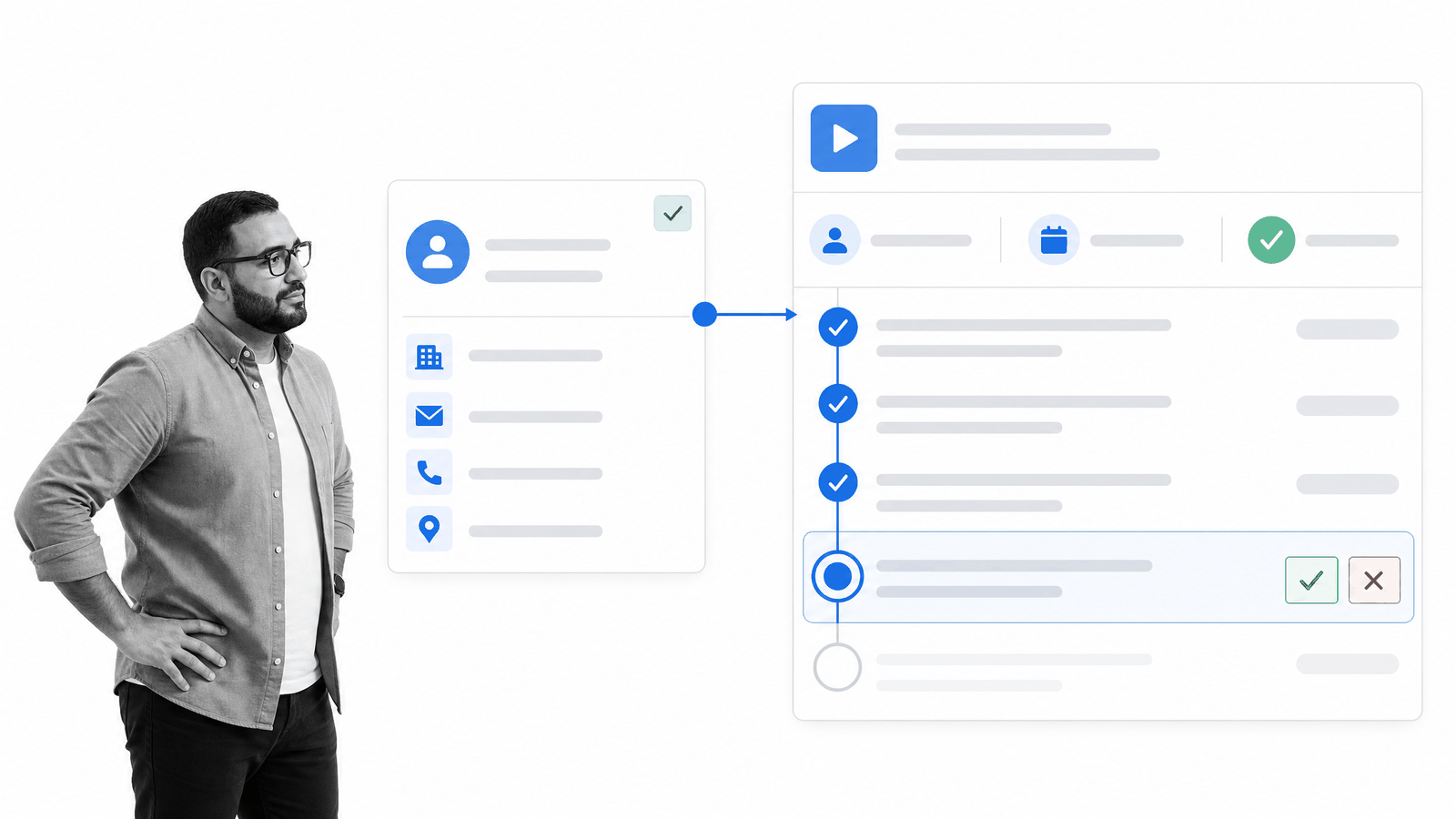
A Zap can carry over names, contact details, account context, and other approved fields. The workflow then gives the team a consistent sequence to follow rather than leaving the handoff inside the CRM. It’s a straightforward way to connect a system of record to the work required next.

Save workflow attachments to Dropbox
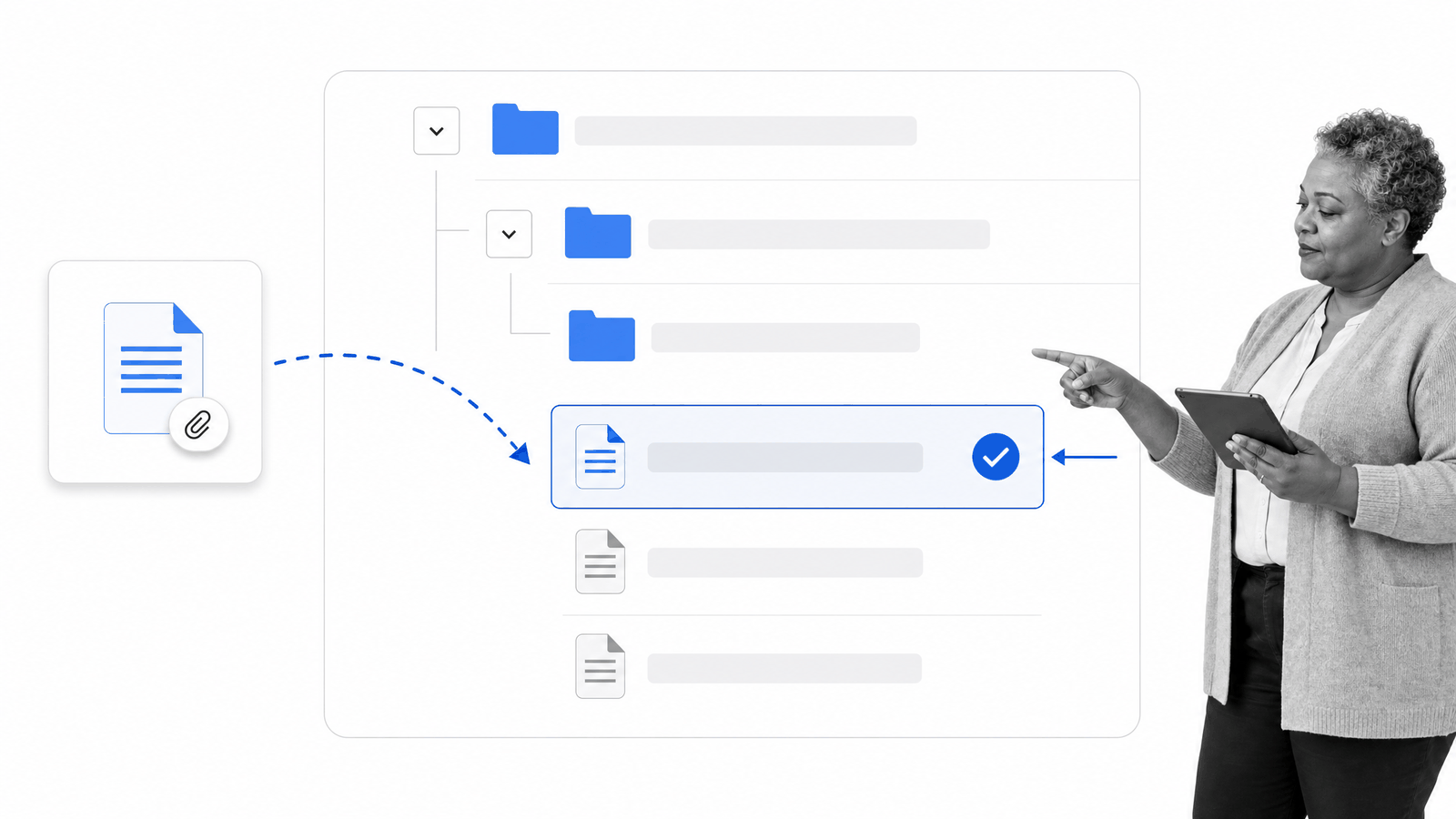
Keep attachments accessible and shareable by connecting Dropbox and Process Street. An automation can copy workflow attachments into a chosen folder structure so documents such as invoices, contracts, and client files arrive in the expected location. If you’re comparing storage approaches, this Dropbox versus Google Drive guide explains the tradeoffs.
A predictable folder structure is especially helpful when several teams need the same evidence. Instead of downloading and re-uploading files, the Zap can route each attachment from the relevant workflow run to the destination chosen in advance.
Start work from an email
Launching work from Email by Zapier and Process Street is useful for requests that arrive in an inbox. The email parser can pass sender details, subject information, body content, and attachments into a new workflow run. That turns an unstructured message into assigned, trackable work.

Zapier can also assign the workflow run to the right Process Street user and set a due date, so the sender’s request becomes visible operational work without a second round of data entry.
That is valuable for shared inboxes where requests can otherwise disappear between forwarding, triage, and assignment. The email remains the trigger, while Process Street becomes the place where ownership, progress, and completion are tracked.
Neat!
More Process Street integrations
Other useful combinations include Google Sheets and Process Street for structured records, HubSpot and Process Street for customer handoffs, and the broader Zapier app directory for discovering supported tools. Start with one handoff, make its success conditions clear, and expand only after the automation behaves reliably.

Setting up your own Zaps
To set up a custom Zap, open the Process Street integration page, choose a trigger and action, connect the required accounts, map the fields, and test the result with representative data. Zapier’s guide to what a Zap is explains the builder, while the current Zapier pricing page is the right source for plan details.
Process Street is a Compliance Operations Platform for high-stakes operations. It brings governed documentation and operational execution together in one product through Docs and Ops capability areas, with built-in AI helping teams enforce procedures, catch risk, and maintain auditable proof. Explore automated workflow software for more ways to connect reliable execution with the systems your team already uses.