
Turn every policy into automated workflows with built-in enforcement and audit-ready proof.

Checklist Tools

Checklist tools help people and teams capture what needs to happen, work through it in order, and confirm that every step is actually done. The right one turns a vague to-do into a repeatable, trackable process.
The best checklist tools range from simple personal apps that hold a grocery list or a daily plan, to team platforms that enforce approvals, assign owners, and keep an audit trail. Matching the tool to the stakes of the work matters more than any single feature.
This guide compares seven checklist tools across common work patterns: enforced team workflows, visual boards, fast personal lists, shared task lists, quick notes, and checklists that live inside documents. It also covers how to choose a checklist tool and when a simple checklist stops being enough.
In this article, we are going to cover:
- Checklist tools at a glance
- What checklist tools do
- How to choose checklist tools
- Process Street
- Trello
- Todoist
- Asana
- Microsoft To Do
- Google Keep
- Notion
- When checklist tools stop being enough
- FAQs
Checklist tools at a glance
The short version: for recurring team work that needs approvals, owners, and proof, Process Street is the top pick because it turns checklist tools into enforced workflows. For lighter needs, Trello wins for visual boards, Todoist and Microsoft To Do for personal lists, Asana for team task tracking, Google Keep for quick notes, and Notion for checklists that sit beside your docs.
| Tool | Best for | Standout feature | Pricing |
|---|---|---|---|
| Process Street | Recurring team checklists that need approvals and proof | Turns checklists into enforced workflows with approvals and an audit trail | Free trial, then paid plans |
| Trello | Visual Kanban checklists inside cards | Kanban boards with checklists inside each card | Free plan, paid tiers |
| Todoist | Fast personal checklists and recurring tasks | Quick natural language capture with sub-tasks and recurring dates | Free plan, paid tiers |
| Asana | Team task checklists with owners and dates | Task lists with owners, due dates, and list, board, and calendar views | Free plan, paid tiers |
| Microsoft To Do | Free personal checklists across devices | My Day planner with Steps subtasks and shared lists | Free |
| Google Keep | Quick note style checklists | Fast checklist notes with labels, reminders, and sharing | Free |
| Notion | Checklists that live beside docs and databases | To-do checkboxes inside pages and linked databases | Free plan, paid tiers |
Here is the quick read on which checklist tool fits which job:
- Process Street: best for recurring team checklists that need approvals and audit-ready proof.
- Trello: best for visual Kanban checklists inside cards.
- Todoist: best for fast personal checklists and recurring tasks.
- Asana: best for team task checklists with owners and due dates.
- Microsoft To Do: best for free personal checklists that sync across devices.
- Google Keep: best for quick, note style checklists.
- Notion: best for checklists that live beside docs and databases.
What checklist tools do
Checklist tools give you one place to answer a simple question: what still needs to be done, and by whom? A good checklist tool reduces the mental load of remembering steps, so nothing important slips through when work gets busy.
Checklists have a long track record in high-stakes work. The Checklist Manifesto popularized how a short, well-built checklist cuts errors in surgery and aviation. The same idea powers software checklist tools: capture the steps once, then run them reliably every time.
The minimum a checklist tool should give you
- Items you can check off, reorder, and mark complete.
- Due dates and reminders so time-sensitive steps do not get missed.
- Sub-items or steps for breaking a big task into smaller checks.
- Sharing or assignment so more than one person can see and act on the list.
- A record of what was completed, so finished work does not vanish.
Teams often start from a ready-made list. A employee onboarding checklist template or a new client onboarding checklist template turns a blank screen into something usable on day one. If you want to spin one up from a prompt, a checklist generator can draft the first version for you.
Simple checklists versus controlled processes
A basic checklist proves that someone ticked a box. It does not always prove that the right person reviewed the work, the required file was attached, or the system of record was updated. That gap matters most for customer handoffs, financial approvals, security checks, and any regulated procedure.
That is the line between a personal checklist tool and a workflow management software platform. When the order of steps must be enforced and evidenced, a plain checklist becomes a workflow with rules, approvals, and history.
How to choose checklist tools
Choose checklist tools by matching the tool to the shape and stakes of the work, not to the longest feature list. Start with how the work actually flows day to day.
Start with the work pattern
- Personal focus: pick a fast, single-user list app when the goal is remembering your own tasks.
- Visual flow: pick a board-first tool when work moves through simple stages.
- Team accountability: pick a task tool with owners and due dates when several people share the work.
- Context heavy: pick a docs-and-database tool when checklists need to sit next to notes and records.
- Controlled execution: pick a workflow platform when steps must be enforced, repeated, and proved.
If the work repeats, think past a single list. Understanding what a workflow is helps you separate one-off tasks from recurring procedures, and good process documentation keeps the steps clear as the team grows.
Check the free-plan boundary before you commit
Most checklist tools offer a free tier, but the limits are part of the product. Before you roll a tool out to a team, check limits on collaborators, lists, items, reminders, integrations, and history. A free plan that is perfect for one person can fall short for a department. If budget is the main constraint, compare dedicated options for a checklist tool alongside broader free process management software.
Decide what has to be proved
If you only need to remember work, almost any checklist tool will do. If you need to prove work happened correctly, look for approvals, required steps, and conditional logic that adapts the list to the situation. The question is not whether a box was ticked. It is whether the process ran the right way.
Process Street
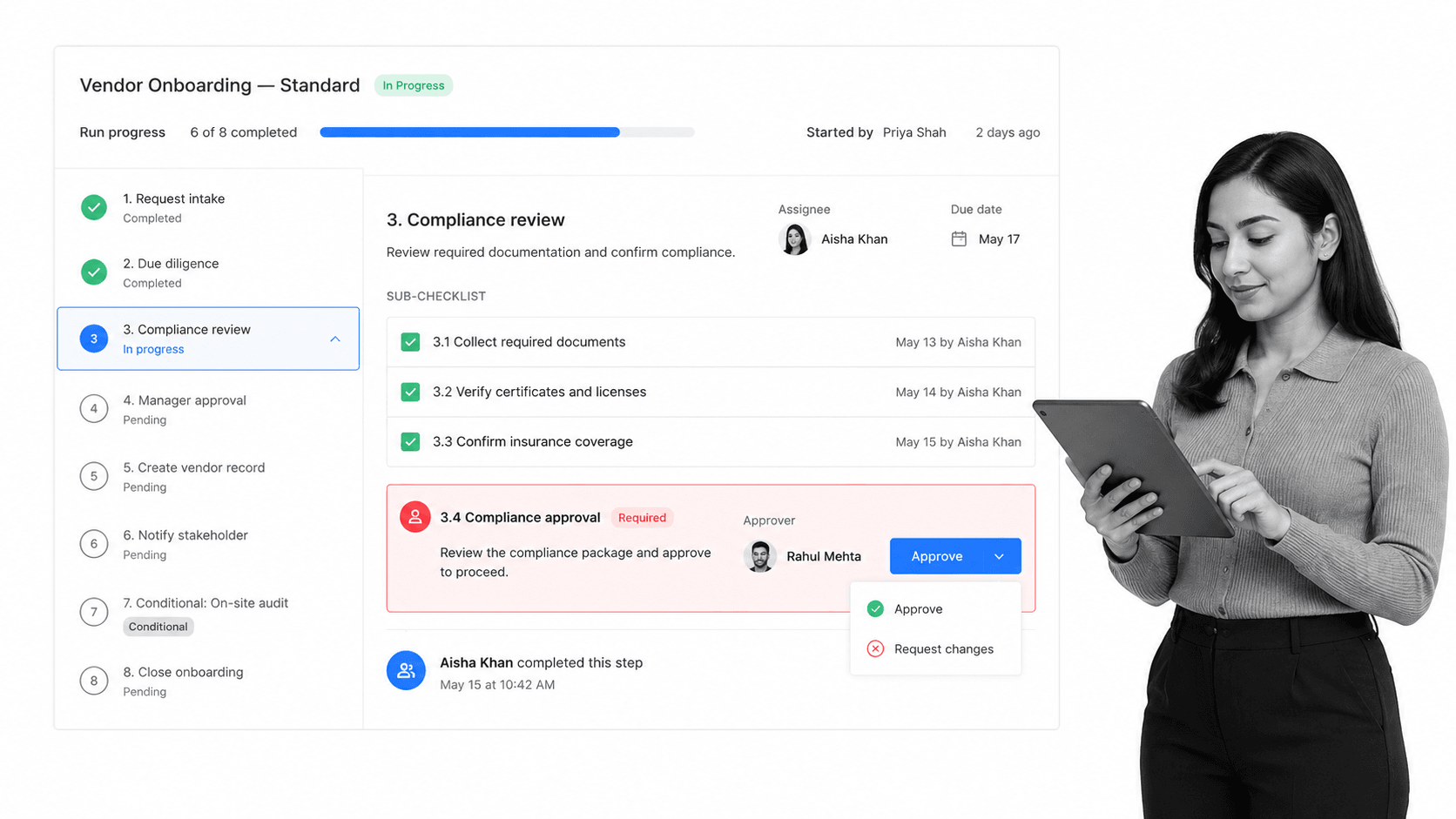
Best for: recurring team checklists that need approvals, owners, and audit-ready proof.
Process Street is the checklist tool for work that has to happen the same correct way every time. Instead of a static list, each checklist becomes a workflow run with assigned owners, due dates, required steps, and a progress bar that shows exactly where the work stands.
What sets it apart is enforcement. A step can require an approval before the run continues, conditional logic can reveal or hide steps based on answers, and every completed task is recorded, so you get an audit trail rather than a checkbox that anyone could have ticked.
Process Street also connects the checklist to the rest of your stack. It offers direct, universal integrations to 5,000+ systems, and when you need a new one, an AI agent builds it on the fly, so a completed step can trigger forms, records, tickets, or notifications automatically.
Best fit: vendor onboarding, client handoffs, compliance reviews, and any repeatable procedure where a missed step is expensive. For teams outgrowing a simple list, it pairs naturally with a broader workflow management system and structured task and workflow management software.
Watch the fit: for a one-person grocery list, Process Street is more than you need. It earns its place when work is recurring, shared, and consequential. If you want to see the model in action, a checklist monitoring view shows how running checklists get tracked across a team.
Trello
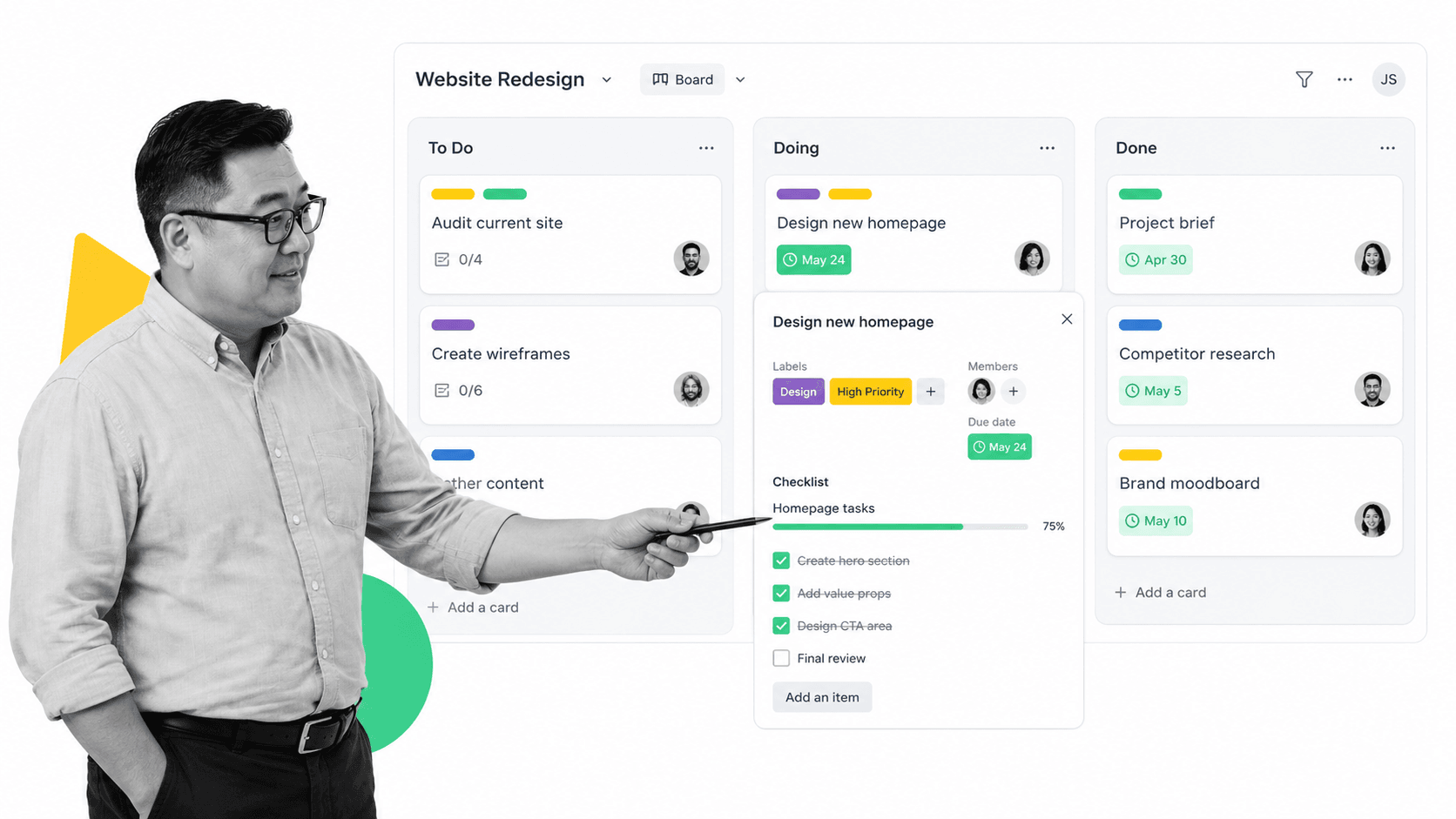
Best for: visual Kanban checklists that live inside cards on a board.
Trello is one of the most approachable checklist tools when work is naturally visual. Boards hold lists like To Do, Doing, and Done, and each card can carry its own checklist so a single task breaks into smaller checks with a progress bar.
Its free plan suits individuals and small teams, and cards support assignees and due dates. See the current limits on Trello pricing before you scale a board across a bigger group.
Best fit: simple project boards, content pipelines, campaign planning, and small-team execution where everyone can glance at the board and know what needs attention.
Watch the board sprawl: a card can move to Done even if the checklist inside it was never finished, so Trello is great for visibility and weaker for enforcement. For controlled steps, pair the board with a workflow underneath it.
Todoist
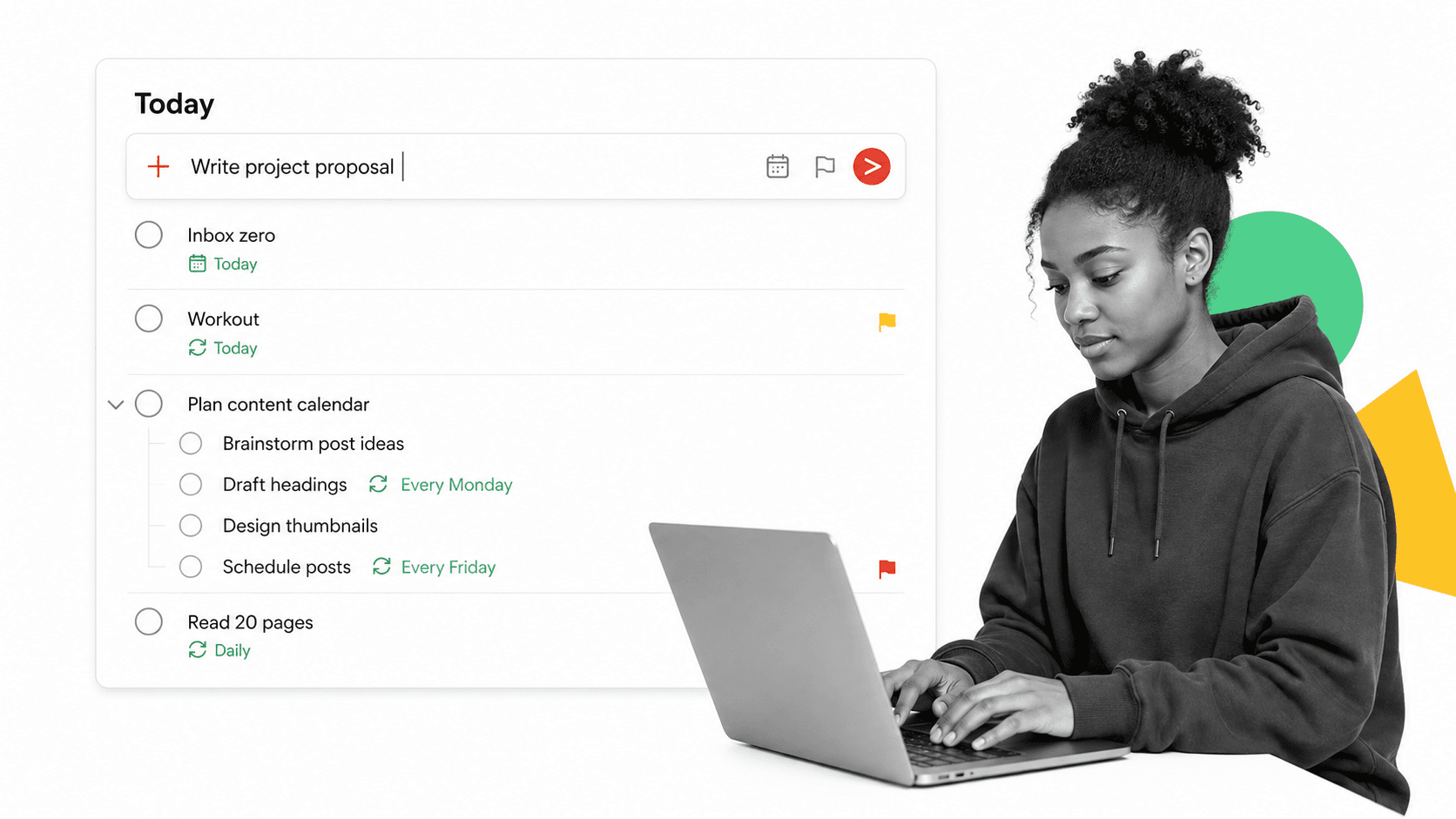
Best for: fast personal checklists and recurring tasks.
Todoist is a checklist tool built for speed. Its Smart Quick Add lets you type a task in natural language, set a recurring due date, and drop it into the right list without leaving the keyboard, and any task can expand into sub-tasks.
The free Beginner plan covers everyday personal use, with paid tiers adding more projects and collaboration. Confirm the current limits on Todoist pricing.
Best fit: individuals and solo professionals who live out of a personal list and want recurring routines, priorities, and quick capture on any device.
Watch the team ceiling: Todoist shines for one person and light sharing. When a checklist needs owners, approvals, and reporting across a team, a dedicated workflow tool carries the load better.
Asana
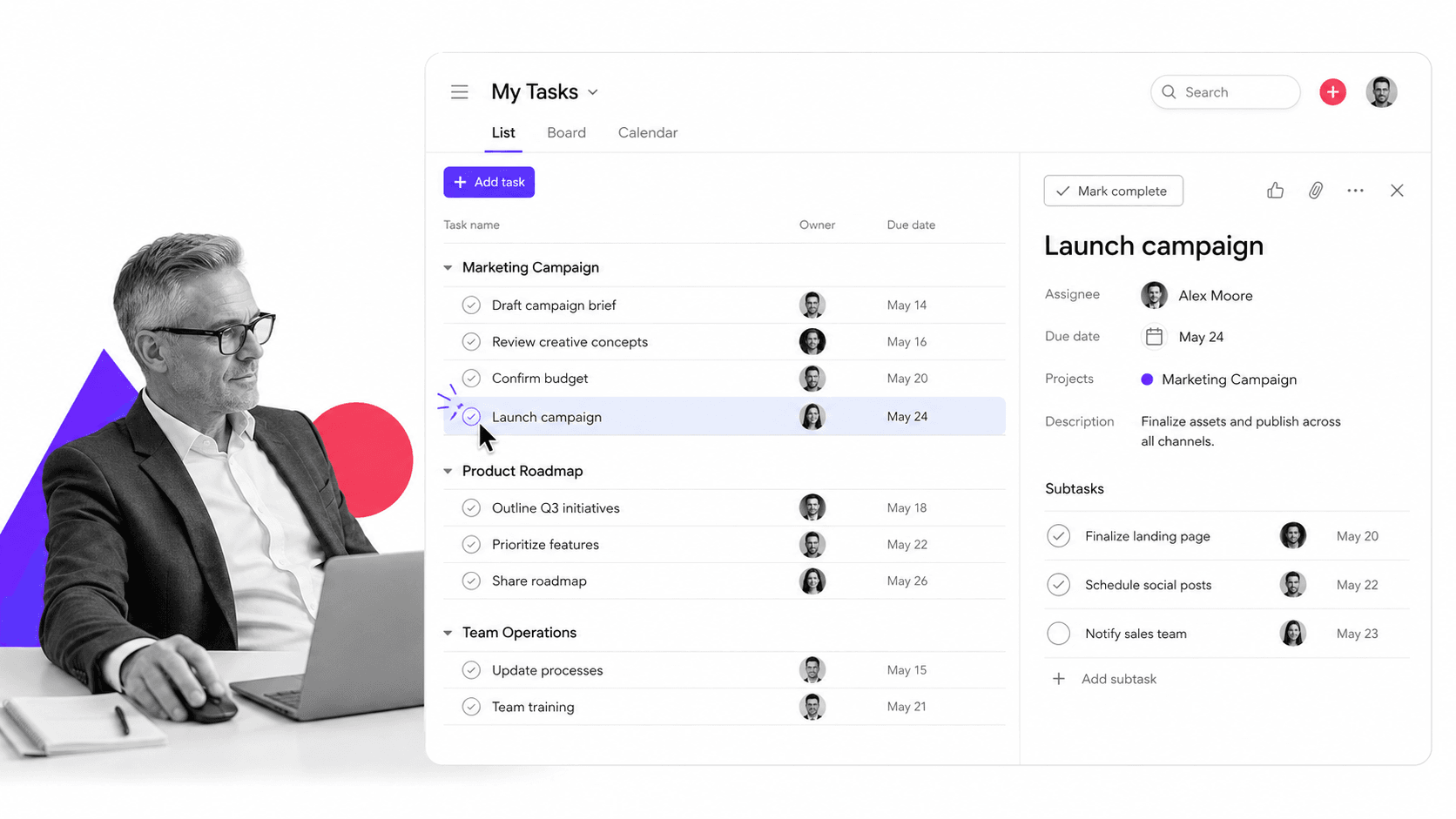
Best for: team task checklists with clear owners and due dates.
Asana is a strong checklist tool when accountability matters. Tasks carry owners, due dates, and comments, subtasks break work into checks, and list, board, and calendar views let different people scan the same work their own way.
Its free Personal plan fits small teams with unlimited tasks and projects. Review the current tiers on Asana pricing before adding guests, reporting, or automations.
Best fit: teams that want every task to have one owner, a deadline, and a visible status, without heavy configuration up front.
Watch the enforcement gap: like most task tools, Asana shows a task moving to done but does not force a required review to happen first. When steps must be proved, connect the plan to stronger task and workflow management software.
Microsoft To Do
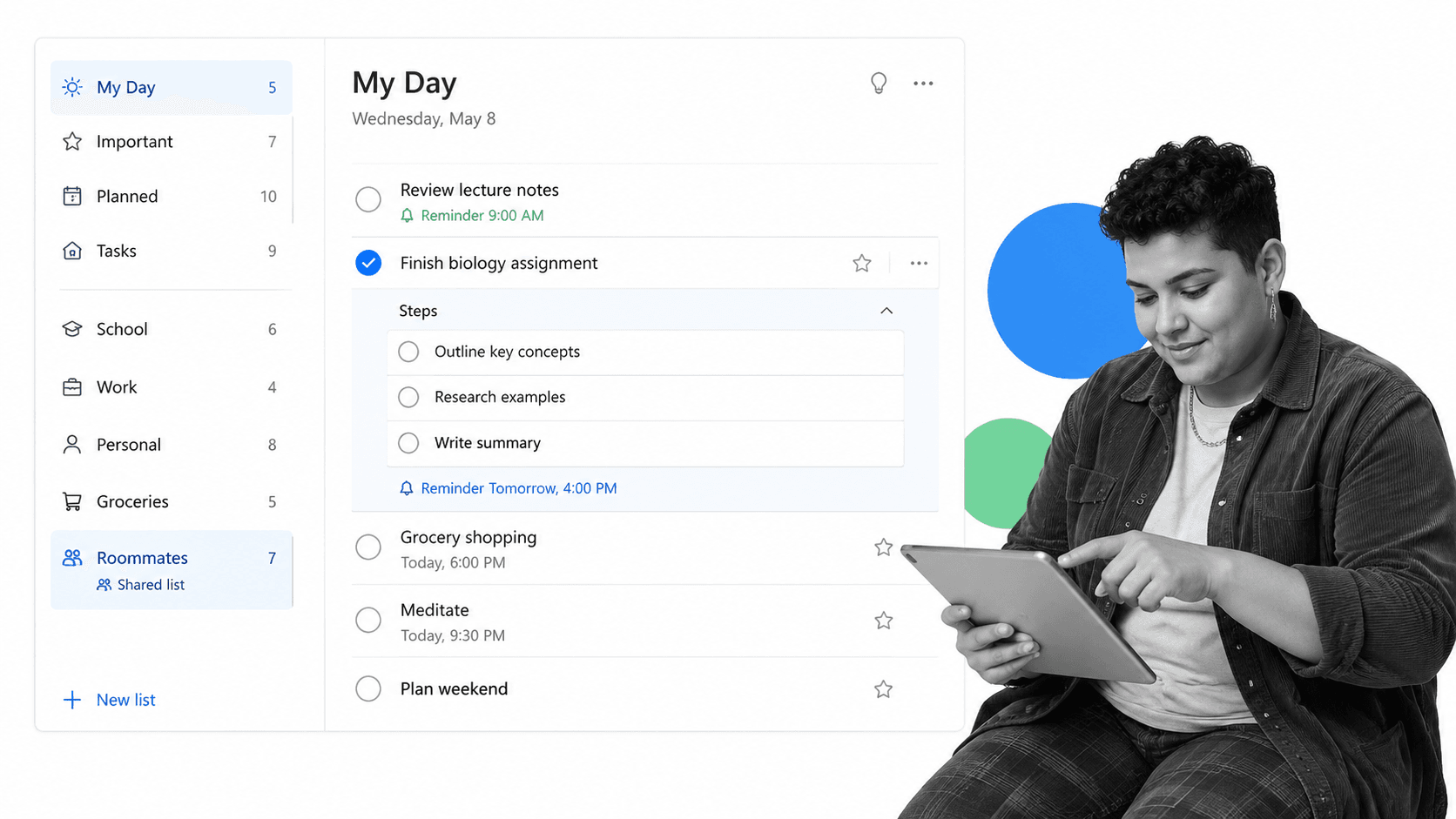
Best for: free personal checklists that sync across every device.
Microsoft To Do is a free checklist tool that pairs a My Day daily planner with simple lists. Any task can break into Steps, you can add reminders and due dates, and lists sync across web, iOS, Android, and Windows.
It is free to use, works with Outlook tasks, and supports shared lists so family, friends, or colleagues can see what needs doing. The feature list lives on the Microsoft To Do page.
Best fit: individuals already in the Microsoft ecosystem who want a clean daily checklist, plus light sharing for household or small-team lists.
Watch the depth: Steps and shared lists cover personal work well, but there are no approvals, conditional steps, or audit history, so it is not built for regulated or cross-team processes.
Google Keep
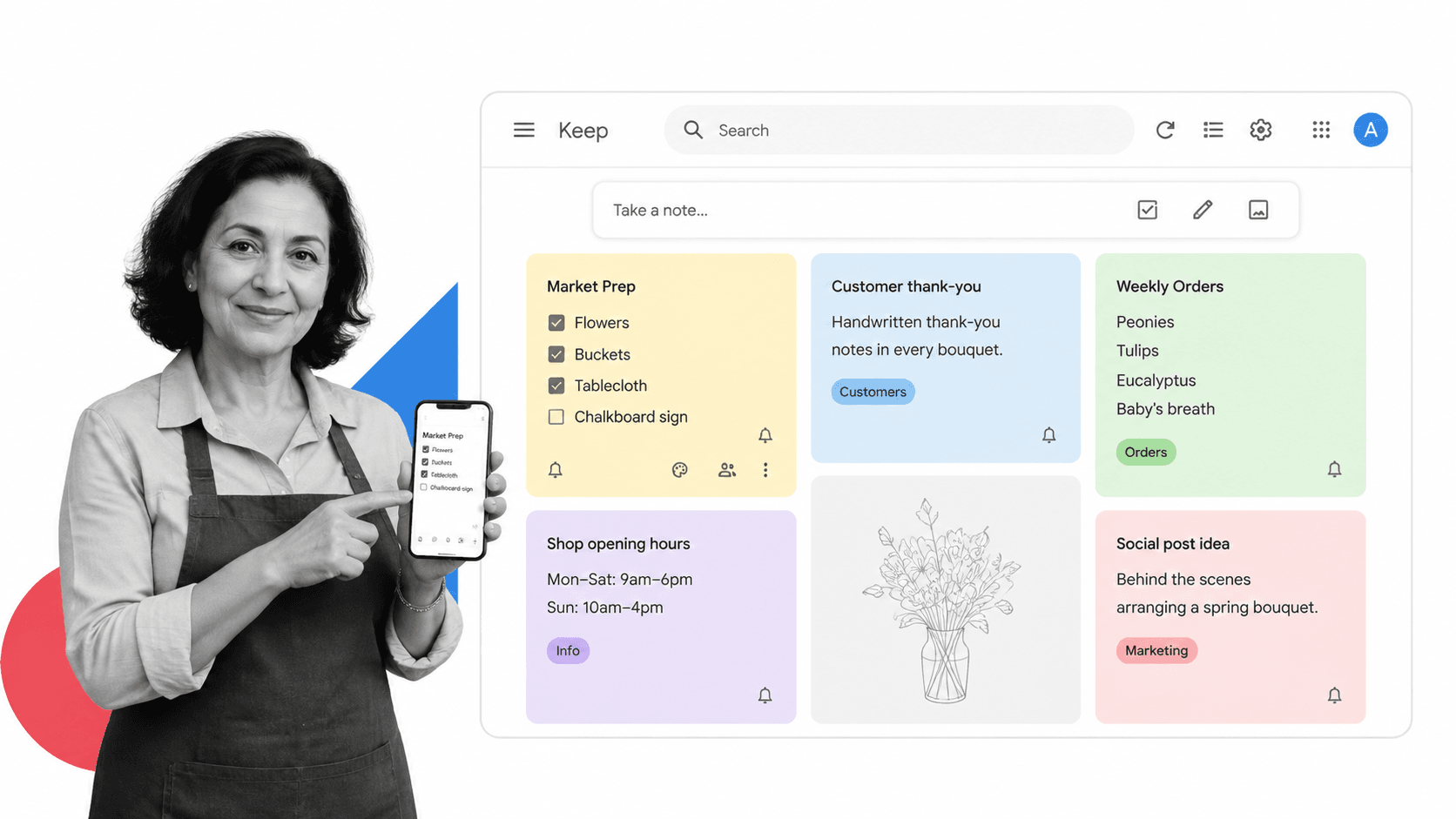
Best for: quick, note style checklists you capture on the go.
Google Keep is the fastest checklist tool for capture. A note can become a checklist with tickable items in seconds, and color labels, pins, and reminders make lists easy to find later.
Keep is free, syncs in real time across devices, supports voice and photo capture, and lets you share a note so others can edit it with you. See what it offers on the Google Keep page.
Best fit: shopping lists, quick to-dos, brainstorms, and any moment where speed of capture matters more than structure.
Watch the structure: Keep is deliberately light. It has no owners, due-date columns, or process rules, so it is a personal capture tool rather than a team checklist system.
Notion
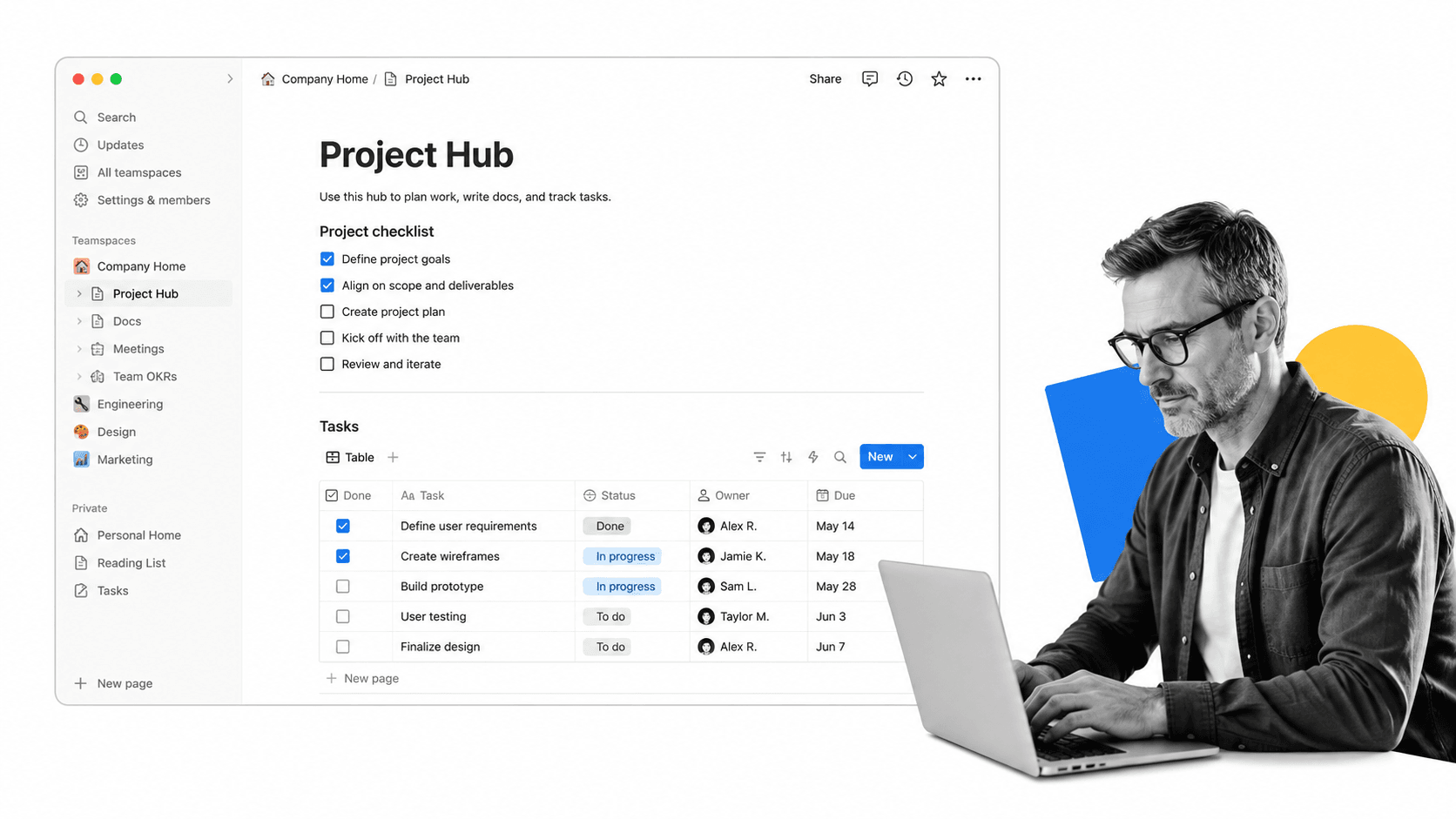
Best for: checklists that need to live beside docs and databases.
Notion is a checklist tool for people who want their tasks next to their context. To-do checkboxes drop into any page as blocks, and a linked database can track tasks with a status property and a checkbox column alongside notes and project docs.
Notion offers a free plan for personal use, with paid tiers for teams. Check the current limits on Notion pricing before rolling it out widely.
Best fit: content calendars, project hubs, and research work where the checklist is only useful next to the brief, notes, and records around it.
Watch the governance: Notion is flexible enough that every page can become its own system. The best setups define where tasks live and what fields mean, and move regulated work into a controlled workflow.
When checklist tools stop being enough
Checklist tools stop being enough when the team needs enforcement, not just a reminder. That point usually arrives when checklists repeat, cross departments, touch customers, or create compliance exposure.
Keep the simple tool for personal and low-risk work
There is no need to over-engineer a grocery list or a personal daily plan. A fast app like Todoist, Microsoft To Do, or Google Keep is the right checklist tool for low-stakes work, and a board like Trello or a hub like Notion covers lightweight team lists. Compare the closest free task management software options and pick the simplest thing that works.
Move repeatable, high-stakes work into a workflow
When the order of steps matters, move the checklist into a workflow. Vendor onboarding, client handoffs, compliance reviews, finance approvals, security checks, and incident response all need more than a checkbox. They need required steps, approvals, and a record that the process ran correctly.
The practical rule is simple: use lightweight checklist tools for work you only need to remember, and use Process Street for work you need to enforce, repeat, automate, and prove. If you are weighing options, a general process tool comparison can help you place each list where it belongs.
FAQs
What are the best checklist tools?
The best checklist tools depend on the work. Process Street is strongest for enforced team checklists with approvals and audit trails, Trello for visual Kanban checklists, Todoist and Microsoft To Do for personal lists, Asana for team task tracking, Google Keep for quick notes, and Notion for checklists beside docs and databases.
Are free checklist tools good enough for a team?
Free checklist tools are good enough when the work is personal or low-risk. They fall short when a team needs enforced steps, approvals, permissions, or proof that required work happened. For recurring, high-stakes processes, a workflow platform is a better fit than a simple list.
What is the difference between a checklist tool and a workflow tool?
A checklist tool tracks items you tick off. A workflow tool enforces the order of steps, requires approvals, adapts with conditional logic, and records what happened. Process Street turns checklists into workflows so a completed run is proof the process ran correctly, not just a set of ticked boxes.
Which checklist tool is best for recurring processes?
Process Street is built for recurring processes. Each checklist runs as a workflow with owners, due dates, required approvals, and an audit trail, so the same procedure runs reliably every time. Personal apps like Todoist can repeat tasks, but they do not enforce or evidence a team process.
Can I create a checklist from a template?
Yes. Most checklist tools offer templates, and Process Street has a library of ready-made checklist templates plus a checklist generator that drafts a list from a prompt. Templates turn a blank screen into a usable checklist on day one, which is the fastest way to standardize how a task gets done.
Do checklist tools work on mobile?
Most checklist tools sync across web and mobile. Microsoft To Do, Todoist, and Google Keep are built for quick mobile capture across devices, while team platforms like Process Street, Asana, Trello, and Notion offer mobile apps so owners can act on and complete checklist steps from anywhere.