Welcome to your Process Street Getting Started guide!
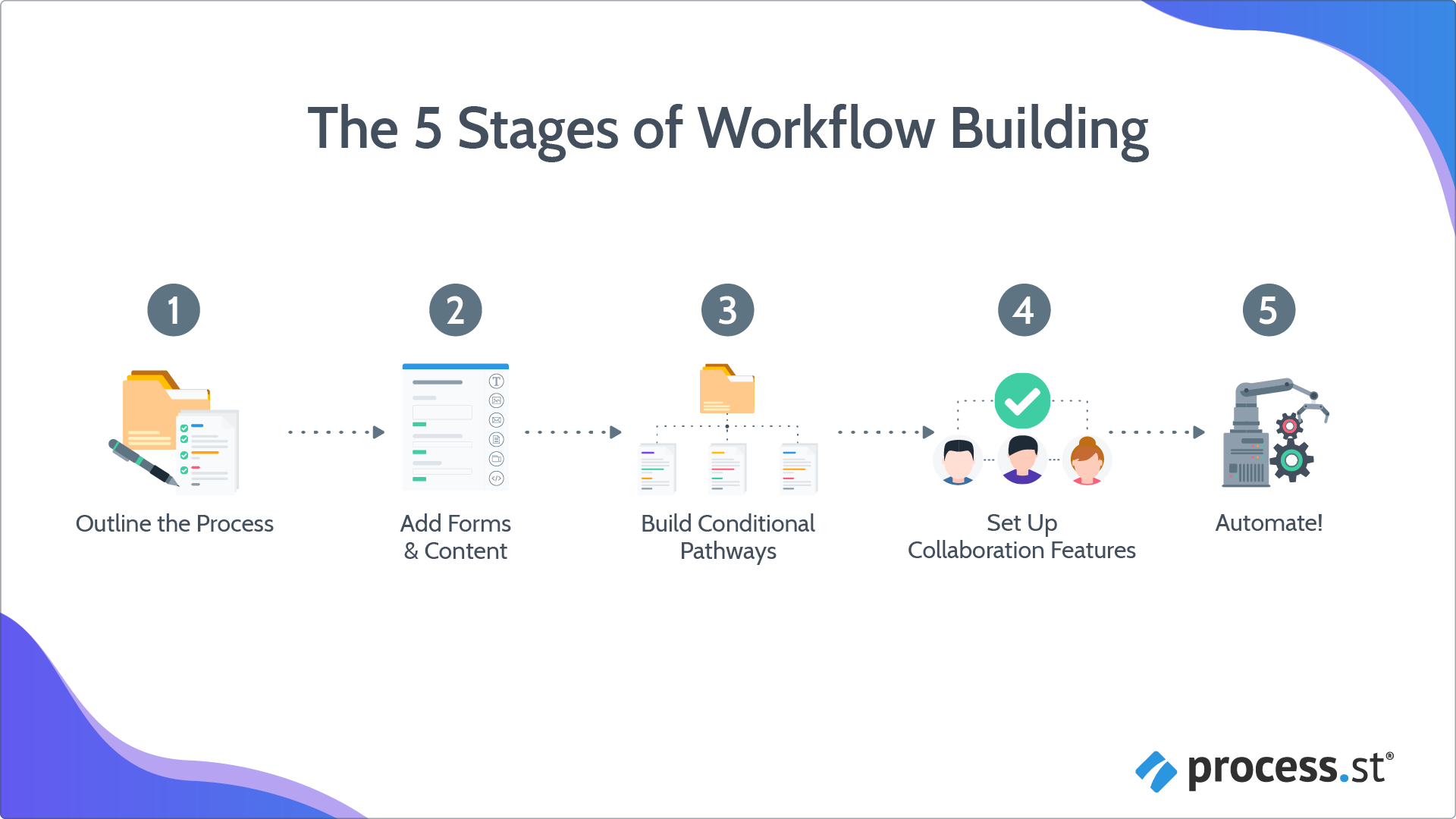
We have a tried and tested method called The 5 Stages of Process Building, which helps you learn how to build out your processes and workflows in the most effective way possible.
Now that you’re here, let’s look at how you can create power workflows and own your processes!
The steps below outline how to create a workflow from scratch, but there’s a quicker way! Discover how Process AI can create your first workflow with just a few clicks.
These five stages will set a framework for your process-building journey.
Throughout our Help Center, you’ll see references to this Process Building framework. Feel free to navigate them as you see fit, to explore the many functions and features of Process Street.
Stages 1 and 2 cover the basics everyone will need to know when learning to use Process Street. Stages 3, 4, and 5 are where you can start to choose parts that are relevant to you, for your specific workflows.
This stage lays the foundation for every workflow you create in Process Street. In fact, these three components are all you need to get up and running!
Here’s a tip, you can use Pages to start outlining your process before you’re ready to begin with a workflow.
Now’s when you to start creating your first workflow as shown below.
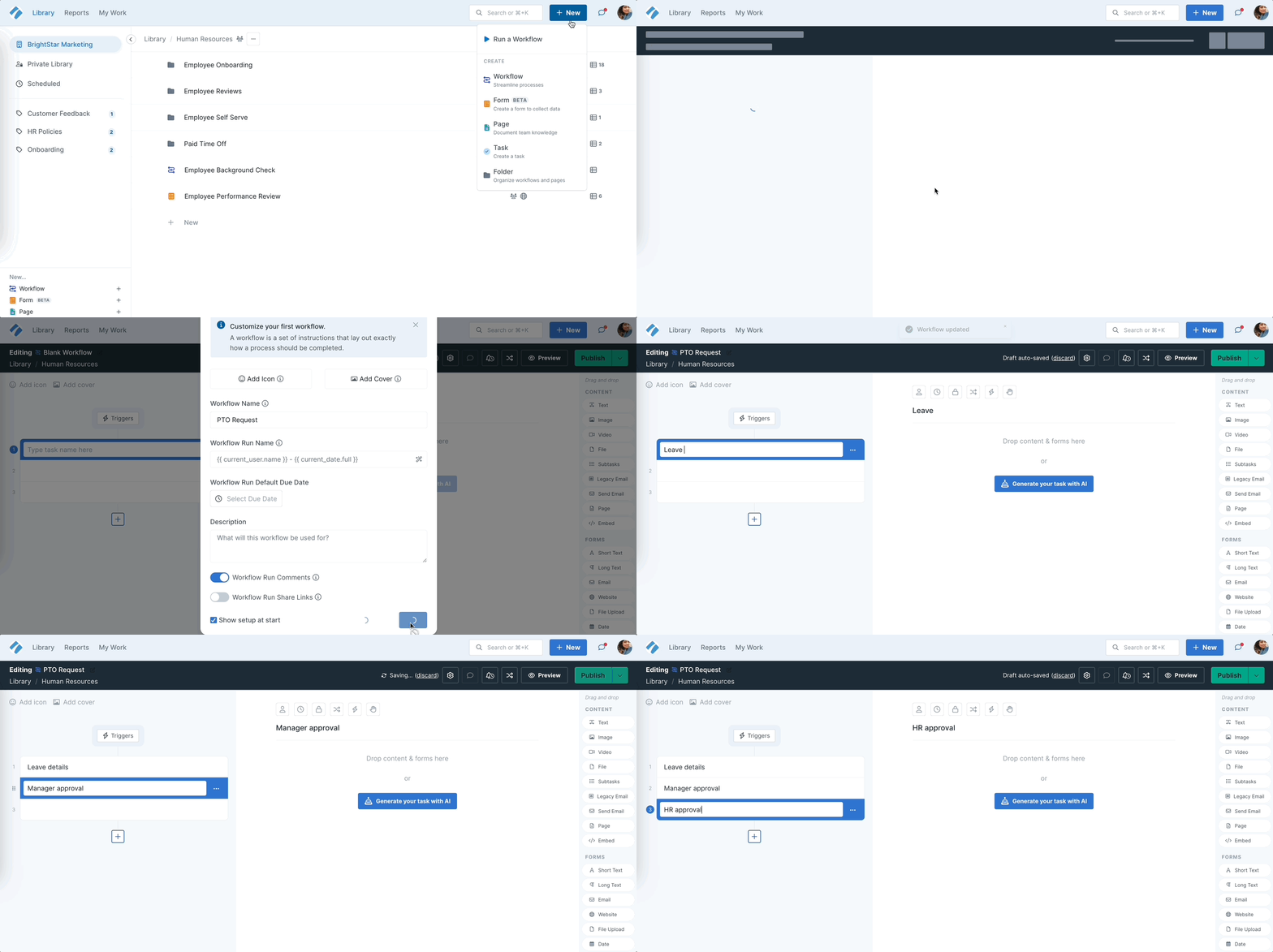
Once you have your task list ready, you can go task by task to add the finer details like forms and content.
Take the basic workflow that you just built by using the steps above, and add content blocks to display some static information in your workflows, for example, a set of instructions, references, or tutorials, which are going to remain the same every time you run this process, you can use the content fields to display this information.
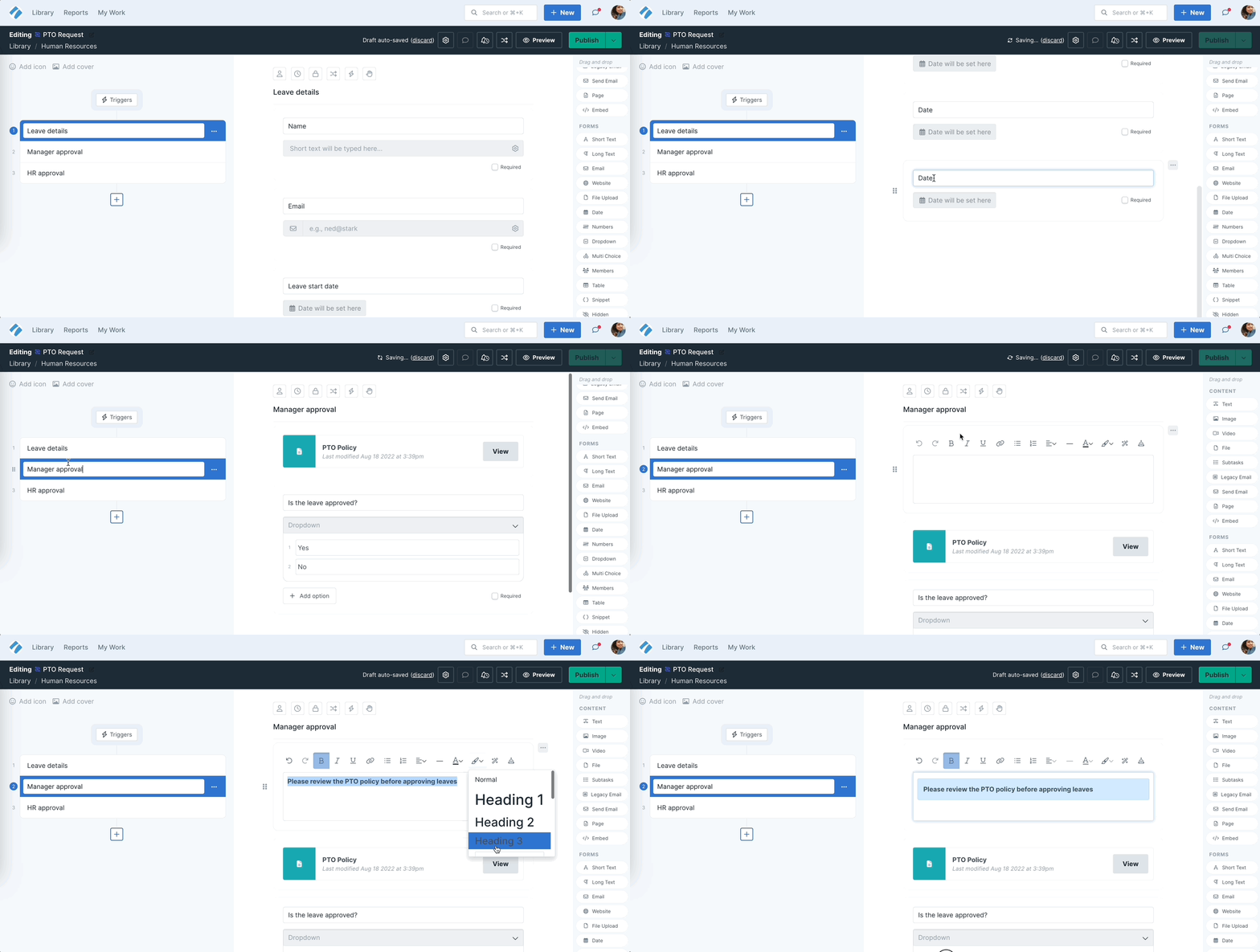
There are many ways to display content in your workflows, which makes them more visually appealing and easy to follow:
Forms and built-in logic can totally transform your processes. You can add form fields to collect data which can not only serve as a database but also be used for automation and integration.
You can also set up variables to populate other parts of your workflow runs, create summaries of task data, and push information from one app to another.
One of the vital steps of a process is to add conditional logic to reveal different process paths based on the information collected.
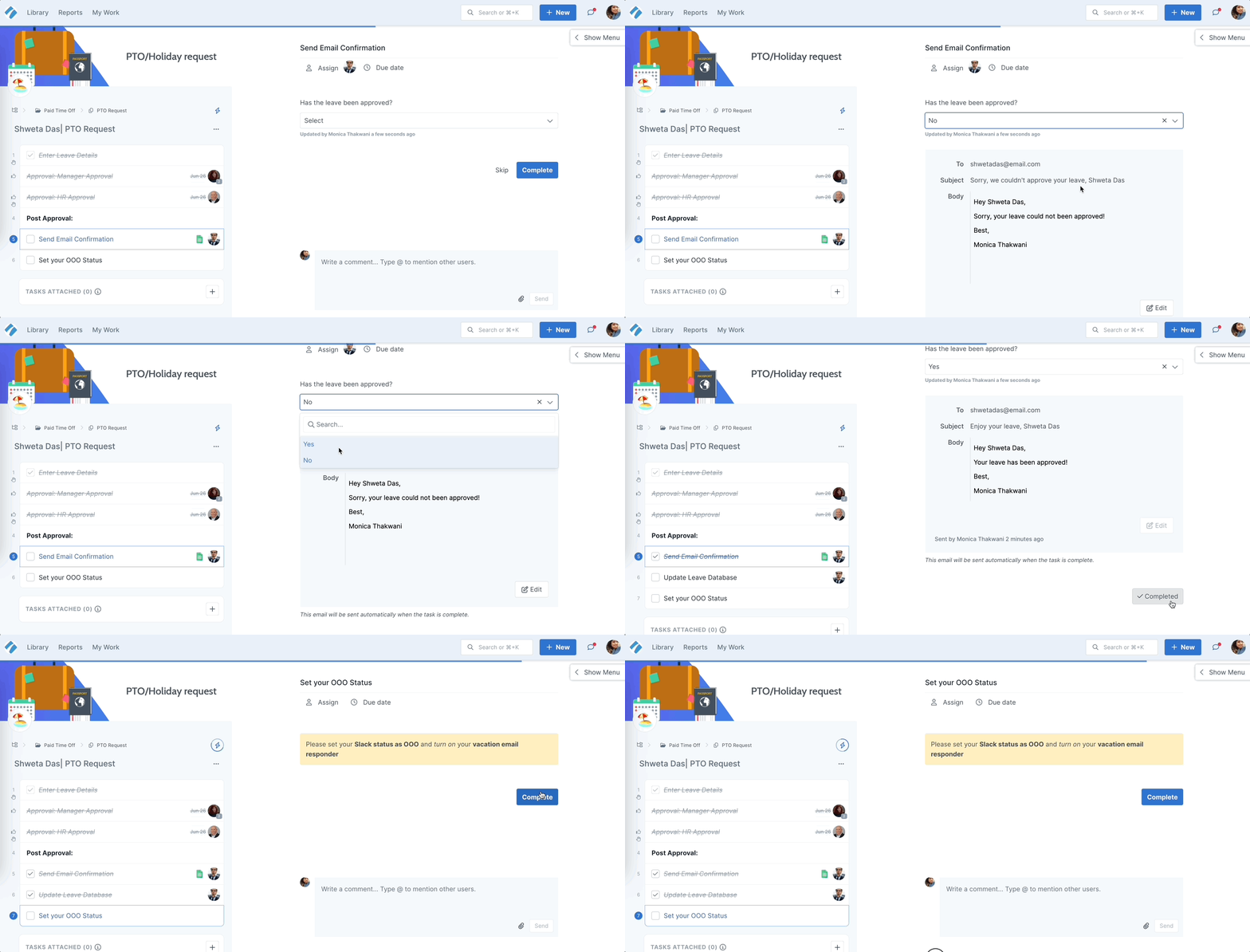
Collaborating with your team and streamlining how they work, are what Process Street is all about. Use some or all of the features below, to customize your workflows and make them your own.
Get your team set up:
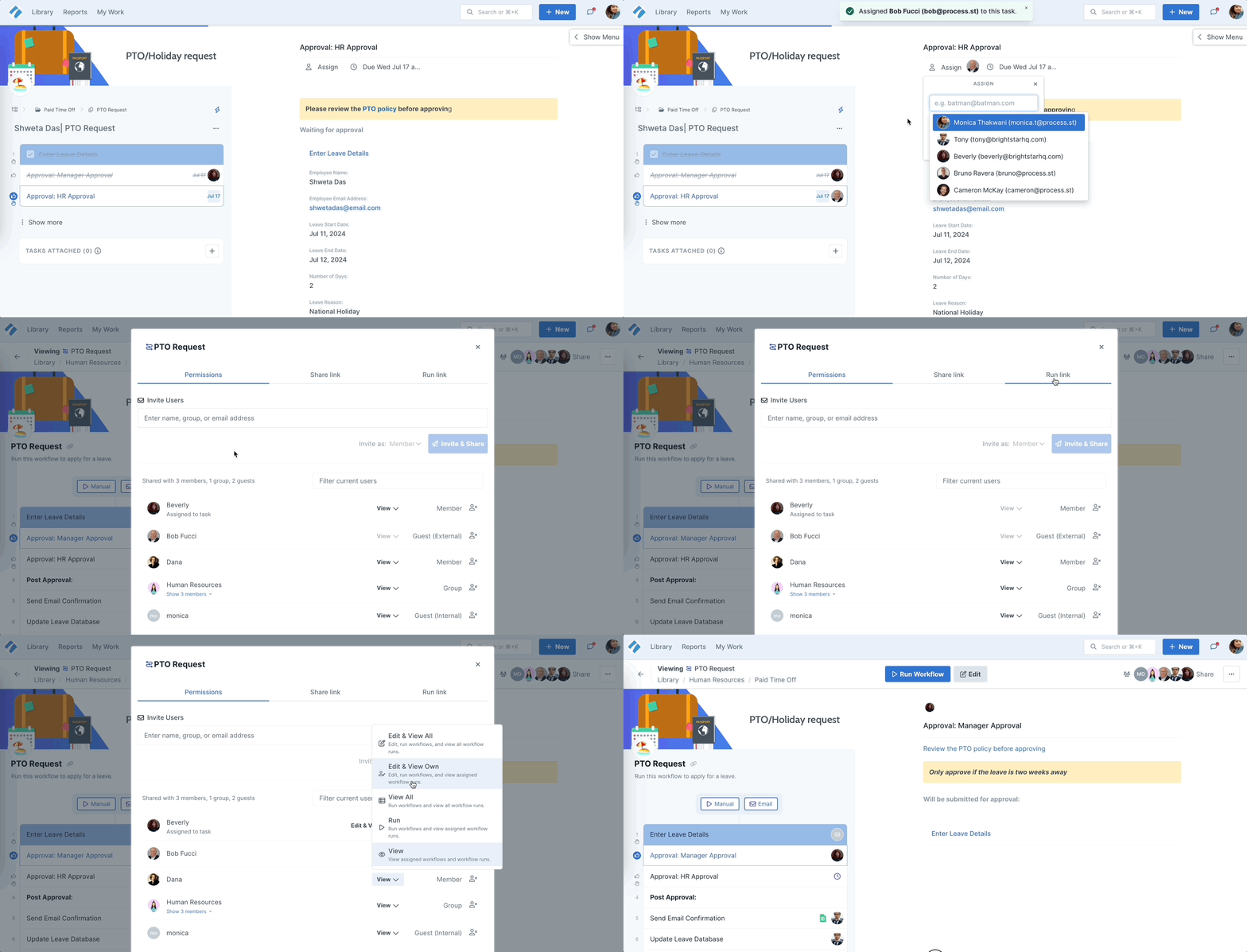
Teamwork can be built right in:
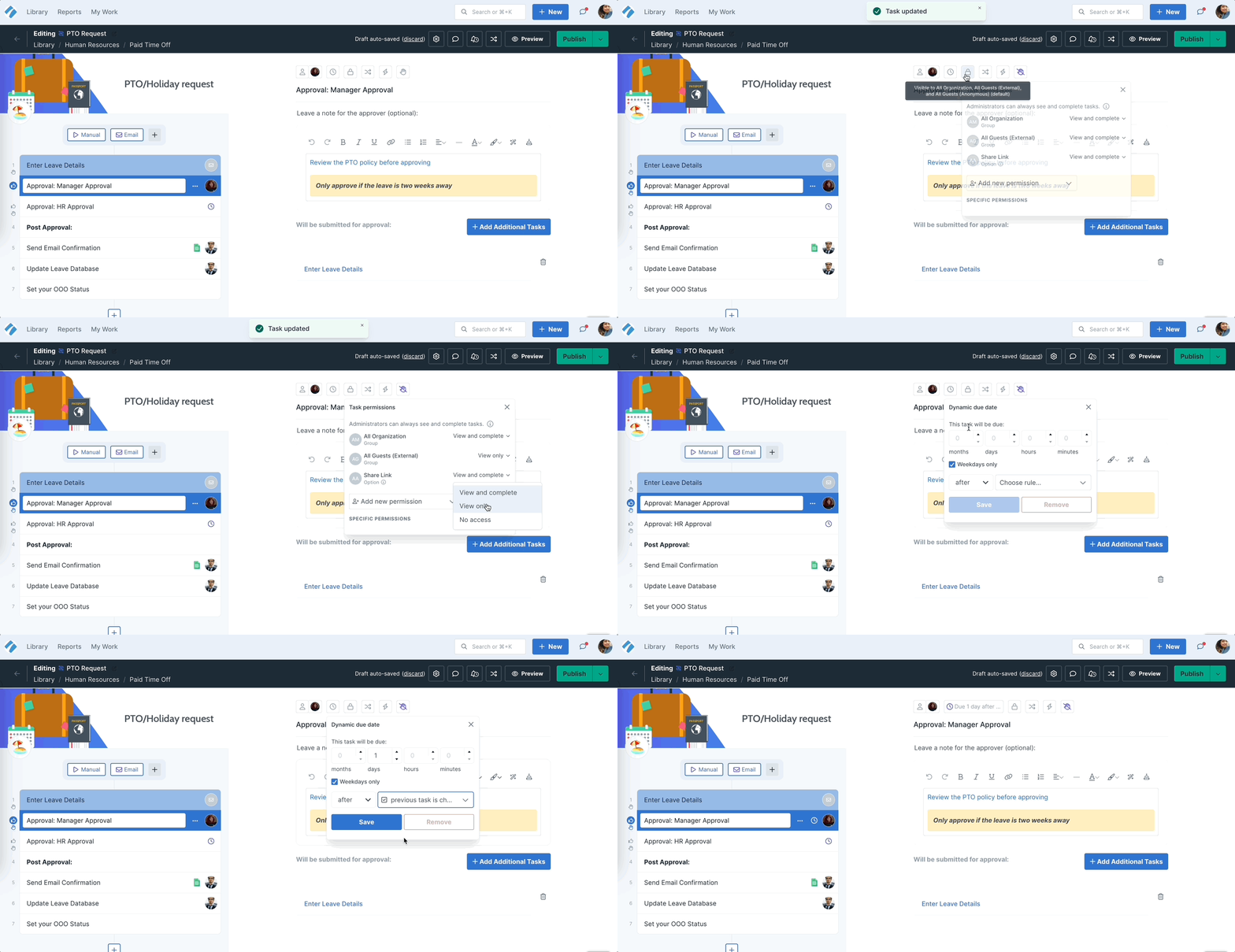
See what’s happening and prioritize your work:
Discover more collaboration features such as process sharing options, collaborating with external parties, or creating groups.
Automations take out some of the manual labor required when running your workflows. They can save you time by reducing duplicative tasks, improve accuracy and efficiency, and make your overall business more streamlined.
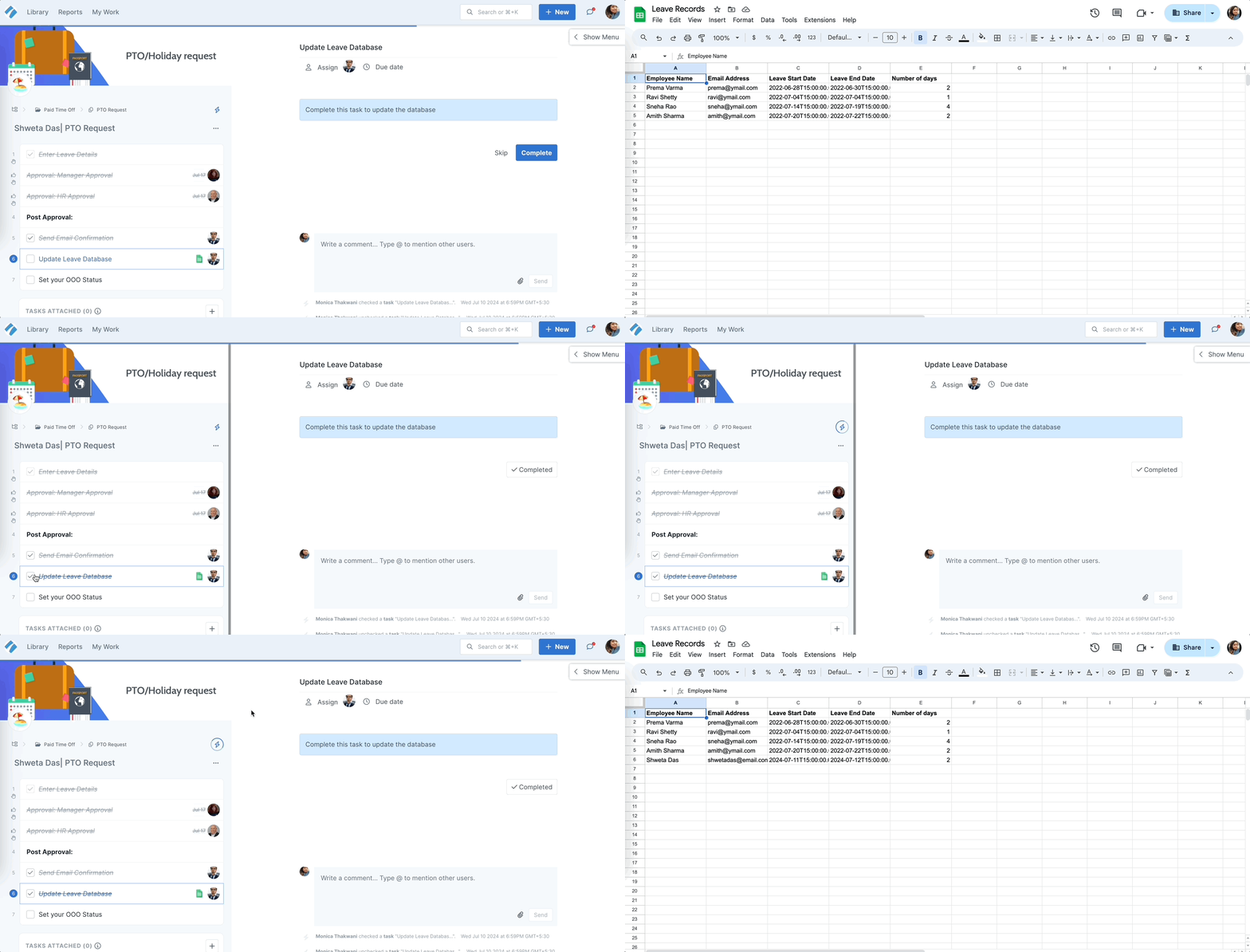
Learn how to: Start a Workflow >
Help us improve this help center.