There may be times when you need to reactivate or restore workflows or workflow runs that you had previously deleted.
There are two ways that you can do this, either from your organization’s activity feed (to restore workflows or workflow runs) or from a workflow menu (to restore workflow runs only).
Users: In order to recover deleted workflows or workflow runs, you must be an Administrator.
To recover deleted workflows or workflow runs, navigate to your organization activity feed.
Click your profile picture in the upper right corner of your screen, then click “Settings” then select the “Activity” tab.
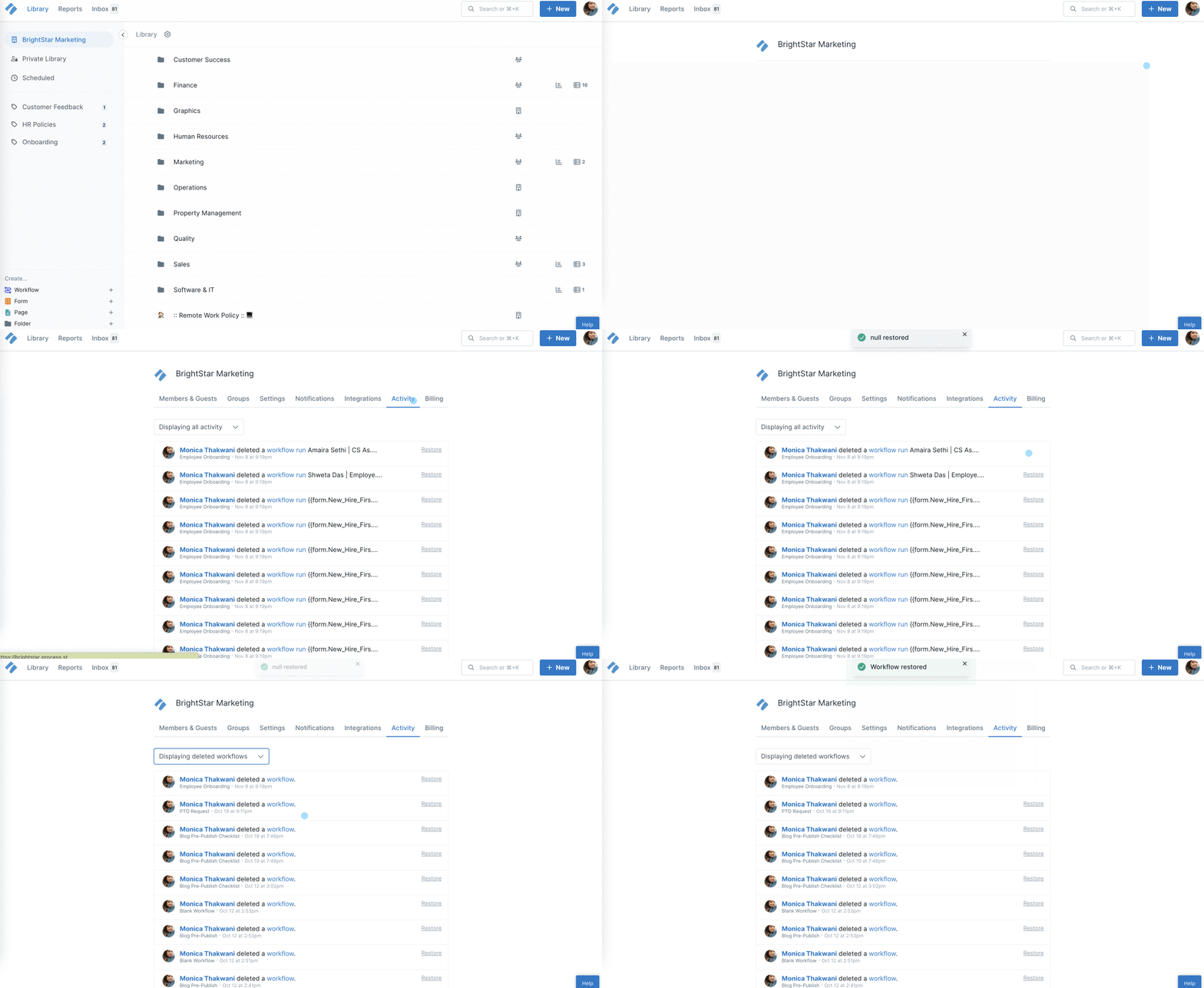
Use the drop-down button shown above, to select either “Deleted workflows” or “Deleted workflow runs“.
There is no limit to the activity logs, so all activity since you began your account will be recorded here.
Once you have chosen deleted workflows or workflow runs, click on “Restore” next to the item you wish to retrieve.
Your item will re-appear in your Library (for workflows) or your Reports (for workflow runs).
Note: If you delete a workflow that has associated workflow runs, all of your runs will be restored once that workflow has been restored.
To restore a workflow run from a workflow’s menu, click on your workflow’s name. Then click on the three dots menu in the top right corner to open up the dropdown menu.
Click “Activity” then look for your deleted workflow run. Click “Restore” to add it back into your Reports view.

Instead of deleting workflows or workflow runs, you may want to archive them instead.
If you’ve published changes to a workflow but no longer want them, you can revert to an earlier version. Clicking Restore creates a new draft from the selected version. It does not roll existing workflow runs back to that version.
To revert to an earlier version:
Help us improve this help center.