


Two-factor authentication (2FA) is a sign-in method that asks for two different types of proof before it lets anyone into an account: usually something you know, like a password, plus something you have, like a code on your phone or a security key. Google calls it 2-Step Verification, and it is the simplest way to stop a stolen password from turning into a stolen account.
Being secure online is of greater and greater importance. As businesses operate almost entirely online and sensitive information finds itself living full time in the cloud, we have to make sure we have appropriate measures in place to keep information safe.
One tried and tested way of promoting security is the use of failsafes in login systems. This is what’s referred to as Two Factor Authentication (2FA) or Multi Factor Authentication (MFA).
This means that someone could get hold of your email and password, yet your data is still kept safe.
Whether you’re already familiar with the terminology or not, you’re certainly familiar with the concept. If you have ever typed in a six-digit code after your password, you have used it.
In this Process Street article, we’ll look at:
- Why is two factor authentication important?
- What two factor authentication is
- The 2 classic examples of 2FA: banks and Apple
- How you can implement two factor authentication in your team, including how to enable two step verification in Google Workspace and Microsoft 365
- Free Process Street template: How to enable two factor authentication with Authy, Google, and Slack
- Frequently asked questions about two-factor authentication
Why is two factor authentication important?

This is really simple but we should spell it out.
If you use an email address and password to secure your access to important information then all a person needs in order to access that information is your login details.
There is no double-check in place. Someone could access your email account, for example, and you won’t know.
Moreover, password reuse is still the norm. In Bitwarden’s World Password Day survey of more than 2,000 internet users, 85% admitted reusing passwords across multiple sites. Most people also use the same email address across a whole load of platforms.
This means if someone gets your login details they might be able to access multiple platforms you have accounts on. If you manage a team, then even if you take strong IT security precautions there is no guarantee that everyone on your team does.
Stolen logins remain one of the most common ways in. Verizon’s 2025 Data Breach Investigations Report found that compromised credentials were an initial access vector in 22% of the breaches it reviewed. Phishing emails are also easier than ever to write convincingly, now that attackers can draft them with AI tools.
In fact, even if you’re secure with your information, data leaks happen all the time.
The 2016 US election had compromised email accounts as a central part of the spectacle, and treasure troves of information were leaked online. The Equifax breach exposed huge amounts of sensitive information to hackers, including the details of 17.6 million driver’s licenses.
The good news is that a second factor works. Microsoft Research found that multifactor authentication reduces the risk of account compromise by more than 99.2%.
Whether you’re thinking of how to make your organization more secure, or just your personal accounts, setting up a failsafe can fight back against malicious attempts to access your data.
With GDPR and other data protection rules in force, it is vital you keep your organization secure too, to show you’ve taken all reasonable steps to protect your customers’ data. Security frameworks expect it as well: if you are working toward SOC 2, MFA on company accounts is one of the first access controls an auditor will ask you to prove, and SOC 2 compliance automation tools help you collect that evidence. We’re doing it at Process Street, and recommend you do too!
One answer to this is two factor authentication.
What is two factor authentication?
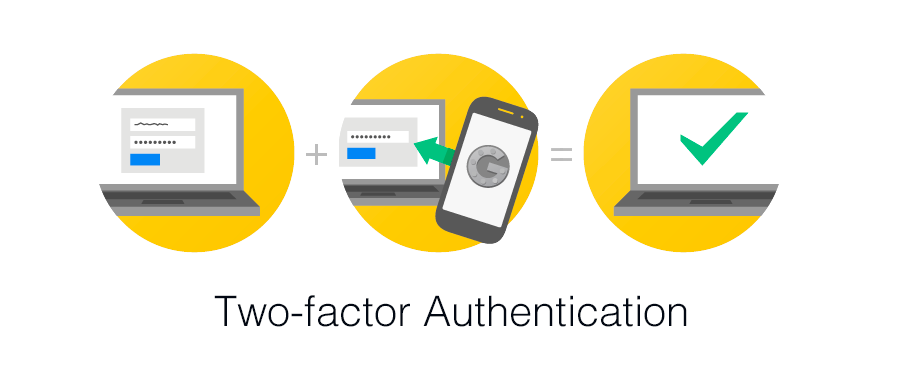
Two factor authentication is a form of multi factor authentication where a person confirms their identity using two different pieces of evidence.
Normally, websites which you have to log into will ask you for your username or email and then the corresponding password. This sounds like two pieces of evidence, but it doesn’t qualify to be called two factor authentication.
The reason is that 2FA is not based on how many pieces of evidence you have, per se, but how many different types of evidence you have. An email address and a password are both the same type of information, even if one is normally more secret than the other.
An email or password both fall into the category of being something the user knows, and that isn’t sufficient for 2FA.
You will also see the terms two step verification and 2-Step Verification (Google’s name for it). In practice they mean the same thing for most teams: a second check, of a different type, on top of the password.
There are three types of evidence which can be combined to deliver two factor authentication:
Something the user knows
This is what you normally think of when providing information to log into a platform. You remember this information and it can be used to grant you access.
Examples include:
- Email address
- Password
- PIN code
- Answers to security questions
Something the user has
This often refers to something physical which a person may have which is unlikely to have been replicated. It can refer to physical objects or can refer to software elements.
Examples include:
- Bank cards
- Keys
- Mobile phone (for app prompts and one-time codes)
- Tokens and hardware security keys
- Passkeys stored on your phone or laptop
Something inherent to the user
Being inherent to the user refers to something specific about that individual which would be very hard to copy or fake. This used to feel like science fiction. Today most people unlock their phone with a face or fingerprint scan every day, and that same check is often what unlocks a passkey.
Examples include:
- Biometrics
- Fingerprints
- Face recognition
- Retina scans
- Voice recognition
How does it work in practice?
We combine these elements to create security. Two factor authentication is a subdivision of multi factor authentication simply because it utilizes more than one type of identifier. Using more than two types is difficult and can be seen as intrusive by the user, so two is the sweet spot for general commercial use.
For something to qualify as 2FA it must use at least two of the above types of evidence.
So, imagine you have set up your email account with 2FA. Some nasty person has found your email and password from a company leak. The person tries to log in to your account.
Do they get in?
No. Because they need the code which was sent to your mobile phone, or the approval prompt on your phone, or the security key on your desk.
Now you not only know that your account is secure, but you also know someone has attempted to access your account. The text or prompt you received keeps your data safe and also works like an alert system.
Not every second factor is equally strong. Codes sent by text message are far better than nothing, but they can be intercepted through SIM swapping, and code-based methods can still be phished by a convincing fake login page. Authenticator apps are a step up. Passkeys and hardware security keys are the strongest option, because they are tied to the real website and cannot be typed into a fake one. That is why the US Cybersecurity and Infrastructure Security Agency recommends phishing-resistant MFA wherever you can use it.
The 2 classic examples of 2FA: banks and Apple
When you go to withdraw money from a cash machine or you pay for something using chip and PIN, you are employing two factor authentication.
You physically possess the card necessary to initiate the operation and you remember the PIN as a knowledge based evidence that you are the real owner of that card.
This might be one of the most common and well established forms of 2FA in use.
In terms of software, we can use Apple as an example.
I like this example because so much information is shared across Apple devices and they sync up with each other in a whole range of convenient ways. Instead of just logging into a website you occasionally use, if you’re an iPhone or MacBook user your access to your device is a daily part of your life.
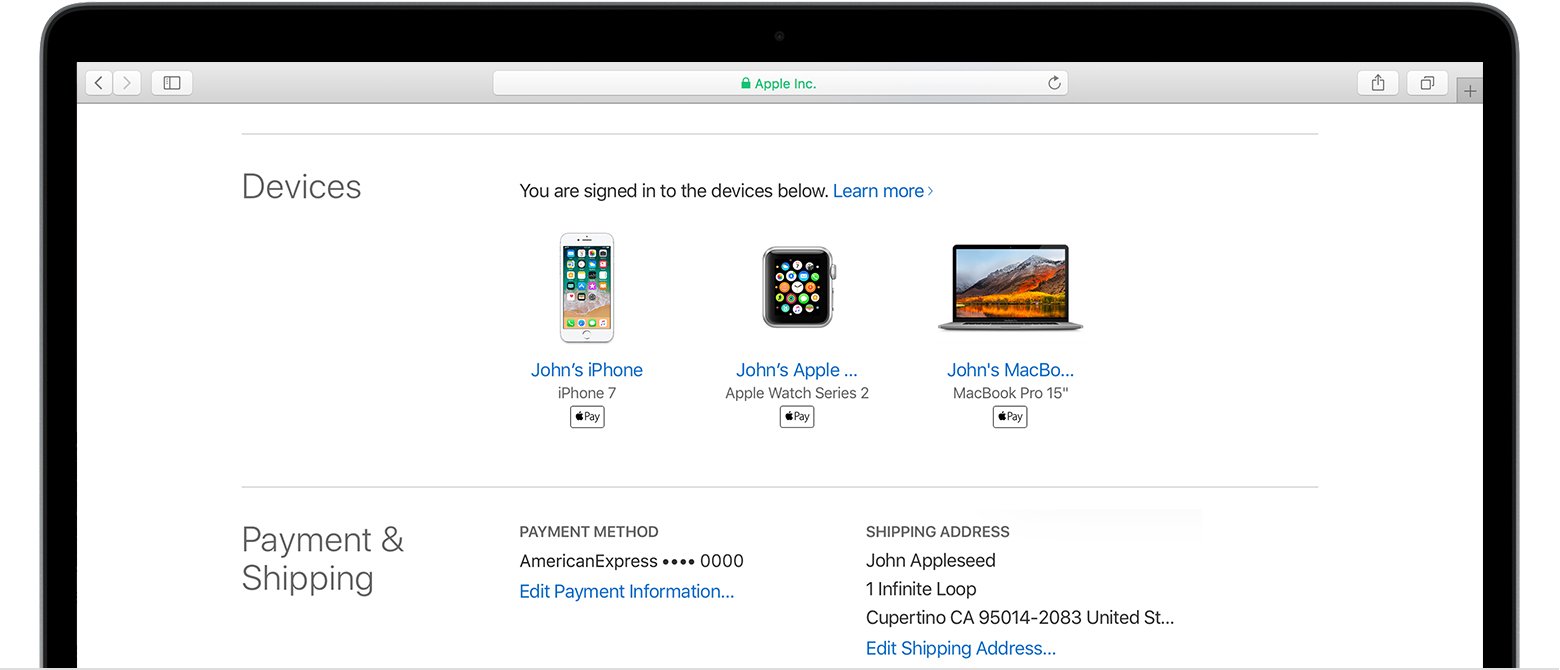
As Apple explains on its support page for two-factor authentication, your Apple Account can only be accessed on devices you trust, like your iPhone, iPad, or Mac. When you sign in to a new device for the first time, you need two pieces of information: your password and the six-digit verification code that’s automatically displayed on your trusted devices or sent to your trusted phone number.
This two-factor authentication protects you from another device maliciously joining that network of connected devices.
However, software companies can only do so much for us. We have to participate in security measures too. If I were to leave my passwords written down on my desk in a shared office with my devices lying around as I pop off to lunch, I’m undoing all the structures Apple have put in place for my security.
Four habits help you get the full benefit of 2FA on an Apple Account:
- Remember your Apple Account password.
- Use a device passcode on all your devices.
- Keep your trusted phone number(s) up to date.
- Keep your trusted devices physically secure.
Implementing two factor authentication on your team: Google Workspace and Microsoft 365
There are two steps to implementing two factor authentication on your team.
First, you have to set it up via the administration panel.
Second, all your team need to set up 2FA for their logins.
As Google’s email and work platform is a popular one, we’ll walk through how to enable two step verification in Google Workspace (formerly G Suite) below.
We’ll also then look at how to approach it for Microsoft 365 (formerly Office 365) and how to use an authenticator app such as Authy for 2FA too.
Finally, we’ll give you an actionable Process Street template which you or your team could use to guide you through the 2FA process!
How to set up two factor authentication for Google Workspace
Sign in to the Google Admin console with a super admin account. You can reach it from the same app launcher that has the shortcuts to Docs, Mail, Drive, Calendar and so on, or go to admin.google.com directly. Then go to Security, then Authentication, then 2-step verification. The older G Suite version of that screen looked like mine below; the menu labels have changed, but the settings are the same idea.
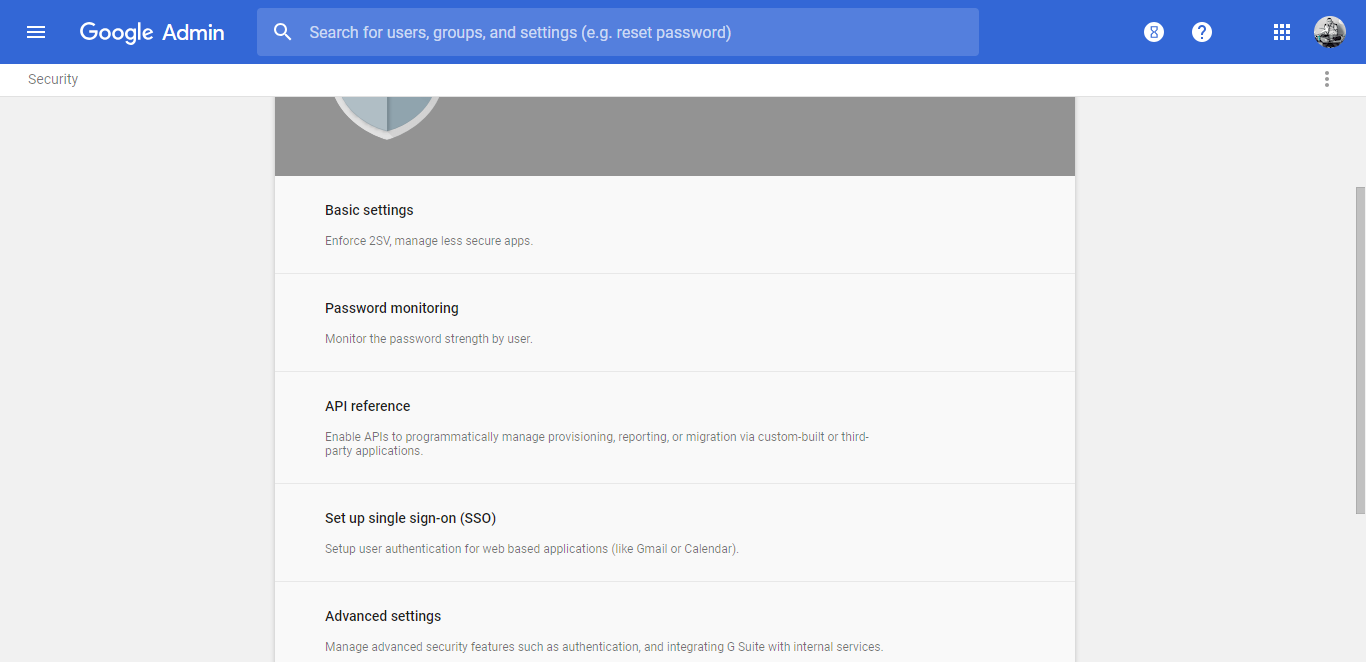
From here, check Allow users to turn on 2-Step Verification. This makes two factor authentication available as a security measure for users to opt into.
Once you have turned this on, you can set Enforcement. Enforcing two factor authentication means every user in your Google Workspace organization (or in the organizational unit you selected) must use it to sign in.
You can either enforce it right now or you can schedule the enforcement to begin at a future date, giving you time to inform your users about what it is, why it is important, and how it works. You can also give new starters a new user enrollment period, so they have time to set up their second step after their first sign-in.
There is another setting, Allow user to trust the device. This would mean users would not need to use two factor authentication every time they log in, provided they are on a device they have declared to be safe.
Trusted devices make the experience easier for the user by reducing friction, but may not be ideal if your workspace involves the use of shared computers or other security worries.
Finally, choose which methods to allow. You can allow any method, block text message and phone call codes, or require a security key or passkey for your most sensitive accounts, such as admins. Google’s deployment guide for 2-Step Verification walks through each option in detail.
How to log into your Google account with two factor authentication
From your Google account, whether in your Gmail or Drive, you can click on your profile picture in the top right hand corner and choose Manage your Google Account. The older version of that screen is shown in the image below.
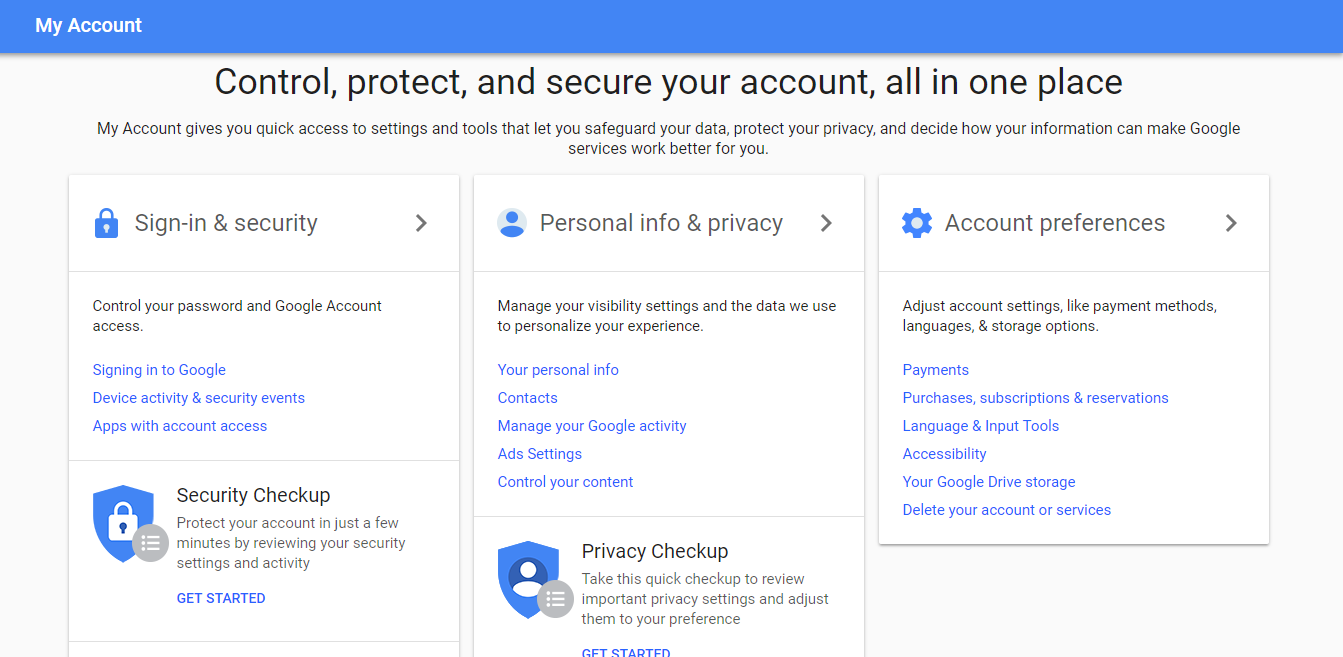
Open the Security section to manage how you access your account in future.
This will have a section that shows you whether 2-Step Verification is turned on or off. To turn it on, select it and Google will send you to a two factor authentication wizard, shown below.
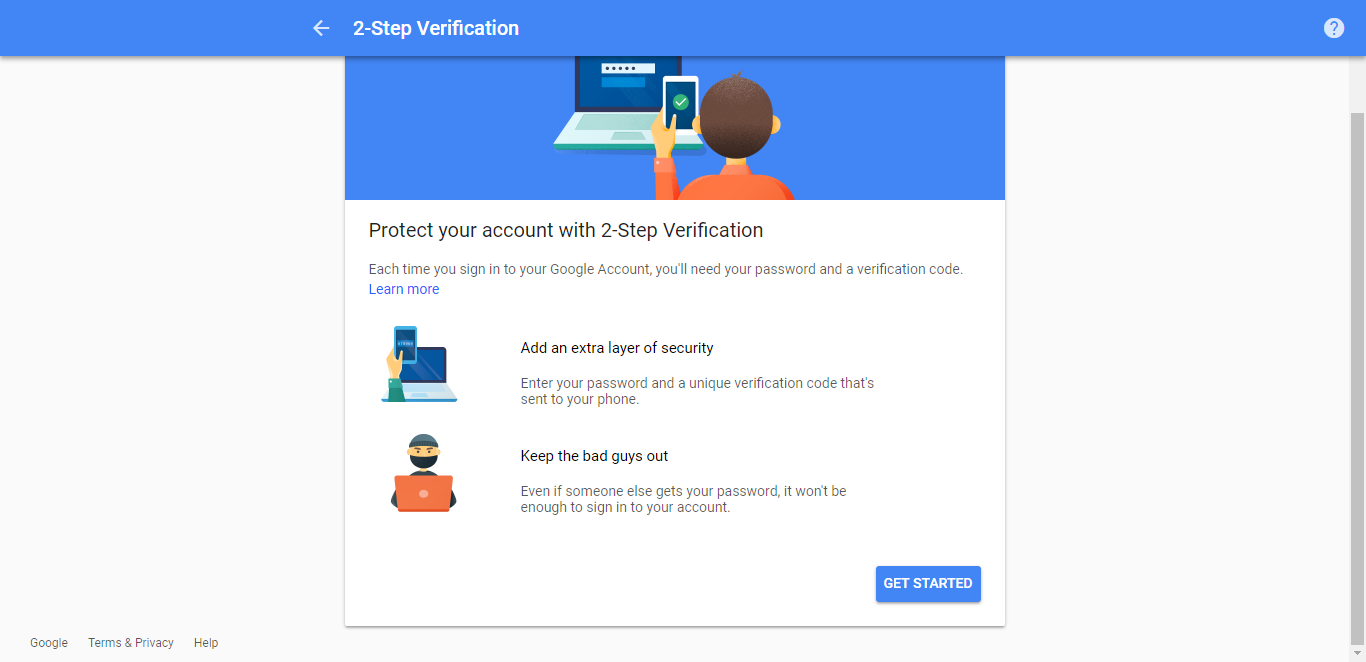
This will walk you through the process of adding a security failsafe.
Google will verify your account with a code or a prompt. Then Google will ask you to confirm that you want to turn 2FA on for your account. Google’s 2-Step Verification help article covers every step.
Now you’ve set up two factor authentication for your account!
But wait, there’s more…
Extra security add-ons can make the experience smoother
Google offers you some extra optional steps to improve your experience of 2FA. You can see them listed in the image below.
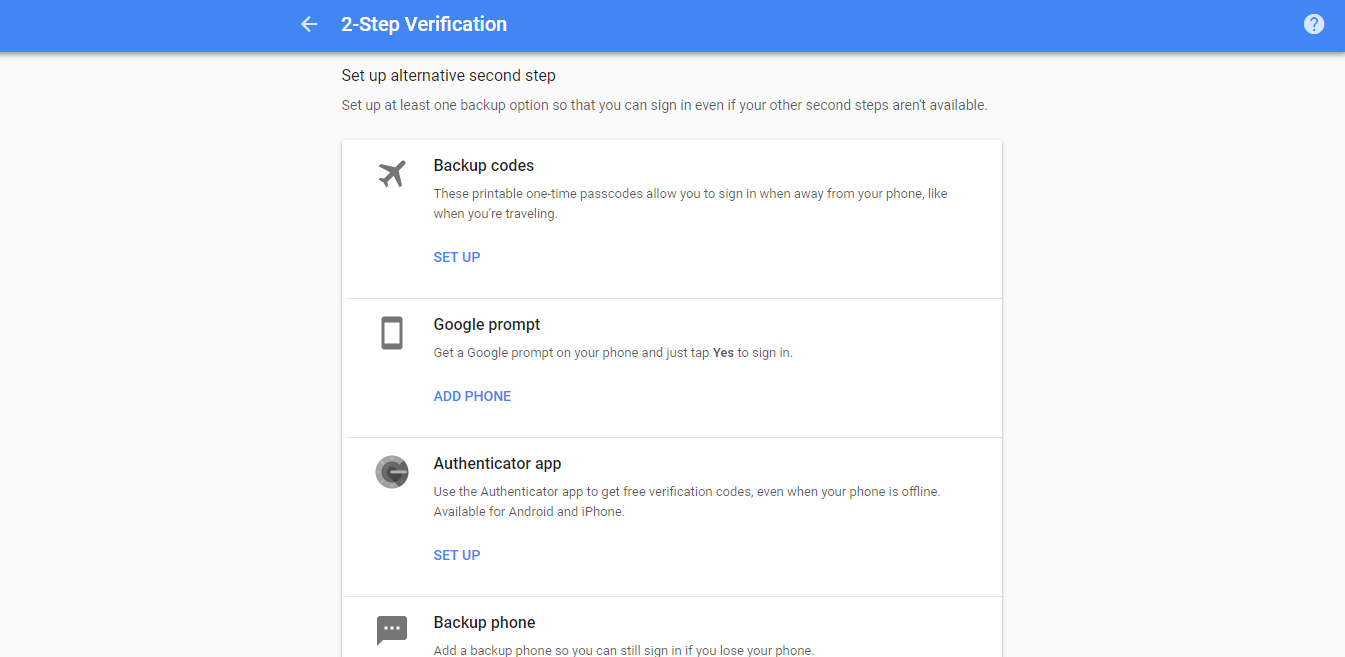
Some of these are simple. Adding a backup phone is really useful for someone like me as I often use different phones depending what country I’m in.
Alternatively, you can use Google prompts for a more streamlined experience through your mobile phone. The Google Authenticator app is similar, allowing you to generate verification codes on your phone even when it’s offline. The section after Microsoft 365 will explain how to set up the authenticator app Authy, which works the same way.
You can also add a passkey or a hardware security key. These are the strongest options, because they can’t be phished by a fake sign-in page.
The final option is backup codes. These are one time use codes which can verify your identity if you lose access to your phone.
Our recommendation is to store these codes as a secure note in a password manager like 1Password or Bitwarden. This way, you only have to remember one set of login details to retain them. Either that, or store the backup codes securely offline.
How to set up two factor authentication for Microsoft 365
Much like the Google Workspace process, setting up two factor authentication in Microsoft 365 is a simple process. Microsoft now gives you three ways to do it, and the old per-user “Setup Azure multi-factor auth” option from the Office 365 days is no longer the recommended route:
- Security defaults. Free for every Microsoft 365 organization and switched on by default in newer tenants. It requires all users to register for MFA using the Microsoft Authenticator app. If your tenant was created before October 2019, check whether it is on.
- Conditional Access. Available with Microsoft Entra ID P1 or P2 (included in plans such as Microsoft 365 Business Premium). It lets you require MFA based on who is signing in, from where, and to what.
- Legacy per-user MFA. Still available, but Microsoft does not recommend it. Turn it off before you switch to security defaults or Conditional Access.
To check or turn on security defaults:
- Sign in to the Microsoft Entra admin center as at least a Security Administrator.
- Go to Identity, then Overview, then Properties.
- Select Manage security defaults.
- Set security defaults to Enabled and save.
You can still manage users and licenses from the Microsoft 365 admin center, and Microsoft’s MFA setup guide covers the details and troubleshooting options.
How to set up a two factor authentication login for Microsoft 365
The process is essentially the same with Microsoft as the one for Google. Once your admin has enabled two factor authentication, each user is presented with a new screen after login. This acts as a prompt to guide you through setting up 2FA.
- Sign in to Microsoft 365 like normal.
- When the More information required prompt appears, select Next.
- Install the Microsoft Authenticator app on your phone (or choose another method your admin allows) and follow the on-screen steps to add your account.
- Approve the test notification or enter the code to confirm everything works.
- Then the process is finished, and the next time you come to log in you will be asked to approve the sign-in with the method you have chosen.
You can review or change your methods at any time on your Microsoft account’s Security info page. If you have any problems, you can consult the Microsoft Support article to troubleshoot.
How to set up Authy to manage your two factor authentication
Authy is a mobile authenticator app which acts as a keyring for all your accounts you choose to connect with it.
Authy holds the token which lets Google, Microsoft, Slack, or whomever, know that you are you.
This creates a simple and streamlined experience where you’re able to manage all your 2FA codes in one place.
Authy is now a mobile-only app called Twilio Authy, so you can download it from one of these links:
If you prefer, Google Authenticator and Microsoft Authenticator work the same way, and many password managers can also store and fill these codes for you.
I’ll be using Authy for iOS as I guide you through the process.
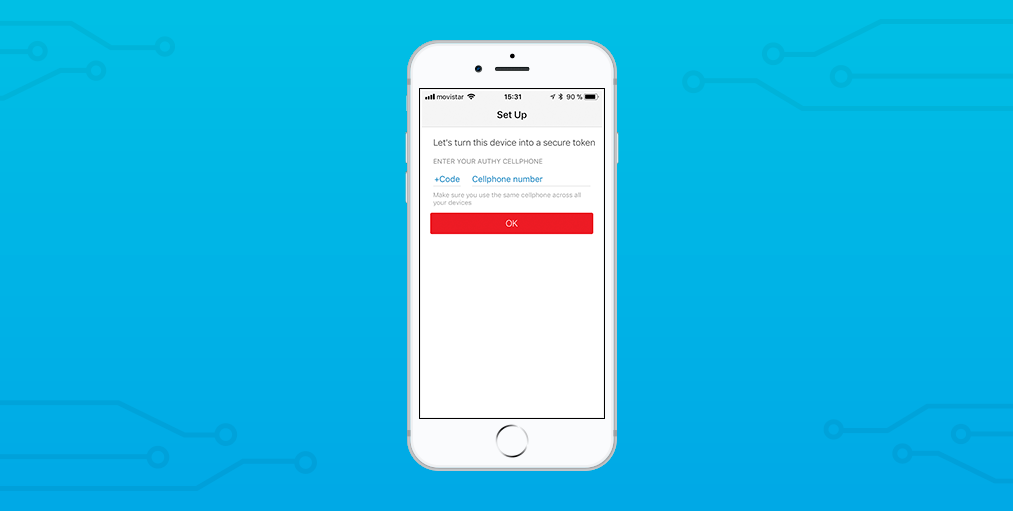
Once you’ve downloaded the app, it will prompt you to enter your phone number, as you’ll see below:
Then you’ll be asked to enter an email address. As I’m using Authy for all my professional accounts, I used my work email.
Once this information has been inputted, Authy will send you a text message. The text message will contain a code and a link. Either enter the code directly into Authy or click the link. Both perform the same job.
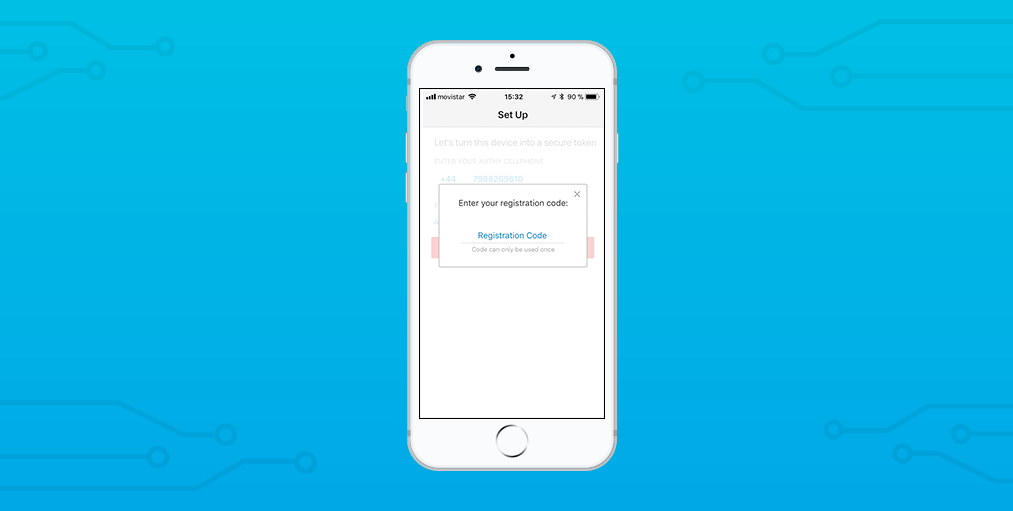
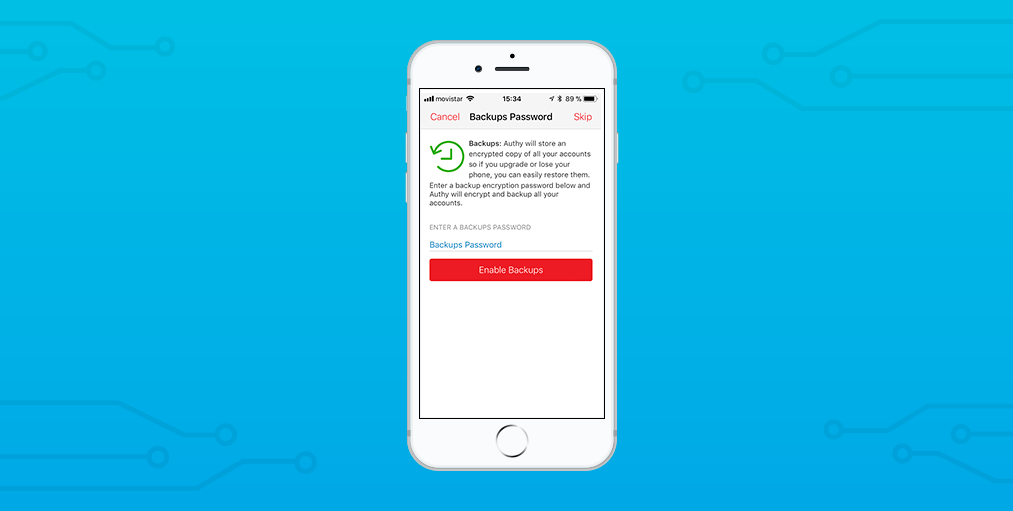
Now you’ll be prompted to create a new Authy account and to enter a backup password.
I recommend you save this password in your password manager for safe keeping.
You’re all set up.
Your Authy account is ready to use.
As an extra little bonus, I’ll show you how I connected Authy with my Slack account.
First, tap to add a new Authy account:
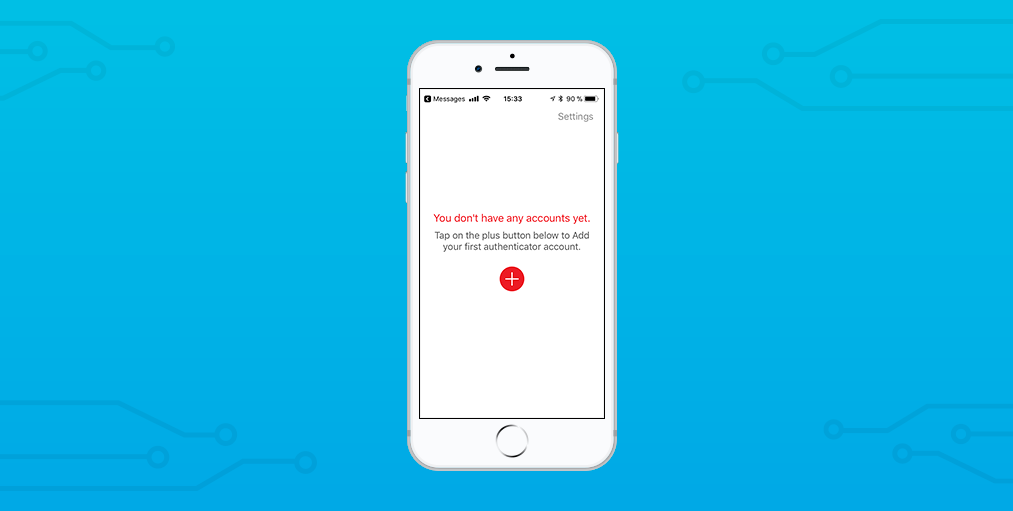
Tapping that little plus button will allow you to choose between scanning a QR code or entering a code from another service.
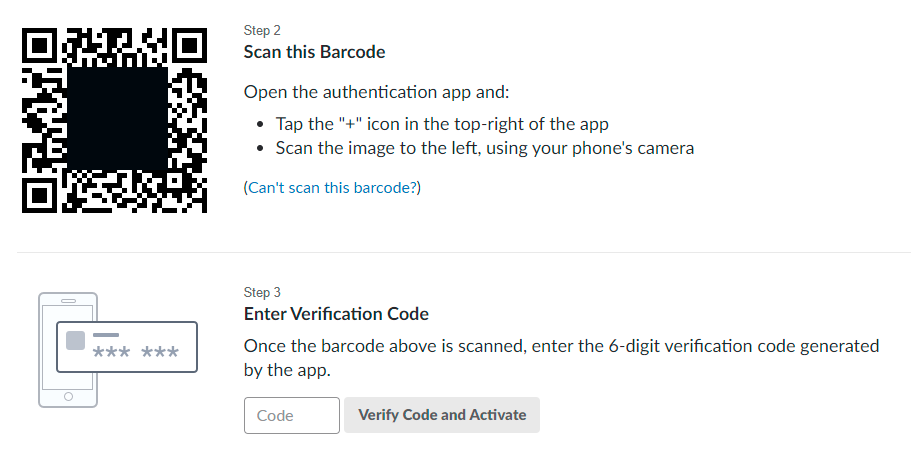
If I go into my Slack account and turn on 2FA, it gives me the option to use an app to authenticate my 2FA. Slack then shows me the following screen with my QR code ready to be scanned:
After scanning the code with my mobile, Authy checks to make sure it has the right app:
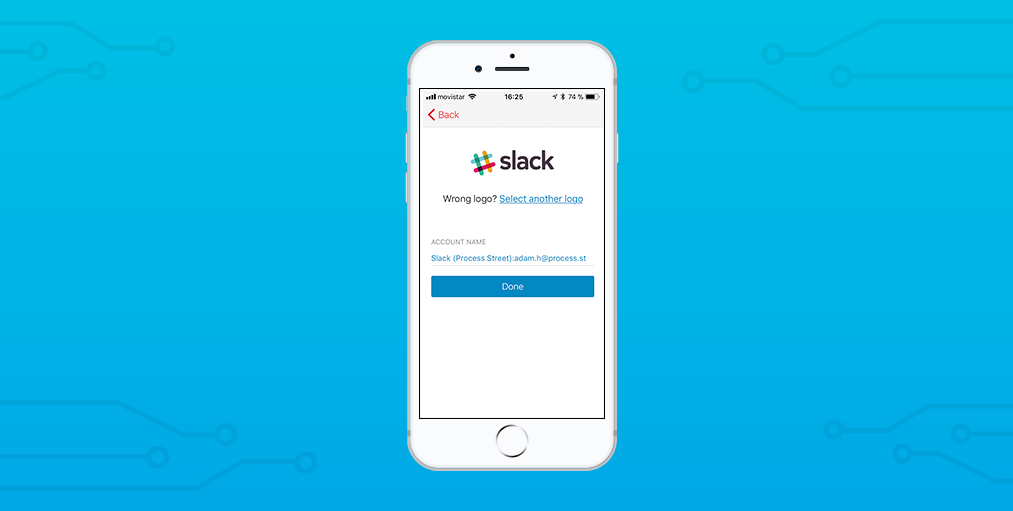
I simply tap Done and enter the code Authy gives me into the account screen in Slack.
Now the two apps are synced and I’m ready to roll.
Free template to enable two factor authentication with Authy, Google, and Slack
This template has been designed to guide a user through setting up 2FA with Google and Slack using Authy. The same steps work with any authenticator app.
Just click I want this for my business in the top left corner and it will be added to your Process Street account!
Implement two factor authentication in your team and boost your security
Improving security is a journey.
It isn’t a one step thing. You need to set the systems up and get people used to following the right processes to keep those systems secure.
As technology advances, these means of access will change and evolve, with passkeys replacing many passwords and automation taking over more of the routine checks.
That is where a repeatable process helps. In Process Street, you can turn your 2FA rollout into a workflow that every new hire, contractor and system owner follows: assign each step, require approvals before access is granted, attach proof such as screenshots, and keep a complete audit trail for your next security review. Process Street brings governed documentation, enforced workflows and built-in AI together in one compliance operations platform, and with 5,000+ integrations it connects to the tools your team already uses.
As long as security is at the forefront of your mind and you have processes in place, your company will be in a great position to provide the safety and security which your users need.
Have you implemented two factor security in your organization? Let us know in the comments below!
Frequently asked questions about two-factor authentication
How do I enable two step verification for my whole team?
An admin turns it on centrally. In Google Workspace, go to the Admin console, then Security, then Authentication, then 2-step verification, allow it and set an enforcement date. In Microsoft 365, turn on security defaults or a Conditional Access policy in the Microsoft Entra admin center. Then give your team a deadline and a simple checklist so everyone enrolls before enforcement starts.
Is 2-step verification the same as two-factor authentication?
For most teams, yes. Two-factor authentication means two different types of proof. 2-Step Verification is Google’s name for the same idea. Multi-factor authentication (MFA) is the broader term for two or more factors.
How can my team share 2FA codes for a shared account?
Avoid forwarding codes by text or chat. Give each person their own login wherever the tool allows it. Where a shared account is unavoidable, store its authenticator secret in a team password manager vault (such as 1Password or Bitwarden), so access can be granted and revoked per person and every use is logged.
What are the safest backup steps for two-factor authentication?
Set up at least two methods, for example an authenticator app plus a passkey or security key. Save your backup codes in a password manager or print them and keep them somewhere secure. Keep your recovery phone number and email up to date, and record who on the team can reset 2FA for others.
Are text message codes safe enough?
Text message codes are much better than a password alone, but they can be intercepted through SIM swapping. Use an authenticator app, a passkey or a hardware security key where you can, and consider blocking text message codes for admins and other high-risk accounts.
Do passkeys replace two-factor authentication?
A passkey combines something you have (your device) with something you are or know (your fingerprint, face or device PIN), so it already covers two factors in one step. It is also phishing-resistant, which makes it the strongest everyday option.