


Turn every policy into automated workflows with built-in enforcement and audit-ready proof.



Form Editor
A form editor is a visual workspace for creating and changing digital forms. It lets you add fields, write labels and instructions, set validation rules, organize questions into sections, define conditional branches, preview the respondent experience, and publish a controlled version for use.
A useful form editor does more than arrange boxes on a page. It shapes the quality of the data you collect and determines what happens after someone submits it. When a form connects to a form workflow, each response can become assigned, reviewed, approved, and traceable work instead of another entry waiting in an inbox.
This guide explains the controls that matter, a practical method for building and testing forms, the differences between adjacent tool categories, accessibility and usability principles, selection criteria, and how Process Street connects form design to operational execution.
In this article, we are going to cover everything you need to know about a form editor, including:
- What is a form editor?
- What a form editor lets you control
- How to build a form step by step
- Form editor vs form builder vs PDF editor
- How to design accessible, usable forms
- How to choose a form editor
- Use Process Street as your form editor
- FAQs
What is a form editor?
A form editor is the interface used to design a form and maintain it over time. The editor controls what a respondent sees, what information they can enter, which answers are accepted, how questions change based on earlier responses, and where the submitted data goes next.
The form structure
The structure includes the title, introduction, sections, questions, field types, help text, confirmation message, and submit action. A clear editor makes this hierarchy visible. Builders should be able to reorder fields, group related questions, duplicate a proven section, and understand the form from top to bottom without opening several configuration screens.
The response rules
Response rules govern data quality. They include required fields, accepted formats, minimum and maximum values, permitted file types, character limits, and choices in dropdown or multi-select fields. Good rules prevent predictable errors at the point of entry. They should also produce a helpful message that explains how to fix the answer.
The behavior around the form
Forms rarely stand alone. A submission may start a review, update a record, notify an owner, request an approval, or create a recurring task. That operational layer belongs in a form process service or workflow, while the editor remains the place where the input experience is designed and governed.
A reusable definition and each response
The editable form is the reusable definition. Each response is a separate instance containing one respondent’s answers, files, identity, timestamps, and routing outcome. Keeping those layers separate lets you improve the form without confusing its design with the records it has already collected.
What a form editor lets you control
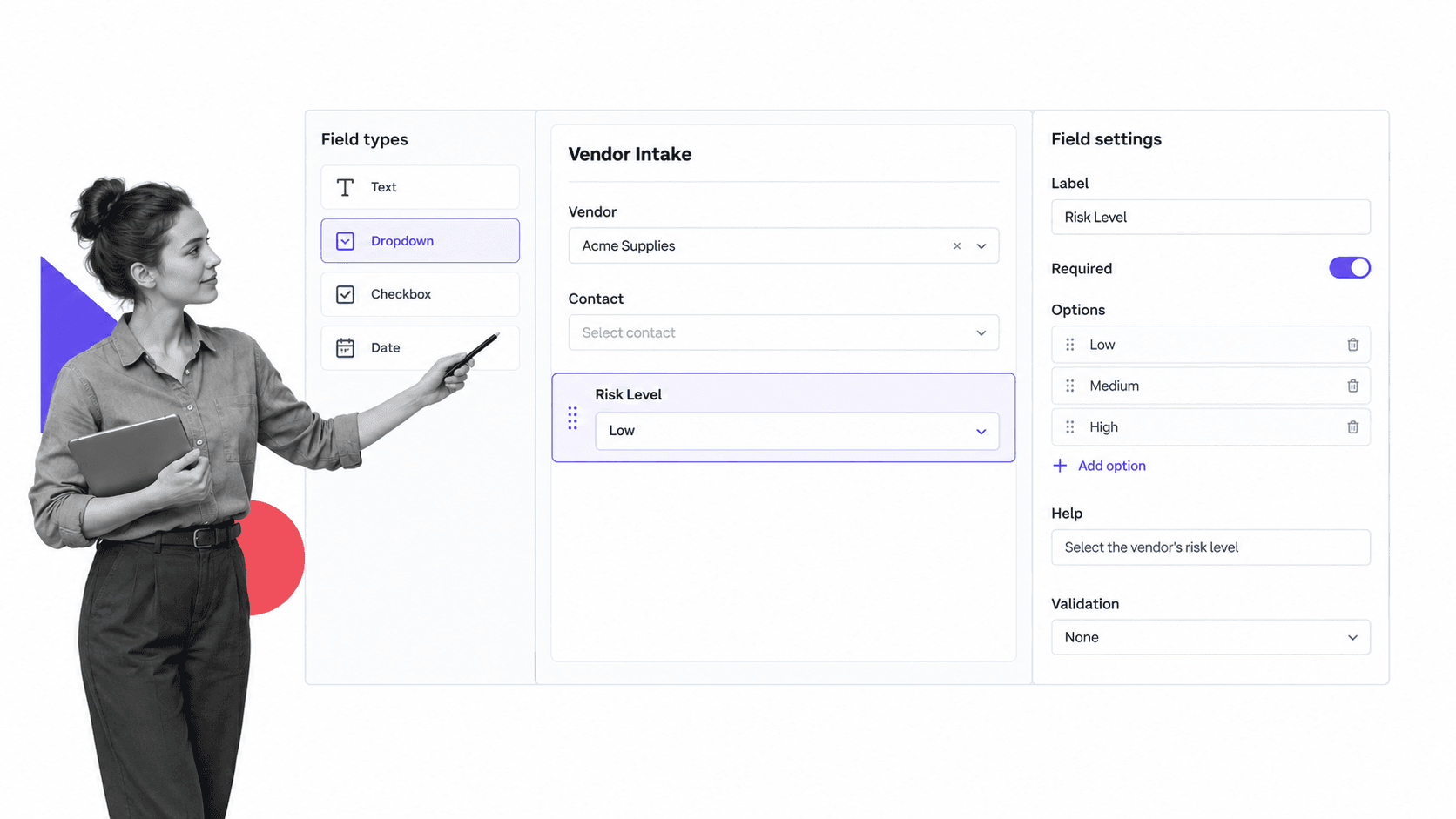
The editing surface should expose the choices that affect comprehension, completion, data quality, and downstream action. These controls are more important than decorative themes because they determine whether the form works under real conditions.
Field types
Common field types include short text, long text, email, website, number, date, file upload, dropdown, radio button, checkbox, multi-select, and user selection. Choose the narrowest field that fits the answer. A date control is easier to validate than a free-text date, and a controlled choice is easier to route than an open paragraph.
Labels, descriptions, and help text
Every field needs a label that states what belongs there. The W3C guidance on labeling controls explains that labels identify form controls and help assistive technology present them correctly. Use help text for format, scope, or examples. Do not rely on placeholder text as the only instruction because it disappears when the respondent starts typing.
Required and optional input
Mark a field required only when the process cannot continue safely without it. A form that treats every field as mandatory creates friction and encourages low-quality answers. Make the required state visible before submission, and keep optional fields truly optional in both the interface and downstream workflow.
Validation
Validation checks whether an answer matches the expected format or range. It can verify an email address, limit a number, require a file type, or constrain a date. Process Street form field validation supports selected text, date, email, file, and number controls. Validation should protect the process, not punish the respondent with arbitrary restrictions.
Sections and page flow
Sections break a long form into understandable groups. They can separate contact details, request details, evidence, declarations, and review. A form editor should make the sequence visible and let the builder move a whole section without reconstructing every field.
Conditional logic
Conditional logic shows the next question or section based on an earlier answer. It keeps irrelevant questions out of the way and gives exceptions the detail they require. Microsoft Forms branching guidance illustrates how answers can route respondents to later questions or the end of a form. The same design principle applies to operational intake.
Defaults, variables, and prefill
Defaults reduce repeated entry when a value is predictable. Variables can bring known data into labels, descriptions, or downstream actions. Prefill is useful when the person, account, asset, or request is already known, but the editor should distinguish editable input from system-controlled values so respondents understand what they can change.
Permissions, versions, and publishing
Editing and publishing should be separate actions. Builders need space to change fields and logic without exposing unfinished work. For sensitive processes, review permissions, version history, and a clear publish control help prevent an accidental change from becoming the new standard.
How to build a form step by step

Start with the decision or action the form must support. Then collect only the information needed to make that outcome possible. This keeps the design grounded in work rather than in the number of field types available in the editor.
1. Define the purpose and owner
Write one sentence describing why the form exists, who completes it, and who owns the result. A vendor intake form might collect the minimum information needed for an operations owner to route a vendor into standard or enhanced review. If the purpose cannot be stated clearly, the form is probably combining several processes.
2. List the decisions the response must support
Work backward from the decision. What does the reviewer need to approve, reject, prioritize, price, assign, or investigate the request? Separate essential decision inputs from information that is merely interesting. This is the fastest way to shorten the form without weakening the process.
3. Choose the right field for each answer
Use controlled choices when the answer drives routing or reporting. Use free text when nuance matters. Use a file field only when evidence cannot be captured more cleanly as structured data. Name every field specifically so it can be recognized later in variables, automations, exports, and audit records.
4. Group related fields
Place related fields under a short heading and follow the respondent’s mental sequence. The W3C guidance on grouping controls recommends grouping related controls visually and in code. For a long intake, put company details, contacts, risk questions, evidence, and declarations into distinct groups rather than one continuous page.
5. Write labels and instructions
Labels should be short and precise. Instructions should state the expected format, scope, or source of the answer. Put information beside the field where it is needed. Avoid internal terminology that respondents may not understand, and do not make people infer the expected answer from an example alone.
6. Add validation and required states
Apply validation to the fields where a wrong answer would block the process or create rework. Mark the minimum viable set as required. Test each rule with valid, invalid, empty, and edge-case input. Error messages should name the problem and tell the respondent how to correct it.
7. Add conditional paths
Use conditional logic for meaningful differences, not cosmetic personalization. A high-risk answer might reveal extra evidence questions and route the response to approval. A low-risk answer can skip that section. Draw each path before configuring it, and keep the number of branches small enough that a reviewer can still understand the whole form.
8. Connect submission to action
Decide what happens when the form is submitted. The response may start a workflow, assign an owner, create a record, or request approval. A form integration should carry structured values into the destination without manual retyping, while a form workflow system should make the resulting work visible and accountable.
9. Preview every experience
Preview the desktop and mobile layouts. Complete the form as a first-time respondent, not as the person who built it. Check tab order, labels, instructions, long answers, file uploads, narrow screens, confirmation messages, and every branch. Ask a colleague who did not help design the form to complete it while narrating where they hesitate.
10. Publish, monitor, and improve
Publish the tested version and review the first real responses. Look for abandoned sections, repeated errors, inconsistent free text, missing evidence, and manual cleanup. A form dashboard can reveal response patterns, while a controlled form repository helps teams reuse approved structures instead of rebuilding forms from scratch.
Form editor vs form builder vs PDF editor
These terms overlap in search results, but they serve different jobs. The right category depends on whether you are designing a new data-collection experience, maintaining an existing form, or changing a fixed document.
Form editor
A form editor is the working interface for changing fields, labels, sections, rules, logic, appearance, and publishing state. It emphasizes maintenance as much as initial creation. Teams use it when a form must evolve with the process it supports.
Form builder
A form builder usually refers to the broader product category or creation capability. It may include templates, distribution, response storage, reporting, and integrations around the editing surface. A ranked form builder tool comparison helps when the goal is choosing among products. This page focuses on the editing method and control surface.
PDF editor or form filler
A PDF editor changes a document or adds fillable fields to a fixed page. It is useful when the output must preserve a printable layout. A web form editor is better when the experience needs responsive layouts, branching, structured data, automation, or frequent changes.
Form engine
A form engine is the underlying logic that renders fields, evaluates validation, stores responses, and executes rules. Most business users work in the editor. Developers and platform teams care more about the engine’s APIs, extensibility, and runtime behavior.
How to design accessible, usable forms
A form can be technically valid and still be difficult to complete. Accessibility and usability improve the same fundamentals: clear structure, understandable labels, manageable steps, visible requirements, helpful errors, and predictable controls.
Ask only for what the process needs
The W3C forms tutorial recommends simple, short forms that request only what is needed for the transaction or process. Every extra field adds completion time, privacy exposure, storage cost, and another opportunity for inconsistent data. If a value can be derived reliably, do not ask the respondent to supply it again.
Keep labels persistent
Place visible labels beside their controls and keep them visible after the user enters a value. A placeholder can demonstrate a format, but it should not replace the label. Clear labels improve scanning, voice control, screen-reader navigation, and error recovery.
Make instructions available at the right moment
State required formats, optional states, timing constraints, and evidence requirements before the respondent makes an error. The W3C guidance on form instructions stresses that instructions must be associated with the relevant control and available to assistive technology.
Describe errors in text
Do not signal an error only with color. WCAG guidance on error identification requires the item in error to be identified and the problem described in text. A useful message says what failed and what a valid answer looks like, then returns focus to the field.
Break long forms into logical steps
Multi-step forms reduce the amount a respondent must understand at once. Each step should have a clear purpose, a visible progress cue, and a way to move backward without losing data. Do not split a short form just to create motion. Use sections when they clarify the task or support meaningful conditional paths.
How to choose a form editor
Evaluate a form editor with a real intake process and a real exception. A polished template gallery can hide weak logic, poor permissions, or manual work after submission. The best test is whether the tool can represent the complete operating path without becoming difficult for the process owner to maintain.
Match the editor to its builders
Ask the people who will own the forms to add a field, configure validation, create a branch, preview the result, and publish a change. If every edit requires a specialist, small improvements will queue up and the form will drift away from the real process.
Test data quality controls
Check required fields, type-specific validation, file rules, default values, duplicate prevention, and error messages. Confirm that exports and downstream integrations preserve field names and values consistently. Data quality is a product of the editor’s controls and the builder’s restraint.
Test logic and exception handling
Build one branch that reveals extra questions and one route that requires approval. Preview every path and confirm that hidden fields do not accidentally remain required. The editor should make complex logic understandable enough to review before publication.
Review governance and security
Look for permissions, version history, draft and publish states, data retention controls, response access, audit history, and secure handling of sensitive fields. The form may be simple, but the information it collects can be operationally or legally significant.
Follow the response into downstream work
Submit the form and observe what happens. Does an accountable owner receive a task? Are approvals enforced? Can the team see status and evidence? Is the response connected to the right record? The form editor should not create a clean front end that feeds a manual, invisible back end.
Use Process Street as your form editor
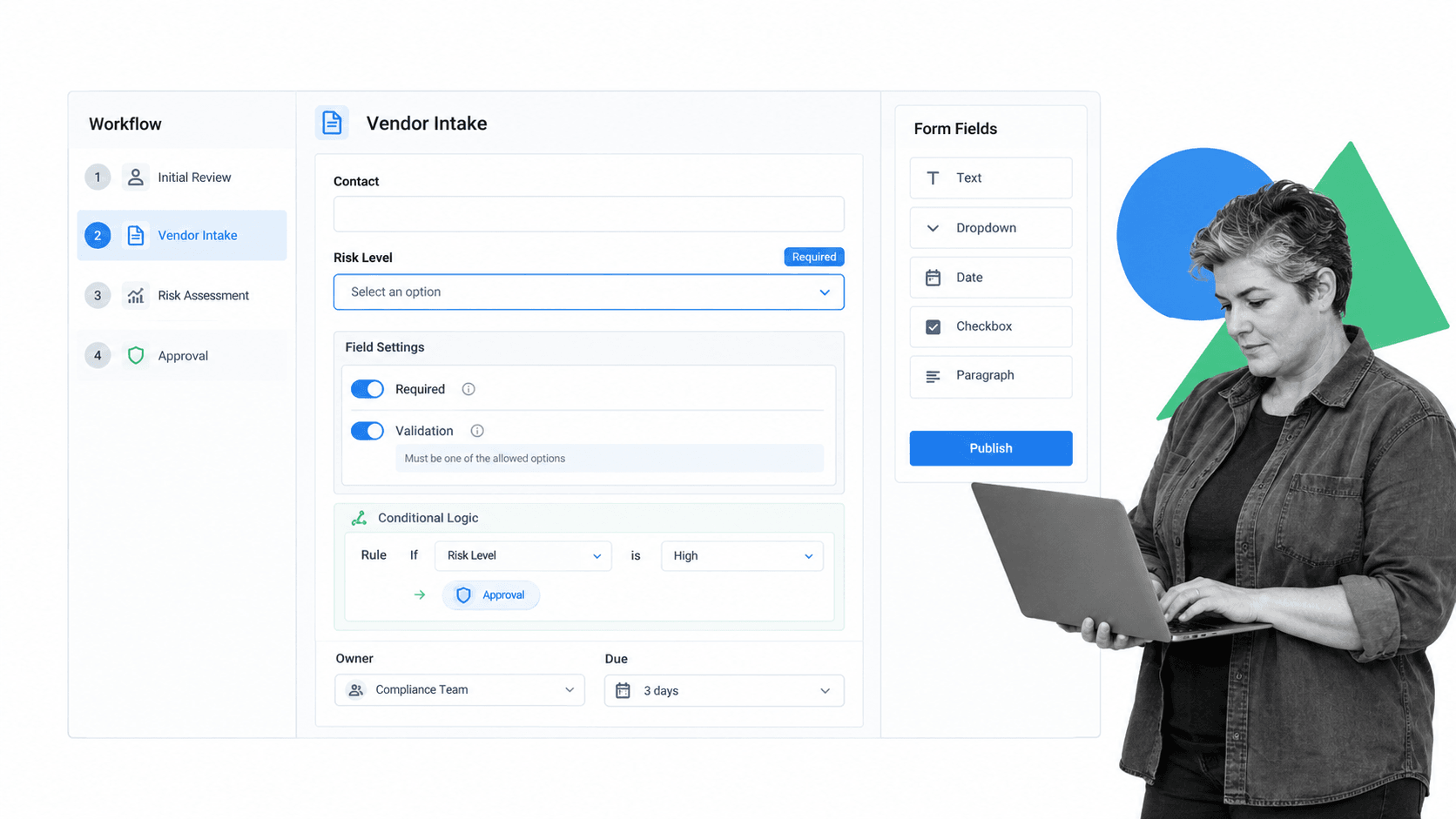
Process Street is an Agentic Process Automation platform that connects form design to controlled execution. Builders can place form fields inside a workflow, mark critical input as required, use values as variables, route work with conditional logic, add approvals, assign owners, and preserve the response with the workflow run.
The official form fields guide documents fields for text, email, websites, files, dates, numbers, dropdowns, multiple choices, users, tables, snippets, and hidden values. It also explains required fields, defaults, variables, and moving fields between tasks. Those controls let the editor collect structured information at the exact point where the process needs it.
A form can also start action immediately. The forms automation guide explains how a response can run a workflow or create a data-set record, with submitted values mapped into workflow fields. The result is a direct line from intake to assigned work instead of a spreadsheet export and a separate handoff.
Process Street has direct, universal integrations to 5,000+ systems. Need a new one? An AI agent builds it on the fly. That integration layer lets a submitted form update the systems around the process while the workflow keeps ownership, approvals, timing, and evidence visible.
Start with a proven structure from the workflow template library, then edit the fields, labels, validation, logic, and approval points for the real process. You can use a focused vendor management workflow for intake and review, or a new hire onboarding workflow when the questions and tasks change by role or location.
The practical benefit is that the form and the work no longer drift apart. The editor defines what information is collected. The workflow determines who acts on it. Each run preserves the response, decisions, and evidence so the business can improve the form from what actually happens.
FAQs
What is a form editor?
A form editor is a visual interface for creating and changing digital forms. It lets you add fields, write labels and instructions, organize sections, configure validation and conditional logic, preview the respondent experience, and publish a controlled version.
What can you change in a form editor?
You can usually change field types, labels, descriptions, help text, required states, options, validation, order, sections, conditional branches, appearance, confirmation messages, permissions, and submission actions. Strong editors also separate draft changes from the published form.
What is the difference between a form editor and a form builder?
A form editor is the working surface used to change a form. A form builder often refers to the broader product category, including templates, distribution, response storage, reporting, and integrations. In many products, the builder and editor are the same interface.
How do you make a form easier to complete?
Ask only for necessary information, use specific labels, group related controls, show required states, provide instructions beside the relevant field, and break long forms into logical steps. Use conditional logic to hide questions that do not apply to the respondent.
How should you test a form before publishing it?
Complete the form on desktop and mobile with valid, invalid, empty, and edge-case input. Test every conditional branch, required field, upload, error message, confirmation, and downstream action. Ask someone who did not build the form to complete it and explain where they hesitate.
Can Process Street be used as a form editor?
Yes. Process Street lets builders add structured form fields inside workflows, set required input and validation, use responses as variables, route work with conditional logic, add approvals, and trigger actions after submission. Each workflow run keeps the submitted data with the work and its execution record.