






An Airtable content marketing system is a connected database that keeps content inventory, performance data, contacts, keywords, and promotion work tied to the same set of URLs.
This is how Airtable runs our content marketing behind the scenes: it gives a growing team one dependable place to answer practical questions, from which articles need promotion to who has linked to a post. The system can also hand repeatable work to Process Street, a single Compliance Operations Platform with Docs and Ops capability areas plus built-in AI.
Why we created a content asset database
As our marketing team grew along with our blogging output and backlink count, we found we were losing track of exactly what assets we had. How many posts had we written for the Process Street blog? How many guest posts did we have on other sites? Which posts had the most shares and backlinks? Who’s sharing and linking? Which keywords were we ranking for, and which needed more promotion? Before we created our Content Asset Tracking (CAT) base in Airtable, the answers were often either “no idea” or “let us spend an hour assembling a report from several sources.” We used to manage this kind of data inside Google Sheets, or with 50 different Trello boards… Now, it’s just a case of going into the CAT table, finding the right view or applying the right filters, and getting the data on-screen in seconds. The results have been amazing. Since using the CAT table in early 2016, we’ve seen key marketing metrics such as referring domain count rapidly: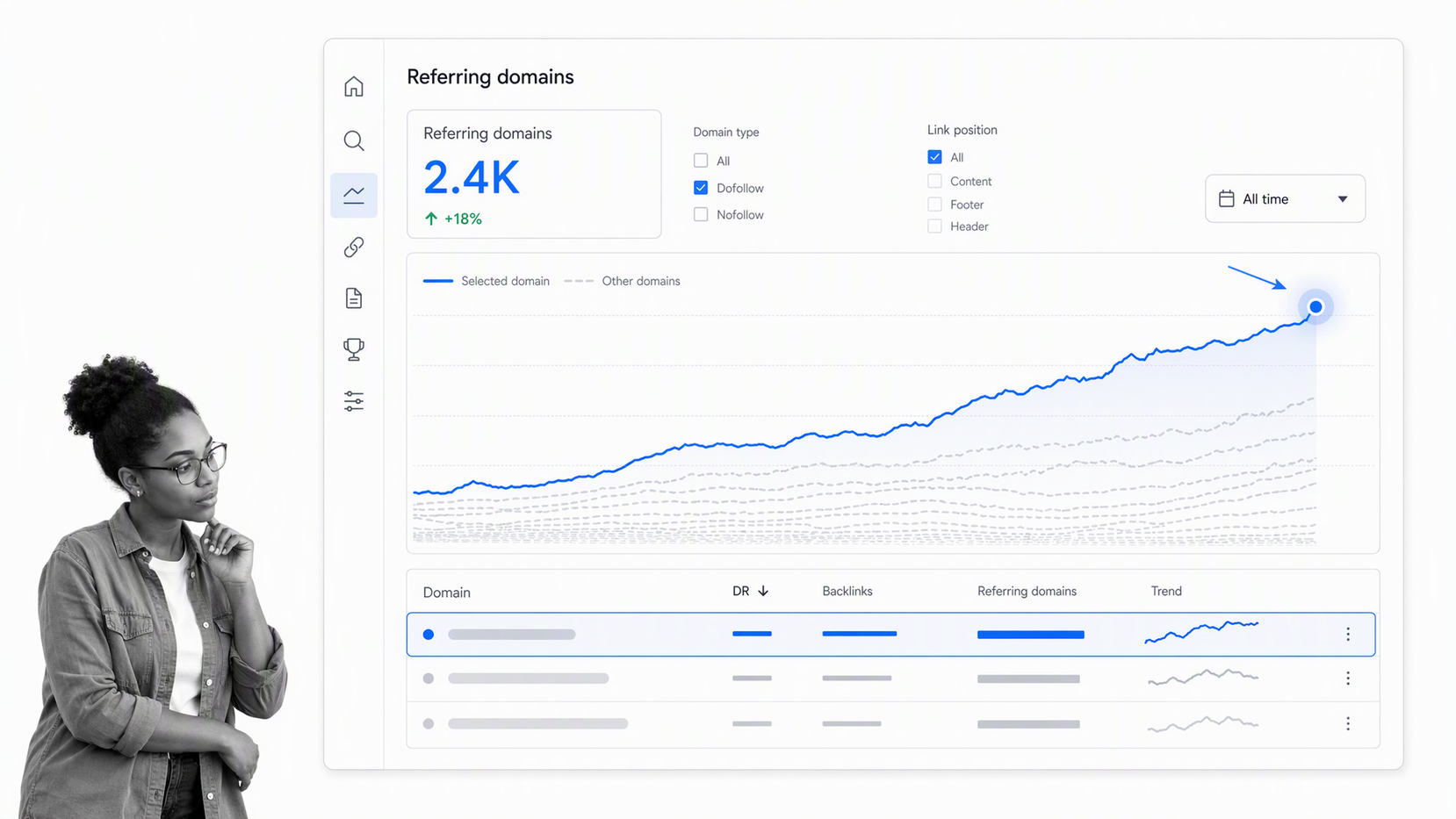
- Track all your content, guest posts, mentions, search rankings, and organize them by popularity, position, etc.
- Keep a record of everyone who shares your content so you know who your biggest promoters are
- Organize your media contacts into categories to easily get a list of who to pitch your ideas to
- Have a big list of posts to load up into your social media scheduler
- The ability to pull up a list of priority posts and keywords for backlinking
- Airtable for the connected content database
- Ahrefs for backlink and search-performance analysis
- An integration or API layer for moving approved data between systems
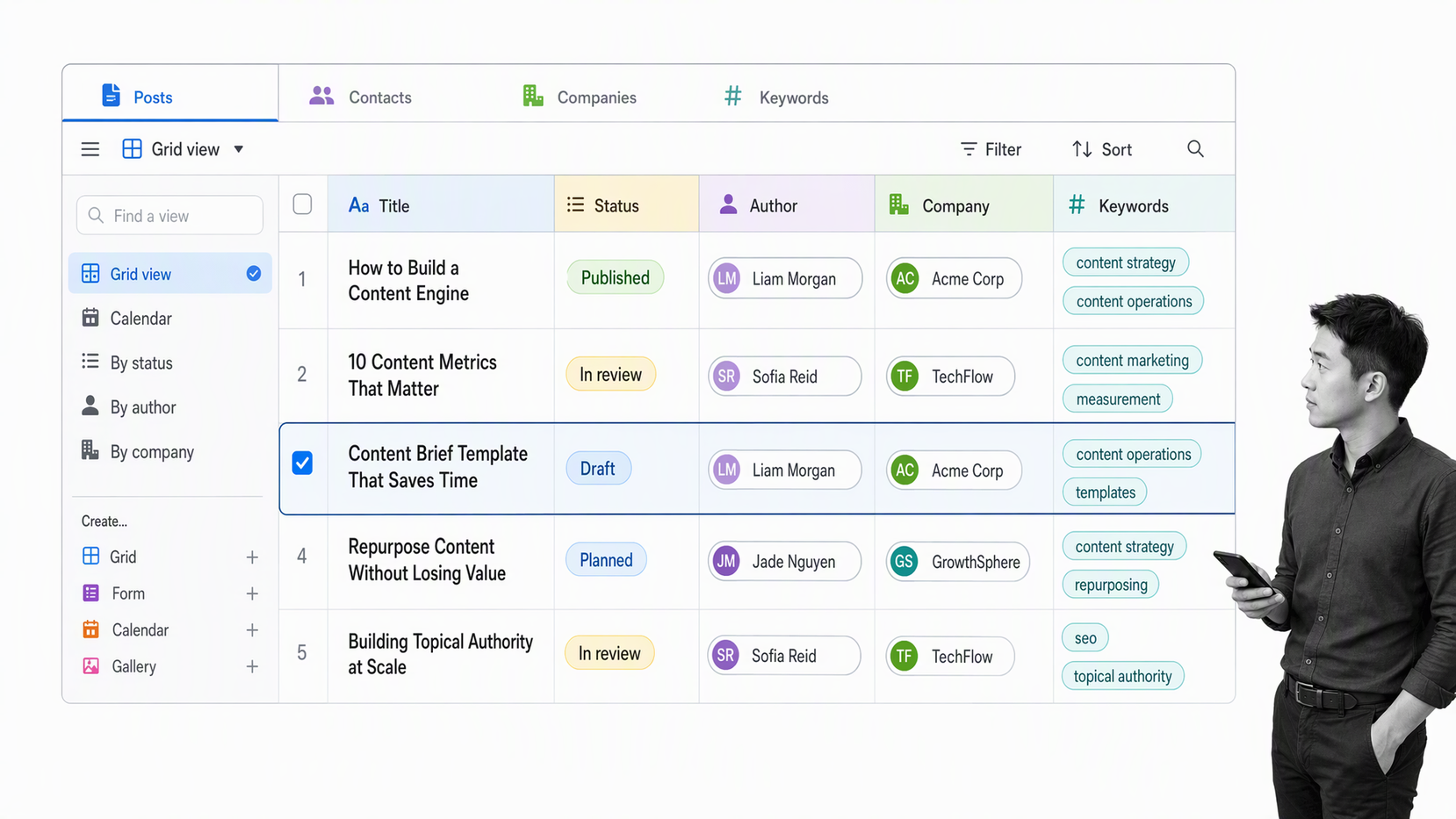
- A ‘post info’ table, with keywords, share count, link count, categories, mentioned contacts, etc.
- A list of everyone we’ve ever mentioned in our content, with a checkbox that fires their info to our CRM
- All tweets that mention us and the handles of people who talk about us on Twitter
- A list of all the keywords we rank for, mapped against the URLs in post info
Create a database of all your content
Start with a canonical list of published assets. For each record, capture at least the title, full URL, content type, author, category, publication date, status, and owner. This inventory is the primary table because every performance metric and relationship should attach to a stable content URL.
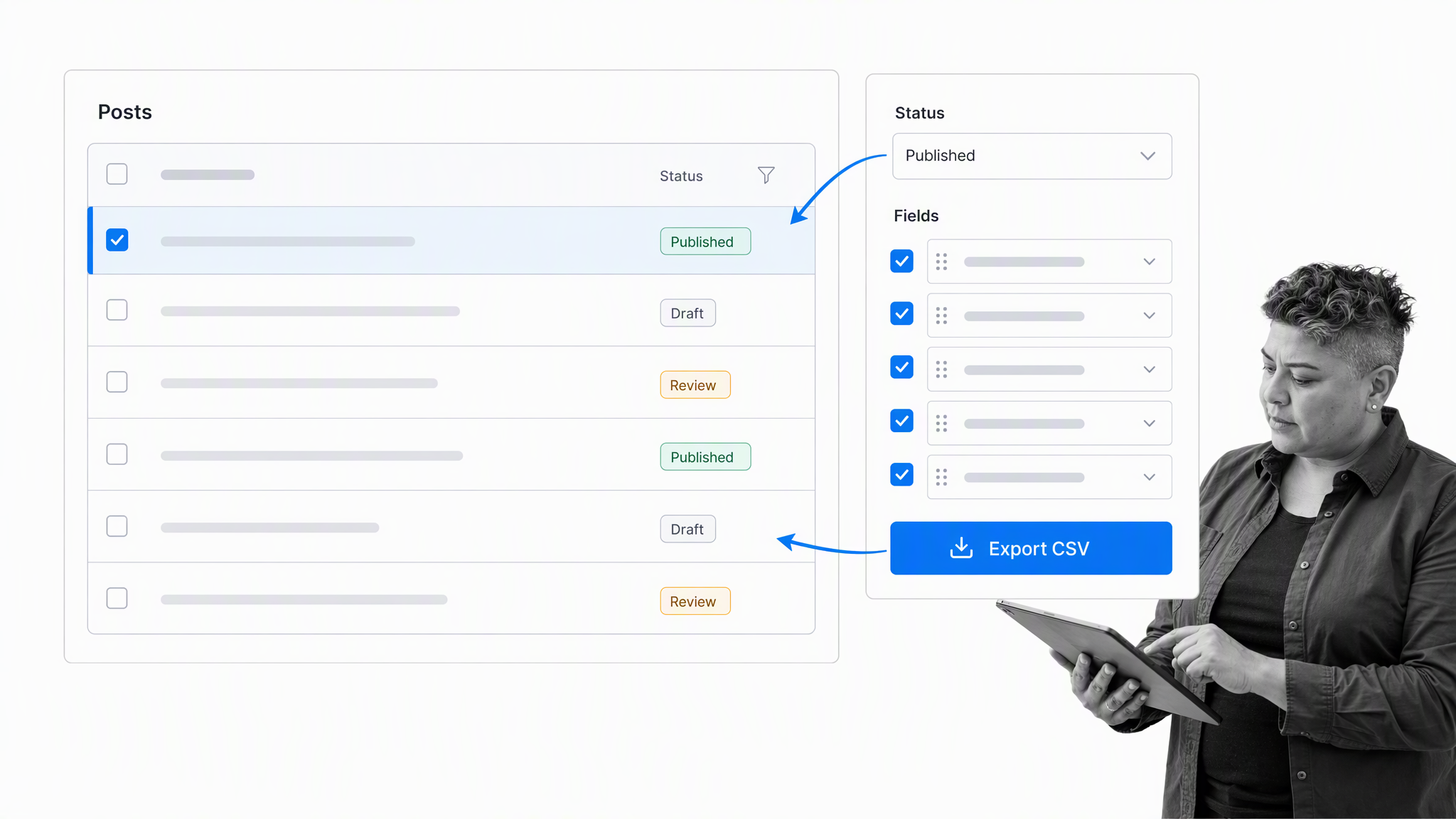
For WordPress, use a maintained export tool such as WP All Export, the built-in export, or the WordPress REST API. Google Search Console is valuable for validating indexed URLs and search performance, but it is not a complete content inventory.
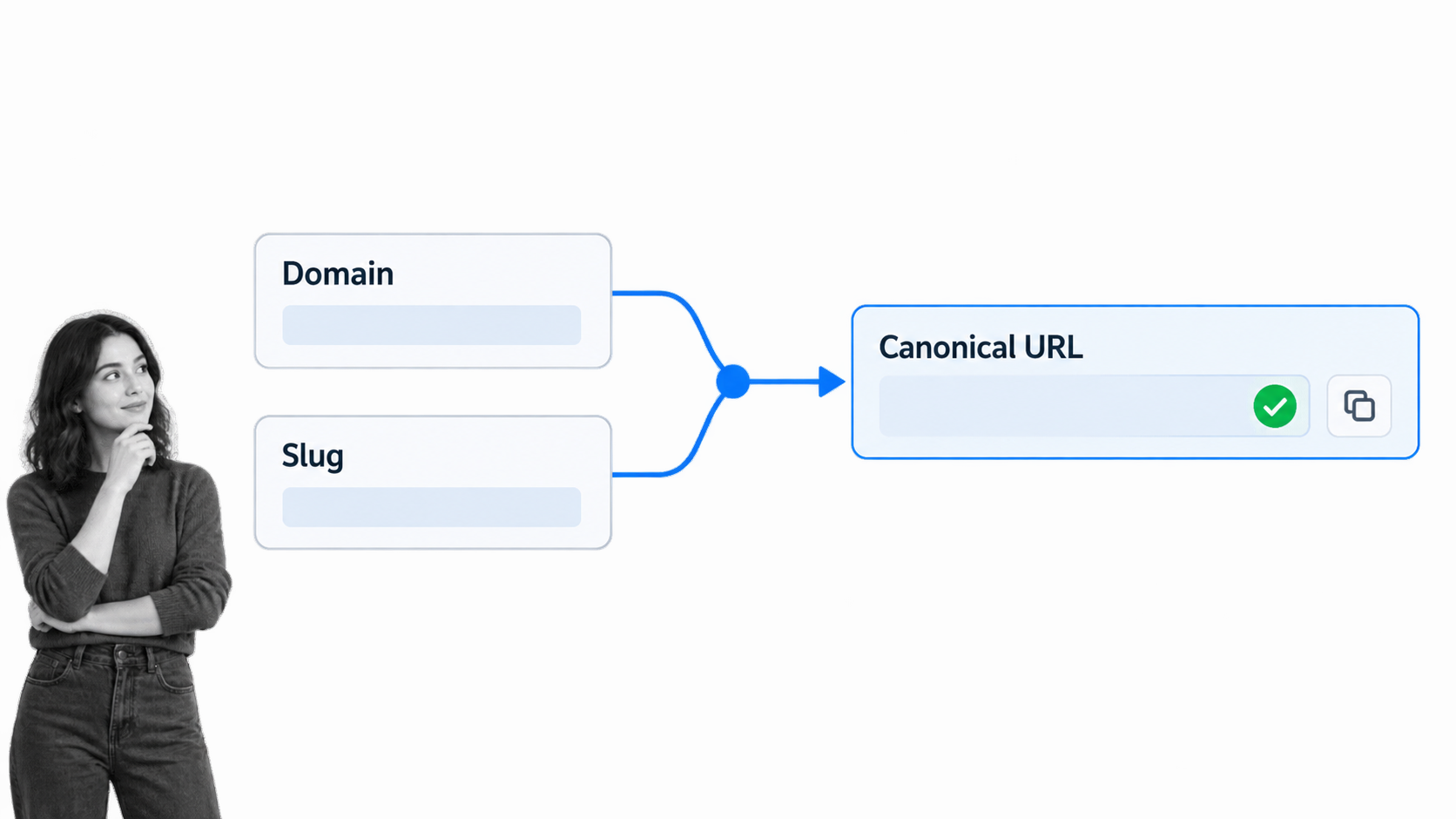
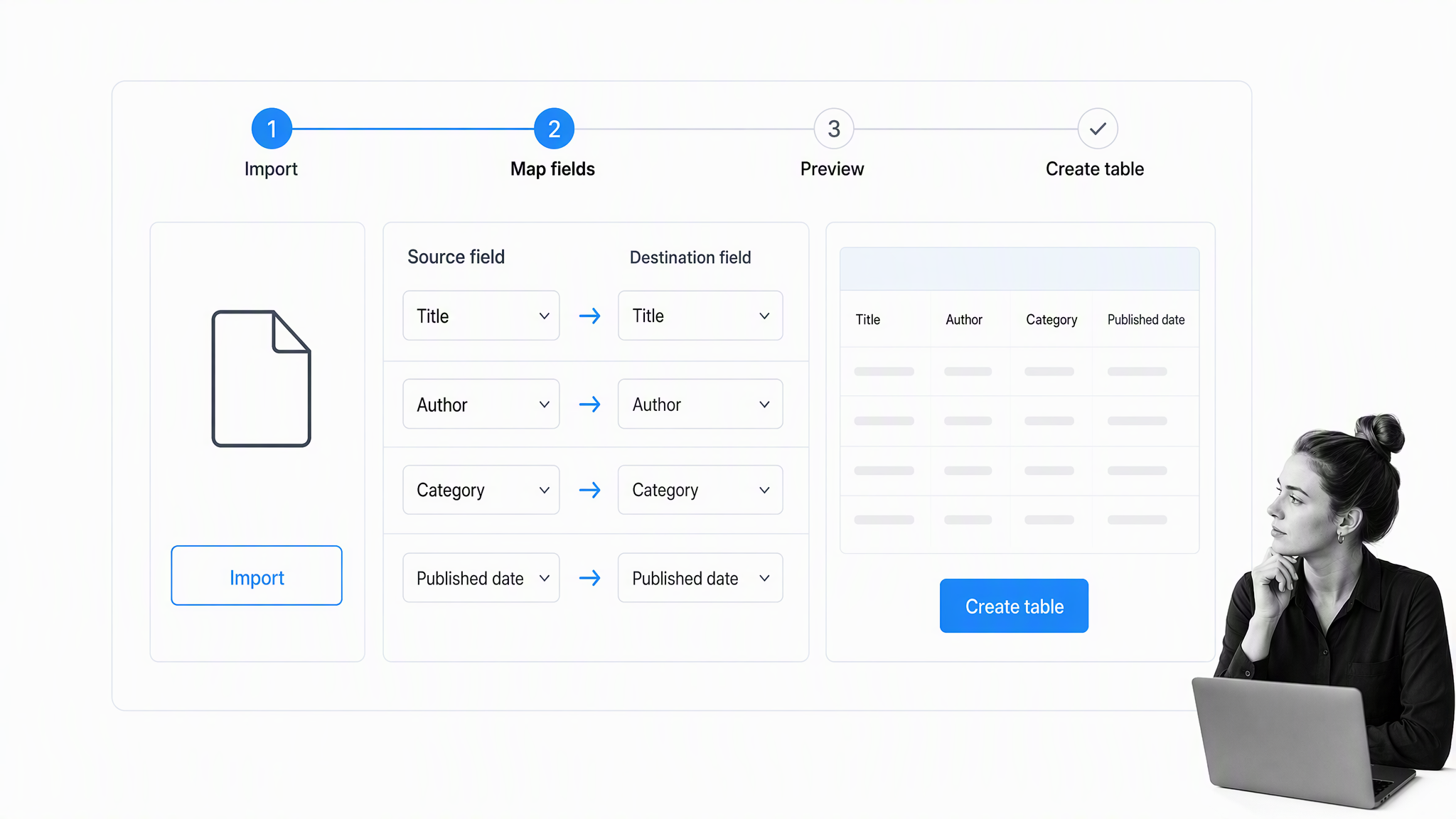
Clean the export in a spreadsheet before import. Keep only durable fields, normalize authors and categories, and build the full URL from the domain and slug when needed. Remove revisions, attachments, autosaves, and drafts unless the base is also intended to manage work in progress.
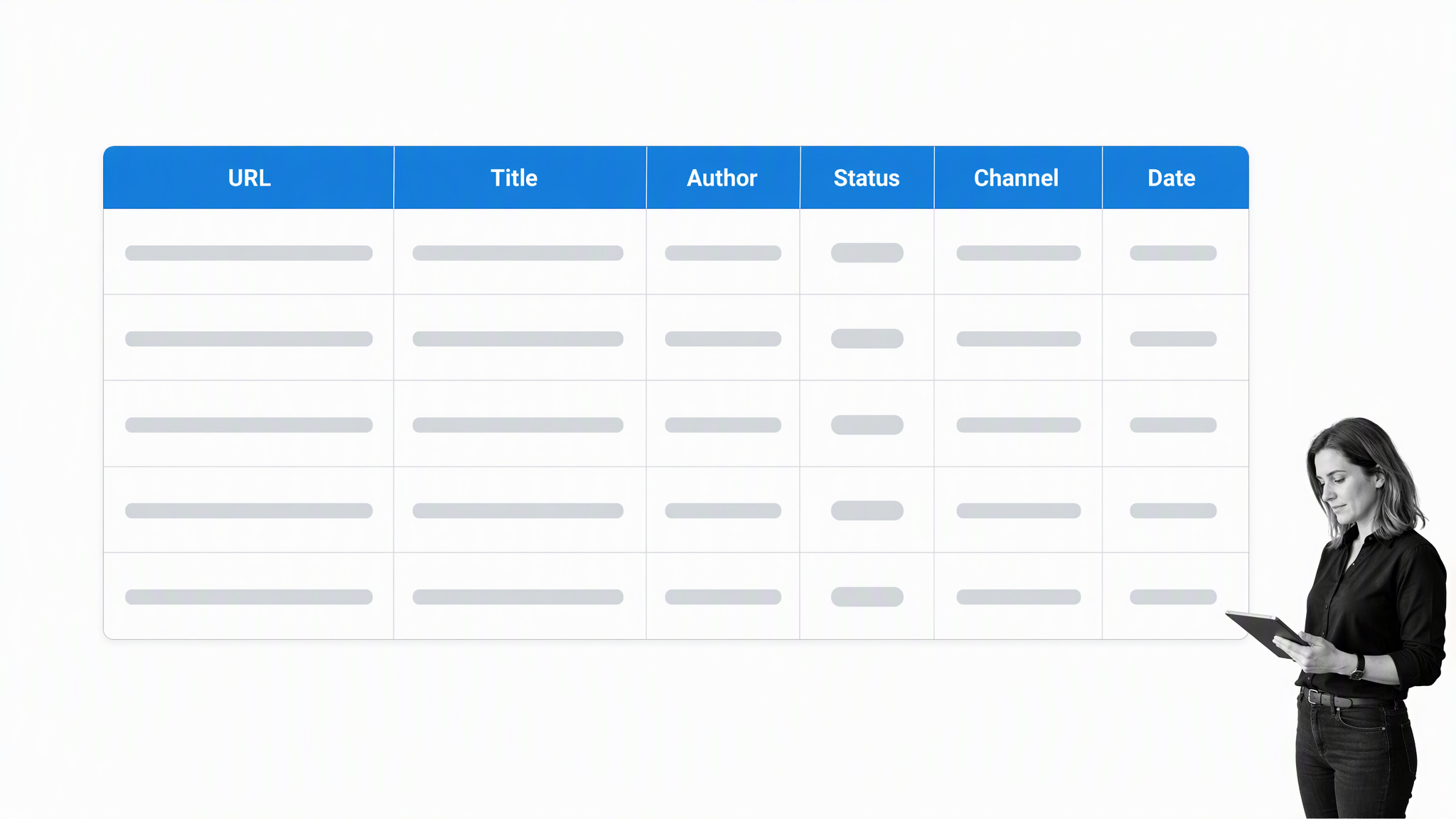
Import the cleaned CSV into a new Airtable base. Set the URL as a unique field, use single-select values for controlled statuses, and turn repeated entities such as authors, contacts, companies, and keywords into linked records instead of duplicating text across rows.
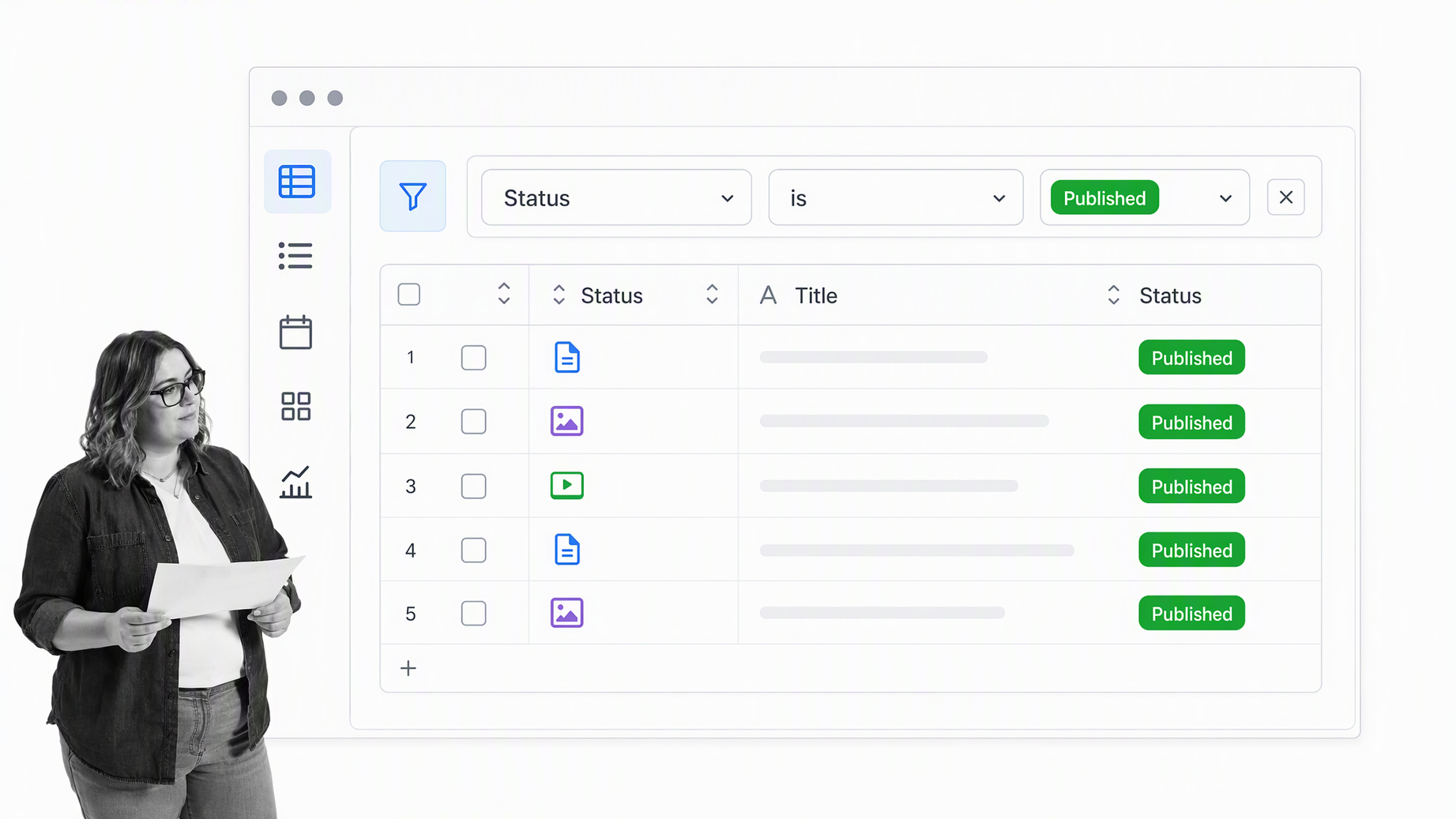
Create a saved Published view that excludes non-public records. Add off-site guest posts and meaningful third-party coverage from an approved backlink export, then deduplicate on canonical URL. A short weekly review is usually safer than importing every discovered link automatically.
That gives the system a reliable starting point: one record for every content asset that the team intends to measure, promote, or maintain.
Aggregating a summary of your content alongside useful information: the post info tab
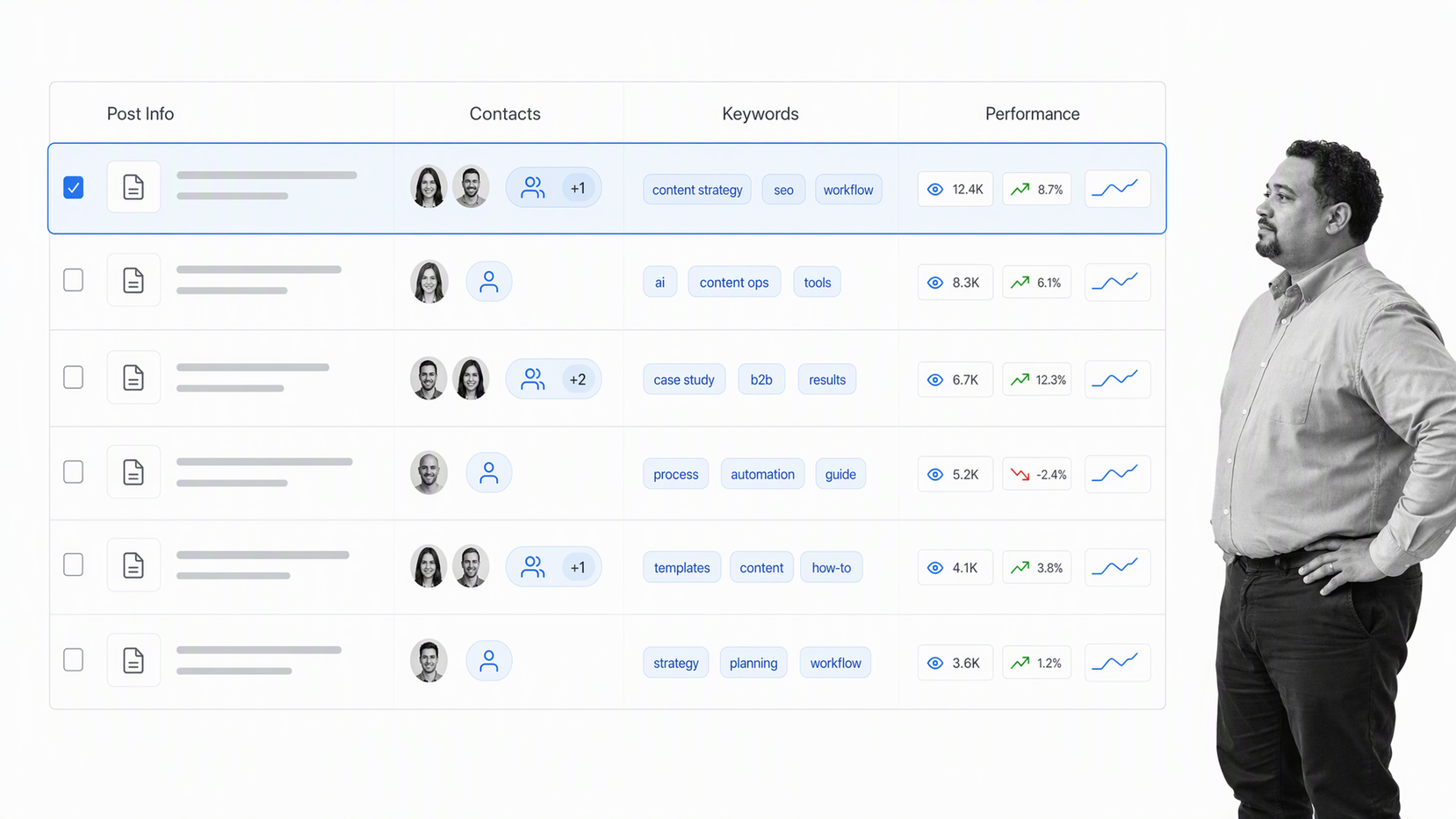
How post info is populated & updated
After the initial import, add new posts through an Airtable automation, an approved integration, or a small REST API job. The important controls are a unique URL key, an explicit published-status check, an owner, and a review path for exceptions. This zap grabs as much information as it can from the RSS feed, and adds a new row in the table. Off-site content is detected by BuzzSumo, which generates its own custom RSS feed of detected backlinks and adds them via Zapier to Google Sheets. A weekly reviewer can approve the important URLs based on domain quality, content relevance, and the nature of the link. That small manual step prevents low-value or malformed records from polluting the database. As well as updating post info with new posts, it also needs to be maintained with the correct and current number of shares and links. To do this, we use Ahrefs’ Batch Analysis tool and manually update the records.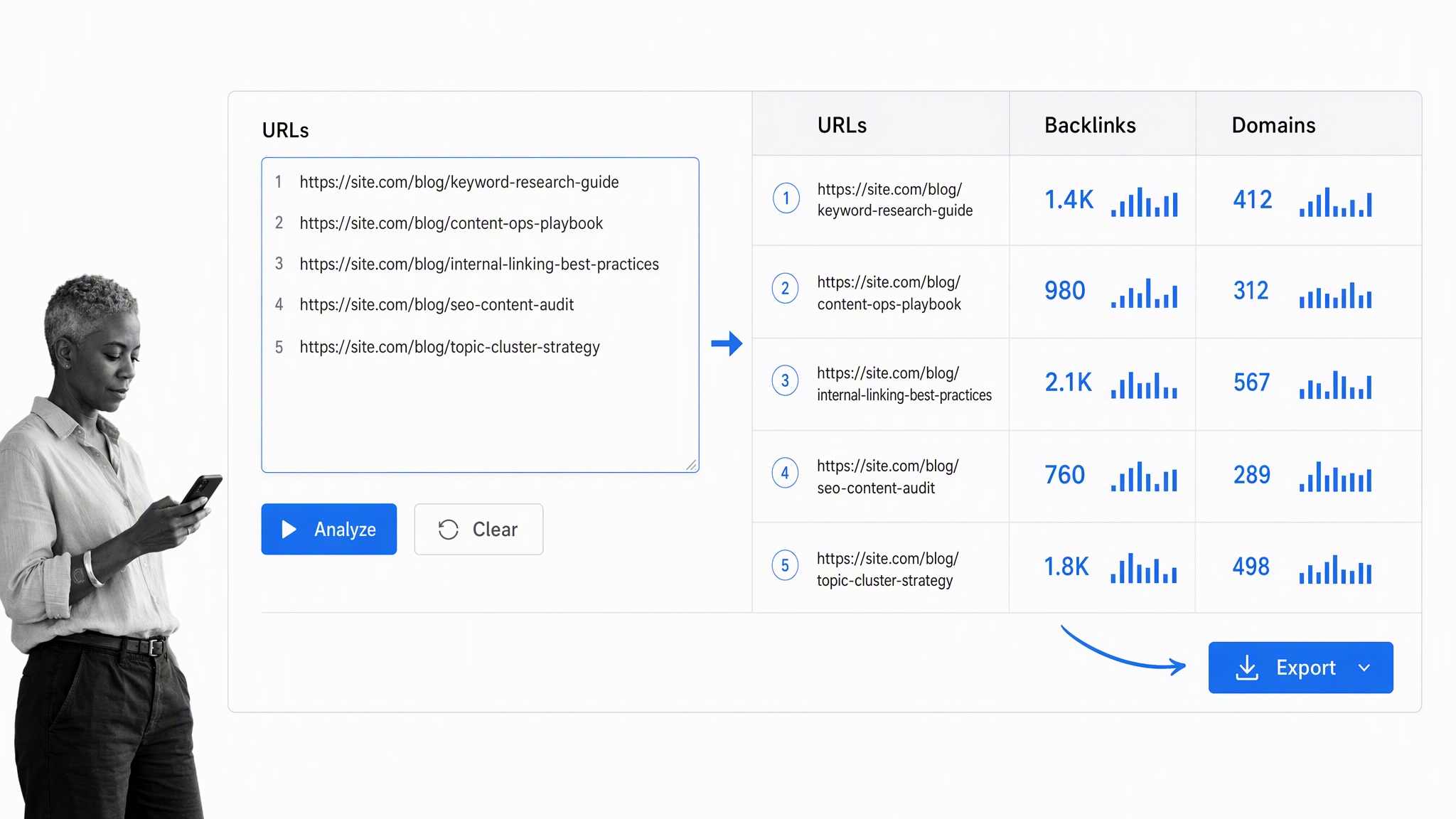
Automations inside post info
Inside post info, a controlled trigger can start a content promotion workflow in Process Street. Process Street is one Compliance Operations Platform with Docs and Ops capability areas plus built-in AI. Docs can govern the promotion procedure, Ops can run the repeatable work with owners and approvals, and built-in AI can help classify inputs, summarize research, and draft working material inside those controls. Here’s the checklist template we use: You can use the zap below to run checklists for new Airtable entries, or you can edit it so you only trigger it when you check the box in Airtable:Views inside post info
Views are a specific set of filters on the main data set that you can quickly apply repeatedly. For example, by creating a new view in post info, naming it ‘public templates’, and applying a filter to show only records where the URL contains ‘/checklist/’, we can collate a list of our public Process Street templates that you can go back to again and again: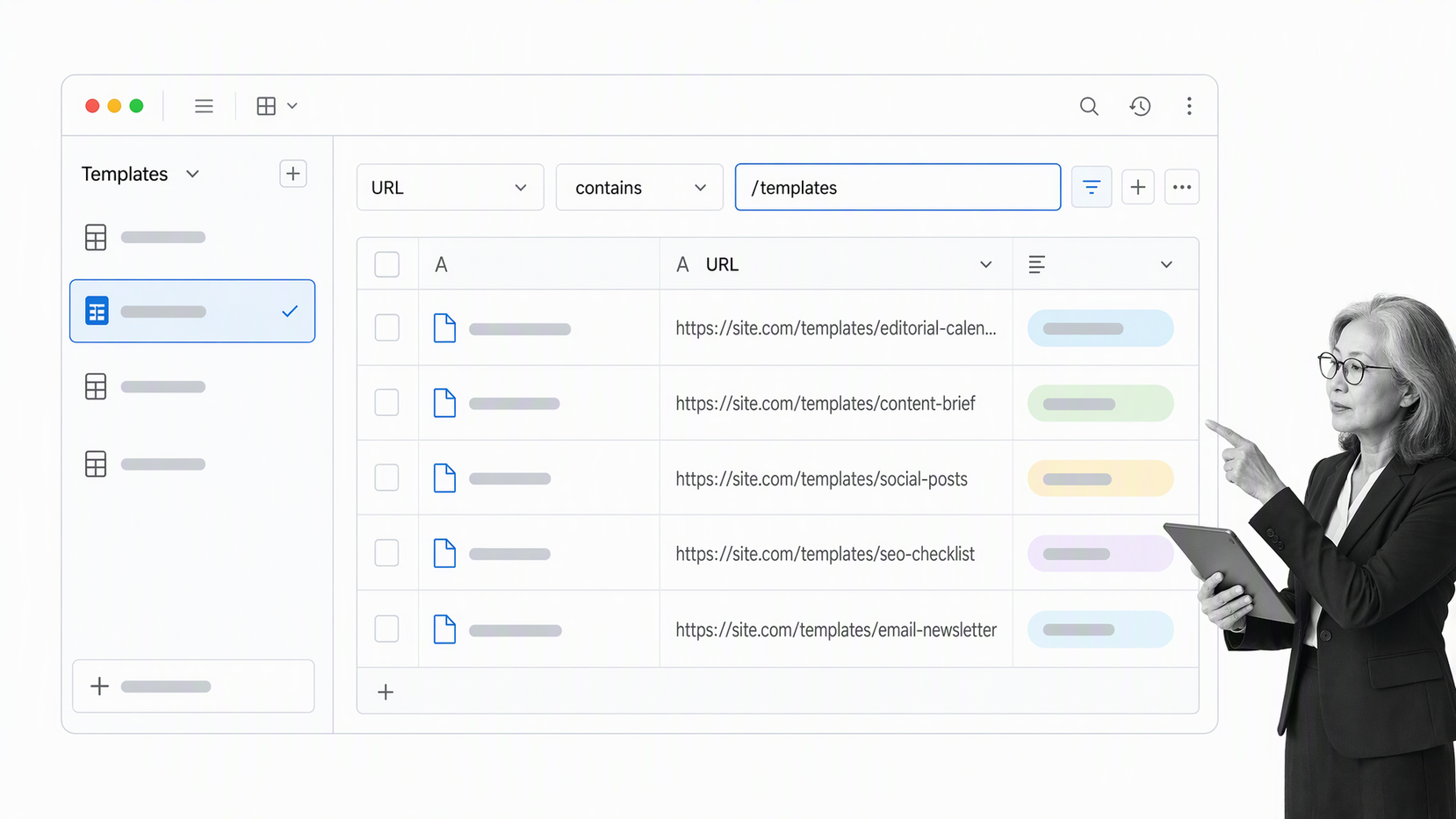
Building a list of contacts mapped against your content: the contacts tab
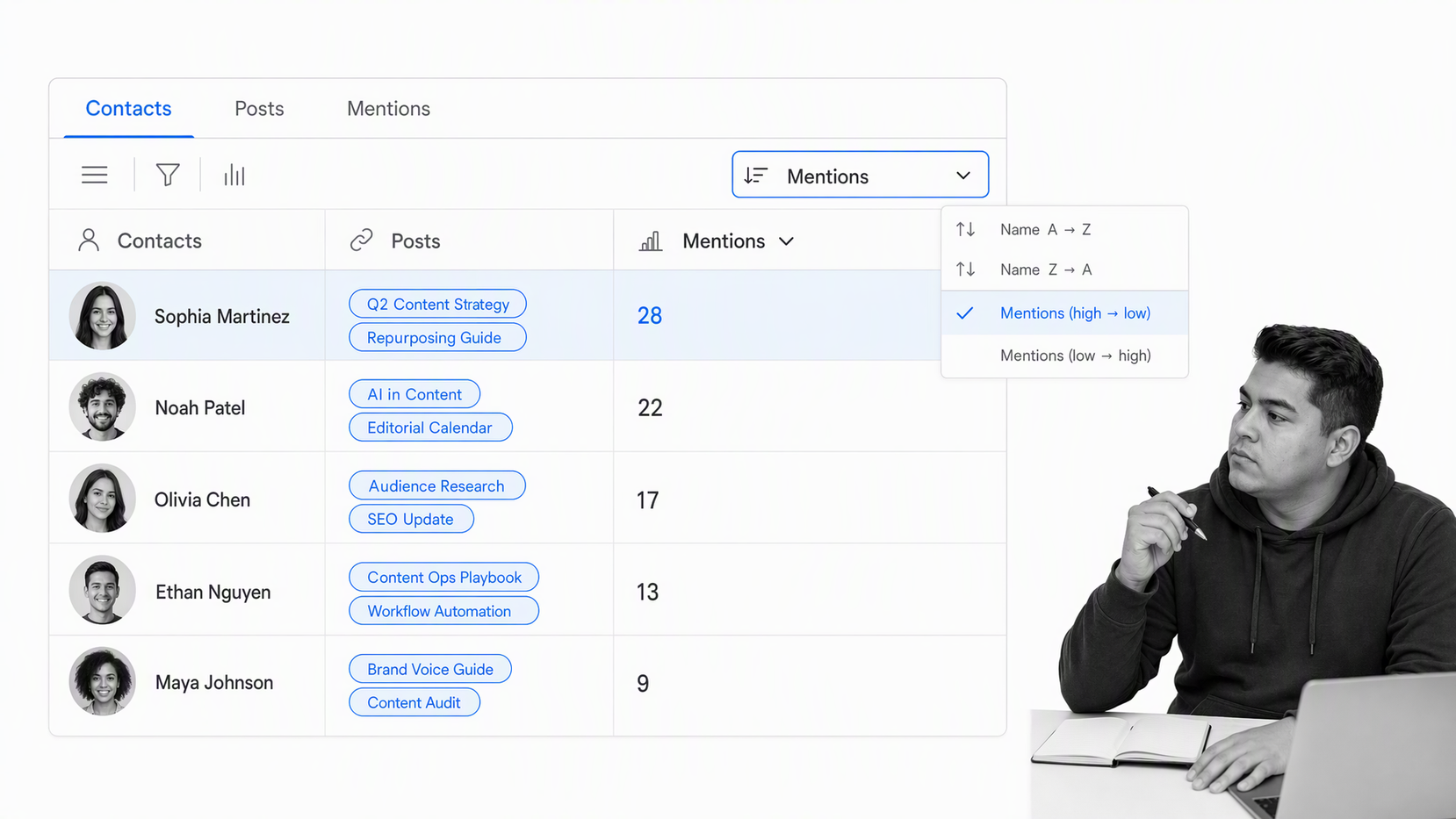
How the contacts tab is populated & updated
The contacts tab is maintained manually but uses a series of tools and processes that keep things quite painless. The first step is to take any new URL added to the post info tab and scrape every link from it using a current browser link-extraction tool or a small crawler approved by your security team. Then while one person manually adds each contact’s name and company domain to the tab, mapped to post info by linking the records, a team of virtual assistants use our email finding process to add in the email address.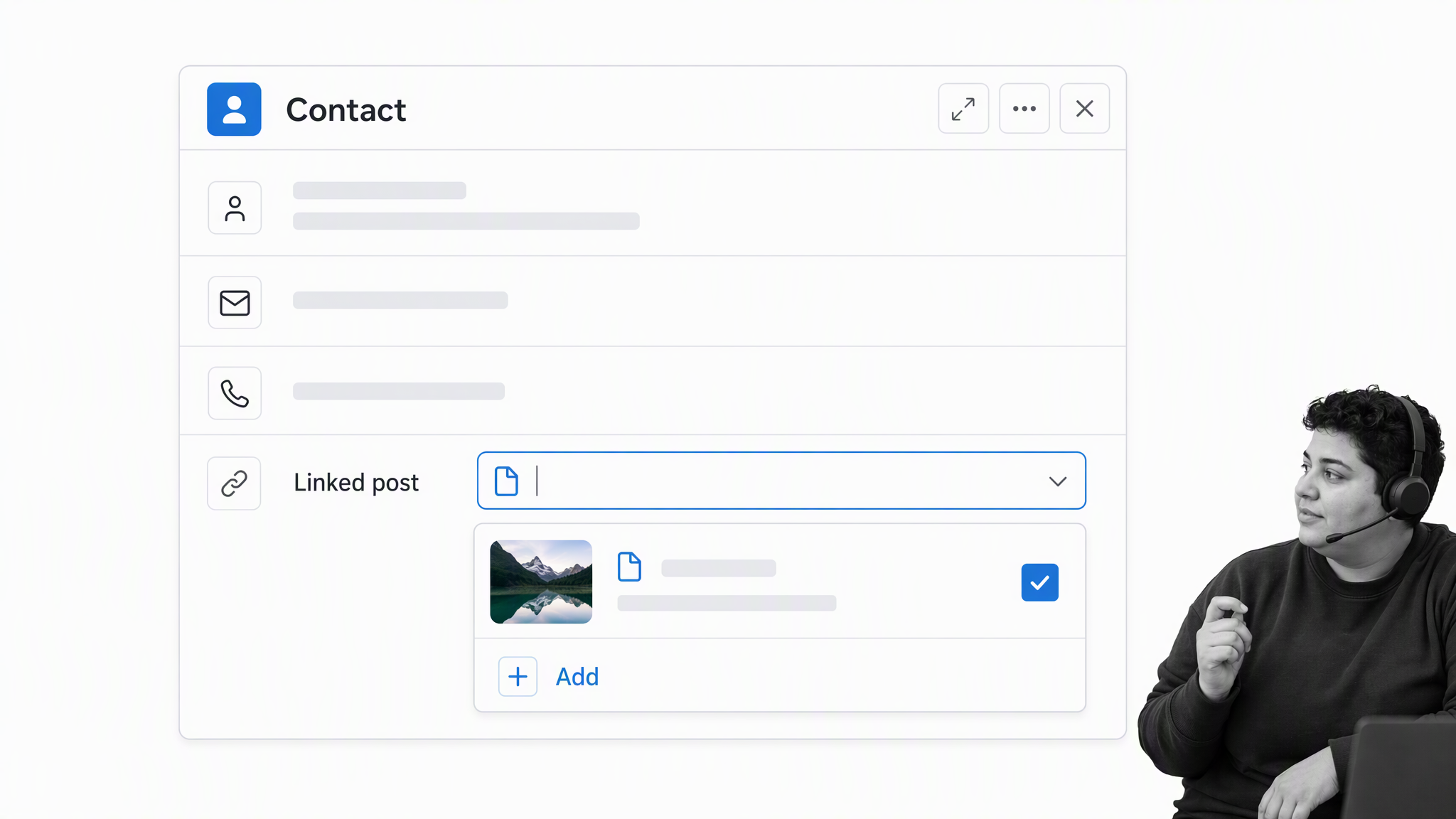
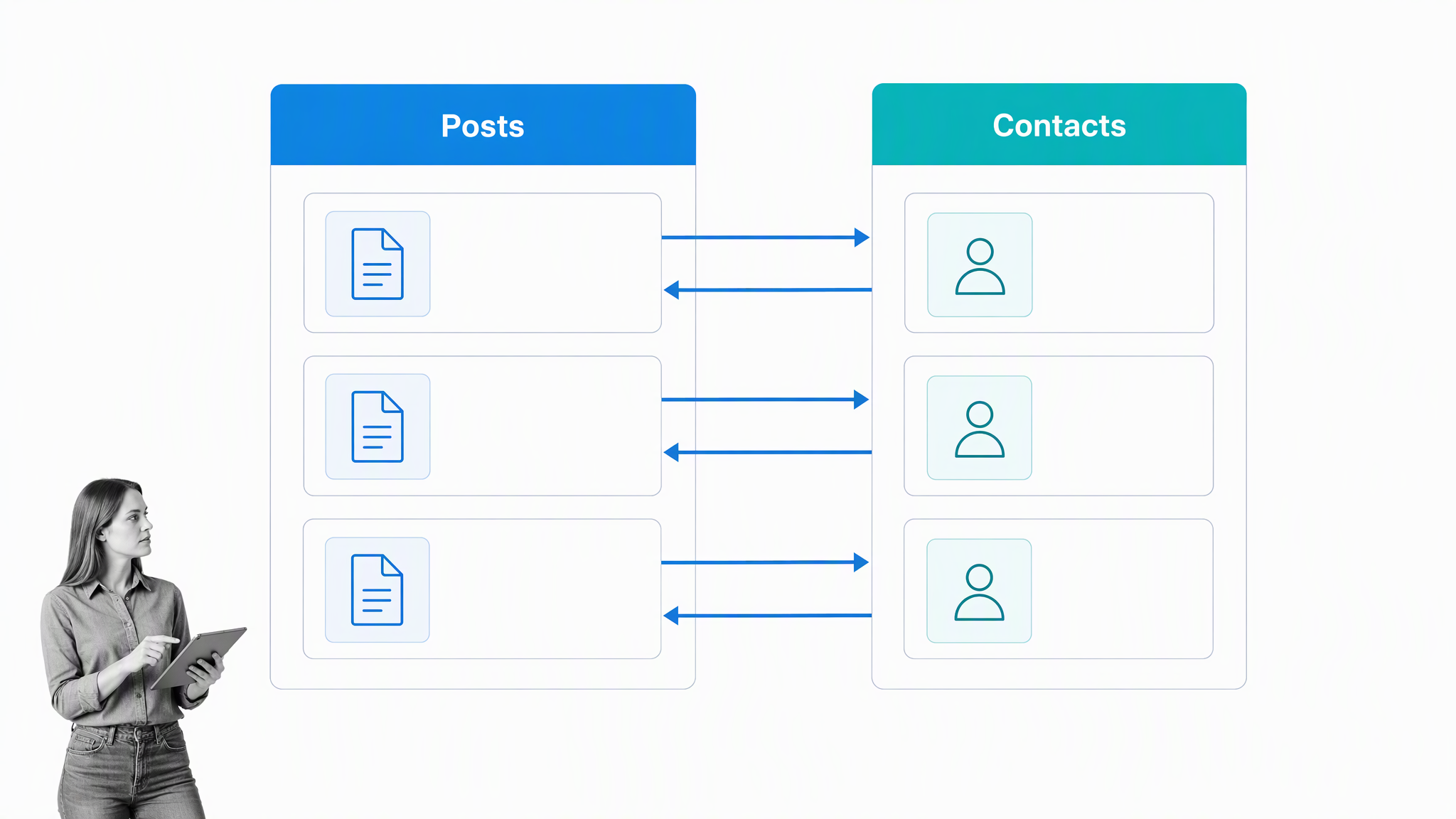
Views inside the contacts tab
We have thousands of contacts in our database, some of which are added purely for the purpose of outreach for a specific project. For example, our view for our ebook on how to use Zapier had a few hundred people who we thought would be interested in reading a draft and giving feedback. By scraping the contacts into a Google Sheet using BuzzSumo’s influencer search, it was easy for a VA to come into the sheet, add email addresses, then paste them into Airtable with a unique tag that let me create a view and filter them: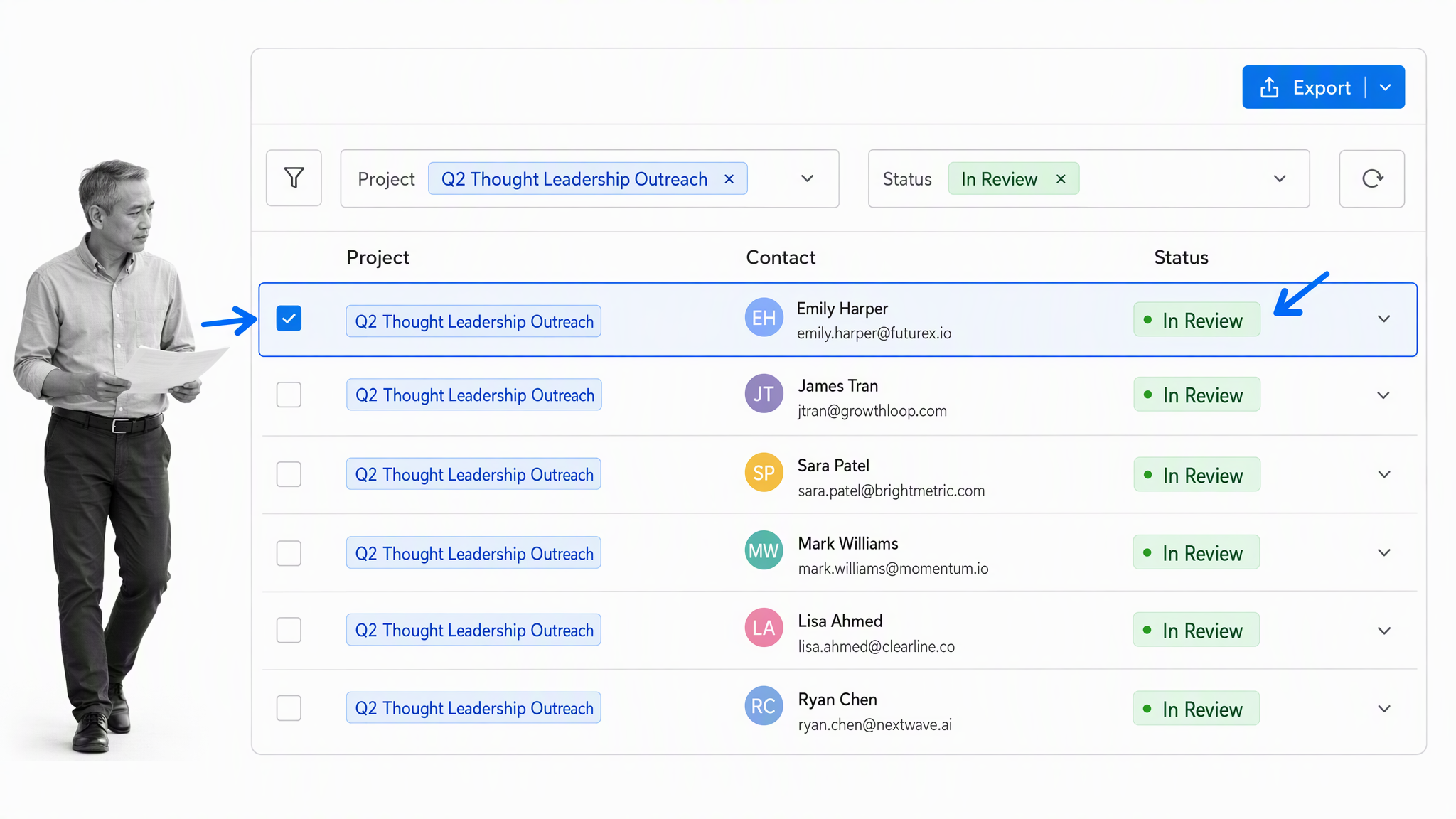
Map post URLs to contacts and companies with the URL mapping tab
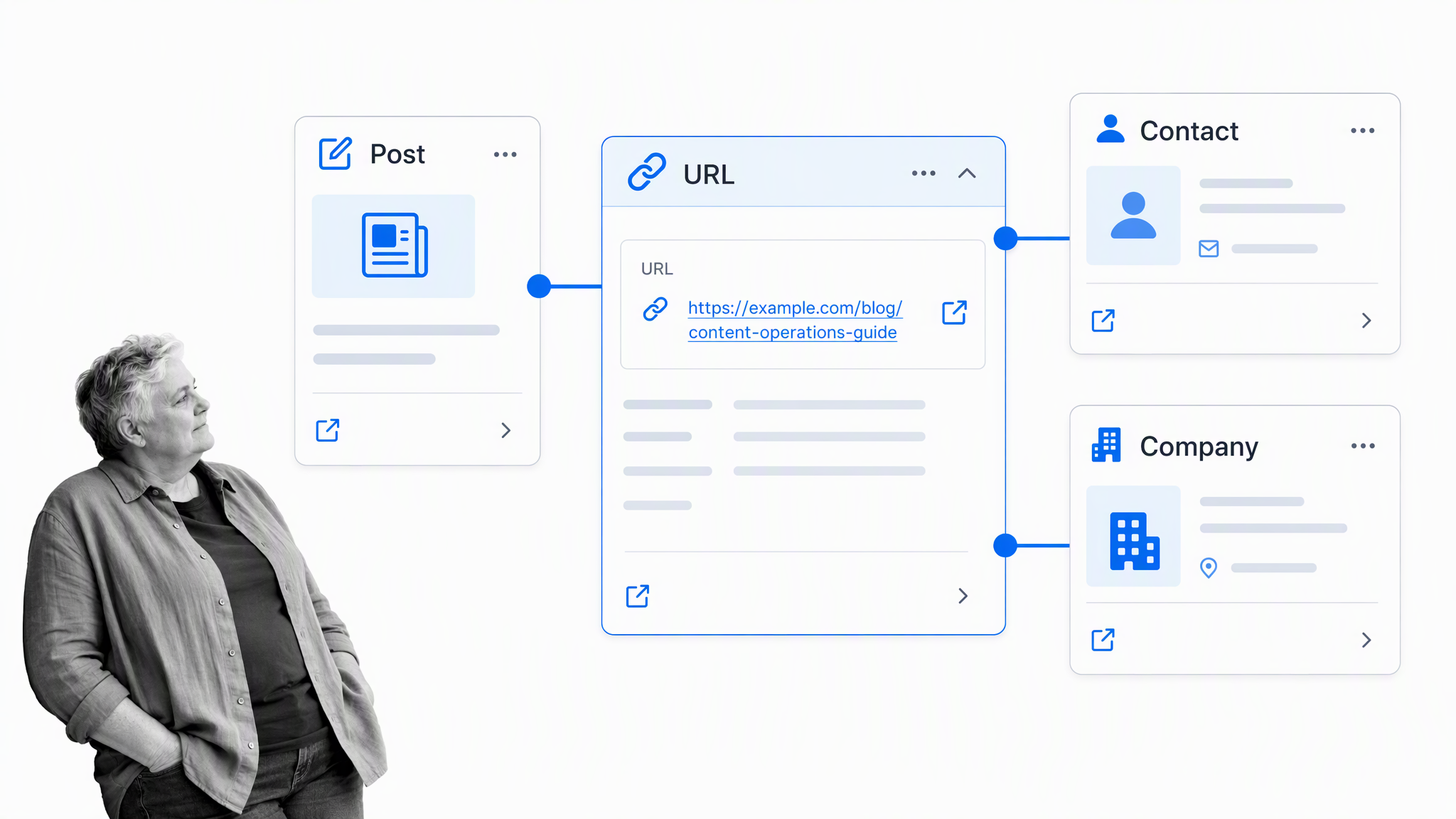
How URL mapping is populated & updated
URL mapping is updated manually, but fills in data automatically. Since we already have data on contacts and post URLs, it means we can paste a new URL at the bottom on the table and instantly get a summary of all available information associated with that URL. It works by consisting mainly of columns that link to records in other tabs. For example, ‘Outbound link to’ comes from post info, and ‘Contacts linked to’ comes from the contacts tab. It’s just a case of naming the columns so they match the data you want to link to, and configuring the column to ‘link to another record’.Automations inside the URL mapping tab
The URL mapping tab is what we use to control outreach automations. Paste a URL at the bottom of the table, and it will reference other tables, pulling out the company, contacts, and where we mentioned them. Over to the right of the table, there’s a dropdown box linked to Zapier that adds contacts to Close for outreach, and it works like this: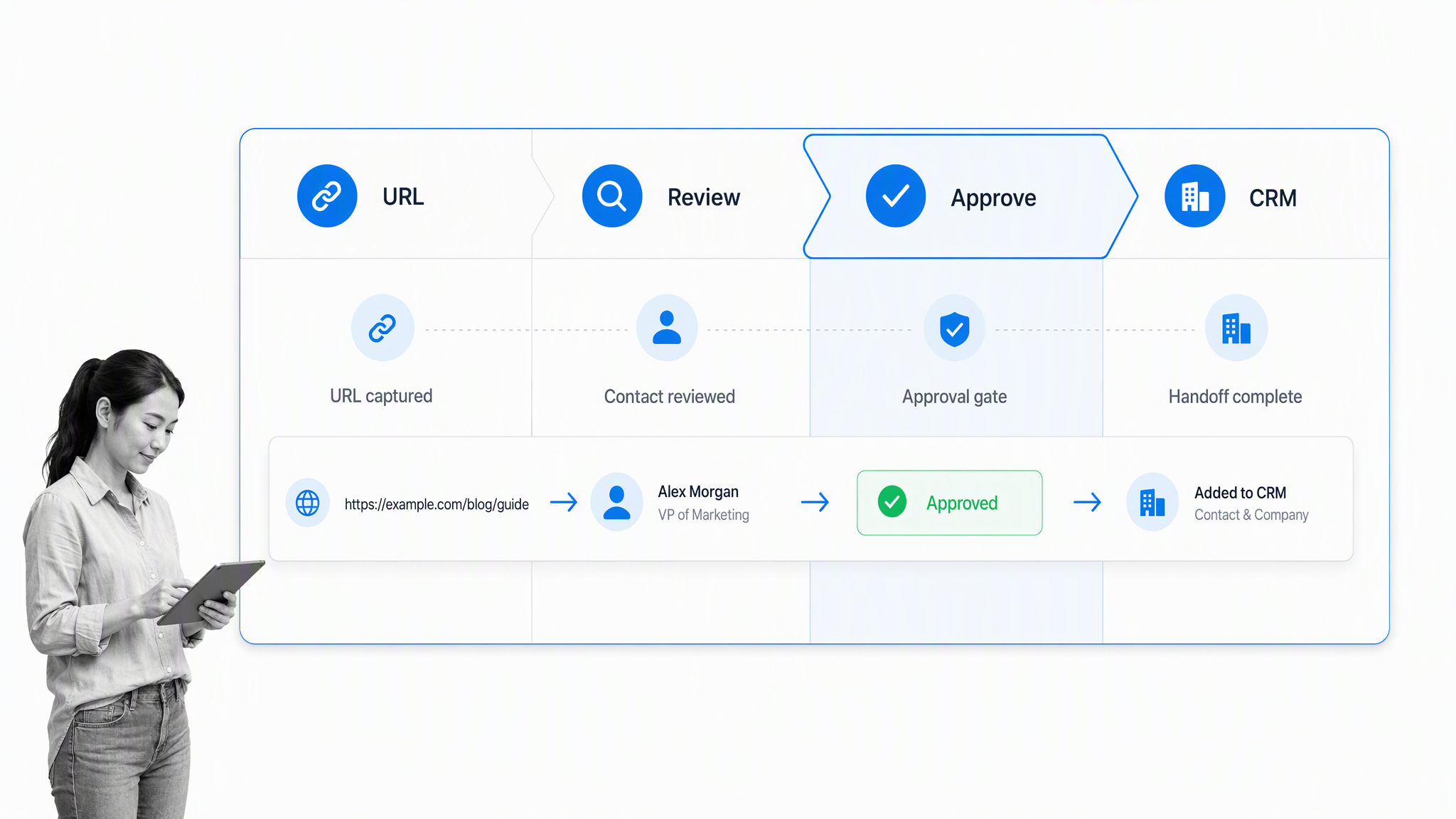
Views inside the URL mapping tab
Since the tab maps contacts to URLs, it makes it simple to create a view to aggregate all contacts that were mentioned in a specific set of URLs. For example, when we released our business process management ebook, we needed a list of everyone who was mentioned in all of the posts that went into the book. When the data is already there, it’s a quick job to create a view: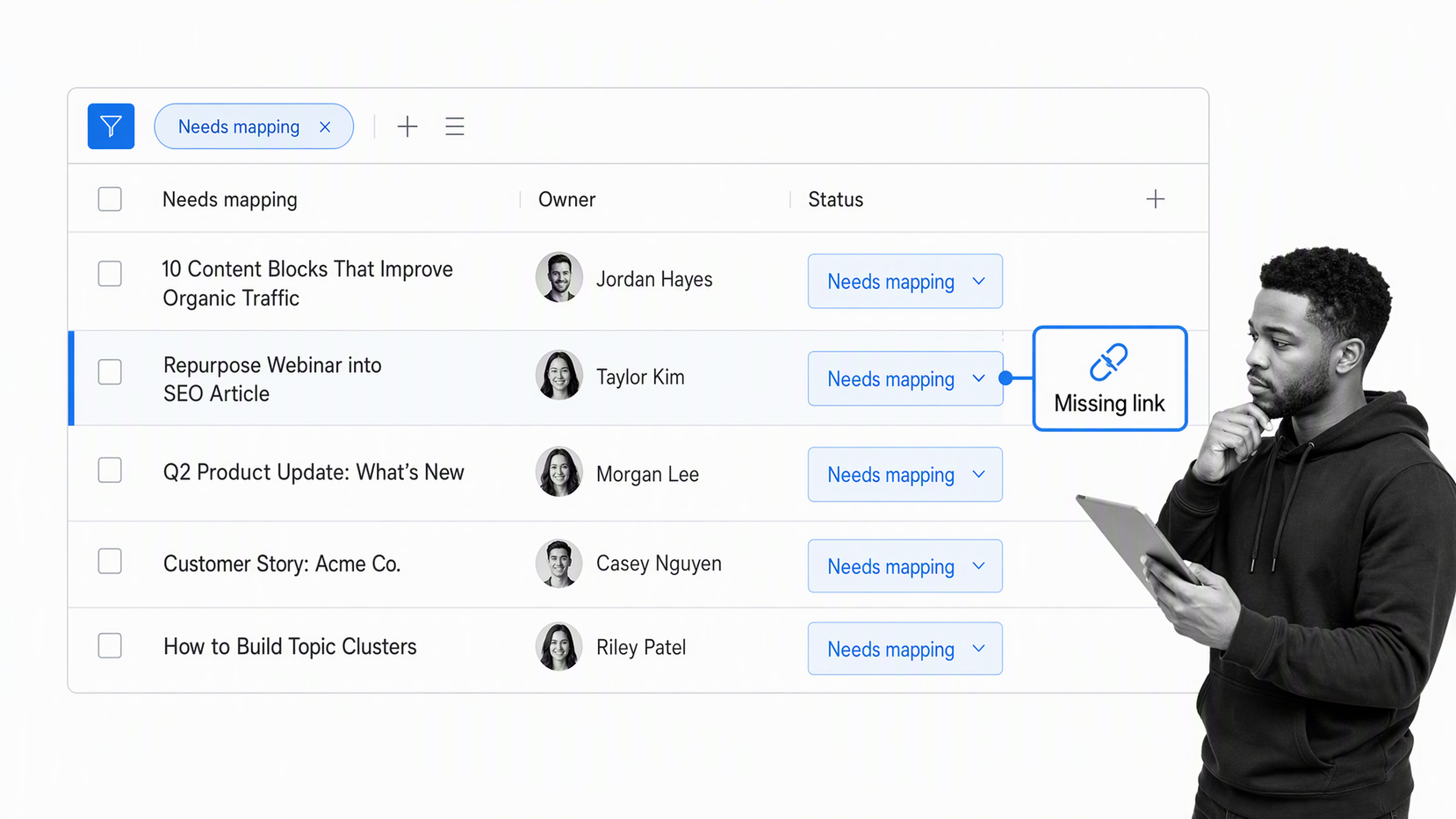
Group contacts by organization in the companies tab
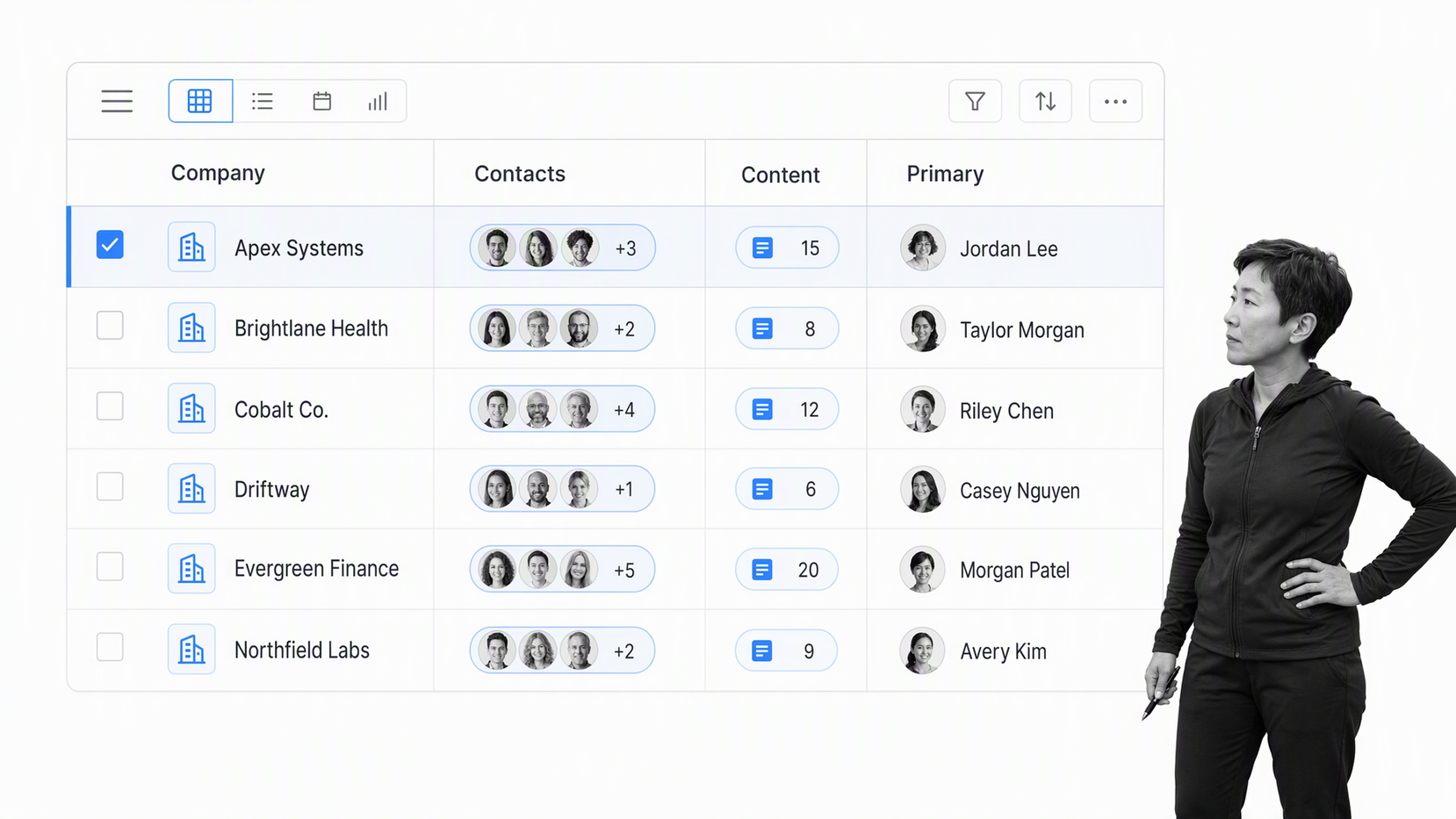
How the companies tab is populated & updated
The URL mapping tab explained above takes raw URLs and formats them into company names. The company names are connected to the URL, and pushed to the companies tab with the company name as the main record. From there, over to the right hand side of the table, all known information about that company from the contacts tab and others (name, contacts, primary contact, emails) is inserted automatically because it’s all mapped together using linked records.Tracking SERPs and keywords against content URLs: the keywords tab
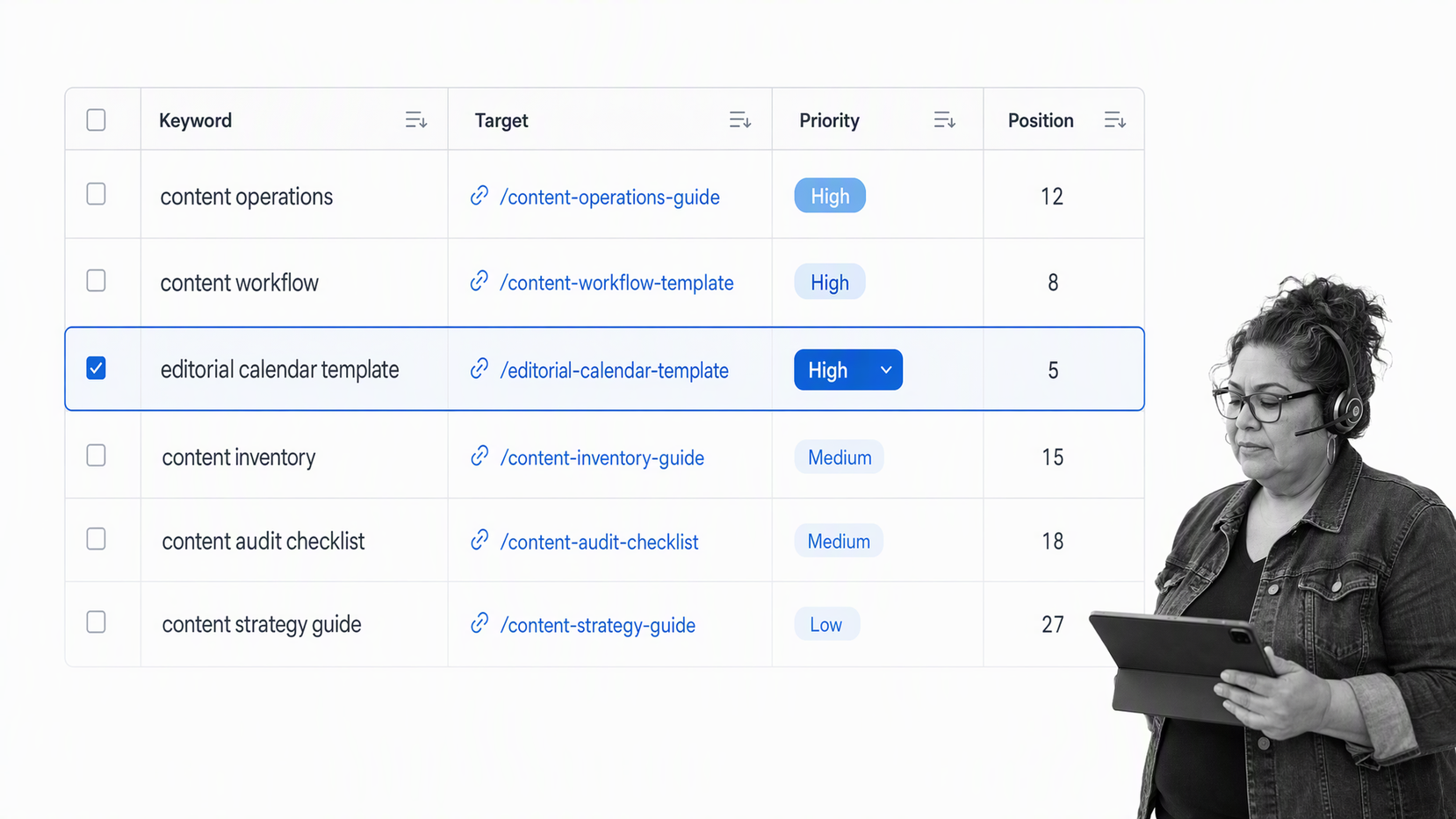
How the keywords tab is populated & updated
All of our SEO data comes from an Ahrefs export manually pasted into the post info tab, as explained earlier in this article. But, since it’s all summarized by URL, you can easily make it more readable and sortable by creating a new table from the linked record. This video explains how: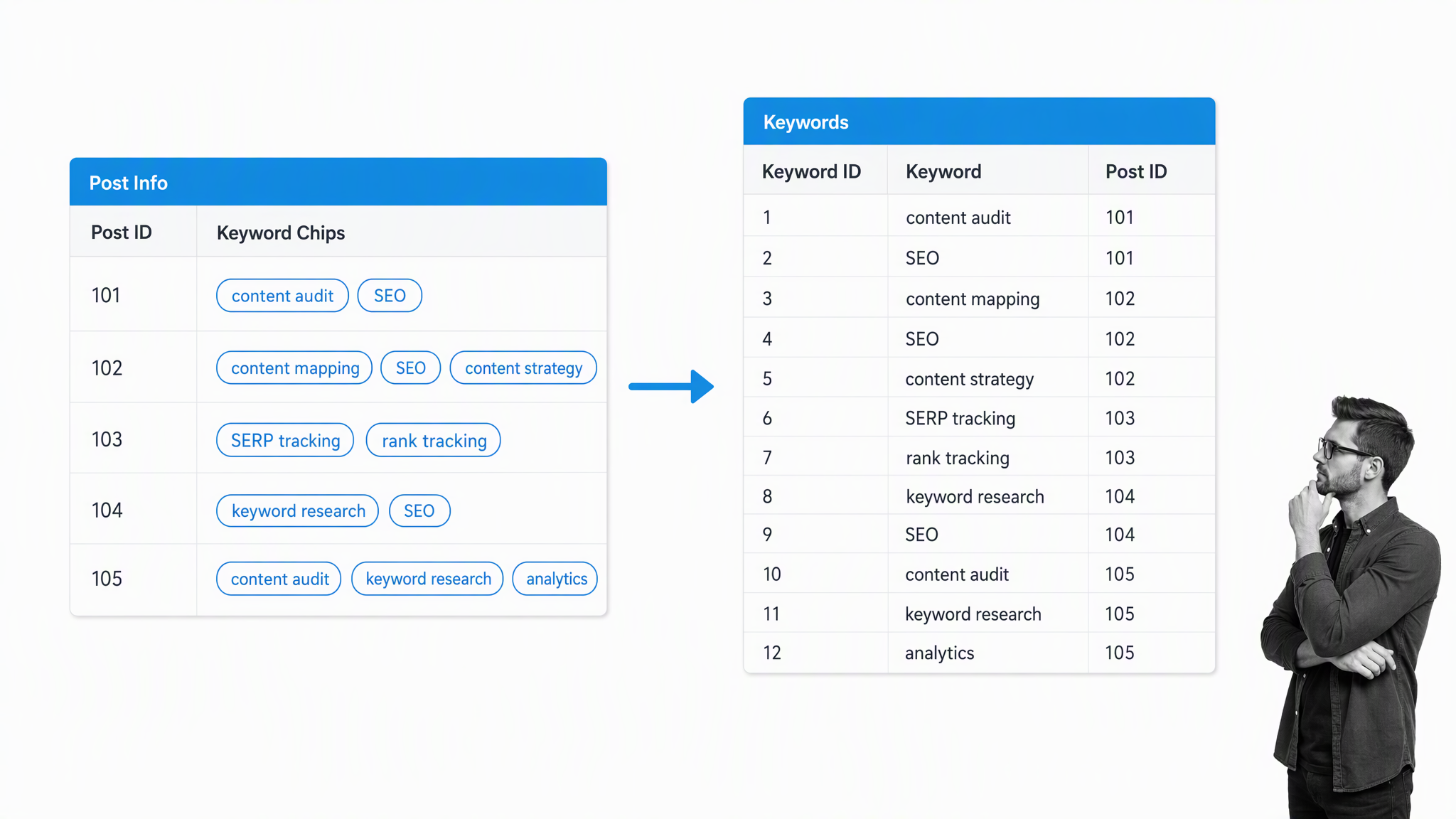
Views inside the keyword tab
As you might expect with all of the Ahrefs analysis we do, we have an unearthly amount of data in this tab. The best way we’ve found to organize it is by creating a dropdown column called ‘priority’, and then filtering the highest priority entries into a view: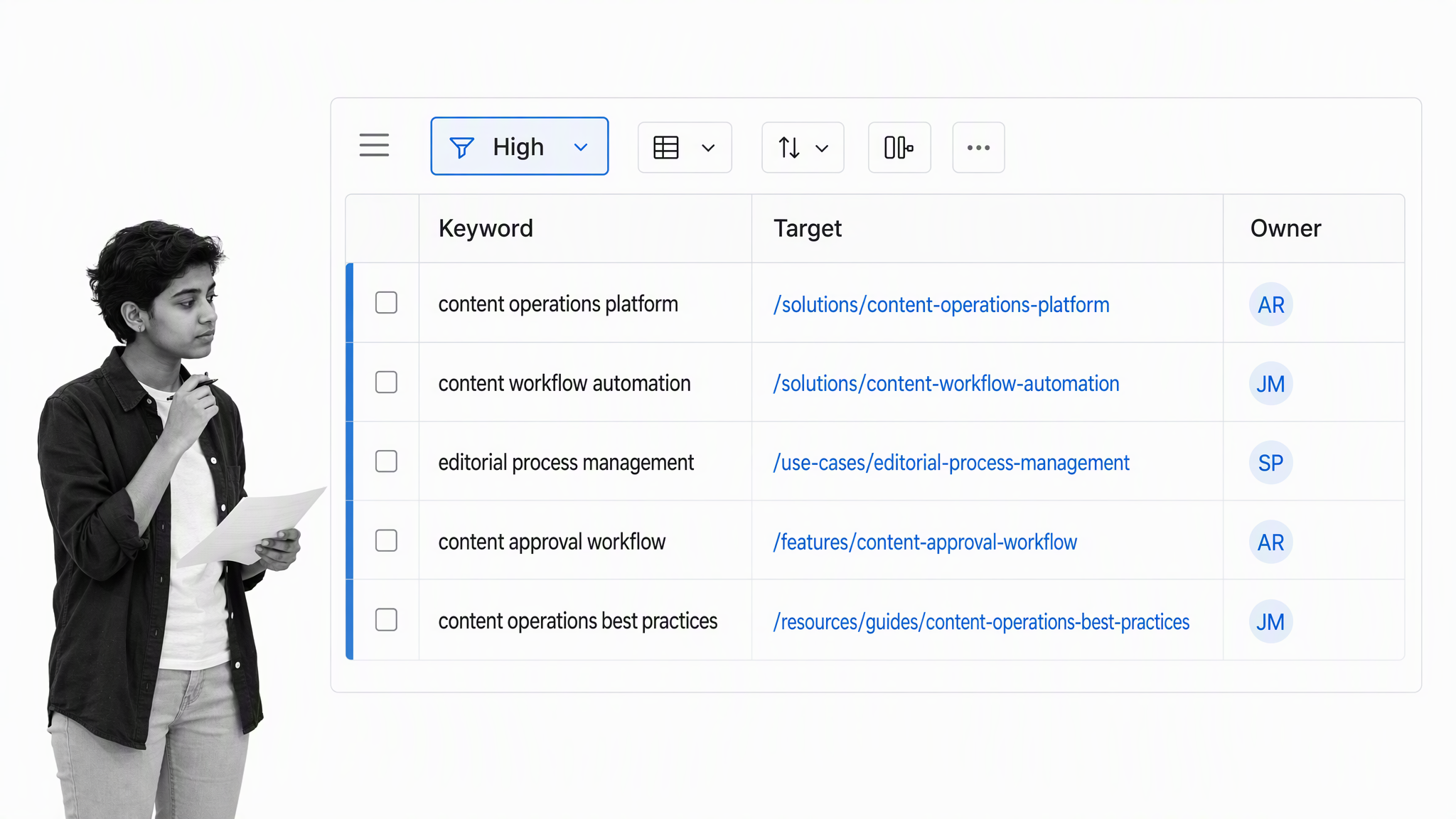
Maintain a list of social mentions in the mentions tab
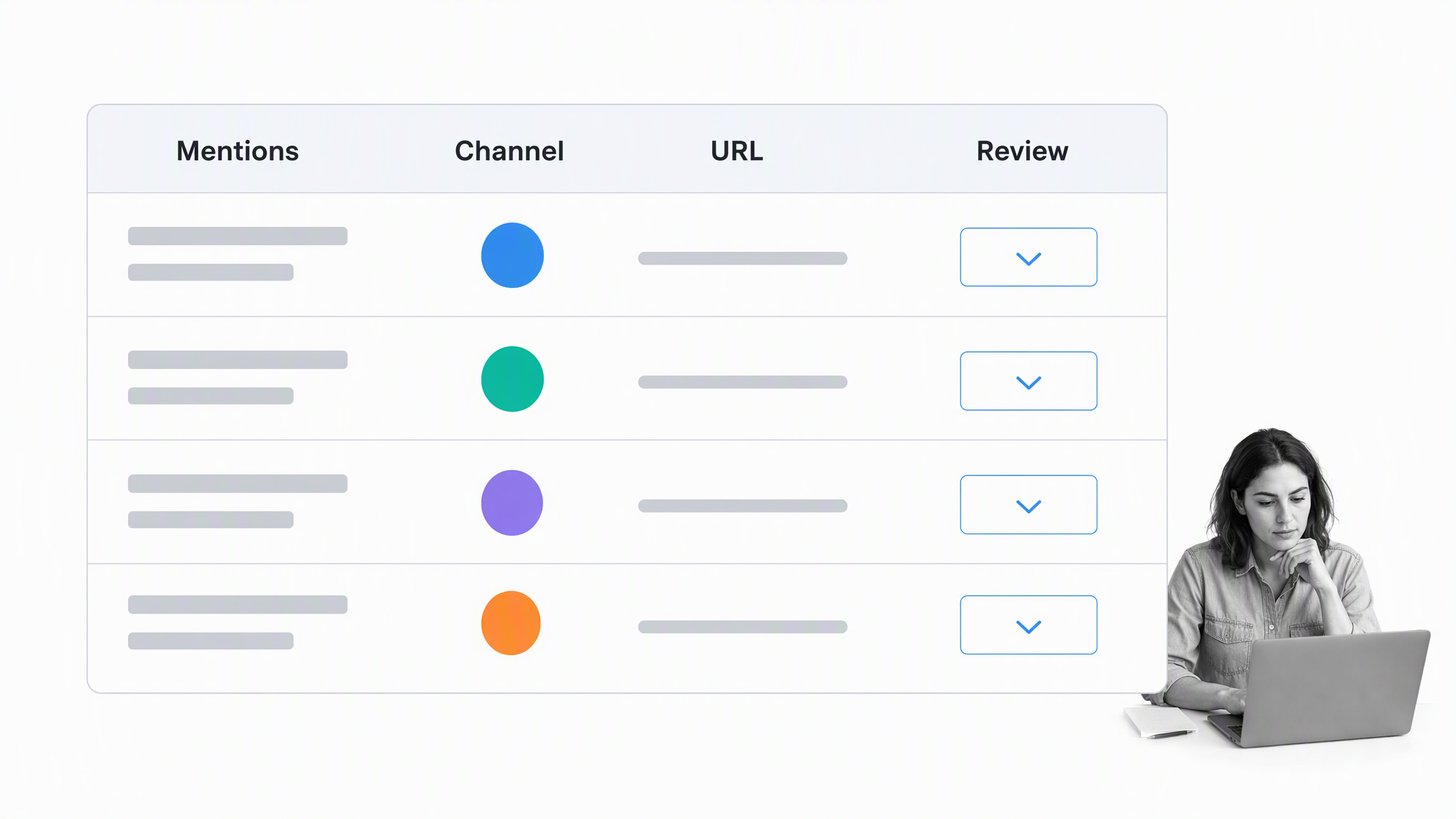
Use the Twitter mentions tab as a platform-neutral social mentions feed. Direct Twitter-to-Zapier workflows were discontinued, and the platform is now called X. Use an approved social-listening provider, a monitored RSS source, or the X API where its terms and access level fit the use case.
How the Twitter mentions tab is populated & updated
Capture only the fields needed for a defined marketing purpose, such as the public handle, canonical post URL, mention URL, timestamp, and engagement count. Route matches into a review queue before they become durable contact data, and document retention and deletion rules.
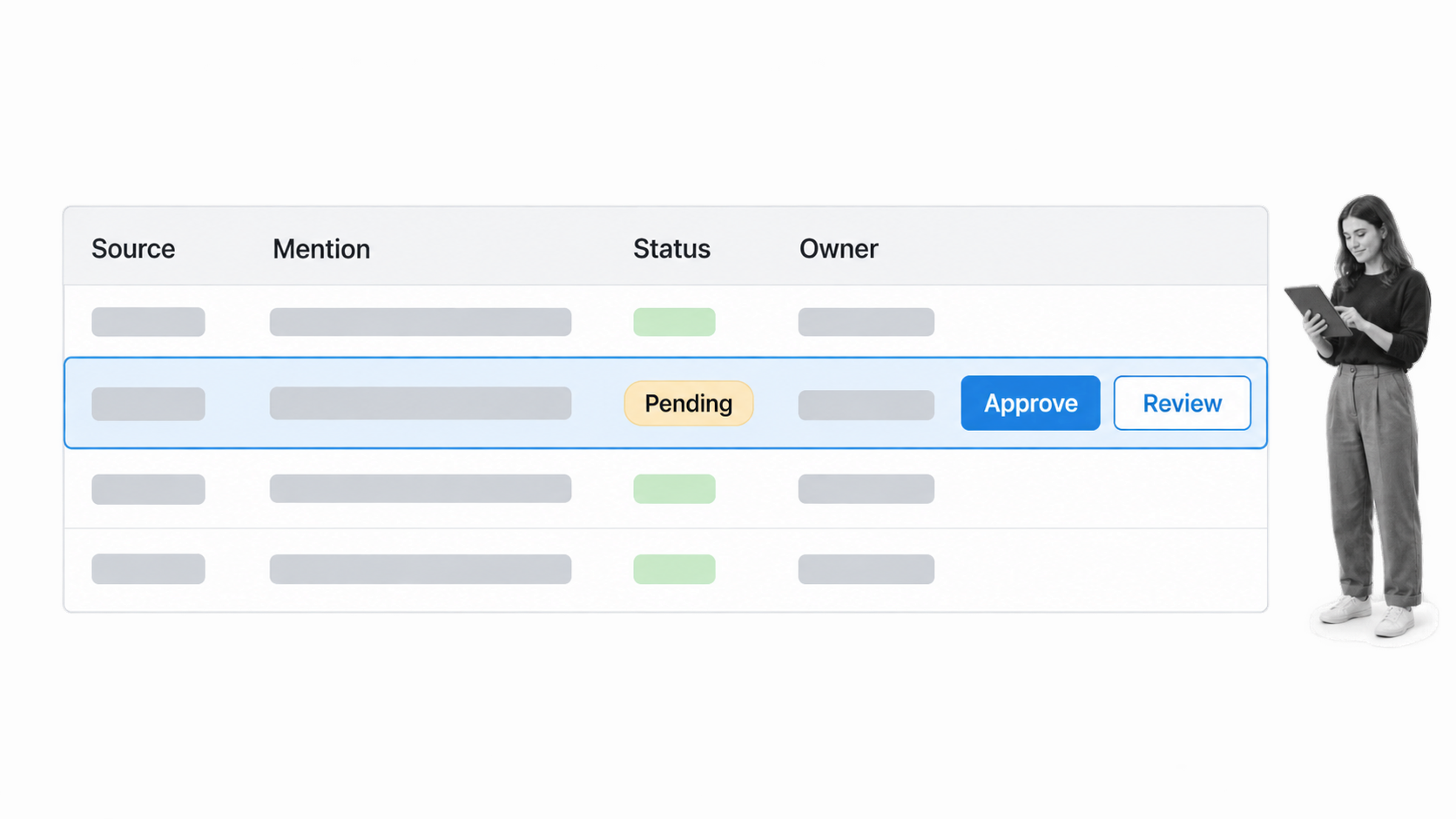
Queries can cover brand handles, product terms, and canonical domains. Review false positives and URL variants, and avoid treating every public mention as permission for outreach.
Map social mentions to contacts in the people tab
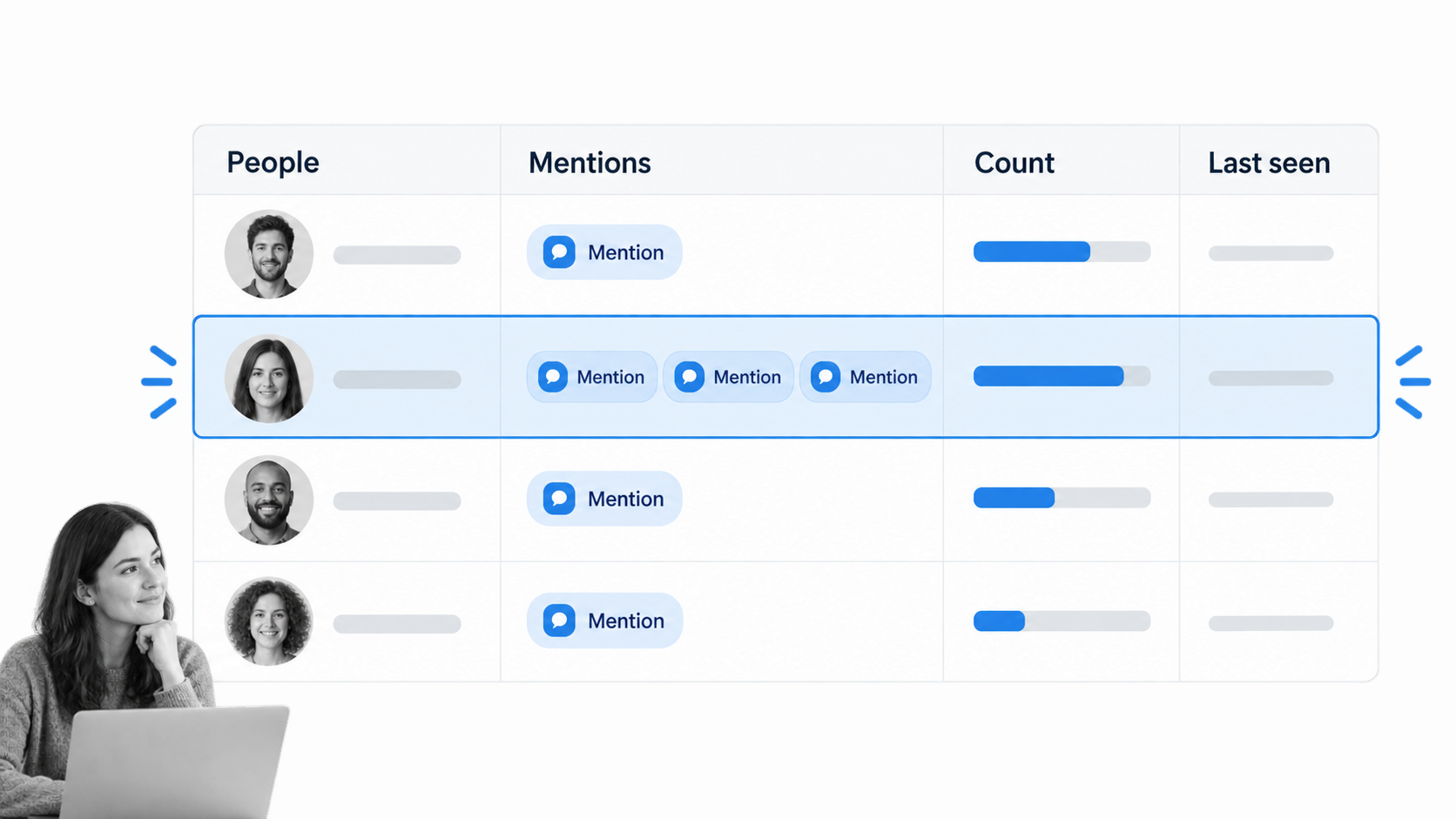
A linked people table can aggregate approved mentions by public account and show which content each person referenced. The useful pattern is the relationship model: one person can have many mentions, and one mention can point to one or more content URLs.
How the Twitter people tab is populated & updated
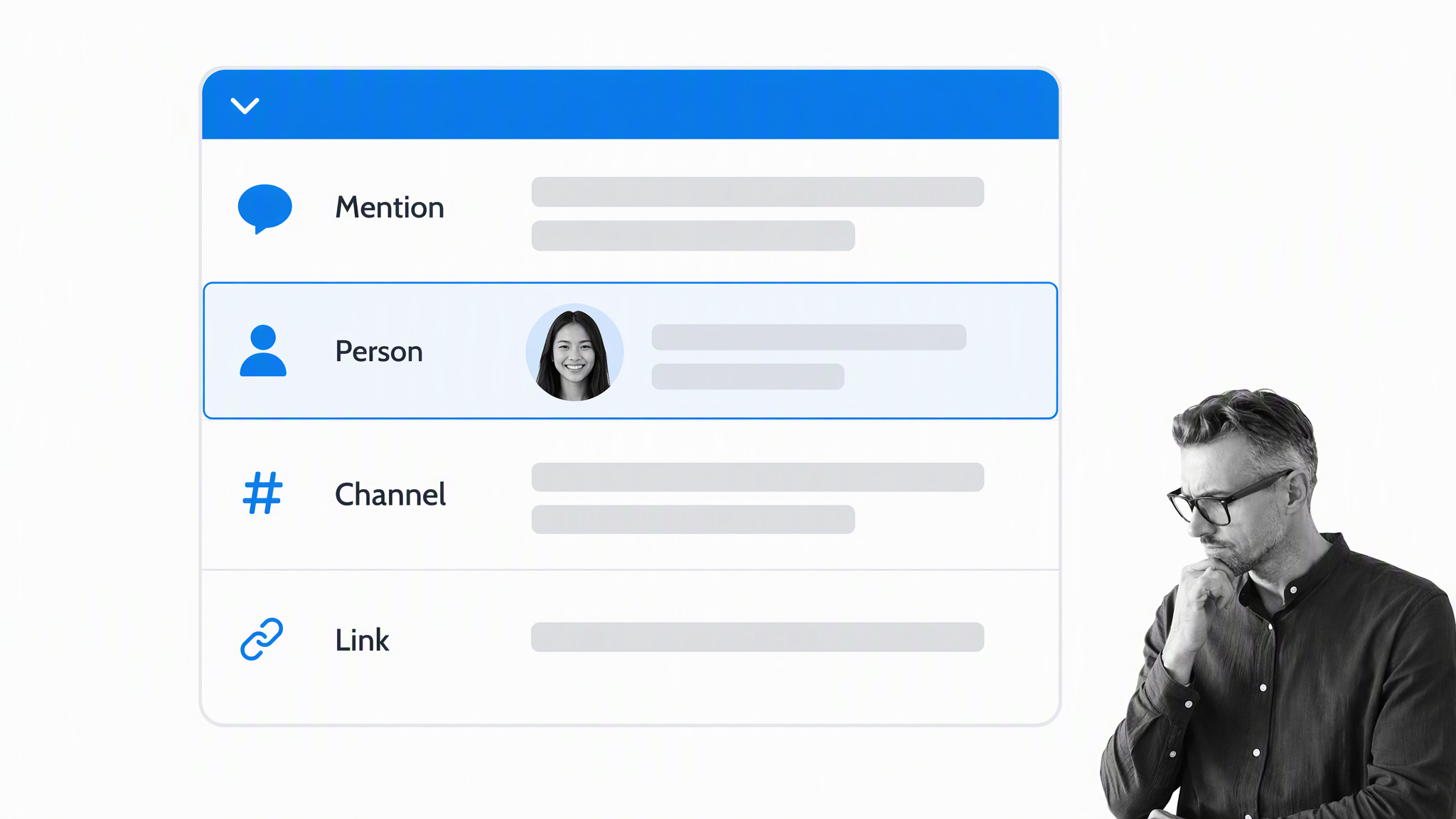
Link the normalized public handle in the mentions table to a People table. New approved handles create new people records; repeat mentions roll up to the existing record. Keep the original mention URL so reviewers can verify context.
Views inside the Twitter people tab
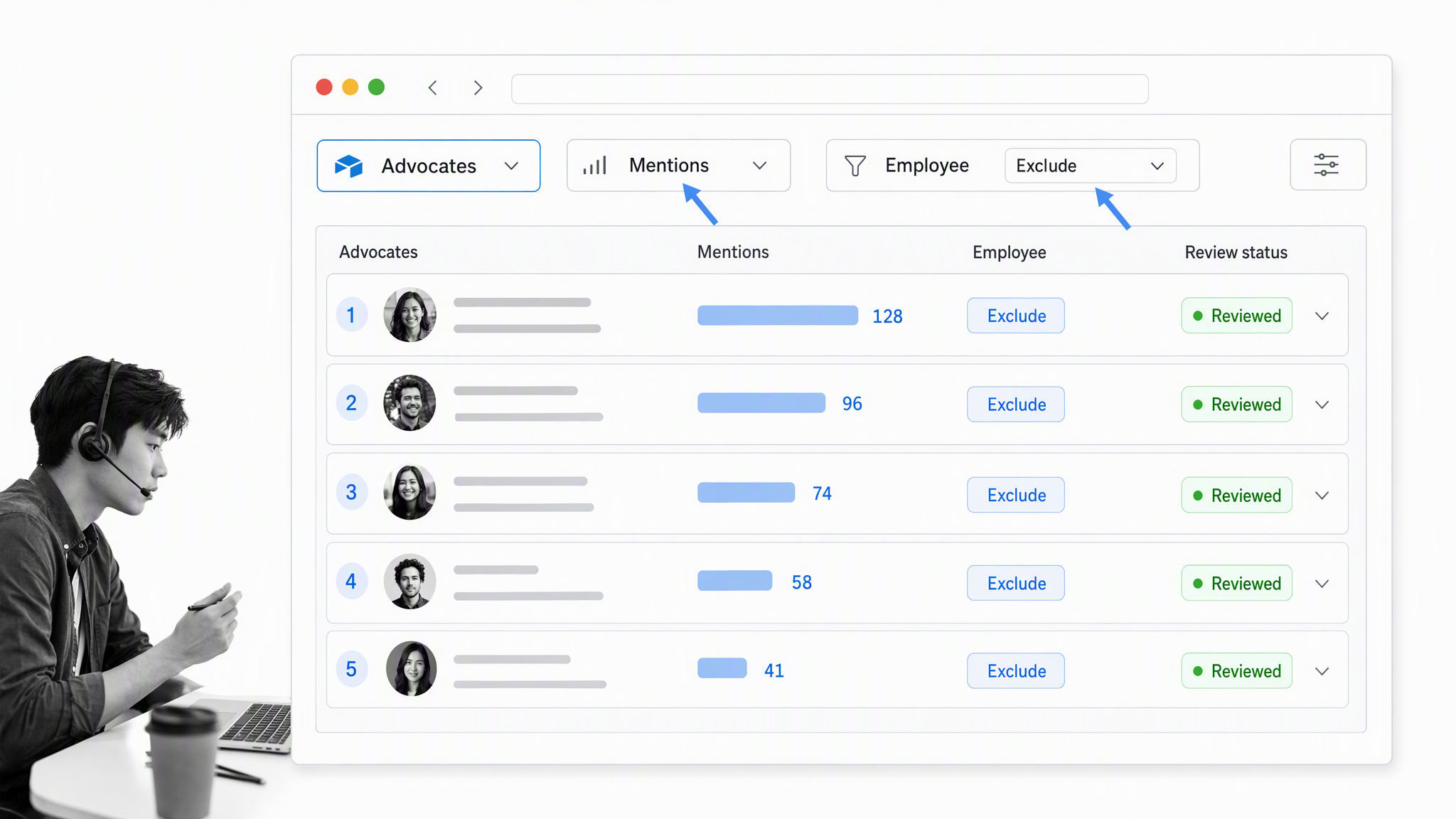
Views can surface frequent external advocates, segment mentions by topic, or show records that need review. Exclude employees and owned accounts, use public data proportionately, and make outreach a deliberate human decision rather than an automatic consequence of appearing in the feed.
In conclusion…
Airtable can turn content marketing from a collection of aging spreadsheets into a connected operating system. The value comes from the relationships: URLs connect to keywords, contacts, companies, mentions, and the work needed to improve or promote each asset.
Start with a clean inventory, add only the fields the team will maintain, and give every automated input a review rule. Saved views then become practical work queues, while linked records make it possible to answer questions without rebuilding the same report each time.
The database organizes the evidence. Process Street can govern and run the repeatable procedures that act on it, from content intake and review to promotion, outreach, and maintenance. For a broader look at that execution layer, see this guide to content workflow software.
Airtable content marketing FAQ
What should an Airtable content calendar track?
Track the canonical URL, title, format, status, owner, publication date, audience, campaign, primary keyword, and next action. Add performance data only when someone owns its update schedule.
Should Search Console be the content inventory?
No. Search Console is useful for indexed URLs, queries, clicks, and impressions, but it is not guaranteed to contain every content asset. Start with the CMS export or API and use Search Console as a performance source.
How do linked records help a content team?
Linked records let one content URL connect to many keywords, contacts, companies, and mentions without duplicating those entities. Rollups and saved views can then summarize those relationships into useful reports and queues.