Document Approvals bring structure and control to your document review and approval processes, ensuring that critical documents meet compliance requirements and maintain quality standards before publishing.
Whether for compliance assurance, maintaining document integrity, or reducing manual efforts, Document Approvals offer a robust solution to meet diverse organizational needs.
Users: You must be an Administrator or a Builder with edit permission to create Document Approvals.
Contact our support team if you would like to trial this feature.
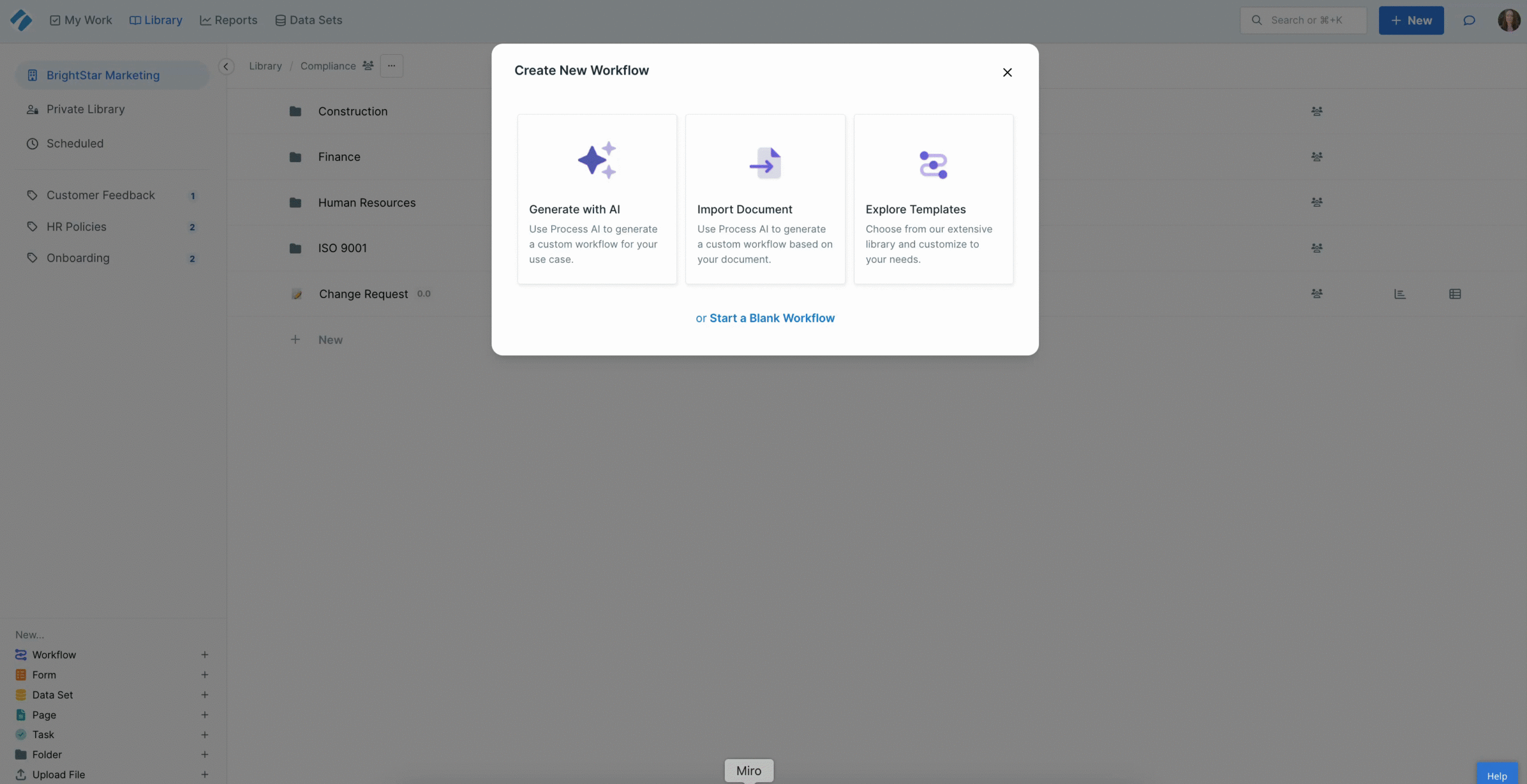
First, you’ll need to import the Change Request workflow into your organization. You can do that from our in-app workflow template gallery, shown below.
Click + New workflow, select Explore Templates, choose the Compliance folder and then click the Change Request workflow.
Now that you have the change request workflow, you can set up approvals on any Workflow, Page or File you choose.
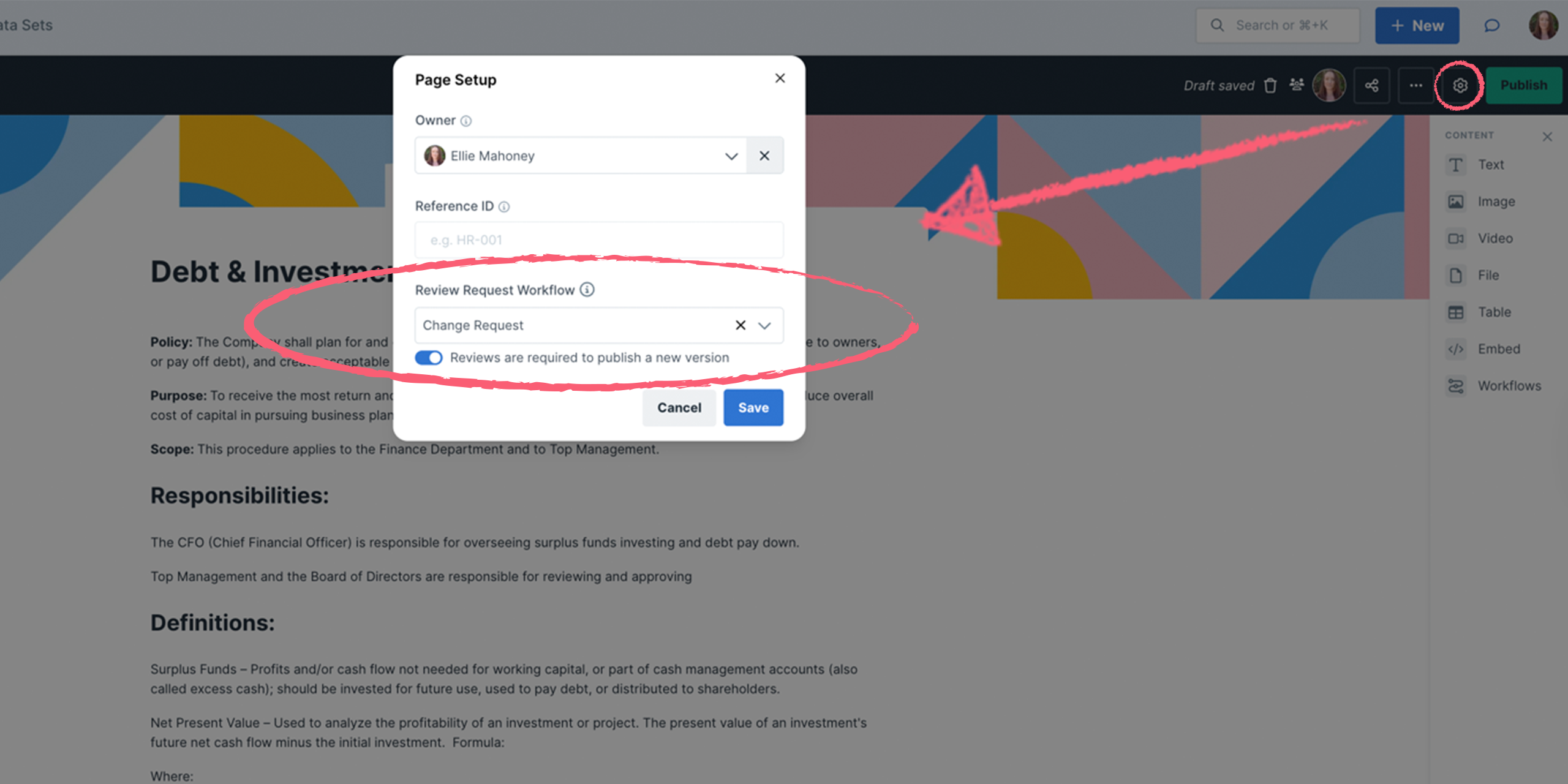
When editing your document, click the settings cog. Here, you can search for the change request workflow.
Select the change request workflow from the dropdown and turn on the toggle switch for “Reviews are required to publish a new version”. Click Save to finish.
Now that your change request workflow is connected, go ahead and make changes to a page, workflow or file of your choosing. When ready, click Request Review.
At this point, the request workflow run opens up, and you can complete the steps, assigning the person you need to approve the changes.
If you have Version Control enabled, you can enter details for the changes being made, as shown above.
Note: Once you have imported the Change Request workflow, you can edit it or rename it just like any other workflow. You could add a step for training, change the dropdown details or do anything else you prefer. However, you must not remove the document widget since this is the crucial component that enables this feature to work.
When a document review is requested, a workflow run is automatically created from the review request workflow. A document widget in the workflow links the document (in draft state) to the workflow run.
The Author will always be assigned to the review run (and technically be the creator of that workflow run). This way, they will always have permission to access it.
You can review a document in your web browser or in Microsoft Teams. In Slack, you’ll be prompted to open the document widget/approval in your web browser.
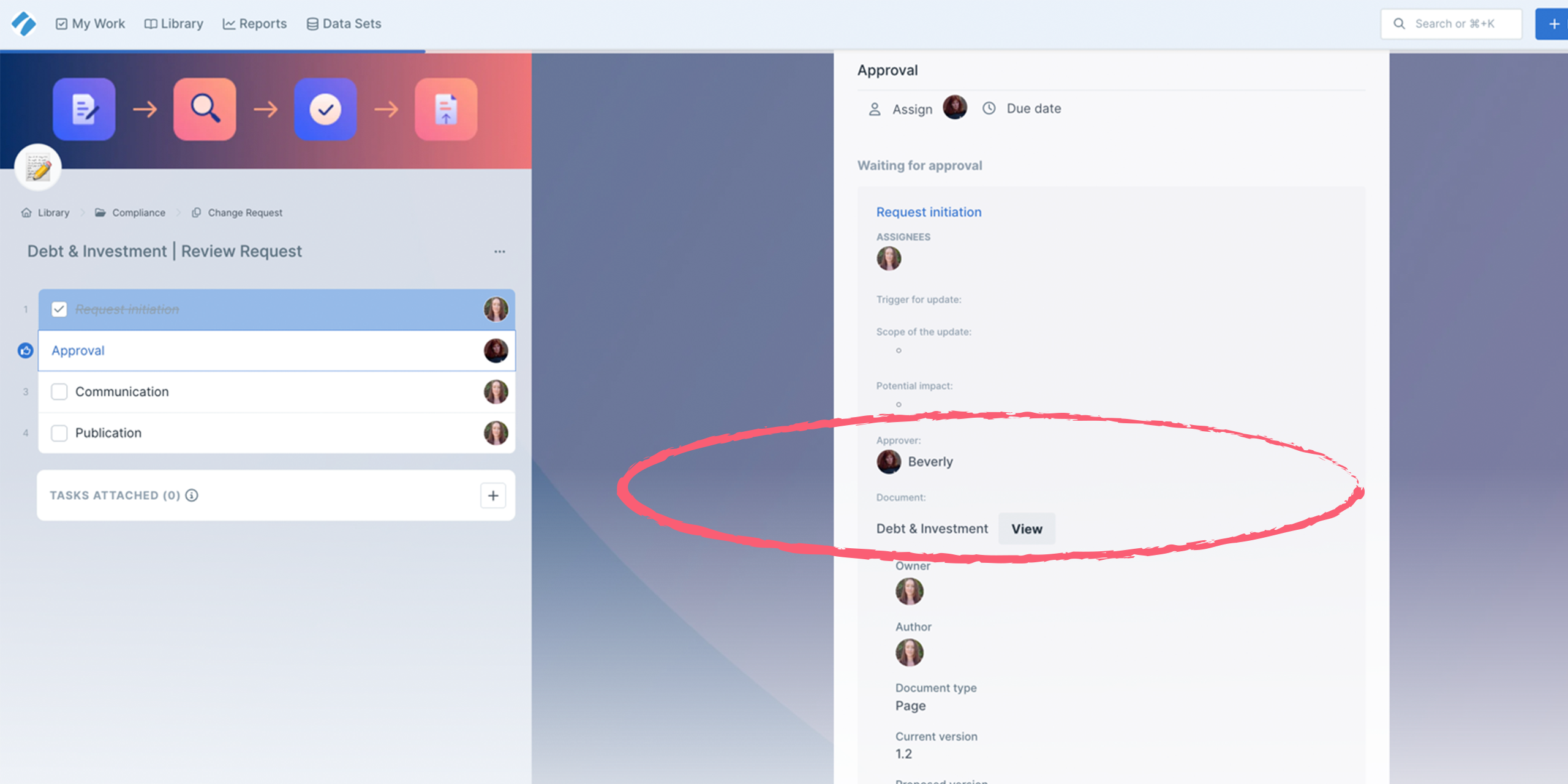
The person or group you set to approve the changes can click to view the document in question from the approval task, as shown above.
The approver will see an embedded version of the document to be approved, which can be expanded to full screen for viewing.

Details of the document, its owner, author, version number and review details can be seen below the document widget in the approval task.
When the approver clicks View, the document opens in a new tab where it can be reviewed and published. Once published, this tab can be closed and the approver returns to the review request workflow run where they can approve the task.
Anyone editing or viewing the document in draft mode will see that it is under review and can access the link to the review request workflow run.

If the approver has reviewed the document and decides it needs further changes, they can close the newly opened tab and reject the task in the review request workflow.
After editing a document, admins or document owners can select Skip review and publish if they feel a review isn’t required.
Other editors will only see the Request review button, or Cancel review.
Only Owners or Admins can publish a document if reviews are required. When they click Publish, the version control dialogue will be shown with the values (material/non-material change type & explanation of changes) that were previously submitted for review.
When a document widget is in a workflow and enabled for reviews, you can access its variables by clicking the magic wand anywhere you see it in the workflow editor.
Note: These variables can be used with Code Tasks and Process Street’s API when the document widget’s default review setting is disabled (see below). They cannot be used with AI tasks.
When a document widget is added to a workflow, it’s set to be used for a review request by default.
Click the three dots on the right of the widget, then select settings. Here you’ll see the toggle switch to disable/enable it.

When a document widget review setting is disabled, it can be used to share Workflows, Pages or Files in your workflows.
Notifications for workflow run tasks and approvals are sent via email, Teams or Slack as usual.
When editing a document, you can also set custom task notifications for authors and owners.

What happens if the request workflow run is deleted, archived or completed without the draft being published?
At this point, the review process is finished and the document returns to a state where another review can be requested. A document remains in review mode until the draft is published or the request run is deleted, archived or completed.
What happens after the document is published?
Help us improve this help center.