Process Street‘s Code Tasks provide powerful automation capabilities by executing JavaScript within workflows.
Whether calculating costs, extracting data, setting task priorities, or defining unique business logic, this feature is useful for performing complex operations beyond standard workflow automation.
You can use these tasks to perform multi-step calculations and make API calls to calculate data from another tool within your workflows. This reduces the need for reliance on third-party tools to perform calculations for you.
Users: In order to add or change Code Tasks in a workflow, you must be an Administrator or a Builder who has been given ‘edit’ access by your Administrator.
Code Task is automatically available on our Enterprise plan. Please contact our Support team or your Account Executive to inquire about access.
⚠️ Note: This is an advanced feature. Our support team will not be able to help troubleshoot issues with your code. We only recommend using this feature if you know how to program or have engaged a consulting firm or a software engineer to help you create, maintain and troubleshoot code tasks.
Here are just a few examples of how you can utilize Code Tasks, but the limits are really your imagination!
You can create Code Tasks in an existing workflow where you already have form fields created, or in a new workflow that you start from scratch.
If you’re starting from scratch, consider which input and output form fields you might want to include as part of your Code Task.
In your workflow click the + button at the end of the task list to add a Code Task.
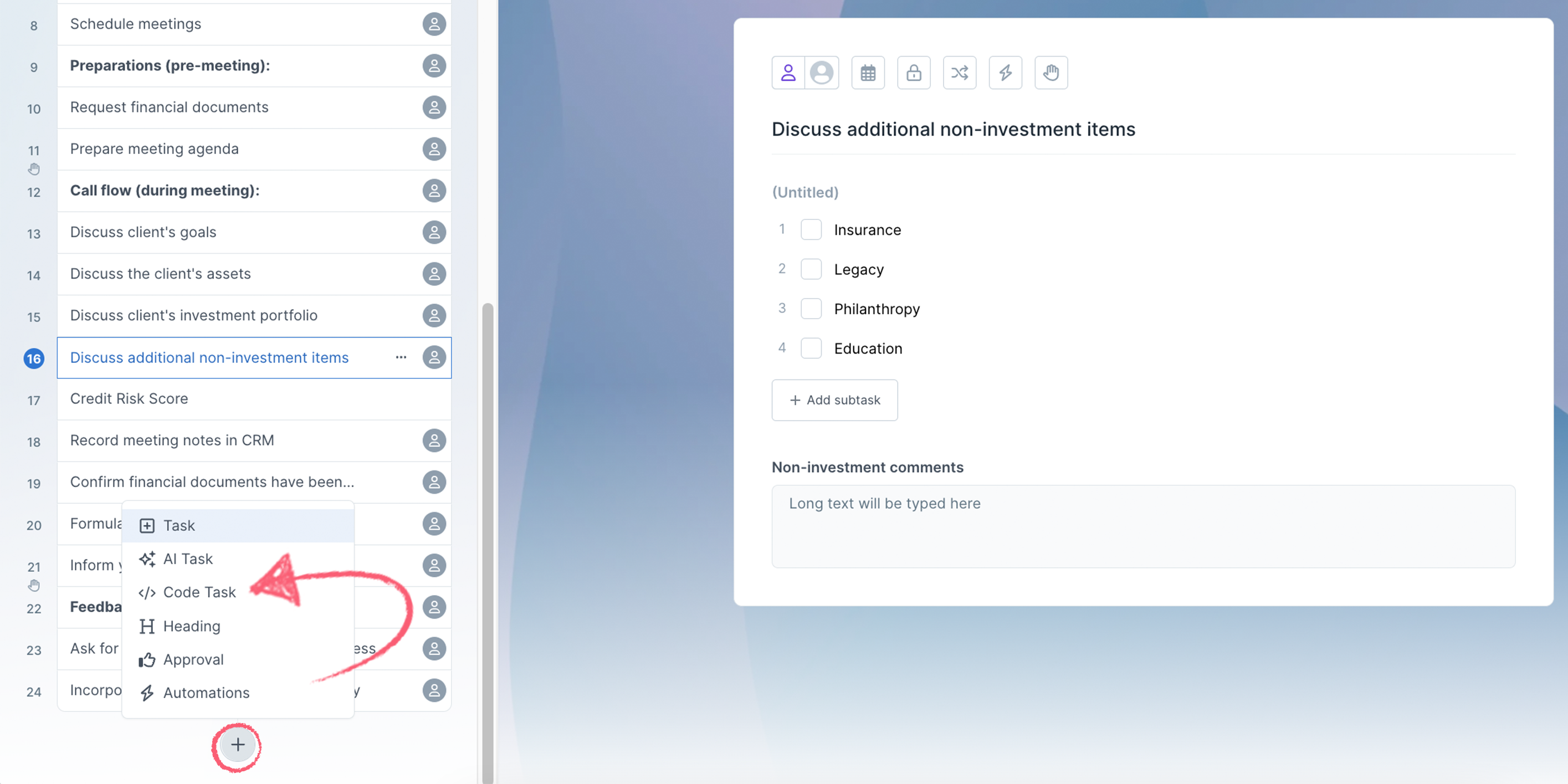
Click the dropdown shown in the image below to select a prebuilt function.

Under the Input data section, click + Add value to add more input fields, or use the trash can to delete the ones you don’t need.
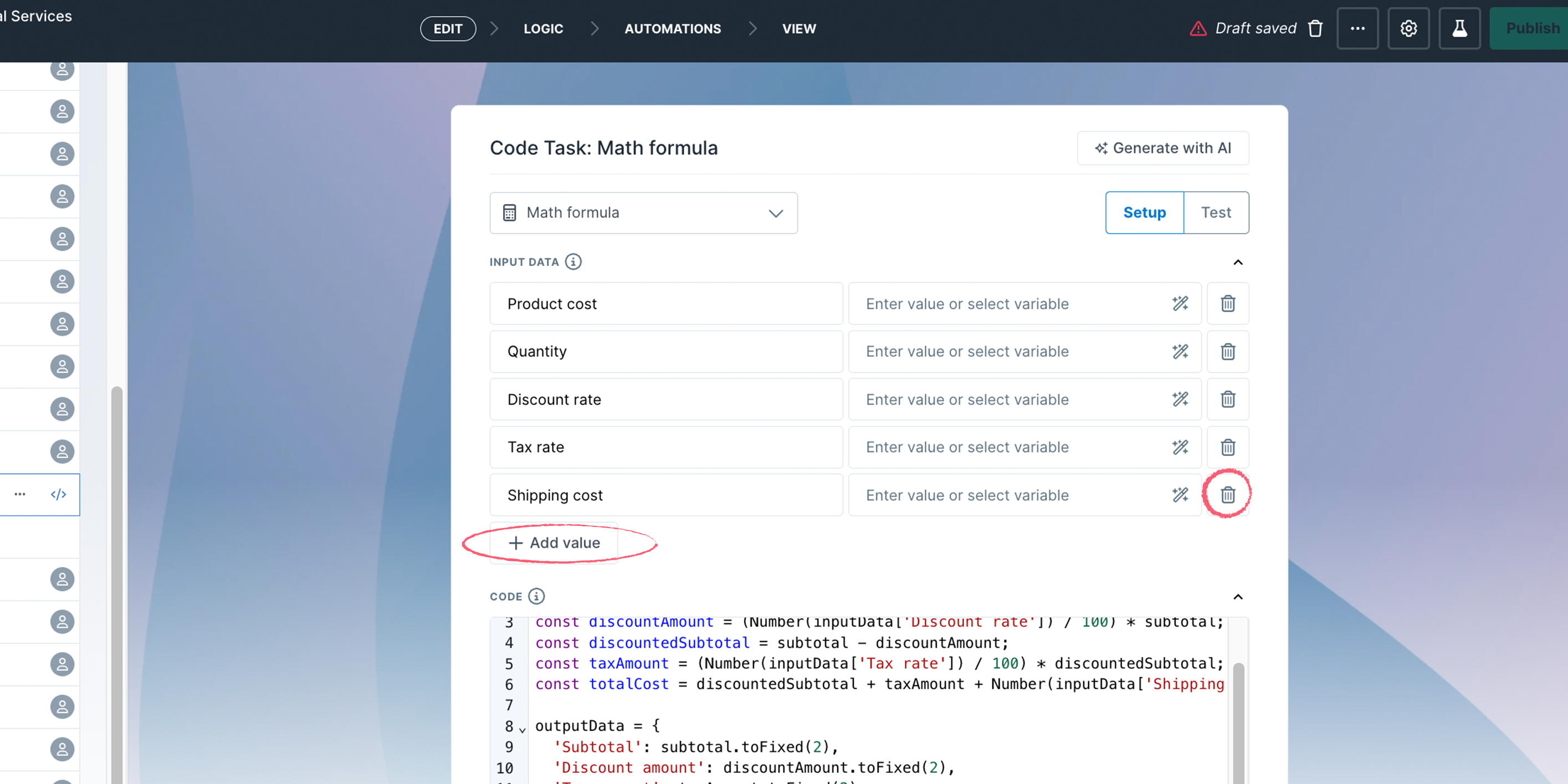
These values can be manually entered or pulled from previous workflow tasks as variables. A manually entered value for the API call would be your API key, for example.
Input form fields you can use are:
Output form fields you can use are:
Note: In workflow view mode, other users won’t see API keys or other static values in your input fields unless they have edit permission on the workflow or they are an admin.
Click Generate with AI to let our AI wizard create the code for you.
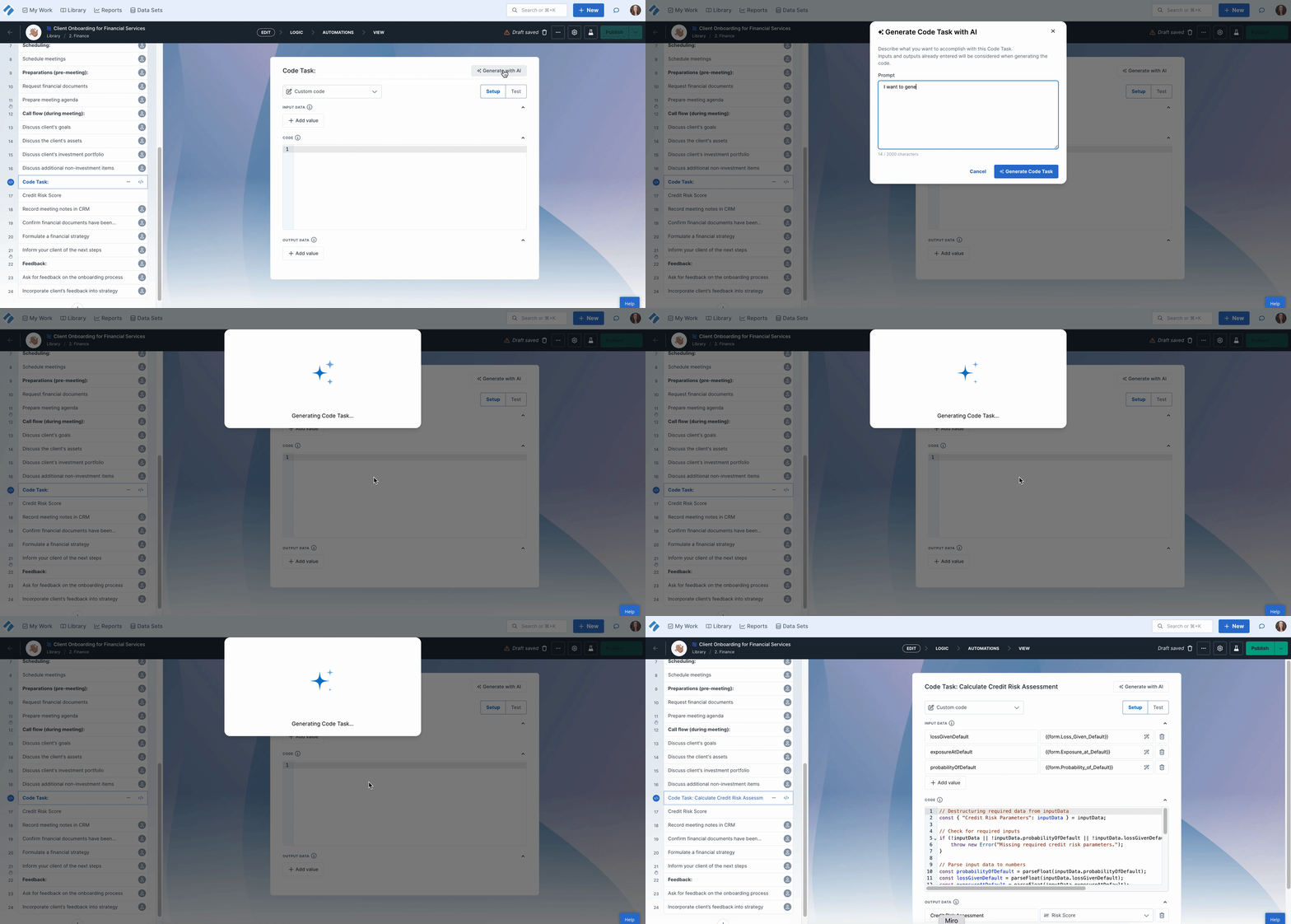
Simply write a prompt and the Code Task looks at your existing input and output form fields and adds these in for you, ready for testing.
If you’re already familiar with JavaScript and don’t need presets or AI generation, you can write and execute fully custom JavaScript logic.
Input fields can be accessed by reading keys of the inputData variable and Output fields can be written by setting keys of the outputData variable.
Example: The Code Task has an input called “Customer Name” and an output called “Address”. They can be accessed in the following way:
const customerName = inputData[“Customer Name”]
outputData[“Address”] = “599 Broadway, New York, 10012”
When you’re done setting up your inputs, outputs and code, you can go ahead and test it.
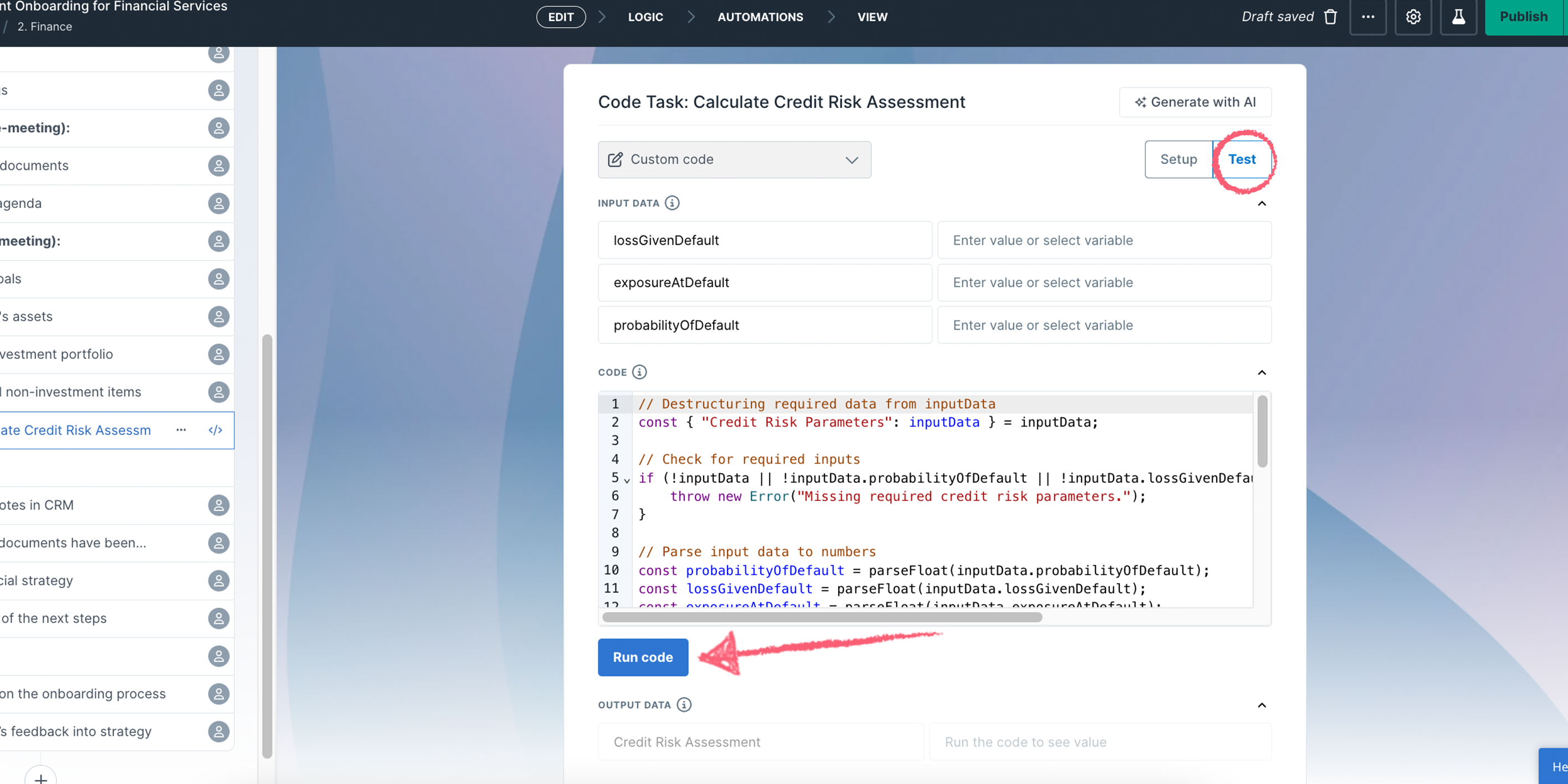
Note: When you preview a Code Task, it uses real secret values if you have edit permission on the workflow. A Code Task that calls a live external service (for example, creating a record or sending data via API) will actually call it during a preview. Keep this in mind when testing code that has side effects.
At this point you can go ahead and preview the Code Task in the editor, or publish it ready to be used.
Workflow secrets let you store sensitive values like API keys, tokens, and credentials at the workflow level. Every Code Task in the workflow can access them without pasting keys into input fields.
To add a secret, open a Code Task and use the Secrets area, or click the workflow’s … menu and select Secrets. You can also hide a value typed into an input field by clicking the eye icon next to it. This only hides the value on screen, so use a secret for API keys and other credentials.

Reference a secret in your code using the secrets object. For example, to use a secret named STRIPE_SECRET_KEY:
const apiKey = secrets.STRIPE_SECRET_KEY
Unlike regular input fields (which use inputData), secrets have their own dedicated object. The code editor autocompletes secret names when you type secrets., so available names appear as suggestions.
Once a secret is saved, its value cannot be viewed again. You can replace it with a new value or delete it, but the original is never displayed. Secrets are encrypted at rest.
If your code returns or logs a secret value unchanged, it appears as *** in the output and logs.
All Code Tasks in the same workflow share the workflow’s secrets. Anyone who can edit the workflow’s code can use those secret values, so limit edit access to people you trust with the credentials.
Secrets are excluded when you duplicate a workflow, export it, or copy it to another organization. The new copy starts without any secrets.
A workflow can hold up to 50 secrets, each up to 4 KB.

Use the lock icon in the Workflow editor to set task-level visibility. Since these tasks don’t require user action, only “View” and “No Access” permissions apply.
What happens when you hide a task? It still runs. Behind the scenes, your Code or AI step will trigger when the prior task is checked, even if no one sees it.
Note: If you require longer than 5 seconds per execution, please contact our Support team or your Account Executive.
What happens if my script exceeds the limits?
If a script exceeds execution time or memory limits, it will be terminated, and an error will be returned.
Can I make API calls within a Code Task?
Yes, but keep in mind the execution time limit (5 seconds) when making network requests.
What version of Node.js does Process Street use?
Code Tasks run on Node.js 22.
Are there any rate limits?
Currently, no rate limits apply.
Can I use third-party libraries?
At the moment, only native Javascript functions are supported – external libraries cannot be imported. See the list below for allowed globals.
How do I debug my Code Task?
Use the Test feature to run the code and review the output. Debugging logs can be added using console.log().
What timezone do Code Tasks use?
All date/time operations in Code Tasks follow UTC timezone, regardless of account settings.
Where can I get support?
For advanced JavaScript issues, consult a developer.
Process Street provides support for how the Code Task processes code but does not debug user scripts.
All standard Javascript built-in objects are available (e.g. Math, Date, RegExp) and the following Node.js globals:
Help us improve this help center.