Many teams use a plethora of tools in their day-to-day operations which can be hard to manage.
If your business uses Slack, then our Slack App gives you a shortcut to Process Street, bringing your workflows and tasks directly to where your teams are working.
You can add it to one Slack workspace, more than one workspace or organization-wide in Slack.
Connect Process Street to Slack now:

Users: All users can access the Slack App.
You can work on tasks, approvals, and complete workflow runs without needing to open Process Street.
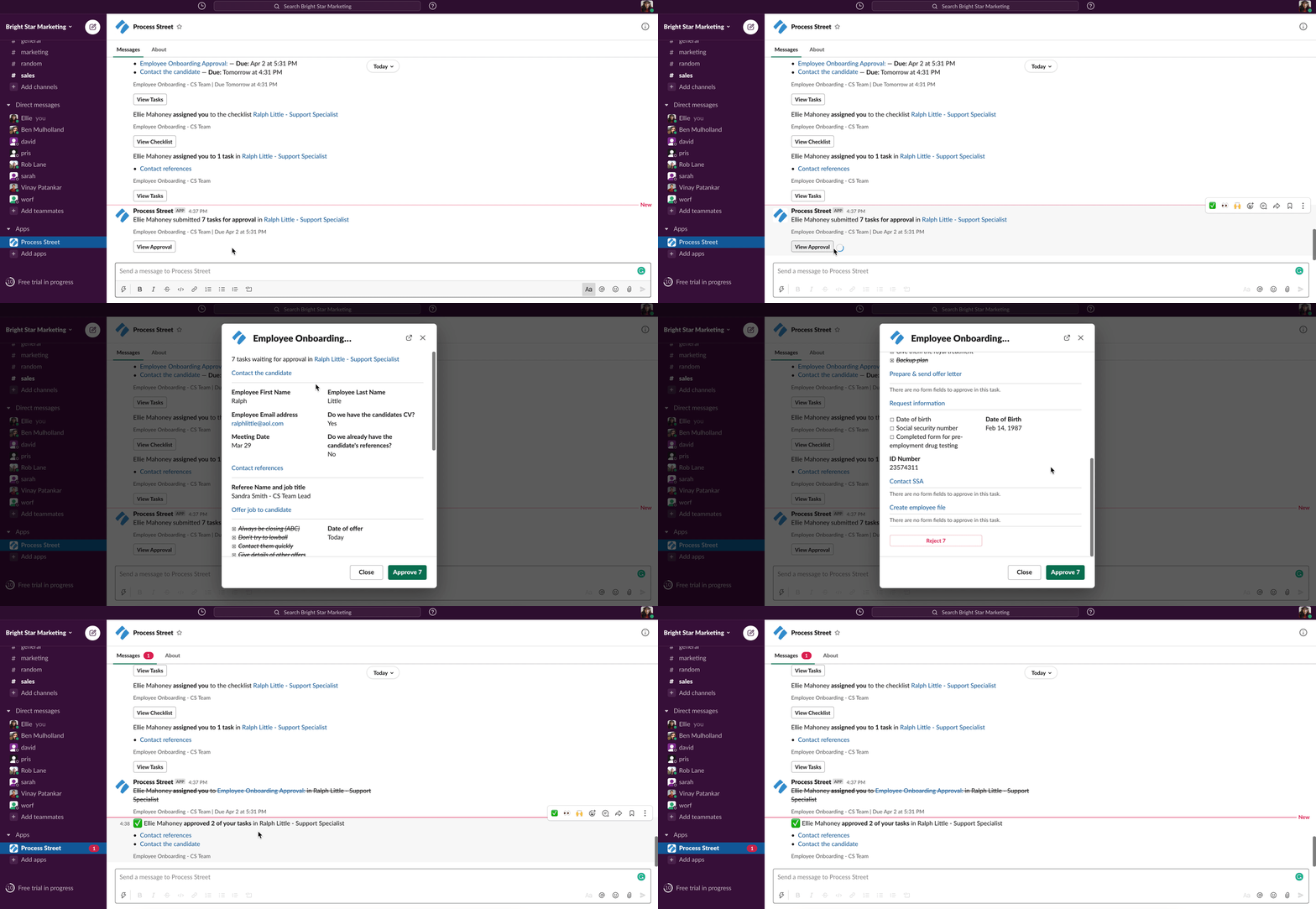
When you’ve been assigned to a task, you can fill out form fields and use features like the email widget, stop tasks and conditional logic, all from Slack.
And for tasks you’ve been assigned to approve, you can approve or reject them with the click of a button.
To add a comment to a task, click Add comment in the task view. A modal opens where you can type your comment and post it. The comment is delivered through all the same channels as a web comment (inbox, email, mobile, Teams, Zapier, and more). Comments posted from Slack do not support attachments or @mention notifications.
When you open a task from a run’s task list or from a “your tasks” message, Previous (←) and Next (→) navigation buttons appear alongside a position indicator (for example, “Task 3 of 12”). Use these to move between tasks without returning to the list. Completing or approving a task automatically opens the next uncompleted task, so you can work through a run sequentially. When no uncompleted task is left below it, the view returns to the task list.
Note: Tasks opened from a single-task assignment message do not show navigation buttons.
All of your Process Street notifications will appear in Slack. You will receive instant notifications when:
This means that you could turn off your email notifications from Process Street and focus entirely on what’s happening in Slack.
This allows you to focus on the work that’s important to you, without navigating away from Slack. And you’ll have one less tab open on your browser 😉
The Slack app’s Home tab shows your My Work list, the same tasks, approvals, and workflow runs you see in the web app. Items are grouped by due date: Overdue, Due today, Due this week, Due this month, Due later, and No due date.
Each item shows its name, its workflow run, and its due date. Click View to open the task or approval directly in Slack.
The list shows up to 20 items, sorted by due date (most urgent first). When there are more, a link to My Work in the web app appears at the bottom. Click Refresh at the top of the tab to update the list. The Home tab also refreshes automatically after you complete or approve a task opened from it.
When your My Work list is empty, the tab shows a “you’re all caught up” message.
You can set up the app in any or all of your Slack workspaces.
To add the app across multiple workspaces, you can set this up from the Integrations section of your admin dashboard in Slack. Learn more about managing apps on Enterprise Grid.
Login to your Process Street account and your Slack account to get started.
Search the app directory for “Process Street” and choose the app shown below.
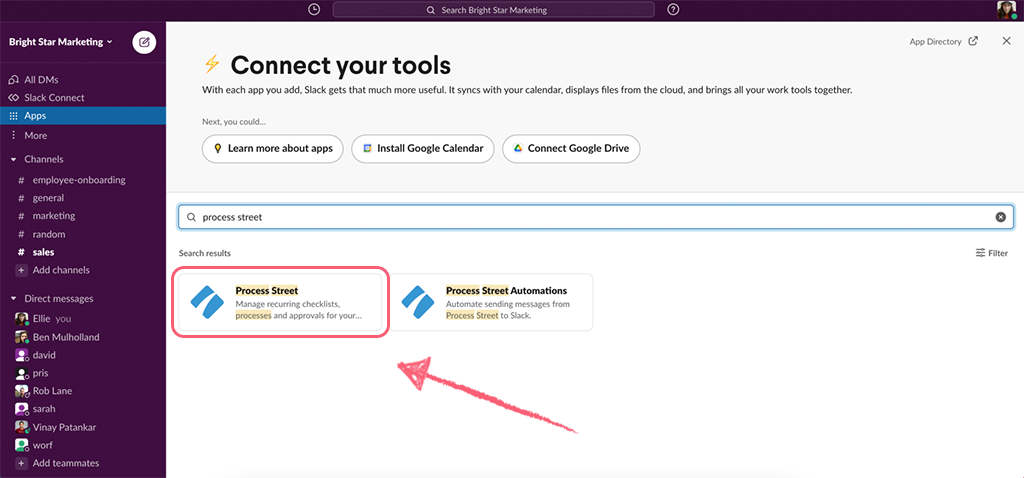
Only one person needs to add the app from the directory, which makes it available for your whole workspace.
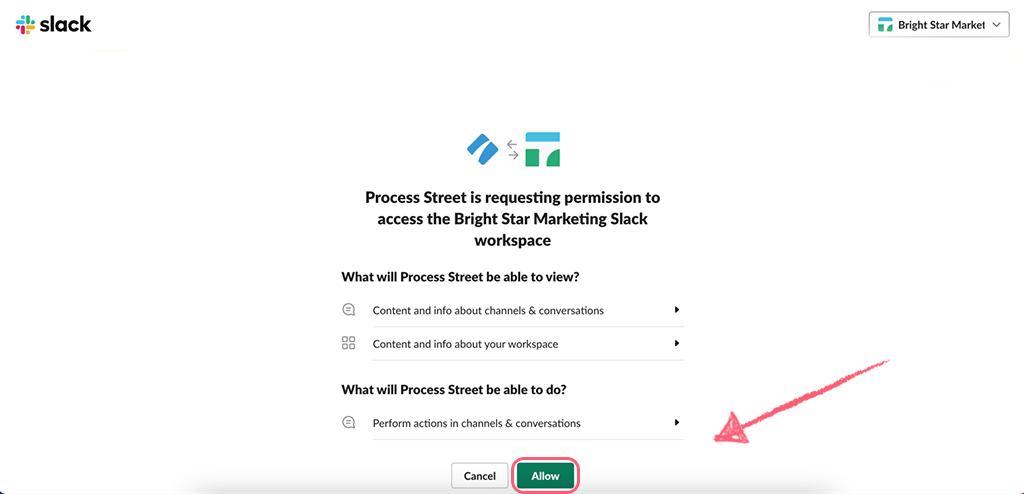
Click “Allow” which creates a new channel for you, ready to start receiving notifications and tasks to work on.

Once you have authorized your new organization, you will receive a message like the one below, after which you and your team can start working directly from Slack.

Upon installation, Process Street for Slack will automatically detect if your team members are using Slack. Those who are will start receiving notifications for any task assignments, approvals, due dates, or mentions without any extra configuration on their part.
The Slack App notification works for the Guests of your Slack workspaces as well. This will work for them in the same way as it does for your regular members as mentioned above.
Note: If the app is removed, this removes it from the entire workspace, not just for that user.
Manage app installation settings for your workspace in Slack.
If you @mention colleagues from a Process Street organization, they will also need to have installed the Slack app for the same organization to receive notifications from you.
If you want to stop notifications at any time type “disconnect” in the Process Street Slack channel, or “connect” to start receiving notifications again.
You can adjust how you see or hear Slack notifications on desktop, iOS or Android by configuring your notifications in Slack.
If you have multiple organizations in Process Street, you can configure the desired organization for your Slack app.
To do this, navigate to your Process Street app in Slack. Switch to the About tab and click on Configuration. You will be redirected to your Slack app directory where you can make the changes.
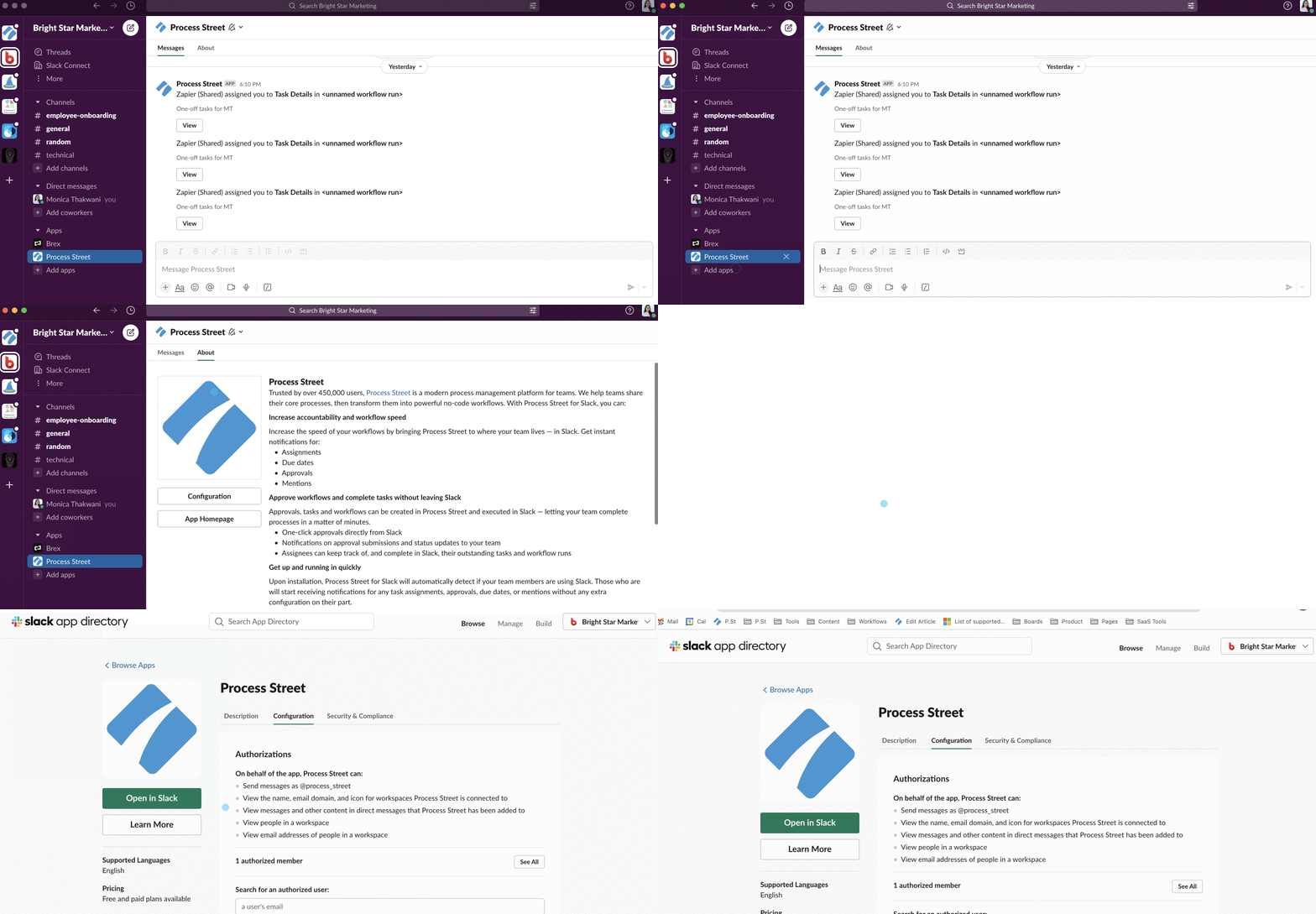
Navigate to the top right corner, where you can switch your Process Street organization then click Open in Slack to be taken back to your Slack app.
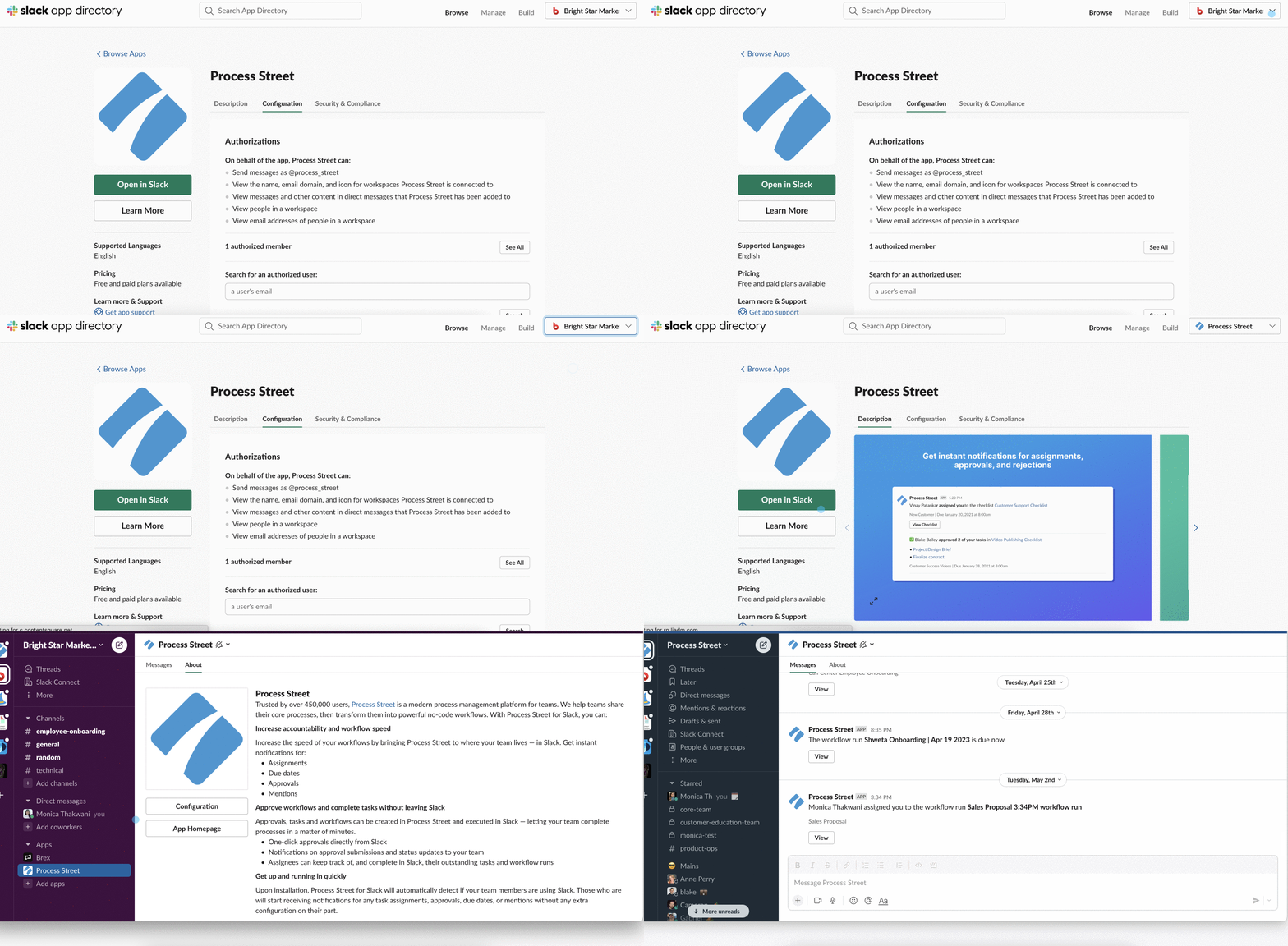
In Slack, switch to your desired organization and go to the Process Street app. In the Messages tab, send the message disconnect. Once disconnected, send the message connect to receive notifications from the corresponding organization.
There are certain actions that you will need to open up a workflow run or sign into Process Street to perform.
You’ll need to open a workflow run in Process Street to:
You’ll need to sign into Process Street to:
The Process Street Slack app is available in English.
If English isn’t your first language, you can translate messages inside Slack.
By installing or using the Slack app you agree to our privacy policy.
Help us improve this help center.