IT security processes are repeatable procedures that protect systems, data, access, networks, and incident response. The best ones do not live in someone’s head or a one-off spreadsheet. They are assigned, run, documented, and reviewed.
This IT security checklist covers eight practical workflows your team can run in Process Street: privileged password management, daily network administration, network security audits, firewall audits, VPN configuration, Apache server setup, email server security, and penetration testing.
Linux server security starts with hardening the basics: patching packages, reducing exposed services, tightening SSH, enforcing sane account controls, and monitoring for suspicious changes.
This Linux server hardening checklist pairs hands-on sysadmin commands with current context for cloud and VPS environments where a small missed setting can become a production incident.
In this article, we’ll take a look at the foremost standard for information security management – ISO 27001:2013, and investigate some best practices for implementing and auditing your own ISMS.
Here is a summary of what we’ll cover in this Process Street article:
Between you and me, I was hacked; by my best friend no less! Thankfully, it was just an irritating prank, but it served to teach me a lesson.
Despite my grandiose beliefs that I knew everything I needed to know about all things digital, I hadn’t the faintest idea about how to spot a fraudulent message from a legitimate one. And this kind of threat is one of the biggest risks businesses face today.
In 2005, 157 data breaches were reported in the U.S., with 66.9 million records exposed. From 2005-2014 there was a 500% increase in data breach frequency.
That number almost doubled in 3 years to 1,579 reported breaches in 2017.
Although data breaches have since declined (1,506 issues were reported in 2019), IBM’s 2020 Data Breach report filed a 12% rise in data breach costs over 5 years, increasing to ~$3.92 million per incident.
The growing number of breaches and associated costs seems to be consequential of continuously changing hacking methods and an expanding number of entry points (that comes from digitization).
Security audits allow organizations to set up tougher walls of safety, as an adaptive defense against data breach threats.
With this in mind, Process Street created this article as your ultimate security audit guide, with access to our free security audit checklists and processes.
This is a guest post by Jack Warner. Jack is an accomplished cybersecurity expert with years of experience under his belt at TechWarn, a trusted digital agency to world-class cybersecurity companies. A passionate digital safety advocate himself, Jack frequently contributes to tech blogs and digital media sharing expert insights on topics such as whistleblowing and cybersecurity tools.
Why did you choose the browser you’re currently using?
If your answer is along the lines of “because everyone uses it“, you might want to rethink your choice.
Unfortunately, popularity is not inextricably linked to security. And in a world where cybercrime is ever more prevalent, privacy should be your utmost concern when you’re choosing a browser to surf the web. By 2021, online miscreants are expected to cause a whopping 6 billion dollars in damages. From a business perspective, you have no good reason to shoulder the risk that comes with a lack of sufficient browser security.
In this guest post for Process Street, I’ll discuss how different browsers fare at preserving your privacy and maintaining security, on top of providing ten tips to stop you and your team from falling victim to data breaches.
Read through the following sections to get clued up:
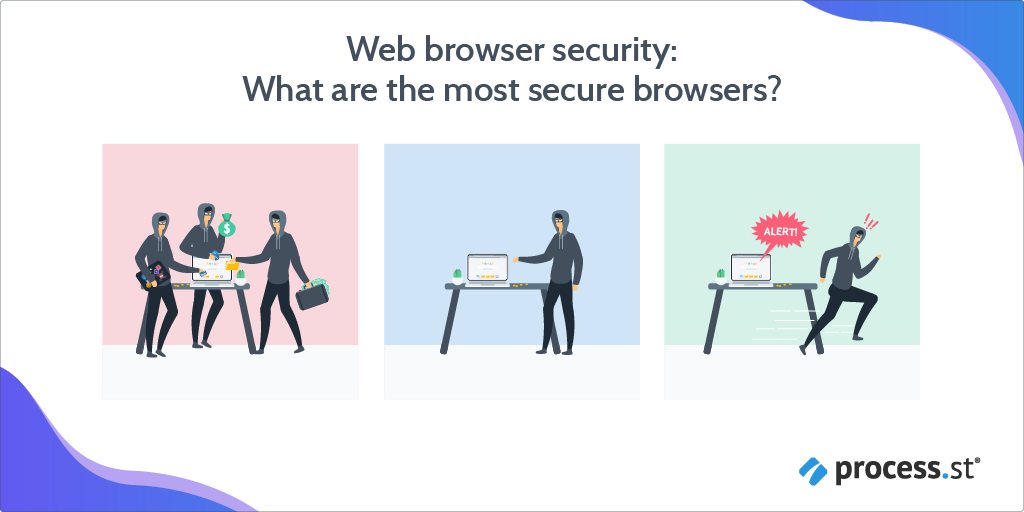
Web browser security: What are the most secure browsers?
In this section, I’ll go over which web browsers are best at guarding you online. They go in descending order, meaning the best options are near the top, while the not-so-great options are by the bottom.
You may notice the top candidates on the list aren’t familiar names — you probably haven’t heard anyone tell you to “Chromium it” or “search on Brave” before. And while popular names such as Safari and Google are indeed included, their celebrity status alone won’t count towards a higher standing.
So, let’s start at the top!
The most secure browsers #1: Tor
Tor is a free and open-source software that holds privacy in high esteem. So much so, that The Tor Project (the main non-profit organization developing Tor) offers users a bounty to hack the browser and expose software flaws in the interest of strengthening security.
Tor uses a technique they call onion routing to preserve anonymity, which works by routing traffic through multiple servers to make it harder to trace information back to an origin point, with added encryption to boot. These relays are run by thousands of Tor volunteers, and the browser boasts millions of users.
The Tor browser is considered the best for interference-free online pursuits although, as a result, certain major services (and governments) block it.
The most secure browsers #2: Mozilla Firefox
Despite a long and successful history as one of the most popular browsers on the planet (in 2010 it was second only to Internet Explorer), Firefox appears to have garnered a reputation for being bloated and unstreamlined. In recent years, however, Firefox has undergone a substantial rebranding effort and made changes that earn Firefox a place on the forefront of browser innovation.
Firefox has always been a privacy-first browser, and Mozilla has recently implemented a wide array of integrated features to shield users from online snooping that are worth considering. This includes automatically blocking third-party trackers and the ability to monitor password breaches.
In February 2020, Firefox made the switch from HTTPS to encrypted DNS to lower the risk of your website browsing habits getting intercepted. There are also over 2,000 Mozilla-made extensions related to privacy protection!
The most secure browsers #3: Brave
Brave is the brainchild of Brendan Eich, the creator of JavaScript and co-founder of the second-most secure browser on the list, Mozilla Firefox.
The Brave browser eliminates the need to mix and match plugins for security: It’s built by default to block scripts, trackers, and ads. It also safeguards users from malware, phishing, and malvertising.
As of March 2020, Brave is the sole browser that offers secure cryptocurrency exchange. The company partnered with cryptocurrency giant Binance to debut a built-in widget for this purpose.
The most secure browsers #4: Yandex
Yandex has an inbuilt security system named “Protect” that covers users against typical online threats by blocking virus-riddled sites, encrypting credit card data, and scanning data files. Secure Wi-Fi switches on automatically when you connect to a public network.
Despite pressure from the Russian security agency Federal Security Service (FSA), the company refused to share encryption keys that would potentially compromise its users’ activities.
The most secure browsers #5: Chromium
If the name sounds somewhat familiar to you, that’s because Chromium is an open-source project funded by Google. Developers can build upon the source code to customize new browsers to their preferences.
Chromium itself is relatively similar to its dominant counterpart, Chrome, but it transfers less user information to Google. It employs a multitude of security tactics including encryption, verified boot, secure auto-update, and more.
Chromium is also transparent about finding and resolving bugs. Users are encouraged to report them and you can see a list of existing issues to know what’s going on.
The most secure browsers #6: Opera
This browser has been around since 1995 but has never quite managed to overtake the big players such as Safari and Chrome. Opera combats opportunistic advertisers online through a native ad-blocker. A tracker blocker works against standard methods of data collection, such as tracking pixels and analytic scripts.
Take note that these features aren’t all active by default. Users must go into their privacy settings and tinker with them to ensure all defenses are up.
The most secure browsers #7: Safari
Safari is designed to safeguard Apple device owners from a host of common digital menaces. It shields against malware and malicious code through sandboxing, a technique that restricts what websites can do when you access them. A 2020 update meant Safari will only accept sites with HTTPS certifications issued within 13 months.
The privacy settings on the browser are modifiable, although you’ll have to take the initiative to change them. Safari allows users to disable location services, stop collecting browsing data, and delete history at set intervals.
Still, you should be aware that Apple might share your IP address with Tencent or Google while you browse.
The most secure browsers #8: Chrome
Google’s expansive methods of tracking its Chrome users prompt warranted privacy concerns. However, it has security in the form of sandboxing, predictive phishing protection, and site isolation.
The only caveat is that limiting the data the company gathers and bulking up on security involves manually altering a few settings. You can disable autofill of sensitive information and passwords and prevent auto-syncing to keep your activity private.
Note that true anonymity will be a challenge on Chrome. Your location and data advertisers can track are still visible even in Incognito mode.
Edge was launched in 2015 to replace Microsoft’s default browser Internet Explorer, with disappointing results. A lack of compatibility with other websites, among other flaws, made Edge a paltry substitute for the majority of users.
The 2020 version of Edge is Chromium-based and includes security in the form of Microsoft Defender SmartScreen, a tool to warn users about sites that could contain malware or phishing scams. Edge users can also adapt their privacy settings to control how much data they expose while browsing.
Unfortunately, Edge still doesn’t hold up to the competition: One study revealed it’s one of the least secure browsers available.
The most secure browsers #10: Internet Explorer
Yes, Internet Explorer still exists — although it hasn’t been updated in years. This means if you’re still using it today, you’ll want to consider a safer option.
Microsoft’s Security Chief warned users against using Internet Explorer, cautioning that it should only be used for sites that rely upon it (e.g. company sites built upon it).
Additionally, since January 2020, Microsoft has phased out support for Internet Explorer. If that isn’t sufficient motivation to try another browser, bear in mind hackers have already found ways to exploit IE’s vulnerabilities.
There you have it.
Some insights into what browsers to use and which browsers you shouldn’t use (that’s Edge and Internet Explorer, just to reiterate.)
Now it’s time to move onto the next part, where I’ll discuss how you can keep both your browser and business safe with these simple, straightforward recommendations.
10 tips to digitally secure your browser & business properly
Prevention is always better when it concerns cyber-attacks and interference.
Let’s look at ten easy measures you can take to stay on the defensive while online.
Web security tip #1: Install a VPN
Download a VPN for your browser from a reputable company. VPNs encrypt internet traffic and activities, keeping users safe from advertisers, attackers, and other types of online snoops. A VPN allows you to conceal your location and prevent your Internet Service Provider (ISP) from tracking you, among other things.
Completely free VPNs might appeal to your budget but, as discussed earlier, they aren’t as formidable as advertised. In some cases, they could actively sabotage your privacy rather than protect it.
Public WiFi is tempting to use, but the freedom of working at the airport or a hotel lobby comes at a cost of decreased security. Cybercriminals can easily intercept all information sent over the network.
Always take precautions when indulging in open WiFi, such as using a VPN blocker, disabling sharing settings on your device, and avoid connecting to these networks unless it’s essential.
Web security tip #3: Install and update antivirus software
As cyber criminals grow increasingly adept, antivirus software should be obligatory for all devices. A quality antivirus does more than deflect threats, it can also detect insidious attacks that can do serious damage if missed.
Keeping on top of updates is crucial. Users may find frequent notifications demanding an update pesky, but these improvements fortify the software against new, sophisticated menaces.
Helpfully, there’s a lot of freemium software out there when it comes to antivirus choices.
Web security tip #4: Explore privacy settings
The default configuration for many browsers may not necessarily be the most secure option. It’s best to double-check the privacy settings to see what is enabled and what isn’t. Familiarize yourself with your browser. Security basics include blocking third-party trackers, activating ad blockers, and automatically deleting cookies after a certain period.
Make sure that browser updates are auto-installed, or follow up with new updates as needed. As established by the earlier example of Internet Explorer, an outdated browser is a security hazard.
Web security tip #5: Don’t download suspicious files
This tip is self-evident but it bears repeating. If you receive an attachment or file from an unknown email address or number, err on the side of caution and don’t open it.
Executable files — ones that end in .exe — are red flags as they’re capable of running programs. Still, always examine attachments carefully, even if they’re from someone you know. A zip file or document could still conceal malware.
Web security tip #6: Steer clear of dangerous websites
A website can be just as treacherous as a file if it’s compromised. Fortunately, most browsers will warn users if a site looks suspicious or outright block them from accessing it.
One of the telltale signs of a dodgy website is no HTTPS certificate, which allows for encrypted data transfer. A site that demands login information without it is high-risk.
If you receive a website link that appears unusual (e.g. an extra-long URL that has spelling errors or includes punctuation), don’t click it. Suspicious domains are routinely collected and exposed by various institutions: If you aren’t certain about a particular site, look it up first.
Oversharing can have dire outcomes, both online and offline. Kaspersky Labs found that over 70 percent of people allow their significant others access to their personal devices. A disgruntled ex can share anything from passwords to addresses online.
On the same note, identity thieves can use social media accounts as a fount of information. Set all of your accounts to private rather than public and don’t accept random followers.
If you receive communication (such as an email) from a trusted organization or company requesting personal information, play it safe and go through the official website in a separate tab to verify.
Web security tip #8: Be careful where you shop
Scammers profit from the convenience of online shopping to trick unwary victims.
Watch out for ads offering discounts or deals from preferred brands. They may not be genuine: Head to the official manufacturer website to check instead.
Pay via credit card rather than a debit card, or use third-party merchants that add a layer of protection between personal payment information and the seller.
If the retailer is lesser-known, look up reviews online to see if they’re flagged as unscrupulous.
Web security tip #9: Use strong passwords
There’s a reason why many companies enforce specific password requirements, such as including special characters or adding at least one capital letter. Passwords act as the primary barrier between private data and prospective hackers.
Invest in coming up with tough-to-crack combinations, such as random sequences of numbers and letters. Create passwords that are long and try not to use existing words in any language.
Set up different passwords on separate accounts, so that if one is breached it won’t compromise all of them.
Web security tip #10: Screen internet friends carefully
You can befriend new people online, but keep your cards close until you can establish that you’re speaking to someone genuine. Use reputable applications that require identity verification, and don’t share private details off the bat.
Helpful tips, right?
Do keep in mind, though, that staying safe online involves an amalgamation of approaches. The more methods you employ to guard against attackers and snoops, the better protected you will be.
Speaking of which, BPM software such as Process Street can be another added approach to help remain secure in the digital world.
Here’s how.
Take control of your IT and security processes with Process Street!
For a visual introduction to their awesome software, watch the video below.
In terms of how Process Street can specifically help with security, I have wonderful news: There are easy-to-use security-related templates you can add to your account and use straight away!
From managing privileged passwords to responding to a security breach, these checklist templates have you, your browser, and your business at-large covered.
Like the look of these templates but want to create your own from scratch? The good news is that’s entirely possible, too. And you don’t have to create templates only for your security and IT processes – you can create them for anything!
What’s more is that the above templates – in addition to any you create yourself – can be superpowered by Process Street’s workflow automation features.
With all the information, tips, and free templates I’ve provided you throughout this post, you’re ready to make security issues – particularly browser security issues – a thing of the past.
Here’s to using technology safely and securely.
Are you a pro when it comes to security and, in particular, browser security? Are there are any tips and tricks you’d like to share with the rest of the Process Street community? If so, write them in the comment section below!
This is a guest post by Sam Bocetta, a retired engineer and current freelance journalist who specializes in writing about cyber defense, data privacy, and online security.
Cybersecurity is a process, not an event.
Though there are some tools and systems that you can put in place to dramatically improve the security of your workflow, in reality the best way to protect yourself against hackers is to stay constantly vigilant for emerging threats.
For this reason, rigorous cybersecurity practices should be built into your general workflow. They should be an integral part of building a knowledge management system, and integrated into everyday business practices.
One of the most powerful ways of doing this, and one that will also ensure that you don’t miss anything important, is to use checklists to codify daily, weekly, and monthly security tasks.
This system should also clearly indicate responsibility for each task, and specify mitigation steps should any issues be found.
Before specifying the tasks that should be part of your security workflow, let’s look at why having a regular security checklist is so important. Continue Reading
The following is a guest post by Alex Mitchell, a cybersecurity enthusiast, WordPress guru, and data-safety tools tester with over 10 years experience.
Everybody knows Big Brother is watching. We usually imagine that surveillance happening while we sit at a desk, but business travel changes the risk. A familiar device moves through airports, hotels, conference venues, and border controls, often carrying access to company systems and sensitive information.
Optional cookies and similar technologies support analytics, advertising and visitor identification, and embedded content. Change or withdraw consent in Cookie settings. Cookie policy.