The Organization Manager lets you view and manage user permission levels for your organization’s folders, folders, Workflows, Workflow runs, tasks and Pages.
You can view and manage the permission levels of users in your organization from your organization manager area.
You can grant users one of four different user-level types, depending on what you need them to do and how much access you want to grant them. Users can be Admins, Builders, Users or Guests.
Users: Only Admins can invite and manage users.
Team Expansion
When onboarding a new colleague, invite them as a Builder. Later, if they take on a leadership role, promote them to Admin.
Temporary Access
Invite consultants or auditors as Guests for limited access during specific projects.
Open the organization manager by clicking your profile picture in the upper right corner of your screen, then clicking “Settings”.
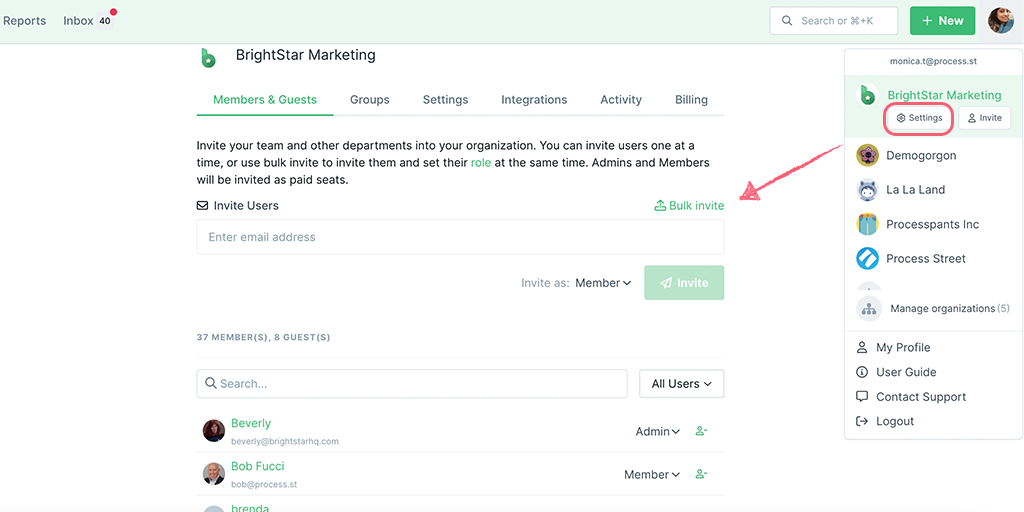
This is where you can find a list of your current Admins, Builders, Users, and Guests. You can also invite new users or remove existing users from here.
Pro tip: To see a complete view of what any user has access to—folders, workflows, forms, pages, data sets, and saved views—use the Access tab. Open a user’s profile and select Access to see their full permission tree at a glance.
You can invite a user to your organization by typing their email address and clicking “Invite”. This will automatically add them to your organization.
You can invite users as Users or Builders, and then leave them on that status, or promote/demote them according to the user type you want to assign to them.
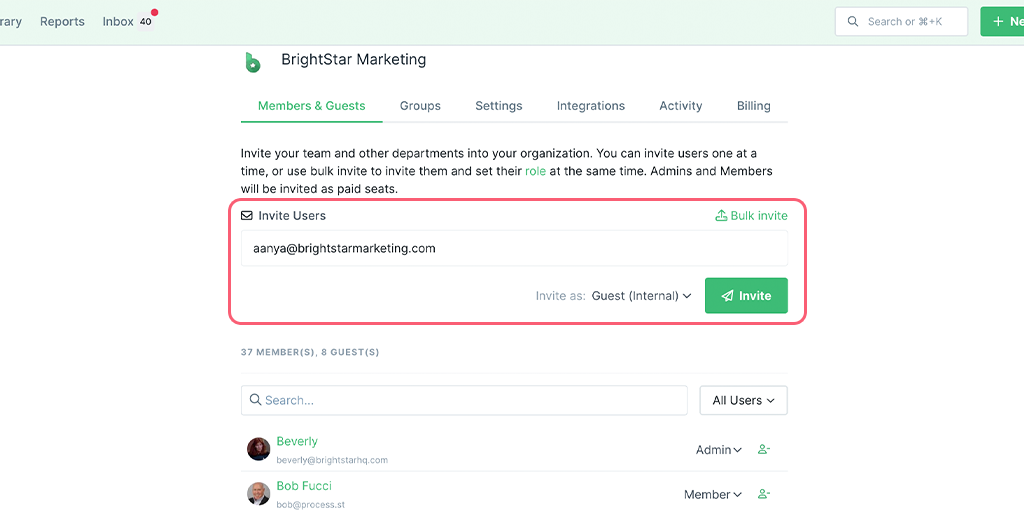
You can see a count of the total number of people (which includes Admins, Builders, Users and Guests below the email field, shown above.
Note: On paid plans, if you have already used up your limit, you will be billed pro-rata for each new person, at the point you invite them. Check your current subscription rate from your billing page to see how adding another person might affect your billing.
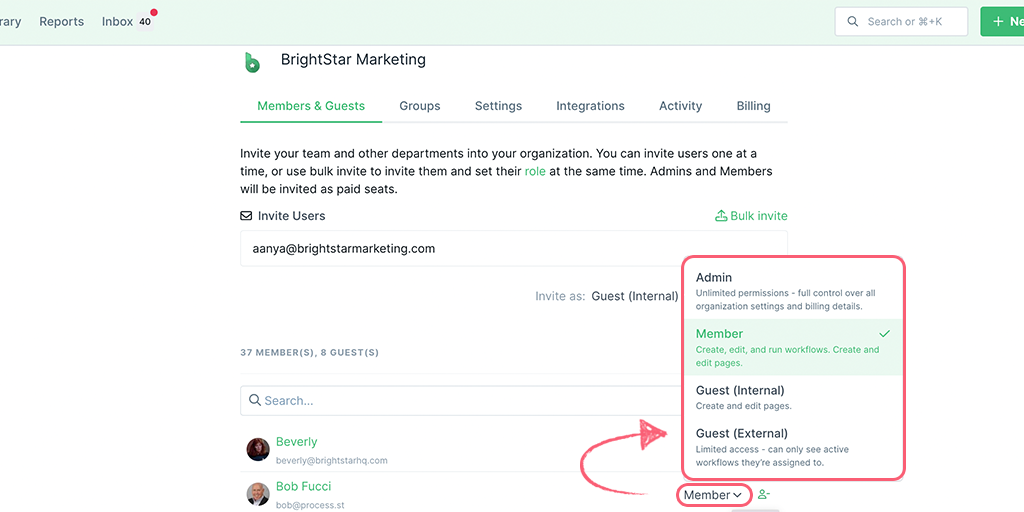
To promote a Builder to an Admin, click on their current user type and select “Admin”.
A User can be demoted to a Guest by clicking their user type dropdown and selecting “Guest”.
Click the “Remove user” icon to remove a user from your organization.
Invite Not Received
If a new user does not receive an invite, ask them to check their spam folder or verify that the email address was entered correctly.
Billing Concerns
Review your billing details to understand potential additional costs if you are approaching your limit on a paid plan.
Learn more about user permissions and the differences between builders and guests.
Help us improve this help center.